Using SharePoint as a DAM can work well for a modest library
The useful question is how much media-specific work your team expects the library to do. Product images, large video, design files, usage rights and occasional external visitors can all be handled, but they may ask for additional configuration and ongoing care as the collection grows.
This guide looks at what a thoughtful SharePoint setup involves, and where a focused DAM may reduce some of the media-specific work.
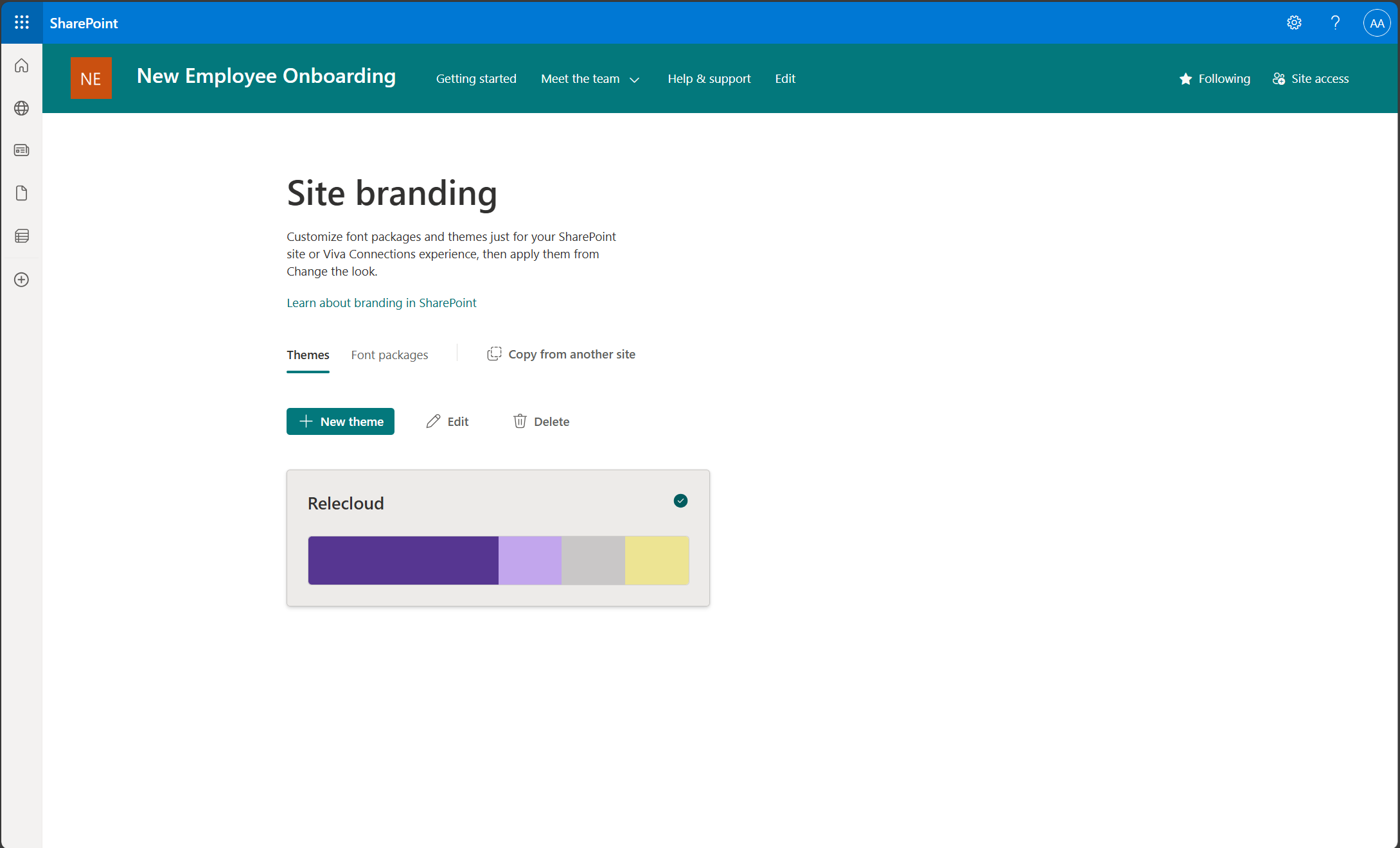
A current Microsoft SharePoint screen from Microsoft Support, shown in the context of the product rather than presented as a specialist media library.Source
What SharePoint provides, and what the team designs
What SharePoint gives you — and what you build
Useful building blocks already available
Document libraries and version history
Columns, content types, managed metadata, and views
Microsoft Search and Office file integration
Site, library, folder, item, and guest permissions
Retention, records, intranet, and SharePoint collaboration
Power Automate as an extensibility layer
Questions for the media-library design
Which media formats preview well and which need another service?
How are approved renditions generated and withdrawn?
How do rights, expiry, approval, and permitted use stay attached to the asset?
How do non-specialists search by subject, appearance, campaign, or product?
What do agencies and partners see, and who maintains that surface?
Who owns every column, view, flow, permission, and support request?
The work behind a comfortable library
The work behind a comfortable SharePoint library
That investment can be entirely reasonable, particularly when the collection is contained and the organisation already has people who understand the platform. The important part is to include that care in the decision from the beginning.
Libraries and content types
Decide whether assets live together or in separate libraries and which schemas apply to each class of content.
Columns and managed terms
Model campaign, product, market, rights, status, and other fields with clear ownership and required values.
Views and search
Create usable views, filters, refiners, and search experiences for people who do not know the folder structure.
Power Automate
Design flows for review, notifications, movement, rendition work, or lifecycle changes—and maintain them over time.
Permissions and guests
Define site, library, folder, item, and external-sharing boundaries that remain understandable as the estate grows.
Operating ownership
Assign an owner for taxonomy, access, automation, search, training, support, and future change requests.
Trying the files marketing actually receives
Test the formats marketing really uses
Begin with the formats that tend to create a question or a workaround
Office documents and common images may behave exactly as expected, while a large video, RAW camera file, layered Adobe document, vector, audio file or production PDF reveals a very different workflow. Put those real examples into the proposed library before deciding how comfortable the experience will be.
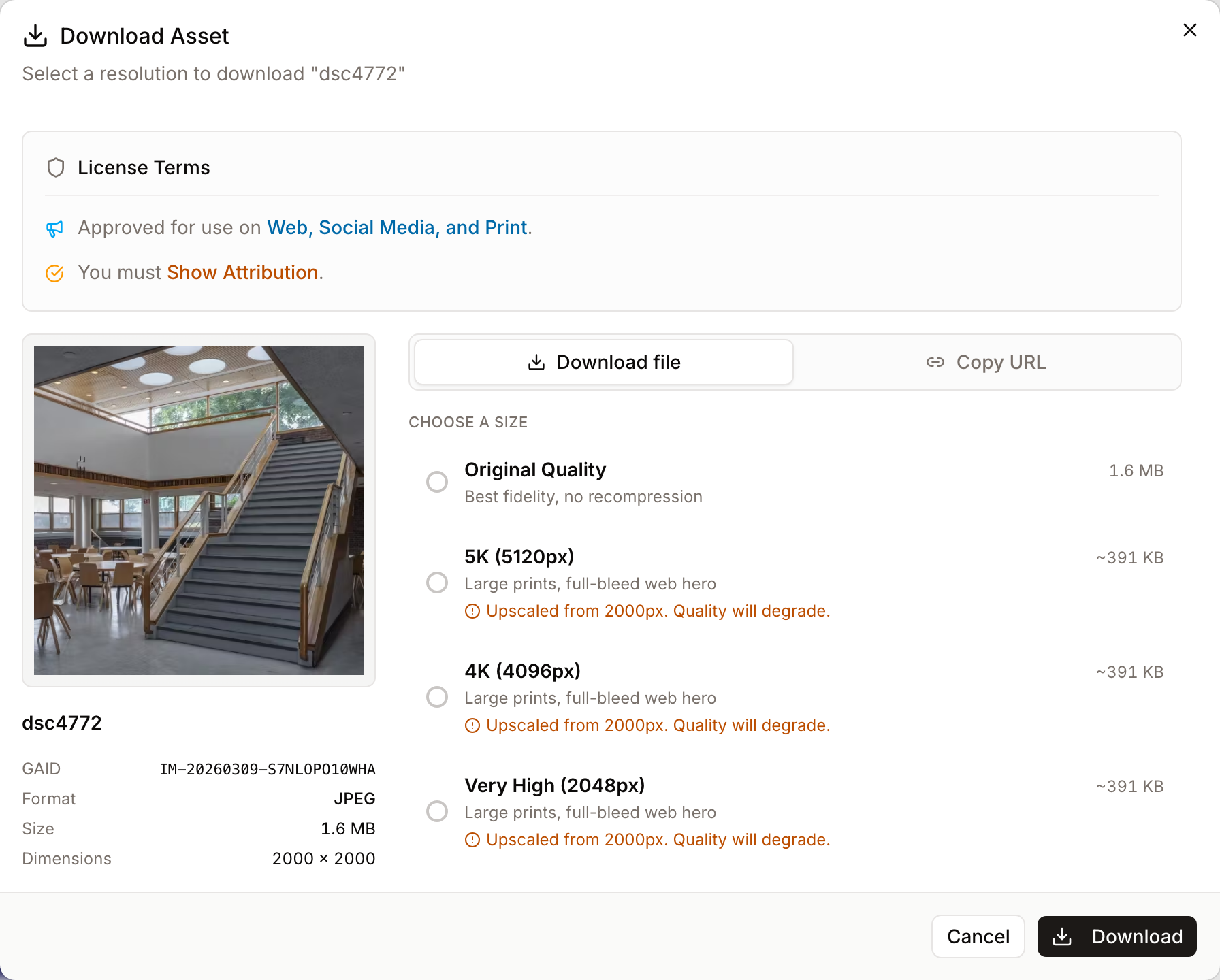
It is also worth following the file through to delivery: can a colleague choose a web-sized image, receive a watermarked preview or download the original, and what happens when one of those renditions needs to be replaced or withdrawn?
A focused DAM treats the preview and the permitted download rendition as part of the asset workflow.
Metadata that reflects real questions
Design search around real questions
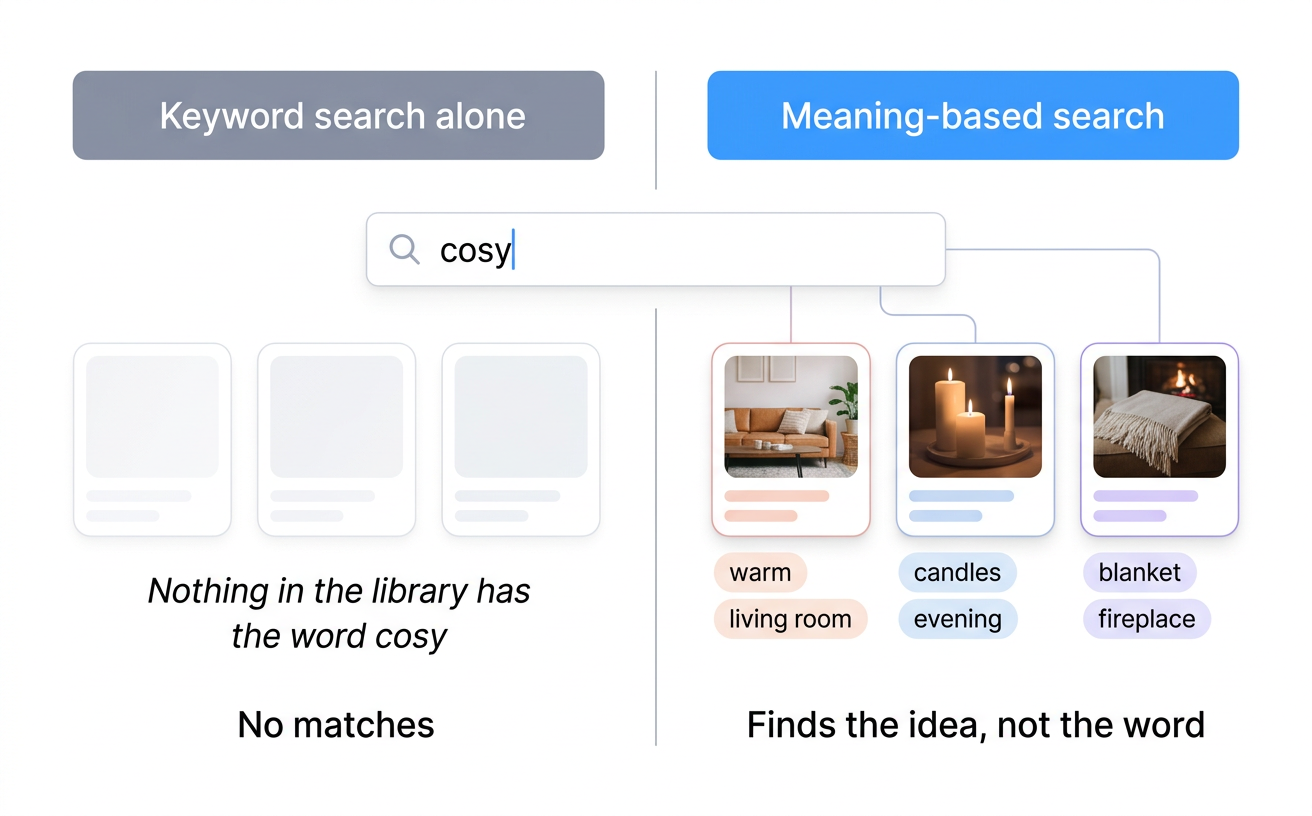
DAM discovery can combine keyword, structured metadata, semantic meaning, and visual similarity over the same assets.
Test the search with people who did not design the library
SharePoint can work very well when the schema and managed terms reflect the organisation’s own language. Ask somebody outside the project to find “the lifestyle image with the green product”, a product code or a local campaign name, then adjust filenames, metadata, refiners, synonyms, acronyms and multilingual terms around what you learn.
When somebody outside the company needs a file
Plan the experience outside SharePoint
SharePoint route
Design sites, libraries, guest access, conditional access, sharing policy, navigation, and support around SharePoint identities and external collaboration requirements.
Focused DAM route
Curate a read-only public portal, published pages, active public collections, protected live shares, or signed-in access around approved media and governed download rules.
Life after the launch project
Who looks after it after launch?
New content, search tuning, guest reviews and support continue after the first library is published. A focused DAM also needs ownership and thoughtful curation, but previews, renditions, asset versions and portal behaviour remain product features rather than pieces your team has assembled.
Situations we often hear about
SharePoint is enough when
The library is smaller, changes at a measured pace and is weighted toward Office documents and common file formats. SharePoint users are the main audience, and the existing guest-access approach already serves outside collaborators well. An IT or platform team is comfortable owning the configuration, search, permissions, flows and support lifecycle. Retention, records and intranet concerns matter more to the collection than visual discovery and media delivery.
Situations where less may be enough
A focused DAM may help when
Useful previews, download renditions, visual discovery and technical media details are central to the everyday work. Marketing regularly handles version checks, rights questions, expiry and requests from people outside the team. Agencies, sales teams, dealers, distributors or press contacts would benefit from a curated self-service destination. The SharePoint configuration and maintenance backlog is beginning to feel like a media-software project of its own.
A practical way to decide
Test both systems with one campaign
Inventory the real media formats, sizes, asset volume, and growth rate.
List the questions people use to find assets, not only the current folder names.
Define required metadata, vocabularies, approval states, rights, and expiry handling.
Test browser previews and download renditions for the formats people use most.
Map internal roles, external guests, public content, and original-file download policy.
Name the person or team responsible for libraries, flows, permissions, search, and support.
Run the same campaign workflow in the configured SharePoint design and a focused DAM before deciding.
Questions buyers ask
Before you make the change
Does SharePoint include digital asset management?
SharePoint provides document libraries, metadata columns, content types, views, search, permissions, versioning, retention, and automation building blocks. A DAM-style media experience is an architecture you configure on top of those building blocks.
What does a SharePoint DAM need to be usable?
At minimum: a deliberate library structure, content types, required columns, governed vocabularies, useful views, search configuration, version rules, permissions, external-sharing policy, and an owner for Power Automate flows and ongoing changes.
Where does SharePoint work well as a DAM?
It can work well for a smaller, document-heavy collection used mainly by Microsoft 365 users, especially where retention, intranet publishing, and Office collaboration matter more than visual media discovery or partner self-service.
When should a team add a focused DAM?
Consider a DAM when media previews and renditions, visual or semantic discovery, asset-level rights, approval status, repeated external requests, and partner-facing distribution become recurring operational requirements.
Continue exploring
The SharePoint guide series
Four longer guides with the numbers behind this page: what SharePoint can do with media, what each option costs, how the two systems share the work, and how a migration runs.
Whether you are trying to improve the library you already have or considering a separate home for marketing media, these pages take the next step in the discussion.
You can explore search, previews, rights and public access in a focused DAM, then take those observations back to your SharePoint design even if SharePoint remains the right answer for your team.