
Admin Assistant
The Admin Assistant answers questions about your workspace setup in plain language. It can explain the screen you are on, check a form before you save it, tell you what is not configured yet, and look up why someone can or cannot see an asset. When you ask for a change, it prepares a proposal that you review first: nothing is applied until you click Apply.
It is available to anyone with at least one administration permission, on plans that include it.
Open the assistant
There are three ways to open it:
- From any screen, click the Loop icon in the header. The assistant opens in a panel on the right, next to the screen you were working on.
- With the keyboard, on any screen, press
?and thenA. The shortcut does nothing while you are typing in a field. - As a full page, open Administration → Loop, the first entry of the menu, under Assistant. From the side panel, Open full page does the same for the current conversation.
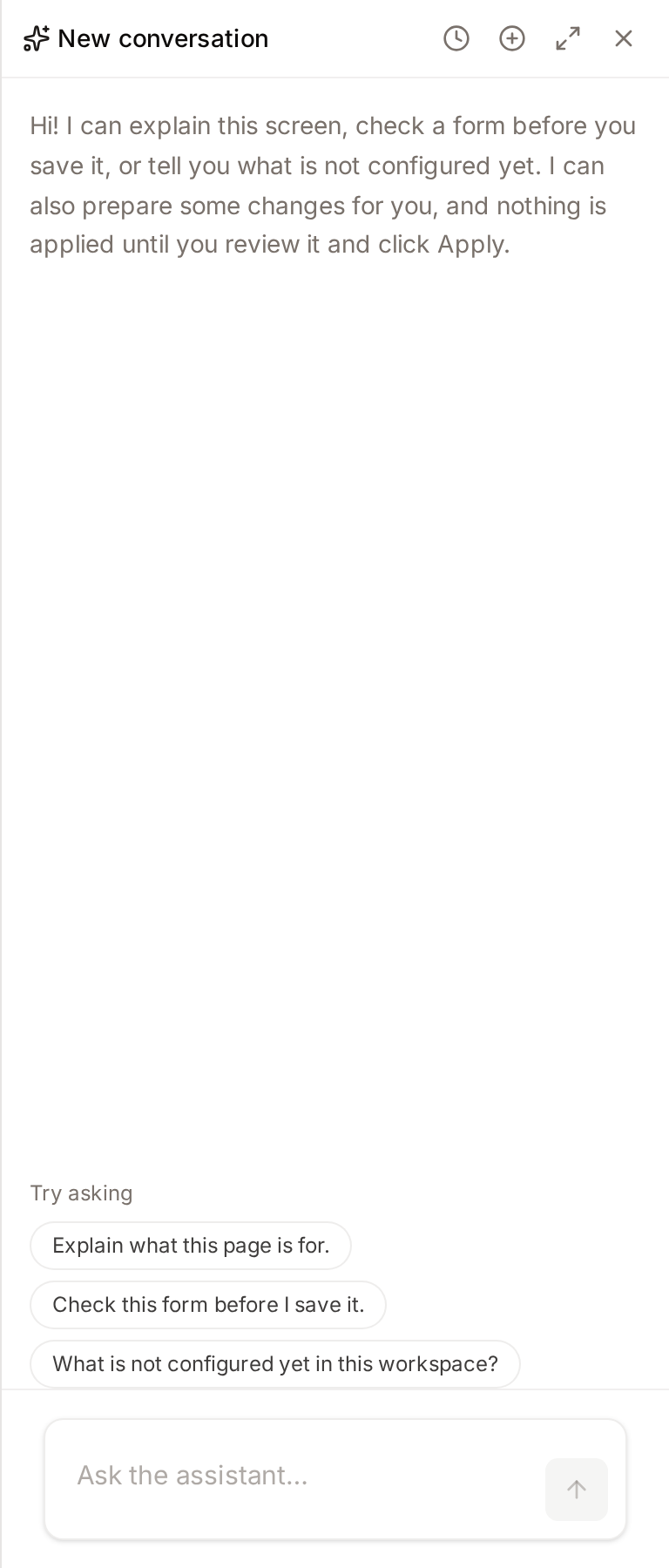
The side panel stays open, with the same conversation, while you move between screens. Drag its left edge to make it wider, and press Esc to close it.
If your plan does not include the assistant, clicking the icon opens an upgrade dialog instead. See Plan & Usage.
Ask a question
Type your question at the bottom of the panel and press Enter. While a conversation is empty, the assistant offers three starting points under Try asking:
- "Explain what this page is for."
- "Check this form before I save it."
- "What is not configured yet in this workspace?"
The assistant sees the screen you have open, including the values in its form, so questions such as "Why is this rule not matching?" work without extra explanation. Fields that look like secrets, such as passwords and keys, are hidden from it.
It answers in your interface language. When an answer comes from this documentation, Sources chips below it open the passage it used in a side panel, with a link to the full documentation page. When the right place to act is another screen, a Suggested screen card offers an Open button; the assistant never navigates on its own.
Good questions to try:
- "Why can't Maria download the assets in the Press collection?"
- "Which roles can publish pages?"
- "Set up single sign-on with Google for our domain."
- "Create a vocabulary for product lines with these terms: Outdoor, Kitchen, Lighting."
What it can change
The assistant can look up most of your configuration, and prepare changes in these areas:
| Area | Changes it can propose |
|---|---|
| Access Settings | Invitations, self-registration, accreditation, default role, allowed email domains, Google and Microsoft single sign-on |
| Asset Access Rules | Create rules, edit them, activate or deactivate them |
| Collection Rules | Create and edit rules |
| Collection Types | Create and edit types |
| Export Naming Rules and Filename Parsing Rules | Create and edit rules |
| Data sources | Create a source, disabled and without credentials, or edit one |
| Languages | Turn languages on or off, change the default language |
| Metadata fields | Create fields, edit their labels and settings |
| Roles | Create and edit roles and their permissions |
| Search settings | Change search configuration |
| User groups | Create and edit groups, add or remove members |
| Vocabularies | Create vocabularies, edit them, add terms |
It never deletes anything, never changes built-in rules or types, and never handles credentials.
The assistant always acts as you. It only offers changes you could make yourself on the matching screen. When you ask for something your role does not allow, it tells you which permission is missing.
Review and apply a proposal
When you ask for a change, the assistant shows a Proposed change card. Each change on the card is marked New when it creates something, or Change when it modifies something that exists, with a Field, Before and After table.
- Read every change and any amber warnings under it. Warnings explain side effects, for example that search results only update after the index is rebuilt.
- On a card with several changes, untick any change you don't want. A change that depends on another is unticked with it.
- If a change is sensitive, tick its confirmation box (see below).
- Click Apply, or Apply N changes. Click Discard to dismiss the card without changing anything.
The card then shows Change applied. If one change fails, the others that were already applied stay applied, the card shows Change partly applied, and each change is marked Applied, Failed or Not applied with the reason. A change you unticked is marked Left out.
A proposal expires 30 minutes after it is shown. If you ask again about the same thing, the newer proposal replaces the older one.
Sensitive changes
Some changes affect who can sign in, what people can see, or your own access. For these, the card shows a checkbox with the consequence spelled out, and Apply stays disabled until you tick every one. For example:
- "This changes how people join or sign in to the workspace."
- "People with the [role] role lose: …"
- "This changes your own permissions."
- "People added to [group] become tenant administrators: they manage the subscription and the whole workspace."
Changes to access settings and asset access rules are always sensitive. Changes to roles, group members, collection rules and data sources are sensitive when they have one of these effects.
Access impact
For changes to roles, group members and asset access rules, the card also previews the effect before you apply:
- Effect on permissions: how many users gain or lose each permission.
- Effect on asset access: which people can newly see, preview or download assets, or can no longer do so.
- What changes on the N most recent assets it covers: for an asset access rule, the effect on a sample of up to 20 recent assets, including for Public Portal guests.
When a change would lock you out of a screen, the card warns you.
Undo a change
After applying, the card shows Undo for 24 hours. Undo reverts every change on the card together.
Undo is not offered when reverting is no longer safe, for example:
- someone edited the record after the assistant changed it,
- a metadata field it created already has values on assets,
- a role it created has been given to someone,
- a data source it created has already run,
- you no longer have the permission to make the change.
Some effects are not reversed: a language you turned off is removed from people's preferences and undo does not add it back, and a search index rebuilt by undo takes time to catch up.
Conversations
- History lists your conversations, newest first. Only you can see your conversations.
- New chat starts a fresh conversation. The assistant names each conversation from its first exchange; click the pencil next to the title to rename it.
- To delete a conversation, open its menu in the history list and choose Delete.
- Conversations expire after 30 days without use.
The assistant remembers the last few exchanges of the current conversation. For an unrelated question, start a new chat.
Limits and budget
| Limit | What happens when you reach it |
|---|---|
| Daily budget for the whole workspace | From 80% of the budget, the panel shows how much is used. When it runs out, the assistant replies with matching documentation pages instead, until the next day. |
| 20 questions per administrator per hour | "You have reached the hourly limit for assistant requests. Please try again in a little while." |
| Lookups per question | The assistant makes a limited number of lookups for each question, then answers with what it found. For broad questions, ask in smaller steps. |
Where changes are recorded
Every change applied or undone through the assistant is recorded in the administration audit log as made by you, via the assistant, together with the time you confirmed any sensitive change. You can ask the assistant "What changed recently?" to see them, if your role can view audit logs.
Administrators with access to AI Operations can review assistant conversations under Chat Sessions, filtered to Admin assistant. The AI model the assistant uses is set there, under Operation Mapping, as the Admin Assistant operation.
Troubleshooting
The Loop icon is missing
The icon only appears for people with at least one administration permission, and is hidden on the assistant's own full page. If you see Loop at the top of the administration menu but not the icon, open the full page from the menu.
"Something changed since this proposal was shown."
The record was edited after the assistant prepared the proposal. Ask again to get an up-to-date proposal.
"This proposal has expired."
More than 30 minutes passed before you applied it. Ask again.
"The assistant could not answer right now. Please try again in a moment."
The AI service did not respond. Try again. If it keeps happening, check the Admin Assistant operation in AI Operations.
Related pages
- AI Operations: models, costs and conversation review.
- Access Settings, Roles, User Groups, Asset Access Rules: the screens behind the most common proposals.