
Suggestions as You Type
You don't need to finish typing - the search bar proposes matches the moment you start. Accepting a suggestion is often faster and more accurate than typing the whole word, and it helps you discover what's actually in your library.
What the Dropdown Shows
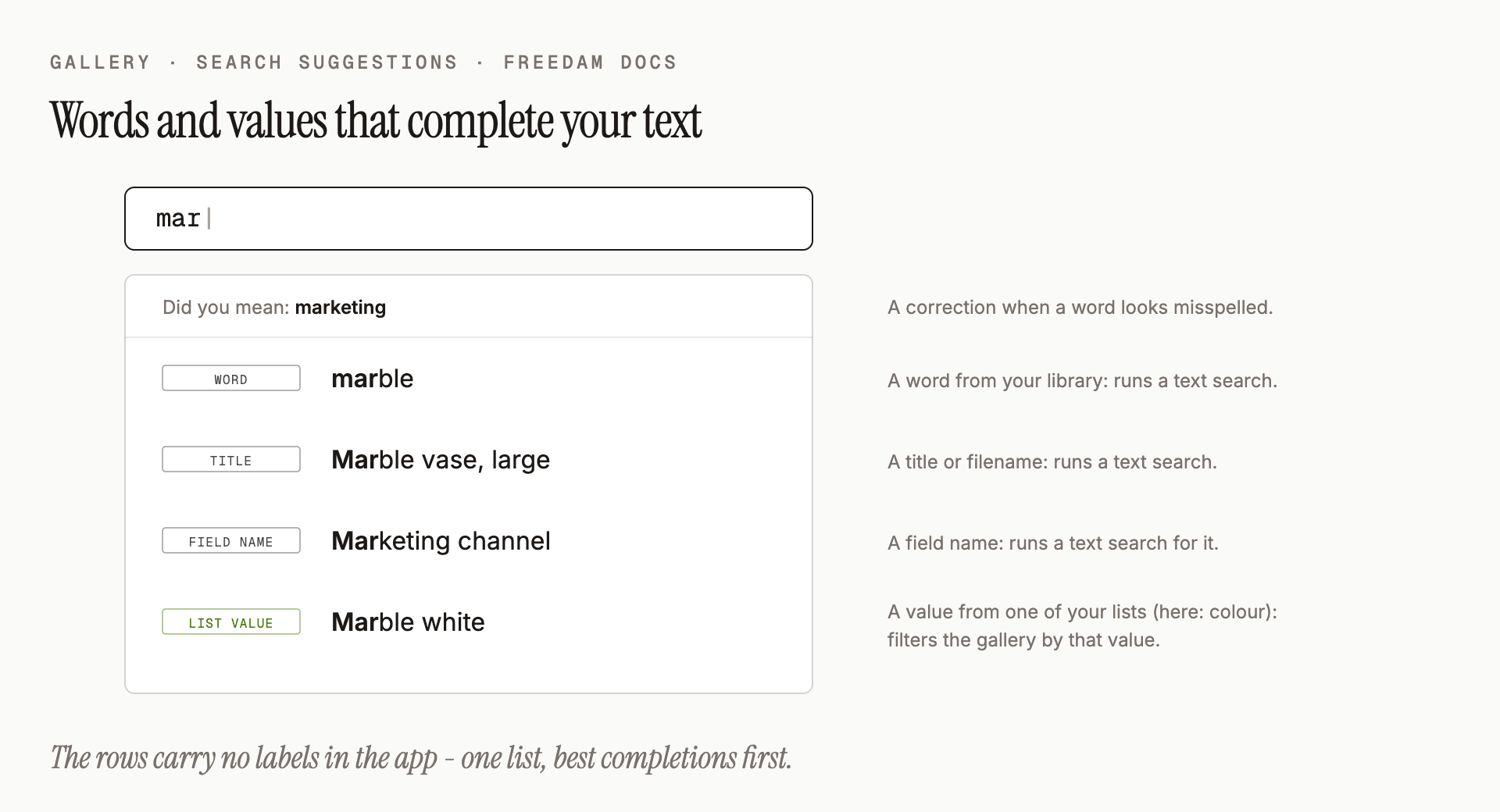
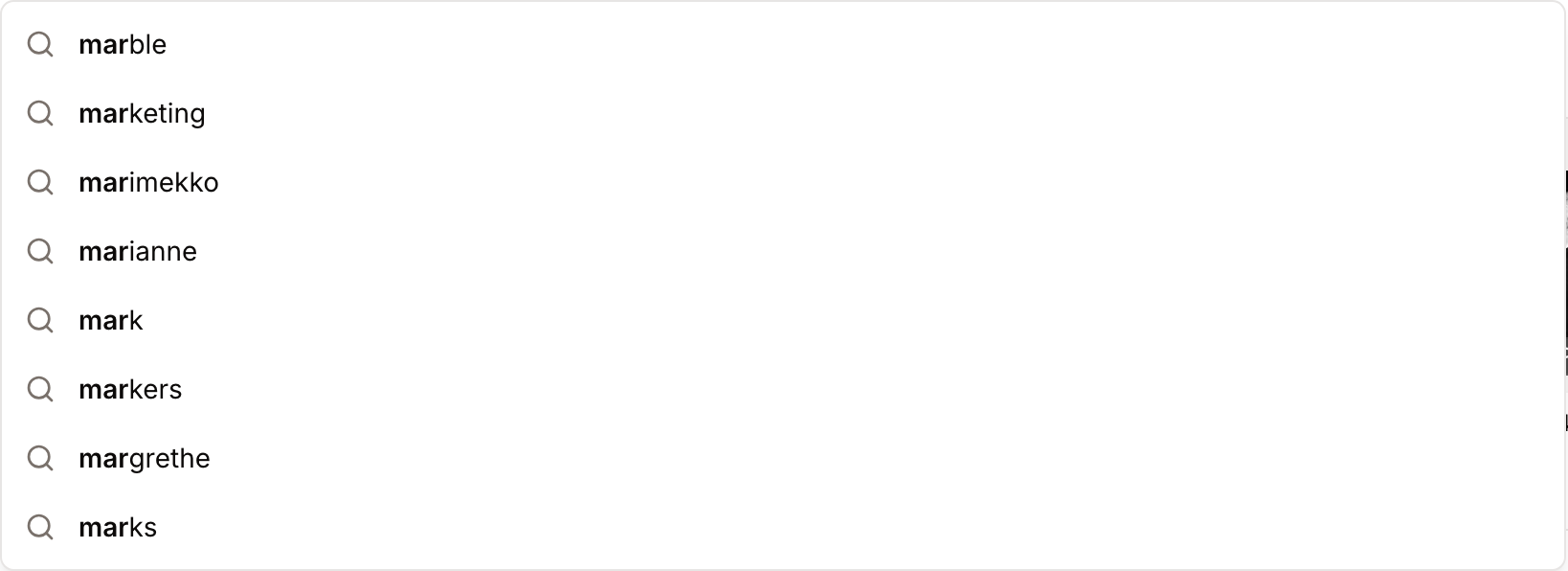
As soon as you type one character, a dropdown opens under the search bar with up to eight suggestions. Each row completes what you are typing:
- Words and phrases from your library: titles, filenames, tags, captions and other text. You type
sumand seesummer,summit,summary. Clicking one runs a text search for it. Full titles and filenames come only from assets you are allowed to see. - Field names, such as Location or Creator. Clicking one runs a text search for that name.
- List values, such as a colour or a brand chosen from one of your library's lists. Clicking one filters the gallery to the assets that carry that value.
When a word you typed looks like a misspelling of a word in your library, a Did you mean: row appears at the top of the dropdown. See Did You Mean?.
How to Use It
- Click into the Search assets… field.
- Type one character or more - the dropdown opens automatically.
- Pick a suggestion:
- Click it to apply it immediately.
- Or use the Up and Down arrow keys and press Enter.
- To search for exactly what you typed, press Enter without highlighting a suggestion.
- To close the dropdown without selecting anything, press Esc or click elsewhere.
Keyboard Shortcuts
- ↑ / ↓ - move through suggestions.
- Enter - accept the highlighted suggestion, or search for what you've typed if nothing is highlighted. Nothing is highlighted until you use the arrow keys, including the Did you mean: row.
- Esc - close the dropdown.
- Tab - close the dropdown and move to the next control.
Tips
- Type slowly enough to see results - the dropdown updates after a short pause. On a phone the pause is slightly longer; on a laptop it's almost instant.
- Search a single field by typing it. To search only titles, type
title: Q3 launch. See Keyword Search. - List value or text? A list value filters by that exact value, while a word searches the text of your library.
What You Won't See (By Design)
- The dropdown needs at least one letter before it opens.
- If there are no matches at all, the dropdown stays closed rather than showing an empty list.
Troubleshooting
The dropdown isn't appearing
- Make sure the search bar has focus (click inside it).
- Type at least one letter. If nothing shows, keep typing: a longer start of a word matches fewer, better completions.
- Check that you're not on a very slow connection - the dropdown waits for a brief moment before asking the server for results.
I see a suggestion that no longer exists
If you click a suggestion and get no results, the underlying word or value may have just been renamed or deleted. Type again and the dropdown refreshes with the latest content.