
Signing In
Every Freedam workspace has its own web address, for example yourcompany.freedam.io. You sign in on that address with the email address your administrator knows you by, using either a password or your company's Google or Microsoft account.
This page covers everything that happens before you reach the dashboard: signing in, resetting a password, creating an account, and what to do when your account is inactive.
Sign in
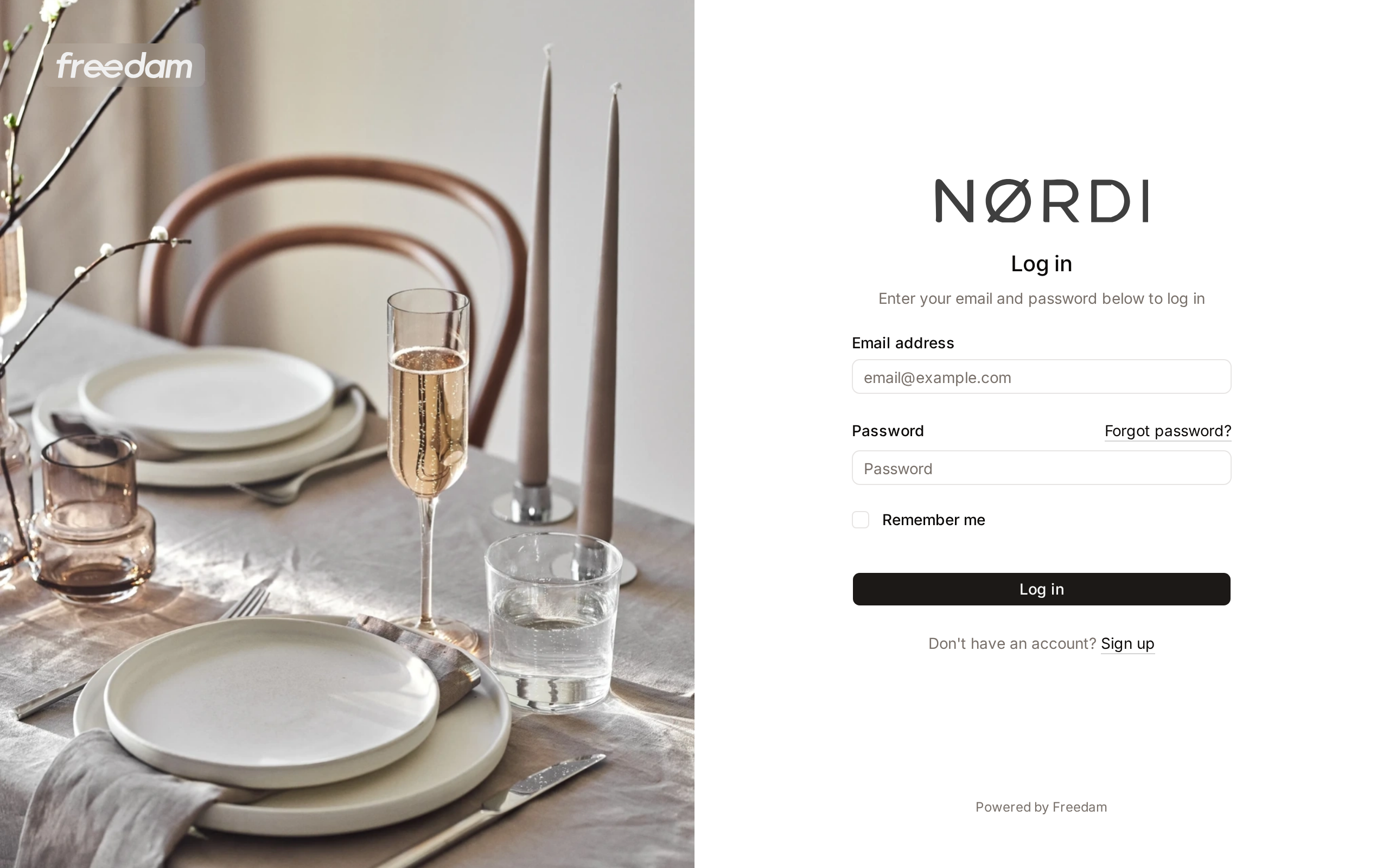
- Open your workspace address. If you are not signed in, Freedam shows the Log in page.
- Enter your Email address and Password.
- Tick Remember me if you want to stay signed in on this browser.
- Click Log in.
Freedam takes you to the page you were trying to open, or to your dashboard.
After 5 failed attempts with the same email address, Freedam asks you to wait before trying again. The message tells you how many seconds are left.
Sign in with Google or Microsoft
When your administrator has turned on single sign-on, the Log in page shows Continue with Google, Continue with Microsoft, or both, above the password form.
- Click the button for your company account.
- Sign in on the Google or Microsoft page if you are not already signed in there.
- You come back to Freedam, signed in.
Some workspaces require single sign-on. In that case the page shows the sign-in buttons with the description "Use your single sign-on account to sign in", and the password form is hidden. Below the buttons, Administrator sign-in opens the email and password form with the note "Password sign-in is reserved for administrators." Only administrators can sign in with a password there. Everyone else gets "Your workspace requires single sign-on."
If the workspace already has an account with your email address, the first single sign-on links your Google or Microsoft account to it and signs you in.
When you have no account yet, whether a first single sign-on creates one for you depends on your workspace. If automatic account creation is off, or your email domain is not on the allowed list, Freedam shows a red message explaining why, for example "Automatic account creation is not enabled for this workspace. Please ask an administrator to create your account first."
You can also link a Google or Microsoft account to an existing Freedam account from your settings. See User Settings.
Forgot your password
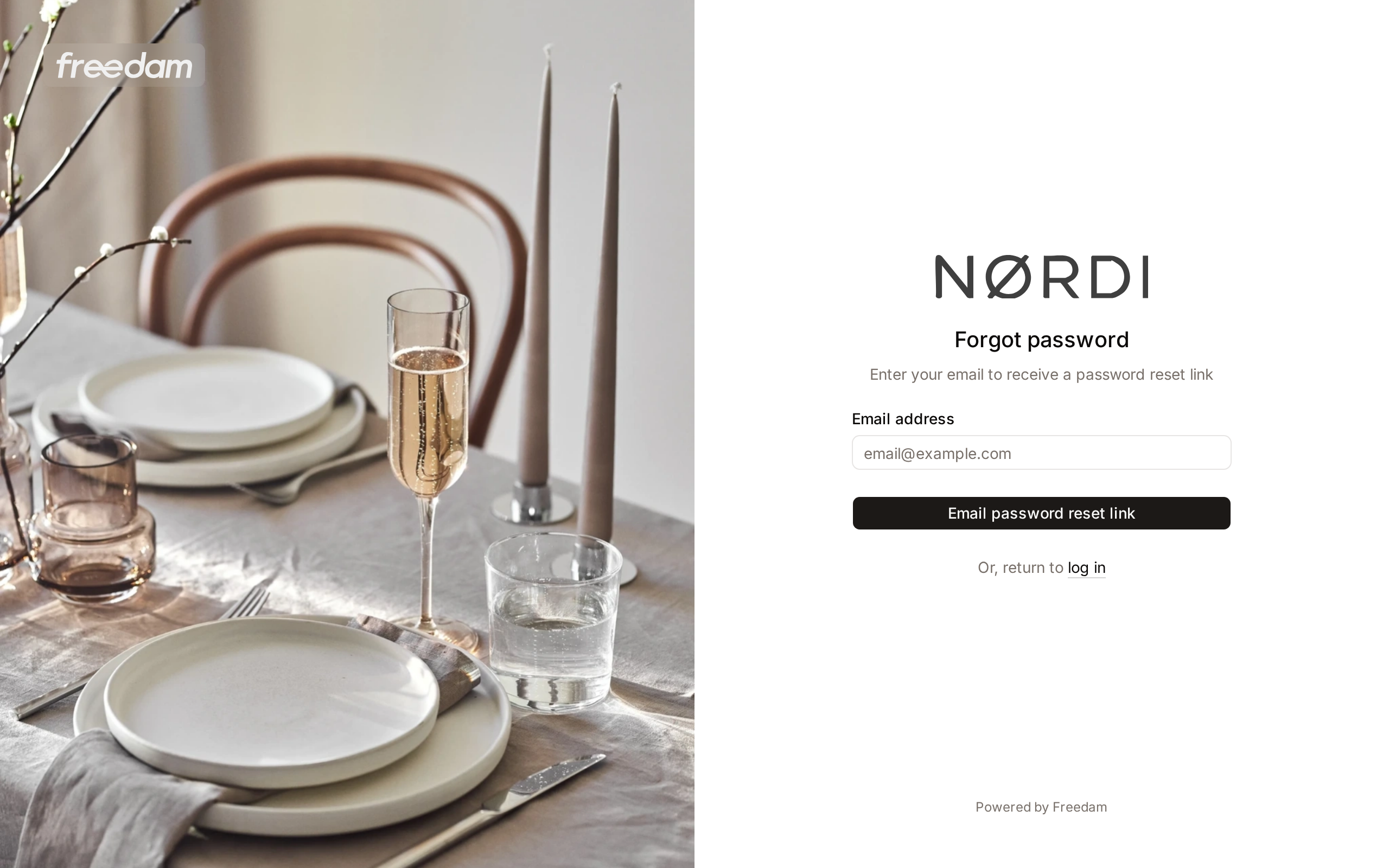
- On the Log in page, click Forgot password? next to the Password label.
- Enter your email address and click Email password reset link.
- Freedam shows "A reset link will be sent if the account exists." The message is the same whether or not the address has an account, so nobody can use this page to find out who has one.
- Open the email titled Reset Password Notification and click its link. The link works for 60 minutes.
- On the Reset password page, type your new password twice and click Reset password.
You return to the Log in page with the message "Your password has been reset." Sign in with the new password.
Password rules. A new password needs at least 12 characters, with upper and lower case letters, numbers and symbols. Freedam also refuses passwords that appear in known data breaches.
If you ask for several links in a row, only the most recent one works. You can request a new link once a minute.
Create an account
Whether you can create your own account depends on how your administrator set up the workspace.
| What you see | What it means |
|---|---|
| Don't have an account? Sign up under the Log in button | Anyone with an allowed email address can create an account. |
| Don't have an account? Request access under the Log in button | You fill in a request and an administrator approves it. See Request access. |
| No link under the Log in button | Accounts are created by invitation only. Ask an administrator to invite you. |
To create an account:
- Click Sign up.
- Enter your Name, Email address, Password and Confirm password, or click Sign up with Google or Sign up with Microsoft.
- Click Create account.
If your address is refused with "Registration from this email domain is not permitted.", your workspace only accepts certain company domains. Use your work address, or ask an administrator.
Verify your email address
After you create an account with a password, Freedam sends a verification email and shows the Verify email page.
- Open the email titled Verify Email Address and click the link.
- Freedam opens your dashboard.
If the email does not arrive, check your spam folder, then click Resend verification email. Accounts created from an invitation, or through Google or Microsoft, are verified automatically.
Accept an invitation
When an administrator invites you, you receive an email titled "You have been invited to join" followed by the workspace name.
- Click Accept Invitation in the email.
- Freedam shows who invited you, the address the invitation was sent to, and when it expires.
- Click Accept Invitation & Create Account.
- Create your account with the same email address the invitation was sent to. The address is filled in and locked.
Invitations expire after 7 days unless your administrator chose another duration. Two days before an invitation expires, Freedam sends a reminder.
If the link has expired or was cancelled, the page says so and offers Ask [inviter] for a new invitation. Click it and the person who invited you is notified so they can send a fresh one. A link that has already been used shows "Invitation Already Used": sign in with the account you created instead.
Request access
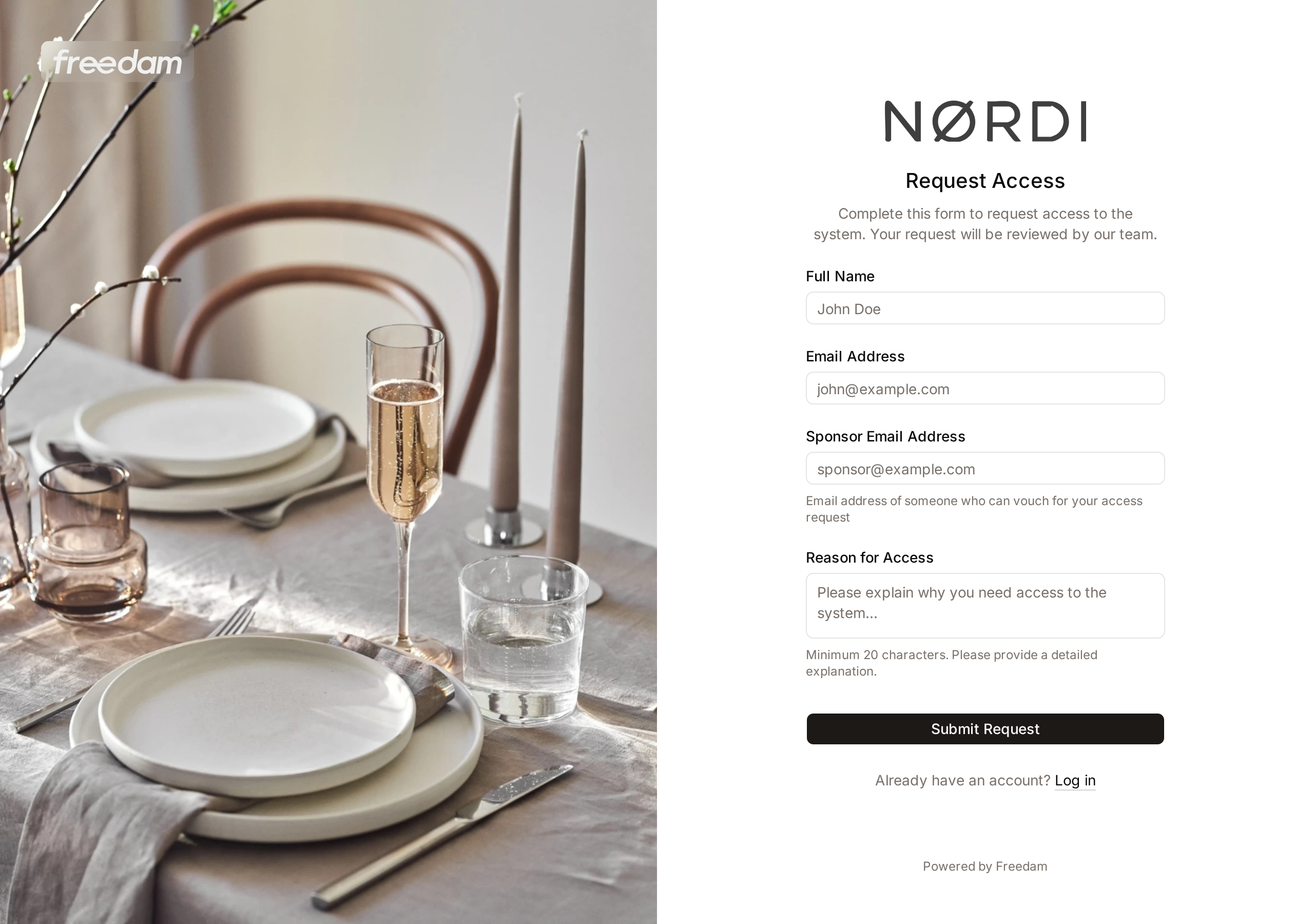
Workspaces that review new people before giving them an account use a request form.
- On the Log in page, click Request access.
- Fill in the form:
- Full Name and Email Address.
- Sponsor Email Address: someone in your organisation who can vouch for you. The field may be optional in your workspace. If the sponsor already has a Freedam account, they receive an email about your request.
- Reason for Access: at least 20 characters and at most 1000. A clear reason speeds up the review.
- Click Submit Request.
The Request Submitted page confirms it. The reviewers your administrator chose receive an email, and you receive an email once your request has been reviewed.
A request is refused with "An account with this email address already exists or has a pending request." when you already have an account or a request waiting. Sign in, or use Forgot your password, instead.
If your account is inactive
Freedam deactivates an account in three cases:
- An administrator deactivated it.
- The account had an end date, and that date has passed. Freedam emails you before that date, by default 30, 14 and 7 days ahead, with the subject "Your [workspace] account expires in N days".
- You have not signed in for a period your administrator sets. Freedam emails you when the account is deactivated.
Deactivation takes effect at once: an open session ends on its next page load, and the account's API tokens are deleted. Reactivating the account does not bring the tokens back.
When you try to sign in to an inactive account, Freedam shows "Your account is currently inactive." and opens the Account Inactive dialog.
- Optionally write a Message to Administrators, up to 1000 characters, explaining why you need access again.
- Click Request Reactivation.
The reviewers are notified, and you receive an email once they decide. Click Cancel to close the dialog without sending anything.
Other account states show their own message:
| Message | What to do |
|---|---|
| "Your account is pending activation." | Look for an activation email, or contact an administrator. |
| "Your account has been rejected." | Contact an administrator if you think this is a mistake. |
| "This workspace has been suspended." | The whole workspace is unavailable. Contact your administrator. |
Change the interface language
Once you are signed in, open your user menu and pick a language under Interface language. You can also change it in User Settings. Before you sign in, Freedam uses your browser's language when the workspace supports it.
The interface language does not change asset metadata or other content, which has its own content language.
Troubleshooting
"These credentials do not match our records."
The email address or password is wrong. Check for a typo in the address, then use Forgot your password. If your workspace uses single sign-on, use the Google or Microsoft button instead of a password.
"Your workspace requires single sign-on."
Your workspace only accepts passwords from administrators. Click Continue with Google or Continue with Microsoft.
The reset or verification email never arrives
Check your spam or quarantine folder, and make sure you used the address your account was created with. Company mail filters sometimes hold automated emails: ask your IT team to allow emails from your Freedam workspace.
I don't know my workspace address
Ask a colleague or your administrator for the address. If your organisation created its workspace itself, the address was chosen at sign-up. See Workspace Setup.
Related pages
- First Steps: what to do once you are signed in.
- User Settings: profile, password, linked accounts and language.
- Access Settings: for administrators, how sign-up, single sign-on and domain rules are configured.