
Field Rules
Field Rules allow administrators to create dynamic, responsive metadata forms. By defining "If/Then" logic, you can control how fields behave based on the values entered into other fields. This ensures that users only see relevant fields and provide accurate data during the asset management process.
For example, you can create a rule that only shows a "License Number" field if the "Asset Type" is set to "Software," or make a "Reason for Rejection" field required only when a "Status" is set to "Rejected."
Page Overview
- Purpose: To manage the conditional behavior of metadata fields within a specific Asset Class.
- When to use it: Use this page when you need to simplify complex forms, enforce data integrity through conditional requirements, or add custom validation logic.
- What you can do here:
- Create rules to show or hide fields.
- Set fields as required or optional based on conditions.
- Trigger custom validation error messages.
- Prioritize rules to resolve conflicts.
- Activate or deactivate rules without deleting them.
Page Layout
- Where to find it: Open Form Studio, select an asset class and open the Rules tab. The same list is also served on its own page for each asset class.
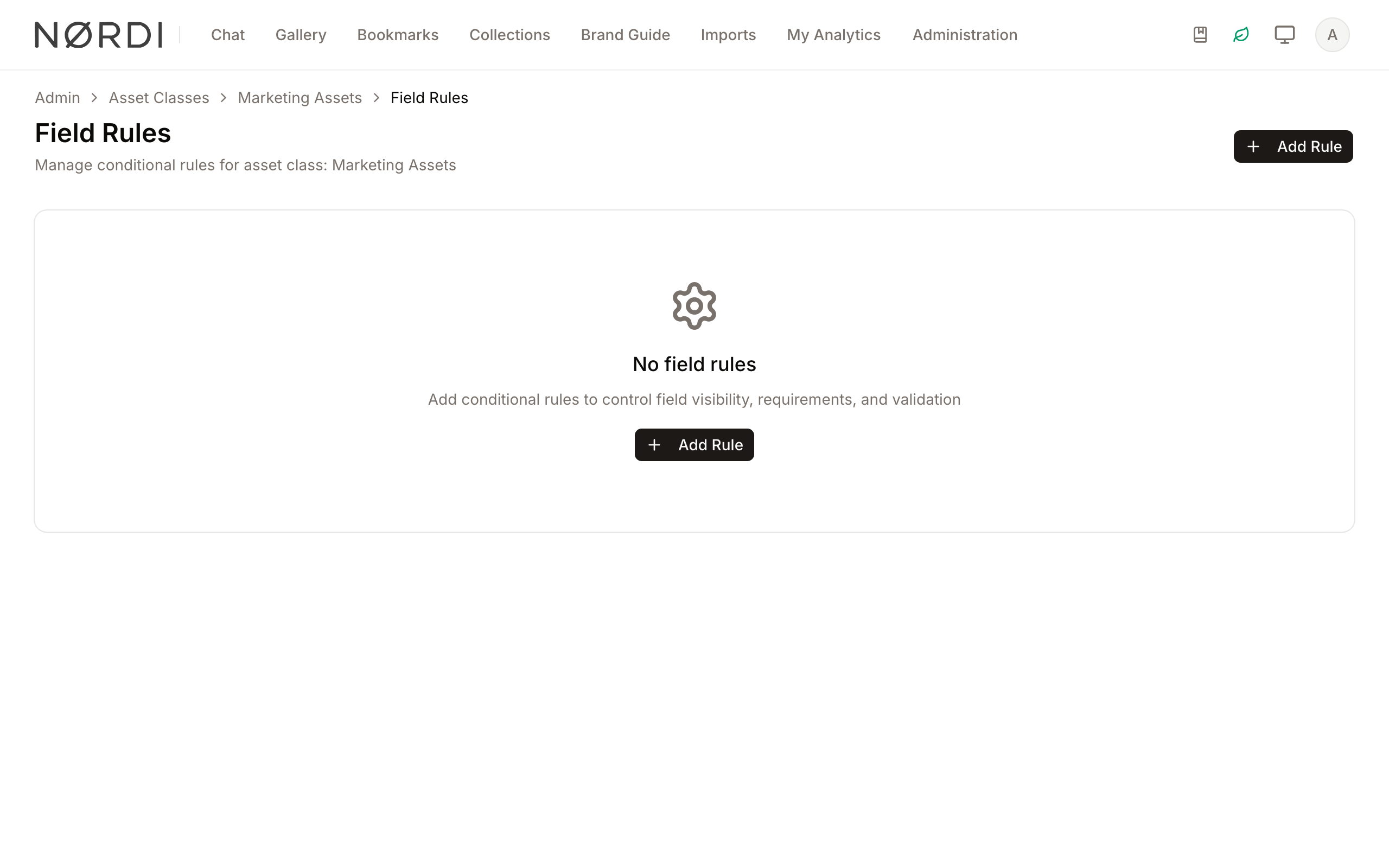
- Top bar: Displays the page title and the Add Rule button to begin creating a new conditional logic set.
- Main area: A grid of cards representing existing rules. Each card shows the rule name, a plain-English summary of the logic (e.g., "Hide Field A when Field B is empty"), its current status (Active/Inactive), and its priority.
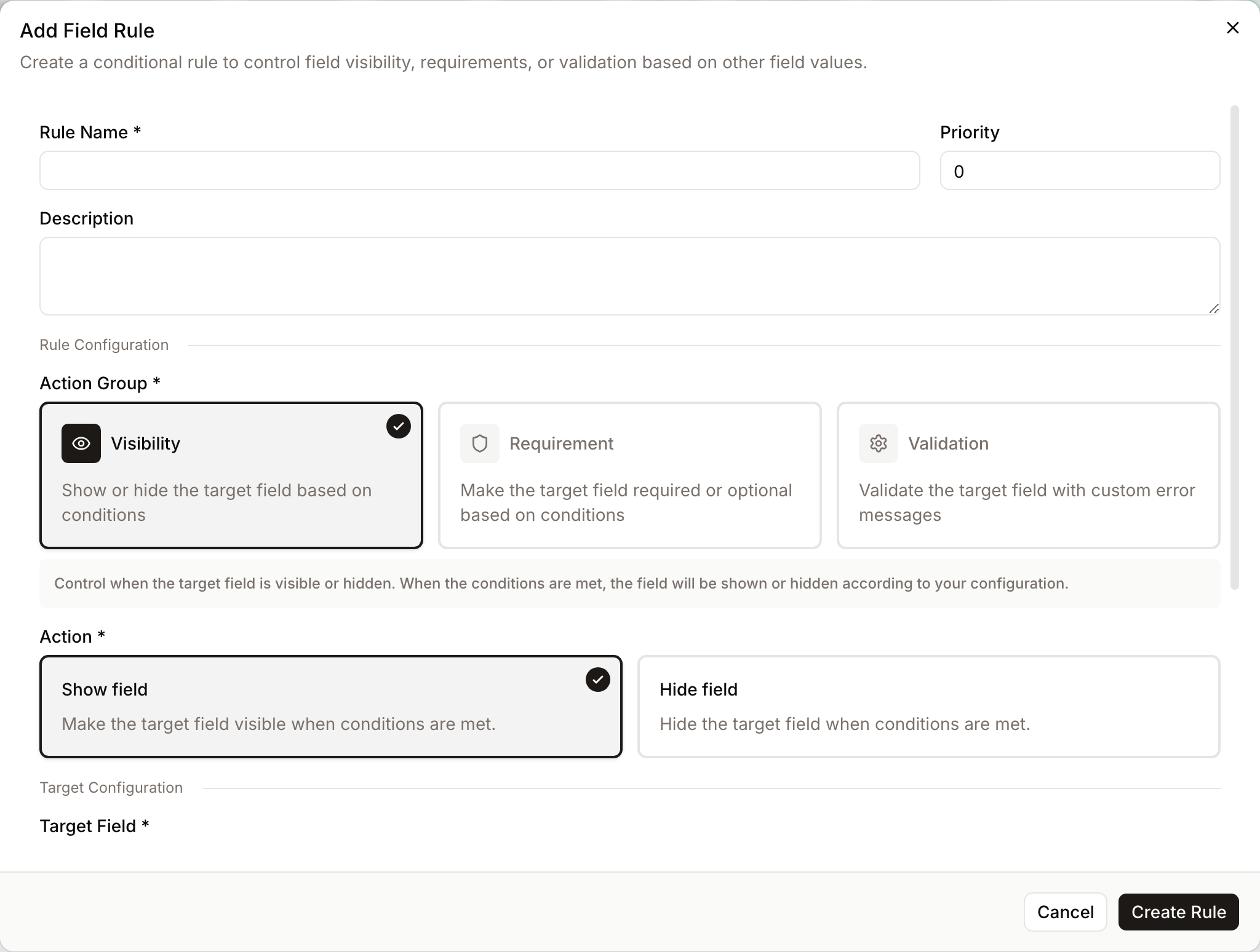
- Rule Dialog: A large configuration window that opens when adding or editing a rule, containing the rule name, priority and description, followed by the sections Rule Configuration, Target Configuration, Conditions and Status.
Main Features
Visibility Control
- What it's for: Dynamically showing or hiding a field.
- Typical use: Hiding "Vehicle Details" unless the "Category" field is set to "Transportation."
- Result: The target field disappears from the user interface until the specified conditions are met.
Requirement Logic
- What it's for: Changing whether a field is mandatory.
- Typical use: Making a "Description" field optional by default, but required if a "High Priority" checkbox is selected.
- Result: A red asterisk appears or disappears next to the field label, and the system prevents saving if a required field is empty.
Custom Validation
- What it's for: Enforcing specific data patterns or business logic.
- Typical use: Preventing a user from selecting "Expired" as a status if the "Expiration Date" is in the future.
- Result: A custom error message appears below the field, preventing the form from being submitted.
Detailed Feature Documentation
Rule Configuration (Action Groups)
- Purpose: Defines what happens when the conditions of a rule are met.
- Where to find it: Inside the "Add Rule" or "Edit Rule" dialog, under the "Action Group" and "Action" labels.
- What you'll see: Three main categories (Visibility, Requirement, Validation) with specific actions like "Show field," "Hide field," "Set as required," or "Trigger validation error."
Each action group has a fixed set of allowed actions to prevent invalid combinations:
- Visibility - choose Show field or Hide field.
- Requirement - choose Set as required or Set as optional.
- Validation - choose Trigger validation error. When this action fires you can supply a custom error message (up to 500 characters) that will be shown to the user under the field.
How to use it:
- Open the Add Rule dialog.
- Select an Action Group (e.g., Visibility).
- Choose the specific Action (e.g., Hide field).
- Select the Target Field that this action should be applied to.
Condition Builder
- Purpose: Defines the "If" part of the rule logic.
- Where to find it: In the "Conditions" section of the Rule Dialog.
- What you'll see: A logic editor where you can select fields, operators (like "Equals", "Contains" or "Greater Than"), and values.
How to use it:
- In the Conditions section, click Add Filter.
- Select a field from the dropdown to monitor.
- Choose an operator (e.g., "Equals").
- Enter or select the value that triggers the rule.
- Use the Combine groups: toggle (ALL/ANY) if you add multiple condition groups.
Supported operators for field rules cover the full comparison palette: equals / does not equal, contains / does not contain, starts with, ends with, is in list / is not in list, greater than, less than (and their "or equal" variants), is empty, and is not empty. You can nest groups of conditions to any depth and mix "ALL" and "ANY" logic freely.
Guardrails when saving a rule:
- The target field must belong to the same asset class as the rule. Picking a field from a different class produces an error.
- The target field cannot appear as a condition - Freedam checks the entire condition tree (including nested paths) to prevent a rule from triggering itself in an infinite loop.
- The priority number must be unique within this asset class. If you type a priority that is already taken you'll get a clear error asking for a different value. New rules default to the next free priority.
- Filter conditions without a value are rejected unless the operator doesn't need one (is empty / is not empty).
Rule Management (Priority and Status)
- Purpose: Controls the order of execution and the availability of rules.
- Where to find it: On the main Field Rules list and within the Rule Dialog.
- What you'll see: A Priority number field in the dialog, a status badge (Active/Inactive) and a Priority: n label on each card, and an enabled/disabled selector in the Status section of the dialog.
How to use it:
- To change the order in which rules are processed, enter a number in the Priority field (lower numbers run first).
- To temporarily stop a rule from running, click the three-dot menu on a rule card and select Deactivate. The same menu offers Edit, Activate and Delete.
- To delete a rule permanently, select Delete from the same menu.
Complete Workflows
Workflow: Create a Conditional Visibility Rule
- Goal: Hide a "Social Media Handle" field unless "Platform" is selected.
- Prerequisites: Both fields must already exist in the Asset Class metadata.
Steps:
- Click Add Rule in the Top bar.
- In Rule Name, type "Show Social Handle when Platform is selected".
- Select Visibility under Action Group.
- Select Show field under Action.
- In Target Field, select "Social Media Handle".
- In the Conditions section, select "Platform" as the field.
- Select Is Not Empty as the operator.
- Click Create Rule.
- Expected result: The rule appears in the list, and in the asset form, the handle field will be hidden until a platform is chosen.
Workflow: Enforce Conditional Validation
- Goal: Prevent users from setting a "Price" to 0 if the "Status" is "For Sale".
- Prerequisites: "Price" (number) and "Status" (select) fields must exist.
Steps:
- Click Add Rule.
- Select Validation under Action Group.
- In Target Field, select "Price".
- In Conditions, add a filter: "Status" Equals "For Sale".
- Add a second filter: "Price" Less Than or Equal "0".
- Ensure the group operator is set to ALL.
- In Error Message, type "Price must be greater than 0 for items listed for sale."
- Click Create Rule.
- Expected result: If a user tries to save an asset with a 0 price while "For Sale" is selected, your custom error message will appear.
Who Can Use It
Field Rules are scoped to a specific asset class. People with the Manage metadata fields and forms permission can view, create, update, and activate field rules on it. All other users will see the rules in action on the asset form, but won't see the rule editor.
How Rules Run Behind the Scenes
- Field rules run live, in the asset form itself. As soon as a user types or selects a value that changes a condition, Freedam re-evaluates every active rule for that asset class and updates the form instantly - fields appear, disappear, become required, or show validation errors without a page reload.
- Rules are applied in priority order (lowest number first). If two rules target the same field - for example, one that hides it and one that shows it - the later rule in the sequence wins, so priority lets you stack overrides predictably.
- Only active rules run. Inactive rules are skipped entirely, which makes it safe to park a half-configured rule without affecting anyone's form.
- If a rule can't be evaluated for some reason (for example, a referenced field was deleted), that single rule is skipped and the rest continue to work - the form is never left in a broken state.
- Validation errors produced by field rules are returned alongside the server's own validation and block saving just like any built-in required-field check.
Tips and Best Practices
- Avoid Circular Logic: The system will prevent you from selecting the same field as both the "Target Field" and a "Condition Field" to avoid infinite loops.
- Use Priority Wisely: If you have two rules affecting the same field (e.g., one hides it and another shows it), the rule that runs last (the higher priority number) takes precedence, because rules are applied in ascending priority order.
- Descriptive Names: Name your rules based on their function (e.g., "Req: Expiration Date if Licensed") so they are easy to identify in the list.
- Test Inactive: If a form is behaving unexpectedly, try deactivating rules one by one to identify the conflict.
Troubleshooting
Issue: Rule is not triggering on the asset form
- Symptoms: You change a field value, but the target field does not show/hide or change requirement status as expected.
- Cause: The rule may be set to "Inactive," or the conditions are not being met exactly (e.g., case sensitivity in text fields).
- Fix:
- Check the rule card to ensure it says Active.
- Verify the Priority to ensure another rule isn't overriding it.
- Double-check the Conditions for typos in values.
- Prevention: Use "Select" or "Vocabulary" fields for conditions instead of free-text fields to ensure consistent values.
Issue: "Target field cannot appear in conditions" error
- Symptoms: An error message appears in the dialog when trying to save a rule.
- Cause: You have included the field you are trying to change (the Target) as one of the requirements to trigger the change.
- Fix: Remove the target field from the Conditions section.
- Prevention: Always use a different field to trigger the logic for your target field.