
AI Chat Search
AI Chat Search finds assets from a description written in plain language. Instead of opening the Gallery and combining a dimension filter, a colour filter and a date filter by hand, you type:
"Find landscape photos with sunset colours uploaded in the last month."
The assistant reads your request, builds the matching filters, runs the search and shows the matching assets inside the conversation. If the first answer is not what you wanted, reply with a correction such as "only the portrait ones", "also include videos" or "now just from the Spring campaign". The assistant applies it to the filters it has already built.
Every chat session is private to you, and the filters of a conversation can be opened in the Gallery at any time.
Page Overview
- Purpose: To find and filter assets through a conversation.
- When to use it: When you know what you are looking for and your request mixes several kinds of criteria (content, colour, date, metadata), or when you do not want to configure filter groups in the Gallery yourself.
- What you can do here:
- Type natural language queries to find assets.
- See matching assets in the reply as a small gallery, with previews, status badges, and quick download and share actions.
- Refine the results with follow-up messages.
- Open the filters built by the chat in the Gallery, for bulk actions.
- Ask how to do something in Freedam and get an answer taken from this documentation.
- Return to previous conversations, grouped by date, and rename them.
Page Layout
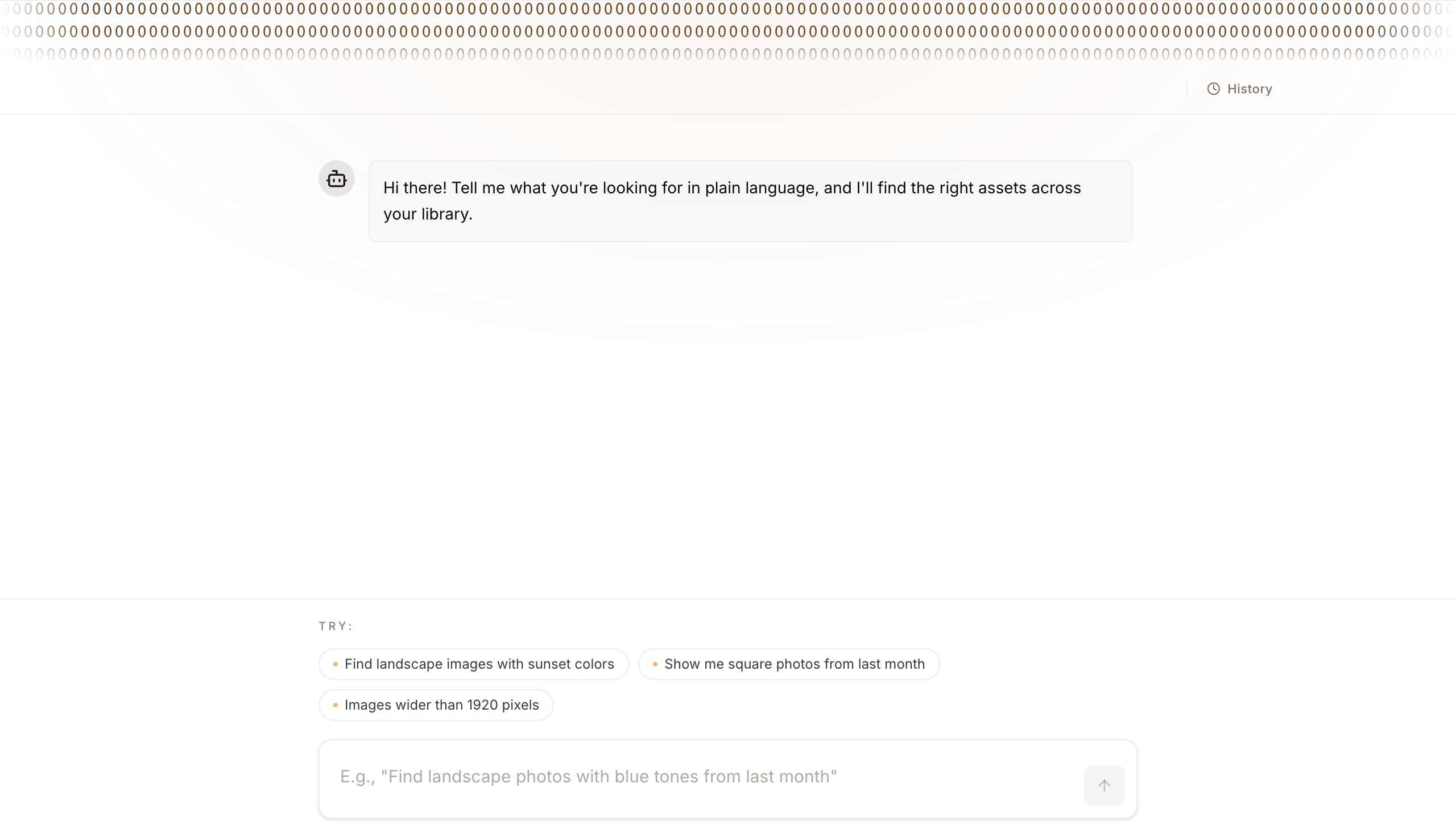
- Top bar: Holds Open in Gallery, shown once the conversation has filters, and History.
- Main area: Your conversation with the assistant: your requests, the replies, the filters each reply added, removed or modified, and the matching assets. A new chat opens with the greeting "Hi there! Tell me what you're looking for in plain language, and I'll find the right assets across your library."
- Bottom input area: The message field, the send button, and suggested queries in a new chat.
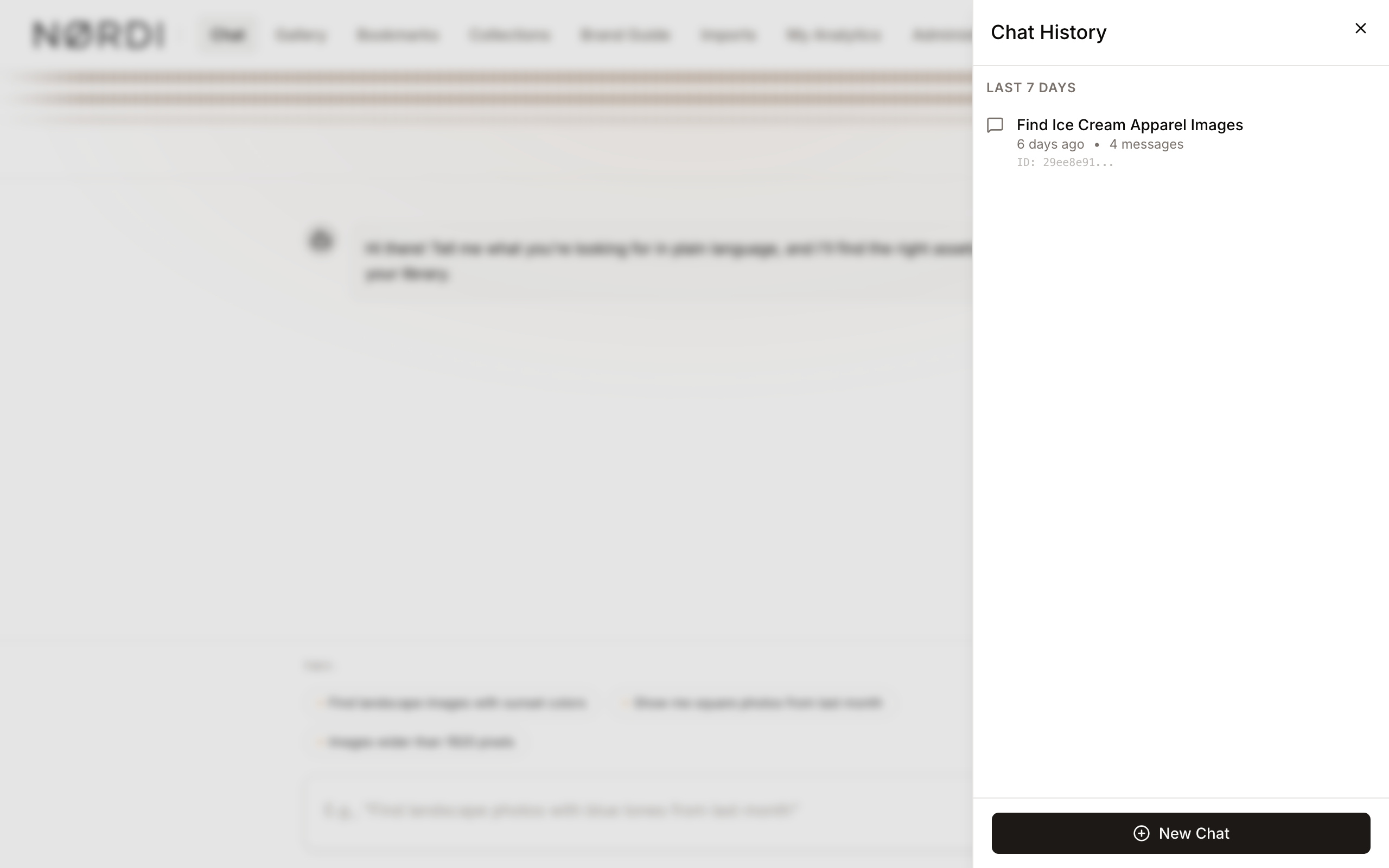
- History panel: Opens from the right when you click History. It lists your past conversations grouped by date.
Main Features
Natural Language Input
- What it's for: Turning a written description into an asset search.
- Typical use: Typing "Find landscape images with sunset colors" into the message field.
- Result: The assistant builds the filters and shows the matching assets in its reply.
Chat History Management
- What it's for: Returning to previous searches.
- Typical use: Clicking History to reopen a search from yesterday.
- Result: Opens the Chat History panel, where you can switch between, rename, or delete past sessions.
Gallery Integration
- What it's for: Continuing in the Gallery, where you can select assets and apply bulk actions (editing metadata, downloading, adding to a collection, sharing).
- Typical use: Clicking Open in Gallery after the assistant has filtered your assets.
- Result: Opens the Gallery with the filters from the chat applied. From there you can refine further, save the search, or select assets for bulk operations.
Answers from the documentation
- What it's for: Getting help on how to use Freedam without leaving the chat.
- Typical use: Asking "How do I add a new asset type?"
- Result: The assistant answers from the documentation and lists the sections it used under the reply. Click a section to open it in a new tab. The filters of the conversation stay as they were. If the documentation does not cover the question, the reply says "I could not find this in the documentation. Try the Assistant or the documentation pages."
Example prompts
There is no special syntax. Describe what you want. These prompts range from simple to detailed:
Simple content searches
- "Find images of bread knives."
- "Show me photos with happy people."
- "Sunset over water."
Content plus look and feel
- "Find landscape images with sunset colours."
- "Warm, golden-hour photos of food on wooden surfaces."
- "Cosy indoor scenes with natural light."
Technical constraints
- "PNG files uploaded in the last 48 hours, wider than 1920 pixels."
- "Square photos from last month."
- "Videos longer than 30 seconds added this week."
Business and campaign data
- "Spring campaign photos shot outdoors with natural light and a human subject."
- "Products from the Nordic Nest or Muuto brand."
- "Assets by the designer Henning Koppel."
- "Kitchen-category products with the hero-image tag."
Detailed prompts
- "Find banner-ratio images with a single person, no text overlay, from the autumn collection."
- "Portrait-orientation product photos against a white background, approved for external use."
- "Everything tagged 'behind the scenes' added in the last 90 days."
The assistant chooses the search technique for each part of the request: keyword matching, meaning-based (semantic) matching, colour palette matching, date ranges, dimension checks, and your workspace's own metadata fields such as brand, designer, product line or campaign.
Detailed Feature Documentation
Chat Input Field
- Purpose: To enter search queries and reply to the assistant.
- Where to find it: At the bottom of the chat page.
- What you'll see: A text area with the placeholder
E.g., "Find landscape photos with blue tones from last month".
How to use it:
- Click inside the message field.
- Type your search request.
- Press Enter, or click the send button, to submit. Press Shift+Enter to start a new line.
The field grows as you type, then scrolls once the text is taller than its maximum height. Empty messages are not sent. While the assistant is answering, the field and the send button are disabled.

Suggested queries
A new chat shows a Try: row above the field with three example prompts: "Find landscape images with sunset colors", "Show me square photos from last month" and "Images wider than 1920 pixels". Click one to copy it into the field, where you can edit it or send it as it is. The row is hidden while the field contains text and once the conversation has a message.
Assistant replies, filter chips, and inline results
Each reply contains a short explanation of what the assistant did, followed by:
- Filter chips: the filters the reply Added, Removed or Modified. Colour filters show a swatch of the colour.
- Matching assets: a grid of up to 10 assets, in 2 to 6 columns depending on screen width. The cards are the Gallery's cards, with the same preview and status badges, plus Download and Share quick actions. Click a card to open the asset page.
- Result count: "Showing 10 of 1,284 assets" tells you the size of the full result set. Click Open in Gallery in the top bar to see all of them.
When no asset matches the exact words of a text search, the reply widens the search and says so above the results:
- "No exact matches. Showing results for “…”." when a spelling correction was applied.
- "No exact matches. Showing partial-word matches."
- "No asset matches every word. Showing assets that match some of them."
When there are no results, or only a few
- No results: The reply shows a No assets match these filters card. It lists each filter with the number of assets that match it on its own, for example "3,422 matches" or "no matches", so you can see which filter excludes everything. Under Try these alternatives:, up to three suggestions follow, such as expanding a date range, removing a size restriction, or searching for one of the filters alone. The suggestions are text: type the one you want as your next message.
- Only a few results (1 to 4): The reply says "Only 2 assets found." followed by You could expand your search by adding: and a list of tags that appear on the matching assets. Type one of them in a follow-up message to widen the search.
Multi-turn conversations: what the assistant remembers
Each session keeps its context:
- Filters built so far: If you say "photos from Spring 2026" and then "only the blue ones", the colour filter is added to the date filter.
- Ambiguous words: "portrait" and "landscape" can mean an orientation or a subject. The first time you use one, the assistant may ask which you mean. Your answer applies for the rest of the session.
- Conflicts: If two instructions contradict each other (for example "only portrait" and later "only landscape"), the reply shows a "Warning: Some filters may conflict:" note listing them.
- Recent turns: The assistant reads the last five exchanges when it interprets your next message. Older messages in the same session are not used as context.
Starting over
To clear the filters and keep the conversation, say so: "reset the filters", "start over" or "clear everything". To start a new conversation with its own entry in the history, open History and click New Chat at the bottom of the panel.
Chat History panel
- Purpose: To browse, resume, or manage previous chat sessions.
- Where to find it: Click History in the top bar.
- What you'll see: A panel titled Chat History, opening from the right, with sessions grouped under Today, Yesterday, Last 7 Days, Last 30 Days and Older. Each row shows the session title, when it was last active, and its number of messages. Hover a row to see the full title.
How to use it:
- Click History to open the list.
- Click a session to load that conversation with its messages and filters.
- To start a new conversation, click New Chat at the bottom of the panel.
The bottom of the panel shows the total, for example "12 conversations". Sessions stay in the list until they expire (see Limits and guardrails) or you delete them.
Automatic session titles
You do not need to name conversations. After your first exchange, the assistant writes a short title from what you asked and what it found, for example "Blue landscape photos from March" or "Henning Koppel designer products". The title appears in the Chat History panel and is at most 50 characters long.
You can rename a session at any time (see below).
Session Actions (Rename/Delete)
- Purpose: To give sessions meaningful names or remove old ones.
- Where to find it: In the Chat History panel, click the three vertical dots at the end of a session row.
- What you'll see: A menu with Rename and Delete.
How to use it:
- Open the Chat History panel.
- Click the three vertical dots next to a session.
- Select Rename to edit the title in place. Press Enter to save or Escape to cancel. A blank or unchanged title cancels the rename.
- Select Delete, then confirm in the Delete chat session? dialog, to permanently remove the session and all its messages.
Deletion cannot be undone. If your workspace administrator has turned off session deletion, Delete is not shown. Rename stays available.
Complete Workflows
Workflow: Finding Specific Assets and Viewing in Gallery
- Goal: Filter assets with the chat, then use the Gallery's bulk tools on the results.
- Prerequisites: You are signed in and chat is enabled for you.
Steps:
- Open the Chat page.
- Type "Show me all square photos from last month wider than 1920 pixels".
- Press Enter or click the send button.
- Once the assistant has replied with its filters, click Open in Gallery in the top bar.
- Expected result: The Gallery opens with the filters built by the chat. You can select assets and run bulk operations such as download, share, or add to a collection.
Workflow: Resuming a Previous Search
- Goal: Continue a search conversation from a previous day.
- Prerequisites: Existing chat history.
Steps:
- Click History in the top bar.
- Find the session under Yesterday or Last 7 Days.
- Click the session.
- Type a follow-up message such as "Now only show the ones that are blue".
- Expected result: The chat loads the previous messages and applies the new refinement to the existing search.
Workflow: Narrowing down a shortlist
- Goal: Reduce a set of candidates for a specific placement.
- Prerequisites: Assets with tags, captions or relevant metadata.
Steps:
- Start a new chat and type: "Find banner-ratio images of a single person, outdoor, no on-image text, from the autumn collection."
- Review the assets in the reply. Click a card to open the asset page, then use your browser's Back button to return to the conversation.
- Reply: "Only the ones where the subject is looking at the camera."
- When the set is small enough, click Open in Gallery to compare the assets at larger sizes.
How AI Chat fits with Gallery search
AI Chat and the Gallery filters build the same kind of search: a set of filter rules.
- From Chat to Gallery: Open in Gallery sends the current filters to the Gallery, where each rule can be edited. Use it to go from a description to a selection you can act on in bulk.
- From Gallery to Chat: A conversation cannot be started from a Gallery search. To continue a Gallery search in the chat, start a new chat and describe the filters you have.
- Same cards: The assets in a chat reply use the Gallery's cards, with the same status badges and hover preview.
Keyboard shortcuts
- Enter: Send your message.
- Shift + Enter: Insert a new line without sending.
- Enter (while renaming a session): Save the new title.
- Escape (while renaming a session): Cancel the rename.
There is no shortcut for a new chat. Use New Chat in the Chat History panel.
Accessibility and mobile behaviour
- Narrow screens: Open in Gallery and History show their icon only.
- Touch targets: The send button and the rows of the history panel are larger on small screens.
- Swipe gestures: On touch devices, swipe inwards from the left or right edge of the screen to open the Chat History panel.
- Safe-area padding: The input and the bottom of the history panel stay above the home indicator on phones.
- Screen readers: The message list is announced as "Chat messages", errors are announced immediately, and the message field, the send button, the History button, the session options menu and the title field have descriptive labels.
- Suggested queries: On small screens the row scrolls horizontally.
Who can use it
Your administrator can turn AI Chat Search on or off for the workspace. When it is off, the chat page redirects you to the Gallery with the message "Chat search is currently unavailable. Please use regular search." Starting a chat needs the Use chat permission, which the User role has by default. Without it, the Chat entry is not shown in the menu. You only see your own sessions: they are never shared between users. Chat searches, suggests tags and quotes metadata only from the assets you are allowed to see.
People with View chat usage and Manage AI operations can see everyone's conversations and usage in AI Operations.
Administrators also choose whether users may delete their own sessions. When that setting is off, Delete does not appear in the session menu.
Limits and guardrails
- Message length: A message can be up to 2,000 characters. One-word messages are accepted. Empty messages are not.
- Rate limit: Each user can send up to 20 chat messages per minute. Above that, the chat shows "Too many chat requests. Please try again later." Wait a minute and continue.
- Session lifetime: A chat session can be used for 30 days after it was created. After that, opening it shows "Session has expired" and you need to start a new chat. Expired sessions are removed automatically.
- Conversation memory: The assistant reads the last five exchanges, so follow-ups like "now only blue ones" work. Earlier messages in a long session are not reread.
- On-topic check: Before running a search, the assistant checks that your message is about finding or managing assets, or about using Freedam. Unrelated questions are refused.
What the on-topic check refuses
Anything unrelated to your asset library, for example:
- "What is the capital of France?"
- "Write me a Python function to sort a list."
- "Give me a dinner recipe."
- "Plan my weekend."
It accepts:
- Searching, filtering, sorting, or finding assets by any attribute.
- Questions about tags, captions, metadata, collections, campaigns, or brands.
- Requests that mix content, look and feel, technical specifications, and business metadata.
If a valid question is refused, rephrase it in terms of your assets: "Find photos that would work for a homepage hero" instead of "What should I pick for the homepage?"
What happens behind the scenes
- After the first exchange of a new chat, a title is generated from it and appears in the Chat History panel. You can rename any session later.
- Each new instruction is combined with the filters already built (for example, a colour added to an existing date filter). If two instructions conflict, the reply shows a warning.
- The meaning you gave to an ambiguous word such as "portrait" or "landscape" is stored with the session and reused until you say otherwise.
- When no asset matches, the reply shows how many assets each filter matches on its own and suggests alternatives. When fewer than five assets match, it lists tags from the matching assets that could widen the search.
- Every chat message counts towards your workspace's AI usage. Administrators can see chat activity in AI Operations.
Tips and Best Practices
- Be specific: Instead of "Find photos", try "Find PNG files uploaded in the last 48 hours with a portrait orientation."
- Describe look and feel in everyday words: "warm", "moody", "bright and airy", "autumn colours" and "golden hour" are all understood.
- Mix content and metadata: "Outdoor photos with a single person from the Spring 2026 campaign" works better than three separate prompts.
- Use the suggestions: If you are not sure what to ask, click one of the suggested queries shown in a new chat.
- Answer the clarifying question first: If the assistant asks "Did you mean portrait orientation or portraits of people?", answer before adding more filters. Your answer applies for the rest of the session.
- Continue in the Gallery: Once the results are close to what you want, click Open in Gallery and refine with the Gallery filters, which are better suited to precise selection and bulk actions.
Troubleshooting
Issue: "Session has expired" message
- Symptoms: An error message says the session has expired, and its messages are not loaded.
- Cause: Chat sessions expire 30 days after they were created.
- Fix: Click History, then New Chat, and describe the search again.
- Prevention: For a search you need over a long period, click Open in Gallery and save the search there. See Saved Searches.
Issue: "Too many chat requests. Please try again later."
- Symptoms: A message is not sent and the error appears above the conversation.
- Cause: Each user can send up to 20 chat messages per minute.
- Fix: Wait about a minute, then continue. The existing messages and the filters of the session are kept.
Issue: "Chat search is currently unavailable"
- Symptoms: The chat page redirects to the Gallery with a warning.
- Cause: Your workspace administrator has turned off AI chat.
- Fix: Use the Gallery filters, or ask your administrator to turn chat back on.
Issue: "This question does not appear to be related to searching or managing assets in the system."
- Symptoms: Your message is refused.
- Cause: The on-topic check judged the question unrelated to assets (for example, a general-knowledge question).
- Fix: Rephrase the question in terms of your assets. Instead of "What colours are trendy this spring?", try "Find spring campaign photos with colours like coral or sage."
Issue: No results found
- Symptoms: The reply shows No assets match these filters.
- Cause: The filters exclude everything in combination, even if each one matches assets on its own.
- Fix: Read the per-filter counts and the Try these alternatives: suggestions in the reply. They show which filter excludes the results. Common fixes are widening the date range, asking for "landscape or square", removing a size limit, or asking for either of two terms ("sunset or golden hour").
Issue: Only a few results found
- Symptoms: The reply says "Only 2 assets found." and lists tags under You could expand your search by adding:.
- Fix: Type one of the listed tags in a follow-up message. They come from the assets that matched, so similar assets often carry them.
Issue: "Open in Gallery" button is missing
- Symptoms: The button does not appear in the top bar.
- Cause: The conversation has no filters yet. For example, the last reply was a clarifying question or an answer from the documentation, or you have just reset the filters.
- Fix: Ask a search question that needs a filter, such as "Find all red images".
Issue: Cannot delete a chat session
- Symptoms: Delete is missing from the session menu.
- Cause: Your administrator has turned off session deletion for the workspace.
- Fix: Contact your administrator if a session must be removed. Rename stays available.
Issue: The assistant misinterprets "portrait" or "landscape"
- Symptoms: You said "landscape" meaning outdoor scenery, but a filter for horizontal orientation was added, or the reverse.
- Fix: Reply with a correction such as "I meant landscape as in outdoor scenery, not horizontal orientation." That meaning is then used for the rest of the session.