
Glossary
The Glossary is your workspace's list of brand names, product names and jargon. Freedam uses it in two places:
- Transcription: when it turns speech in videos and audio into text, it favours the spellings in the Glossary. "Voxtral" comes out as "Voxtral", not "Vox trawl".
- Translation: when it translates subtitles, metadata fields or vocabulary terms, it keeps the terms you mark as verbatim untranslated, and uses your preferred translation for the others.
Open it from Administration → Glossary, under Configuration. You need the Manage system settings permission.
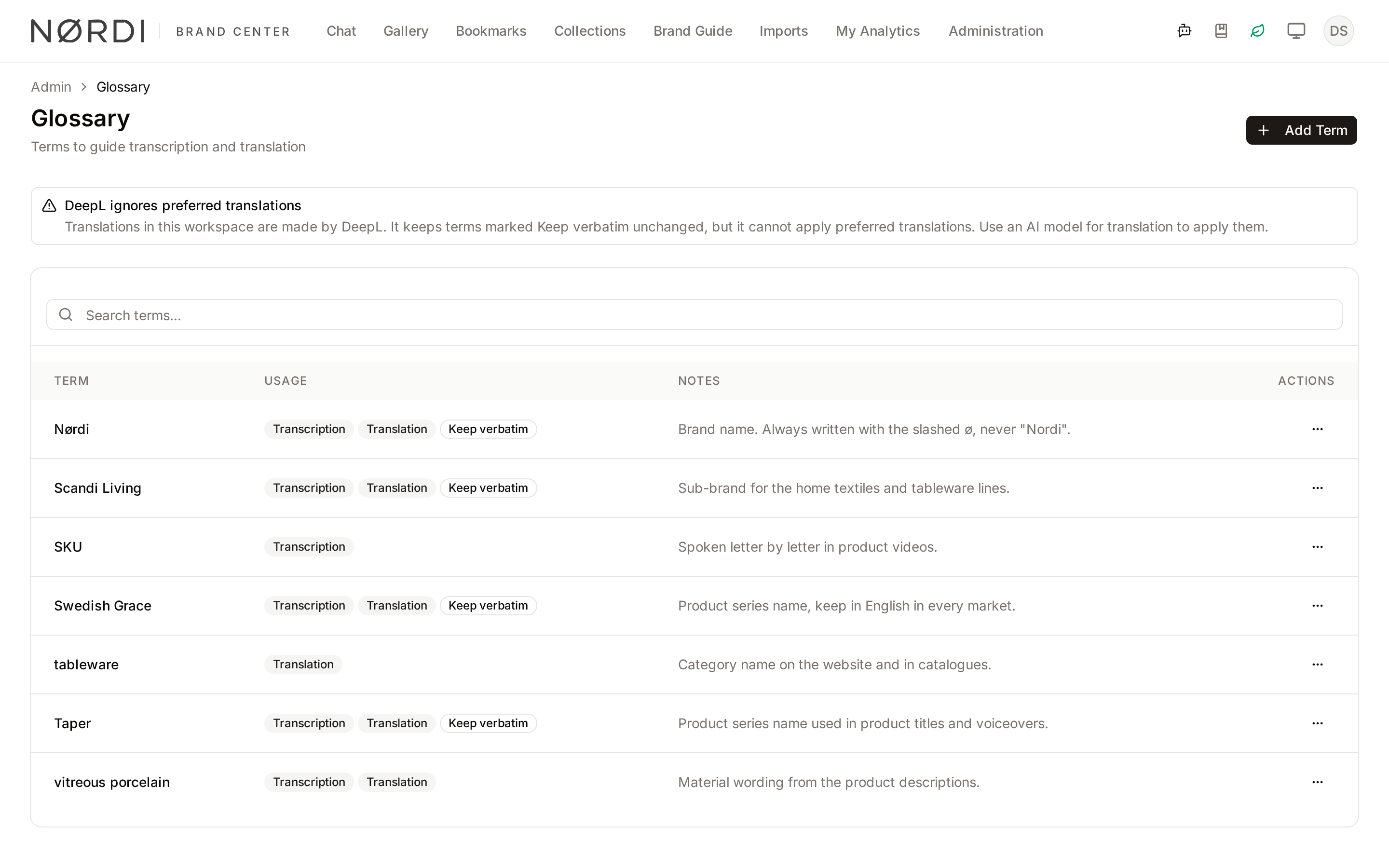
The term list
Terms are listed alphabetically. Each row shows:
- Term: click it to edit.
- Usage: badges for Transcription, Translation and Keep verbatim, depending on where the term applies.
- Notes: your own explanation, for example how the name is pronounced.
- Actions: Edit or Delete.
Type in Search terms... to filter the list by term or notes.
Add a term
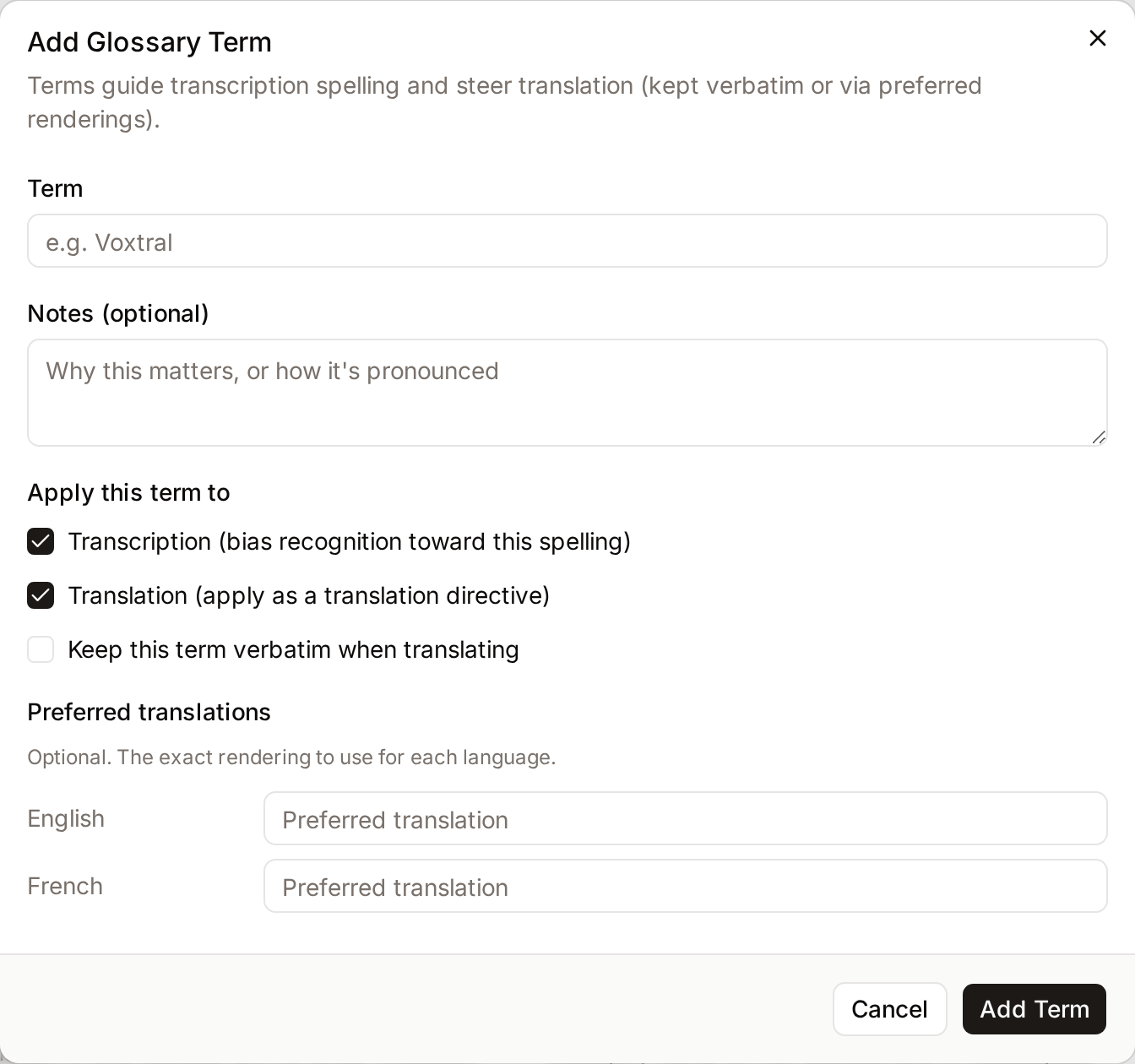
- Click Add Term.
- Type the Term exactly as it should be written, for example
VoxtraloriPhone. Up to 80 characters. Each term can only appear once. - Optionally add Notes (optional), up to 500 characters, to explain why the term matters or how it sounds.
- Under Apply this term to, choose where it applies:
- Transcription (bias recognition toward this spelling): on by default.
- Translation (apply as a translation directive): on by default.
- Keep this term verbatim when translating: off by default. Tick it for names that must never be translated, such as brand and product names.
- If the term should be translated but in a specific way, fill in Preferred translations. There is one field per active language. Leave a field empty to let the translation decide.
- Click Add Term.
Keep this term verbatim can only be ticked while Translation is ticked. Preferred translations only appear when Translation is ticked and Keep this term verbatim is not. A term kept verbatim has no preferred translations: saving it with Keep verbatim ticked removes any it had.
To change a term, click it or choose Edit, then Save Changes. Emptying a preferred translation removes it.
To remove a term, choose Delete and confirm with Remove. The term stops guiding future transcriptions and translations. Existing transcripts and translations are not changed.
How terms affect transcription
Every term with Transcription ticked is sent to the speech-recognition model as a list of preferred spellings, each time a video or audio file is transcribed. The model uses it when the audio sounds like one of the terms; it does not replace words after the fact.
- The list only applies to transcriptions made after you add the term. Existing transcripts are not redone automatically: correct them in the transcript editor, or ask Freedam support to re-run transcription for specific assets. See Video Transcripts.
- The list is limited to about 1,000 characters. When your terms exceed it, the terms that come last alphabetically are left out, and the Glossary page shows Some terms are left out of transcription with how many were dropped. Keep this list to the names the model actually gets wrong: untick Transcription on the others.
How terms affect translation
When Freedam translates text, each term with Translation ticked becomes an instruction:
- Terms marked Keep verbatim must stay exactly as written.
- Terms with a Preferred translation for the target language must be translated that way.
This applies to:
- subtitle and transcript translation on videos,
- the translate buttons on multilingual metadata fields,
- automatic translation of vocabulary terms.
Both instructions apply when translations are made by an AI model. When your workspace uses DeepL, only Keep verbatim applies: DeepL leaves those terms untouched, but it cannot use preferred translations. The Glossary page then shows DeepL ignores preferred translations. Check which provider is used under AI Operations.
Preferred translations match the exact language first, then its base language. For a Brazilian Portuguese translation, a preferred translation entered for Portuguese (Brazil) wins; if there is none, the one entered for Portuguese is used. A translation entered for a regional variant is never used for other variants.
Tips
- Start with what goes wrong. Add terms when you see a transcript or translation get them wrong, rather than importing a whole brand book.
- Use Keep verbatim for names. Product names, brand names and people's names almost always belong there.
- Use Notes for pronunciation. Your notes are not sent to the models, but they help colleagues understand why a term is there.
Related pages
- Video Transcripts: transcribing and translating audio and video.
- Languages: the languages available for preferred translations.
- AI Operations: which AI models handle transcription and translation.