
Downloads by Asset Type
When you set download permissions in an access rule, you're really setting a quality tier for the user. The tier is expressed using image resolution sizes (from Thumbnail (128px) to 5K (5120px), plus Original Quality), but the rule applies to every asset in your library - images, videos, audio files, and documents alike.
This page explains how each tier translates across asset types, so you can author rules that behave the way you expect.
The big idea
The Image download resolutions checkboxes on the Access Policy tab of a rule describe how much quality a user can take home. Picking only Thumbnail (128px) and Low (256px) is a way of saying "this user gets reduced-quality previews, not the full-quality file." That stance carries through to every asset type - but each type has its own way of expressing "reduced quality."
Images
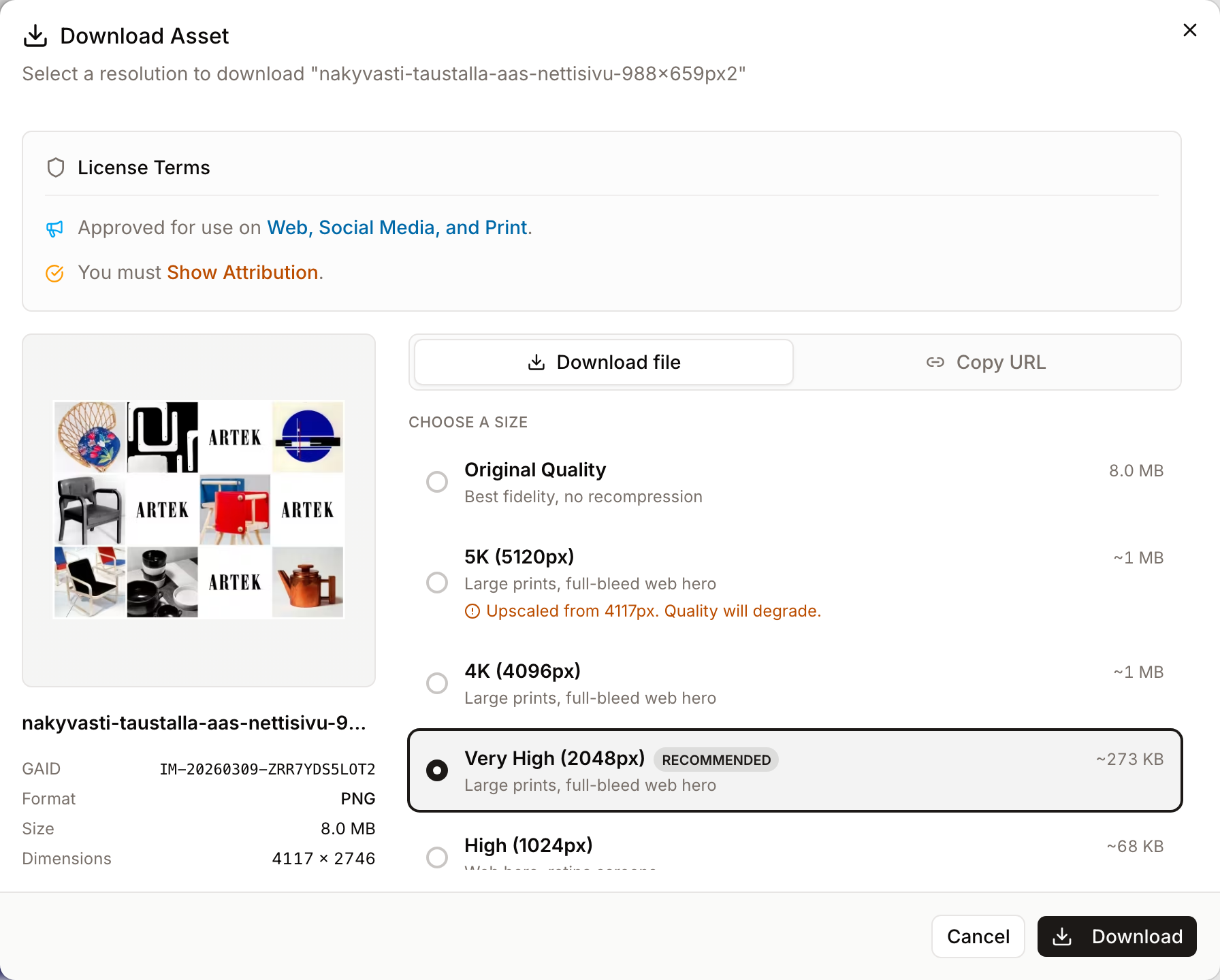
The tiers map directly to image sizes. Each size is a maximum width: the image is scaled to that width, keeping its proportions, and is never enlarged. An image narrower than a size is delivered at its own width.
- Thumbnail (128px) - up to 128 pixels wide
- Low (256px) - up to 256 pixels wide
- Standard (512px) - up to 512 pixels wide
- High (1024px) - up to 1024 pixels wide
- Very High (2048px) - up to 2048 pixels wide
- 4K (4096px) - up to 4096 pixels wide
- 5K (5120px) - up to 5120 pixels wide
- Original Quality - the source file at full resolution, called Original on this page
Sizes below 2048 pixels are made from a 1,536-pixel preview when the asset is uploaded. Very High, 4K and 5K are made from the original file the first time someone downloads them, so that first download waits for a background job.
Users who match the rule see exactly the resolutions you check - no more, no less.
Videos
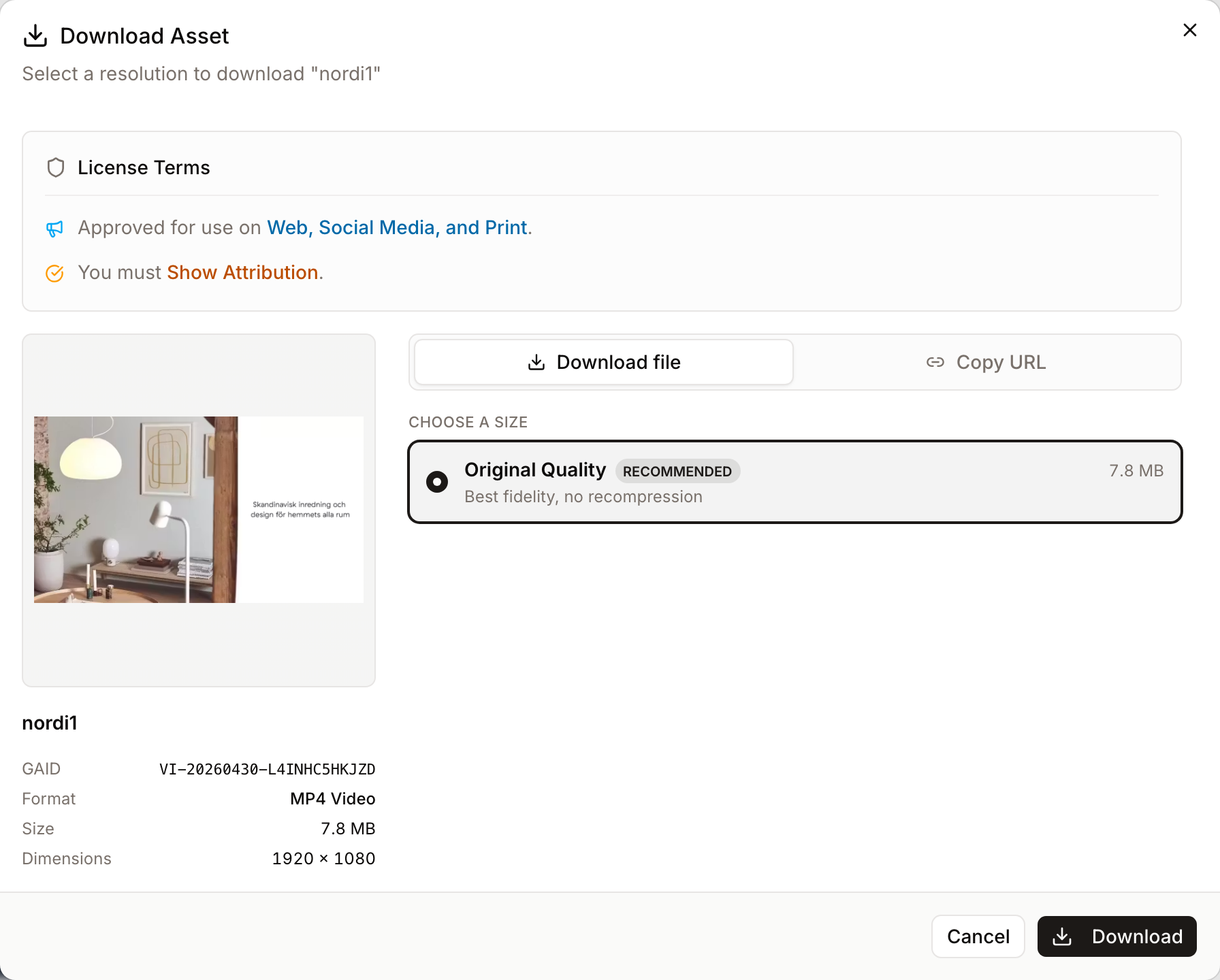
Videos don't have small / medium / large versions. The system stores one full video file; there are no tiered transcodes (no 480p / 720p / 1080p ladder).
So the rule is simple:
- If the policy includes Original → users can download the video.
- If the policy lists only image size tiers (Thumbnail, Low, Standard, etc.) without Original → users cannot download videos at all.
This is intentional. A "thumbnail-only" tier represents preview-only access, and there is no preview-quality video to deliver. Users at that tier still see video previews on the page; they just can't take the file with them.
Audio files
Audio works the same way as video. There is one full audio file per asset, with no lower-bitrate or shorter-clip alternatives.
- Original checked → audio download allowed.
- Original unchecked → audio is not downloadable for this rule's users.
Documents (Word, Excel, PowerPoint, etc.)
Documents are special. The system automatically generates a PDF preview of every Word, Excel, PowerPoint, or LibreOffice document on upload (using Gotenberg). That PDF preview is itself a real, lower-fidelity rendition: it strips the editable Office source.
This gives you a meaningful middle ground:
- Any non-empty tier checked (even just Thumbnail (128px)) → the user can download the PDF preview of the document.
- Original also checked → the user can additionally download the editable source file (.docx, .xlsx, .pptx, .odt, etc.).
- No tiers checked → no downloads.
Use this when you want to share a document for review without exposing the source - for example, share a Word doc as a read-only PDF with marketing reviewers, while keeping the editable copy available only to the brand team.
PDFs
Native PDF files behave the same as documents:
- Any non-empty tier → user can download the PDF.
- Original checked → same file (PDFs don't get a separate conversion).
Watermarks
The watermarking feature only applies to images. The system can render a watermark over an image at download time, but it cannot watermark a video frame-by-frame, and there is no audio watermarking pipeline.
If your access rule sets Watermarked preview as the preview type:
- Image users see and download watermarked images, as expected.
- For video, audio, and document users matched by the same rule, downloads are denied outright.
This is conservative on purpose. If you specifically required a watermark, serving a non-image without one would silently violate that requirement, so the system errs on the side of refusing the download. If you want video/audio/document users to still download, give them their own rule that doesn't require a watermark.
Quick reference
| User policy includes ↓ Asset type → | Image | Video | Audio | Document / PDF |
|---|---|---|---|---|
| Some thumbnails only (no Original) | Picked sizes | Not downloadable | Not downloadable | PDF preview only |
| Original (with or without thumbnails) | All picked sizes | Original video | Original audio | PDF preview + source file |
| Watermarked preview required | Watermarked image | Not downloadable | Not downloadable | Not downloadable |
Common scenarios
1. Marketing reviewers should see watermarked images but not download videos
Configure: visibility Visible to users, preview type Watermarked preview, check Thumbnail (128px), Low (256px) and Standard (512px) under Image download resolutions, leave Original Quality unchecked.
Result: Reviewers get watermarked image previews and can download those at the listed sizes. Videos and audio are not downloadable for them. Documents are not downloadable either (the watermark requirement blocks them).
2. External partners should see images and download PDF versions of documents, but not the editable Office sources
Configure: visibility Visible to users, preview type Full preview, check Standard (512px) and High (1024px) under Image download resolutions, leave Original Quality unchecked.
Result: Partners download images at up to 1024px. Documents download as PDF previews only - the source .docx / .xlsx / .pptx remain inaccessible. Videos and audio are not downloadable.
3. Internal staff should download anything at full resolution
Configure: visibility Visible to users, preview type Full preview, check Original Quality (and any other tiers you want for image flexibility).
Result: Full access. Images, videos, audio, and documents (both PDF preview and editable source) are all downloadable.
4. Anonymous public users should see thumbnails only - no downloads
Configure: visibility Visible to users, preview type Full preview, switch Download off (or check no tiers).
Result: Previews render, nothing is downloadable.
See also
- Asset Access Rules - how to create and prioritize rules.
- Asset Requests - the workflow for users to request access to assets they can't download.
- Watermarks - managing the watermarks available to access rules.