
Asset Requests
The Asset Requests feature provides a centralized queue for administrators to review and manage how users interact with restricted content. It handles two primary types of requests: access to download existing assets and the submission of new asset renderings (such as crops, AI edits or translations). Renderings reach this queue when Require Rendering Approval is on in Access Settings. AI edits always do.
This tool ensures that sensitive or high-value assets are only distributed after manual verification, and that user-contributed content meets organizational standards before being added to the library.
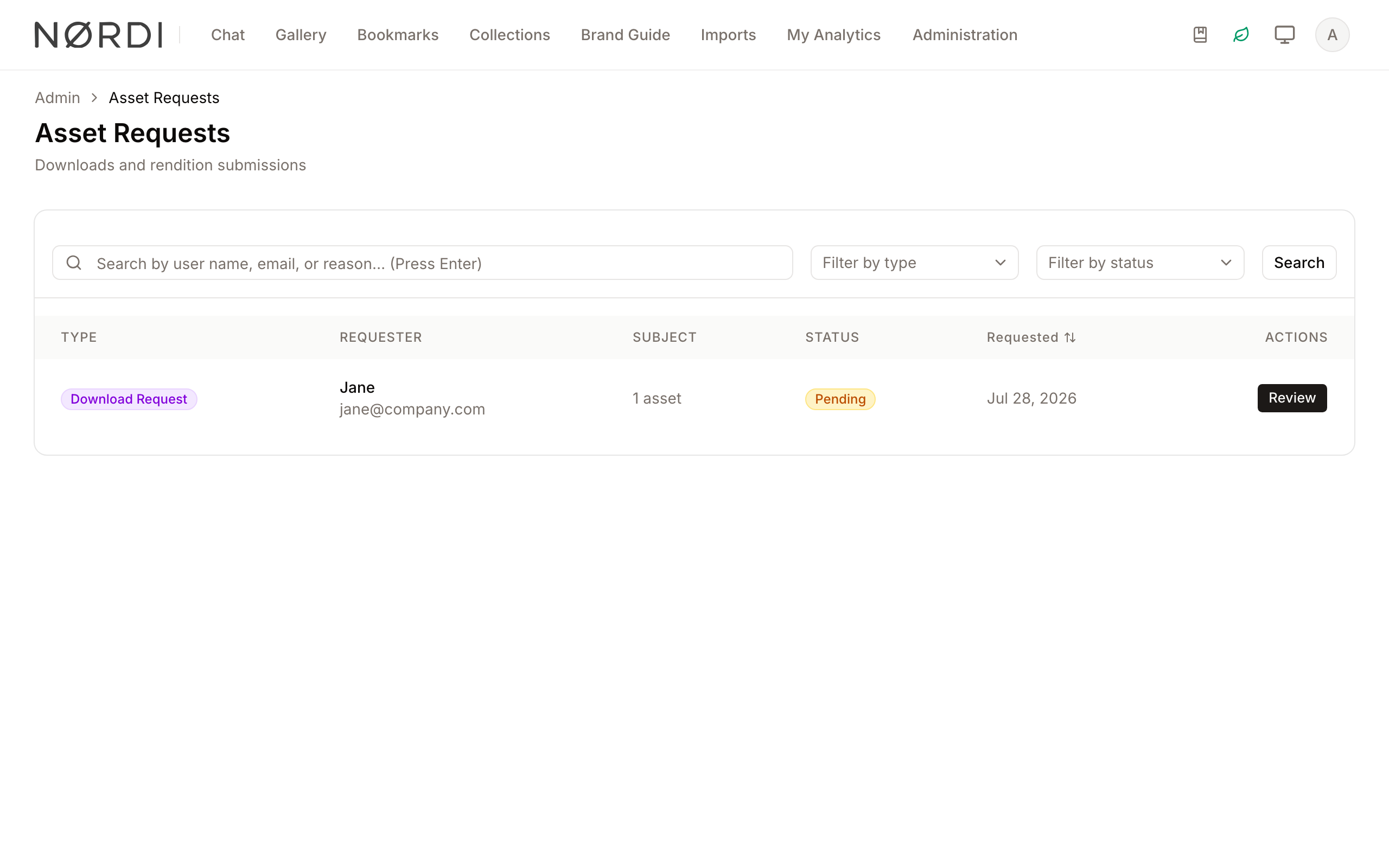
Page Overview
- Purpose: To act as a gatekeeper for restricted asset downloads and new content submissions.
- When to use it: Use this page when you receive notifications of pending requests or during routine audits of asset access.
- What you can do here:
- Filter requests by status (Pending, Approved, Denied).
- Review the reason a user is requesting access or submitting a file.
- Preview submitted renderings and their metadata.
- Grant temporary download access with specific expiration dates.
- Approve or reject submissions to the asset library.
Who can use it
- People with the Review asset requests permission see the full queue and can approve or deny any request.
- Asset owners are automatically allowed to approve or deny download requests for a single asset they uploaded, even without the Review asset requests permission.
- If your team has set up a dedicated reviewer group (one for download requests, and/or one for rendition submissions) under User Groups, everyone in that group is notified when a new request arrives and can act on it from this page.
Page Layout
- Top bar: Displays the page title and a brief description of the request management process.
- Main area: Contains the search and filter controls at the top, followed by a data table listing all requests with the columns Type, Requester, Subject, Status, Requested and Actions.
- Right panel / dialogs: A detailed review window that opens when you click "Review" or the eye icon, containing requester info, file previews, and action controls.
Main Features
Request Filtering and Search
- What it's for: Quickly locating specific requests among many entries.
- Typical use: Searching for a specific user's name, email or reason, or filtering the list by type (Download Request or Submission Request) and by status to show only "Pending" requests that require immediate action.
- Result: Type your search and press Enter or click Search. The filters apply as soon as you choose a value. The table then shows only matching requests.
Download Access Review
- What it's for: Managing permissions for users to download restricted files.
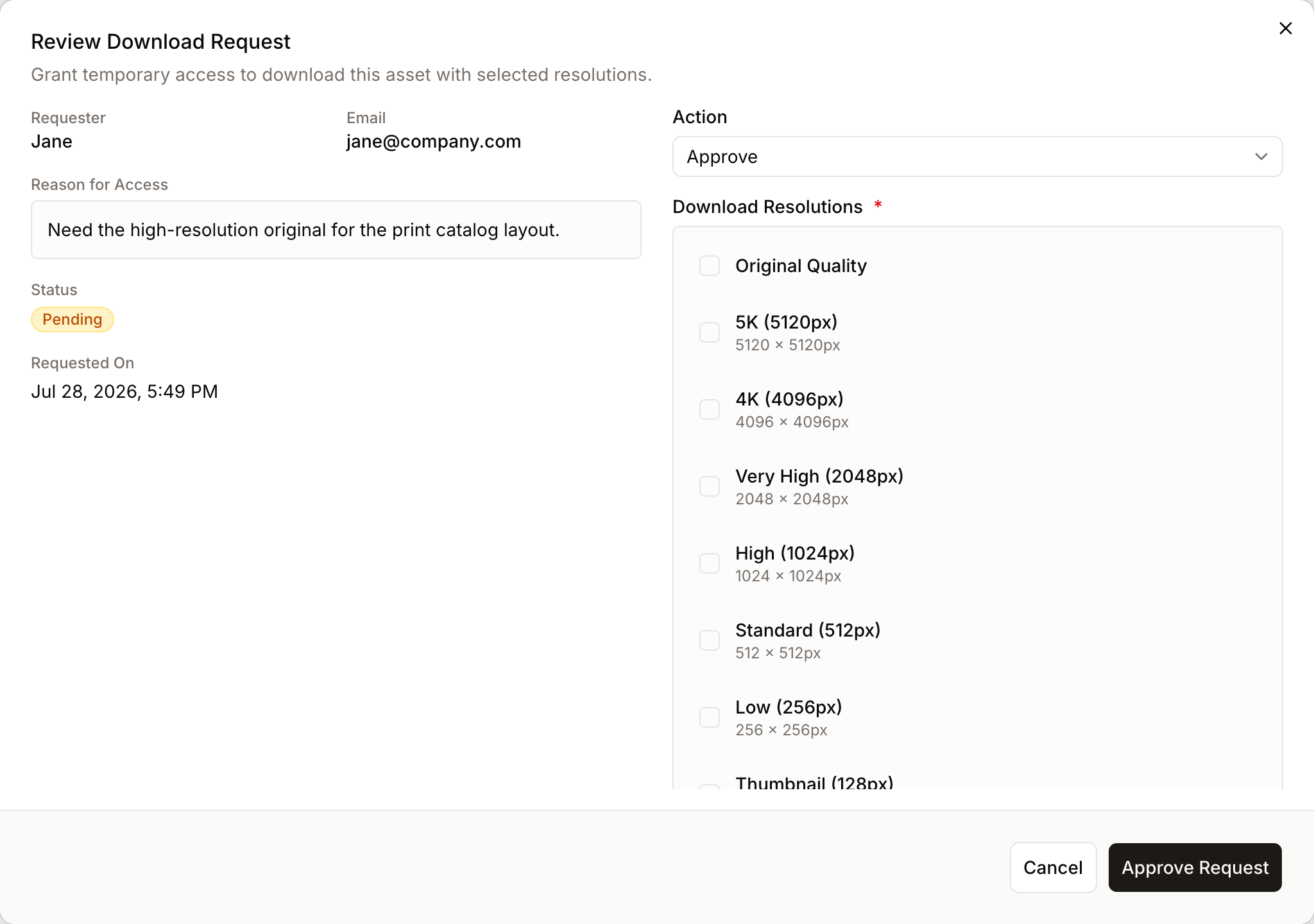
- Typical use: Reviewing the "Reason for Access" and selecting which specific resolutions (e.g., Original Quality or High (1024px)) the user is allowed to have.
- Result: Upon approval, the user receives an email notification and temporary access to the files.
Submission Review
- What it's for: Verifying user-uploaded renderings before they are finalized.
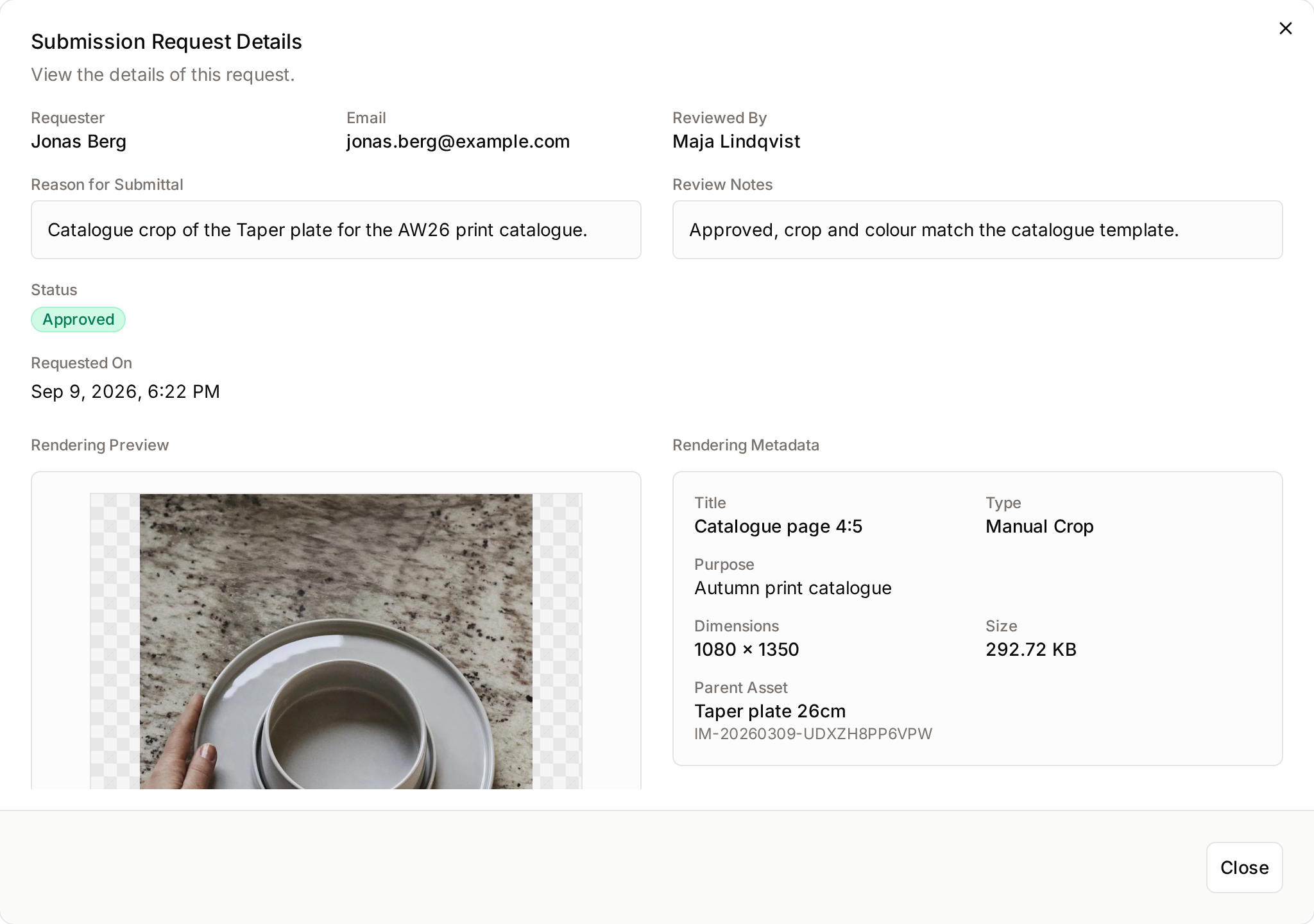
- Typical use: Checking the "Rendering Preview" and "Rendering Metadata" (like Title and Purpose) to ensure the upload is correct.
- Result: Approved submissions are added to the parent asset's rendering list; denied submissions are discarded.
Detailed Feature Documentation
Request Review Dialog
- Purpose: To provide all necessary context for making an approval or denial decision.
- Where to find it: In the Main area table, look for the Review button (for pending items) or the Eye icon (for processed items).
- What you'll see: A window showing the requester's name and email, their stated reason, a preview of the assets involved, and a form to take action.
How to use it:
- Click Review on any pending item in the table.
- Read the Reason for Access or Reason for Submittal.
- If it is a submission, use the Download Rendering button to inspect the file locally if the preview is insufficient.
- Select an action from the Action dropdown (Approve or Deny).
- Click Approve Request or Deny Request to finalize.
For a submission, the dialog shows the Rendering Preview and the Rendering Metadata (Title, Type, Language, Description, Purpose, Dimensions, Size and Parent Asset). Once a request is processed, the same dialog opens read-only with Reviewed By and Review Notes.
Access Expiry Management
- Purpose: To limit how long a user has access to a requested download.
- Where to find it: Inside the Review Dialog, visible only when the request type is "download" and the action is set to "Approve".
- What you'll see: An Access Expiry Date (Optional) field with a calendar picker.
How to use it:
- Open a download request and set the Action to Approve.
- Click the Pick a date button.
- Select a date from the calendar.
- If left blank, the system will apply the default 24-hour expiry. The expiry date you choose must be in the future - past dates are rejected with a friendly validation message.
The expiry date is embedded into the secure download links the requester receives, so after the deadline passes the links stop working automatically. There is nothing you need to manually revoke.
Complete Workflows
Workflow: Approving a Download Request
- Goal: Grant a user permission to download specific versions of an asset.
- Prerequisites: A request with the status "Pending" and type "Download".
Steps:
- Locate the request in the table and click Review.
- In the Action dropdown, select Approve.
- Under Download Resolutions, check the boxes for the sizes the user is allowed to download (e.g., Original Quality or High (1024px)).
- (Optional) Select an Access Expiry Date.
- (Optional) Type a message in Message to Requester (Optional) to explain the approval.
- Click Approve Request.
- Expected result: The request status changes to "Approved" and the user is notified via email.
Workflow: Rejecting a Submission
- Goal: Prevent an incorrect or low-quality rendering from being added to the system.
- Prerequisites: A request with the type "Submission".
Steps:
- Click Review on the submission request.
- Review the Rendering Metadata (Title, Description, Purpose) and the Rendering Preview.
- In the Action dropdown, select Deny.
- In the Message to Requester field, type the reason for the rejection (e.g., "Incorrect file format" or "Missing metadata").
- Click Deny Request.
- Expected result: The request status updates to "Denied" and the file is not added to the asset library.
Limits and guardrails
- The queue is paginated at 20 requests per page. Filter by status, type, or use the search box to quickly narrow the list when activity is high.
- A request can only be reviewed once. Once a decision is recorded, the buttons disappear and the row shows who acted on it, when, and any notes they left.
- Reviewer notes are capped at 1,000 characters - enough to explain a decision without becoming an essay.
- When approving a download, at least one resolution (Original Quality or any of the listed image sizes) must be ticked.
- An approval can cover a single asset or a bulk selection; the review screen automatically lists every asset involved, with thumbnails, so you never approve blindly.
What happens behind the scenes
Approving a download request
- Unique, signed download links are generated for each asset and resolution the requester is allowed to grab.
- The links are embedded in an "Asset request approved" email sent to the requester and only work until the expiry date you set (or 24 hours by default).
- The links carry a special token so they bypass the requester's normal access rules for the approved scope - no further permission check is needed when they click.
- The request is stamped with your name, the time, any notes, and the chosen resolutions so the action is fully auditable.
Approving a rendition submission
- The submitted file is attached to the parent asset as an approved rendition and becomes available to anyone who can see that asset.
- The requester receives an "Asset request approved" email confirming their contribution is now live.
Denying either type of request
- The requester receives an "Asset request denied" email. Any note you left in Message to Requester is included verbatim so they understand why.
- For a denied submission, the uploaded file is deleted automatically - including the thumbnails generated for preview - so unwanted content is never left hanging in storage.
Notifications sent
- New submission received: everyone in the rendition reviewer group (or all administrators if no group is set) receives an email with a direct link to the review dialog. The email mentions whether they personally have the power to approve or only to view.
- Submission confirmation: the person who uploaded the rendition receives a "We have received your submission" email as soon as it hits the queue.
- Approval email: sent to the requester, naming the reviewer, and - for downloads - listing the granted resolutions and expiry.
- Denial email: sent to the requester with the reviewer's note when one is provided.
Tips and Best Practices
- Check the Parent: For submissions, always look at the Parent Asset field in the metadata section to ensure the rendering is being attached to the correct original file.
- Resolution Control: Only grant the "Original" resolution if the user specifically requires high-resolution source files; otherwise, provide a smaller size such as High (1024px) or Very High (2048px) to save bandwidth.
- Communication: Always provide a brief note in the Message to Requester field when denying a request so the user knows how to correct their submission or why access was refused.
Troubleshooting
Issue: Cannot see the "Approve" button
- Symptoms: The Review dialog opens, but only a "Close" button is visible.
- Cause: The request has already been processed (Status is Approved or Denied).
- Fix: Check the Reviewed By and Review Notes sections to see who handled the request and why.
- Prevention: Filter the main table by "Status: Pending" to only see actionable items.
Issue: "Download Resolutions" section is missing
- Symptoms: You are reviewing a request but cannot select file sizes.
- Cause: The request is a "Submission" type (user uploading a file) rather than a "Download" type (user requesting a file).
- Fix: Submissions do not require resolution selection; you simply approve or deny the file as provided.