
Video Poster & Subtitles
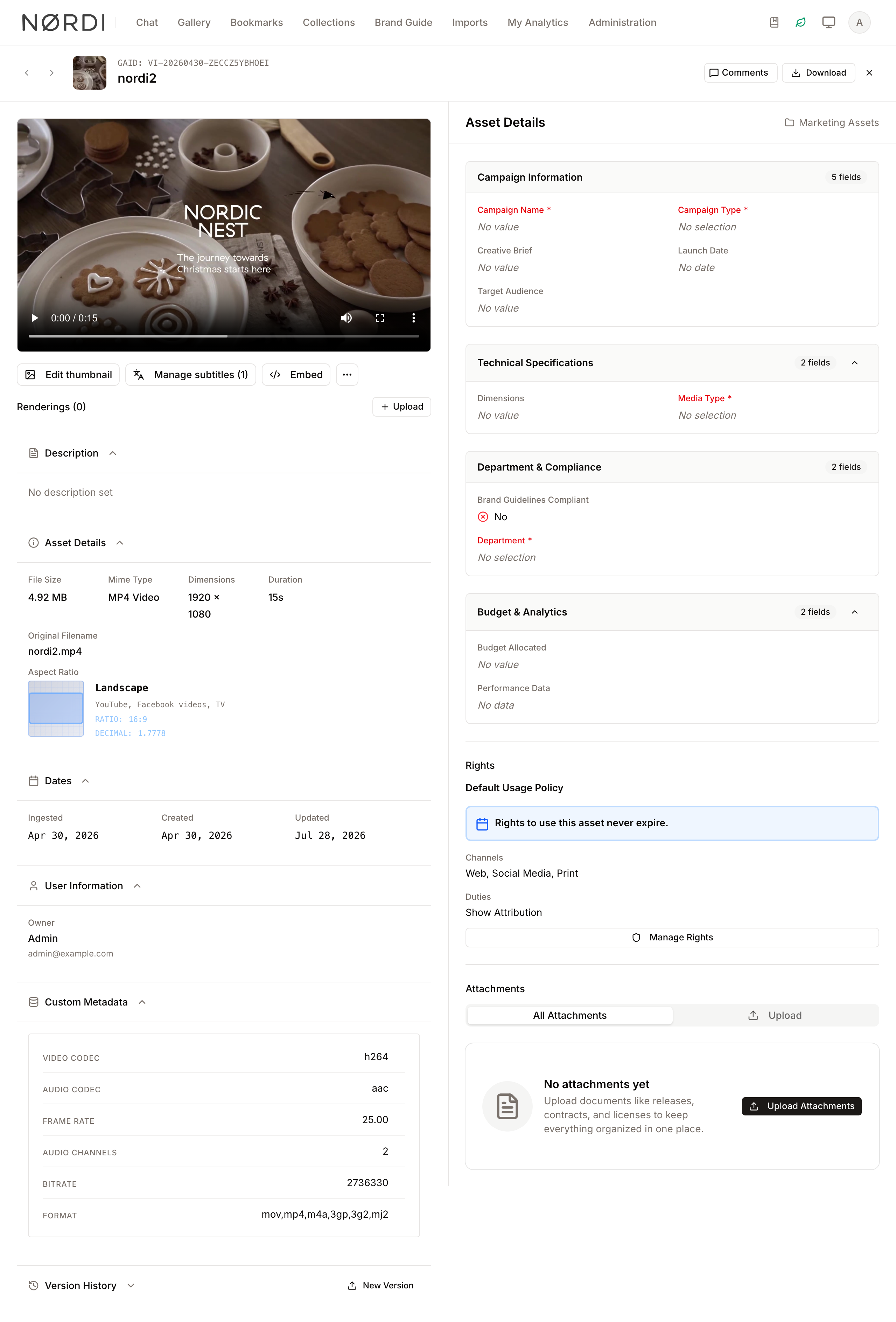
On a video asset's detail page, the toolbar under the video player has two buttons, Edit thumbnail and Manage subtitles. Each button opens a dialog: one lets editors control the still image used as the poster across the gallery, share pages, and embeds; the other lets them attach caption tracks that play inside the asset's video player and become searchable text inside the DAM.
This page describes both dialogs, how they affect the rest of the platform, and what runs in the background after each change.
Page Overview
- Purpose: Curate the poster frame for a video and manage its subtitle tracks.
- When to use it: When the auto-extracted poster doesn't show the most representative moment of the video, when you have a designed cover image (in the YouTube sense), or when you have transcripts you want to play in the player and index for search.
- What you can do here:
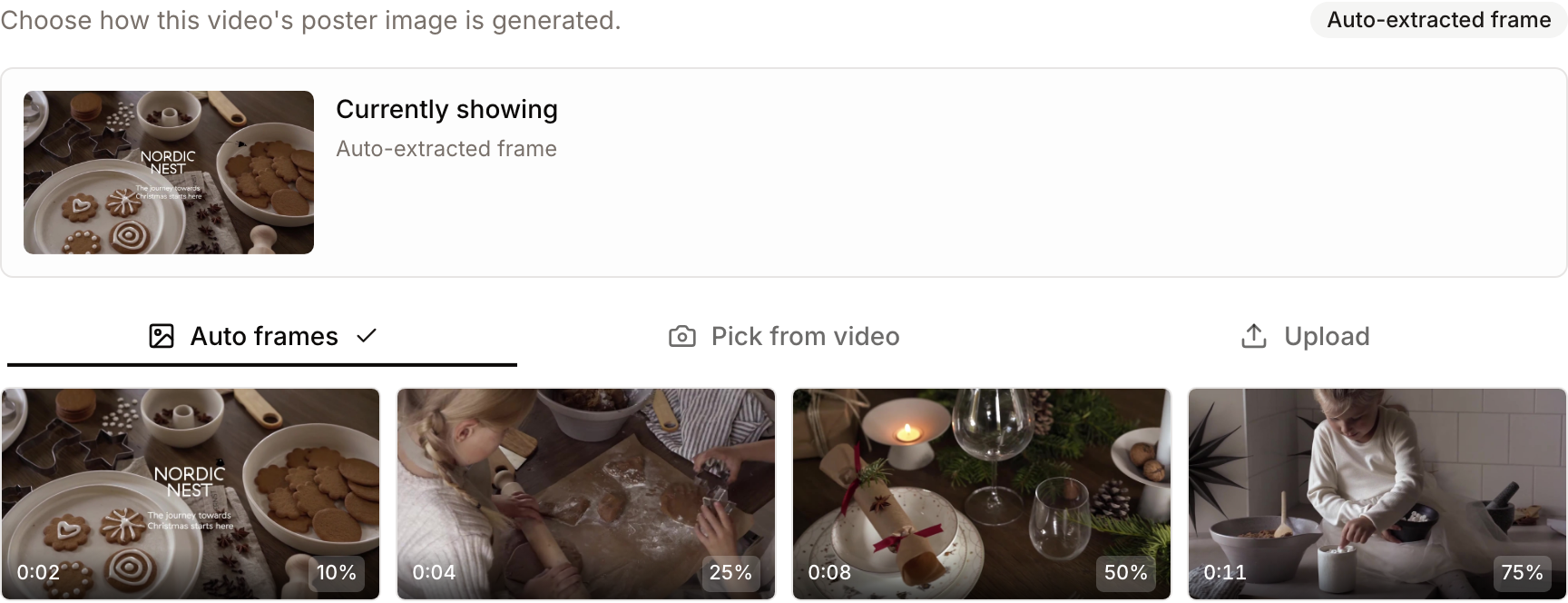
- Pick one of four auto-extracted frames at 10%, 25%, 50%, and 75% of the video duration as the poster.
- Capture an arbitrary frame by scrubbing the video.
- Upload a custom cover image (JPG / PNG / WebP, up to 10 MB).
- Upload SRT or VTT subtitle tracks per language, mark one as the default, and remove tracks you no longer need.
- Copy an embed code to play the video on another website.
- Watch the video back with the captions rendered by the browser's native
<track>element.
Page Layout
A toolbar sits directly under the video player on the asset detail page. It holds an Embed button, when you are allowed to share, and two buttons for the video:
- Edit thumbnail: Opens a dialog containing the current poster preview and a "Currently showing" caption (e.g. Auto-extracted frame at 0:45, Captured frame at 1:23, or Custom uploaded cover), followed by a three-tab control: Auto frames, Pick from video, Upload. The active source is marked with a small check on its tab and a badge next to the intro text.
- Manage subtitles (N): The button label includes the current track count when the video has at least one track. It opens the Subtitles dialog, which lists the existing tracks. Each row shows the language, the source (Auto, Translated or Uploaded), the file format, and a star on the default track. Hover a row to show its edit and remove buttons. Below the list, Add a subtitle track opens the upload form with Language, Track label, File, and Set as the default track. When the video has no track yet, the form is open from the start under the heading Add the first subtitle.
If your role does not include Edit asset metadata, the Edit thumbnail button is hidden, and the subtitles button is labeled View subtitles and opens a read-only dialog - the existing tracks are still listed (and still play in the video) but you can't add, edit, or remove tracks.
Main Features
Auto-extracted candidate frames
- What it's for: Pick the best representative still without leaving the page.
- Typical use: Click Edit thumbnail under the video to open the thumbnail dialog, then open the Auto frames tab. You'll see a 2×2 grid of four candidate frames, each badged with the timestamp it was taken at and the percentage of the video it represents. Click a candidate to set it as the poster.
- Result: The selected candidate becomes the active poster everywhere the video appears (gallery cards, share pages, embeds, social-export crops). The video player remounts with the new poster image.
Pick a specific frame from the video
- What it's for: When none of the four auto-extracted frames hits the right moment.
- Typical use: In the thumbnail dialog (opened with Edit thumbnail), click the Pick from video tab, then click Pick a frame from video. A second dialog opens on top with the video player and a scrubber. Scrub to the frame you want and click Capture current frame. The display ticks once per second so you can target a specific moment.
- Result: A capture job is queued. Within a few seconds the new poster is generated and replaces the active poster. The captured frame becomes the new "Currently showing" preview, and the tab shows a Pick a different frame button so you can iterate.
Custom cover image (YouTube-style)
- What it's for: When you want a designed cover (with type, branding, etc.) instead of any frame from the video.
- Typical use: In the thumbnail dialog, click the Upload tab and drop a JPG, PNG, or WebP image (≥ 320 × 180, ≤ 10 MB; 16:9 is recommended). The upload submits automatically. Once a cover is in place, the tab shows it with two buttons: Replace image and Remove. Remove asks for confirmation, then the poster reverts to the closest auto-extracted frame.
- Result: The uploaded image is stored as the asset's pristine custom cover and promoted to the active poster. Removing it does not delete the image from the auto candidates - those stay available so you can switch back to an extracted frame at any time.
Subtitle tracks
- What it's for: Provide synchronised dialogue or commentary in one or more languages.
- Typical use: Click Manage subtitles under the video to open the Subtitles dialog, then click Add a subtitle track. Choose a Language from the list. Track label is filled in with the language name, and you can change it: it is the name shown in the player's caption picker. Choose a
.srtor.vttfile and click Upload subtitle. Tick Set as the default track to make this the one the player turns on automatically. - Result: The track is stored, converted to WebVTT if it was uploaded as SRT, and shows up in the video player's caption menu. The transcript text is also extracted and rolled into the asset's full-text search document, so users can find the video by quoting any line of dialogue.

Detailed Feature Documentation
How the active poster is decided
Each video asset tracks one of three poster sources at any time:
- Auto - one of the four auto-extracted candidate frames is currently active.
- Captured - an arbitrary frame captured via Pick from video is currently active.
- Uploaded - a custom cover uploaded by an editor is currently active.
The header badge and the "Currently showing" caption always reflect the active source, including the timestamp when one applies. Switching sources doesn't delete the others - the four candidates and any uploaded cover remain available, so you can swap freely without re-running anything.
Subtitle file formats
Both SubRip (.srt) and WebVTT (.vtt) uploads are accepted. SRT files are stored as-is and converted to VTT on the fly when the player or downloader requests them, because browsers only render captions through the WebVTT-formatted <track> element. The conversion is lossless for cue text and timestamps; cue numbering and the WEBVTT signature are added or stripped automatically.
A subtitle file is rejected if it has no recognisable cue timestamps or, in the case of VTT, no WEBVTT signature. The size limit is 2 MB per track, which is generous for typical dialogue transcripts.
Multilingual subtitles
Each video asset accepts at most one subtitle track per language. Uploading a new file for a language that already has a track silently replaces the previous one, so iterating on a transcript is just re-upload. Marking a track as the default unsets the default flag on every other track for the same video - only one default can be active at a time.
The default track is the one the player turns on automatically when the user starts playback. All other tracks are still listed in the caption menu, so viewers can switch between languages on the fly.
Subtitles in full-text search
Every time a subtitle is added or removed, the asset's BM25 search document is rebuilt. The transcript is reduced to plain text (timestamps, cue numbers, and inline VTT/SRT markup are stripped), and the resulting prose is added to the document with the same weight as OCR text. Practically this means:
- Searching for a phrase that appears in the dialogue surfaces the video.
- The matching language's search document is preferred when available; if no track matches the search language, every track is folded in so foreign-language captions remain findable.
The reindex runs asynchronously on the search queue, so a freshly uploaded subtitle becomes searchable within a few seconds rather than instantly.
Embed a video
The Embed button in the toolbar under the player gives you an HTML snippet to play the video on another website, such as a product page or an intranet. You need the Share publicly permission, and you must be allowed to download the original video without a watermark or a download request.
- Click Embed.
- Choose a Size: Small (480×270), Medium (640×360), Large (854×480), or Custom.
- Optionally set Start at in minutes and seconds, for example
1:30. While the value is not in that format, the embed code stays empty and Copy is disabled, so a mistyped time never produces an embed that starts at 0:00. - Under Playback, choose Autoplay, Muted, Loop and Show controls. Browsers only autoplay muted videos, so Muted is turned on with Autoplay.
- Click Copy next to the Embed code and paste it into your page.
Anyone who has the embed code can play the video, without signing in. Behind the scenes, Freedam creates a view-only public share link for the video, valid for a year and extended automatically while you keep using it. To stop an embed from playing, revoke that share in Shares Management.
- The video can only be embedded when its rights policy allows publishing. Otherwise the dialog says so.
- An embed republishes the video, so like any share link it needs your access rules to let you download the original video without a watermark or a download request, not only watch it. Otherwise the dialog says so.
- If your workspace requires accepting share terms, the dialog asks you to accept them first, as when you create a share link.
- Administrators can limit which websites may embed videos with the embed domain allowlist. See Shares Management.
Complete Workflows
Workflow: Replace the poster with a brand cover
- Goal: Replace the auto-extracted poster with a designed cover image.
- Prerequisites: You must have edit permission on the asset, and a 16:9 image at least 320 × 180 pixels.
Steps:
- Open the asset and click Edit thumbnail under the video player.
- Click the Upload tab.
- Drag your image into the dashed dropzone (or click to browse).
- Wait a moment for the upload to complete.
- Expected result: The active poster updates to your image and the badge next to the intro text changes to Custom upload. The video player remounts so the new poster appears immediately.
Workflow: Capture a specific frame as the poster
- Goal: Use a moment from later in the video as the poster.
- Prerequisites: You must have edit permission on the asset.
Steps:
- Open the asset and click Edit thumbnail under the video player.
- Click the Pick from video tab, then click Pick frame from video - the capture dialog opens on top.
- Scrub the video to the frame you want and use the timestamp readout to confirm.
- Click Capture current frame.
- Close the dialog.
- Expected result: A toast confirms the capture is queued. Within a few seconds the page reloads with the new poster active; the tab now shows the captured frame and a Pick a different frame button if you want to iterate.
Workflow: Add bilingual subtitles to a marketing video
- Goal: Attach English and French captions, with English as the default.
- Prerequisites: You must have edit permission on the asset, and the two subtitle files (SRT or VTT) ready locally.
Steps:
- Open the asset and click Manage subtitles under the video player.
- Click Add a subtitle track. If the video has no track yet, the form is already open.
- Choose English as the Language, adjust the Track label if you want another name, choose the English file, tick Set as the default track, and click Upload subtitle.
- Click Add a subtitle track again and repeat with French and the French file, without ticking the default.
- Expected result: Both tracks appear in the list; the English row shows a star indicating it's the default. The video player's caption menu now lets viewers switch between English and French. Within a few seconds, searching for a phrase from either transcript also returns the video.
Workflow: Replace a subtitle file in place
- Goal: Update the English transcript without leaving a stale copy behind.
- Prerequisites: You must have edit permission on the asset.
Steps:
- In the Subtitles dialog, click Add a subtitle track, choose English again, choose the new file, and click Upload subtitle.
- There's no need to delete the old track first - the unique-per-language rule causes the old file to be replaced atomically.
- Expected result: The list still shows one English track. The search index is rebuilt so the new transcript becomes searchable within a few seconds.
What happens behind the scenes
- Candidate frames are extracted automatically after upload. Once the primary preview is generated, a follow-up job extracts four candidate frames at 10/25/50/75% of the video duration and stores them in a dedicated media collection. Frames that are mostly black are nudged forward by a second so a fade-to-black edit cut doesn't get picked. The four candidates appear in the picker without you having to do anything; if a video has zero duration metadata at the time of ingestion, the picker will simply show a "candidates are still being generated" placeholder until ingestion catches up.
- Captured frames are extracted asynchronously. When you click Capture current frame, a job is queued that downloads the video, seeks to the requested timestamp, extracts the frame, and promotes it into the primary preview. The reload after the dialog closes shows the previous poster until the worker finishes - usually within a few seconds for short videos, longer for very large originals.
- Switching sources doesn't regenerate everything. Picking a different candidate or removing a custom cover swaps the active media in place. Spatie Media Library's conversion chain (thumbnails, web sizes) is regenerated from the new source automatically; the auto candidates and any uploaded cover stay where they are so you can switch back without re-running anything.
- Subtitle uploads trigger a search reindex. Adding, replacing, or removing a track dispatches the same job that runs after metadata edits, so search picks up the new transcript within a few seconds. The plain-text extraction strips timestamps, cue identifiers, and inline VTT/SRT markup before indexing.
- The browser actually renders the captions. The video player passes the subtitle tracks to the underlying
<video>element via WebVTT URLs; the browser handles language switching, default-track activation, and rendering. SRT files are converted to VTT at serve time so they work in every modern browser.
Tips and Best Practices
- Use the upload tab for branded covers that have type or graphics; use the auto frames or capture for cinematic stills.
- Removing a custom cover falls back to the closest auto candidate, not to a blank - handy if you want to revert without picking a frame manually.
- Replace, don't double-upload. If you upload a file for a language that already has a track, the previous track is replaced atomically; deleting first creates an unnecessary search-index churn.
- The Language list is not limited to active languages. It contains every language available in Freedam, so a video can carry a track in a language your workspace has not activated.
- The poster is what shows on shares and embeds, not just on the gallery card. Keep brand and accessibility in mind when picking it.
Troubleshooting
Issue: The four candidate frames haven't appeared
- Symptoms: The Auto frames tab shows skeletons and "Candidate frames are still being generated".
- Cause: The candidate-extraction job is still queued, or the video's duration wasn't known at ingestion time so the job didn't run.
- Fix: Wait a minute and reload. If candidates still don't appear, ask an administrator to re-run preview generation for the asset; that re-dispatches the candidate job once the duration is known.
Issue: The captured frame doesn't show up after the dialog closes
- Symptoms: The "Frame capture queued" toast appeared, but the poster still shows the previous frame.
- Cause: The capture runs asynchronously and the reload happens immediately after queuing the job. For very large videos, extraction can take more than the few seconds before reload.
- Fix: Wait 10–30 seconds and reload the page manually. The new poster takes effect once the worker finishes.
Issue: Cover upload rejected with "Cover image must be at least 320×180 pixels."
- Symptoms: The upload form shows a red error and the cover doesn't change.
- Cause: The image is below the minimum dimensions, larger than 10 MB, or in an unsupported format.
- Fix: Re-export the cover at 1280 × 720 or larger and ensure it's saved as JPG, PNG, or WebP.
Issue: Subtitle upload rejected with "Subtitle file has no recognisable cue timestamps"
- Symptoms: The form shows the error after submit.
- Cause: The file is empty, contains only header text, or uses a format Freedam doesn't parse (e.g. SSA/ASS with no plain timestamps).
- Fix: Open the file in a subtitle editor and confirm cues use the standard
HH:MM:SS,mmm --> HH:MM:SS,mmm(SRT) orHH:MM:SS.mmm --> HH:MM:SS.mmm(VTT) format. Convert SSA/ASS to SRT before uploading.
Issue: Captions don't appear in the player
- Symptoms: The track is listed in the Subtitles dialog but the player's caption menu is empty or shows the track but doesn't render text.
- Cause: The underlying
<video>element won't load<track>files cross-origin without permission; some preview deployments serve assets from a different origin. - Fix: Check that the player loads previews from the same origin as the application, or ask an administrator to enable CORS for the subtitle-serving route. The track itself is correct if SRT/VTT downloads from the asset URL render properly in a separate browser tab.
Issue: A subtitle phrase doesn't return the video in search
- Symptoms: Typing a quote from the transcript into search doesn't surface the asset.
- Cause: Either the search index hasn't rebuilt yet, or the phrase contains characters the BM25 tokenizer normalises away.
- Fix: Wait a few seconds and retry - reindexing is asynchronous. If the phrase still doesn't match, try a shorter substring without punctuation; full-text search tokenises on word boundaries.