
Asset Classes
Asset Classes are the blueprints for your digital assets. They define how different types of content, such as images, videos, or documents, are organized, what metadata fields they require, and which workflows they follow during their lifecycle.
By configuring Asset Classes, administrators can ensure consistent data entry, guide AI-assisted classification during ingestion, and automate status changes when usage rights expire.
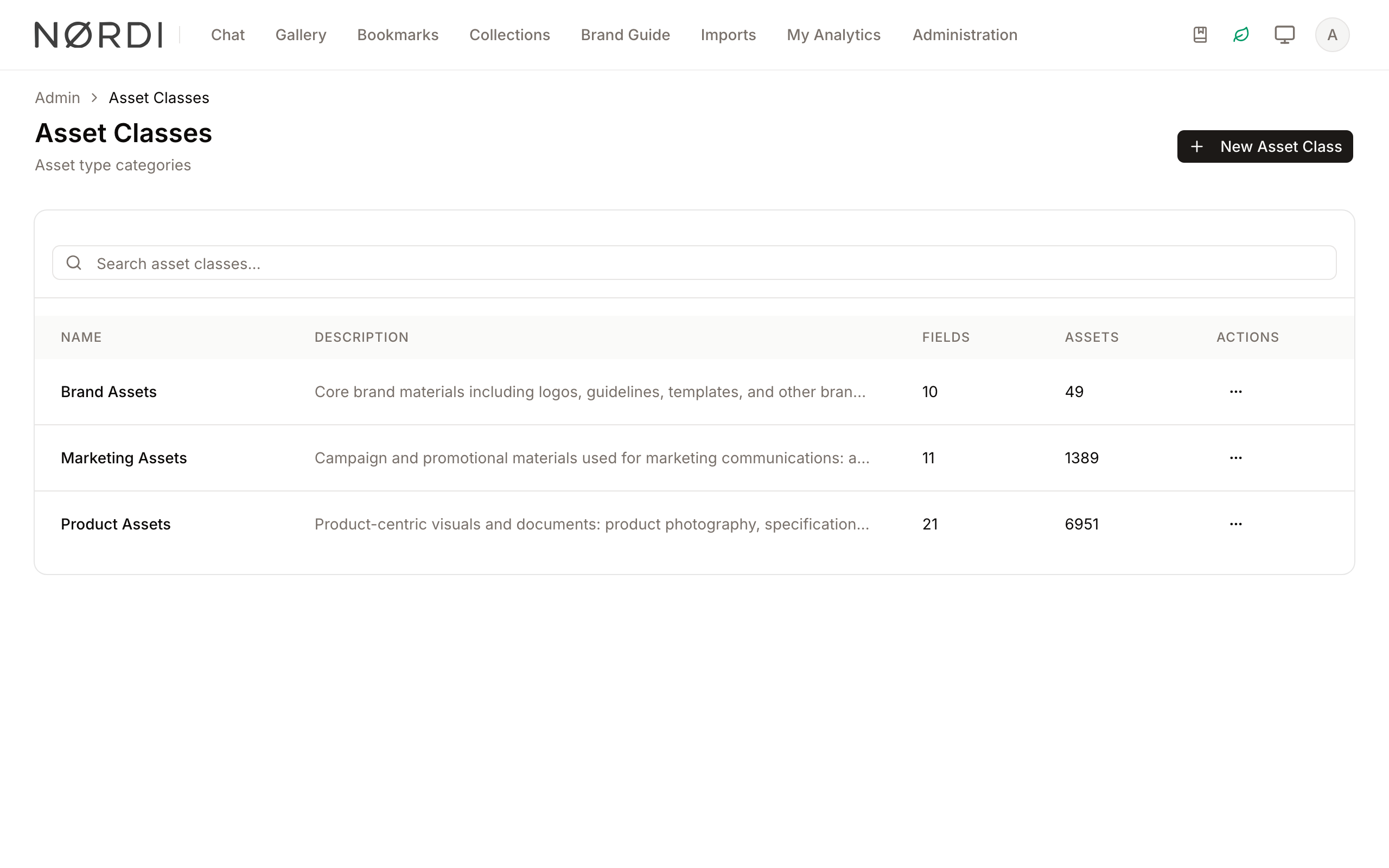
Page Overview
- Purpose: To centralize the management of asset types and their associated data structures.
- When to use it: Use this page when you need to create a new category of assets, modify existing metadata requirements, or link an asset type to a specific approval workflow.
- What you can do here:
- Create, edit, and duplicate asset classes.
- Define unique identification codes for system integration.
- Assign default workflows to specific asset types.
- Configure automatic workflow transitions for expired rights.
- Access the field management area for each class.
Page Layout
- Top bar: Contains the page title, a brief description, and the New Asset Class button to start the creation process.
- Main area: Features a searchable table listing all defined asset classes, showing their name, description, number of associated metadata fields, and the total count of assets currently using that class.
- Search bar: Located at the top of the main card, allowing you to filter the list by name or code.
- Actions menu: A dropdown menu (vertical dots) for each row with View, Manage Fields, Edit, Duplicate and Delete.
Main Features
Metadata Structure Management
- What it's for: Defining the specific data fields (tags, dates, dropdowns) that belong to an asset class.
- Typical use: Clicking Manage Fields to add a "Photographer" field specifically for the "Image" asset class.
- Result: Assets assigned to this class will display and require these specific fields in the asset details view.
Workflow Integration
- What it's for: Linking an asset class to a predefined lifecycle process.
- Typical use: Assigning a "Legal Review" workflow to all assets created under the "Contract" asset class.
- Result: New assets of this class automatically enter the selected workflow upon ingestion.
Rights Expiration Automation
- What it's for: Automatically moving an asset to a new status when its license or rights period ends.
- Typical use: Setting the status to "Archived" or "Expired" automatically when a rights policy date is reached.
- Result: Reduces manual oversight by ensuring expired content is immediately flagged or hidden based on its workflow status.
Detailed Feature Documentation
Creating and Editing Asset Classes
- Purpose: To define the core identity and behavior of an asset category.
- Where to find it: Click the New Asset Class button in the top bar, or click the name of an existing class (or select Edit from its actions menu).
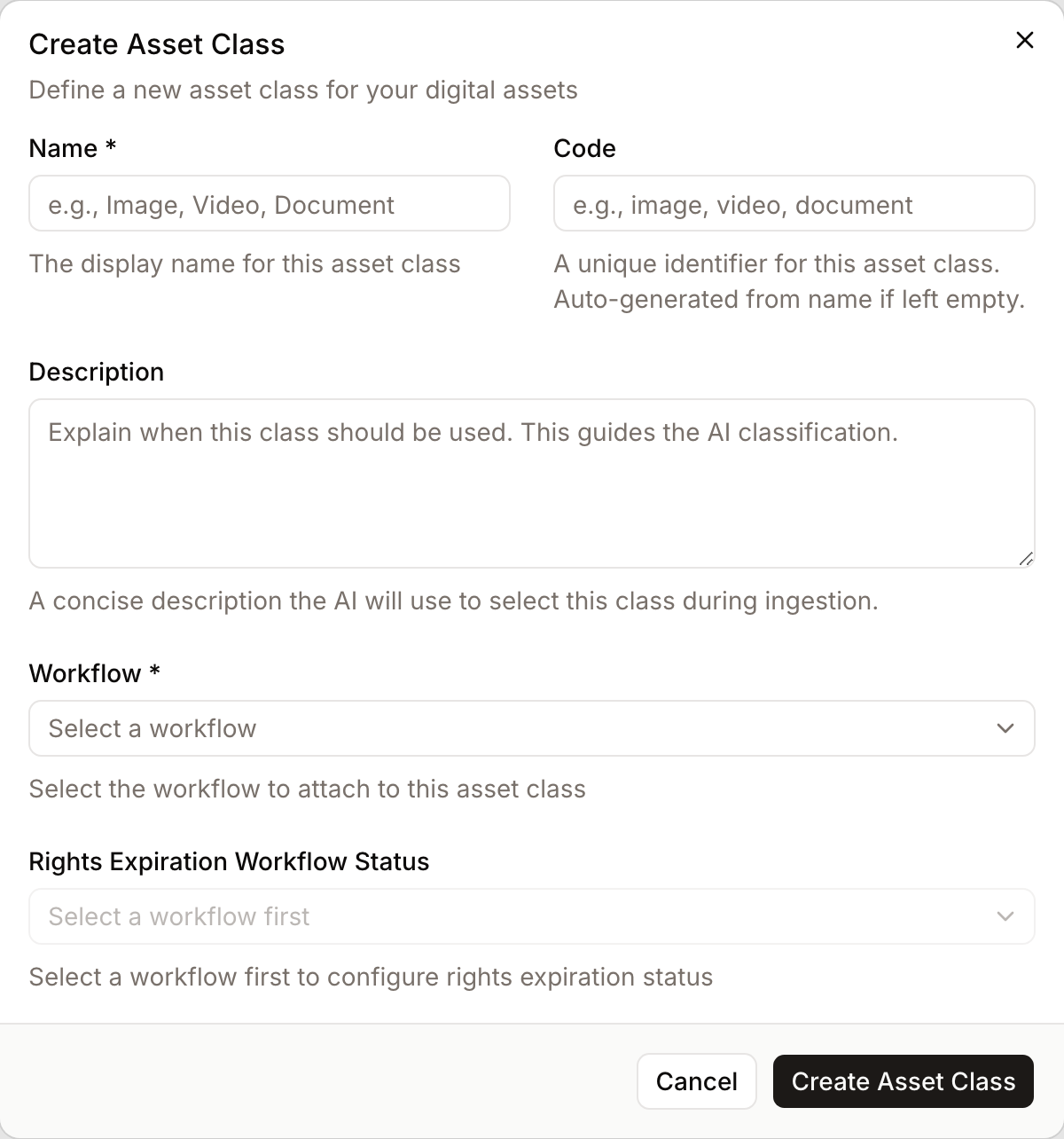
- What you'll see: A dialog window containing fields for Name, Code, Description, and Workflow settings.
How to use it:
- Enter a Name (e.g., "Social Media Video").
- The Code will auto-generate based on the name, but you can manually edit it if a specific system ID is required.
- Provide a Description. This text is used by the AI to help categorize assets during bulk uploads.
- Select a Workflow from the dropdown menu.
- (Optional) Select a Rights Expiration Workflow Status to enable automatic transitions.
- Click Create Asset Class or Update Asset Class.
Duplicating Asset Classes
- Purpose: To quickly create a new asset class based on the configuration of an existing one.
- Where to find it: In the Actions menu (vertical dots) for any asset class, select Duplicate.
- What you'll see: A new asset class appears in the list with the same settings as the original. Its name ends with "(Copy)" and its code with
-copy. You can then edit it.
How to use it:
- Locate the asset class you wish to copy.
- Click the Actions menu.
- Select Duplicate.
- Find the new entry in the list and click its name to rename and customize it.
Complete Workflows
Workflow: Setting up a new Content Type
- Goal: Create a fully functional asset category with custom fields.
- Prerequisites: Administrator permissions.
Steps:
- Click New Asset Class in the top bar.
- Type "Marketing Graphics" in the Name field.
- Select "Standard Approval" from the Workflow dropdown.
- Click Create Asset Class.
- In the main table, find "Marketing Graphics", click the Actions menu, and select Manage Fields.
- Add the required metadata definitions for this class.
- Expected result: The "Marketing Graphics" class is now available for selection during asset upload, and it will include your custom fields.
Workflow: Automating Expiration Transitions
- Goal: Ensure assets move to a "Restricted" status automatically when their rights expire.
- Prerequisites: A workflow must already be assigned to the asset class.
Steps:
- Click Edit on an existing Asset Class.
- Ensure a Workflow is selected (this feature is disabled if "None" is selected).
- Open the Rights Expiration Workflow Status dropdown.
- Select the status you want assets to move to (e.g., "Expired" or "Needs Renewal").
- Click Update Asset Class.
- Expected result: Any asset of this class with an attached rights policy will automatically change to the selected status upon the policy's expiration date.
Who can use it
Managing asset classes requires the Manage asset classes permission, which is typically granted to workspace administrators. Users without that permission cannot see this page at all. Editing the fields and field rules of an asset class needs the Manage metadata fields and forms permission.
Limits and guardrails
- Deletion is blocked when in use: The system refuses to delete an asset class that still has assets attached to it. The delete action in the menu is disabled in that case; you must first move those assets to another class (or remove them) before trying again.
- Safe duplication: When you duplicate an asset class, Freedam copies every metadata field with it. Each copied field receives a unique internal identifier so the original and the copy stay independent: editing one will not affect the other.
- Expiration automation depends on the workflow: The "Rights Expiration Workflow Status" only lists the stages that exist in the workflow you have assigned. The dropdown offers the process and end states of that workflow; the initial "start" state is intentionally excluded because an asset cannot be reset to its starting point through expiration.
- Paginated listing: The overview shows 20 asset classes per page, sorted alphabetically by name. The search box looks across name, code, and description.
What happens behind the scenes
- The Description is not just internal documentation: Freedam's AI uses it as context when classifying newly uploaded files. A richer description produces better automatic suggestions.
- The Code is auto-generated from the name but can be overridden. Once saved, it acts as the stable identifier used by integrations, so changing a code on a live asset class can disrupt external systems that reference it.
- When rights expiration is configured, any asset of this class with a rights policy will be transitioned to the chosen status as soon as its license window ends, without manual intervention.
Tips and Best Practices
- AI Descriptions: Be specific in the Description field. Instead of "Images," use "High-resolution photography including product shots and lifestyle portraits." This significantly improves AI classification accuracy.
- Unique Codes: Use consistent naming conventions for Codes (e.g.,
img_prod,vid_soc) if you plan to use the API for integrations. - Deletion Restrictions: You cannot delete an asset class that currently has assets assigned to it. You must first reassign or delete those assets.
Troubleshooting
Issue: Cannot delete an Asset Class
- Symptoms: The Delete option in the Actions menu is disabled (greyed out).
- Cause: The asset class is currently in use. The system prevents deletion to maintain data integrity for existing assets.
- Fix: 1. Navigate to the main Asset Library. 2. Filter by the asset class you want to delete. 3. Reassign those assets to a different class or delete them. 4. Return to the Asset Classes page to delete the class.
Issue: Rights Expiration Status is hidden or disabled
- Symptoms: The dropdown for Rights Expiration Workflow Status cannot be clicked.
- Cause: No Workflow has been selected for the asset class.
- Fix: Select a valid Workflow first. The expiration statuses are dependent on the specific stages defined within that workflow.
- Prevention: Always define your Workflows before configuring advanced Asset Class behaviors.