
AI Settings
The AI Settings page is the central hub for managing the artificial intelligence capabilities of Freedam. It allows administrators to connect various AI providers, assign specific models to system tasks, and monitor the financial and technical performance of AI-driven features like chat enrichment and image studio operations.
This feature is designed for system administrators and financial controllers who need to ensure AI services are correctly configured, cost-effective, and performing within expected latency limits.
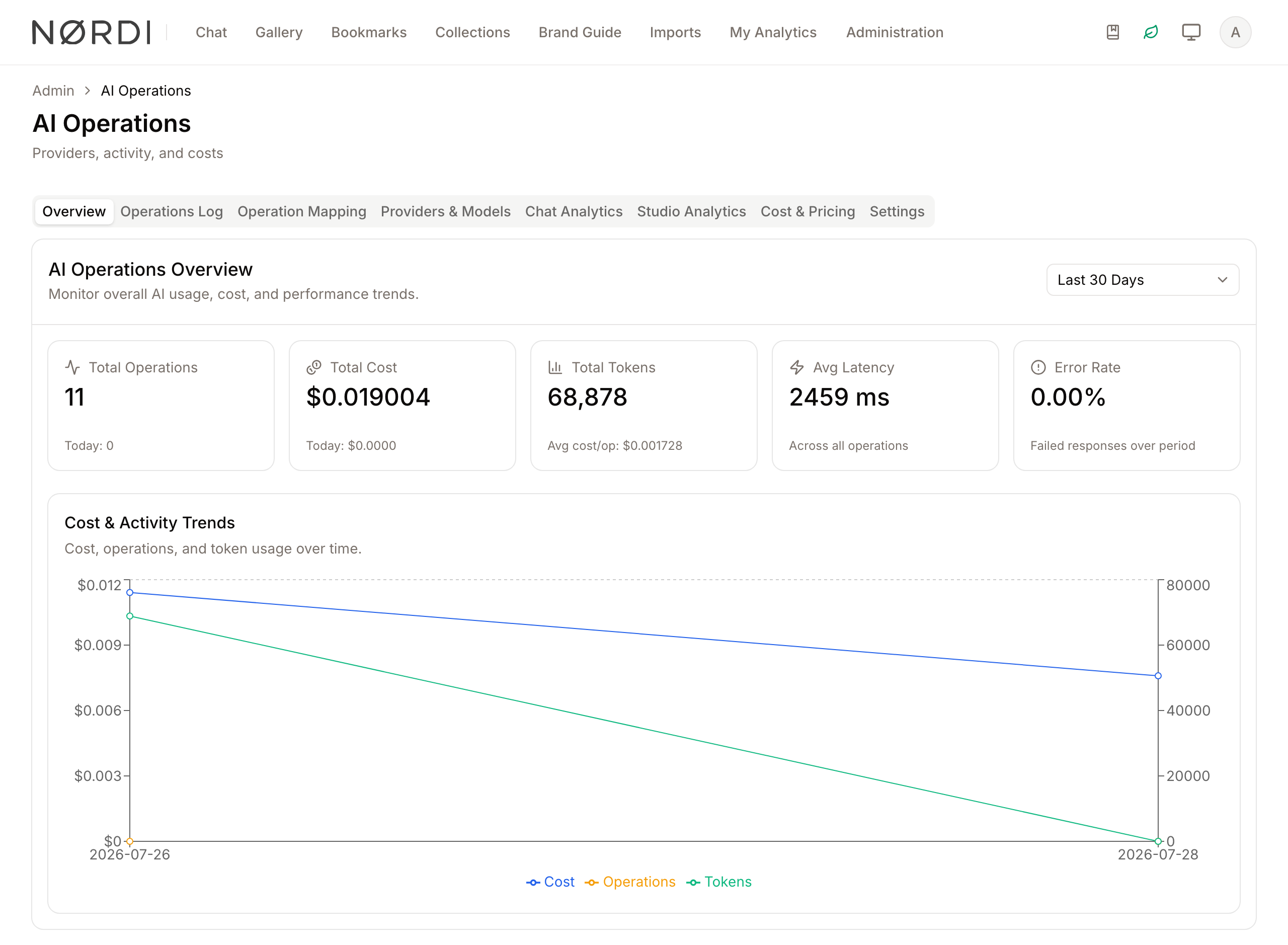
Page Overview
- Purpose: To manage the integration, routing, and auditing of AI services.
- When to use it: Use this page when setting up new AI capabilities, troubleshooting failed AI tasks, or reviewing monthly AI expenditures.
- What you can do here:
- Map specific AI models to system operations (e.g., "Image Enrichment").
- Monitor real-time token usage and costs.
- Audit AI chat sessions and Studio image edits.
- Verify the health and connectivity of AI providers.
- Configure global AI system settings and API credentials.
Who can use it
- The AI Operations area is reserved for people with the Manage AI operations permission. The three permissions below only work together with it.
- The View AI costs permission unlocks the Overview and Operations Log tabs. Without it these two tabs are disabled and the page opens on Operation Mapping: the person can still manage model bindings, providers and settings but does not see spend figures.
- The Chat Analytics tab also needs the View chat usage permission, and the Analytics feature in your current plan.
- The Studio Analytics tab also needs the View other people's Studio work permission, and the Audit Logs feature in your current plan.
Page Layout
- Top bar: Contains the page title "AI Operations" and the tabs. The first four tabs report on usage (Overview, Operations Log, Chat Analytics, Studio Analytics); the last three configure AI (Operation Mapping, Providers & Models, Settings).
- Main area: Displays the content for the selected tab, such as usage charts, data tables for logs, or configuration forms for model mapping.
- Dialogs: Pop-up windows used for inspecting specific operation details, chat message histories, or high-resolution Studio renditions.
Main Features
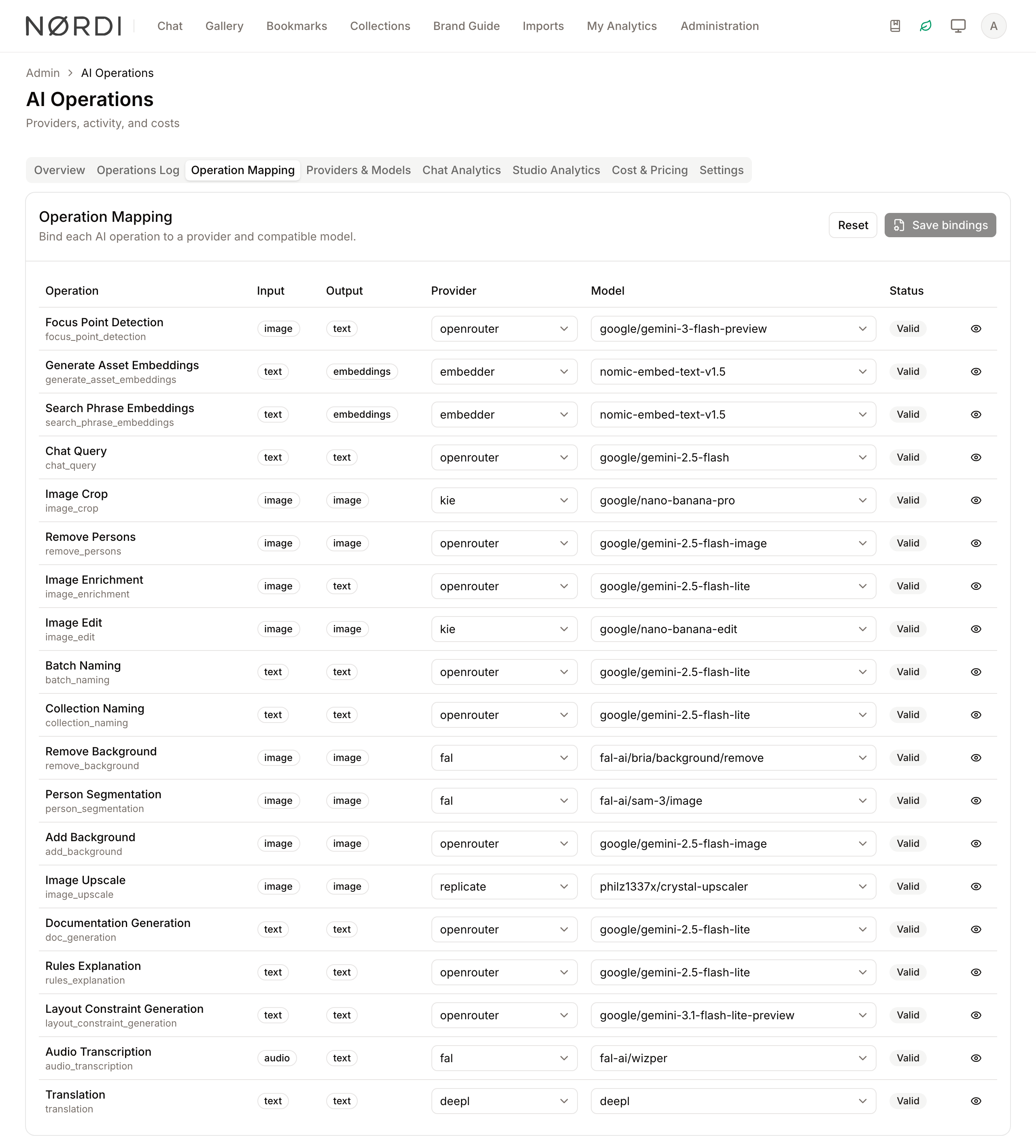
Operation Mapping
- What it's for: Assigning a specific AI provider and model to a functional task in the app.
- Typical use: Selecting "GPT-4o" from "OpenAI" to handle the "Chat Query" operation.
- Result: The system will use the chosen model whenever that specific AI task is triggered by a user.
- Operations you can route: Freedam ships 20 mappable operations, grouped into five categories:
- Vision: Focus Point Detection, Image Enrichment (combined OCR, tagging, captioning, and classification in a single call).
- Embeddings: Generate Asset Embeddings, Search Phrase Embeddings (powering semantic search).
- Image Generation: Image Crop, Remove Persons, Image Edit, Remove Background, Person Segmentation, Add Background, Image Upscale.
- Text: Chat Query, Batch Naming, Collection Naming, Documentation Generation, Rules Explanation, Layout Constraint Generation, Translation, Admin Assistant.
- Audio: Audio Transcription.
- Every operation declares the inputs and outputs it needs (text, image, audio or embeddings) and the capabilities it requires (such as background removal, segmentation, upscaling, transcription, translation or tool calling), and the page automatically filters the model picker to models that support those capabilities.
Usage Analytics
- What it's for: Following AI spend, request volume and errors over a period, and seeing where the money goes.
- Where to find it: The Overview tab. The period selector at the top right (for example "Last 30 Days") applies to every figure, chart and breakdown on the tab.
- What you'll see:
- A row of key figures: total operations, total cost, total tokens, average latency and error rate, with today's operations and cost underneath.
- Cost per day and Operations per day bar charts. Every day of the period has a bar, so days without AI activity show as gaps. Hover a bar to see the exact figure; the operations chart also shows that day's tokens.
- Costs by Operation, Costs by Provider and Cost by Model: ranked lists with each entry's amount, its share of the total and its number of operations. Cost by Model also shows the provider and the average cost per operation.
- Typical use: Checking Cost per day to see whether a recent feature launch caused a spike in spend, then the ranked lists to find the operation or model behind it.
- What's tracked: Every AI call records the provider, model, input and output token counts, total cost in US dollars, response time in milliseconds, success or failure, and any error message returned by the provider.
Operations Log
- What it's for: A detailed, searchable history of every AI request made by the system.
- Typical use: Filtering by "Failed" status to identify why certain asset enrichments did not complete.
- Result: Displays the exact model used, the latency of the request, and any error messages returned.
- Retention: AI operation records are kept indefinitely by default, so you have a full audit trail for budget reconciliation and historical troubleshooting.
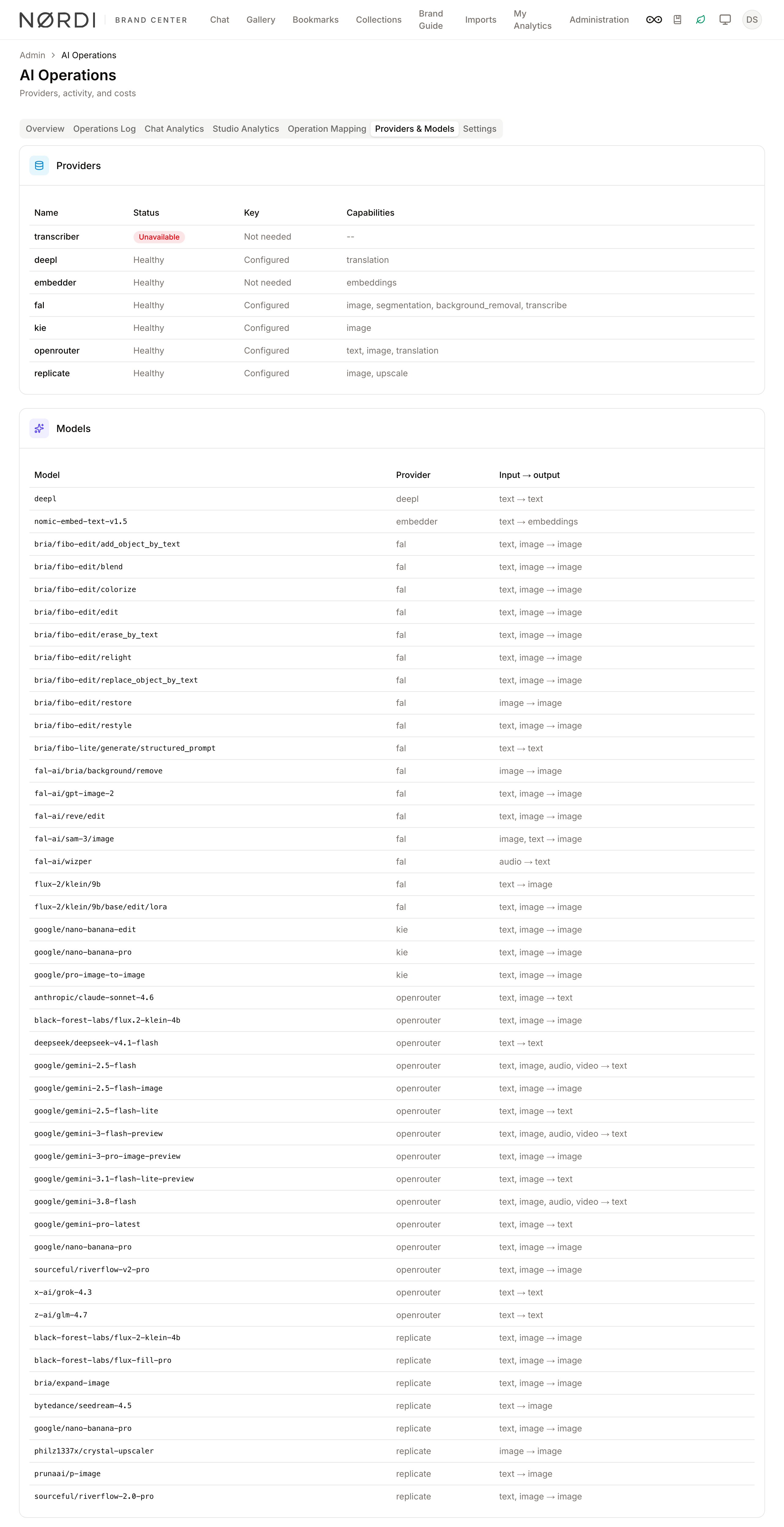
Provider & Model Registry
- What it's for: Checking the health and capabilities of connected AI services.
- Where to find it: The Providers & Models tab, which lists providers first and models below.
- Typical use: Checking that every provider is healthy and has its key, and seeing what each model takes and returns (for example "text, image → text"). Providers that need attention are listed first, with a red Unavailable or Missing badge. Local services such as the embedder need no API key and show Not needed.
- Result: Ensures the system only attempts to use models that are currently accessible and capable of the task.
Detailed Feature Documentation
Operation Mapping
- Purpose: To define which AI engine powers specific app features.
- Where to find it: In the main area, click the Operation Mapping tab.
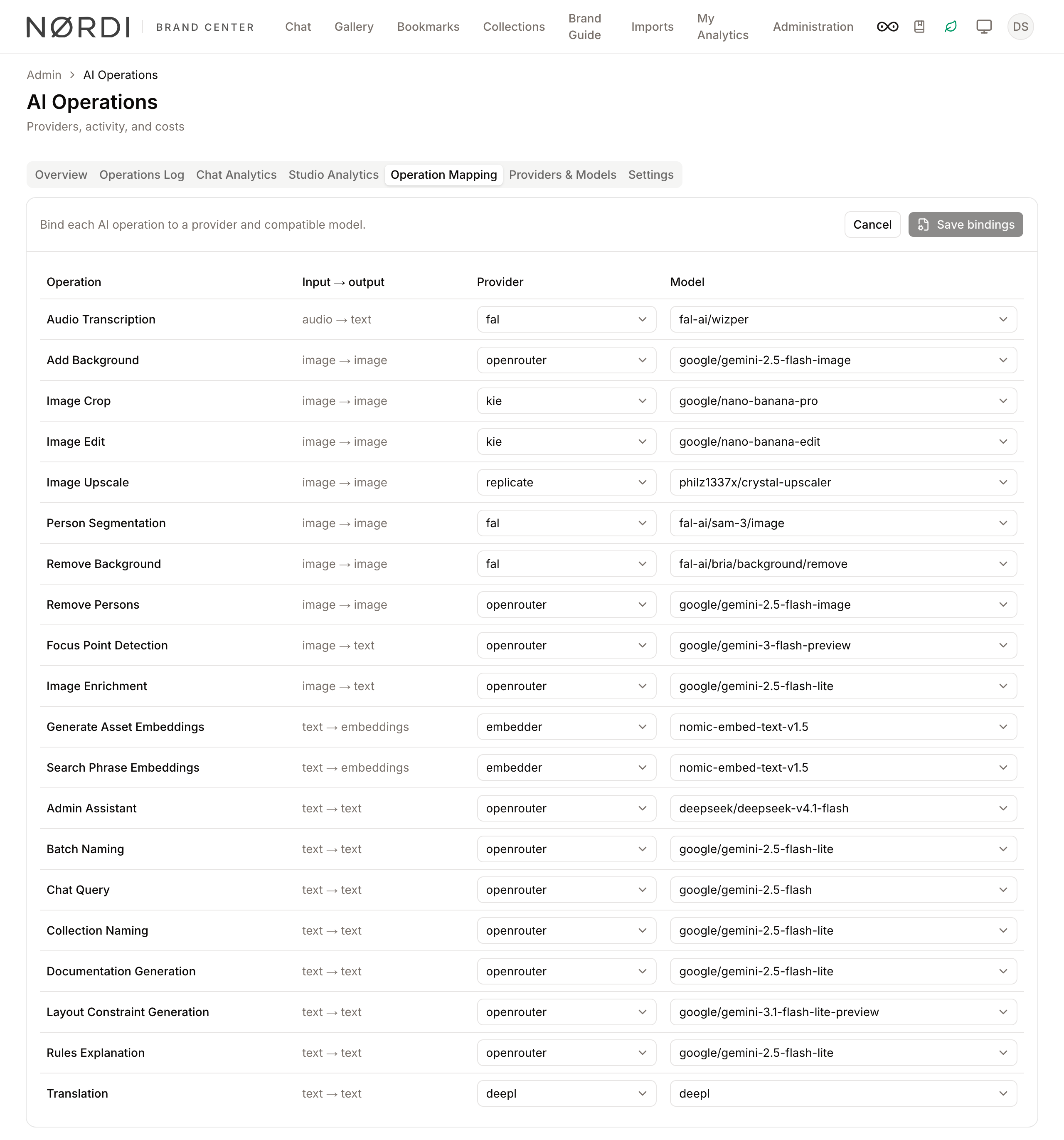
- What you'll see: A table listing every system operation, what it takes and returns (for example "image → text"), and the provider and model it currently uses. Operations whose binding is not valid are listed first, with a red Invalid badge and the reason under the model; the line above the table counts them.
How to use it:
- Click Edit bindings at the top right. The provider and model columns turn into dropdowns.
- Locate the operation you wish to configure (e.g., "Image Enrichment").
- Click the Select provider dropdown and choose an available service.
- Click the Select model dropdown to choose a compatible model.
- If the row shows an Invalid badge, read the message below the model dropdown for the requirement that is not met.
- To see what an operation requires, click its name: the Operation Details dialog lists its required input, required output and required capabilities.
- Click Save bindings to apply your changes, or Cancel to discard them. Both return the table to its read-only view.
Operations Log
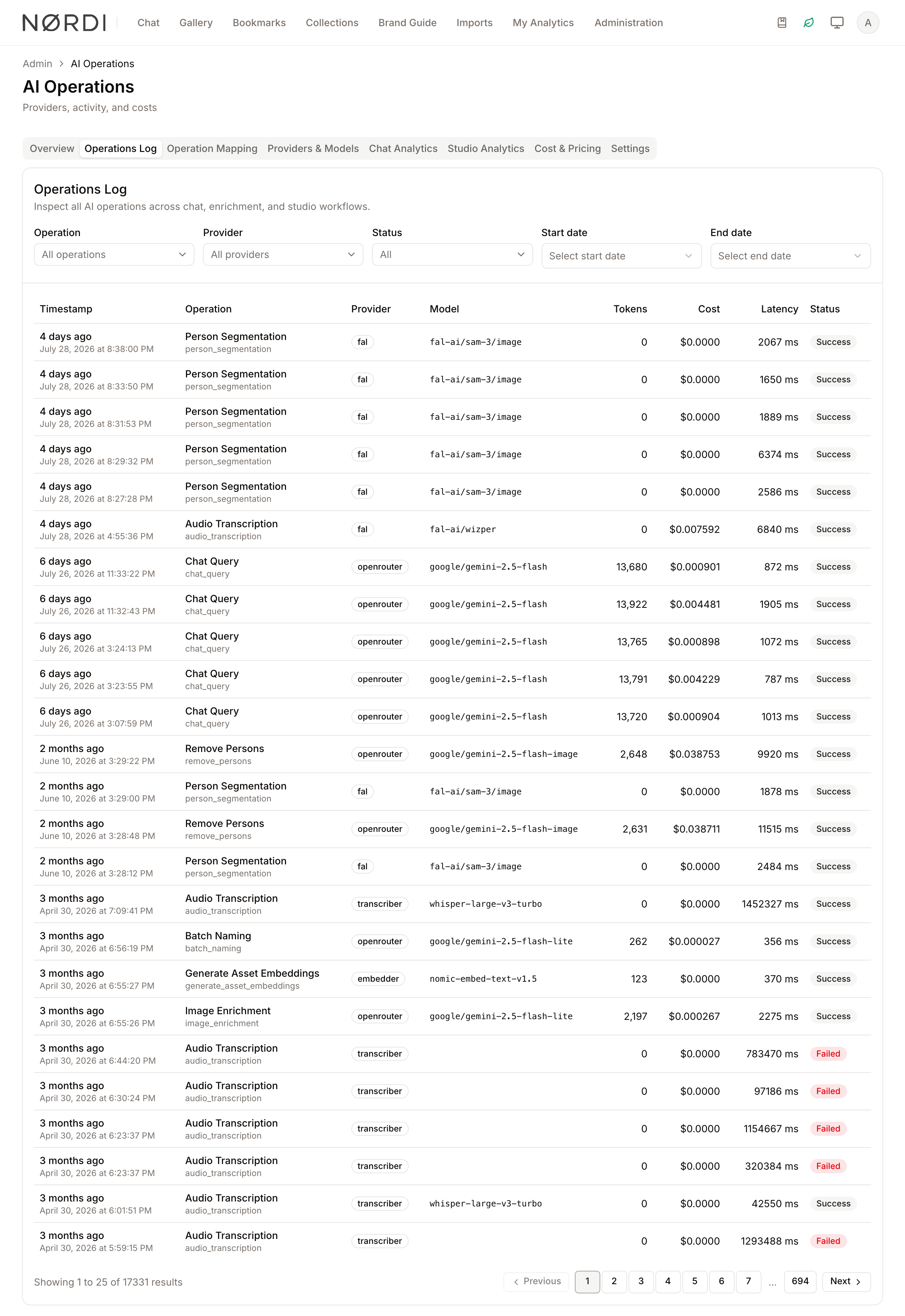
- Purpose: To audit individual AI transactions for troubleshooting and cost verification.
- Where to find it: In the main area, click the Operations Log tab (needs the View AI costs permission).
- What you'll see: A filterable list of requests with their time, operation, provider, model, tokens, cost and latency. Failed requests carry a red Failed badge next to the operation name; successful ones have none.
How to use it:
- Use the Operation, Provider, or Status dropdowns to narrow the list.
- Click the Start date or End date buttons to select a specific timeframe from the calendar.
- Review the Latency column to identify slow-performing models. Hover a Failed badge to read the provider's error message, and hover a time to see the exact date.
Chat Analytics
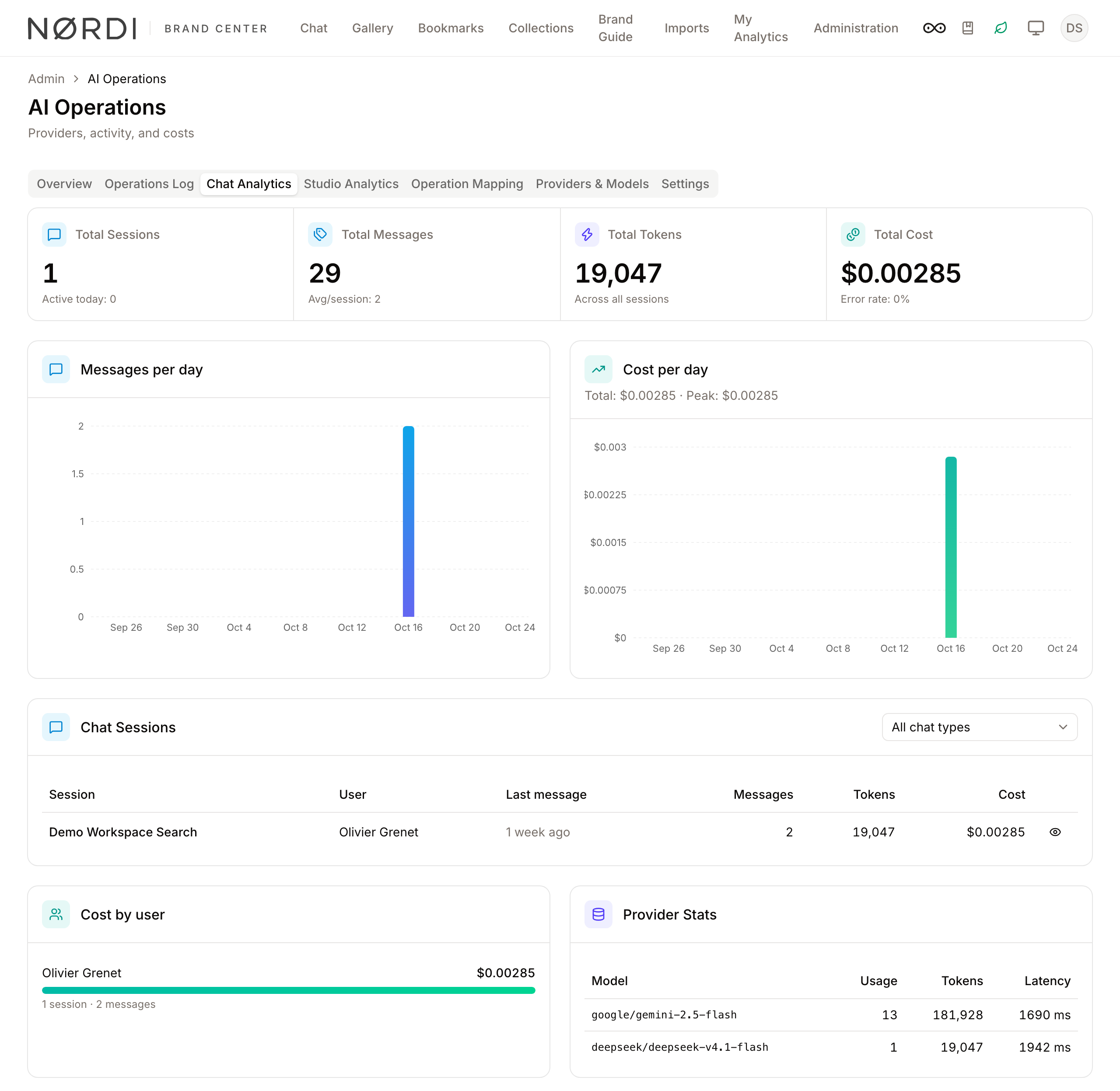
- Purpose: To follow how people use AI chat and what it costs.
- Where to find it: In the main area, click the Chat Analytics tab.
- What you'll see: Key figures (sessions, messages, tokens, cost), Messages per day and Cost per day charts over the last 30 days, the Chat Sessions list, Cost by user ranked by spend, and usage per model.
How to use it:
- Use the Chat type dropdown above the sessions list to show All chat types, Search chat or Admin assistant.
- Click the eye icon at the end of a session row to read its messages in the Chat Session Detail dialog.
Studio Analytics
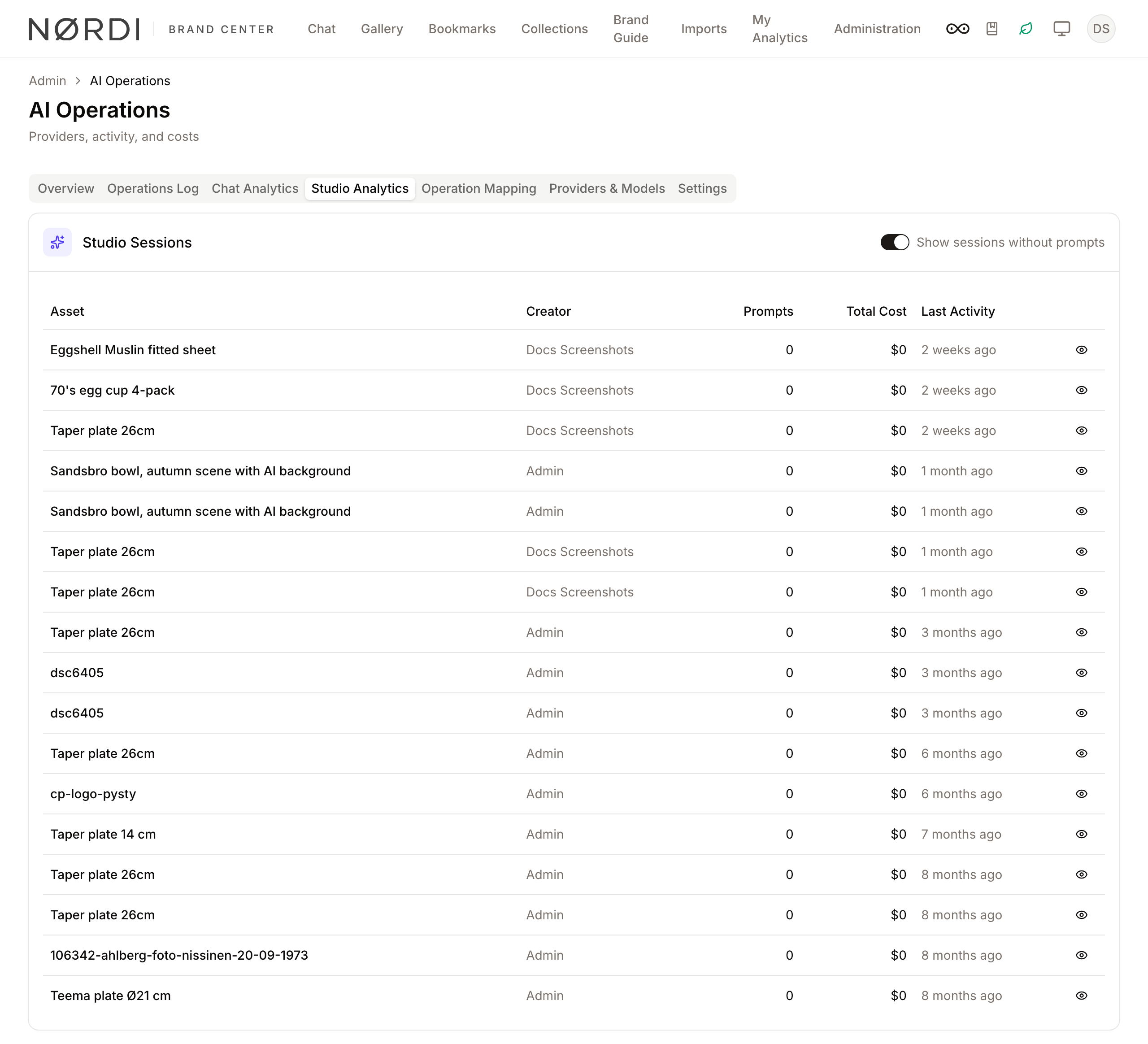
- Purpose: To audit AI image editing sessions in Studio.
- Where to find it: In the main area, click the Studio Analytics tab.
- What you'll see: A table of Studio sessions with the asset, its creator, the number of prompts, the total cost and the last activity. Sessions without any prompt are hidden; turn on Show sessions without prompts to list them.
How to use it:
- Click the eye icon at the end of a row to open the Studio Session Detail dialog with every prompt, its tool, user, cost and tokens.
- In that dialog, click the eye icon of a prompt to see the rendition it produced.
AI Settings (Configuration)
- Purpose: To manage API keys and global behavior toggles.
- Where to find it: In the main area, click the Settings tab.
- What you'll see: Grouped configuration cards (e.g., "AI Providers") containing text fields for keys and switches for feature toggles.
How to use it:
- Locate the setting you need to change.
- For API keys, type the new value into the Value: field (the input will be masked for security).
- For feature toggles, click the Switch to change between Enabled and Disabled.
- Click Save Changes in the top banner that appears once a modification is made.
Complete Workflows
Workflow: Updating an AI Model for Better Performance
- Goal: Switch a feature to a more powerful or cheaper model.
- Prerequisites: The new model must be registered in the Provider & Model Registry.
Steps:
- Click the Operation Mapping tab, then Edit bindings.
- Find the operation you want to update in the list.
- Select the new Provider from the dropdown.
- Select the desired Model from the second dropdown.
- Check that the row has no red Invalid badge.
- Click Save bindings.
- Expected result: Future requests for that feature will immediately begin using the new model.
Workflow: Investigating AI Cost Spikes
- Goal: Identify which user or feature is consuming the most budget.
- Prerequisites: The Manage AI operations and View AI costs permissions.
Steps:
- Open the Overview tab.
- Select a timeframe (e.g., "Last 30 Days") from the period selector dropdown.
- Look at Cost per day to find the days with a spike, and hover a bar for its amount.
- Review Costs by Operation to see which feature costs the most, and its share of the total.
- Check Cost by Model for a model with a high average cost per operation.
- Switch to the Chat Analytics tab and look at Cost by user to see whether specific people drive chat spend.
- Expected result: Identification of the specific model or user behavior driving costs.
What happens behind the scenes
- Smart routing: When a feature triggers an AI task, Freedam looks up the provider and model you assigned on the Operation Mapping tab and sends the request there. If a provider is marked unavailable (missing or invalid API key), the task fails fast rather than silently falling back.
- Cost recording: The moment a provider returns a response, Freedam records the operation - provider, model, input tokens, output tokens, total tokens, cost in USD, latency, and success flag - so it appears in the Operations Log and Cost analytics within seconds.
- Chat session lifecycle: Chat sessions track total messages, total tokens, and running cost per conversation. Old chat sessions are swept daily at 2:00 AM: anything with no activity for more than 30 days (or past its own expiry date) is archived and removed from the live list.
- Model compatibility guard: Saving a mapping with a "required input" (like image) against a text-only model is blocked before it can affect end-users.
- Secrets protection: Provider API keys entered on the Settings tab are stored as masked values and never echoed back in full.
Good to know
- Cost Analytics freshness: Overview stats, today's cost, cost trends, and breakdowns by operation type / provider / model are computed directly from stored operation records, so the figures are live - a newly completed task shows up on your next refresh.
- Chat dashboards: The chat key figures show total sessions, active sessions today, total messages, total tokens used, aggregate cost, and average messages per session. The daily charts look back 30 days; Cost by user is sorted by spend so the heaviest consumers come first.
- Studio audit: On the Studio Analytics tab, the Studio sessions list draws from the 100 most recent editing sessions across the workspace, with a running total cost per session. Each rendition dialog traces back to the exact prompt, tool, token count, and user who produced it.
Tips and Best Practices
- Check Compatibility: When mapping models, the system automatically filters the list to show only models that support the required inputs (e.g., a model must support "Image" input for Studio operations).
- Monitor Latency: If users complain about slowness, check the Operations Log for high "ms" values. You may need to switch to a faster model in Operation Mapping.
- Undoing changes: If you make a mistake while editing mappings, click Cancel before saving; on the Settings tab, use Discard Changes.
- Cost gating: If a teammate cannot see cost columns but can still change mappings, they are missing the View AI costs permission - a useful way to let an engineer manage bindings without exposing spend.
Troubleshooting
Issue: Operation Mapping shows "Invalid" status
- Symptoms: The row has a red Invalid badge and is listed at the top of the table; while editing, the Save bindings button stays disabled.
- Cause: The selected model does not support the required capabilities (e.g., it cannot output images) or the provider and model do not share a required capability.
- Fix: 1. Read the message below the model. 2. Click Edit bindings and select a model that supports the input and output shown in that row.
- Prevention: Check the required capabilities in the Operation Details dialog (click the operation name) before switching models.
Issue: Provider shows "Unavailable" status
- Symptoms: The provider has a red Unavailable badge and is listed at the top of the Providers & Models tab.
- Cause: The API key is missing, incorrect, or the provider's service is currently down.
- Fix: 1. Go to the Settings tab. 2. Ensure the API key for that provider is correctly entered. 3. Check the provider's official status page.
- Prevention: Ensure API keys are updated before they expire.