
Bulk Paste Search
Sometimes you don't want to filter by one value - you have a whole list. A spreadsheet column of product references from your PIM. A row of SKUs your buyer just emailed you. A CSV of supplier codes from procurement.
Bulk Paste lets you drop the list straight into a smart filter and pull back every asset that matches, in one go. It also tells you which of your pasted values didn't find anything - useful for spotting typos or stale data in the source list.
When You'd Use It
- Pull together a campaign brief - paste 200 SKUs from the marketing plan, get every product photo currently in the DAM.
- Audit which products have packaging shots - paste your full catalogue, then export the unmatched list to see what's still missing.
- Prep a download for a partner - paste the partner's wanted-list of references, filter to only those, then bulk-download.
Prerequisites
Bulk Paste only appears on metadata fields your administrator has flagged as bulk-searchable. Typical candidates are short scalar identifiers - product reference, SKU, supplier code, EAN, internal asset ID. If you don't see the option on a field you'd expect, ask your admin to enable it (see For administrators below).
Pasting a List Straight Into the Search Bar
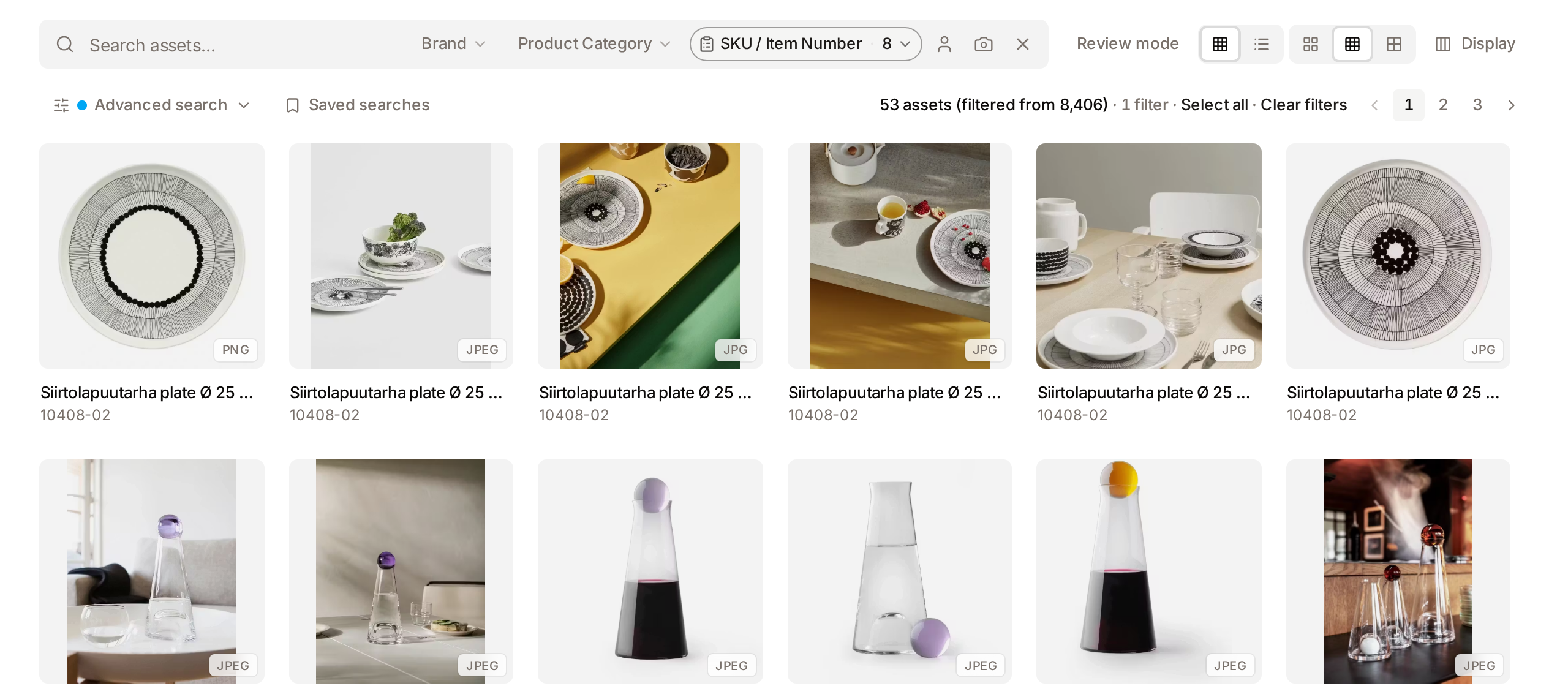
When a bulk-paste field is pinned as a quick filter, you do not need to open anything: paste the list into the gallery search bar. The list is recognised as a list of values and goes into that quick filter instead of being searched as words. A message confirms how many values were added, and the quick-filter button shows the count. Pasting a second list adds to the first.
A paste counts as a list when it holds:
- at least two values separated by new lines, commas, semicolons or tabs, at least half of which look like identifiers, or
- at least three identifiers separated by spaces.
Ordinary search text such as oak dining table or Copenhagen, Tan is left alone and searched as usual.
By default an identifier is a value of four characters or more that contains a digit, such as 10052-01 or CB12ACGR7114. If your references look different (letters only, for example), an administrator can describe their format on the field: see Describing the format of your identifiers.
The search block on the homepage reads a pasted list the same way: the values appear as a tag in the search bar, the ones found in the library and the ones not found are told apart, and Show assets opens the gallery filtered on them.
When a search for several words finds nothing that contains all of them, the gallery falls back to assets that contain some of them. A query made only of identifiers is searched in full in that case, up to 100 of them, so a short list typed or pasted as plain search text still returns its assets.
Two Ways to Open the Paste Box
There are two more entry points to the same bulk-paste experience. Pick whichever fits how often you use the field.
From the Advanced Filters panel
Best for occasional or one-off pastes against any bulk-searchable field.
- Open the Gallery and click Advanced search to open the Advanced Filters panel.
- Click Add Filter.
- Pick the field you want to paste against - for example Custom metadata → Product reference.
- Set the operator to Is one of.
- The textarea appears in place of the usual single-value box.
From the gallery search bar (quick filter)
If your team pastes lists against the same field over and over, an admin can pin that field as a quick filter. A labelled button - e.g. SKU, Product reference - then sits next to the search bar at the top of the Gallery. One click opens a popover with the same paste-list textarea, no Advanced Filters detour required.
The button shows a count when a list is active (e.g. SKU · 842), so you can tell at a glance whether a bulk-paste filter is in play. Clicking the button a second time reopens the popover so you can edit the list, replace it, or clear it.
See For administrators below for how to enable the quick-filter button on a field.
Using the Paste Box
Whichever entry point you used, the textarea behaves the same way. Paste your list directly into it - newlines, commas and tabs are all accepted as separators, so you can paste from:
- A spreadsheet column (each cell becomes one value).
- A comma-separated string from an email or chat.
- A tab-separated row.
- Any mix of the above.
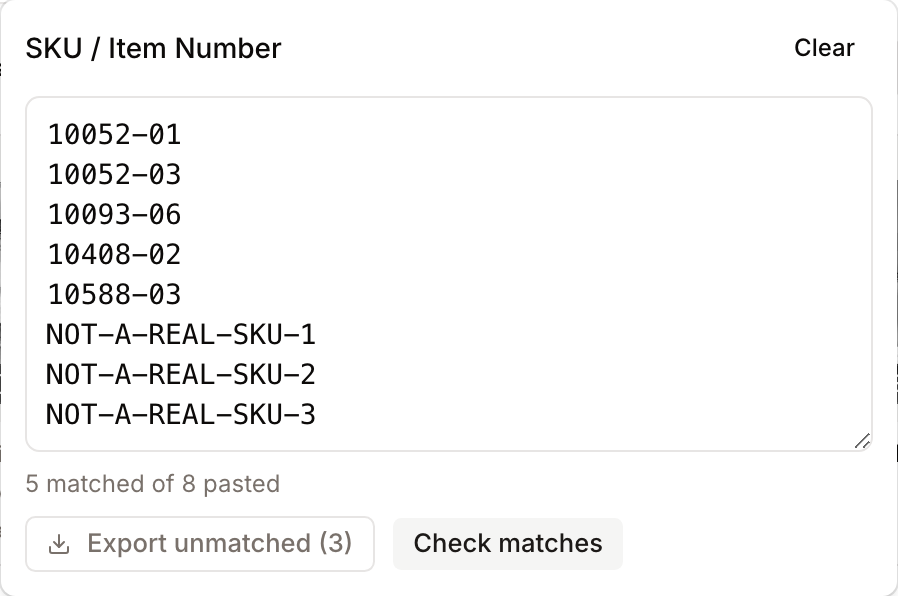
The line under the box updates as you paste, showing how many values are ready (842 values ready). Click Check matches. The Gallery refreshes to show the assets, and the line changes to a result summary: 724 matched of 842 pasted.
What Happens to Duplicates and Whitespace
The system cleans up your input before searching:
- Leading and trailing whitespace on each value is trimmed.
- Empty lines are dropped.
- Duplicates are merged - pasting
SKU-001twice counts as one value.
So a sloppy paste from a spreadsheet won't throw the count off.
The 1000-Value Limit
To keep the search fast, Bulk Paste accepts up to 1000 distinct values per filter. If you paste more, you'll see a warning under the textarea (Limit is 1000; extras will be dropped.) and only the first 1000 are used. If you genuinely need more than 1000, split the list into batches and run them as separate searches, or talk to your admin - the limit is configurable.
Exporting the Unmatched List
When some of your pasted values didn't return any assets, an Export unmatched button appears next to the result summary, with the count of misses (Export unmatched (118)).
Click it to download a CSV file containing one unmatched value per row. Typical uses:
- Open the CSV in Excel and reconcile against your source spreadsheet to spot data-entry mistakes.
- Send the unmatched list back to whoever asked for the search, so they can confirm whether those products genuinely have no assets yet.
- Pipe the unmatched list into a follow-up upload or briefing task.
The download happens in your browser - nothing is sent anywhere else, so it's safe to use with confidential lists.
Heads up - export before closing the popover. When you open the bulk-paste box from the search-bar quick filter, closing the popover discards the matched/unmatched count. Your pasted list is preserved (the active filter still uses it), but to download the unmatched CSV again you'll need to reopen the popover and click Check matches once more. This doesn't affect the entry point from Advanced Filters, where the rule and its result stay in view.
Combining With Other Filters
A bulk-paste rule is just another rule in the Advanced Filters panel, so it combines freely with everything else:
- Bulk paste + asset type - "these 500 SKUs, but only the videos."
- Bulk paste + collection - "these 200 product references, but only those already in the Q3 launch collection."
- Bulk paste + date range - "these 80 supplier codes, but only assets uploaded since January."
Add the bulk-paste rule, then Add Filter again for the additional condition. The result summary keeps showing the matched-of-pasted count for the bulk filter, regardless of what other rules you stack on top.
Saving a Bulk Paste Search
Like any other smart filter, a bulk paste rule can be saved as a Saved Search so you can re-run it with one click later. Note: re-running a saved bulk paste search runs against the same pasted list - if you want to refresh the list, open the rule and replace the pasted values.
Limitations
- Exact match only. Bulk Paste matches values exactly (after trimming whitespace). It does not handle case-insensitivity or fuzzy matching -
sku-001andSKU-001are treated as different values. Make sure your source list matches the casing stored in the DAM. - One field at a time. Each bulk-paste rule searches a single metadata field. To paste across multiple fields, add a rule per field in the same group and set the group to ANY.
- Scalar fields only. Bulk Paste is meant for short identifier-style values; it isn't enabled for vocabulary, date, boolean or JSON fields.
For Administrators
To make a metadata field available for bulk paste:
- Go to Admin → Asset Classes, pick the relevant asset class, and open its Metadata Definitions.
- Edit the field you want to enable (it must be a Text, Long Text, Number or Float type - vocabulary, date, boolean and JSON fields are not eligible).
- Tick Allow bulk-paste search.
- (Optional) Fill in Value format if your identifiers are not recognised by default (see Describing the format of your identifiers).
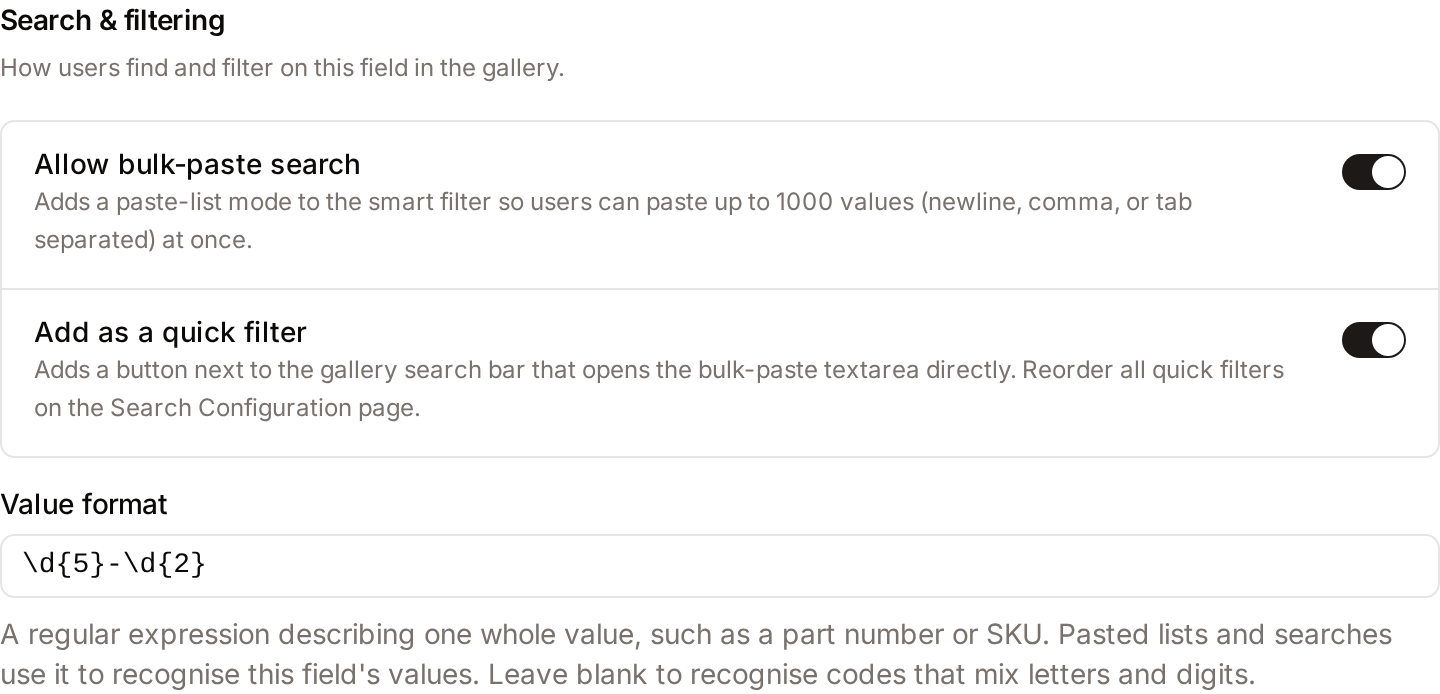
- (Optional) Tick Add as a quick filter - this option appears below Allow bulk-paste search once the latter is on. It puts a labelled button next to the gallery search bar that opens the paste textarea directly, and lets people paste a list straight into the search bar.
- Save.
If you only ticked Allow bulk-paste search, users access the paste box via the Advanced Filters panel (Advanced search → Add Filter → field → operator Is one of). If you also ticked Add as a quick filter, the field gets its own button next to the search bar - handy for fields your team uses every day.
Unticking Allow bulk-paste search automatically clears the quick-filter flag, since the button has nothing to open without the bulk-paste mode underneath.
Describing the format of your identifiers
Every company writes its part numbers, SKUs or references its own way. Once Allow bulk-paste search is on, the field shows a Value format input where you can describe yours as a regular expression. The expression describes one whole value, and upper and lower case are treated alike.
| Your identifiers look like | Value format |
|---|---|
10052-01 |
\d{5}-\d{2} |
CB12ACGR7114 |
[A-Z]{2}\d{2}[A-Z]{4}\d{4} |
100234 |
\d{6} |
OAK-TABLE-XL |
[A-Z]+(-[A-Z]+)+ |
The format is used in two places:
- Pasted lists: the search bar recognises a pasted list by this format instead of the default "four characters or more with a digit". This is what makes letters-only or very short references work.
- Search: when a search finds nothing containing every word, values written in this format are treated as identifiers, so a list of them is searched in full.
Leave the input blank to keep the default. A format that is not a valid regular expression is refused when you save. The format does not check or reject the values people enter in the field.
Reordering quick-filter buttons
Bulk-paste quick filters share the same row as vocabulary quick filters. To reorder them - for example to put the SKU button before the Department button - go to Admin → Search Configuration → Quick Filters and drag the entries into the order you want. Each row is labelled by field name with a "Bulk paste" subtitle so you can tell the two kinds apart.
Tuning the limit
The 1000-value limit is configurable via the BULK_PASTE_LIMIT environment variable (defaults to 1000). Increase cautiously - very large pastes make the underlying query slower and can affect Gallery responsiveness for everyone.