
Rights
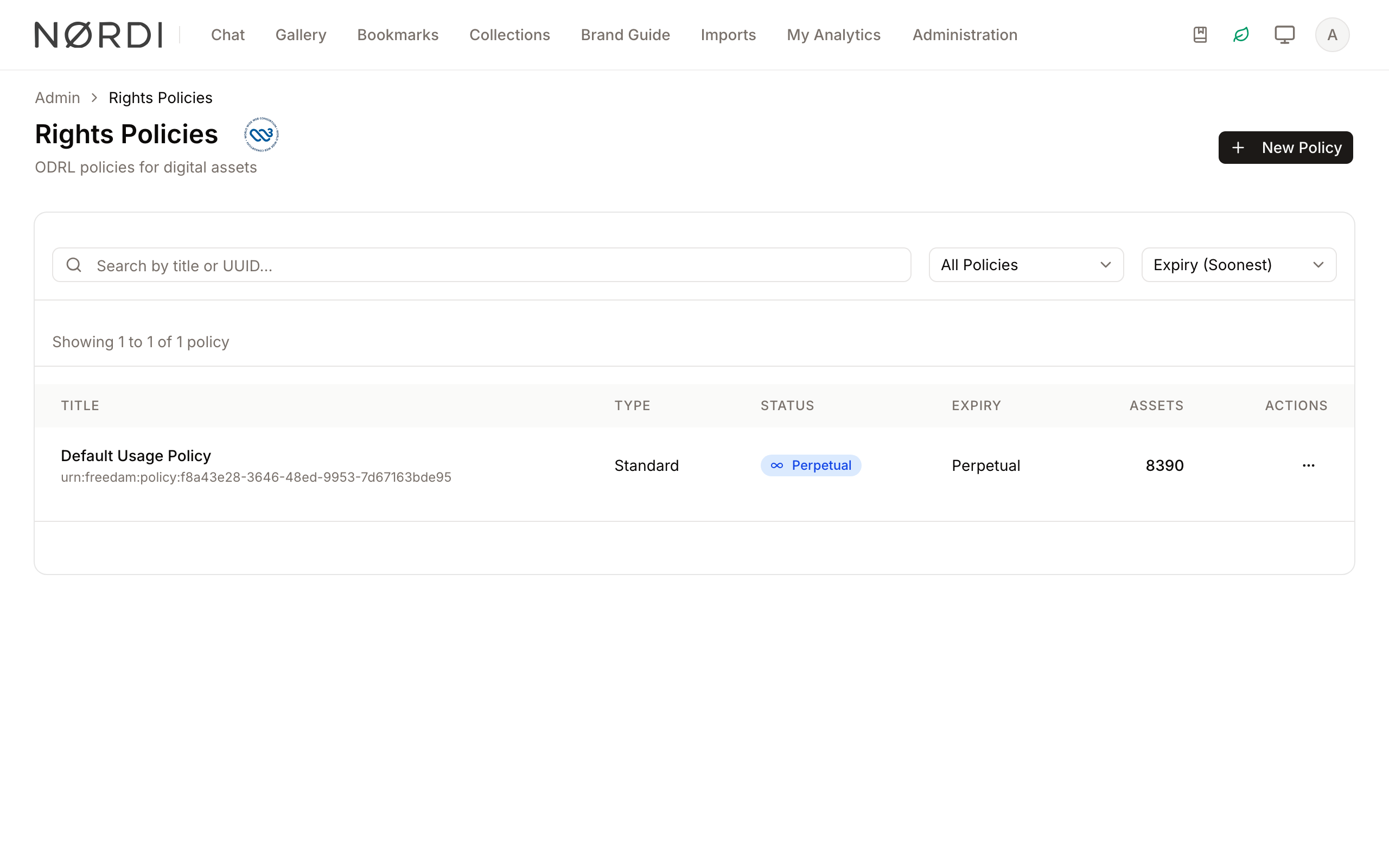
The Rights feature allows administrators to define and manage Open Data Rights Language (ODRL) policies for digital assets. These policies govern how assets can be used, where they can be distributed, and when their usage rights expire.
By centralizing rights management, you ensure legal compliance across your entire asset library. You can track which assets are governed by specific agreements, monitor upcoming expirations, and require users to acknowledge legal terms before accessing sensitive content.
Page Overview
- Purpose: To create a standardized library of usage rights that can be applied to assets.
- When to use it: Use this page when you need to add new licensing terms, update existing contract dates, or audit which assets are currently under specific legal restrictions.
- What you can do here:
- Create new rights policies from scratch or templates.
- Filter policies by status (Active Only, Expiring Soon, Expired, Perpetual).
- Search for specific policies by title or UUID.
- Monitor the number of assets assigned to each policy.
- Manage legal acknowledgment requirements for asset access.
Page Layout
- Top bar: Contains the page title, a link to the W3C ODRL specification, and the New Policy button.
- Main area: A searchable and filterable table listing all defined policies, showing their type, status, expiry date, and the count of associated assets.
- Action menus: Located at the end of each row, with View Details, Edit and Delete.
Main Features
Policy Status Tracking
- What it's for: Automatically categorizes policies based on their expiration dates.
- Typical use: Quickly identifying policies that are "Expiring Soon" to prepare for contract renewals.
- Result: Policies are labeled with color-coded badges (e.g., green for Active, red for Expired) for immediate visual reference.
Asset Association Count
- What it's for: Shows exactly how many assets are currently governed by a specific policy.
- Typical use: Checking the impact of a policy change or identifying if a policy is safe to delete.
- Result: Displays a numerical count in the "Assets" column; policies with a count higher than zero cannot be deleted.
Search and Filtering
- What it's for: Finding specific policies within a large library.
- Typical use: Searching for a policy by its UUID or filtering the list to show only "Perpetual" rights.
- Result: The table updates to show only matching policies, 20 per page. A line above the table reads, for example, "Showing 1 to 5 of 5 policies".
Detailed Feature Documentation
New Policy Creation
- Purpose: To define a new set of usage rules and timeframes for assets.
- Where to find it: In the top bar, look for the New Policy button.
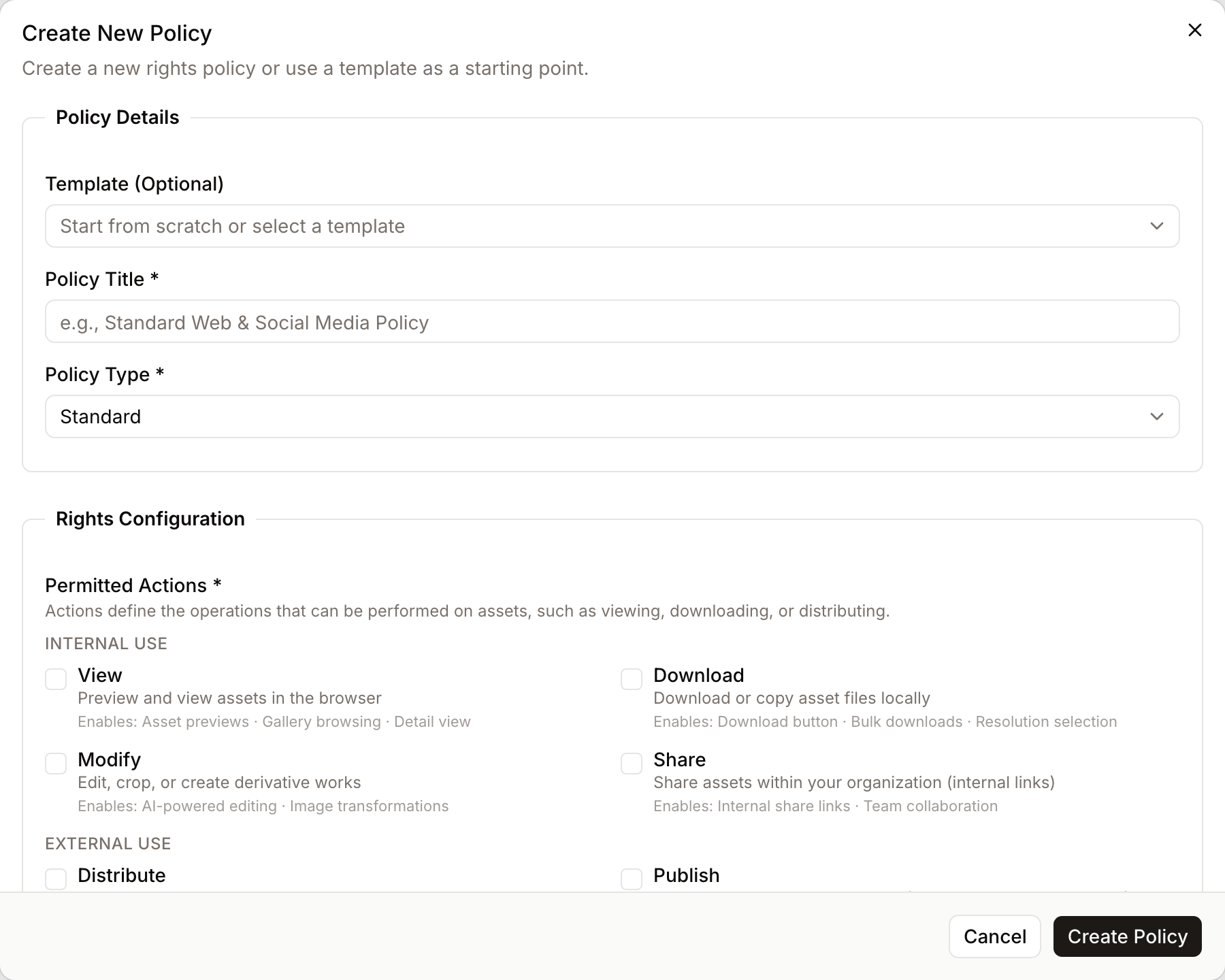
- What you'll see: The Create New Policy dialog, with four sections: Policy Details, Rights Configuration, Expiration and Download acknowledgement.
How to use it:
- Click New Policy in the top bar.
- (Optional) Choose a starting point in Template (Optional). The template fills in the fields below, and you can still change them.
- Enter a Policy Title.
- Select the Policy Type. The types come from the policy types vocabulary of your workspace, for example Standard, Temporary, Territory or Custom.
- Under Rights Configuration, choose the Permitted Actions, Territories and Channels. Prohibitions and Duties are optional.
- Under Expiration, pick 60 Days, 1 Year, 2 Years, 3 Years or Perpetual, or choose Pick a custom date.
- (Optional) Under Download acknowledgement, switch on Require acknowledgement at download time and write the Title and Content (Markdown) that users must accept before downloading.
- Click Create Policy.
To change an existing policy, choose Edit in its row menu. The same form opens as Edit Policy, and the button reads Save Changes.
Policy Details View
- Purpose: To see a comprehensive breakdown of a policy and the assets assigned to it.
- Where to find it: In the table, click the Actions (three dots) icon and select View Details.
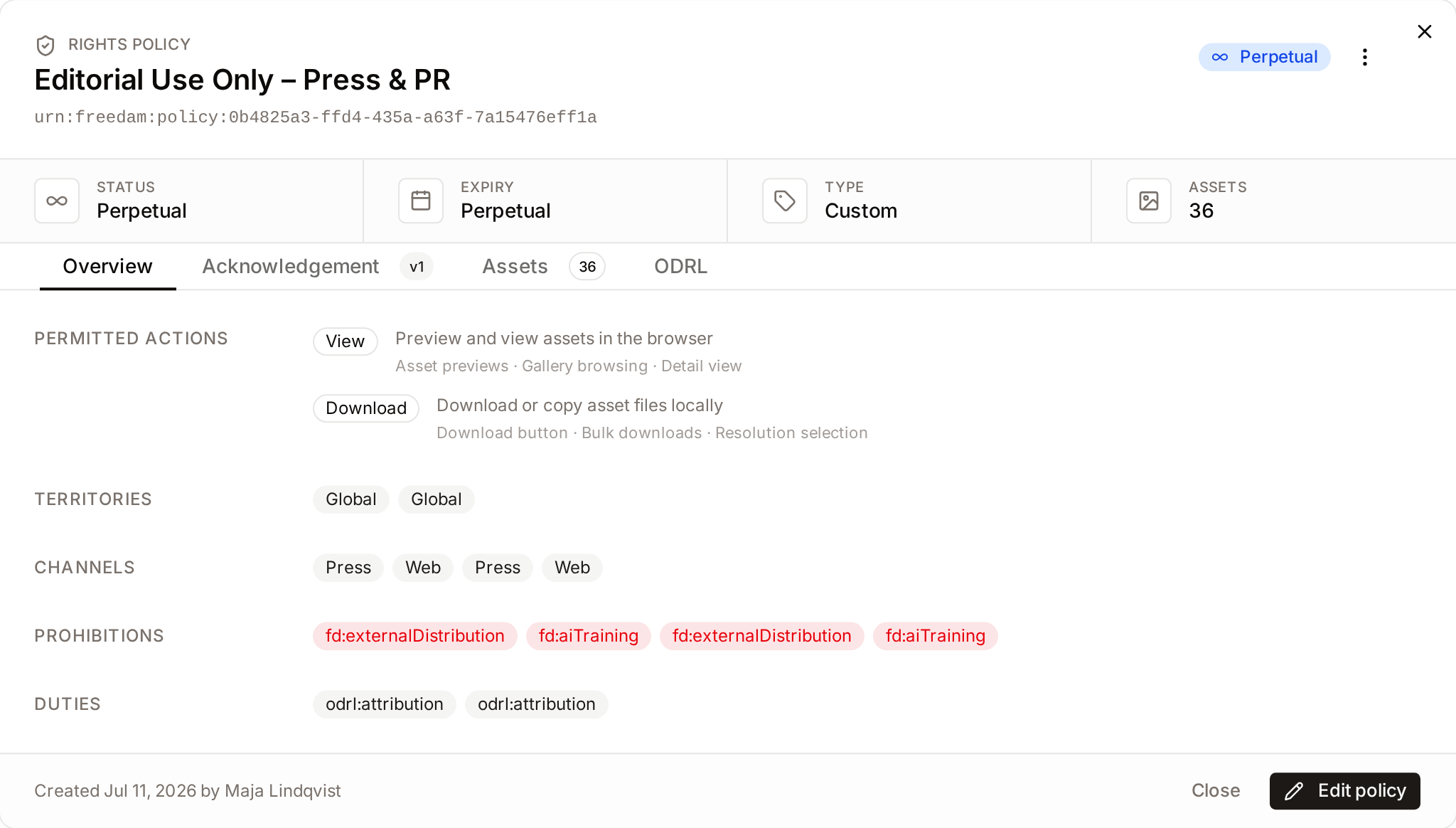
- What you'll see: A dialog headed Rights Policy with the policy title, its Status, Expiry, Type and Assets count, and four tabs.
The tabs are:
- Overview: the permitted actions, territories, channels, prohibitions and duties.
- Acknowledgement: whether an acknowledgement is required, its version, the default text and the state of each translation.
- Assets: thumbnails of the most recent assigned assets, with a View all in gallery link.
- ODRL: the machine-readable policy document, with Download JSON and View JSON-LD document.
The dialog header also offers Edit policy, Duplicate and Delete, and a Copy URN button next to the policy identifier. Duplicate opens the creation form filled with the policy's settings and the title "Copy of title".
How to use it:
- Locate the policy in the main table.
- Click the Actions (three dots) button at the end of the row.
- Select View Details.
- Open the Assets tab to review the assigned assets.
- Click Close to return to the list.
Complete Workflows
Workflow: Deleting an Unused Policy
- Goal: Remove an obsolete policy from the system.
- Prerequisites: The policy must not be assigned to any assets (Asset count must be 0).
Steps:
- Locate the policy in the Rights Policies table.
- Check the Assets column to ensure the count is 0.
- Click the Actions (three dots) icon in the Actions column.
- Select Delete.
- In the Delete Policy dialog, click Delete.
- Expected result: The policy is removed from the list and a success message appears.
- If it doesn't work: If the Delete option is disabled, the policy is still assigned to assets. You must remove the policy from those assets before it can be deleted.
Workflow: Finding Expiring Rights
- Goal: Identify all rights policies that will expire soon.
- Prerequisites: None.
Steps:
- Go to the Rights Policies page.
- Click the All Policies dropdown filter.
- Select Expiring Soon.
- In the sort dropdown, select Expiry (Soonest). This is the default order. The other options are Title (A-Z) and Created (Newest).
- Expected result: The table filters to show only policies nearing their end date, ordered by the closest date first.
Who can use it
This page is reserved for people with the Manage rights policies permission, which covers creating, editing and deleting rights policies. Two other permissions apply on assets:
- Assign rights policies to assets attaches an existing policy to an asset and removes it. It also needs Edit asset metadata. It does not need Manage rights policies.
- View the rights policies of assets shows the policy attached to an asset.
This split lets you give content managers the power to tag assets with existing policies without also granting them the ability to redefine legal terms.
Limits and guardrails
- No deletion of policies in use: A policy cannot be deleted while it is still attached to any asset. The Delete option is disabled in the row menu, and the details dialog answers with Cannot delete policy and the number of assets that depend on it. This protects your library from losing the legal context that governs its files.
- Acknowledgement versioning: When a policy requires a legal acknowledgement from users, the acknowledgement has a version number. Updating the acknowledgement text raises the version, which means users who previously accepted the old text will be asked to re-accept before downloading. When you edit a policy without changing the text, Force re-acceptance raises the version anyway.
- Multilingual acknowledgements: Acknowledgement text can be translated into each interface language (English, French, German, Spanish, Portuguese and Chinese). Users see the version in their interface language if available, otherwise they see the default text. The translation tabs work as described in Editing text in several languages, without automatic translation.
What happens behind the scenes
- Assigned-asset preview: When you open the details view of a policy, the 24 most recent assets covered by that policy are loaded into the Assets tab with thumbnails. This shows what a change to the policy will affect. The dialog links out to the full list in the gallery if you need to see every asset.
- Template library: New policies can be started from a curated list of templates (for example "Campaign – EU, Paid & Print (1 Year)" or "Perpetual – Global Evergreen"). Each template pre-fills the policy type, allowed actions, territories, channels, prohibitions, duties, and a sensible expiry strategy.
- Status is computed from dates: The green "Active", amber "Expiring Soon", red "Expired", and blue "Perpetual" badges are derived live from the expiry date and your workspace's "expiring soon" threshold, so the list is always up to date without anyone having to flag policies manually.
Tips and Best Practices
- Use Descriptive Titles: Name policies after the contract or vendor they represent (e.g., "Getty Images - Standard License 2024") to make searching easier.
- Check Asset Counts: Before editing a policy, always check the Assets count. Changes to a policy will immediately affect all assets assigned to it.
- Clear Search: Use the X icon in the search field to quickly return to the full list of policies.
Troubleshooting
Issue: Cannot delete a policy
- Symptoms: The Delete option is greyed out, or a dialog titled Cannot Delete Policy appears.
- Cause: The policy is currently assigned to one or more assets.
- Fix:
- Click View Details on the policy and open the Assets tab.
- Navigate to those assets and remove or change their assigned rights policy.
- Return to the Rights page and attempt the deletion again.
- Prevention: Regularly audit your policies to ensure assets are moved to new policies before old ones expire.
Issue: No results found
- Symptoms: The table area shows "No policies found" with the hint "Try adjusting your filters or search query".
- Cause: Active filters or search queries are excluding all policies.
- Fix:
- Click the Clear search (X) button in the search bar.
- Reset the status filter to All Policies.
- Prevention: Check the summary line above the table to see how many policies match the current search and filter.