
Duplicate Scan
The Duplicate Scan feature allows administrators to maintain a clean and efficient library by identifying redundant assets. It uses advanced detection to find both byte-for-byte identical files and visually similar images that may have different filenames or metadata.
By scanning your library, you can reduce storage costs, eliminate user confusion caused by multiple versions of the same file, and ensure that only the highest-quality "best" version of an asset is available for use.
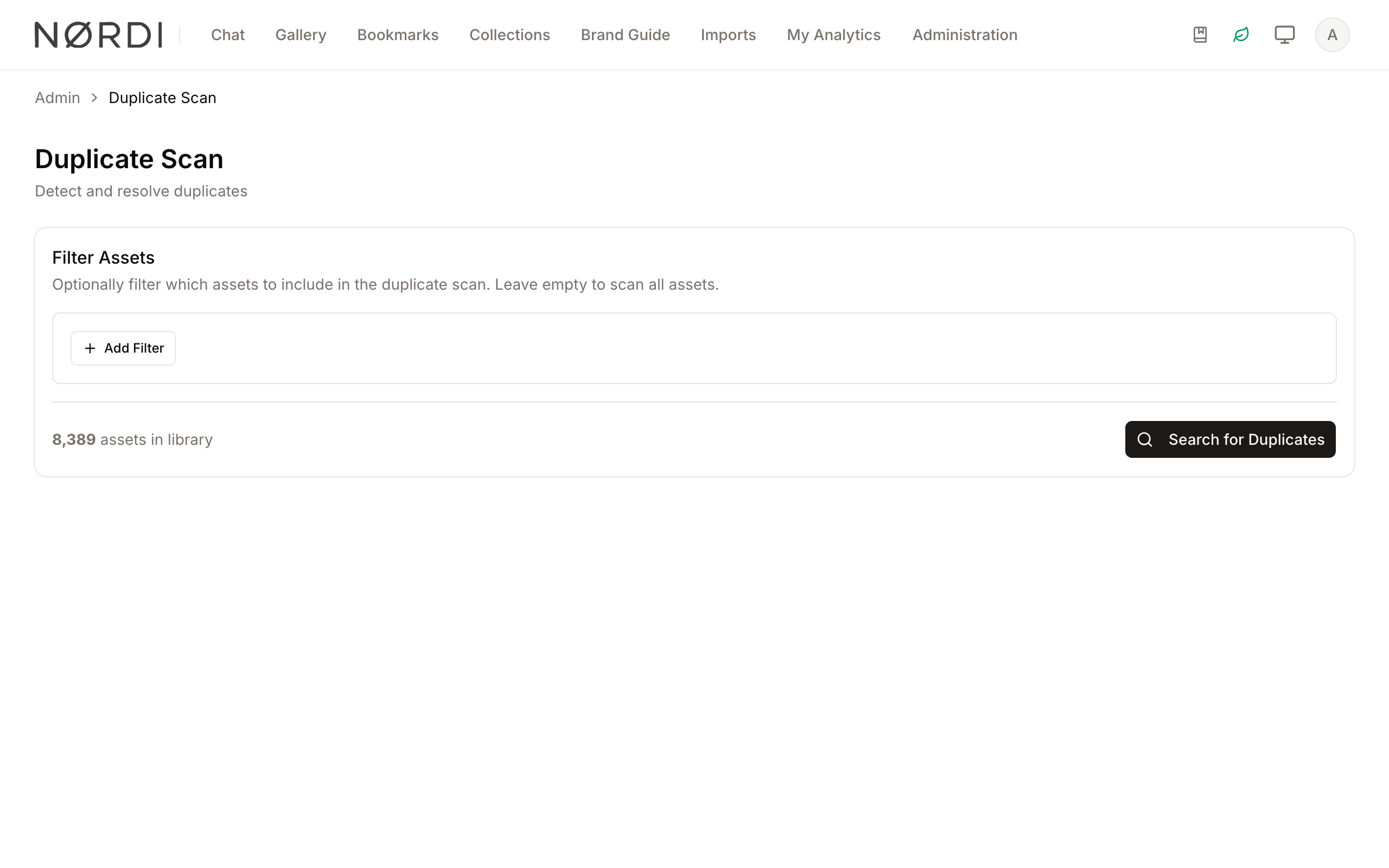
The page is under Administration > Content Quality > Duplicate Scan.
Exact duplicates (the same file uploaded twice) are also a condition of Quality metadata rules, Has an exact duplicate, so the library grade can count them and the overview can list them; a new rule offers it ready-made as Assets have no exact duplicate. Near-duplicates are found only here. See Quality.
Page Overview
- Purpose: To detect and resolve duplicate assets across the entire library or specific subsets of data.
- When to use it: Perform regular maintenance to clean up bulk uploads, or run targeted scans after migrating new collections into the system.
- What you can do here:
- Define specific filters to limit the scan to certain asset classes or properties.
- Monitor real-time progress of the scanning engine.
- Compare duplicate assets side-by-side.
- Bulk-delete duplicates while preserving the highest-quality version.
- Dismiss false positives to keep them in the library.
Page Layout
- Top bar: Displays the page title, a brief description, and a status badge showing the number of groups awaiting review once a scan is complete.
- Main area: This dynamic region changes based on the current state:
- Filter Section: Shown when starting a new scan; contains the rule editor and asset counter.
- Progress Section: Shown during an active scan; displays a progress bar and live statistics.
- Results List: Shown after a scan completes; displays cards for every duplicate group found.
- Comparison Dialog: A pop-up window used to view detailed metadata and large previews of two assets side-by-side.
Main Features
Asset Filtering
- What it's for: Narrowing down the scan to specific assets rather than the whole library.
- Typical use: Scanning only "Photography" or assets within a specific "Marketing" collection.
- Result: The system calculates the number of matching assets before you begin, ensuring you only scan what is necessary.
Visual Similarity Detection
- What it's for: Finding assets that look the same but aren't identical files (e.g., a resized version or a different file format).
- Typical use: Identifying where a high-res TIFF and a low-res JPEG of the same photo are both taking up space.
- Result: Assets are grouped with a "Similar" badge and a confidence percentage.
One-Click Resolution
- What it's for: Quickly cleaning up groups of duplicates.
- Typical use: Deleting all inferior versions of a file while keeping the "Best" version.
- Result: After you confirm, the redundant assets are moved to the trash and stop appearing in search, the best asset is added to every collection they were in, and the group is cleared from your review list.
Detailed Feature Documentation
Filter Assets
- Purpose: To define the scope of the duplicate search.
- Where to find it: In the main area under the "Filter Assets" card.
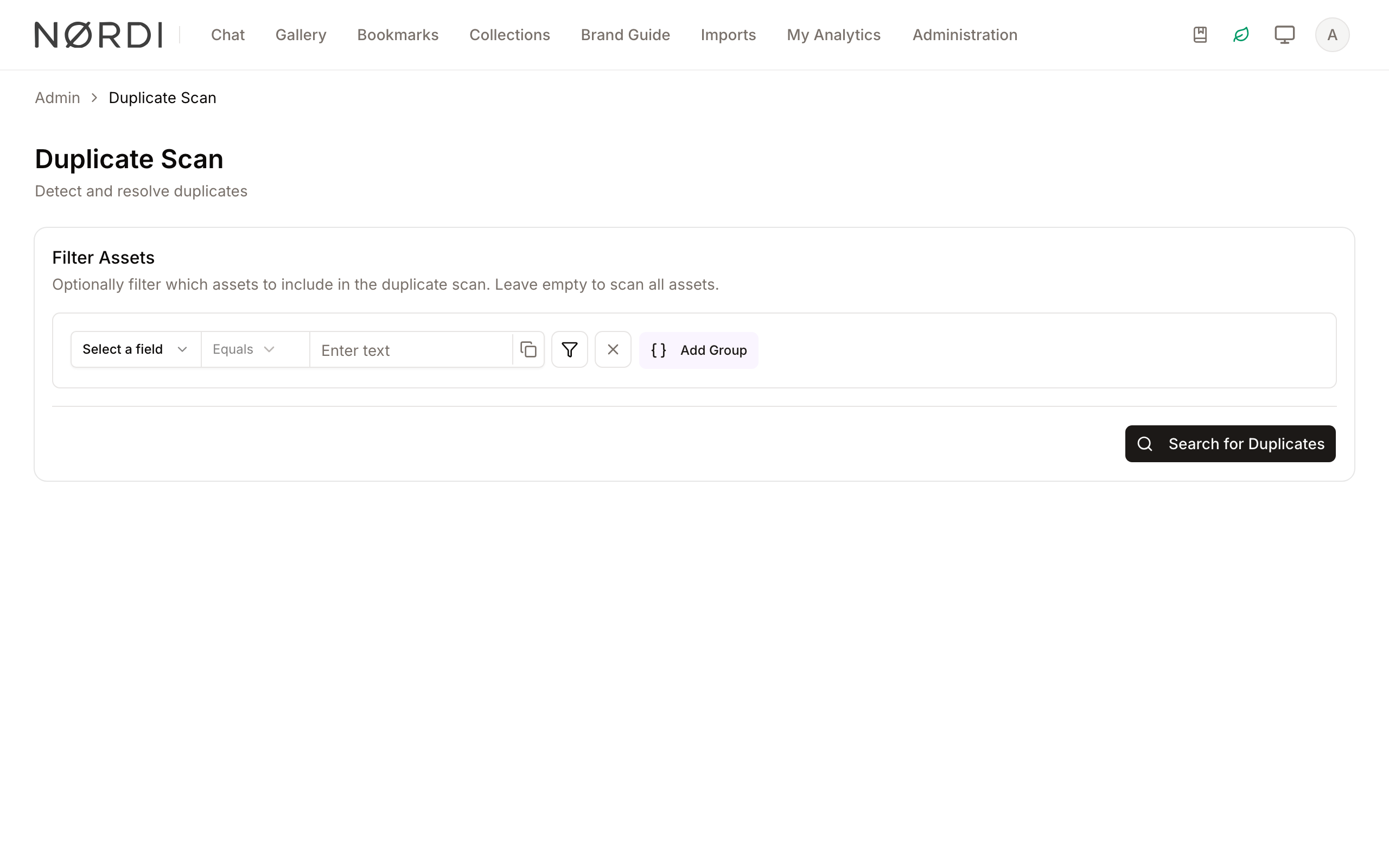
- What you'll see: A rule builder where you can add conditions based on asset properties, business data, or ownership.
How to use it:
- Click the rule editor to add a new filter (e.g., "Asset Class is Image").
- Observe the Counting assets... indicator.
- Verify the total number of assets that match your filters.
- Click Search for Duplicates to begin.
Duplicate Group Review
- Purpose: To evaluate found duplicates and decide which to keep.
- Where to find it: In the "Duplicate Groups" list after a scan completes.
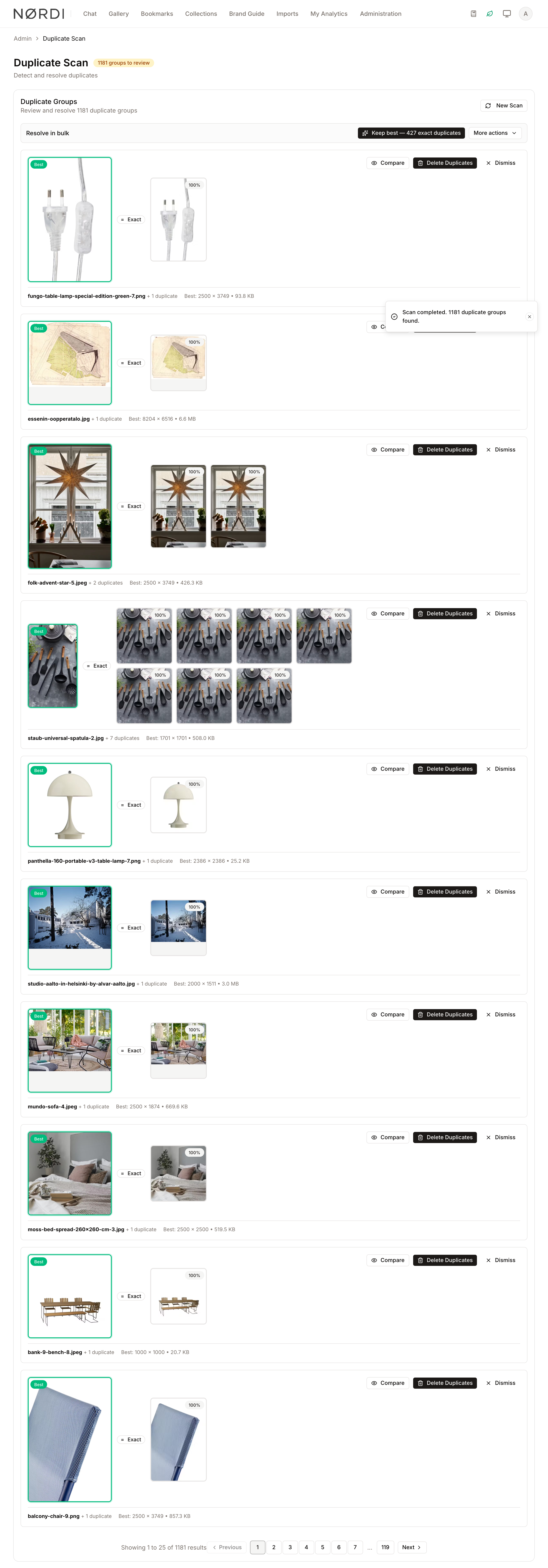
- What you'll see: Individual cards showing a "Best" asset (highlighted in green) and its detected duplicates.
How to use it:
- Review the thumbnails; the "Best" asset is chosen based on dimensions and file size.
- Hover over a thumbnail to see the filename and dimensions.
- Click Compare to see a detailed side-by-side view.
- Click Delete Duplicates to remove all but the best version, then confirm in the dialog. Click Dismiss to keep everything; dismissing needs no confirmation because nothing is deleted.
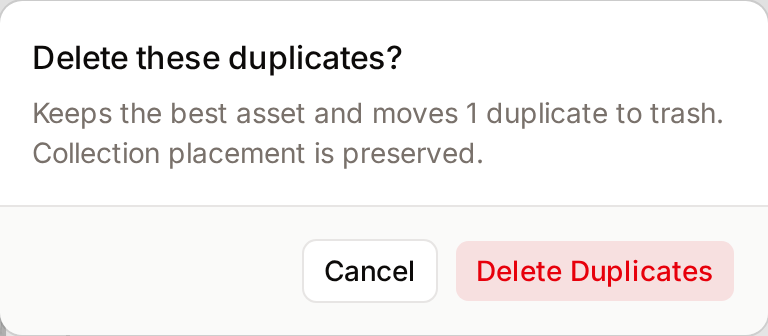
Deleting the duplicates of a group always asks for confirmation first, and reminds you that the duplicates go to the trash while their collection placement moves to the kept asset.
Resolve in Bulk
- Purpose: To clean up many groups at once after reviewing the results.
- Where to find it: The Resolve in bulk bar above the duplicate groups.
| Action | What it does |
|---|---|
| Keep best - N exact duplicates | For every group of exact matches, keeps the best asset and moves the duplicates to the Trash. Asks "Delete all exact duplicates?" first. Only shown when exact matches exist. |
| Keep best for all N groups (under More actions) | Does the same for every group, including visually similar matches. Asks "Delete duplicates in every group?" first. |
| Dismiss all N groups (under More actions) | Marks every remaining group as reviewed, without deleting anything. |
Confirm with Continue. Like single groups, bulk deletion needs the Delete assets permission. Freedam reports how many groups were resolved. As with single groups, the best asset keeps the duplicates' collection placements, and deleted duplicates can be restored from the Trash for 30 days.
Review similar matches before using Keep best for all N groups: visually similar images are not always true duplicates, such as two shots from the same photo session.
Complete Workflows
Workflow: Targeted Library Cleanup
- Goal: Find and remove duplicates within a specific category of assets.
- Prerequisites: The Scan the library for duplicates and Delete assets permissions.
Steps:
- Navigate to Duplicate Scan in the Administration menu.
- In the Filter Assets section, create a rule (e.g., "Collection equals 2023 Brand Guidelines").
- Wait for the asset count to update, then click Search for Duplicates.
- Once the scan reaches 100%, click Compare on the first result card to verify the match.
- Click Delete Duplicates and confirm to move the redundant files to the trash.
- Repeat for remaining groups or click New Scan to start over.
- Expected result: Redundant assets are deleted, and the "groups to review" badge count decreases.
- If it doesn't work: If the Delete Duplicates buttons are missing, your role lacks the Delete assets permission; you can still review and dismiss groups.
Workflow: Cancelling a Long-Running Scan
- Goal: Stop a scan that is taking too long or was started with incorrect filters.
- Prerequisites: A scan must be in "Processing" state.
Steps:
- Locate the Scanning for Duplicates card while a scan is active.
- Click the Cancel button (stop icon) next to the percentage display.
- Confirm the status changes to Scan Cancelled.
- Click Start a new scan to return to the filter screen.
- Expected result: The scanning process stops immediately, and no results are generated.
How it works
Freedam runs a duplicate scan in two clearly separated passes so you see results progressively:
- Exact-match pass (0–50% of progress) - Freedam compares the unique file fingerprint that every asset carries once it has finished uploading. Files with an identical fingerprint are byte-for-byte duplicates, and they are grouped with a confidence of 100%.
- Visual-similarity pass (50–100% of progress) - For the remaining assets, Freedam compares AI image embeddings against the rest of the library in small batches to find look-alikes. Only pairs that recognise each other in both directions are kept, which prevents unrelated photos from being lumped into the same group just because they share a theme.
When it picks the "Best" version of a group, Freedam sorts by pixel resolution first and file size second, so the highest-quality copy is always kept by default.
Who can use it
- The Duplicate Scan page is only visible to people with the Scan the library for duplicates permission.
- Deleting the duplicates in a group, one group at a time or in bulk, additionally requires the Delete assets permission. Without it the delete actions are hidden and you can only compare and dismiss groups.
- Deleted duplicates are soft-deleted: they land in the trash and can be restored within 30 days before they are purged permanently.
Limits and guardrails
- One scan at a time per user: If a scan is already pending or running, starting another one is blocked with "A scan is already in progress." Cancel or wait for the current one to finish first.
- Similarity confidence thresholds: Freedam only keeps visual matches above a confidence of 70% for the normal case. Matches that rely purely on the AI image model (without the fingerprint sanity check) need at least 65%, and very conservative crop-aware matches need at least 30% plus an additional structural check on the asset's thumbnail. This is why you almost never see a spurious "Similar" group for unrelated photos.
- Processing window: A single scan has up to 30 minutes of server time. If you are scanning hundreds of thousands of assets, narrow the filters or run multiple focused scans rather than one giant sweep.
- Session lifespan: Scan results are kept for 1 hour after they finish. If you come back the next day, start a new scan - the previous results will have expired.
- Auto-recovery: If the scan crashes for any reason, it is marked as failed, the error is recorded server-side, and the scan can simply be restarted - no partial data is left behind.
What happens behind the scenes
- Live progress: While the scan runs, Freedam updates the progress bar several times a minute so you can see both how many assets have been inspected and how many duplicate groups have been found so far.
- Cancellation is immediate: Clicking Cancel marks the scan as cancelled; the background worker checks for the cancel signal between chunks and stops at the next checkpoint, so no more deletions or comparisons happen.
- Delete vs. dismiss: Choosing "Delete Duplicates" moves every asset in the group except the "Best" one to the trash, exactly like deleting them from the gallery: the trash records who deleted them and when, they are removed from search results, your storage usage is updated, and any
asset.deletedwebhooks fire. Choosing "Dismiss" simply marks the group as reviewed so it disappears from the review list without touching any files. - Collection placement is kept: Before the duplicates are removed, the "Best" asset is added to every collection a deleted duplicate belonged to, in the same position and section. Collections it already belongs to are left as they are.
Tips and Best Practices
- Trust the "Best" Badge: The system automatically flags the asset with the highest resolution and largest file size as the "Best" version.
- Start Small: If you have a massive library, use filters to scan one collection or asset class at a time to make the review process more manageable.
- Check Confidence: For "Similar" matches, check the confidence percentage. High percentages (95%+) are almost always duplicates, while lower percentages may just be photos from the same photoshoot.
- Mistakes are reversible: Because deleted duplicates go to the trash first, you have 30 days to restore anything that turned out not to be a duplicate.
Troubleshooting
Issue: Scan Failed or Cancelled
- Symptoms: An error message appears with a red border, or the scan stops before reaching 100%.
- Cause: This can happen due to network interruptions or server-side processing timeouts.
- Fix:
- Read the error message displayed on the screen.
- Click Start a new scan.
- Try narrowing your filters to scan a smaller number of assets.
- Prevention: Avoid scanning the entire library at once if you have hundreds of thousands of assets; use filters to break the work into batches.
Issue: No Duplicates Found
- Symptoms: The results screen shows "No Duplicates Found" with a green checkmark.
- Cause: Your current filters are too restrictive, or your library is already clean.
- Fix: Click Start New Scan and remove some filters to broaden the search.