
Faces and People
Freedam detects faces in your images and lets you name the people in them. Once a person is named, you can find every photo of them with person search, and new photos of the same person are recognised automatically.
Face detection is part of plans that include it. When your plan doesn't, the People tab of the asset page shows an upgrade notice instead of the faces.
How faces are detected
- Freedam looks for faces in images after their previews are created, usually within a few minutes of upload. Videos and PDFs are not scanned.
- Each face found is compared with the people already named in your workspace. When it matches a known person closely enough, it is named automatically.
- Faces that don't match anyone stay unidentified until someone names them.
The People tab
On the asset page, click the People tab under the preview. The tab name is followed by the number of faces found. When no face was found, the tab says "No people detected in this asset".

Each face is a round thumbnail:
- Identified faces show a check mark and the person's name.
- Unidentified faces show ?.
Hover a face to see the person's name, or "Click to identify this person" on an unidentified face.
To name faces, you need the Edit face identities permission. Edit asset metadata is not required. Seeing people and faces needs only View assets. Without Edit face identities, the faces cannot be clicked and the tab shows "You do not have permission to edit face identities." Faces can't be changed while you are editing the asset's metadata: the same message is shown until you save or cancel.
Name a person
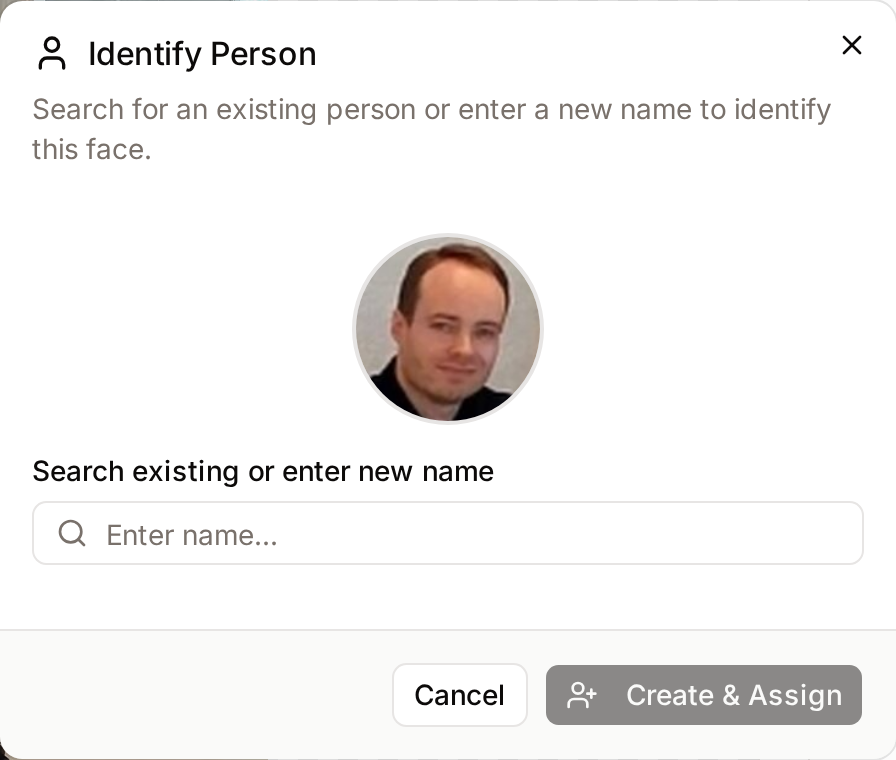
- Click an unidentified face. The Identify Person dialog opens.
- Start typing the name in Search existing or enter new name.
- If the person already exists, select them in the list, which shows how many faces each person has. Click Assign.
- If they don't exist yet, keep typing the full name, then click Create & Assign. The list then says "No existing person found. A new person will be created."
Freedam shows "Person assigned successfully".
Identify the same person in other photos
After you name a face, Freedam looks for unidentified faces that look like the same person. When it finds some, the Similar Faces Found dialog shows at least how many faces it found and asks whether to identify them all. The count is of faces, not photos: one photo can contain several.
- Click Yes, identify all to name every similar face in one step. Freedam repeats the search from each newly named face, so it can name more faces than the number shown, which is why the dialog says "at least".
- Click No, just this one to name only the face you clicked.
Check a few of the photos afterwards, especially for people who look alike.
Correct a wrong name
- Click the face in the People tab of the asset page. The Edit Person Identity dialog shows the current name.
- Choose what to do:
- To give the face another person's name, click Change, select or type the right person, then Assign or Create & Assign.
- To remove the name, click Remove Identity. The face becomes unidentified again.
These changes only affect the face you clicked. Typing a new name with Change creates a new person; it does not rename the existing one. There is no screen yet to rename, merge or delete a person across all their photos.
How names are used
- Person search in the Gallery lists every person, and filters the Gallery to their photos. See Finding Photos of a Person.
- Filters: the Person, Contains People and Face Count fields are available in Advanced Filters.
- Keyword search: named people are included in the text search. Assigning, removing or bulk-identifying a person updates the search for the affected photos automatically, usually within a minute.
For administrators
Two settings under Administration → Settings, in the Face Recognition category, control recognition:
- Local matching ("Automatically match detected faces to known people using embedding similarity") names new faces that match a known person. Turn it off to name every face by hand.
- Recognition threshold sets how similar two faces must be to count as the same person, from 0 to 1, with a default of 0.6. A higher value makes fewer, more certain matches; a lower value matches more faces but risks confusing different people.
If faces are detected again on an image, for example when its previews are regenerated, the names already given to its faces are kept: each face found again at the same place, or looking like the same person, keeps its name. Other faces are re-matched automatically.
Related pages
- Finding Photos of a Person: searching the Gallery by person.
- Asset Detail: the rest of the asset page.
- Settings: face recognition settings for administrators.