
Rights Logs
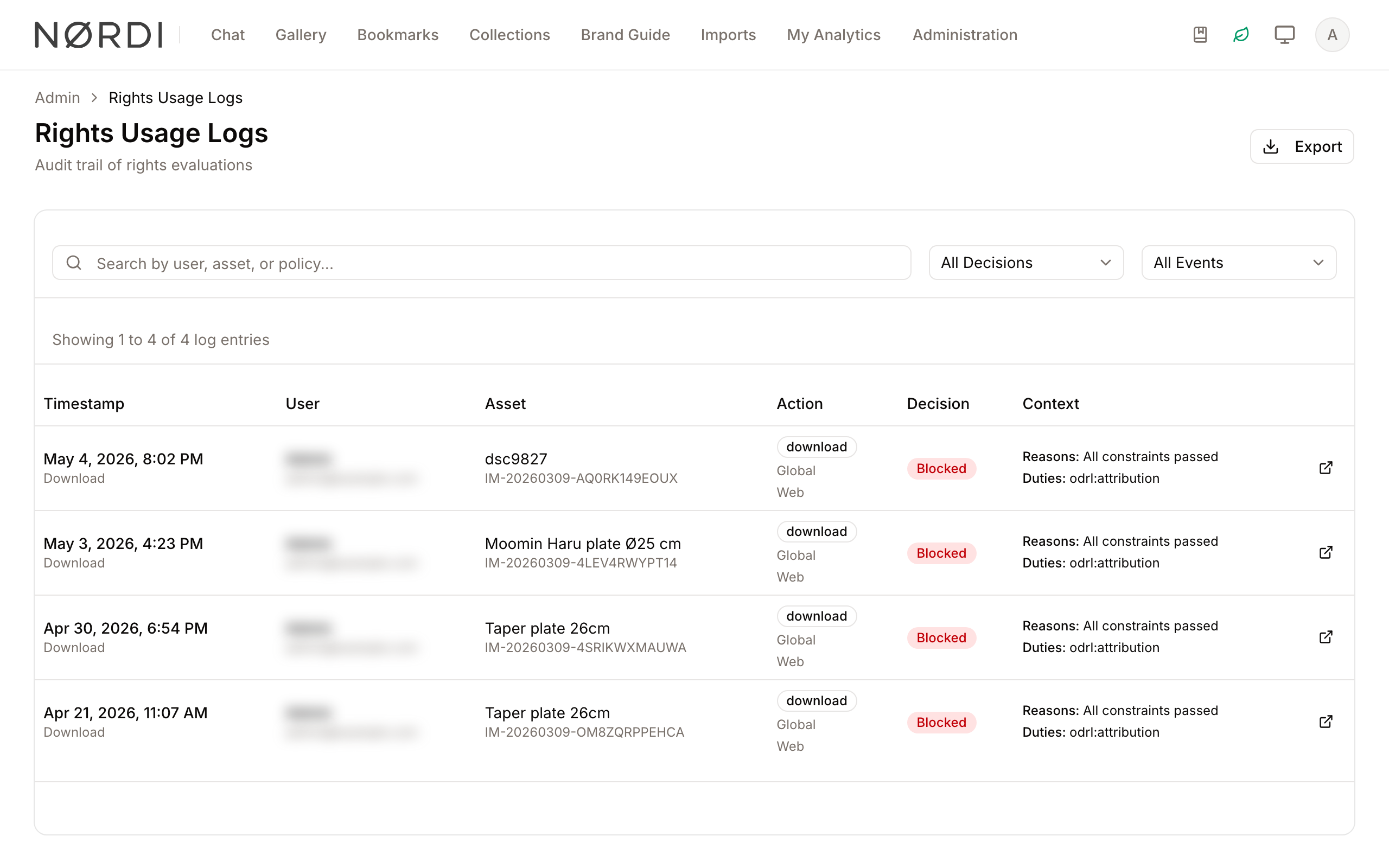
The Rights Logs provide a comprehensive audit trail of how assets are used and how rights policies are applied within Freedam. This feature is designed for administrators and compliance officers to monitor user activity and ensure that asset usage aligns with organizational policies.
By tracking every evaluation and acknowledgement, you can verify that users are seeing the correct usage terms and that restricted assets are being blocked appropriately.
Page Overview
- Purpose: To provide a searchable, filterable history of all rights-related events.
- Where to find it: Administration → Rights Usage Logs, under Access & Rights. The page title reads Rights Usage Logs.
- When to use it: Use this page to investigate unauthorized access attempts, verify if a user accepted specific terms before downloading, or audit general asset usage trends.
- What you can do here:
- Search logs by user name, email, asset ID, or policy title.
- Filter results by the system's decision (Permitted vs. Blocked).
- Filter by event types such as Evaluations, Acknowledgements, or Downloads.
- Export log data to a CSV file for external reporting.
- Navigate directly to the assets mentioned in the logs.
Page Layout
- Top bar: Contains the page title, a brief description, and the Export button for downloading log data.
- Main area: Features a search bar and filter dropdowns at the top, followed by a table with the columns Timestamp, User, Asset, Action, Decision and Context. The table shows 50 entries per page.
Main Features
Audit Search and Filtering
- What it's for: Narrowing down thousands of log entries to find specific interactions.
- Typical use: Searching for a specific user's email to see every asset they have attempted to download.
- Result: The table updates to show only entries matching your search terms and filter selections.
Rights Decision Tracking
- What it's for: Seeing exactly why an action was allowed or denied.
- Typical use: Checking the "Context" column to see the specific reasons or duties (like "Watermark required") applied to a download.
- Result: Visual badges (Permitted/Blocked) and text summaries provide immediate clarity on policy enforcement.
Data Export
- What it's for: Generating offline reports for compliance audits.
- Typical use: Filtering for all "Blocked" attempts over the last month and exporting them for a security review.
- Result: A file download is triggered containing the currently filtered set of log entries.
Detailed Feature Documentation
Search and Filters
- Purpose: To locate specific log entries based on keywords or event categories.
- Where to find it: In the top section of the main card, look for the Search field and the two Filter dropdowns.
- What you'll see: The list of logs refreshes to match your criteria. If no logs match, the message "No log entries found" appears.
How to use it:
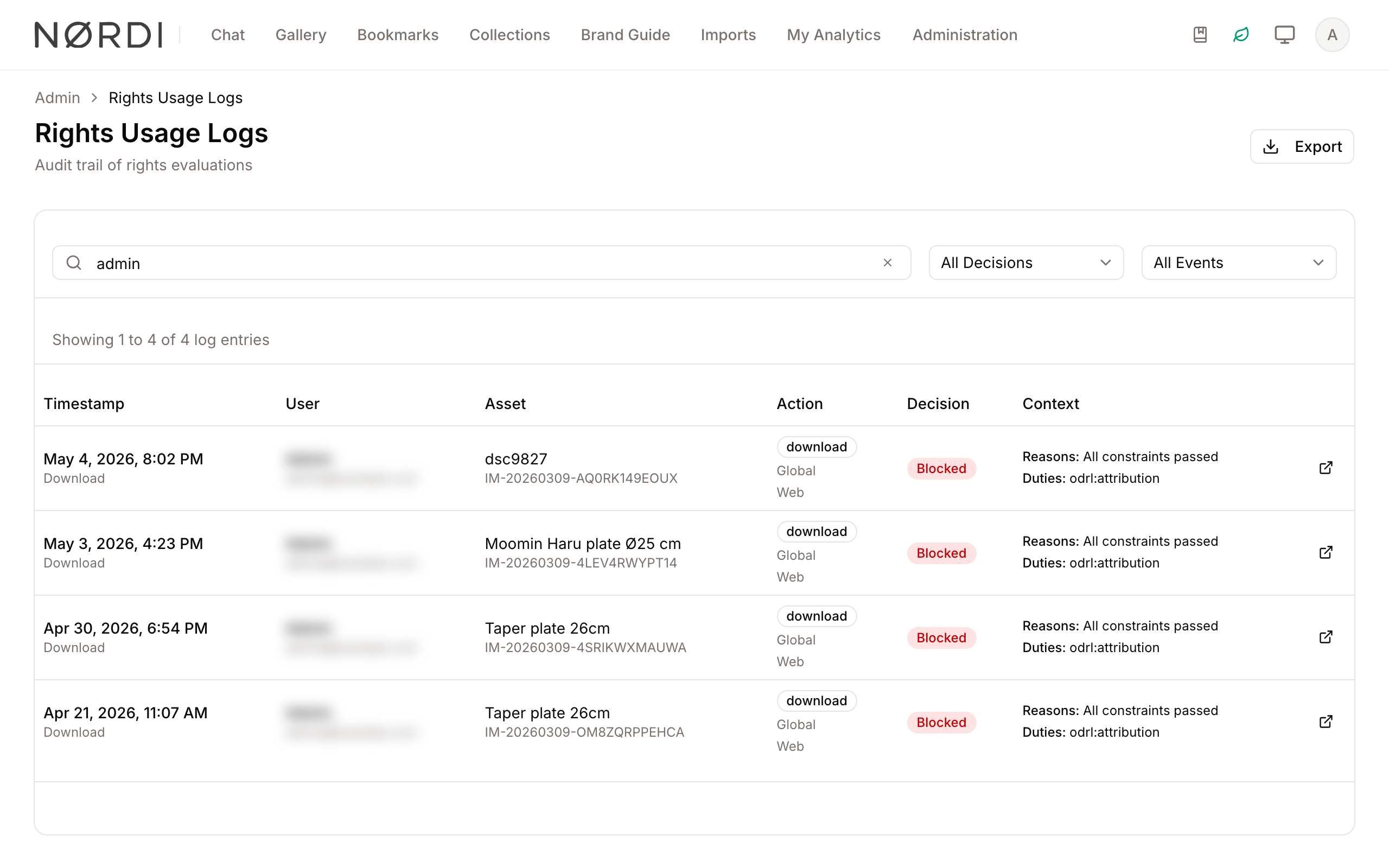
- Type a name, email, or asset ID into the Search by user, asset, or policy... field.
- Click the All Decisions dropdown to select "Permitted Only" or "Blocked Only".
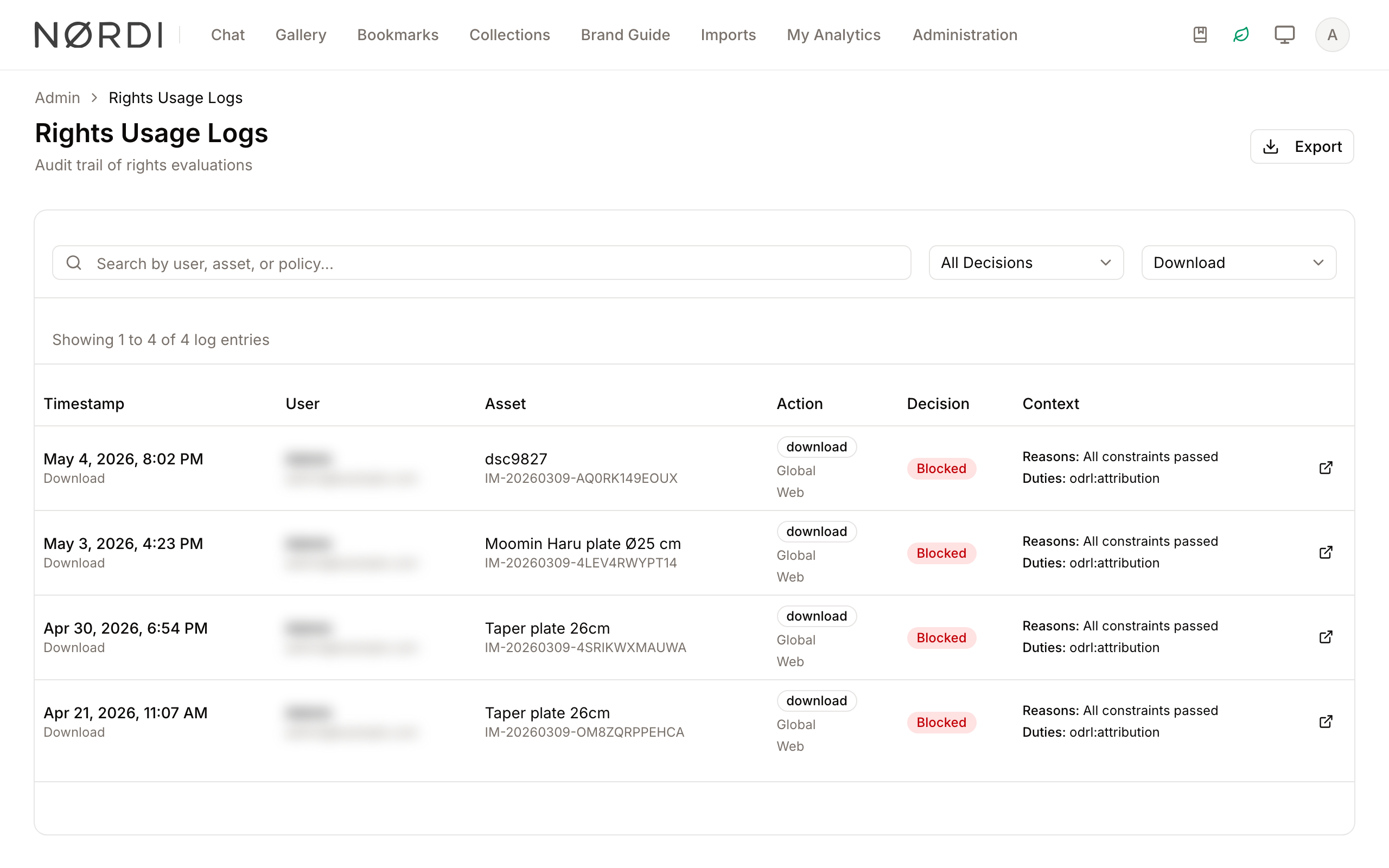
- Click the All Events dropdown to select Evaluation, Acknowledgement or Download. To list refusals, use Blocked Only in the decision dropdown.
- Click the X icon in the search bar to clear your search text.
Log Table Details
- Purpose: To view the granular details of a specific rights event.
- Where to find it: The central table in the main area.
- What you'll see: A row-by-row breakdown including the exact time, the user's identity, the asset involved, and the specific territory or channel context.
How to use it:
- Review the Timestamp column for the date and event type.
- Check the Action column to see the specific usage type (e.g., Social Media, Print).
- Look at the Context column to see "Reasons" for a block or "Duties" (requirements) for a permit.
- Click the Open asset icon (square with arrow) at the end of a row to open that asset.
Exporting Logs
- Purpose: To save the log data for external use.
- Where to find it: In the top right of the page header, look for the Export button.
- What you'll see: Your browser will begin downloading a file containing the log data.
How to use it:
- Apply any desired filters (Search, Decision, or Event Type).
- Click the Export button.
- The exported file will respect your active filters, allowing for targeted data extracts.
Complete Workflows
Workflow: Investigating a Blocked Download
- Goal: Determine why a specific user was unable to download an asset.
- Prerequisites: The user's name or email address.
Steps:
- Type the user's email into the Search field.
- Select Blocked Only from the Decision filter (dropdown).
- Locate the relevant entry by the Timestamp.
- Read the text in the Context column under "Reasons" to see which policy restriction triggered the block.
- Expected result: You identify the specific policy reason (e.g., "Expired license") that prevented the user from accessing the asset.
Workflow: Auditing Policy Acknowledgements
- Goal: Confirm that a user agreed to terms of use before accessing sensitive material.
- Prerequisites: The asset ID.
Steps:
- Type the asset ID into the Search field. The search covers user names, email addresses, asset IDs and policy titles, not asset titles.
- Select Acknowledgement from the Event Type filter (dropdown).
- Verify the user's name and the timestamp in the resulting list.
- Expected result: A list of all users who have explicitly acknowledged the rights terms for that specific asset.
Who can use it
Two groups can open this page:
- People with the Manage rights policies permission - they already own the legal side of the library and need to see how policies are being enforced.
- People with the View audit logs permission - compliance officers and auditors who need to read and export the logs without the ability to change policies.
The entry in the Administration menu is shown to people with Manage rights policies. People who hold only View audit logs open the page by its address, /admin/rights-logs. The page also requires a plan that includes audit logs.
The page offers no way to delete log entries, because the audit trail must stay intact for compliance.
What gets logged
Four types of events land in the log, and each one records the same core facts: who, which asset, which policy, what action, when, and the outcome.
- Evaluations - every time the system decides whether an action is allowed.
- Acknowledgements - every time a user clicks "I accept" on a policy's legal terms.
- Blocks - explicit refusals, with the reasons that triggered them.
- Downloads - downloads by signed-in users of assets that have a rights policy, with the duties that were applied (for example a watermark or a required credit line). Downloads of assets without a rights policy, and downloads from public share links, are not recorded here; they are counted in Analytics.
Limits and guardrails
- Export cap: A single CSV export is capped at 10,000 rows. If your filtered range is larger, tighten your filters (narrow the date range or pick a single decision) and export in segments. The export always respects whatever search and filters you have on screen.
- Logs are append-only in practice: The interface does not offer an "edit" or "bulk delete" action for log entries. This is intentional - the audit trail exists so that decisions can be reconstructed months or years later.
What happens behind the scenes
- Privacy-safe IP logging: To help you investigate suspicious activity while respecting privacy laws, the system never stores raw IP addresses in the log. Instead, each IP is passed through a one-way hash that includes a workspace-specific secret. Two events from the same address produce the same hash (so you can group them), but the original IP cannot be recovered from the log.
- Resilient to deleted assets: If an asset is deleted after a log entry is written, the entry remains intact - the asset's unique ID and title are copied into the log itself so history is never lost. The external-link icon is hidden for rows whose asset no longer exists.
- Action context is captured: Each entry records the territory, channel, reasons for a block, and the duties that had to be applied for a permit (such as "Watermark required" or "Credit required"). That is what you see under the "Context" column.
- CSV export contents: The exported file is named
rights-usage-logs-<date>.csvand includes the entry ID, timestamp, event type, user name and email, asset ID and title, policy UUID and title, action, territory, channel, decision, reasons, duties applied, and context date - ready for a spreadsheet or an external compliance system.
Tips and Best Practices
- Use Specific Searches: Searching by the unique Asset ID (GAID) is the fastest way to see the entire history of a single file.
- Check Duties: When a decision is "Permitted," always check the Context column for "Duties." This tells you if the user was required to provide a credit line or if a watermark was automatically applied.
- Pagination: If you have thousands of logs, use the Pagination controls at the bottom of the table to move through historical data.
- Export in slices: Because each download is limited to 10,000 rows, split large audits by month or by decision type to stay within the cap.
Troubleshooting
Issue: No log entries found
- Symptoms: The table area shows the message "No log entries found".
- Cause: Your active filters (Search, Decision, or Event Type) are too restrictive, or no rights events have occurred yet.
- Fix: Click the X in the search bar and set both dropdown filters to All Decisions and All Events.
- Prevention: Ensure you are using the correct spelling for user names, asset IDs or policy titles in the search field.
Issue: Asset link is missing
- Symptoms: The Open asset icon is missing from the right side of a log row.
- Cause: The log entry refers to a system-level event or the asset has been permanently deleted from the system.
- Fix: Check the Asset column; if it says "No asset," the event was not tied to a specific file.