
Rules Overview
The Rule Catalog provides a centralized interface for administrators to monitor, audit, and update every automation rule across the Freedam platform. This includes rules governing collection organization, asset access policies, and general system workflows.
By using this overview, administrators can quickly identify active rules, adjust execution priorities, and ensure that automated logic is correctly applied to assets and users.
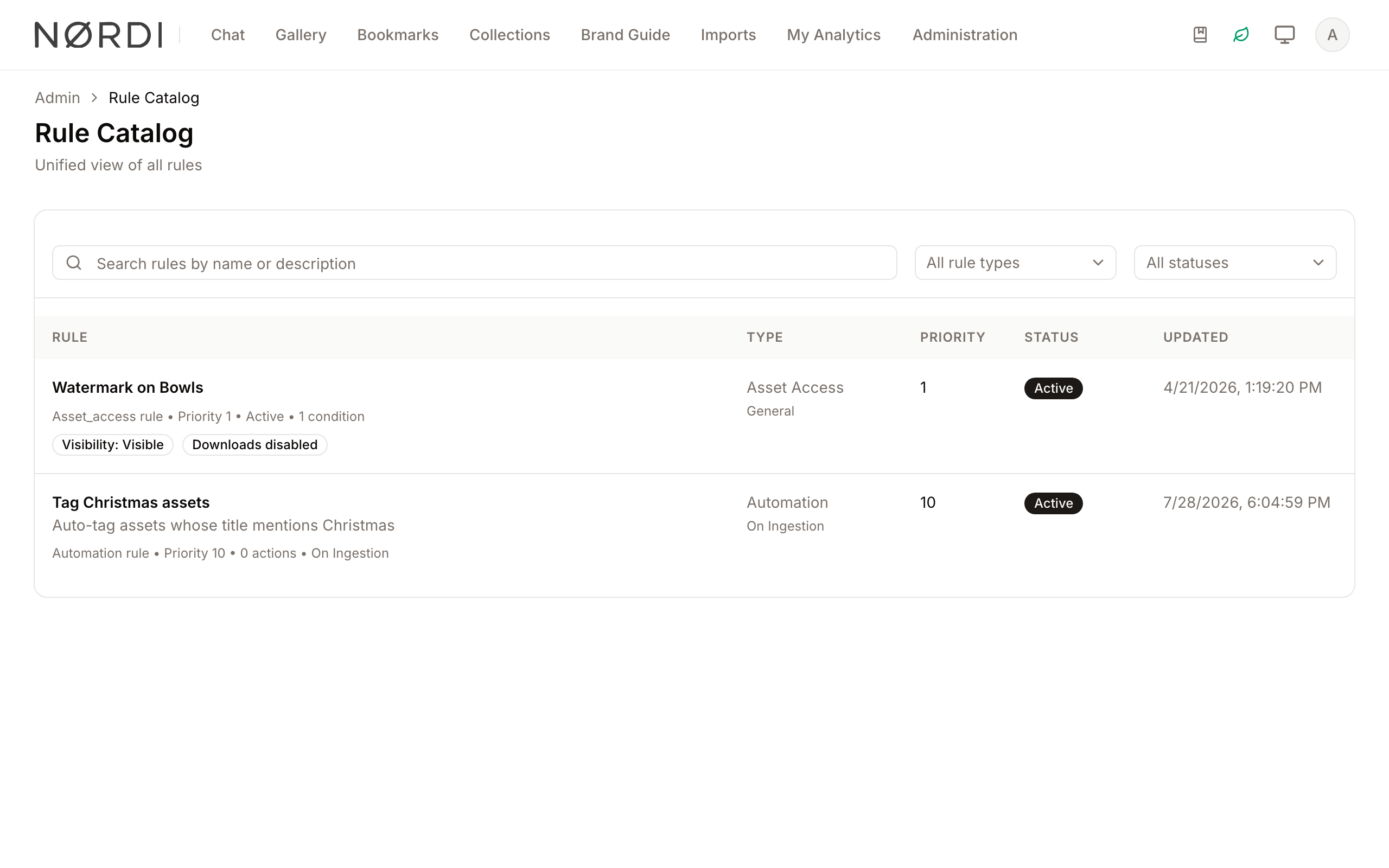
Page Overview
- Purpose: To provide a single source of truth for all logic-based rules in the system.
- When to use it: Use this page when you need to audit existing rules, troubleshoot why a specific automation triggered, or change the priority of competing rules.
- What you can do here:
- Search for rules by name or description.
- Filter rules by their functional type (e.g., Collection, Asset Access).
- Toggle rules between Active and Inactive states.
- View detailed logic conditions and execution summaries.
- Adjust rule priority to control execution order.
Page Layout
- Top bar: Contains the "Rule Catalog" title and a brief description of the feature's purpose.
- Main area: A searchable and filterable table listing all rules with the columns Rule (name, description, summary and insight badges), Type, Priority, Status and Updated. The list shows 25 rules per page.
- Right panel / dialogs: A detailed "Rule" dialog that opens when a rule name is clicked, offering tabs for Overview, Conditions, and Actions.
Main Features
The catalog brings together every type of rule Freedam supports into one list, so you don't need to jump between pages to answer "what automation is running today?" The current rule families are:
- Collection rules - automatic filing of new assets into collections based on metadata and file properties.
- Asset access rules - visibility, preview, download, and AI-edit permissions applied to assets based on who's asking.
- Workflow transition rules - conditions that unlock or gate movement between workflow statuses.
- Field rules - conditional logic that shows, hides, requires, or validates metadata fields on asset forms.
- Automation rules - "if this, then that" logic that tags, notifies, sets metadata, assigns collections, or transitions workflows when an asset is uploaded or updated.
Rule Search and Filtering
- What it's for: Quickly locating specific rules within a large catalog.
- Typical use: Type a keyword into the search bar or use the "All rule types" and "All statuses" dropdowns to narrow the list.
- Result: The table updates in real-time to show only the rules matching your criteria. Search looks across both rule names and descriptions, and filtering narrows the list to one rule family or to only active / only inactive rules.
Rule Detail View
- What it's for: Inspecting the logic and metadata of a specific rule without leaving the catalog.
- Typical use: Click on a rule's name in the table to open the detail dialog.
- Result: A multi-tab dialog appears showing the rule's summary, specific conditions (e.g., "User is in Group X"), and the actions it performs.
Priority Management
- What it's for: Controlling which rules take precedence when multiple rules apply to the same asset or event.
- Typical use: Open a rule in "Edit" mode and change the "Priority" number.
- Result: The catalog lists rules in ascending priority order. How the number is used depends on the rule family: collection, field and automation rules run from the lowest number to the highest, while asset access rules are evaluated from the highest number to the lowest.
Detailed Feature Documentation
Rule Search
- Purpose: To find rules based on their name or the text in their description.
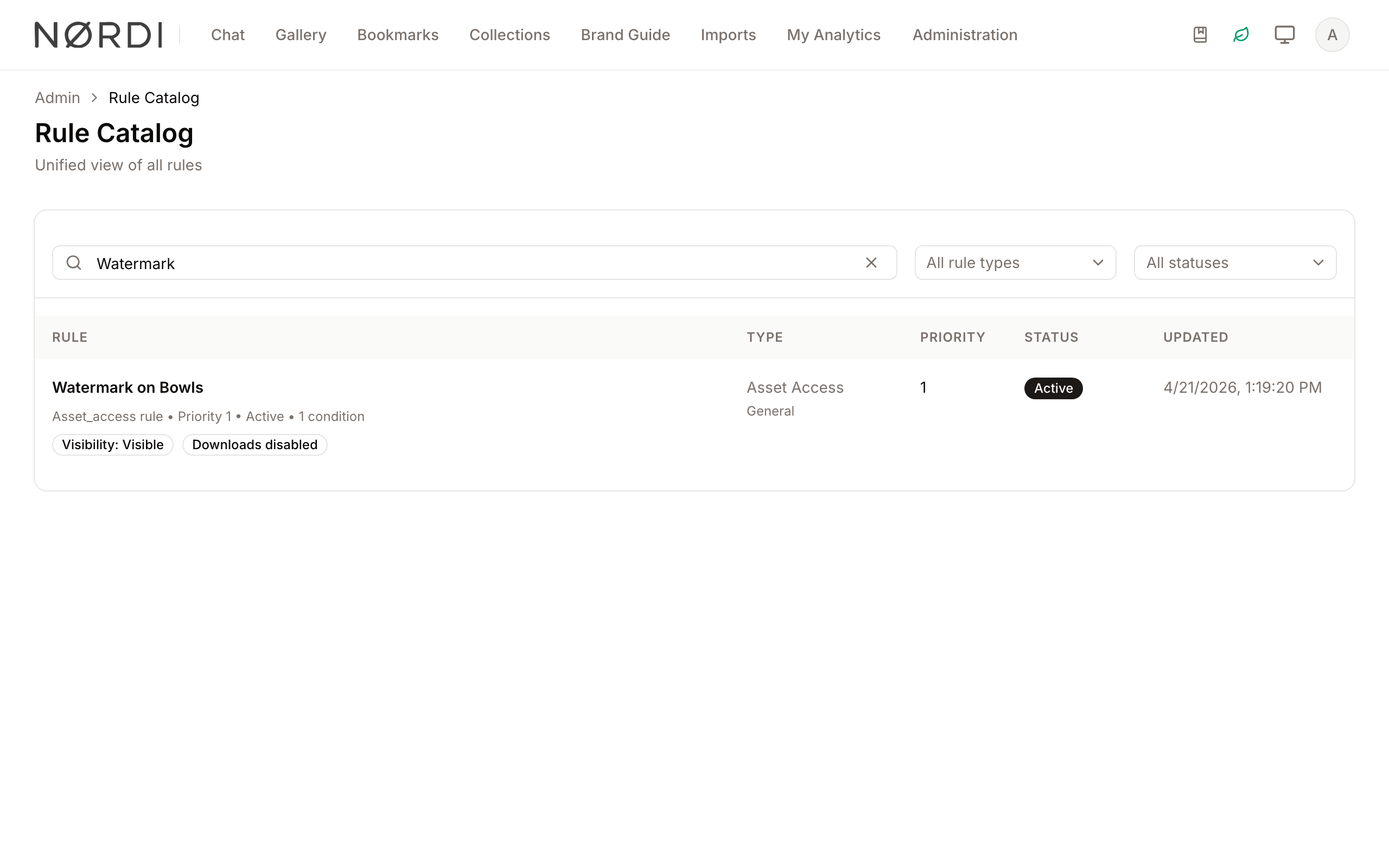
- Where to find it: In the main area, look for the text field with the magnifying glass icon.
- What you'll see: The list of rules will filter automatically as you type. If no rules match, an "Info" icon will appear with a "Reset filters" button.
How to use it:
- Click into the field labeled Search rules by name or description.
- Type the name of the rule or a keyword from its description.
- To clear the search, click the X icon on the right side of the search bar.
Rule Filtering
- Purpose: To isolate rules by their functional category or current status.
- Where to find it: In the main area, to the right of the search bar.
- What you'll see: Two dropdown menus: one for rule types (for example Collection, Asset Access, Field Rule, Automation) and one for status (Active, Inactive).
How to use it:
- Click the All rule types dropdown to select a specific category.
- Click the All statuses dropdown to filter by Active or Inactive rules.
- The table will refresh to show only rules meeting both criteria.
Rule Editing
- Purpose: To modify the name, description, priority, or active status of an existing rule.
- Where to find it: Inside the Rule Detail dialog (opened by clicking a rule name).
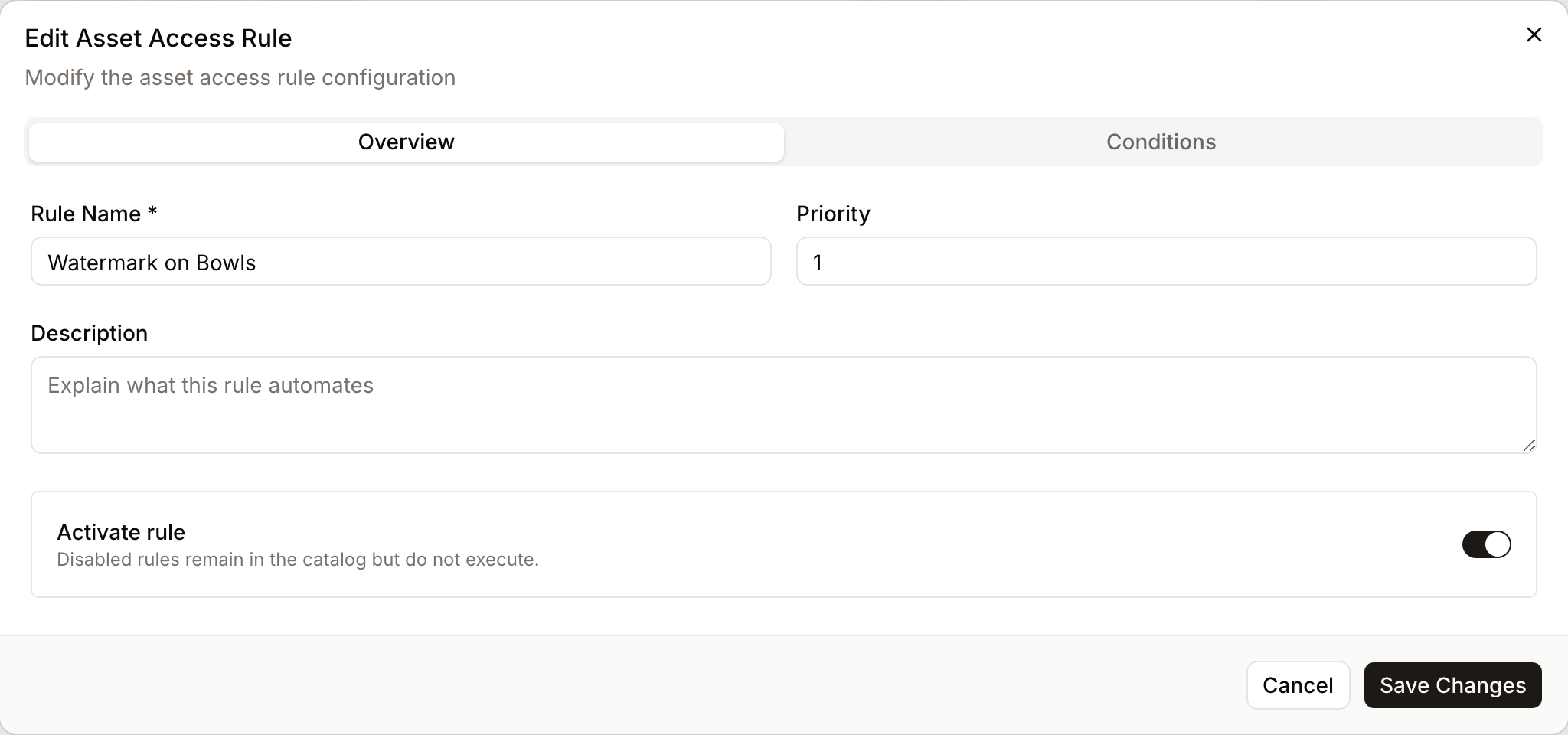
- What you'll see: A form with editable fields and a "Save Changes" button.
How to use it:
- Click a Rule Name in the table.
- Click the Edit button (pencil icon) in the Overview tab.
- Update the Rule Name, Priority, or Description. The Conditions and Actions tabs of the form let you change the rule logic.
- Use the Activate rule switch to enable or disable the rule.
- Click Save Changes.
Complete Workflows
Workflow: Auditing Rule Logic
- Goal: Review the specific conditions that trigger a rule.
- Prerequisites: Access to the Admin Rules section.
Steps:
- Locate the rule in the Rule Catalog table.
- Click the Rule Name.
- In the dialog that opens, click the Conditions tab.
- Review the logic (e.g., "Asset Type is Image" AND "Status is Approved").
- If the rule is an "Asset Access" rule, review both User Conditions and Asset Conditions.
- Expected result: You can see exactly why a rule is triggering for certain assets or users.
Workflow: Disabling a Rule Temporarily
- Goal: Stop a rule from executing without deleting it.
- Prerequisites: Permissions to edit rules.
Steps:
- Click the Rule Name in the table.
- Click the Edit button.
- Locate the Activate rule section.
- Click the Switch so it moves to the off position (it will change from the default color to a secondary color).
- Click Save Changes.
- Expected result: The rule status in the table will now show as "Inactive" and the rule will no longer run.
Who Can Use It
The Rule Catalog is restricted to people with the Manage automation and naming rules permission. That permission covers both viewing the catalog and saving changes from the rule dialog, for every rule family listed. The dedicated Collection Rules and Asset Access Rules pages keep their own permissions (Manage collection rules and Manage asset access rules). Automation rules opened from the catalog always redirect to the Automation Rules page for editing, because they have their own dedicated editor with trigger and action configuration.
How the Catalog Works Behind the Scenes
- The catalog merges regular rules (collection, asset access, workflow transition, field) with automation rules and sorts them all together by ascending priority number, then by most recently updated.
- The type filter is built dynamically from the rules that actually exist in your Freedam workspace - you'll only see rule types you're using.
- Each row shows a plain-English summary of the rule (for example, "Collection rule • Priority 10 • Active • 3 conditions") plus context-specific insights such as which collection type it targets, whether downloads are allowed, or which actions an automation rule runs.
- Changes you make from the catalog are attributed to your user account in the Updated column, so there's a clear audit trail of who changed what and when.
Tips and Best Practices
- Use Descriptive Names: Since the catalog is searchable, name rules based on their outcome (e.g., "Auto-Archive Expired Assets") rather than generic IDs.
- Priority Matters: If two rules might conflict, check which direction the rule family reads priorities in (see Priority Management above) before changing the numbers.
- Check Insights: Look for the small badges (Insights) under rule names in the table; these often provide quick context about what the rule affects.
Troubleshooting
Issue: Rule is not appearing in the list
- Symptoms: The table is empty or the specific rule you are looking for is missing.
- Cause: Active filters or search terms are hiding the rule.
- Fix: Click the Reset filters button in the center of the page or manually clear the search bar and set both dropdowns to "All".
- Prevention: Always check if the "X" icon is visible in the search bar before assuming a rule is deleted.
Issue: Cannot edit a rule
- Symptoms: The "Edit" button is missing or fields are greyed out.
- Cause: The rule may be an "Automation Rule" managed in a different section, or you have view-only permissions.
- Fix: If the rule is an Automation Rule, click the Open in Automation Rules button in the Overview tab to navigate to the correct management page.
- Prevention: Check the Type column in the table before attempting to edit.