
Collection Types
Collection Types allow administrators to define the structural blueprint for how assets are organized within the system. By creating different types (such as "Product," "Campaign," or "Brand"), you can enforce specific metadata requirements and hierarchical rules tailored to different business needs.
This feature is used by system administrators to build a consistent content model. You can define what information must be captured for a collection and whether that collection can contain sub-collections or direct asset uploads.
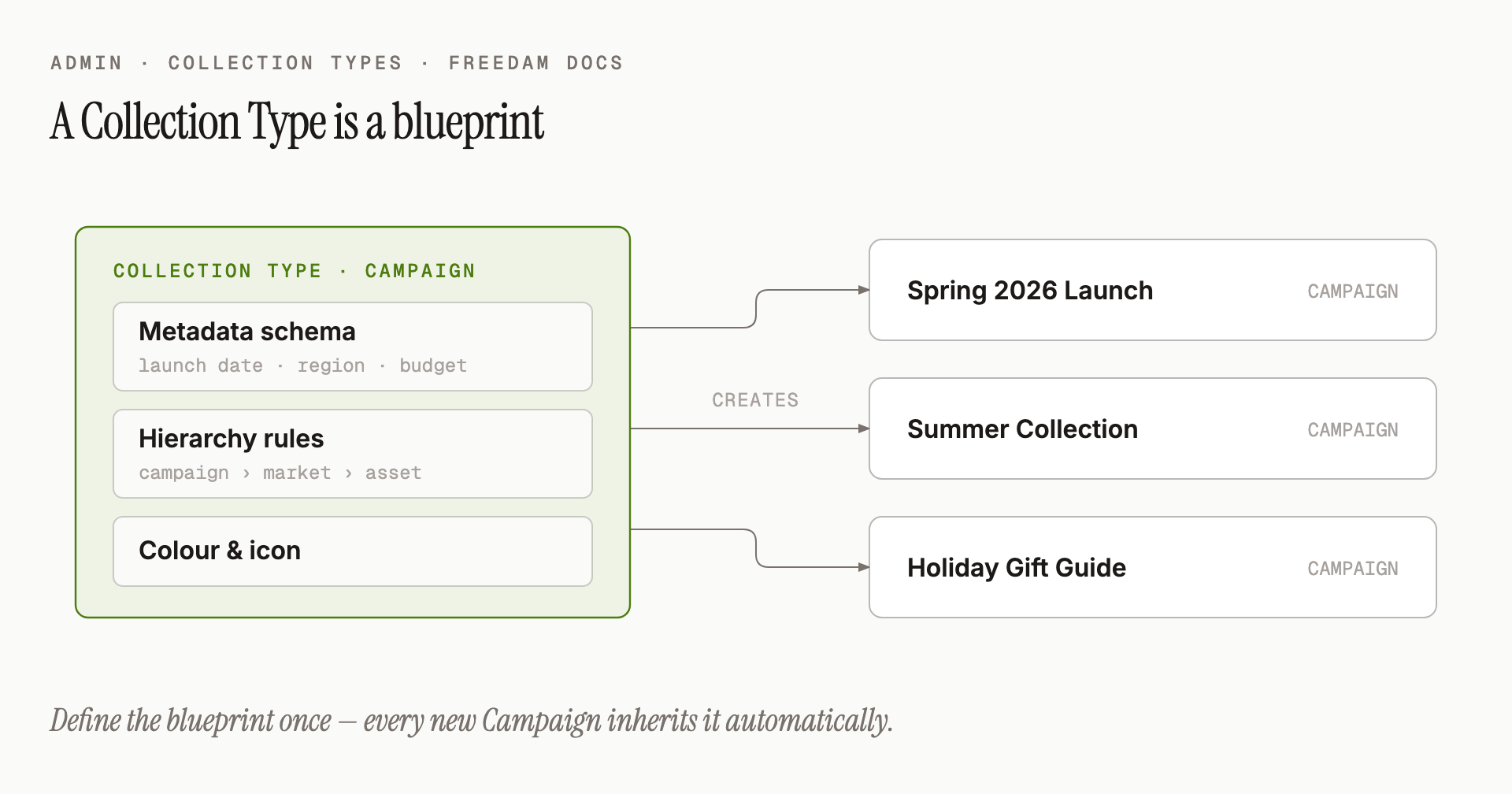
Page Overview
- Purpose: To manage the templates that govern how collections behave and what data they store.
- When to use it: Use this page when you need to create a new category of organization, update metadata fields for existing collections, or change the nesting rules of a hierarchy.
- What you can do here:
- Create, edit, and clone collection types.
- Define custom metadata schemas with sections and fields.
- Define the asset sections that assets in a collection of this type can be grouped into.
- Configure multi-level hierarchies with specific rules for each level.
- Assign identifying colors for the sidebar navigation.
- Reorder how collection types appear in the system.
Page Layout
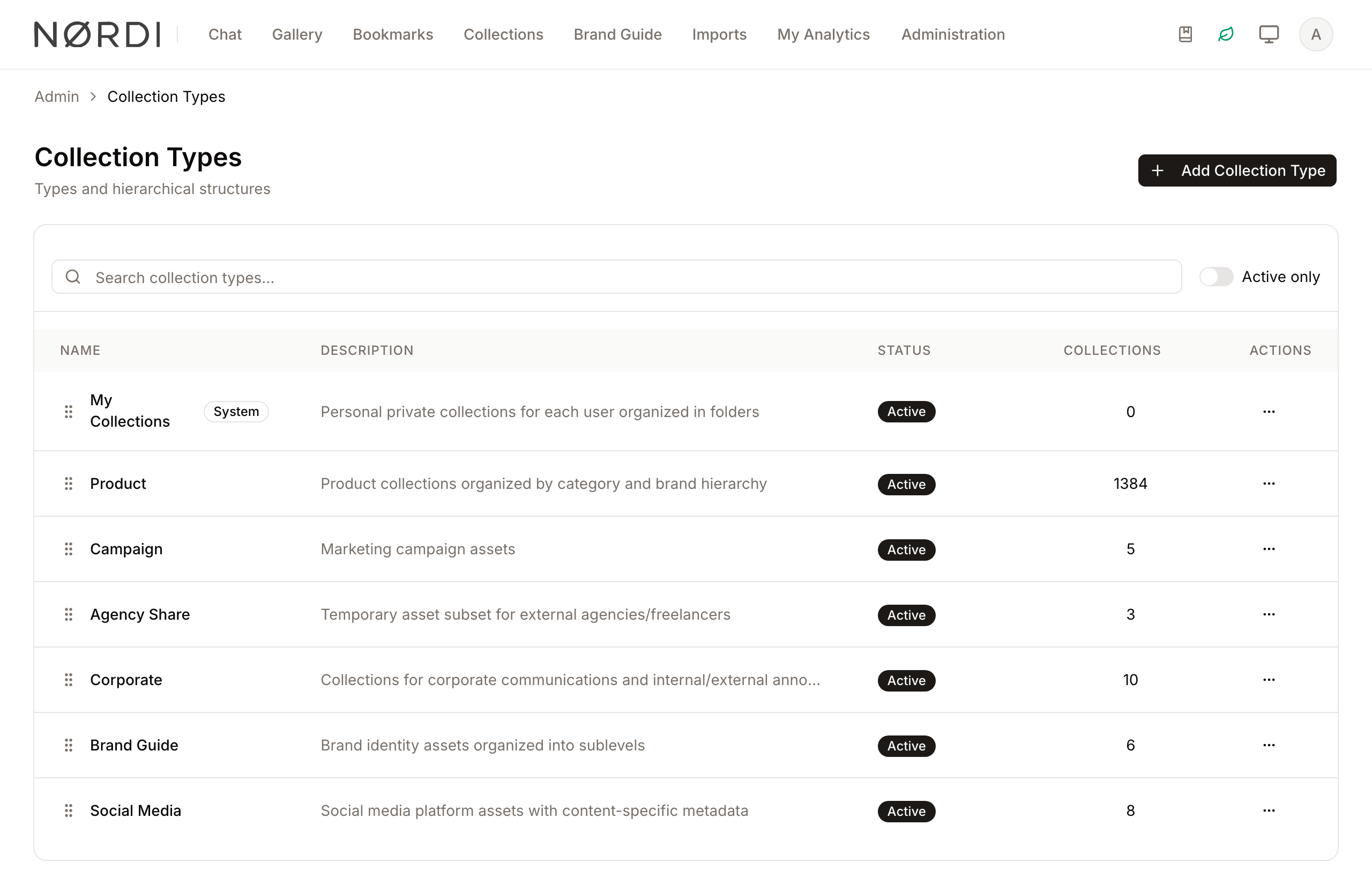
- Top bar: Contains the page title, a brief description, and the Add Collection Type button.
- Main area: Features a searchable table listing all collection types, showing their name, description, active status, and the number of collections currently using that type.
- Search and Filter bar: Located above the table, providing a Search collection types... field and an Active only toggle.
- Dialogs: Pop-up windows used for creating, viewing, or editing the detailed configuration of a collection type.
Main Features
Metadata Schema Modeling
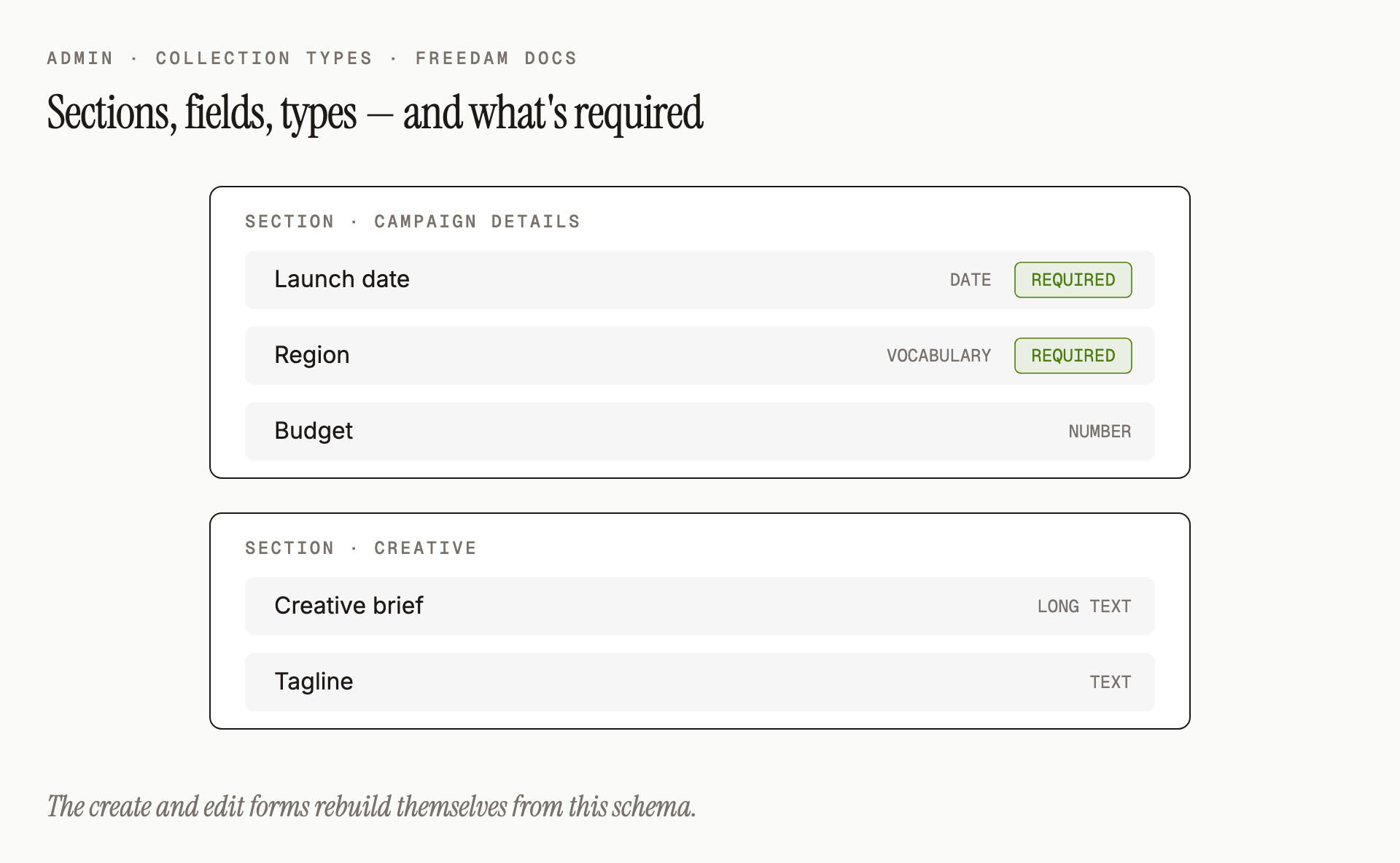
- What it's for: Defining the specific data fields (like "Launch Date" or "Region") that users must fill out when creating a collection of this type.
- Typical use: Grouping related fields into sections to make the data entry form easier for users to navigate.
- Result: The collection creation and edit forms will update to show the fields you defined.
Hierarchy Level Configuration
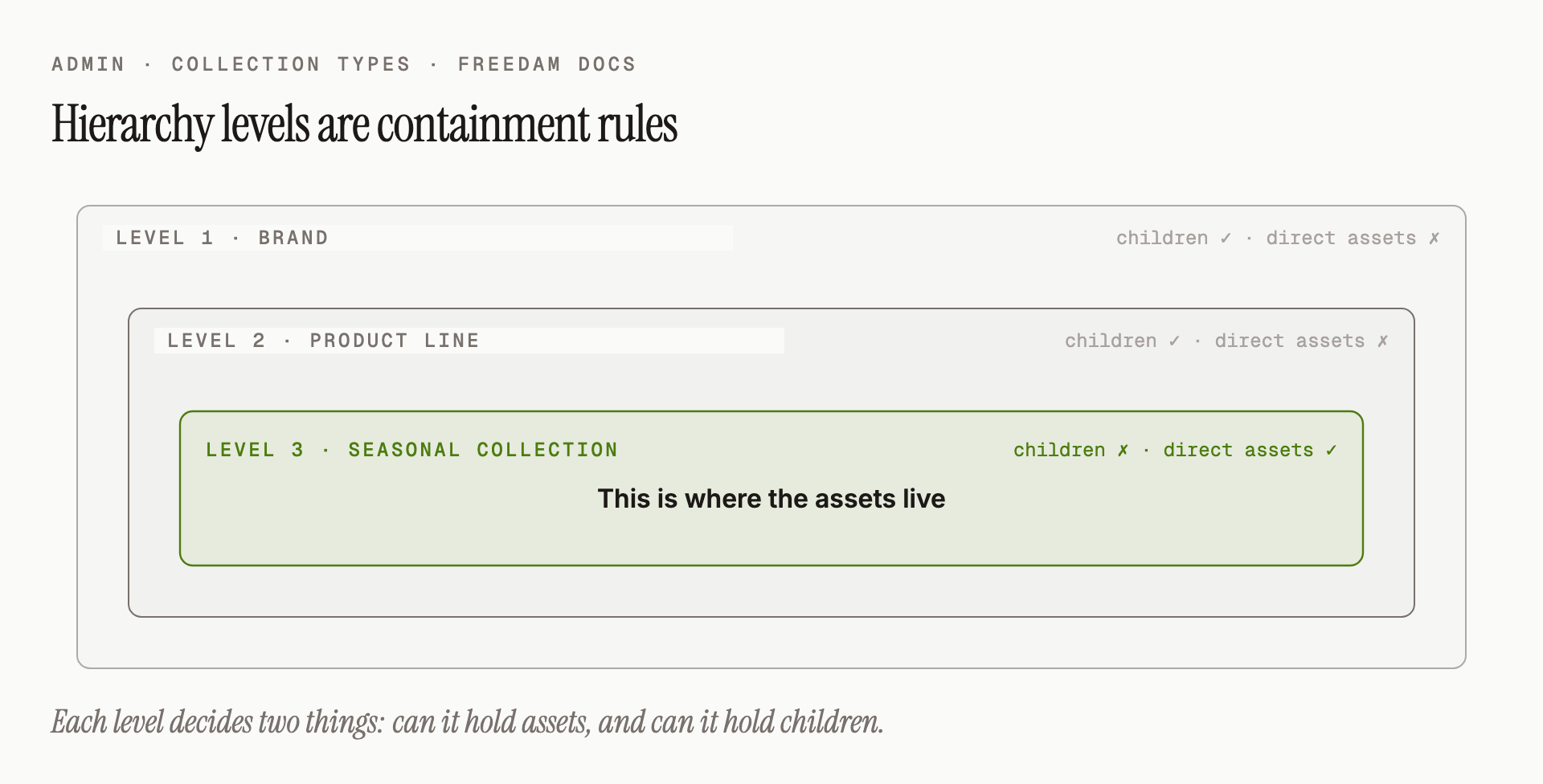
- What it's for: Setting up "parent-child" relationships within a collection type.
- Typical use: Creating a "Brand" type that has a "Product Line" level, which then contains "Seasonal Collections."
- Result: Users will be restricted to the organizational structure you define, ensuring data consistency.
System and Active Status
- What it's for: Controlling the availability of collection types.
- Typical use: Deactivating an old collection type to prevent new ones from being created while keeping existing data intact.
- Result: Inactive types are hidden from the "Create Collection" menus.
Detailed Feature Documentation
Collection Type Management
- Purpose: To create or modify the core identity and behavior of a collection template.
- Where to find it: In the Top bar, click Add Collection Type, or open the actions menu (vertical dots) of a row and select Edit.
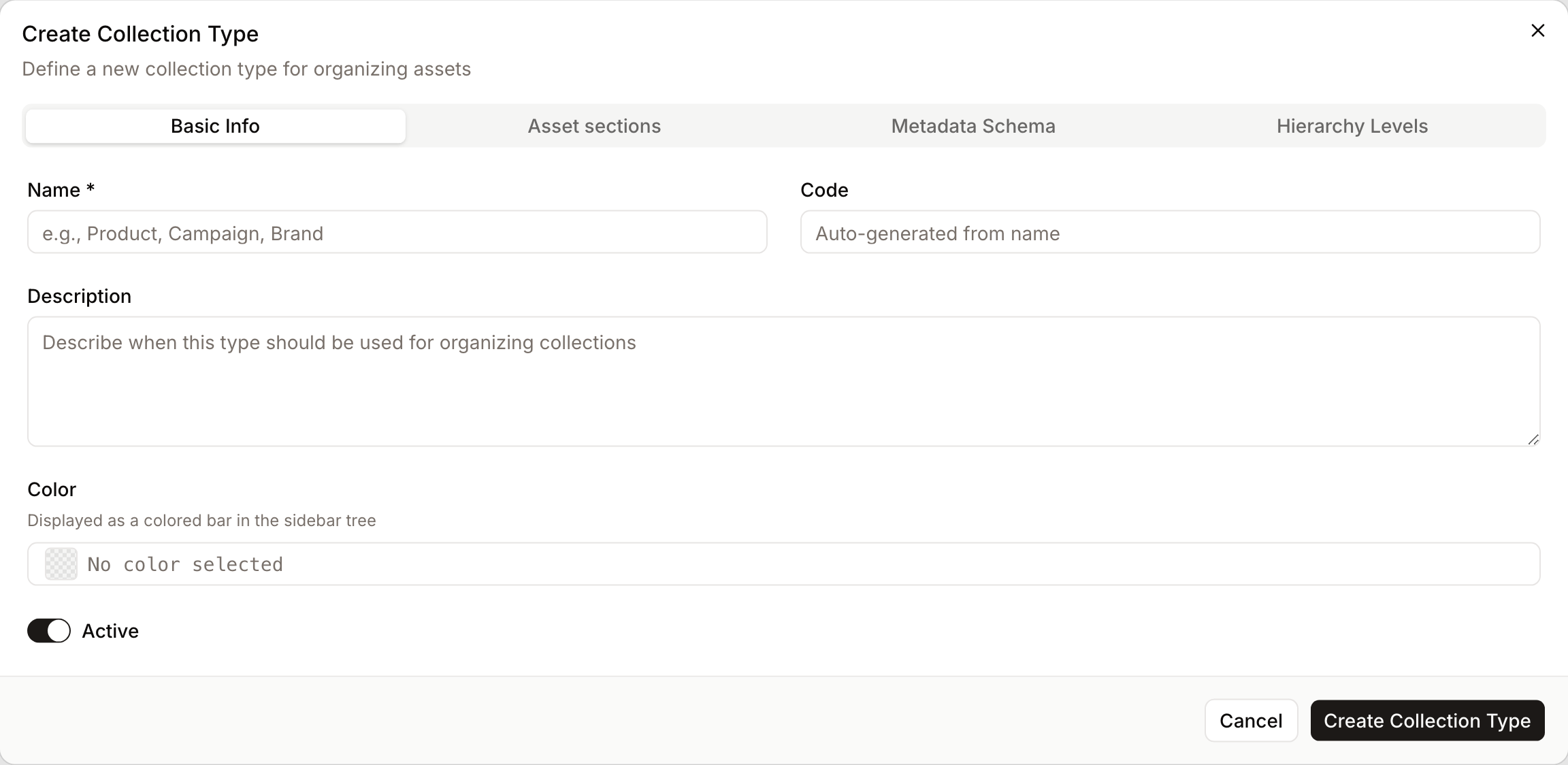
- What you'll see: A large dialog with four tabs: Basic Info, Asset sections, Metadata Schema, and Hierarchy Levels.
How to use it:
- Enter a Name (e.g., "Marketing Campaign"). The Code will auto-generate.
- Provide a Description to help other admins understand when to use this type.
- Use the Color picker to choose the color of the bar shown next to collections of this type in the sidebar tree.
- Toggle the Active switch to make it available to users.
- Click Create Collection Type or Save Changes.
Asset Sections
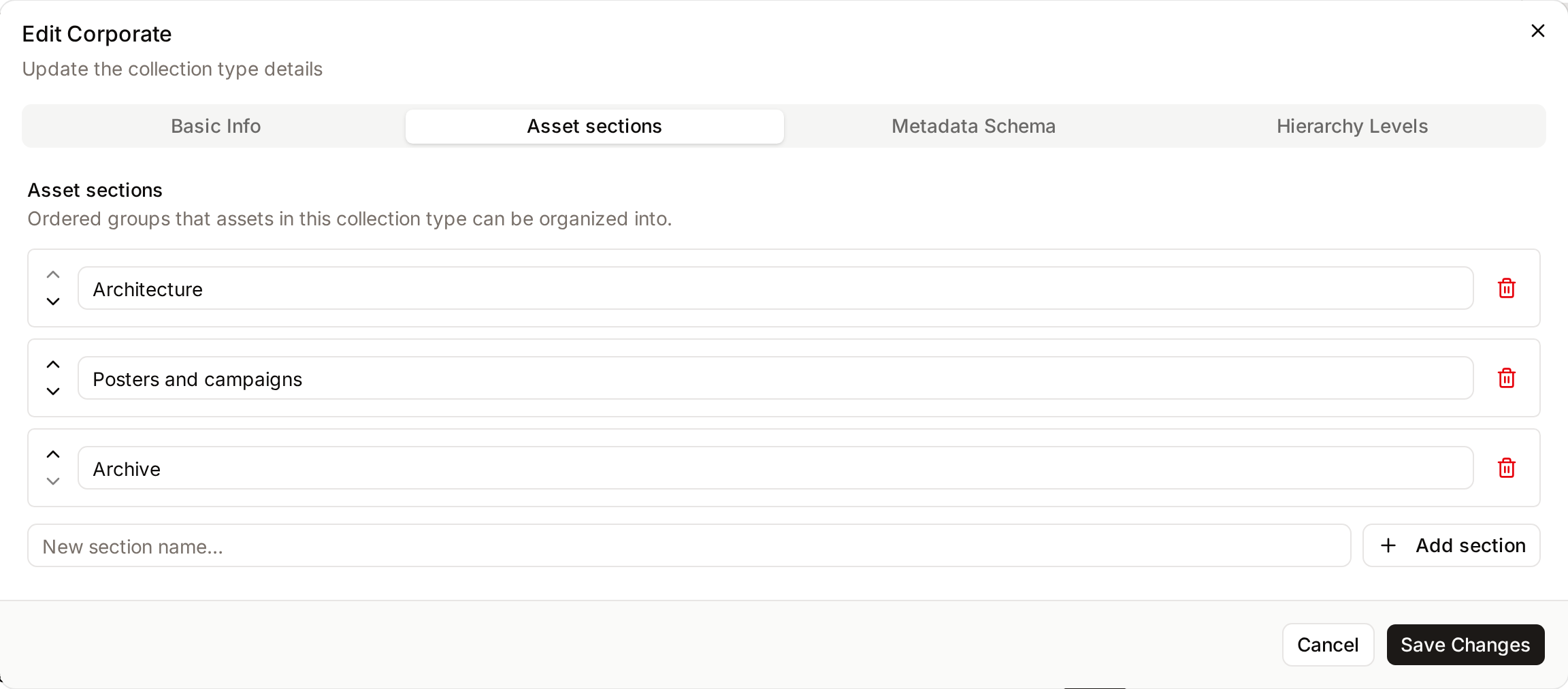
- Purpose: To define ordered groups that assets in a collection of this type can be organized into (for example "Packshots", "Lifestyle", "Video").
- Where to find it: Inside the Collection Type dialog, click the Asset sections tab.
- What you'll see: The list of sections in their display order, or "No asset sections defined." when the type has none.
How to use it:
- Type a name in the New section name… field and click Add section.
- Edit the name directly in the list to rename a section.
- Use Move up and Move down to change the order.
- Click Remove to delete a section. A confirmation explains that the assets currently in that section move to Ungrouped. No assets are deleted.
- Click Save Changes.
Metadata Schema Editor
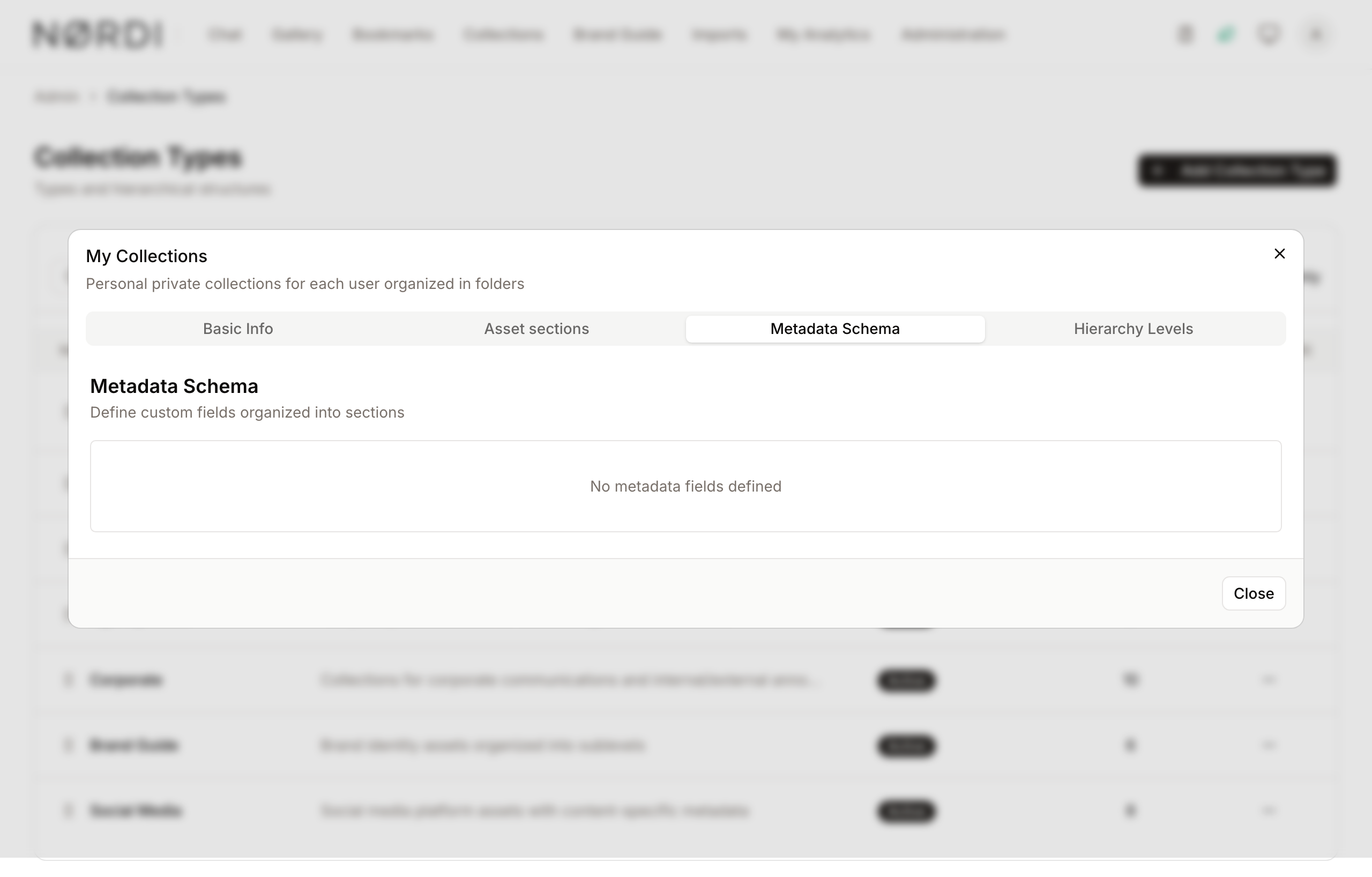
- Purpose: To build the data structure for the collection type.
- Where to find it: Inside the Collection Type dialog, click the Metadata Schema tab.
- What you'll see: A list of sections that can be expanded to show individual fields.
How to use it:
- Click Add Section and enter a name (e.g., "General Information").
- Within a section, enter a Field Label and Key.
- Select a Type (Text, Integer, Decimal, Boolean, Date, JSON, or Vocabulary).
- Check Required if the field must be filled by users.
- Use the grip handle (vertical dots) to drag and drop fields or sections into a new order.
Hierarchy Levels Editor
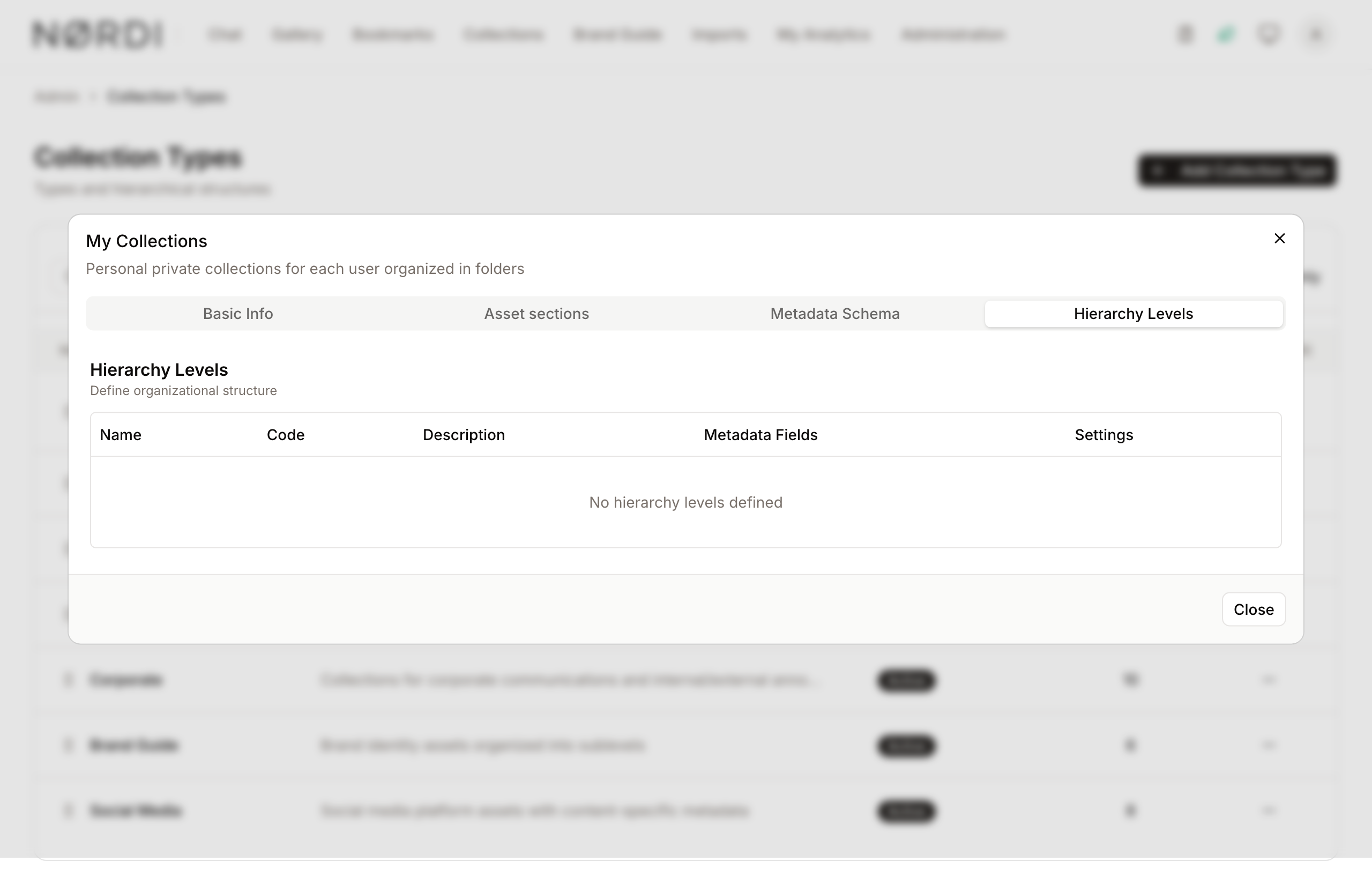
- Purpose: To define the organizational depth and rules for nested collections.
- Where to find it: Inside the Collection Type dialog, click the Hierarchy Levels tab.
- What you'll see: A table where each row represents a level in the hierarchy.
How to use it:
- Enter a Name for the level (e.g., "Region").
- Toggle Assets to allow or disallow direct asset uploads at this specific level.
- Toggle Children to allow or disallow further sub-collections beneath this level.
- Click the Plus button to add the level.
- Use the Move up and Move down arrow buttons to change the nesting order.
Complete Workflows
Workflow: Creating a Multi-Level Product Hierarchy
- Goal: Create a "Product" collection type where users can organize assets by "Category" and then by "Model."
- Prerequisites: Admin permissions.
Steps:
- Click Add Collection Type in the Top bar.
- In Name, type "Product Catalog".
- Click the Hierarchy Levels tab.
- In the new level row, type "Category" in the Name field and click the Plus icon.
- In the next new level row, type "Model" in the Name field.
- Uncheck Children for the "Model" level (to prevent further nesting) and click the Plus icon.
- Click Create Collection Type.
- Expected result: A new collection type is created. When users create a "Product Catalog" collection, they will be forced to follow the Category > Model structure.
Workflow: Adding a Vocabulary Field to a Schema
- Goal: Add a dropdown menu to a collection type using a predefined list of values.
- Prerequisites: A Vocabulary must already exist in the system.
Steps:
- Open the actions menu (vertical dots) next to an existing type and select Edit.
- Click the Metadata Schema tab.
- In an existing section, enter "Department" in the Field Label.
- Select Vocabulary from the Type dropdown.
- Select your desired list from the Vocabulary dropdown that appears.
- Click Save Changes.
- Expected result: The collection type now includes a searchable dropdown field for users.
Who can use it
Creating and editing collection types is reserved for people with the Manage collection types permission. Other users never see this page.
Field types available in the schema
When you build a metadata schema for a collection type, each field must use one of the following data types: Text, Integer (whole number), Decimal, Boolean (yes/no), Date, JSON (structured data), or Vocabulary (a controlled list you selected). The Vocabulary type is the one that draws options from the Vocabularies administration page.
Limits and guardrails
- "My Collections" is system-protected: The built-in "My Collections" type cannot be edited or deleted from either the list or the edit dialog. Freedam blocks both actions because this type underpins every user's personal collections workspace.
- Deletion requires an empty type: A collection type can only be deleted once no collections reference it. The delete action stays disabled until the collection count reaches zero.
- Deactivating from the list requires an empty type: The Deactivate action in the actions menu is refused while collections use the type. To stop new collections of a type that is in use, open Edit and turn off the Active switch: a warning states how many collections exist and that they are not affected. Inactive types stop appearing in "Create Collection" menus but existing data keeps working.
- Unique field keys per schema: Within a single collection type, two fields cannot share the same key (case-insensitive). The form rejects the save and surfaces the duplicate before the type is stored.
- Hierarchy validation: Each level in the hierarchy must have a name and an internal code. If a level references a metadata field, that field must also exist in the type's overall schema pool: the system checks the entire list before saving.
- Paginated listing: The overview shows 15 collection types per page, and the search covers name, description, and code.
What happens behind the scenes
- Cloning preserves the full schema: Use Clone to produce a new type that inherits every section, field, and hierarchy level of the source. The clone is saved with "(Copy)" in its name and "_copy" appended to its code (followed by a number when that code is already taken), ready for you to customize.
- Reordering is instant: Dragging collection types into a new order in the list saves automatically: the new order takes effect immediately for end-users.
- Name vs. code: Names are just labels and can safely change, but codes are how the system (and any external integration) identifies the type. Changing a code after it is in active use can disrupt data flows that rely on it.
Tips and Best Practices
- Use Codes Wisely: While names can be changed, "Codes" are used by the system for identification. Avoid changing codes once a type is in active use.
- System Types: Types labeled with a System badge (like "My Collections") cannot be deleted or renamed as they are required for core app functionality.
- Cloning: Use the Clone action from the actions menu to quickly create a new type based on an existing complex metadata schema.
- Color Coding: Assign distinct colors to different types to help users visually distinguish between "Project" folders and "Archive" folders in the sidebar.
Troubleshooting
Issue: Cannot delete a collection type
- Symptoms: The Delete option is greyed out.
- Cause: You cannot delete a collection type if it is a System type or if there are existing collections currently using that type.
- Fix: Check the Collections column. If it is greater than 0, you must delete or reassign those collections first.
- Prevention: Deactivate the type instead of deleting it to prevent new collections while preserving history.
Issue: Metadata field not appearing in Hierarchy Levels
- Symptoms: A field you just created in the Metadata Schema tab isn't available in the Metadata Fields picker in the Hierarchy tab.
- Cause: The Hierarchy tab only pulls from the "pool" of fields defined in the Metadata Schema tab.
- Fix: Ensure you have saved the field in the Metadata Schema tab first.
- Prevention: Always define your metadata fields before trying to assign them to specific hierarchy levels.