
Canva
The Freedam app for Canva puts your workspace inside the Canva editor. Open it from the Apps sidebar, sign in to Freedam once, and every image and video you are allowed to use is a click or a drag away from your design, at full delivery quality and with the same permissions you have in Freedam itself.
The app is installed and published by Canva, so there is nothing to set up on the Freedam side. Each Canva user connects their own Freedam account, and what they see in the panel is exactly what they could see in the Gallery.
Page Overview
- Purpose: To bring approved Freedam assets into Canva designs without downloading and re-uploading files.
- When to use it: Whenever a Canva design needs brand imagery or footage that already lives in Freedam: social posts, presentations, documents, whiteboards.
- What you can do here:
- Connect a Canva account to one Freedam workspace.
- Browse the workspace by collection, or search all assets and collections at once.
- Narrow results to images or videos.
- Add an asset to the design with a click, or drag it to a precise spot on the canvas.
- Disconnect from Canva's app menu, or remove and reconnect to switch workspaces.
Panel Layout
- Workspace caption: A small "Connected to" line naming the connected workspace, at the top of the panel. There is no Disconnect button here; disconnecting happens through Canva's own app menu.
- Search box: Searches assets and collections across the whole workspace, with suggestions as you type.
- Type pills: Images and Videos narrow both browsing and search results to one kind of asset.
- Assets tab: A grid of the assets in the current view, newest first when browsing and by relevance when searching.
- Collections tab: The collection tree, with a breadcrumb to step back up.
Main Features
Connecting a workspace
- What it's for: Linking your Canva account to your Freedam account, so the panel can act on your behalf.
- Typical use: The first time you open the app, or after choosing Remove from your apps in Canva and opening the app again.
- Result: The panel shows "Connected to" followed by your workspace name and loads its contents.
Browsing collections
- What it's for: Finding assets the way they are organised in Freedam.
- Typical use: Opening the collection a campaign lives in and picking from its assets.
- Result: The Collections tab shows sub-collections with their asset counts; the Assets tab shows the assets of the collection you are in.
Searching
- What it's for: Finding an asset by name, keyword, description or any other indexed metadata.
- Typical use: Typing a product name and choosing one of the suggested assets or collections.
- Result: Matching assets and collections from anywhere in the workspace, ranked by relevance. The search box corrects likely typos with a "Did you mean" suggestion.
Inserting assets
- What it's for: Placing a Freedam image or video in the design.
- Typical use: Clicking a tile to add it where Canva places new elements, or dragging it onto the page to position it yourself.
- Result: Canva uploads the asset to your private Canva media and adds it to the page. Images arrive as a 2048 pixel delivery rendition; videos arrive as MP4.
Detailed Feature Documentation
Connect Canva to Freedam
- Purpose: To give the Canva app access to your Freedam workspace.
- Where to find it: In the Canva editor, open Apps in the left sidebar, search for Freedam and open it. Once opened, Freedam stays pinned in the sidebar.
- What you'll see: Canva's own Connect screen, with a Connect button, right away.
How to use it:
- Open the Freedam app. Canva shows its Connect screen before the panel draws anything of its own.
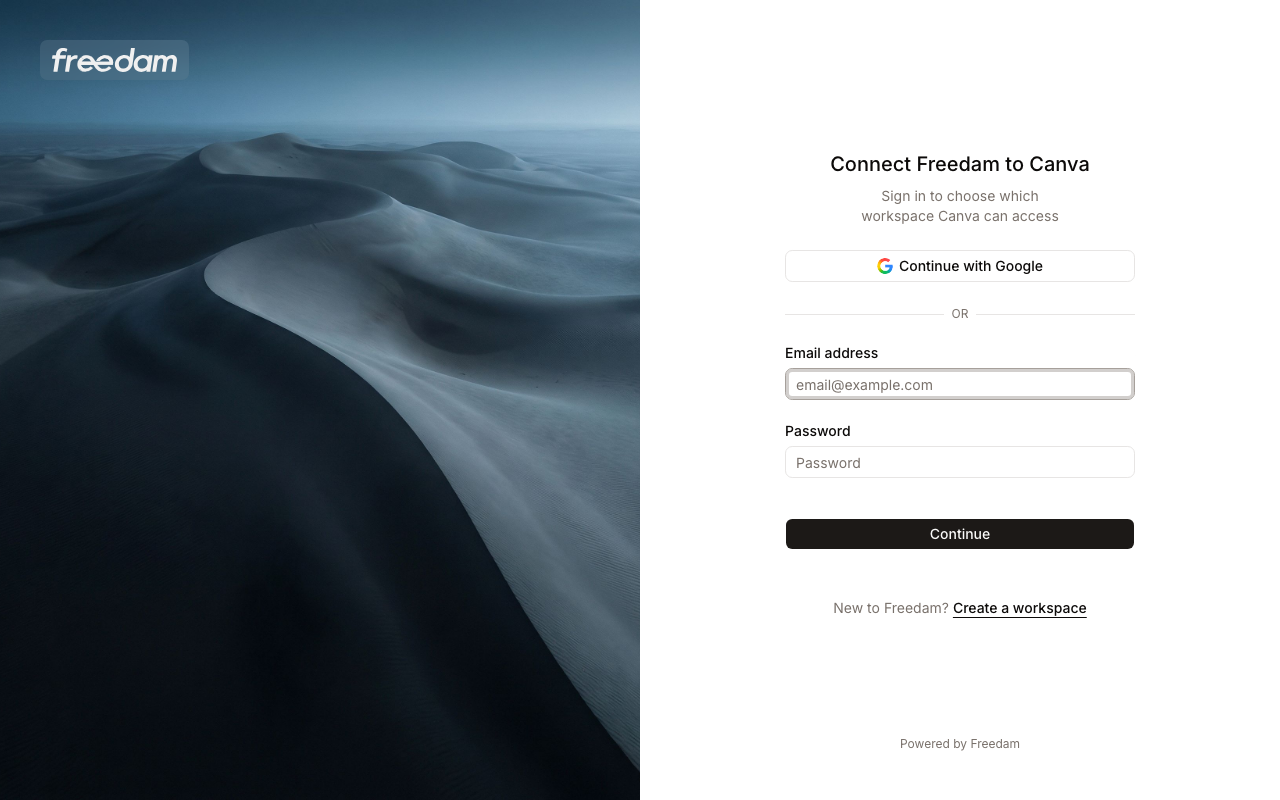
- Click Connect. Canva opens a new browser tab on Freedam's sign-in page.
- Sign in with your Freedam email and password, or with Continue with Google or Continue with Microsoft if your workspace uses single sign-on. New to Freedam? Create a workspace, under the form, opens Freedam's sign-up in the same tab.
- If your email belongs to more than one workspace, pick the workspace Canva should access.
- Review the request and click Allow.
- The sign-in tab closes on its own. Back in Canva, the panel shows your workspace's assets with a small "Connected to" caption naming the workspace.
Good to know:
- Your browser decides which tab is in front once the sign-in tab closes, and it does not always return you to Canva. If you find yourself on another tab, simply switch back to the Canva tab. The panel checks with Canva as soon as it is back in view and shows you as connected, with nothing for you to click.
- If you close Canva's Connect screen without finishing, the panel shows "Connecting to Freedam was cancelled." with a Try again button that reopens Canva's Connect screen.
- If something goes wrong while connecting, the panel shows an error with a Try again button.
- A Canva account is connected to one workspace at a time. To work from another workspace, remove the app with Remove from your apps in Canva's header menu, then open Freedam again and connect to the other workspace.
- Connecting does not change anything in Freedam: no new user is created, and your permissions stay exactly as they are.
- Without a Freedam account yet, use Create a workspace on the sign-in page. It takes you through Freedam's sign-up in the same tab; once the workspace is ready, open the Freedam app in Canva again and connect to it.
Browse and Search
- Purpose: To find the right asset without leaving the editor.
- Where to find it: The search box and the Assets and Collections tabs at the top of the panel.
- What you'll see: The workspace root when you open the panel: its top-level collections under Collections, and its most recent assets under Assets.
How to use it:
- Open the Collections tab and click a collection to enter it. The breadcrumb above the list takes you back up.
- Switch to the Assets tab to see the assets of the collection you are in.
- Click Images or Videos to keep only one kind of asset. Click the pill again to show both.
- To search, type in the search box. Matching assets and collections appear as you type; choose one with the mouse or the arrow keys, or press Enter to run the full search.
- A search always covers the whole workspace, whichever collection you were browsing. Clear search returns you to browsing, and the collection tree stays available during a search.
Good to know:
- Only images and videos are offered. Documents, audio and other file types stay in Freedam.
- A video appears once Freedam has finished processing it into a format Canva can play.
- The panel respects your Freedam permissions. Assets you cannot open in the Gallery are not listed. An asset you may see but not preview shows without a thumbnail, and an asset you may not download, or would have to request access to, cannot be added to a design.
Add an Asset to the Design
- Purpose: To place an image or video on the current page.
- Where to find it: Any tile in the Assets tab.
- What you'll see: The element appears on the page and fills in as the file transfers.
How to use it:
- Click a tile to add the asset where Canva places new elements: at the cursor in a document, or on the page in every other design type.
- Or drag a tile onto the page and drop it where you want it. The element lands at the drop point.
- Position, crop and style the element with Canva's own tools, as with any other upload.
Good to know:
- The first time an asset is added, Freedam prepares a delivery file for it. When that takes more than a moment, the panel shows "Preparing" followed by the asset name until the element is ready. Later insertions of the same asset are quicker.
- Several assets can be added in a row without waiting for the previous one to finish.
- If preparing or transferring an asset fails, the panel says which asset failed. Clicking the tile again retries with a fresh transfer.
- Inserted files are copies in your Canva media. Updating the asset in Freedam later does not change designs that already use it.
Disconnect
- Purpose: To end the link between your Canva account and the workspace.
- Where to find it: Canva's app header, not the panel. There is no Disconnect control inside the panel.
- What you'll see: The app's "..." menu at the top of the Canva editor, with a Remove from your apps entry.
How to use it:
- Open the app header's ... menu and choose Remove from your apps.
- Canva calls Freedam to revoke the connection, deleting the access it had granted. Opening the Freedam app again shows Canva's Connect screen, and the Freedam tab asks for your credentials again.
Good to know:
- Assets already placed in designs stay there. Disconnecting only stops the panel from reaching the workspace.
- A connection can also be revoked from the Freedam side, under Connected services in the Security tab of Profile & Settings: click Disconnect next to the app. See User Settings. The panel then hands over to Canva's Connect screen the next time it needs the backend.
- If your Freedam account is removed from the workspace, or its access is revoked by an administrator, the panel hands over to Canva's Connect screen the next time it talks to Freedam.
Troubleshooting
- The panel keeps spinning after I signed in: Switch back to the Canva tab and give the panel a moment. It checks with Canva as soon as the tab comes back into view. If the panel instead says "Connecting to Freedam was cancelled.", click Try again.
- "Couldn't connect to Freedam": Something interrupted the sign-in, for example the browser blocking the tab Canva tried to open. Allow pop-ups for canva.com and try again.
- "This video needs to finish processing": Freedam is still preparing a playable version. Try again in a few minutes.
- An asset from the Gallery is missing from the panel: Check that it is an image or a video. Videos appear once processing has finished, and the panel lists exactly what your permissions allow.
Related Pages
- Gallery & Search for the search syntax and filters the panel shares with the Gallery.
- Download Dialog for how download permissions, watermarks and terms of use are decided.
- User Settings for linking Google or Microsoft single sign-on to your account.