
Comments
Comments let your team discuss an asset or a collection where it lives: ask for a retouch, flag a rights question, or approve a selection. Mention a colleague with @ to send them an email.
Anyone signed in who can see an asset or collection can read its comments, write new ones, and resolve them. Comments are not shown to visitors of the Public Portal who are not signed in.
Open the comments
- On an asset: click the Comments icon (a speech bubble) in the top bar of the asset page. It is the first of the asset's actions, before the bookmark icon.
- On a collection: open the Comments tab of the side panel on the collection page. On a phone, tap Comments under the collection's actions to open the panel. On the classic Collections page, click Comments in the collection header.
On an asset, the comments open in a panel on the right, titled "Comments on" followed by the asset name. On a collection, they are in the side panel, and the count next to Comments includes replies.
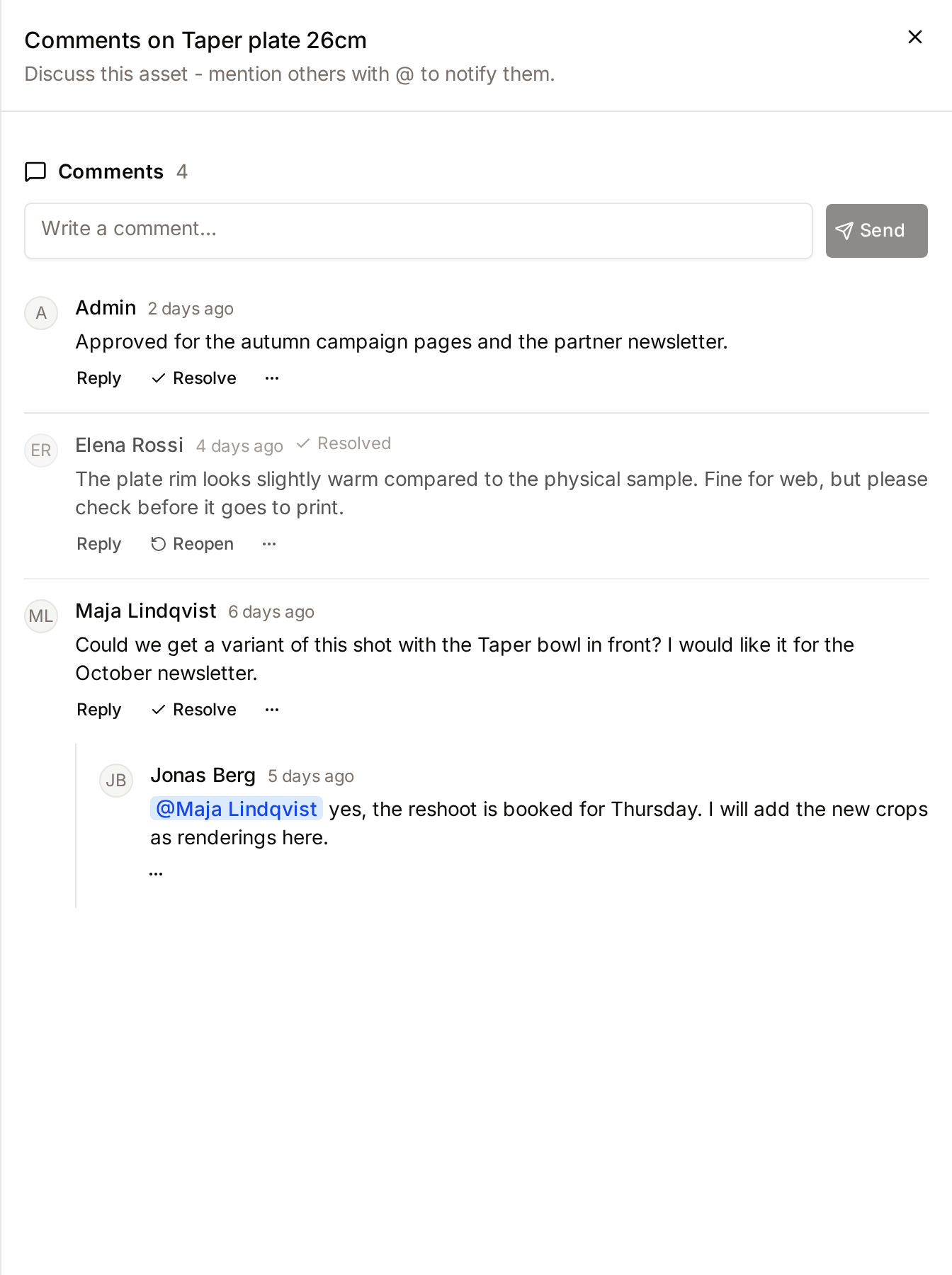
Write a comment
- Type in Write a comment…. Press Shift+Enter for a new line.
- Press Enter, or click Send.
Comments are plain text, up to 5,000 characters. Formatting is removed when you paste, and files cannot be attached. To attach a file to an asset, use Attachments.
The newest comments appear first. The panel shows the 50 most recent discussions.
The list does not update on its own. Close and reopen the panel, or reload the collection page, to see comments others posted in the meantime.
Reply
Click Reply under a comment, type in Write a reply…, and click Reply. Replies appear under the comment, oldest first. You can reply to a comment but not to a reply: keep one thread per topic.
Mention someone
- Type @ followed by the first letters of a name or email address.
- Pick the person from the suggestions with the arrow keys and Enter, or click them.
The mentioned person receives an email titled "[your name] mentioned you in a comment on [asset or collection]", with an excerpt and a View comment button. The button opens the asset or collection with its comments open and the comment highlighted.
- A mention only works when you pick the person from the list. Typing "@Maria" by hand notifies nobody.
- The suggestions include everyone in the workspace, even people who cannot see the asset. They receive the email, but cannot open the asset unless they have access.
- When you edit a comment, only people you mention for the first time receive an email. People already mentioned are not notified again.
Who else is notified
| Event | Who receives an email |
|---|---|
| A new comment on an asset | The person who uploaded the asset. |
| A new comment on a collection | The person who created the collection. |
| A reply | The author of the comment you replied to ("[your name] replied to your comment on..."). |
| A mention | Each person mentioned. |
You are never notified of your own comments, and nobody receives more than one email for the same comment. When several reasons apply, the email uses the most personal one: a mention first, then a reply, then ownership.
Comment notifications are sent by email only. They don't appear anywhere in Freedam.
Edit or delete comments
Open the menu (three dots) on a comment:
- Edit lets you change the text, then Save. When the text changes, the comment is marked (edited).
- Delete removes it immediately, without confirmation.
You can only edit comments you wrote. You can delete your own comments, and people with the Manage system settings permission can also delete anyone's comments. The menu only shows the actions you are allowed to use.
Resolve a discussion
When a request has been handled, click Resolve under the comment. The comment is greyed out and marked ✓ Resolved. Click Reopen to make it active again.
Anyone who can see the asset or collection can resolve or reopen a discussion. Resolving or reopening does not mark the comment (edited).
Resolved discussions stay in the list; there is no filter to hide them.
Related pages
- Asset Detail: everything on the asset page.
- Collections: working with collections.
- Attachments: adding files such as releases and contracts.