
Studio Skills
The Studio Skills dashboard lets administrators shape the Studio experience for their workspace: build custom skills (reusable AI edits driven by a prompt template you write once), switch any tool on or off - built-in or custom - and drag the whole catalog into the exact order users see in the Studio tool rail.
It is designed for brand managers and administrators who want Studio to speak their brand: instead of asking every user to write good prompts, you write one great prompt template, attach a curated list of options to it, and your team just picks by label or thumbnail.
Who can use it
- The page, its menu entry, and every route need the Manage Studio skills permission, which the Administrator role has by default.
- The Studio feature must be included in your plan.
- Custom-skill prompts are only ever visible here and in the Studio audit trail - regular Studio users never receive them.
The catalog
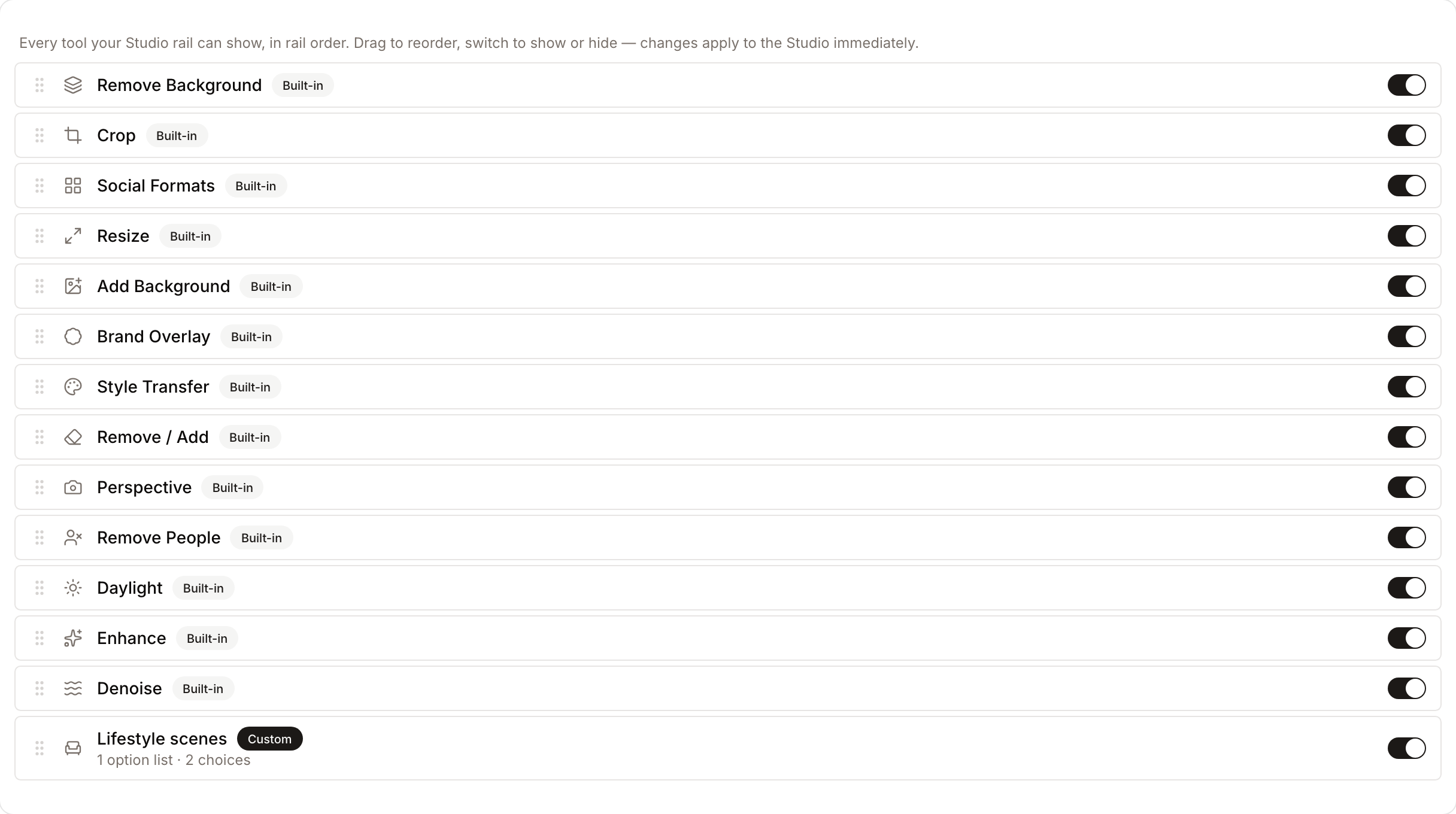
The dashboard shows one list containing every tool the Studio rail can display:
- Built-in tools show a Built-in badge and expose the Show in Studio switch plus drag-reorder.
- Custom skills show a Custom badge and add full editing and deletion on top of the same controls.
- The list order is the Studio rail order - drag a row and the rail follows immediately.
- Disabling a tool removes it from the rail and rejects any new runs of it; runs already queued fail gracefully with a clear message.
Building a custom skill
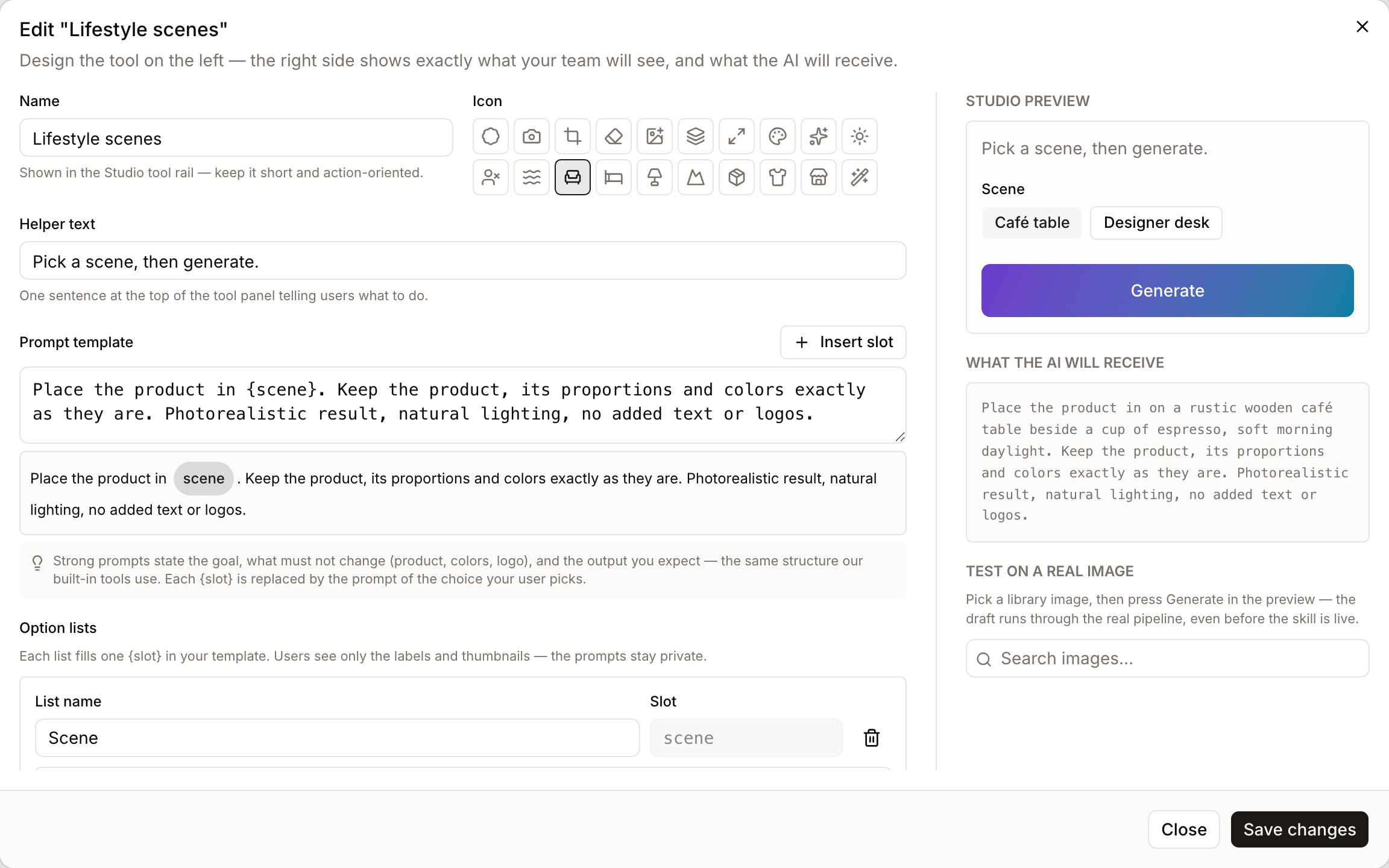
Click New skill at the top of the page to start from a blank editor. While the workspace has no custom skill yet, the page also offers Start from the example: a fully worked "Lifestyle scenes" skill (product placement in real-world settings) you can reshape instead of starting blank. A skill consists of:
- Name, icon, helper text, description - what users see in the rail and panel. Written in one language of your choice (custom-skill text is not translated by the platform).
- Prompt template - the instruction sent to the AI, with
{slot}placeholders. The editor renders each placeholder as a chip and the Insert slot button creates the placeholder and its option list together so they cannot drift apart. Guard rails: up to 25 custom skills, 50 choices per list, 5 000 characters per template. - Option lists - one per
{slot}. Each choice has a label your users see, a hidden prompt fragment the AI receives, and an optional thumbnail. Use Add choice to add one choice, or Bulk add to paste one label per line and create a choice for each.
The right-hand column shows a live preview of the real Studio panel plus What the AI will receive - the resolved prompt for the currently selected options - so there is never a surprise between what you wrote and what runs.
Test runs
From the editor, pick any library image and press Generate in the preview: the draft runs through the real generation pipeline (billed like any Studio run) even before the skill is enabled. When the result looks right, one click on Use as choice thumbnail turns it into the thumbnail for the tested option - the fastest path to a polished, illustrated skill.
Lifecycle, privacy, and audit
- New skills start disabled; enable the switch when you are happy, and use the toast's Open Studio to try it link to see it live.
- Deleting a skill is soft: it leaves the rail immediately, but past runs keep their audit trail - the skill's recorded name, the chosen options, and the exact resolved prompt stay readable in the Studio audit view.
- Choice values are stable identifiers, so relabeling an option never breaks validation, run history, or provenance.
- Prompt templates and per-choice fragments are never serialized into any non-administrator payload: Studio users see labels and thumbnails only.
Good to know
- Choice thumbnails accept JPEG, PNG, and WebP up to 10 MB and are served as optimized WebP conversions.
- Custom skills always run the same pipeline: resolve the source image → AI image edit with your rendered template → attach the result as a session rendition with full provenance.
- A skill's icon comes from a curated set shared with the built-in tools, so the rail stays visually consistent.
Troubleshooting
- "Your template mentions {x} but has no matching list or field" - every
{slot}must correspond to exactly one option list, and every list must be used exactly once. The save dialog lists each mismatch in plain language. - A user reports the tool vanished mid-run - the skill was disabled or deleted between queueing and execution; the run fails with a clear message and no charge for incomplete output.
- Thumbnails won't attach on a brand-new skill - save the skill first; thumbnails belong to the saved skill record.