
Export Naming Rules
Export Naming Rules let administrators control the filename that is sent to a viewer when an asset leaves Freedam - whether through a direct download, a public share link, or as an entry inside a zip archive. Where Filename Parsing Rules extract metadata into the system on ingestion, Export Naming Rules do the inverse: they compose a filename from the asset's metadata when it goes out.
A rule is built from an ordered list of segments - each segment pulls a value from a core asset field, a custom metadata field, or a fixed literal - joined by a segment separator. Each rule advertises which download contexts it applies to (single download, bulk zip entries, share download, share zip entries), and the rule with the highest priority wins for each context.
Page Overview
- Purpose: To produce consistent, brand-aligned filenames for everything Freedam serves to a viewer - direct downloads, share-link downloads, and zip exports.
- When to use it: Whenever the original filename on disk isn't the right name for the recipient. Common cases: opaque GAID-based filenames, supplier-encoded references that should be replaced with human-readable titles, or compliance requirements that filenames carry the capture date and copyright owner.
- What you can do here:
- Build the filename as an ordered list of segments (asset fields, custom metadata fields, or literal text).
- Pick the separator between segments, plus a per-segment separator for fields that hold multiple values (keywords, multi-select metadata).
- Decide how to handle empty values per segment - fill in a default, skip the segment entirely, or leave a placeholder.
- Choose which download contexts the rule applies to: single download, bulk download, share single, share zip.
- Preview the constructed filename against a real asset before saving.
- Control which rule wins per context with priority and the active toggle.
Page Layout
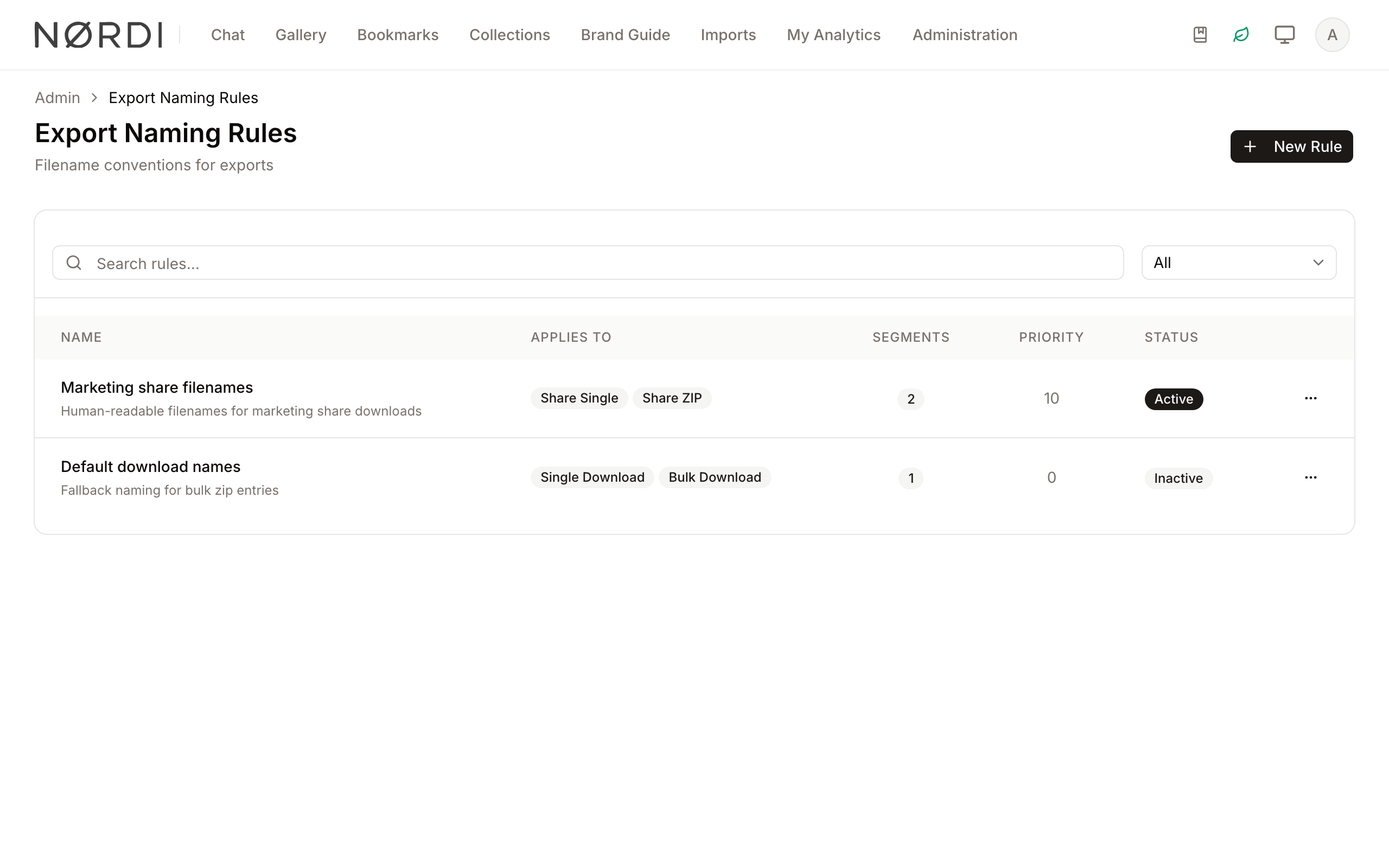
- Top bar: Page title, short description, and the New Rule button.
- Main area: A searchable card containing a data table of all rules. Each row shows the rule Name, the contexts it applies to (as compact badges), the number of Segments, the Priority, and the current Status.
- Search and Filter bar: Free-text search across name and description, plus a Status filter (All / Active / Inactive).
- Rule Dialog: A four-tab popup (Basic Info, Segments with the segment count, Apply To, Preview) used for creating and editing rules.
Main Features
Segment-Based Filename Builder
- What it's for: To assemble the filename out of meaningful pieces of asset metadata, joined by a separator you choose.
- Typical use: Compose
hello-world_2025-03-04_v1.jpgfrom three segments - Title (with the slug transform), Capture date (formatted asY-m-d), and the literal textv1- joined by underscores. - Result: The downloaded file carries a clean, predictable name. Each segment can be reordered, removed, or transformed independently, and a live Preview tab applies the in-progress rule to a real asset so you can see the result before saving.
Per-Context Targeting
- What it's for: To use different rules (or no rule) for different export channels.
- Typical use: Apply a rich
{title}_{capture_date}rule to Single download and Share download so an external recipient gets a meaningful filename, but leave Bulk download (zip entries) unconfigured so internal users keep the original supplier filenames inside their zip. - Result: Each context resolves independently. A context with no active rule falls back to the existing
original_filenamebehavior, so this feature is opt-in per channel.
Empty-Value Handling
- What it's for: To decide what should happen when a segment's value is missing on a particular asset.
- Typical use: For Capture date, choose Skip segment - assets without a capture date simply omit that piece. For Title, choose Use default with the value
untitled- assets without a title still get a usable name. - Result: Missing values never produce broken filenames like
__v1.jpg. The runtime collapses skipped segments cleanly and falls back to the default value when configured.
Multi-Value Separator
- What it's for: To control how list-typed fields (keywords, multi-select custom metadata) are flattened into the filename.
- Typical use: A custom metadata field "Markets" holds
["EU", "US", "APAC"]. Pick the multi-value separator-so the segment renders asEU-US-APACrather than the defaultEU, US, APAC. - Result: Array-valued fields integrate cleanly into the filename. Different separators are valid for different segments - keywords might use
,while regional codes use-.
Priority
- What it's for: To pick a winner when multiple active rules cover the same context.
- Typical use: A specific "Marketing share filenames" rule at priority
10for Share download, plus a generic "Default download names" rule at priority0covering all four contexts. - Result: Within each context, the rule with the highest priority and
is_active = truewins. Rules that don't list a given context never apply to it, regardless of priority.
Detailed Feature Documentation
Rule Management Table
- Purpose: To list, search, and edit your export naming rules.
- Where to find it: In the Main area of the Export Naming Rules page.
- What you'll see: Rule Name (with description), small badges showing the Applies To contexts (Single Download, Bulk Download, Share Single, Share ZIP), the Segments count badge, the numeric Priority, and the Status badge.
How to use it:
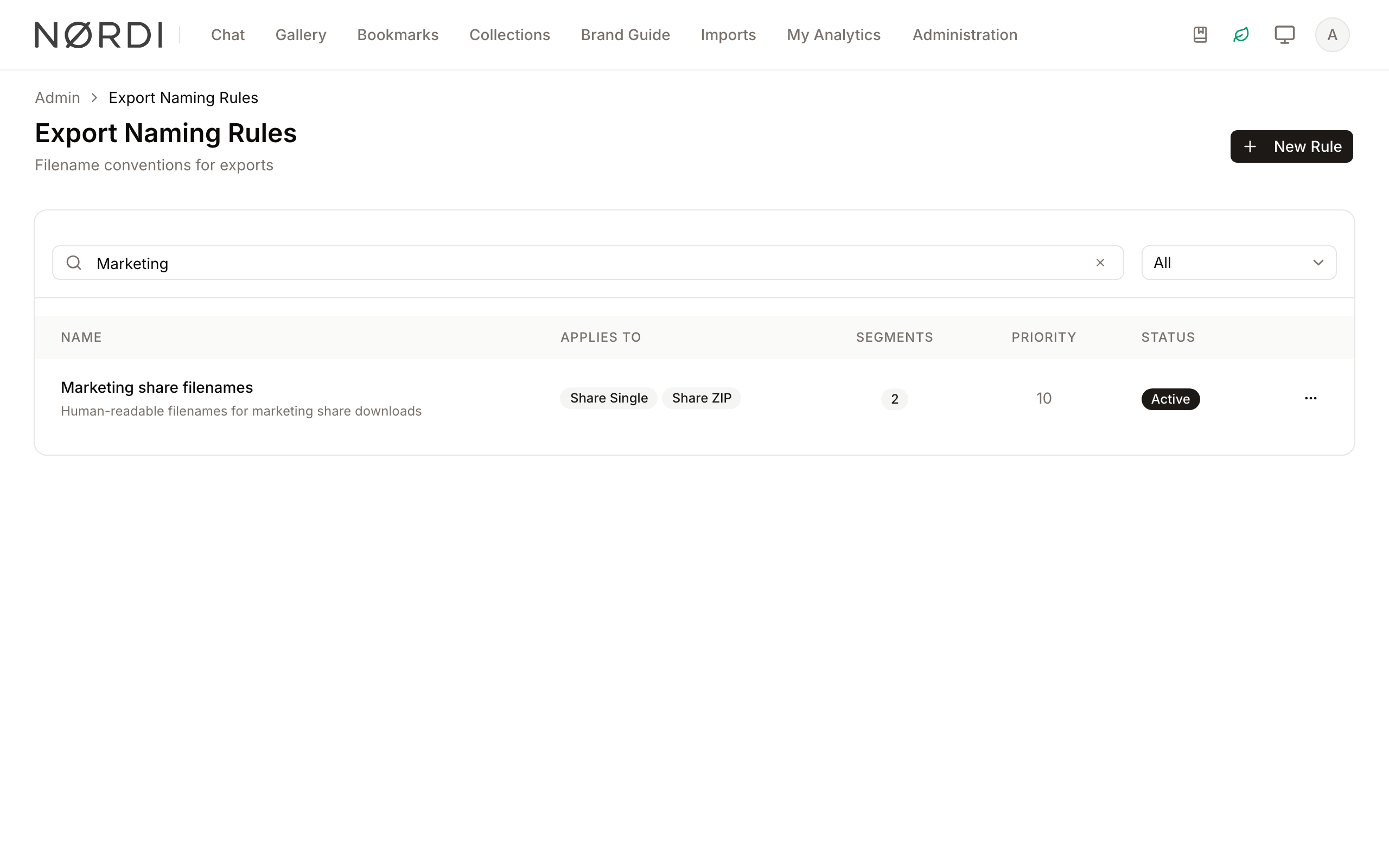
- Use the Search rules… field to find a rule by name or description.
- Use the status dropdown (All, Active, Inactive) to view only active or inactive rules.
- Use the three-dot menu at the end of each row to Edit, Activate or Deactivate, or Delete the rule. All row actions are driven from this menu.
The Rule Dialog
- Purpose: To create or edit a single export naming rule.
- Where to find it: Click New Rule in the top bar, or open the row's three-dot menu and choose Edit.
- What you'll see: A four-tab dialog with Basic Info, Segments, Apply To, and Preview.
Basic Info tab
Set the rule's Name, an optional Description, the Priority (higher numbers win), and the Active switch.
Freedam intentionally does not expose any "extension handling" controls. The served file always carries the extension that matches its bytes - the asset's original extension for original-resolution downloads, and the resolution-driven format (w_512 → .webp, converted_pdf → .pdf, watermarked → .jpg, etc.) otherwise. Letting an admin force or omit an extension would mislead the recipient about what's actually inside the file and break downstream tools.
Segments tab
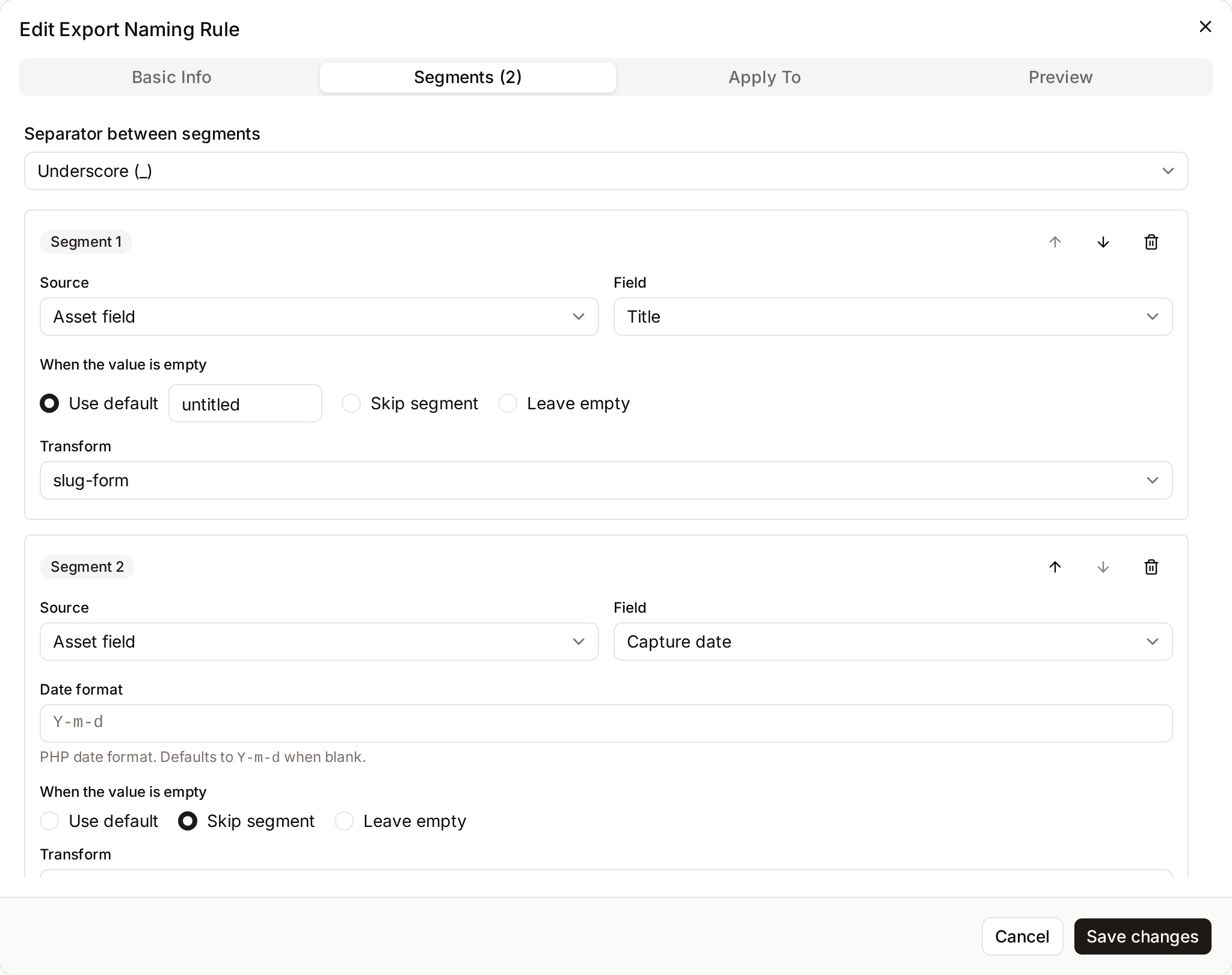
The heart of the rule. The top of the tab holds the Separator between segments select - pick a preset (_, -, ., space, none) or choose Custom… to type any string up to 8 characters.
Below that, an ordered list of segment cards. Each card has:
- Reorder controls (↑ / ↓ at the top right) to move the segment up or down within the list.
- Source - pick what kind of value this segment holds:
- Asset field - a built-in asset attribute (Title, Description, Capture date, GAID, Original filename, dimensions, MIME type, etc.).
- Custom metadata - any custom metadata field defined on any asset class. Each option shows the field label and its asset class label, so fields with the same name across classes can be distinguished.
- Literal text - a fixed string typed by you, useful for separators, version markers, or brand prefixes.
- Field / Text - the picker that follows the source choice (a select for asset fields and metadata, a text input for literals).
- Date format - appears for date-typed sources (Capture date, Created at, ingested at, and date-typed custom metadata). Defaults to
Y-m-dwhen blank. Uses standard PHP date format codes - e.g.Yfor the 4-digit year,mfor zero-padded month,dfor zero-padded day. - Multi-value separator - appears for array-typed sources (e.g. JSON or vocabulary metadata definitions that hold multiple values). Pick a preset (
,,,,-,_,+,;) or Custom… to type your own. - When the value is empty - three options:
- Use default - use the inline text value as the substitute. Required when this option is picked.
- Skip segment - drop the segment from the filename. Surrounding separators collapse, so a skipped middle segment doesn't leave a double underscore.
- Leave empty - use an empty string, keeping surrounding separators in place. Rare; useful for fixed-width naming conventions.
- Transform - None / lowercase / UPPERCASE / slug-form. Slug applies the same algorithm Freedam uses for URLs (ASCII transliteration,
-between words, lowercase). - Trash icon - remove the segment. Disabled when there's only one segment.
Below the list, the Add segment button appends a new empty segment.
Apply To tab
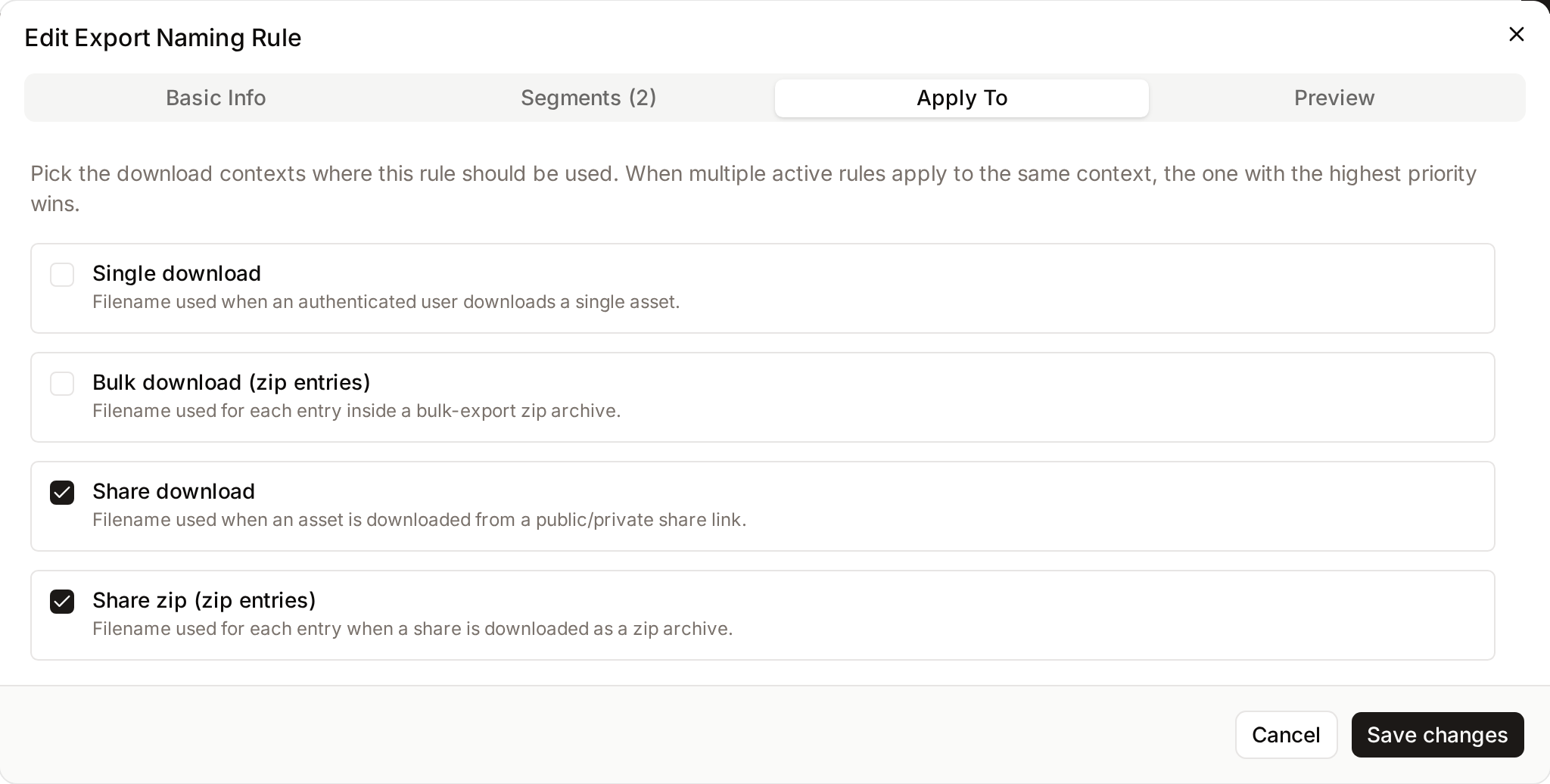
Four checkboxes, each with a one-line description, covering the contexts a rule can target:
- Single download - when an authenticated user downloads a single asset.
- Bulk download (zip entries) - the filename of each entry inside a bulk-export zip archive.
- Share download - when an asset is downloaded from a public/private share link.
- Share zip (zip entries) - the filename of each entry when a share is downloaded as a zip archive.
Rendition downloads and the entries of a social media export zip follow the same rules: a rendition download uses the Single download rule and social export entries use the Bulk download (zip entries) rule. Both are resolved against the parent asset, followed by the rendition title and the extension of the rendition file. Without a matching rule they keep their previous names.
A rule can apply to any combination of these. The outer zip archive's own name (e.g. assets-export-…-….zip) is not controlled by Export Naming Rules in the current release.
Preview tab
Click Generate preview to apply the in-progress rule to a real asset (the most recent asset you are allowed to see is used by default) and see the constructed filename. The preview only uses assets you may view, so it needs the View assets permission. The preview runs server-side using the same composition logic that runs at download time, so what you see is what viewers will see.
The preview panel also displays the sample asset's title and GAID so you can verify the result is anchored to a representative example.
Complete Workflows
Workflow: Use brand-friendly names for share downloads
- Goal: When an external partner downloads a single asset from a share link, deliver a filename like
acme-spring-2025_2025-03-04.jpginstead of the originalIMG_4279.jpg. - Prerequisites: Asset titles are populated (manually, by IPTC, or by a Filename Parsing Rule on ingestion) and capture dates are set.
Steps:
- Open Admin → Export Naming Rules and click New Rule.
- On Basic Info, set the Name to "Brand share filenames", set Priority to
10, and keep Active on. - Switch to Segments, leave the Separator between segments at
_, and configure two segments:- Segment 1: Source Asset field, Field Title, When empty Use default → untitled, Transform slug.
- Segment 2: Source Asset field, Field Capture date, Date format
Y-m-d, When empty Skip segment, Transform None.
- Switch to Apply To and check Share download only.
- Switch to Preview, click Generate preview, and verify the constructed filename reads like
<your-title>_<date>.jpg. - Click Create rule.
- Expected result: New share-link downloads of single assets carry the new naming. Bulk downloads, share-zip entries, and authenticated single downloads continue to use the asset's original filename until you create rules for those contexts too.
Workflow: Tag every zip export with a project code from custom metadata
- Goal: Make every entry inside a bulk-download zip archive named
{project_code}_{title}.{ext}, where Project code is a custom metadata field on the Marketing Asset class. - Prerequisites: The asset class Marketing Asset has a string metadata field "Project code". The assets in question have this field populated.
Steps:
- Click New Rule and name it "Bulk export - project-prefixed".
- On Basic Info, leave the priority at the default and keep Active on.
- On Segments, set the separator to
_and add two segments:- Segment 1: Source Custom metadata, Field Project code (look for the Marketing Asset label next to the name), When empty Use default → noproj.
- Segment 2: Source Asset field, Field Title, Transform slug, When empty Use default → untitled.
- On Apply To, check Bulk download (zip entries) only.
- Verify with Preview, then Create rule.
- Expected result: Bulk exports zip up files named
acme-q1_hero-banner.jpg,acme-q1_print-ad.png,noproj_random-test.jpg, etc. Single downloads and share downloads are unaffected.
Workflow: Same naming everywhere
- Goal: Apply one filename convention to every download channel.
Steps:
- Create a single rule.
- Configure your segments as usual.
- On Apply To, check all four contexts.
- Save.
- Expected result: One rule covers single downloads, share downloads, bulk-zip entries, and share-zip entries. This is the simplest configuration and a good place to start before you split into context-specific rules.
Who Can Use It
Export Naming Rules require the Manage automation and naming rules permission. The same permission covers listing, creating, editing, deleting, toggling, and using the preview endpoint. The rules themselves apply to every download regardless of who's downloading - there is no per-user filename customization.
How Rules Run Behind the Scenes
- When: At download time, on the request that serves the bytes. Rule lookup is cached once per request, so a 1,000-asset zip export performs the rule lookup once, not 1,000 times.
- Per-context resolution: For each download, Freedam picks the active rule with the highest priority whose Apply To list includes the current context. If no rule matches, the existing
original_filename-based behavior runs unchanged. - Segment evaluation: Segments are resolved left-to-right. Each segment's value goes through (in order) the source lookup, the date-format mask (when applicable), the multi-value flatten (when array-typed), the transform (none / lower / upper / slug), and the empty-behavior rule. Segments that resolve to
nullare dropped from the join; segments that resolve to an empty string are kept. - Sanitization: After segments are joined, the result is sanitized - control characters and forbidden filesystem characters (
\ / : * ? " < > |) are replaced with-, runs of whitespace collapse to a single space, leading and trailing-,_,., and whitespace are trimmed, and the basename is capped at 200 characters. - Extension precedence: A resolution-driven format (
converted_pdf→pdf,w_512→webp, watermarked →jpg, etc.) always wins. Otherwise the asset's original extension is appended, so the filename always reflects the bytes on the wire. There is no admin control to force or omit this - see the Basic Info tab note above for the rationale. - Watermark suffix: When a single download is watermarked,
_watermarkedis appended to the rule output. This is kept because the watermarked file is a meaningfully different artifact (different visible content, JPEG-flattened) - without the suffix, the watermarked and clean downloads of a.jpgasset would collide. Zip-entry contexts do not get this suffix. - No resolution suffix on the rule output: When a rule applies, the rule's output is the user's contract - Freedam does not graft an internal
_w_512resolution code onto it. The extension still tracks the actual served bytes (webpforw_512,pdfforconverted_pdf,jpgfor watermarked), so the filename never lies about its content. The trade-off: two downloads of the same asset at two non-original resolutions can produce the same filename. When no rule matches, single downloads inside Freedam and bulk and export ZIP entries fall back to theoriginal_filenamewith the delivered width appended, for example_2048px, or_1500pxfor a 1,500-pixel image downloaded at 2048 pixels. When the width cannot be known (an asset without recorded dimensions, or a format Freedam does not make image previews for), the suffix is the resolution code, such as_w_2048. Share downloads and share ZIP entries fall back to theoriginal_filenamewithout a width suffix. - Metadata loading: When a rule has a custom-metadata segment, zip-export call sites eager-load the asset's metadata (and, for vocabulary fields, the term translations) in one batch before iterating, avoiding N+1 queries even for large exports.
- Hidden metadata stays hidden: A segment that reads a metadata field the person receiving the file is not allowed to see resolves as if the field were empty, so the When the value is empty setting of that segment applies.
- Vocabulary term labels: When a segment references a vocabulary-typed metadata field, the rule renders the term's translated label (e.g. "Photography"), falling back to the term
codewhen no translation exists for the active locale - never the raw FK id. - No conditional matching: This release does not support per-asset conditions on rules (e.g. "only apply to images" or "only assets in collection X"). Use Apply To + Priority to differentiate by channel; use Empty behavior to differentiate by data availability.
Tips and Best Practices
- Start simple, then split: Create one all-contexts rule first. If a single channel needs different naming, add a higher-priority rule for that channel only - leave the broader rule in place as the default.
- Always set "When empty": An empty title or missing capture date is the most common reason for surprising filenames. Pick Use default with a sensible fallback, or Skip segment to keep the result tidy.
- Use slug for any human-typed text: Titles, descriptions, and creator names often contain spaces, accents, or punctuation that don't belong in filenames. The slug transform produces ASCII-safe, dash-separated output.
- Prefer
Y-m-dfor dates: It sorts lexicographically and is unambiguous across locales. Avoidd/m/Ywhich most filesystems treat poorly because of the/. - Preview against several assets: A rule that looks great on one asset might break on another. Use the Preview tab to walk through 2–3 representative samples before saving.
- Use Priority for overrides: Set your default rule at a low priority (e.g.
0) and brand-specific or context-specific overrides at higher priorities. This makes it trivial to layer narrower rules on top of a baseline without rewriting either.
Troubleshooting
Issue: My rule's filename isn't being used
- Symptoms: After creating an active rule, downloaded files still carry the original filename.
- Cause: Most likely the rule doesn't list the context you're testing in Apply To, or another active rule has a higher priority for that context.
- Fix:
- Open the rule and switch to Apply To. Confirm the context you're testing is checked.
- Return to the rule list and look at the Priority column for any other rules whose Applies to badges include the same context. The one with the highest priority wins.
- Either deactivate the conflicting rule, lower its priority, or raise yours.
- Prevention: When creating a new rule for a specific channel, name it after the channel ("Brand share filenames", "Bulk export - project-prefixed") so the catalogue stays scannable as you add more.
Issue: The filename has empty pieces or stray separators
- Symptoms: Downloaded files have names like
__v1.jpgoracme-_2025-03-04.jpg. - Cause: A segment resolved to an empty string (because Empty behavior was set to Leave empty) and the surrounding separators didn't collapse.
- Fix:
- Open the rule and switch to Segments.
- For any segment whose source might be empty, change When the value is empty from Leave empty to Skip segment (or to Use default with a sensible fallback).
- Re-run the Preview to confirm the join is clean.
- Prevention: Default to Skip segment unless you specifically need a placeholder; it's the right behavior for almost every use case.
Issue: A custom-metadata segment is empty for assets that should have it
- Symptoms: The rule includes a Custom metadata segment, but the segment renders as empty (or the Use default fallback) for assets that visibly have the field set.
- Cause: The segment references a metadata definition on the wrong asset class. Two metadata definitions can share the same
keyacross asset classes, and the rule stores a specific definition id - if you picked the one from the wrong class, the lookup misses on assets of a different class. - Fix:
- Open the rule and switch to Segments.
- Open the Field picker for the affected segment and confirm the asset-class label shown next to the metadata name. Pick the entry whose asset class matches the assets you're downloading.
- Prevention: When picking custom metadata, always check the asset-class label that appears in the picker - it's the only thing that disambiguates fields with the same name across classes.
Issue: Files are downloading with .webp instead of the asset's .jpg
- Symptoms: At a non-original resolution (e.g.
w_512), downloads have.webpeven though the asset's original extension is.jpg. - Cause: This is intentional. Non-original resolutions are stored in their own format (typically WebP), and Freedam announces the extension that matches the bytes on the wire - never an extension that would mislead the viewer about the file's contents. This is also why naming rules do not expose any extension-handling controls: renaming an EPS to
.jpgor a PNG to.pdfwould lie to the recipient about what's inside the file. - Fix: If you need
.jpgspecifically, download at the original resolution (subject to access policy), or generate a JPEG-format conversion in addition to the WebP one.
Issue: Preview shows a filename, but actual downloads don't use the rule
- Symptoms: The Preview tab returns the expected filename, yet downloads still ship the original filename.
- Cause: Either the rule is Inactive or the context isn't checked in Apply To. The preview ignores the active flag and always evaluates the in-progress rule, so a deactivated rule still previews correctly.
- Fix:
- Confirm the Status badge in the rule list reads Active. Toggle it from the row's three-dot menu if not.
- Open the rule and confirm Apply To includes the context you're testing.
- Prevention: After saving, do one real download (or one share-link click) to verify the rule end-to-end. The preview is a fast sanity check, not a substitute for a live test.