
Template Sets
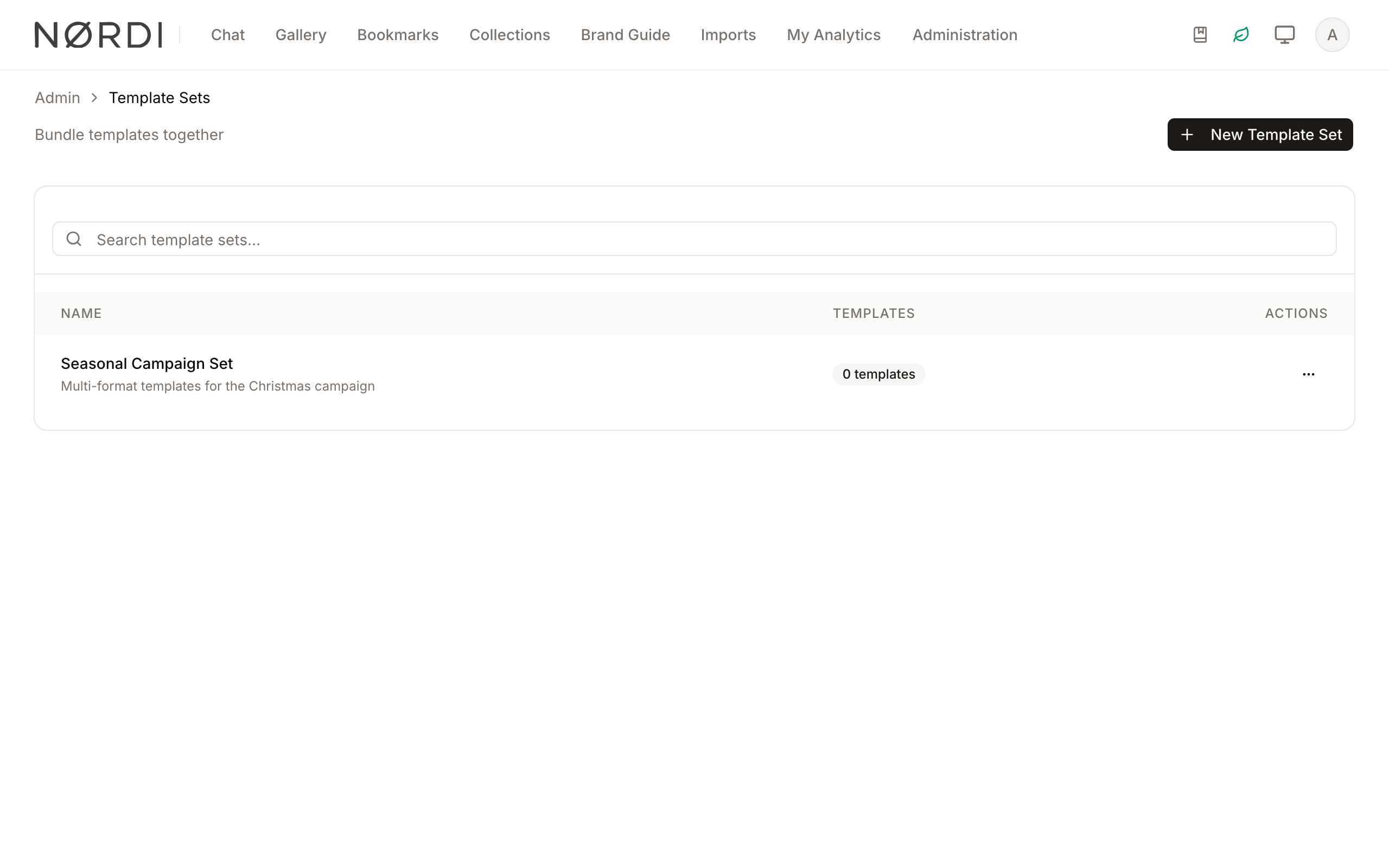
Template Sets allow administrators to group multiple design templates together. This feature is designed for users who need to manage related templates as a single unit, typically for batch image generation workflows where multiple sizes or variations of a design are produced simultaneously.
By organizing templates into sets, you can maintain a consistent order for generation, apply descriptive metadata to the group, and quickly identify which templates belong to specific campaigns or design families.
Page Overview
- Purpose: To provide a centralized management interface for grouping design templates.
- When to use it: Use this page when you need to create a new collection of templates, reorder templates within a set, or delete obsolete sets.
- What you can do here:
- View a paginated list of all existing template sets.
- Search for specific sets by name or description.
- Create new template sets and assign templates to them.
- Manage the specific templates and their display order within a set.
- Delete template sets without affecting the underlying templates.
Who can use it
Template sets follow the same access rules as templates. Users with the Manage and use templates permission can view, create, rename, and delete sets, as well as add or remove member templates.
Page Layout
- Top bar: Contains the page title, a brief description of the feature, and the New Template Set button for creating new groups.
- Main area: Displays a searchable card containing a table of all template sets. The table has the columns Name (with the description below it), Templates, Created By, Last Updated and Actions.
- Search bar: Located at the top of the main card, allowing for real-time filtering of the list.
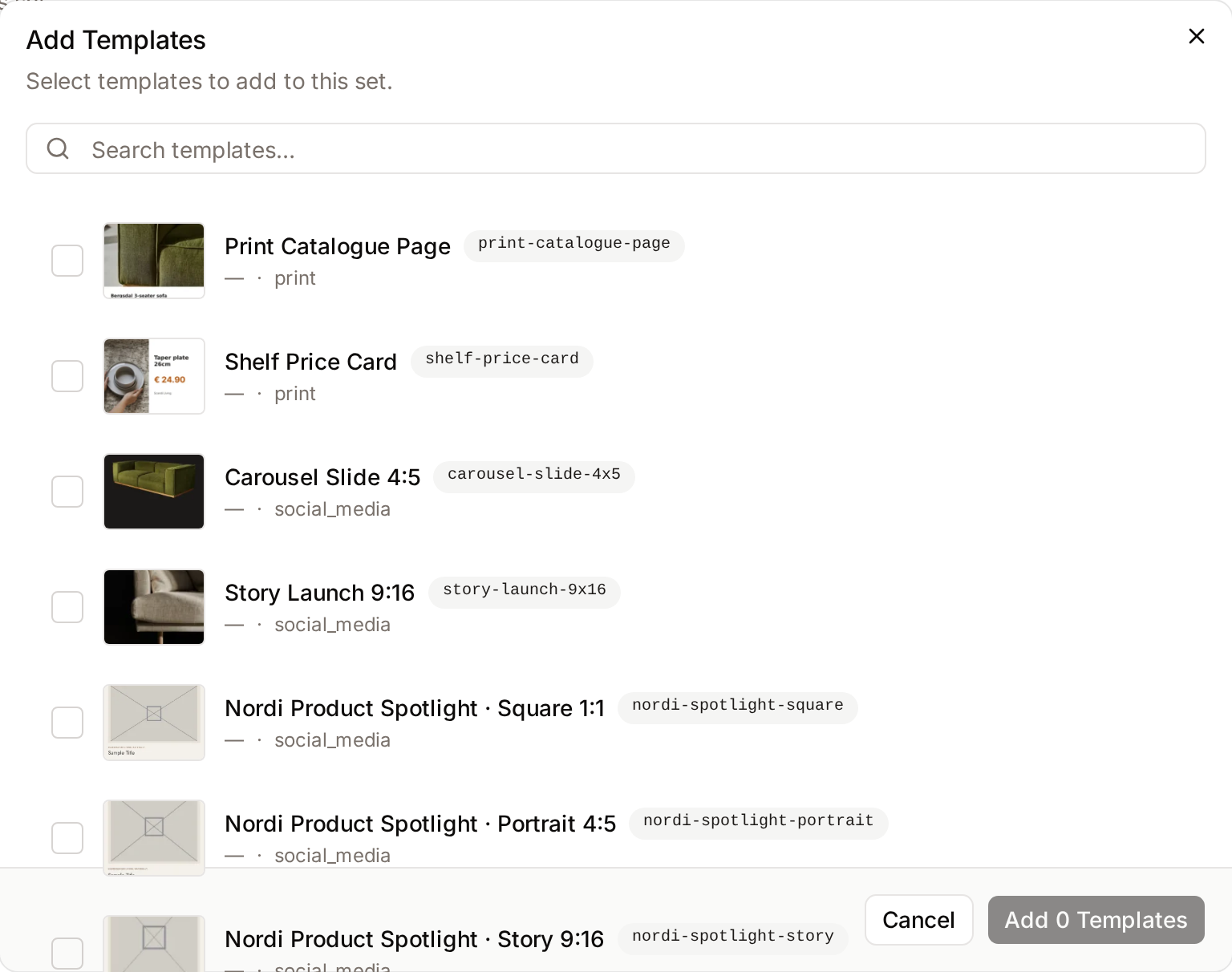
- Management Dialogs: Includes the "Add Templates" picker for selecting templates from the library and the "Delete" confirmation dialog.
Main Features
Template Grouping
- What it's for: Combining individual design templates into a named collection.
- Typical use: Grouping a "Social Media Pack" that contains templates for Instagram, Twitter, and LinkedIn.
- Result: A single "Set" entry appears in the list, showing the total count of included templates.
Drag-and-Drop Reordering
- What it's for: Controlling the sequence of templates within a set.
- Typical use: Ensuring that the primary design template appears first in batch generation results.
- Result: The numerical order of templates is updated and saved to the set. This ordering is respected every time Freedam runs a batch from the set, so the first template in the list is always produced first.
Batch Generation
- What it's for: Producing multiple renditions of the same asset in one go, each styled by a different template in the set.
- Typical use: Picking a single product photo and a "Social Media Pack" set, then letting Freedam render one image per template (Instagram, Twitter, LinkedIn, and so on).
- Result: Freedam queues one rendition per template in the set, per selected asset, and runs them in the background. For example, a set of 4 templates applied to 3 assets produces 12 renditions. Progress updates live so you can track how many have completed or failed. The results are drafts: they are only attached to their source assets, as renderings, when the person who ran the batch saves them, and unsaved drafts are deleted after 24 hours. Partial failures do not stop the batch - unsuccessful items are flagged while the rest continue. See Template Generation.
Template Picker
- What it's for: Browsing and selecting templates to add to a set.
- Typical use: Searching the template library by name, code or category to find templates for a new set.
- Result: Selected templates are immediately linked to the set.
Detailed Feature Documentation
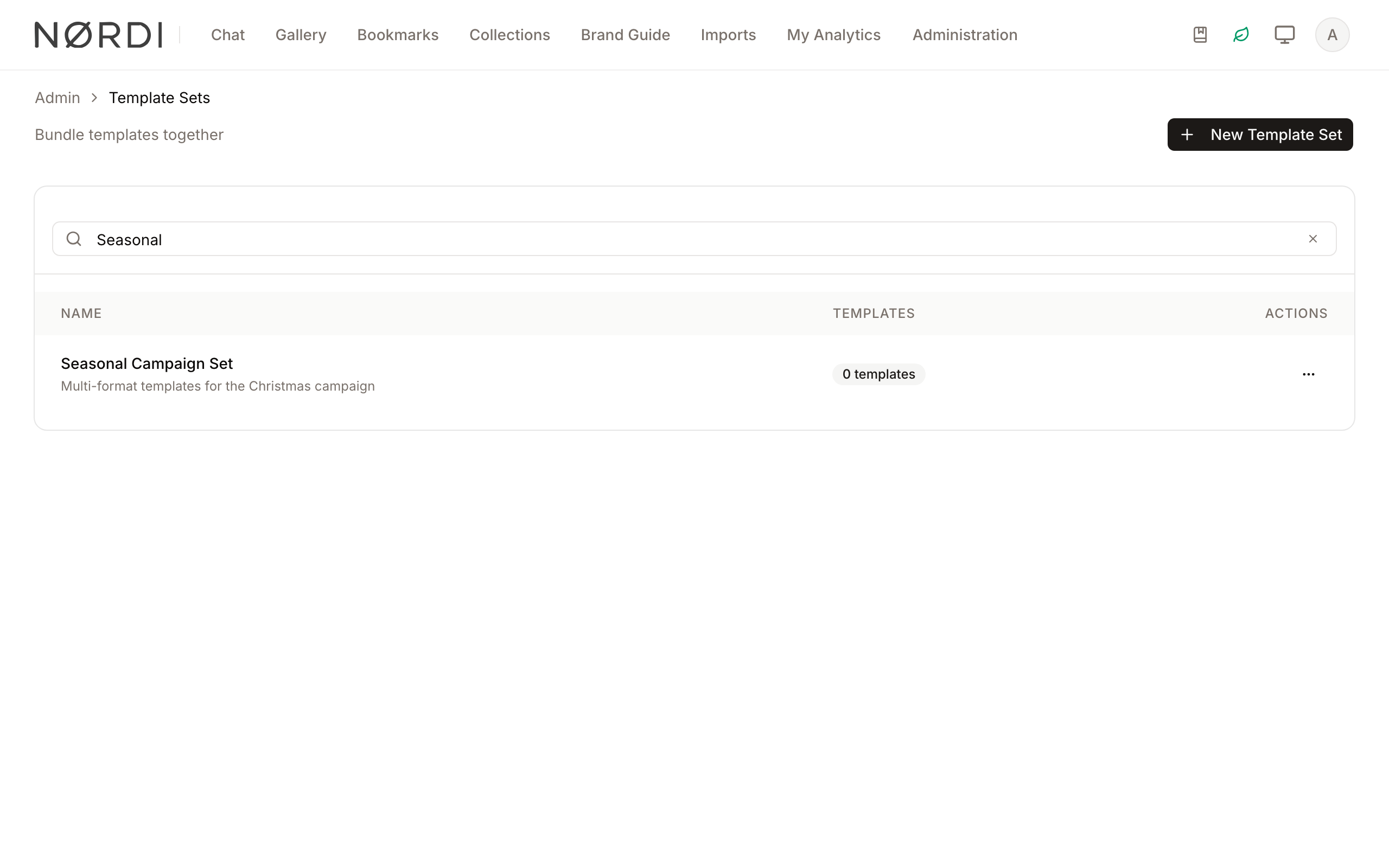
Search and Filter
- Purpose: To quickly locate specific template sets in a large list.
- Where to find it: In the Main area, look for the Search template sets… input field.
- What you'll see: The table automatically updates to show only sets where the name or description matches your text.
How to use it:
- Type your search term into the Search template sets… field.
- To clear the search, click the X icon inside the search bar.
Template Management (Add/Remove)
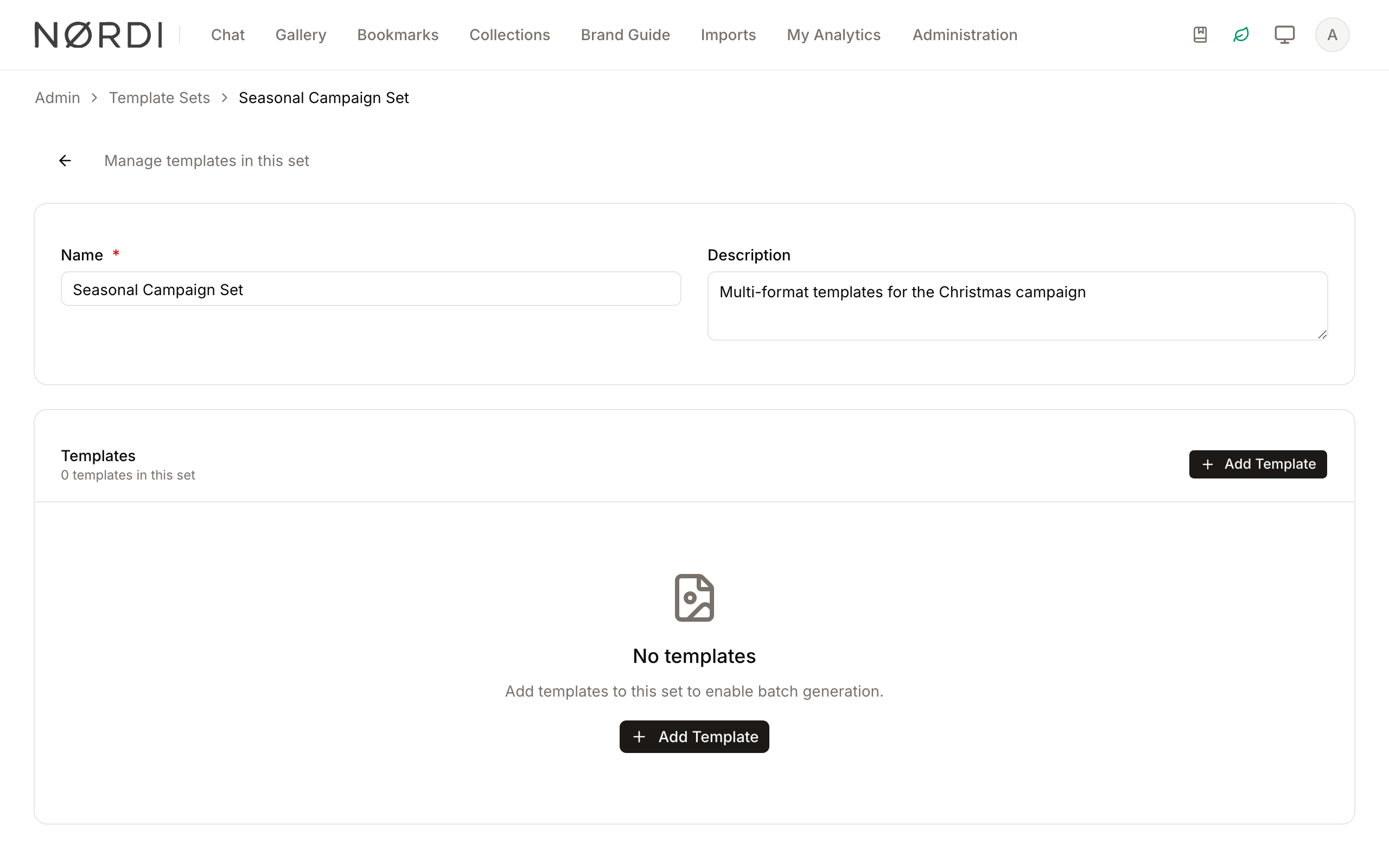
- Purpose: To modify the contents of a specific template set.
- Where to find it: Click the name of a set, or choose Manage in its three-dot menu, then look for the Add Template button or the Trash icon next to individual templates.
- What you'll see: A dialog opens showing available templates, or the template list updates to reflect removals.
How to use it:
- Click Add Template to open the picker.
- Use the search bar in the dialog to find templates.
- Click a template to select it (a checkmark will appear).
- Click Add 1 Template or Add n Templates (the button shows the number selected) to confirm.
- To remove a template, click the red Trash icon on the template's row.
Complete Workflows
Workflow: Create a New Template Set
- Goal: Create a new group and add initial templates to it.
- Prerequisites: You must have at least one design template already created in the system.
Steps:
- Click New Template Set in the Top bar.
- In the Name field, type a unique name for the set.
- (Optional) In the Description field, type details about the set's purpose.
- Click Add Template in the Templates section.
- Select the desired templates from the list and click the Add n Templates button.
- Click Create Template Set at the top of the page.
- Expected result: You are redirected to the management page for the new set, and a "Template set created" notification appears.
Workflow: Reorder Templates in a Set
- Goal: Change the sequence of templates for batch processing.
- Prerequisites: An existing template set with at least two templates.
Steps:
- Click the Name of the set in the main list.
- Locate the template you wish to move.
- Click the Up Arrow icon to move it one position higher, or the Down Arrow icon to move it lower.
- The system saves the new order automatically after each move.
- Expected result: The numbers in the order column update to reflect the new sequence.
Workflow: Delete a Template Set
- Goal: Remove a set that is no longer needed.
- Prerequisites: None.
Steps:
- Find the set in the main list.
- Click the three-dot menu in the Actions column.
- Select Delete.
- In the Delete Template Set confirmation dialog, click Delete.
- Expected result: The set is removed from the list. Note that the individual templates contained within the set are not deleted from the system.
What happens behind the scenes
- Removing a template from a set only breaks the link between them - the template itself, its design, and any renditions it has already produced remain untouched.
- Deleting a set never deletes member templates. They remain available in the main Templates library and in any other sets they belong to.
- When you add more templates to an existing set, the new members are appended after the current ones. Their position number starts one above the current highest, so existing order is preserved.
- During batch generation, Freedam tracks the total number of expected renditions, the number that have finished, and the number that failed. If the first item to finish fails, the run is marked as failed. A run with any failed item currently stays marked as processing even after every item has finished, so check the completed and failed counts rather than the status.
Good to know
- A set can contain the same template only once. If you try to add a template that is already in the set, the picker quietly skips it.
- Sets are paginated at 20 per page and can be sorted by name, creation date, or last update.
Tips and Best Practices
- Descriptive Naming: Use names that reflect the output format or campaign (e.g., "Q4 Holiday - Social Media Pack") to help other admins find the right set.
- Order Matters: Arrange templates from most important to least important, as this order is often preserved during batch generation exports.
- Search by Code: When adding templates to a set, you can search by the template's unique Code for faster selection.
Troubleshooting
Issue: Cannot save a new Template Set
- Symptoms: The "Create Template Set" button is greyed out or an error appears.
- Cause: The Name field is empty or contains only spaces.
- Fix: Ensure the Name field has at least one character.
- Prevention: Look for the red asterisk (*) next to required fields.
Issue: Template does not appear in the "Add Templates" picker
- Symptoms: You search for a template in the picker dialog but it doesn't show up.
- Cause: The template is already part of the current set.
- Fix: Check the main template list on the management page to see if it is already included.
- Prevention: The picker automatically filters out templates that are already members of the set to prevent duplicates.
Issue: Reorder buttons are disabled
- Symptoms: The up/down arrows are greyed out and unclickable.
- Cause: You are either at the very top/bottom of the list, or the system is currently processing a previous reorder request.
- Fix: Wait a moment for the "Saving" state to finish. If you are at the top, you can only move the item down.