
Template Generation
Template generation places your assets into brand templates designed by your administrators, for example a product photo in a sale banner or a portrait in a speaker card. You pick a template, or a template set that produces several formats at once, fill in its text, and Freedam generates the images.
Templates are created in Templates and grouped in Template Sets.
Who can use it
- Your plan must include templates.
- You need the Manage and use templates permission. The same permission manages the templates themselves: there is no separate permission for using them.
- It works on still images. Videos, documents and animated images are skipped.
- The results of a generation are private to the person who started it. Administrators can open them too.
When your plan doesn't include templates, Apply template shows "Templates require an upgraded plan".
Start a generation
- For one image: on its asset page, click More in the top bar and choose Apply template under Create.
- For several images: select them in the Gallery, open More in the selection bar and click Generate from Template. Non-image files in the selection are left out, and the action is not offered when the selection contains no image.
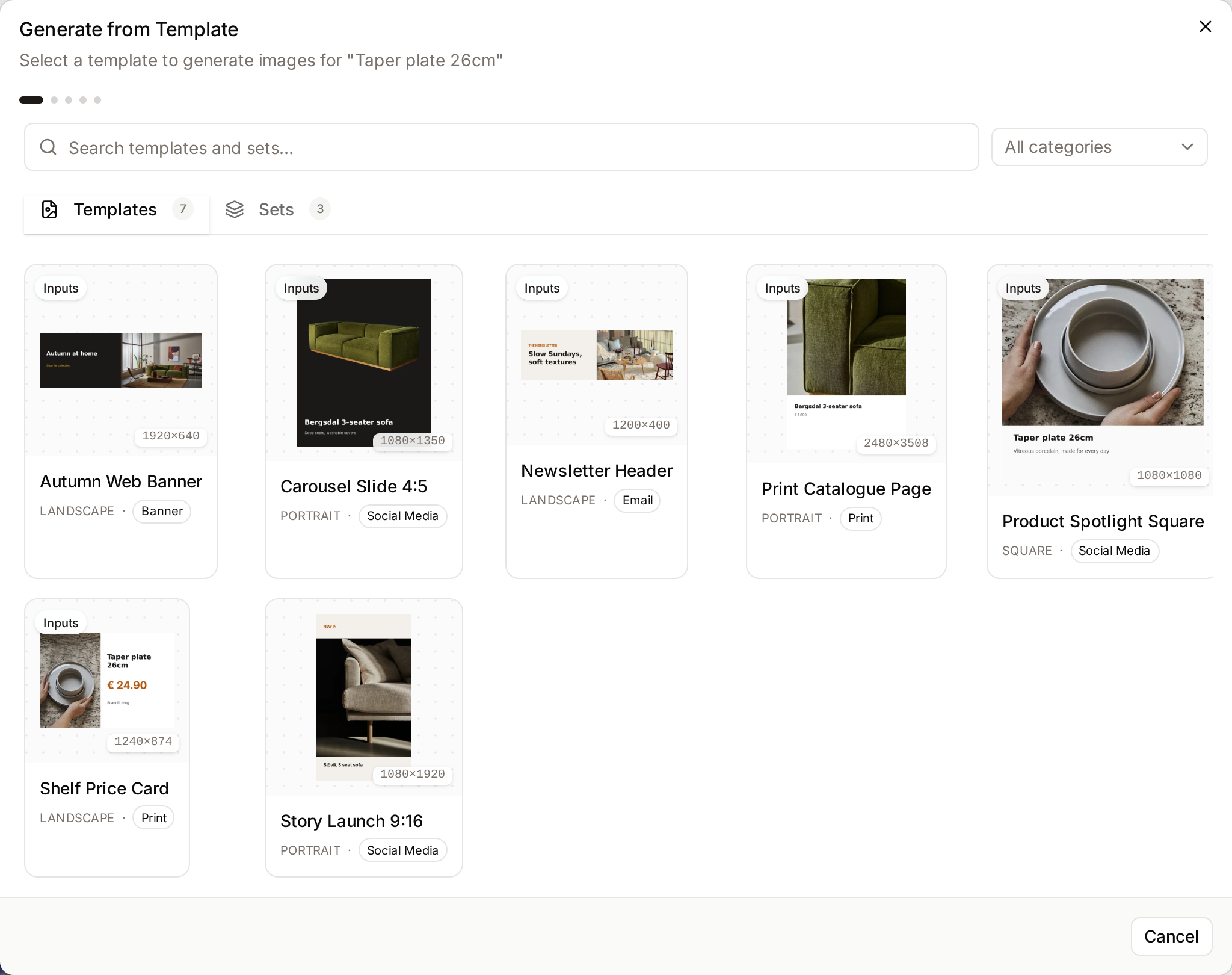
1. Choose a template or a set
In Generate from Template, search with Search templates and sets… or filter by category.
- The Templates tab lists single templates. Templates marked Inputs have text to fill in.
- The Sets tab lists template sets, which generate one image per template in the set, for example a square, a story and a banner in one go.
Click a template or set to continue.
2. Customize
The summary at the top shows the output size and how many images will be generated.
- Text content: type the values for the template's text layers, such as a headline or a price. When you selected several assets, the same text is used for all of them.
- Style: the style options the template exposes, if any.
- Output Size (single templates only): keep Original, or choose Custom Size and enter a width and height between 50 and 10,000 pixels. Layers designed to adapt move with the new size; others stay where they are.
For template sets, text fields aren't shown at this step: generate first, then use Edit & Regenerate to set the text.
Click Generate Image, or Generate N Images.
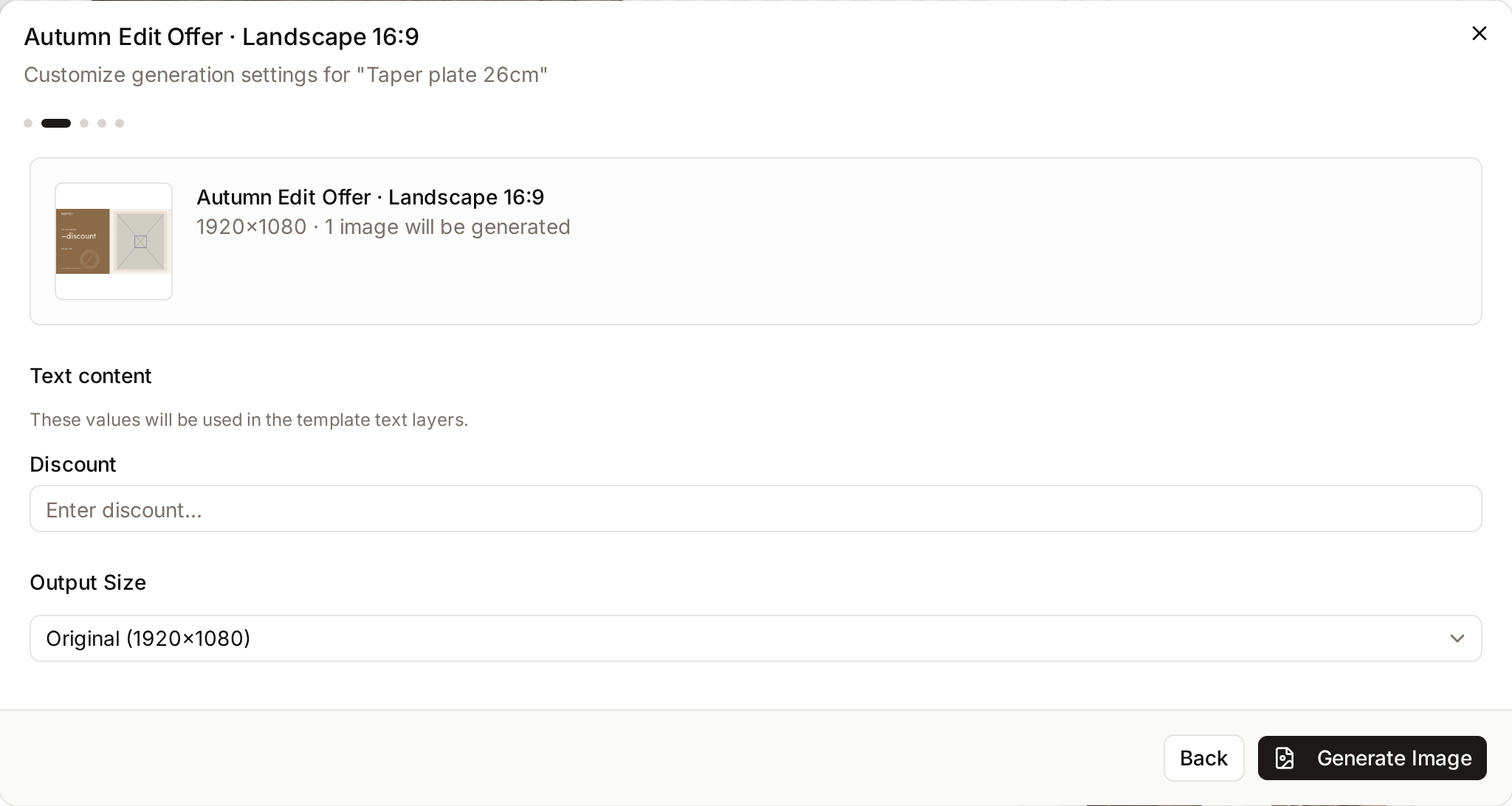
3. Wait for the results
A single image from a single template is usually generated straight away. Larger runs show Generating... with a progress bar and the number completed or failed.
4. Review, save and download
Generation Complete shows the results as Draft cards.
Drafts are permanently deleted after 24 hours, together with their files. Save the results you want to keep, or download them, before then.
| Action | How |
|---|---|
| Save | Click Save on a draft card, or tick several results and click Save. Saved results become renderings on their assets, titled "Template: [template name]". This works the same when a generation produces a single image. |
| Download | Click Download on an approved result, or tick several and click Download (N) to get a ZIP. Results still pending approval are left out, and so are results from assets whose access rules require a download request. |
| Remove | Click the trash icon on a result, or tick several and click Remove. You can always remove your own drafts; removing a saved result needs the Delete attachments permission. |
Saved results appear in the asset's Renderings section. When Require Rendering Approval is on in Access Settings, results show Pending as soon as they are generated. Saving a pending result sends it to reviewers in Administration → Asset Requests; a draft you don't save is never submitted.
Adjust and regenerate
Click Edit & Regenerate on the results screen to change:
- Text Fields and Style,
- Output Settings: Format (JPEG, PNG or WebP) and Quality, from 1 to 100%. The first generation always uses JPEG at 90%.
- For a set, Output Sizes (Templates): tick the templates to regenerate. The others are kept as they are.
Click Regenerate. The new results replace the previous unsaved drafts for the same templates and assets.
- Results you already saved are never deleted by a regeneration. They stay in the asset's Renderings section, and the new results appear as new drafts next to them.
- For a set, the results of templates you didn't tick stay on the results screen as they were.
- A custom output size chosen for the first generation is kept for every regeneration.
Troubleshooting
"No templates yet"
No active templates exist in your workspace. Ask an administrator to create one in Templates.
"All N items failed to generate."
The templates could not be applied, often because an asset file is missing or a template layer is broken. Try a single asset and template to narrow it down, then contact the template's author.
The results disappeared
Unsaved drafts are permanently deleted 24 hours after generation. Generate again and save or download the results.
Some items failed
A result is counted as failed only after its last retry, so the progress bar and the "N items failed to generate." message match what you see. A run with failures still finishes: the results that did generate are shown and can be saved.
Related pages
- Renderings: where saved results live.
- Templates and Template Sets: for administrators, designing templates.
- Asset Detail: the rest of the asset page.