
Saved Searches
If you find yourself applying the same combination of keywords and filters more than once - for a weekly report, a recurring campaign check, or your team's review queue - save it. A saved search captures everything (search terms, filters, advanced rules) under a name you choose, and restores it in one click.
What Gets Saved
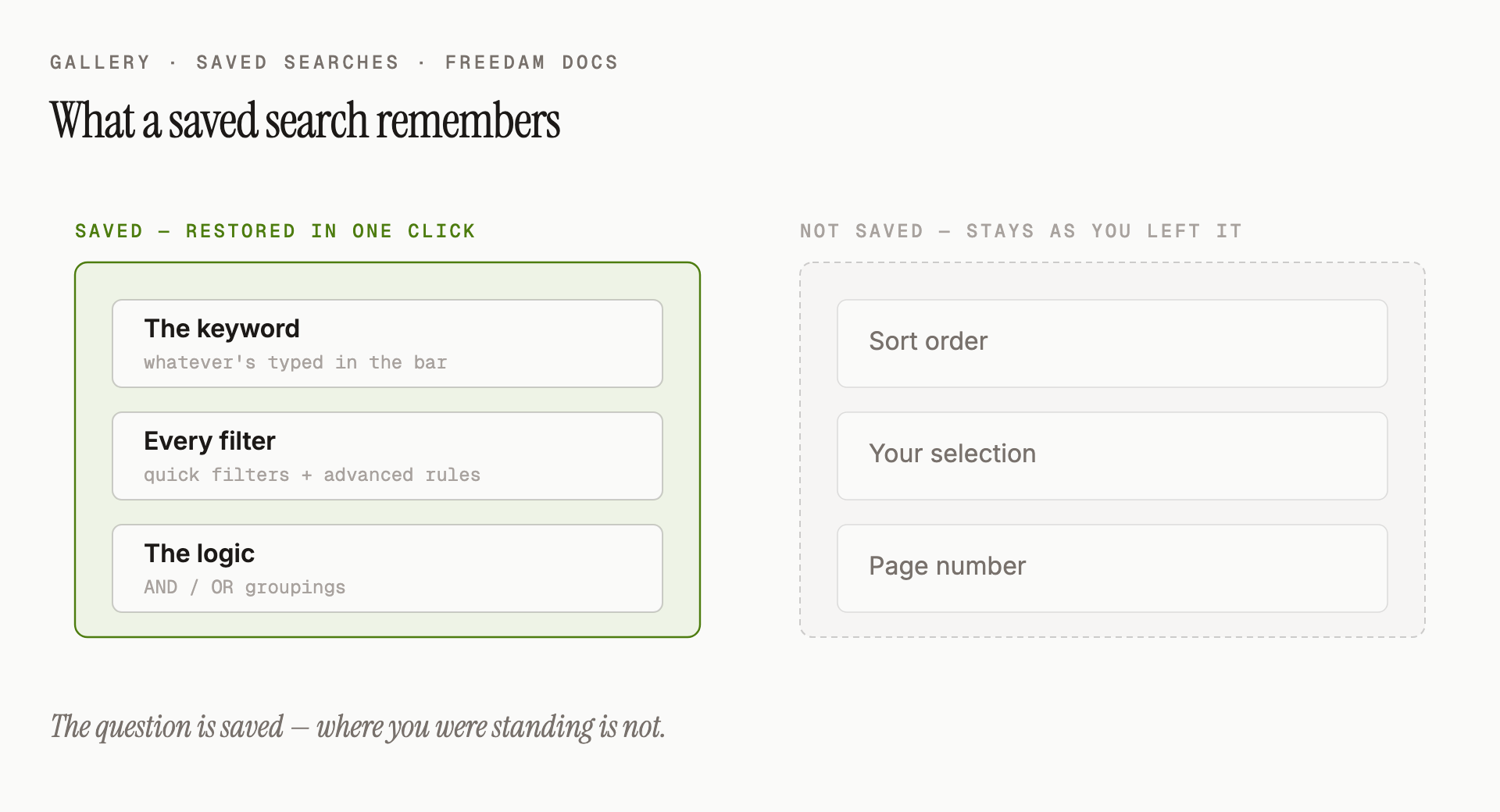
A saved search remembers:
- The keyword you've typed in the search bar (if any).
- Every filter applied - both quick filters and advanced rule-builder filters.
- The logic between them (AND / OR groupings).
A saved search does not remember:
- The sort order or view density you had at the time.
- The selection (which assets you had ticked).
- Page number - running a saved search always starts from the first page of results.
It's a snapshot of the question you're asking, not of the answers.
Creating a Saved Search
- In the Gallery, build up the search you want to keep - type your keyword, apply filters, add rules as needed.
- Once the Gallery is showing the results you're happy with, open the Saved searches menu in the controls row, next to Advanced search.
- Click Save current filters. It is offered when a search or a filter is active.
- Freedam proposes a name built from your filters. Replace it with a clear, human-readable name if you prefer. Good names describe the question you're answering:
- Spring campaign - awaiting approval
- Product shots larger than 2000px
- My drafts from this week
- Press Enter, or click the save button next to the name.
The saved search is now available to you across devices. You can keep up to 50 saved searches.
Loading a Saved Search
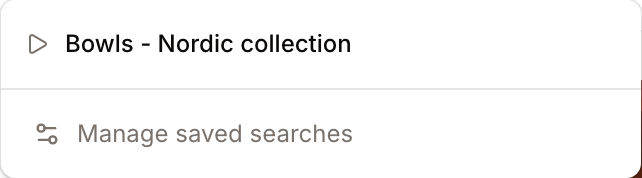
- Click the Saved searches menu in the controls row.
- Click any item in the list.
- The Gallery immediately applies the saved keywords, filters and rules.
If you already have filters active when you load a saved search, the saved one replaces what was there.
Managing Saved Searches
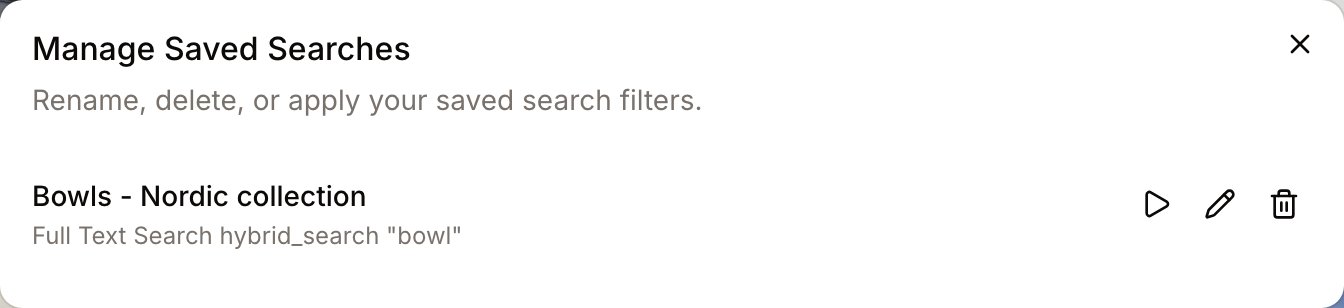
From the Saved searches menu, click Manage saved searches to open a dialog that lists each saved search with a summary of its filters. There you can:
- Apply a saved search - click the play icon.
- Rename a saved search - click the pencil icon, type a new name and press Enter.
- Delete a saved search - click the trash icon, then click it again to confirm. Deletion cannot be undone, but you can always rebuild and re-save it.
Updating a Saved Search
Saved searches are static snapshots - changing your active filters doesn't change the saved version. To update one:
- Load the saved search.
- Adjust filters or keywords as needed.
- Open the Saved searches menu and choose Save current filters.
- Give it a name. This creates a new saved search: saving under an existing name does not replace the old one.
- Delete the old version in Manage saved searches if you no longer need it.
Privacy
Saved searches are personal - only you can see and manage your own. They are not visible to other users in your organisation. If you want to share a search with a teammate, take a screenshot of the filter panel, or rebuild the same filters on their account.
Typical Uses
- Your inbox of work. "Assets assigned to me, awaiting review" - open it each morning to see what needs your attention.
- Compliance check. "Assets with no rights policy" - run weekly to catch content that needs classifying.
- Campaign close-out. "Q1 campaign - ready for archive" - run at the end of the quarter before moving assets to cold storage.
- Quick pivot. "Large images with blue as dominant colour" - your go-to shortcut when a designer asks for hero banners.
Tips
- Name for the question, not the date. "Spring 2026 approvals" ages badly; "Current quarter approvals - marketing" still makes sense next year (it finds whatever current means at the time it's run).
- Keep names short. Long names are hard to scan when the menu fills up.
- Prune regularly. A cluttered saved-search list slows you down. Delete ones you haven't loaded in months.
- Review before running. If something in your library has changed - a collection was renamed, a tag retired - a saved search may return unexpected results. Take a moment to open Advanced search and check the rules after loading.
Troubleshooting
A saved search returns nothing after it used to work
Something it depends on has probably changed - a tag was renamed, a collection deleted, or a metadata field removed. Load the saved search, open the advanced filters panel, and check each rule. Edit or remove any rule that references something that no longer exists, then save again.
I can't find a saved search I'm sure I created
- Saved searches are per-account. If you signed into a different account, you won't see them.
- If it's still missing, it may have been deleted. Unfortunately deleted saved searches can't be recovered - rebuild and re-save it.