
Languages
The Languages feature allows administrators to manage which languages are available across the Freedam platform. By controlling the active language list, you ensure that users only see translation options that your organization supports.
This interface is designed for system administrators to set the organization's main language and choose which languages people can work in.
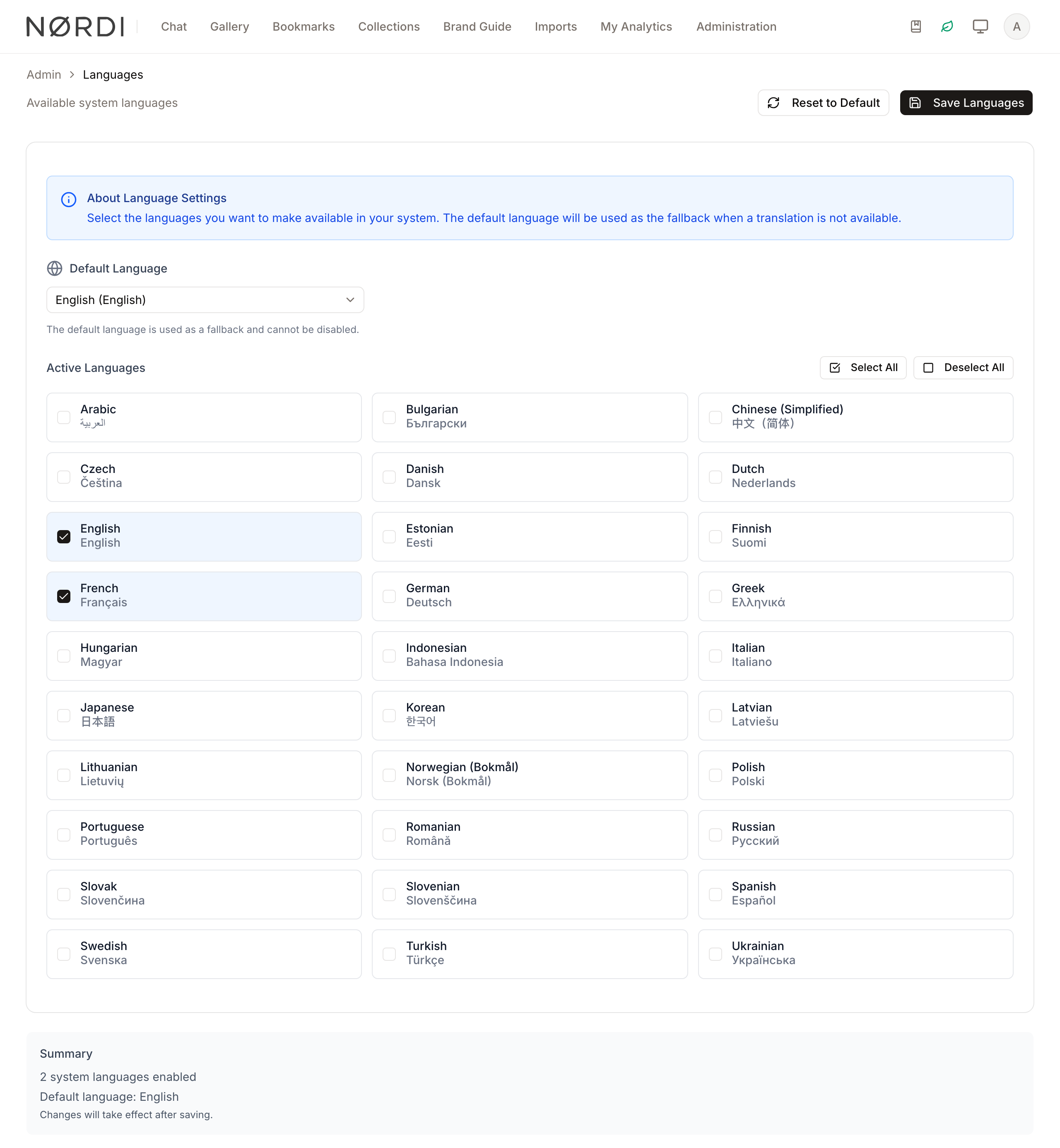
Page Overview
- Purpose: To control the localization settings of the application.
- When to use it: Use this page when onboarding new international teams, limiting the content languages people can work in, or changing your organization's main language.
- What you can do here:
- Set a global default language for the system.
- Enable or disable specific languages for user selection.
- Bulk select or deselect all available languages.
- View how many users are currently using each language.
- Reset all language settings to the factory default (English).
Who can use it
The Languages page is available to people with the Manage system settings permission. Other users cannot open or edit language settings: they only see the list of active languages in their own profile preferences.
What it does
Freedam ships with a broad catalogue of languages and connects to an automatic translator (an AI model or DeepL, see AI Operations) for content such as vocabularies, terms of use, and rights notices. The languages you activate on this page control three things at once:
- Which languages appear to end users when they choose their content languages. The interface languages are fixed: English, French, German, Spanish, Chinese (simplified) and Portuguese (Brazil).
- Which languages the automatic translator is allowed to target.
- Which languages the search engine indexes content in, so that people can find assets in their own language with accurate stemming and typo tolerance.
The translator currently recognises around thirty languages, including English, French, German, Spanish, Italian, Portuguese, Dutch, Polish, Swedish, Danish, Norwegian, Finnish, Czech, Hungarian, Romanian, Bulgarian, Greek, Turkish, Ukrainian, Russian, Japanese, Korean, Chinese, Indonesian, and Arabic. If a connected translation provider has not been set up, automatic translation is simply skipped: you can still enable a language, and people type its texts themselves.
Page Layout
- Top bar: Contains the page title, a description of the language settings, and the primary action buttons: Save Languages and Reset to Default.
- Main area: A centralized card containing the About Language Settings information box, the Default Language dropdown, and the Active Languages selection grid.
- Summary section: Located at the bottom of the page, providing a quick count of enabled languages and confirming the current default selection.
Main Features
Default Language Selection
- What it's for: Choosing your organization's main language, the one names and texts fall back to.
- Typical use: Setting the language to match your organization's primary operating language.
- Result: This becomes your organization's main language. Field and tag names, and texts written in several languages, fall back to it when a person's own languages have none, and exports, the API and connected apps use it. It does not set the interface language: people who sign up themselves start in their browser's interface language, else the workspace's; people added another way (by an administrator, by an approved access request or through single sign-on) start in English. Everyone can change it in their settings.
Active Language Management
- What it's for: Toggling the availability of specific languages in the system.
- Typical use: Disabling languages that your organization does not wish to support to simplify the user experience.
- Result: Only checked languages will appear in the "Personal Preferences" section for standard users.
User Count Badges
- What it's for: Identifying how many active users have selected a specific language.
- Typical use: Checking if a language is safe to disable based on current usage.
- Result: A badge appears next to the language name showing the number of users (e.g., "12 users").
Detailed Feature Documentation
Default Language Dropdown
- Purpose: To define the fallback language for the entire application.
- Where to find it: In the main card, under the Default Language label.
- What you'll see: A dropdown menu listing all available languages. If you select a language that isn't currently active, a "Will be activated" badge appears.
How to use it:
- Click the Default Language dropdown.
- Scroll or search for your preferred language.
- Select the language.
- Click Save Languages in the top bar to apply.

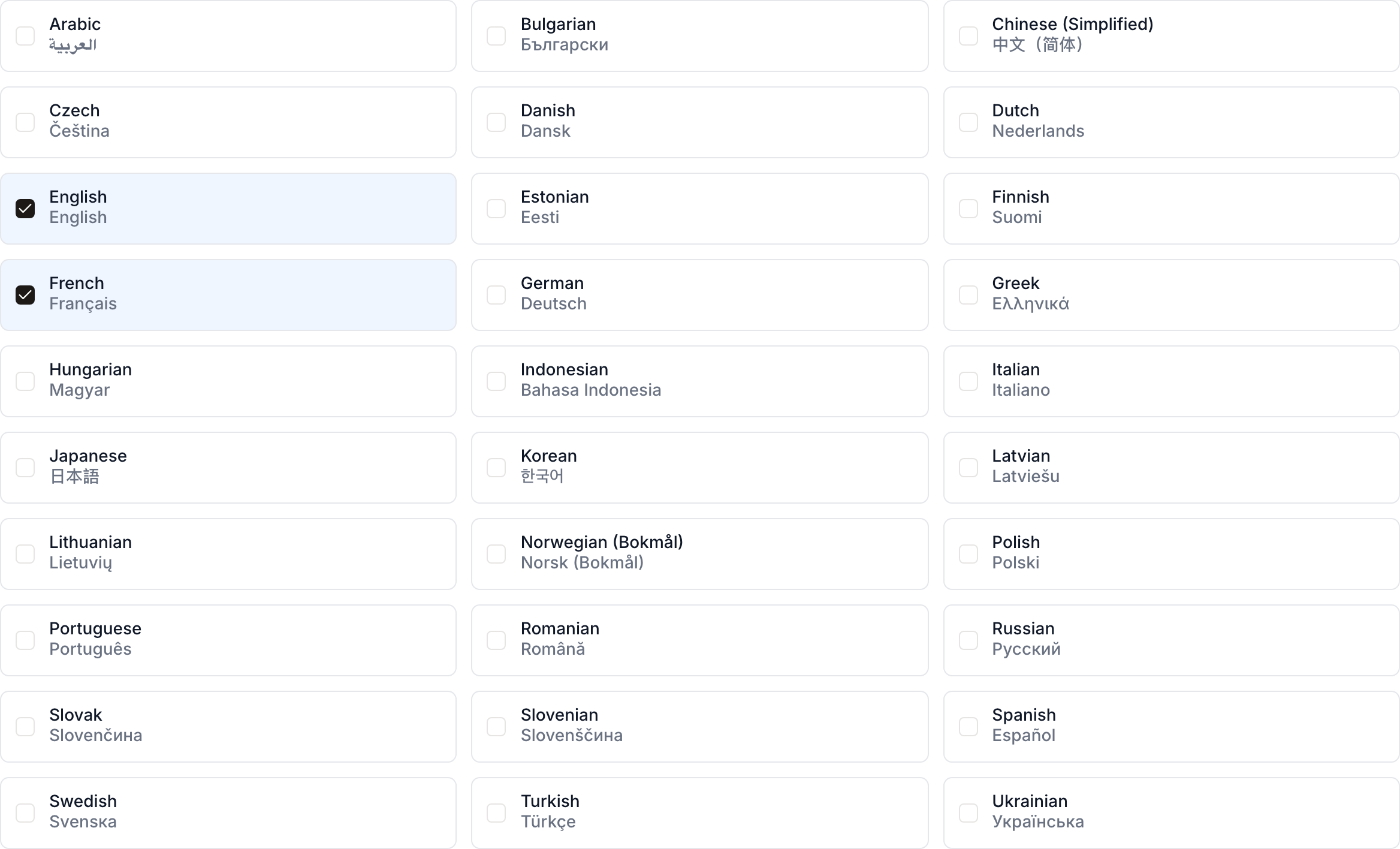
Active Languages Grid
- Purpose: To manage the list of languages users can choose from.
- Where to find it: In the lower section of the main card, under Active Languages.
- What you'll see: A grid of checkboxes, each representing a language with its English name and native name.
How to use it:
- Locate the language you wish to enable or disable.
- Click the checkbox or the language name to toggle its status.
- Use Select All or Deselect All for bulk changes.
- Click Save Languages in the top bar.
Complete Workflows
Workflow: Activating a New Language
- Goal: Make a new language available for users to select in their profiles.
- Prerequisites: Administrative access to the System settings.
Steps:
- Navigate to the Languages page in the Admin section.
- Locate the desired language in the Active Languages grid.
- Click the checkbox next to the language name.
- Verify the language is now highlighted or checked.
- Click Save Languages in the top bar.
- Expected result: A success message appears, and the language is now available in user preference menus.
Workflow: Changing the System Default
- Goal: Change your organization's main language.
- Prerequisites: The language must be one of the supported system languages.
Steps:
- Click the Default Language dropdown.
- Select the new language (e.g., "French (Français)").
- Observe that the language is automatically added to the Active Languages list if it wasn't already.
- Click Save Languages.
- Expected result: The system updates the default fallback; the summary at the bottom reflects the new default.
Workflow: Resetting to Factory Defaults
- Goal: Revert all language settings to the original English-only configuration.
- Prerequisites: Understanding that this will disable all other languages.
Steps:
- Click Reset to Default in the top bar.
- When the confirmation toast appears, click Reset.
- The page shows only English selected.
- Expected result: All languages except English are deactivated. The reset does not change the stored default language: if your default was another language, select English in Default Language and click Save Languages.
What happens behind the scenes
Activating and deactivating languages is not just a cosmetic toggle - Freedam updates several background systems when you save changes:
- Activating a new language triggers a one-off backfill that rebuilds search indexes for that language so assets become findable in it. Depending on how many assets you have, this may take a few minutes to complete.
- Deactivating a language removes that language's search index and typo dictionary, so the system no longer spends storage or processing time on a language nobody uses. Texts written in that language stay on the assets: people see them read-only and can no longer edit them, and names in that language are skipped.
- Users who had a deactivated language set as a personal preference are transparently switched to the system default so they never see a broken interface.
- Resetting to factory defaults deactivates every language except English.
Names fall back to the main language
Freedam shows each name (a field, a tag, a filter) in the first language that has it: the person's content language, then their interface language, then the main language set on this page. When none of them has a name, it shows the item's internal name. Give every field and tag a name in the main language, and add translations for the languages your teams use. Languages and names explains the rule with examples.
Limits and guardrails
- You cannot deactivate the language that is currently set as the default - change the default first.
- The default language must always be one of the active languages; the page prevents mismatched combinations before they are saved.
- Languages not supported by the automatic translator can still be enabled as content languages, but people will need to type their own translations.
Tips and Best Practices
- Check User Counts: Before disabling a language, look for the user count badge. Disabling a language currently in use may force those users back to the system default.
- Default Protection: The system will not allow you to disable the language currently set as the "Default Language." You must change the default first if you wish to deactivate that language.
- Save Often: Changes made to checkboxes and dropdowns are local until you click the Save Languages button.
Troubleshooting
Issue: Cannot deactivate a specific language
- Symptoms: Clicking the checkbox for a language does nothing, or a warning message appears.
- Cause: You are attempting to deactivate the language that is currently set as the "Default Language."
- Fix: 1. Change the Default Language dropdown to a different language. 2. Deactivate the original language. 3. Click Save Languages.
- Prevention: Always check the "Summary" section to see which language is currently the system default.
Issue: Changes are not appearing for users
- Symptoms: You saved changes, but users still see old language options.
- Cause: The system cache may need a moment to refresh, or the save operation failed.
- Fix: 1. Refresh your browser. 2. Ensure you clicked Save Languages and saw a success notification.
- Prevention: Verify the "Summary" section at the bottom of the page matches your intended configuration before leaving the page.