
Admin Overview
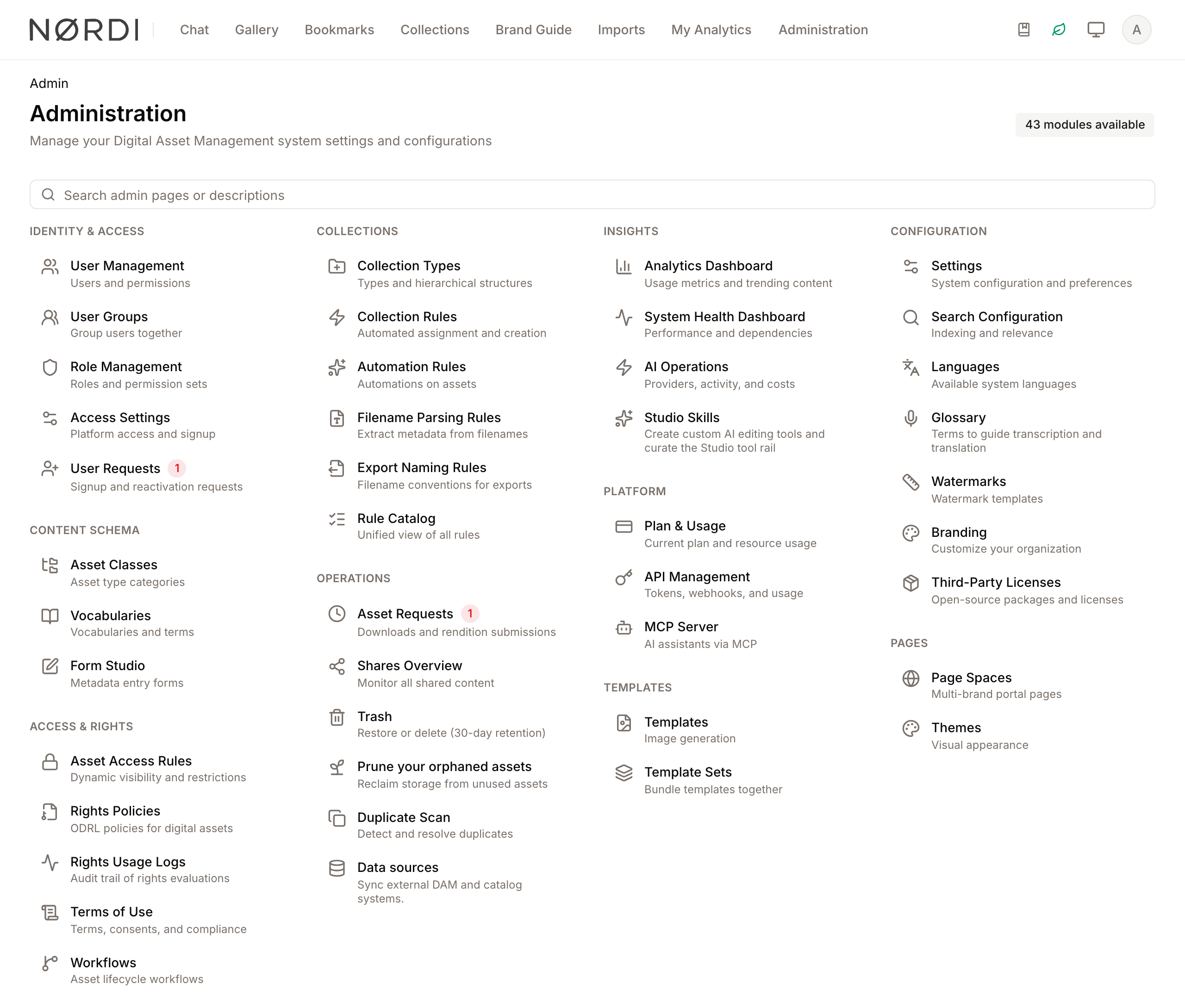
The Admin Overview serves as the central command center for Freedam. It provides administrators with a unified entry point to manage users, system health, metadata definitions, branding, and AI operations.
This page is designed for system administrators and tenant managers to quickly locate specific configuration tools. The interface dynamically adjusts based on your assigned permissions, ensuring you only see the modules you are authorized to manage.
Page Overview
- Purpose: To provide a searchable, categorized directory of all administrative functions.
- When to use it: Use this page when you need to adjust system behavior, manage user access, review system health, or configure asset metadata.
- What you can do here:
- Search for specific admin modules by name or description.
- View pending action counts (like user or asset requests) via notification badges.
- Identify modules that require a plan upgrade to access.
- Navigate to specialized settings for AI, branding, and automation.
Page Layout
- Top bar: Displays the "Administration" title, a brief description of the page's purpose, and a counter showing the total number of modules available to you.
- Main area: A multi-column grid of administrative modules, grouped under ten headers: Identity & Access, Content Schema, Access & Rights, Collections, Operations, Insights, Platform, Templates, Configuration, and Pages. A header only appears if you can see at least one module in it.
- Search field: A prominent input area at the top of the main area used to filter the list of modules in real-time.
- Module Cards: Individual interactive items containing an icon, the module name, and a short description of what that module controls.
Main Features
Module Search
- What it's for: Quickly finding a specific setting without scrolling through categories.
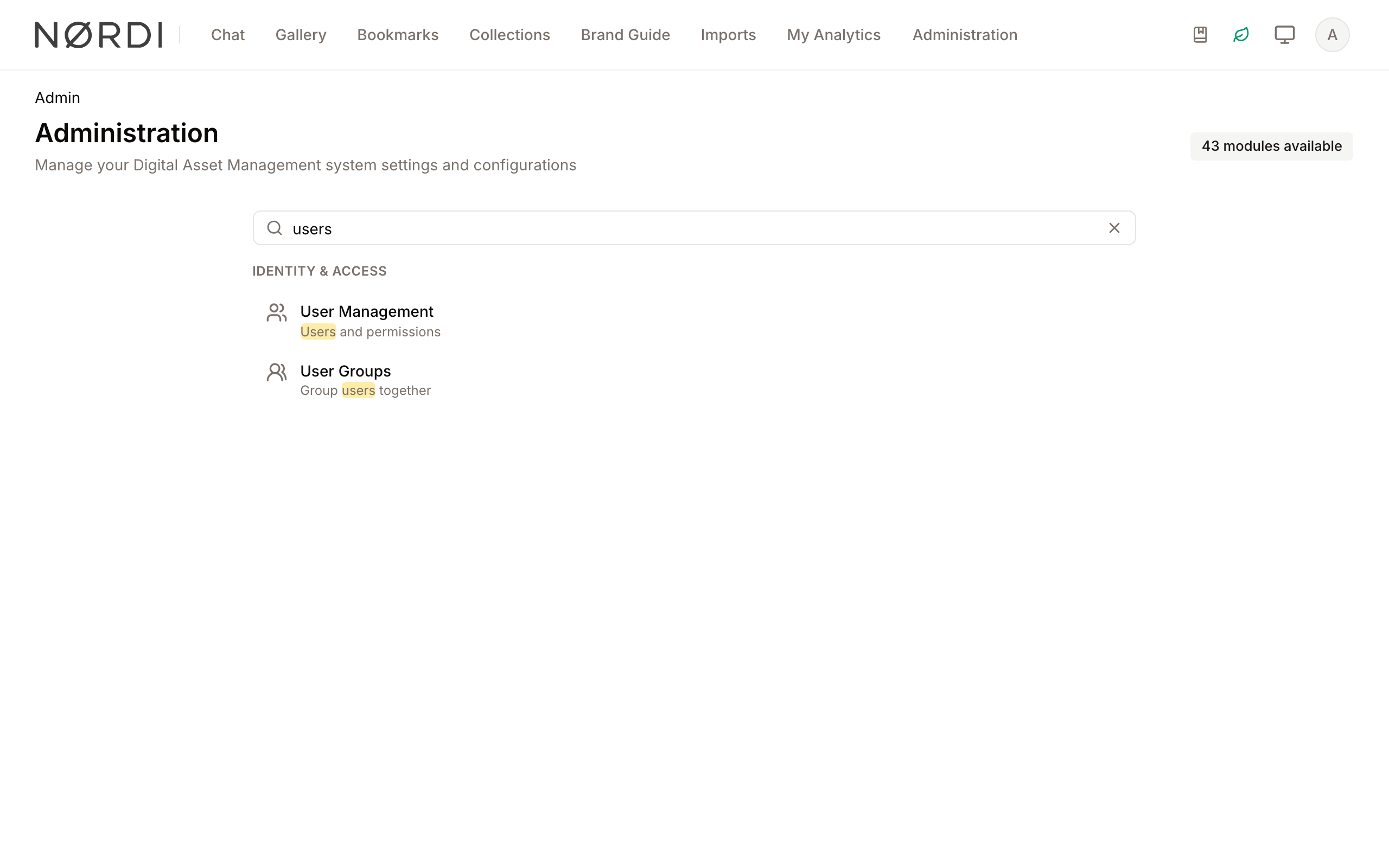
- Typical use: Typing "Users" or "Metadata" to show only those management tools.
- Result: The page updates in real-time to show only modules where the name or description matches your text.
Notification Badges
- What it's for: Highlighting modules that require immediate administrative attention.
- Typical use: Seeing a red badge on "User Requests" indicating how many new accounts are waiting for approval.
- Result: A red numeric badge appears next to the module name.
- What drives the numbers: Two live counters are refreshed each time this page loads:
- User Requests - the number of people waiting for an account to be approved. Only visible if your role can manage user requests.
- Asset Requests - the number of pending download requests and renditions submitted for approval. Only visible if your role can manage asset requests.
If you don't have permission to handle one of these queues, its badge is hidden entirely, so you never see a red number for work you can't action.
Feature Upgrade Prompts
- What it's for: Identifying features that your current subscription plan does not include.
- Typical use: Clicking a greyed-out module like "AI Operations" to see upgrade options.
- Result: Opens a dialog explaining the feature and how to enable it.
- How lock state is decided: Each module on this page is evaluated against two independent things: your personal role permissions (which decide if you see the module at all) and your workspace's subscription plan (which decides whether the module is active or appears greyed out). Modules without a plan gate, like User Management or Branding, are never greyed out. Modules tied to a plan feature, like AI Operations or Watermarks, are shown faded until the workspace plan enables them. On a self-hosted installation every feature is included, so no module is greyed out.
Detailed Feature Documentation
Admin Search Field
- Purpose: To filter the administrative directory.
- Where to find it: Located at the top of the page, labeled with the placeholder "Search admin pages or descriptions".
- What you'll see: As you type, non-matching categories and modules disappear. Matching text within module names and descriptions is highlighted in yellow.
How to use it:
- Click into the Search admin pages or descriptions field.
- Type the name of the setting or task you want to perform (e.g., "Branding").
- Review the filtered results.
- Click the X button on the right side of the search bar to clear your search and see all modules again.
Module Navigation
- Purpose: To open specific management interfaces.
- Where to find it: Any module card within the main grid.
- What you'll see: Clicking a module opens its page. Clicking a greyed-out module opens the upgrade dialog instead.
How to use it:
- Locate the desired module (e.g., User Management).
- Note any red badges indicating pending items.
- Click the module name or icon to open the settings page.
Complete Workflows
Workflow: Finding and Approving New User Requests
- Goal: Locate the user request management area when notifications are present.
- Prerequisites: Administrative permissions for User Requests.
Steps:
- Navigate to the Admin Overview.
- Look for the User Requests module under the Identity & Access header.
- Observe the red Badge indicating the number of pending requests.
- Click User Requests.
- Expected result: You are taken to the User Request Management page where you can approve or deny pending accounts.
- If it doesn't work: Ensure your role includes the Review account requests permission.
Workflow: Accessing Locked Features
- Goal: Learn how to enable a module that appears greyed out.
- Prerequisites: Must be a Tenant Administrator.
Steps:
- Locate a module that appears semi-transparent (e.g., AI Operations).
- Click the module card.
- Review the information in the Unlock [feature] dialog that appears. Workspace administrators can click Manage subscription. Other users can click Request upgrade, which notifies their workspace administrators. Maybe later closes the dialog. See Plan & Usage.
- Expected result: A dialog opens describing the feature and your current plan, with the next step for your role.
Tips and Best Practices
- Keyboard Navigation: You can press Tab to move from the search bar into the module list, and use the Up and Down arrow keys to move between modules.
- Check the Counter: The "modules available" badge in the top bar is a quick way to verify if your permissions have been updated; if the number changes, your access level has likely been modified.
- Use Broad Terms: If you aren't sure of a module's exact name, search for keywords like "Access", "Asset", or "System" to see related tools.
Good to Know
- The page is personalised: Two people logging in at the same moment may see a completely different Admin Overview. The list of modules is filtered by your permissions, the pending badges only appear for queues you're allowed to action, and the greyed-out modules depend on what your workspace's plan has switched on.
- Tenant administrators see additional entries: Plan & Usage is only shown to workspace-level administrators. If a colleague can see it and you can't, they hold that tenant admin role. On a self-hosted installation, Plan & Usage does not exist.
- Admin Assistant: The Admin Assistant entry under Configuration is shown to anyone who holds at least one administration permission.
- Access is double-checked: Even if someone memorises a direct link to a restricted admin module, opening it will be refused if they don't hold the permission - the Admin Overview only hides the shortcut, it doesn't grant access on its own.
Troubleshooting
Issue: A specific admin module is missing from the list
- Symptoms: You expect to see a module (like "Role Management") but it does not appear even after clearing the search.
- Cause: Your user account lacks a permission required for that module. Some modules need more than one: Trash and Prune your orphaned assets also need permission to view assets.
- Fix: Contact your System Administrator to verify your role permissions.
- Prevention: Ensure roles are audited regularly to match administrative responsibilities.
Issue: "No matches found" message
- Symptoms: The screen is empty except for a "No matches found" message and a settings icon.
- Cause: The current search term does not match any module names or descriptions you have permission to see.
- Fix: Click the X in the search bar to clear the filter.
- Prevention: Try searching for shorter, more general terms if a specific word yields no results.