
Filename Parsing Rules
Filename Parsing Rules let administrators extract structured information from uploaded file names automatically. Suppliers, photographers and partners often encode meaningful data in their filenames - product references, variant codes, shooting angles, capture dates - and this feature turns those conventions into clean, searchable metadata without manual editing.
Rules are evaluated during ingestion, immediately after IPTC/EXIF metadata has been read from the file and before automation rules run. Captured groups can be written either to Core Asset Fields (title, description, capture date, etc.) or to Custom Metadata fields defined on your asset classes.
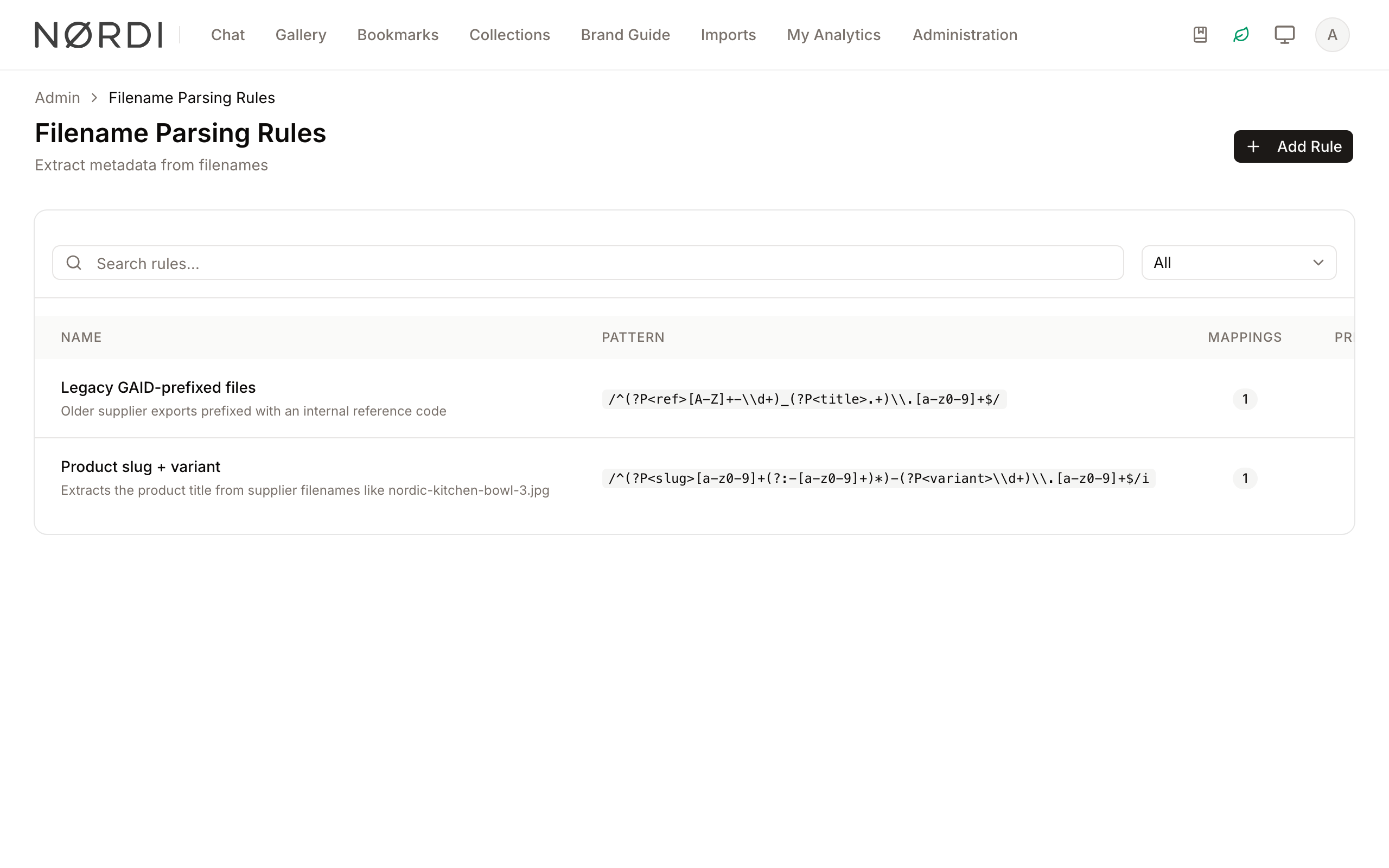
The page is under Administration > Content Quality > Filename Parsing Rules.
Quality uses these rules too: a metadata rule that fills a field can take its value from the file name, written automatically or suggested for review. See Quality fixes.
Page Overview
- Purpose: To populate metadata fields automatically from naming conventions used in incoming files.
- When to use it: Whenever your supplier, agency or internal team produces files whose names already encode useful information - e.g.
SUP-123_red_front.jpg,IMG_20250304_1234.jpg, orclientA-projectX-v3.psd. - What you can do here:
- Define one or more regex patterns with named capture groups.
- Map each capture group to a Core Asset Field or a Custom Metadata field defined on one of your asset classes.
- Test patterns interactively against sample filenames before saving.
- Generate patterns with AI from a sample filename and a plain-English description.
- Control execution order with priorities and stop other rules from running with "Stop on match".
Page Layout
- Top bar: Page title, short description, and the Add Rule button.
- Main area: A searchable card containing a data table of all rules. Each row shows the rule Name, the Pattern (rendered as inline code), the number of Mappings, the Priority, and the current Status.
- Search and Filter bar: Free-text search across name and description, plus a Status filter (All / Active / Inactive).
- Rule Dialog: A four-tab popup (Basic Info, AI Suggest, Pattern, Mappings with the mapping count) used for creating and editing rules.
Main Features
Regex Pattern with Named Groups
- What it's for: To match a filename and capture meaningful substrings.
- Typical use: A pattern like
/^(?P<ref>[A-Z]+-\d+)_(?P<variant>[a-z]+)_(?P<angle>front|back|side)\.[a-z0-9]+$/icaptures three pieces of information fromSUP-123_red_front.jpg. - Result: Each named group becomes available for mapping. If the full filename does not match, Freedam automatically retries with the file extension stripped, so most user-authored patterns "just work" whether or not they explicitly account for the extension.
Field Mappings
- What it's for: To decide where each captured group is written.
- Typical use: Map
refto the asset Title,angleto a custom metadata field called "Shot angle" defined on your Product Photo asset class. - Result: After ingestion, the asset has its title set to
SUP-123and the metadata field "Shot angle" set tofront. Existing values are never overwritten - if IPTC already set the title, the rule leaves it alone.
AI Pattern Suggestion
- What it's for: To generate a regex pattern and field mappings from a sample filename and a short description, without writing regex by hand.
- Typical use: Paste
SUP-123_red_front.jpg, describe what to extract in plain English ("the first segment is the supplier product reference, put it in the title; the last segment before the extension is the angle"), and Freedam returns a working pattern plus mappings. - Result: The Pattern and Mappings tabs are pre-filled. The suggestion is verified against your sample before being shown - if the generated pattern doesn't match, you'll see a warning so you can adjust before saving.
Priority and Stop on Match
- What it's for: To control which rule wins when multiple rules could apply to the same file.
- Typical use: A specific rule for
SUP-*files set to priority1with Stop on match enabled, plus a generic catch-all rule at priority100. - Result: The specific rule runs first; if it matches, the generic rule is skipped. Without "Stop on match", every active rule is evaluated in priority order and all of their mappings are applied (without overwriting each other).
Detailed Feature Documentation
Rule Management Table
- Purpose: To list, search and edit your filename rules.
- Where to find it: In the Main area of the Filename Parsing Rules page.
- What you'll see: Rule Name (with description), the Pattern as inline code, the Mappings count badge, the numeric Priority, and the Status badge.
How to use it:
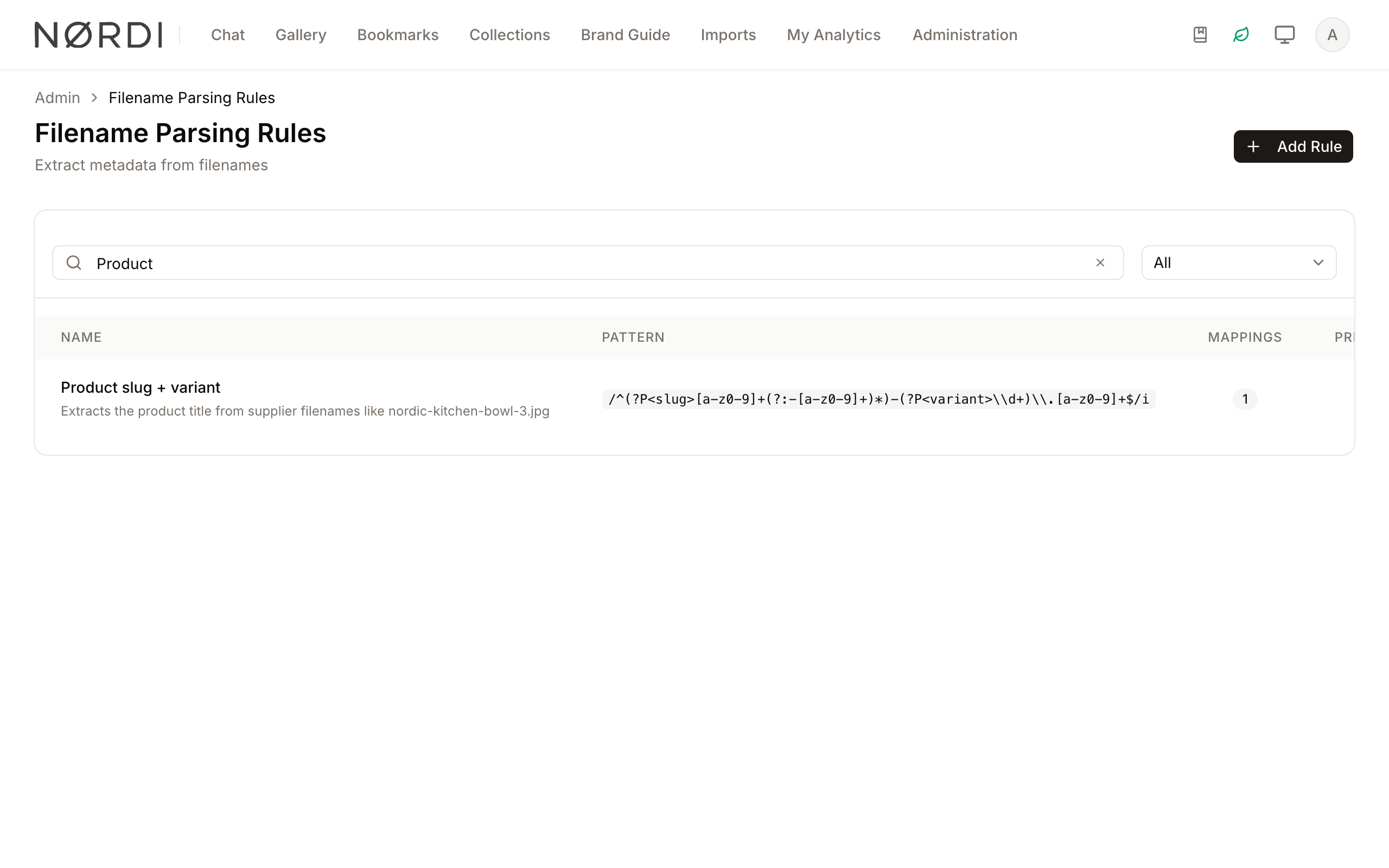
- Use the Search rules… field to find a rule by name or description.
- Use the status dropdown (All, Active, Inactive) to view only active or inactive rules.
- Use the three-dot menu at the end of each row to Edit, Activate or Deactivate, or Delete the rule. All row actions are driven from this menu - clicking elsewhere on the row does nothing, so the menu is the single source of truth for rule actions.
The Rule Dialog
- Purpose: To create or edit a single filename parsing rule.
- Where to find it: Click Add Rule in the top bar, or open the row's three-dot menu and choose Edit.
- What you'll see: A four-tab dialog with Basic Info, AI Suggest, Pattern, and Mappings.
Basic Info tab
Set the rule's Name, an optional Description, the Priority (lower numbers run first), and two switches:
- Active - only active rules are evaluated during ingestion.
- Stop processing further rules on match - when the rule matches, no later rules are evaluated for that file.
AI Suggest tab
The fastest way to start. Provide:
- A Sample filename that represents the convention you want to capture (e.g.
SUP-123_red_front.jpg). - A short description under What should be extracted? and which field each piece should land in.
Click Generate pattern. Freedam asks the configured AI provider to produce a regex with named groups plus a field_mappings object pointing at allowed core asset fields. The result is verified against your sample and then injected into the Pattern and Mappings tabs, ready for you to review and save. A short explanation of the regex is shown below the button when available.
If the AI's output doesn't match the sample, the dialog tells you so - adjust the description (be more specific about separators, casing, or which segments are which) and try again.
Pattern tab
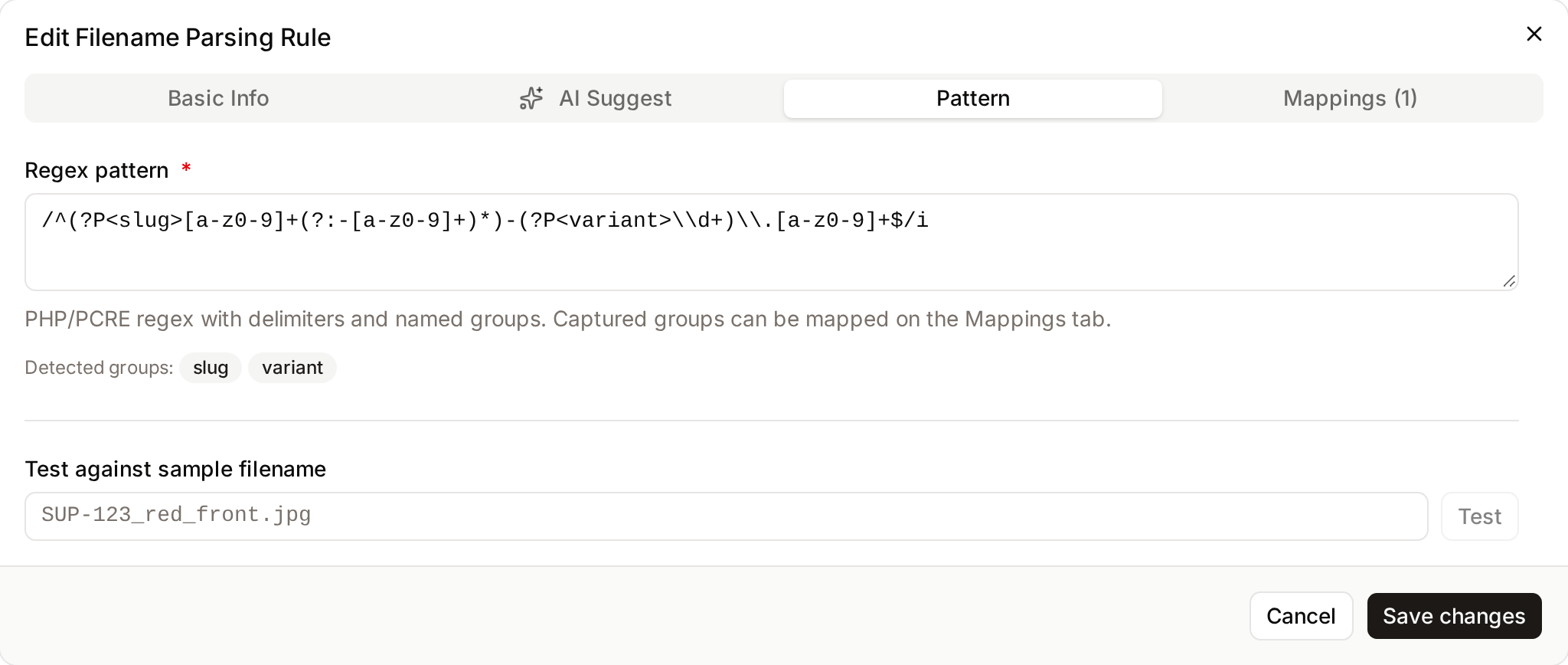
The full regex, including delimiters and flags (e.g. /.../i). Use named groups with the (?P<name>...) syntax - these names are what you map on the next tab.
The tab also shows:
- Detected groups: badges listing every named group Freedam found in the pattern.
- Test against sample filename: type any filename and click Test to see whether the pattern matches and which value each group captured. This runs server-side, so it uses the same regex engine as ingestion.
Mappings tab
A list of capture-group → destination rows. For each row:
- Group name: the name of the regex group (e.g.
ref). The detected group names are suggested as autocomplete options. - Field: a single hierarchical picker - the same component used by the bulk-edit operation builder - with two submenus:
- Core Asset Fields - the built-in asset columns: Title, Description, Keywords, Creator, Copyright, Capture Date, Location. Choose one of these to write the captured value directly to the asset record.
- Custom Metadata - every custom metadata field defined on any of your asset classes. Each entry shows the field label, its type badge, and the owning asset class label so you can disambiguate fields with the same name across classes.
A search box at the top of the picker filters by label, key, or type, which is the fastest way to land on a field when your tenant has many metadata definitions.
Whether the chosen field is a Core Asset Field or a Custom Metadata field is inferred automatically - the rule storage records target = asset (with the field key) for Core Asset Fields and target = metadata (with the metadata definition's id) for Custom Metadata. You don't need to set a "target" yourself.
Click Add mapping to add a new row, or the trash icon to remove one. You can also let the AI Suggest tab populate this list for you.
Creating the target field without leaving the dialog
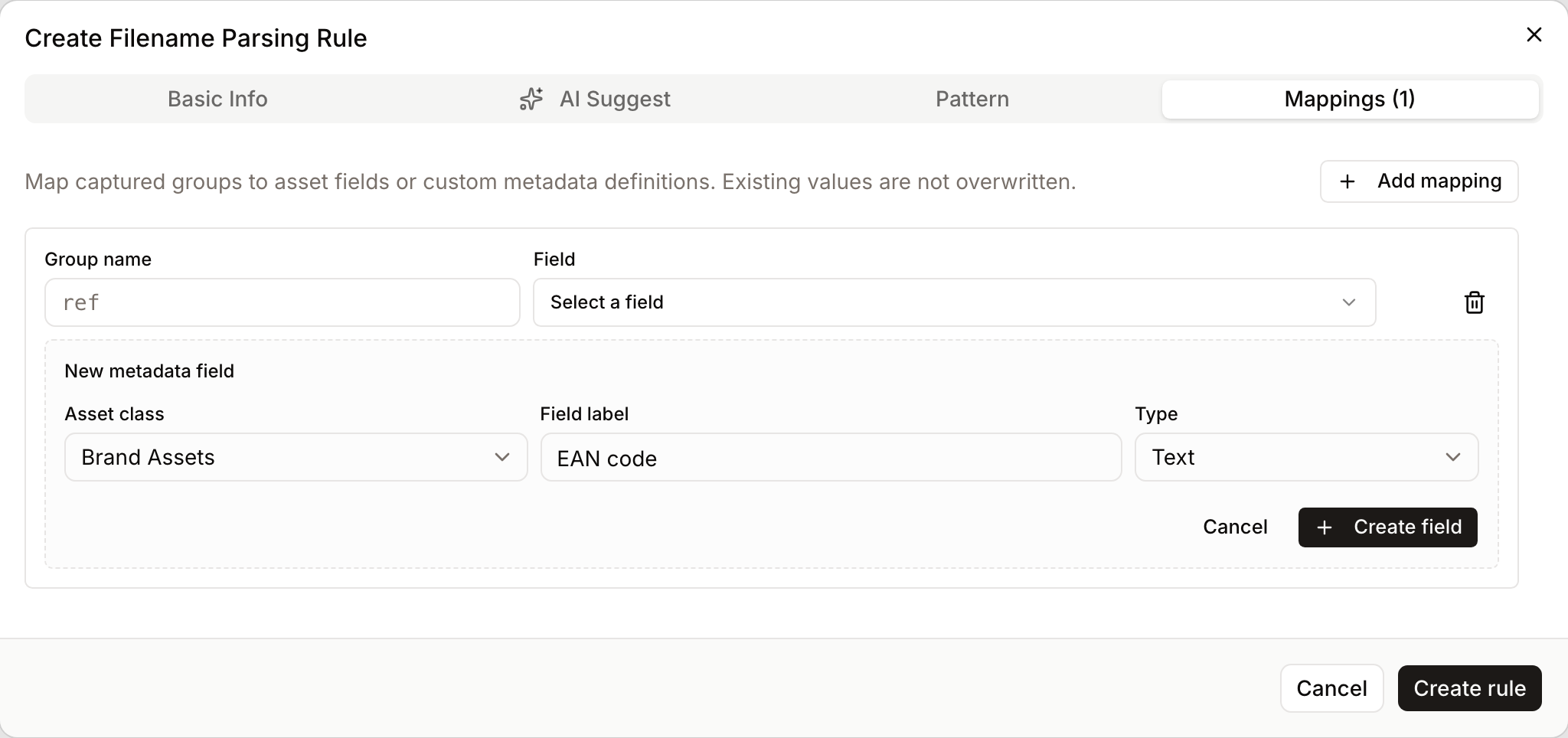
A mapping can only point at a metadata field that already exists. If the field you need is not in the picker yet, click Create a new field… under the row instead of going to Asset classes → Metadata and back:
- Pick the Asset class the field belongs to (the selector only appears when your workspace has more than one).
- Type the Field label, e.g.
EAN code. The machine key is derived from it (ean_code). - Choose a Type: Text, Long text, Number, Decimal, Yes / no or Date. Vocabulary and JSON fields need the full metadata editor.
- Click Create field. The field is created, appears under Custom Metadata in the picker and is selected for that row.
If a field with the same key already exists on that asset class, the form says so and nothing is created - pick the existing field from the picker instead.
Complete Workflows
Workflow: Capture supplier product references from filenames
- Goal: Whenever an image is uploaded with a name like
SUP-123_red_front.jpg, set the asset title toSUP-123and storefrontin a custom metadata field "Shot angle" defined on the Product Photo asset class. - Prerequisites: The asset class Product Photo exists and has a metadata field called "Shot angle" of type string.
Steps:
- Open Admin → Filename Parsing Rules and click Add Rule.
- On Basic Info, set the Name to "Supplier product references", leave Priority at
0, and keep Active on. - Switch to AI Suggest. Type the sample filename
SUP-123_red_front.jpgand the description: "The first segment (e.g. SUP-123) is the supplier product reference and should go to the asset title. The last segment before the extension (front, back, or side) should go to the Shot angle custom metadata field on the Product Photo asset class." - Click Generate pattern.
- Review the Pattern tab - adjust if needed and use Test with another sample to confirm.
- Review the Mappings tab - confirm the
refrow's Field picker shows Core Asset Fields → Title and that the angle row shows Custom Metadata → Shot angle (with the Product Photo asset class label). - Click Create rule.
- Expected result: New uploads matching the pattern have their title and the Shot angle metadata populated automatically. Existing values set by IPTC or by the uploader are preserved.
Workflow: Extract a capture date from IMG_* filenames
- Goal: For files named like
IMG_20250304_1234.jpg, set the asset's Capture date to2025-03-04if it isn't already set by EXIF.
Steps:
- Click Add Rule, name it "IMG capture date", and switch to the Pattern tab.
- Enter
/^IMG_(?P<capture>\d{8})_/. - Test it against
IMG_20250304_1234.jpg- the test panel should showcapture = 20250304. - On Mappings, click Add mapping, type
captureas the group name, then in the Field picker open Core Asset Fields and select Capture date. - Save.
- Expected result: When EXIF is missing or doesn't include a capture date, the rule fills it in from the filename. When EXIF already provided one, the rule leaves it alone.
Who Can Use It
Filename Parsing Rules require the Manage automation and naming rules permission. The same permission covers listing, creating, editing, deleting, toggling, previewing, and using the AI suggestion endpoint.
How Rules Run Behind the Scenes
- When: During ingestion, immediately after IPTC/EXIF metadata has been written to the new asset and before automation rules are evaluated. Each upload is processed exactly once.
- Order: Active rules are evaluated in ascending Priority order, with
idas a stable tiebreaker. The first rule with Stop on match enabled halts further evaluation for that asset. - Existing values are never overwritten: if IPTC already set the title, or if the metadata field already has a non-empty value on the asset, the rule's mapping is skipped for that field. This makes it safe to add filename rules without worrying about clobbering richer data.
- Type coercion: captured strings are converted to the destination's type - capture-date groups are parsed with Carbon, integer/float metadata is cast, boolean metadata understands
true/false/yes/no/0/1, and date metadata is parsed leniently. - Extension fallback: if the full filename doesn't match the pattern, Freedam retries against the filename stem (without the extension). This is why a pattern like
/^(?P<ref>[A-Z]+-\d+)/works onSUP-123.jpgeven though it doesn't mention the extension. - Failure isolation: invalid regexes and per-rule errors are logged as warnings but never block ingestion. The asset still gets created; only that one rule's mappings are skipped.
- Preview is server-side: the Test button on the Pattern tab and the verification step in AI Suggest both use the same PHP/PCRE engine that runs at ingestion, so what you see is what you'll get.
Tips and Best Practices
- Start with AI Suggest - describe the convention in plain English, then refine the generated pattern. It's faster than writing regex from scratch and the result is verified against your sample.
- Anchor your patterns with
^at the start (and often$at the end) so they don't match unintended substrings of longer filenames. - Use case-insensitive flags (
/.../i) when suppliers might mixSUP-123andsup-123. - Keep groups specific: prefer
(?P<ref>[A-Z]+-\d+)to(?P<ref>.+). Specific patterns are easier to debug and less likely to over-match. - Use Priority: put narrow rules first (low number) and broad fallback rules last. Combine with Stop on match when the narrow rule should win exclusively.
- Test with several samples: filename conventions vary. Use the Test field to walk through 2–3 representative names before saving.
- Names matter: pick descriptive rule names like "Supplier - product references" so the list stays scannable as the catalogue of rules grows.
Troubleshooting
Issue: A rule never matches my files
- Symptoms: After uploading a file you expected to be parsed, the asset title and metadata are still empty.
- Cause: The pattern doesn't actually match the filename - anchors, separators, or case-sensitivity are usually the cause.
- Fix:
- Open the rule and switch to the Pattern tab.
- Paste the exact filename into the Test against sample filename field and click Test.
- If the result is "No match", adjust the pattern (try
/ifor case-insensitivity, replace_with[_-]if separators vary, remove^/$if you only want a partial match).
- Prevention: Use AI Suggest with a representative sample to start from a verified pattern.
Issue: A field that should have been filled is still empty
- Symptoms: The pattern matches (the test panel shows captured groups) but the asset's title or metadata field stays empty.
- Cause: Existing-value protection - Freedam never overwrites a field that already has a value.
- Fix:
- Open the asset and check whether IPTC or another rule set the field first.
- If you want this rule's value to win, lower its Priority so it runs before whatever sets the field, or remove the conflicting source.
- Prevention: Decide up front which source should "own" each field and set priorities accordingly.
Issue: AI Suggest produces a pattern that doesn't match the sample
- Symptoms: After clicking Generate pattern you see "Generated pattern didn't match the sample filename. Review and adjust before saving."
- Cause: The description was ambiguous, or the sample filename didn't actually follow the convention you described.
- Fix:
- Make the description more specific - name the separators (
_,-,.), the casing of letters, and which segments are which. - Try a cleaner sample if your original example was an outlier.
- After regeneration, verify with Test in the Pattern tab.
- Make the description more specific - name the separators (
- Prevention: Always include a representative sample. The AI is much more accurate when the example reflects the real-world convention.
Issue: A rule writes to the wrong metadata field
- Symptoms: The rule populates a field on the wrong asset class, or doesn't appear to populate anything despite matching.
- Cause: Two metadata definitions can share the same
keyacross different asset classes. The mapping stores a specific definition id, but you may have selected the one belonging to a different asset class than the one the uploaded asset actually has. - Fix:
- Open the rule and switch to the Mappings tab.
- Open the Field picker for the affected row, expand Custom Metadata, and verify the asset-class label shown next to the field name. Pick the entry whose asset class matches the assets you're parsing.
- Prevention: When picking custom metadata, always check the asset-class label that appears next to each field in the picker - it's the only thing that disambiguates fields with the same name across classes.
Issue: The field I want to fill is not in the picker
- Symptoms: The capture group is right, but the Custom Metadata submenu has no entry for the field you had in mind.
- Cause: The metadata field has not been created yet, or it was created as a global/technical field (no asset class), which filename rules do not target.
- Fix: Click Create a new field… under the mapping row, give it a label and a type, and it is created and selected in place. For vocabulary fields, or to move an existing global field onto an asset class, use Asset classes → Metadata.