
Role Management
A role is a set of permissions. Every user holds a role, and the role decides which screens and actions the user gets. Roles can inherit from one another, so a new role only needs to state what differs from its parent.
The Role Management page shows every role and every permission in one matrix. Roles are the rows, permissions are the columns, and the columns are grouped by category. You read and edit permissions in the grid, and you can compare several roles side by side.
A role decides what a person can do. It does not decide which assets the person sees: that is the job of Asset Access Rules.
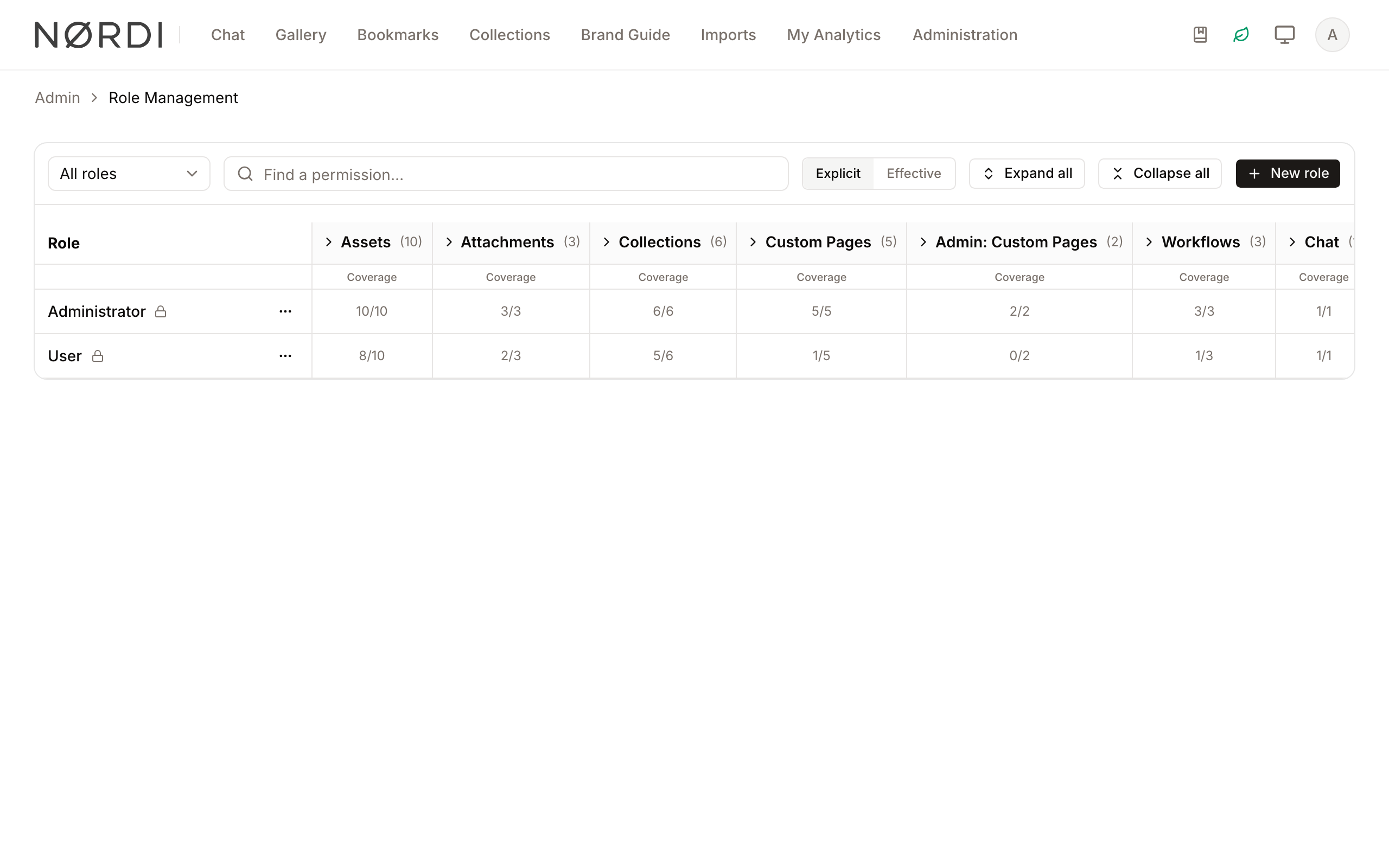
Page Overview
- Purpose: Manage roles, their hierarchy and their permissions in one view.
- When to use it: When you create an access level, change what a role can do, or check what each role ends up with.
- Where to find it: Administration → Role Management, under Identity & Access. The page title and the breadcrumb read Role Management.
- What you can do here:
- See every role and its permissions in the matrix.
- Set a permission to Inherit, Allow or Deny in a cell.
- Switch between Explicit (what each role sets itself) and Effective (what each role ends up with).
- Create, rename, re-parent, duplicate and delete roles.
- Look up what a permission allows in the Permission reference below.
Page Layout
- Toolbar (top): a row filter (All roles, Custom roles, System roles), the Find a permission… search, the Explicit / Effective switch, Expand all, Collapse all and the New role button.
- The matrix (main area):
- Rows are roles. The first column stays in view when you scroll sideways. It shows the role's name, indented under its parent role.
- An icon next to a role's name means something is restricted for you on that role. A lock means you cannot change the role. An information icon means you can change it, but one action (duplicate or delete) is not available. Hover the icon to read the reason.
- Columns are permissions, grouped by category. Click a category header to open or close it. Hover a permission's name to read its description.
- A closed category shows a Coverage count for each role, for example
6/9: six of the nine permissions in that category are allowed for the role. - Each editable cell has three buttons: Inherit, Allow, Deny.
- Row menu (⋮): Edit details, Duplicate and Delete. An entry is left out when the action would be refused.
- Save bar (bottom): appears when you have unsaved changes. It shows how many changes are pending and how many roles they affect, with Discard and Save changes.
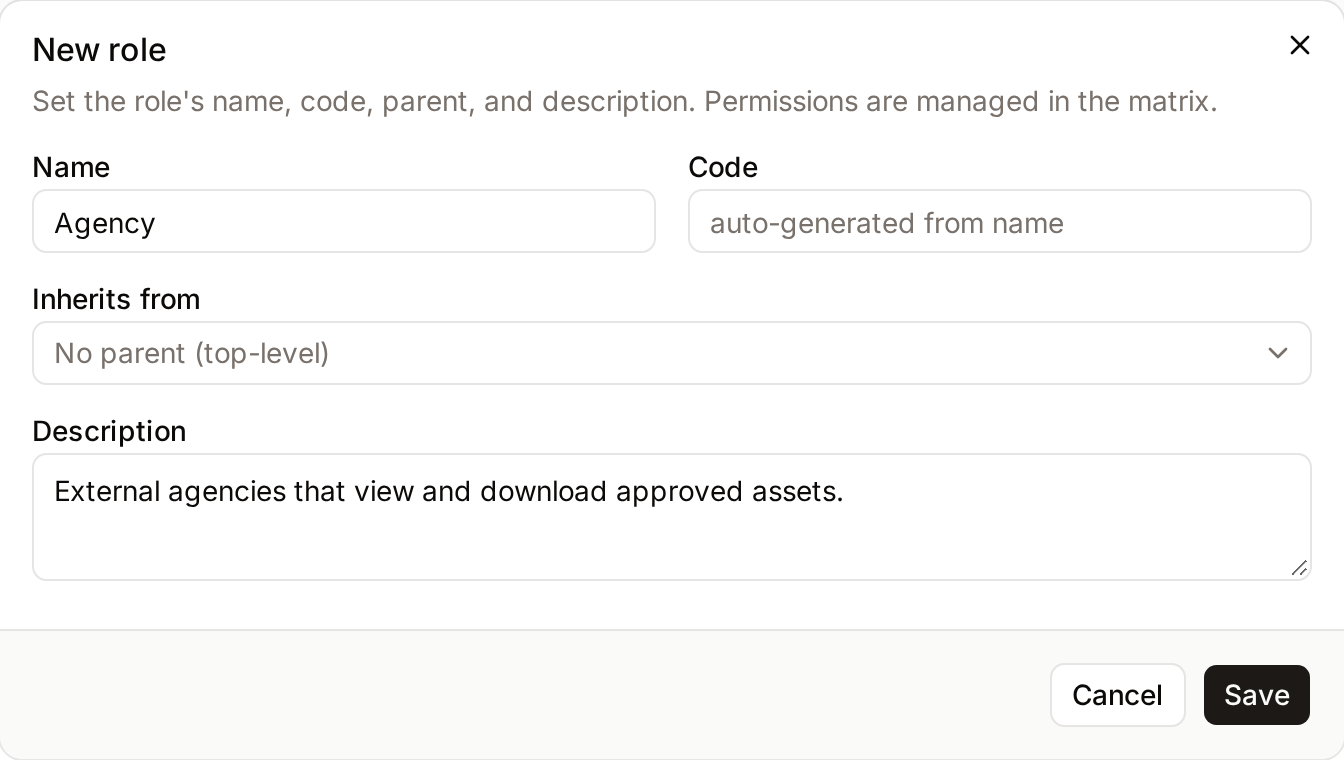
- Role dialog: opens for a new role or for Edit details. It holds the name, code, parent and description. Permissions are set in the matrix, not in the dialog.
How a permission is decided
Freedam decides each permission for a person in this order:
- The role's own setting. If the role sets the permission to Allow or Deny, that is the answer for this role.
- Otherwise, the parent role. If the role is set to Inherit, Freedam reads the parent role, then the parent's parent, up the chain, and takes the first Allow or Deny it finds.
- Otherwise, not allowed. If no role in the chain sets the permission, the role does not have it.
- Deny wins across roles. If a person holds several roles and any one of them ends up with Deny, the person does not have the permission, whatever the other roles allow.
A Deny on a role also overrides an Allow on its parent. This is how you build a restricted role: inherit from a broader role and deny what must be removed.
Main Features
The Permissions Matrix
- What it's for: Viewing and setting the permissions of every role in one grid.
- Typical use: Denying Delete assets on one role while checking that another role still has it.
- Result: Changes are made in the cells and applied together when you click Save changes.
Role Hierarchy and Inheritance
- What it's for: Giving a role a parent, so that it takes every permission it does not set itself from that parent.
- Typical use: An "Agency Partner" role that inherits from User and denies uploading and sharing.
- Result: Child roles appear indented under their parent. An Inherit button shows what the parent chain gives, so you see the result before you change anything.
Collapsible Categories and Coverage
- What it's for: Keeping a wide grid readable.
- Typical use: Closing the categories you are not working on.
- Result: A closed category shows the coverage count of each role. The count includes your unsaved changes. Your open and closed categories are remembered in your browser.
Role Duplication
- What it's for: Creating a role from an existing one.
- Typical use: Copying an "Editor" role to make a "Junior Editor" with fewer permissions.
- Result: A new role named "name (Copy)" is created. It inherits from the original and repeats the original's own settings. The Edit details dialog opens on the copy so you can rename it straight away.
Detailed Feature Documentation
Filtering and finding permissions
- Purpose: Show only the roles and permissions you are working on.
- Where to find it: The toolbar at the top of the page.
How to use it:
- Use the row filter to show All roles, Custom roles or System roles. A role with unsaved changes stays visible whatever the filter.
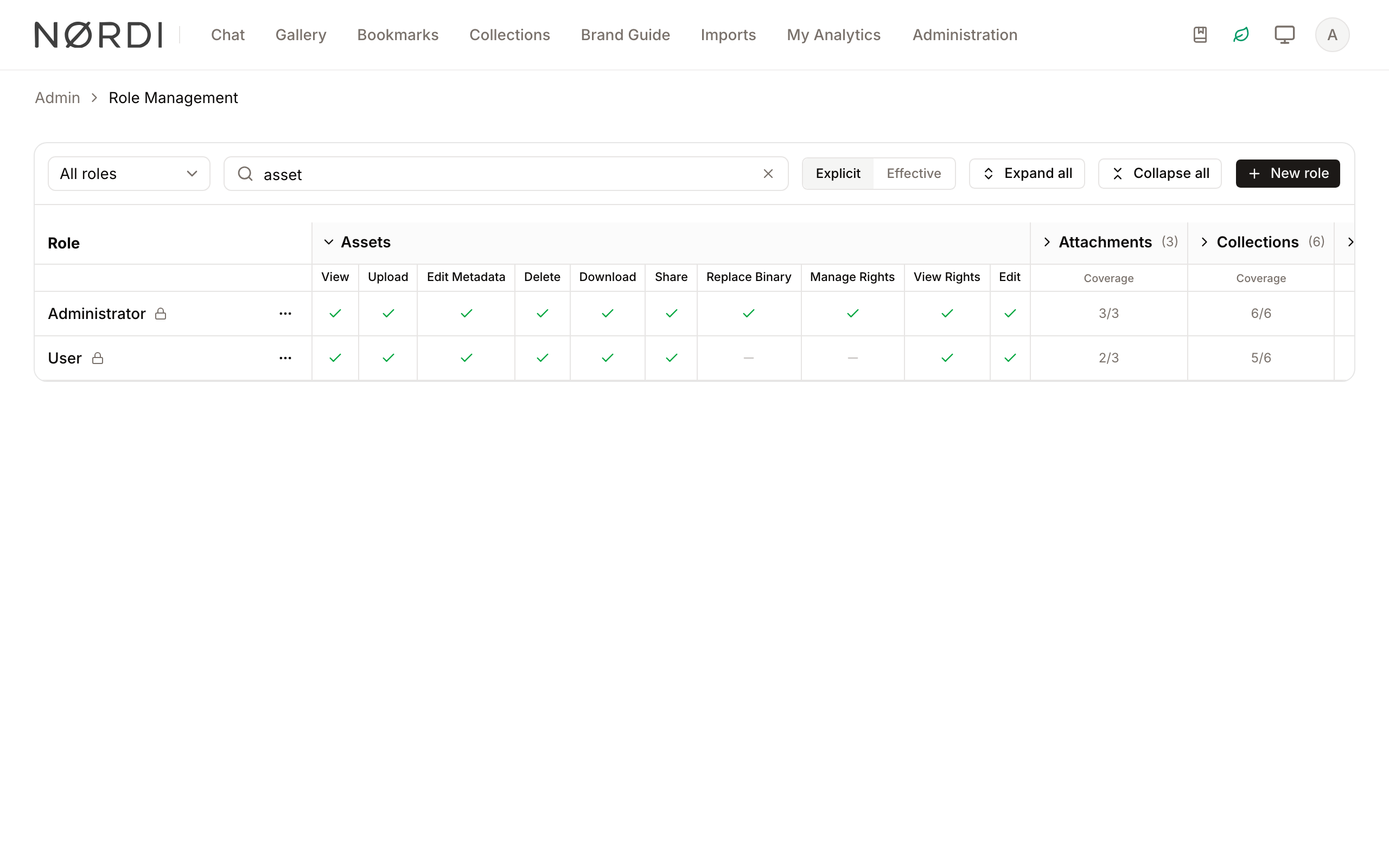
- Type in Find a permission…. Every category that contains a matching permission opens, and the others close. While a search is active, category headers cannot be clicked: clear the search to open or close a category yourself.
- Click the X in the search field to clear it. The categories return to the state they had before the search.
- Use Expand all or Collapse all to open or close every category.
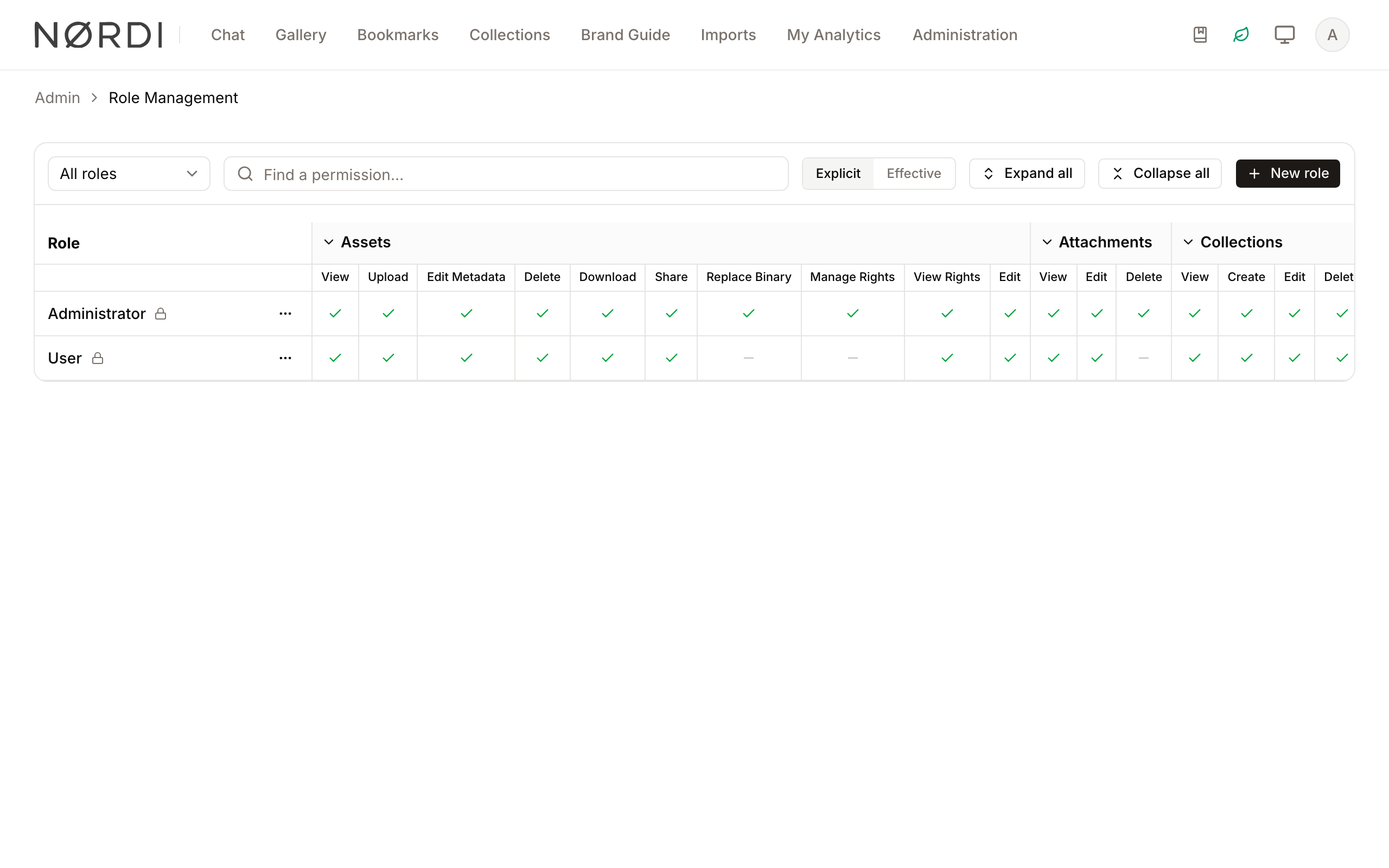
Setting a permission (Inherit / Allow / Deny)
- Purpose: Define what a role can do.
- Where to find it: Any cell in an open category, on a role you are allowed to change.
- What you'll see: Three buttons in each cell.
How to use it:
- Open the category by clicking its header.
- In the role's row, click one of the three buttons:
- Inherit: the role takes what its parent chain gives. The button shows that result, a green check for allowed or a red sign for denied, so you know what Inherit means for this role. A dash means no role in the chain sets the permission.
- Allow: the role has the permission.
- Deny: the role does not have the permission, even if its parent allows it.
- Repeat for other cells and other roles. Each changed cell gets an amber outline.
- Click Save changes in the save bar to apply everything, or Discard to drop your changes.
If the Allow button of a cell is greyed out, you do not hold that permission yourself, so you cannot allow it. See What you cannot change.
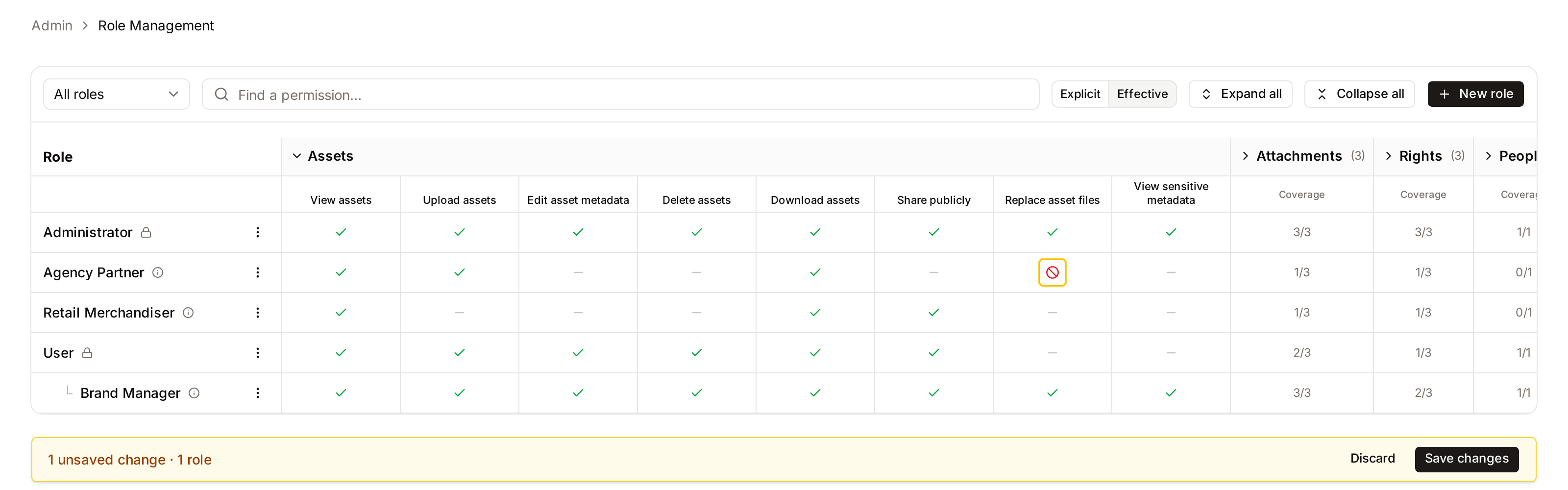
Explicit and Effective views
- Purpose: Tell apart what a role sets itself from what it ends up with.
- Where to find it: The Explicit / Effective switch in the toolbar.
- What you'll see:
- Explicit (default) shows what each role sets itself, with the three buttons. This is the view you edit in.
- Effective shows one result per cell: allowed, denied or not set, after reading the parent chain. Hover a cell to see which role the result comes from. This view is read-only.
Both the Effective view and the Coverage counts include your unsaved changes. A cell whose result depends on an unsaved change has an amber outline, and its tooltip ends with "not saved". You can therefore check the result of a set of changes before you save them.
Unsaved changes
- On a cell: an amber outline.
- On a closed category: the category header shows the number of unsaved changes inside it, and the coverage cell of each affected role turns amber.
- In the save bar: the total, for example "3 unsaved changes · 2 roles".
- When you leave the page: Freedam asks for confirmation with the dialog Unsaved permission changes. Choose Stay on this page to keep your changes, or Leave without saving to drop them. Closing or reloading the browser tab triggers the browser's own warning.
If a save is refused, nothing is saved. The save bar shows "Not saved." followed by the reason, and your changes stay in the grid so you can correct them. The reasons are listed in Troubleshooting.
Creating and editing a role's details
- Purpose: Set a role's name, code, parent and description.
- Where to find it: The New role button, or the ⋮ menu on a role's row, then Edit details.
How to use it:
- Click New role, or open a role's ⋮ menu and choose Edit details.
- Fill in the Name. Leave the Code empty on a new role to have it generated from the name. On an existing role, the code stays as it is unless you type another one.
- Choose a parent under Inherits from, or keep No parent (top-level). A role cannot inherit from itself or from one of its own descendants, so those roles are not listed.
- Optionally add a Description.
- Click Save, then set the role's permissions in the matrix.
When a change is refused, the dialog stays open and shows the reason at the top or under the field concerned.
Duplicating a role
- Open the ⋮ menu on the role's row and choose Duplicate.
- The copy is created and its Edit details dialog opens. Rename it, change its parent if needed, and click Save.
- Adjust the copy's permissions in the matrix and click Save changes.
The copy inherits from the original. You can duplicate a system role to get a custom role you can edit.
Deleting a role
- Open the role's ⋮ menu and choose Delete.
- Confirm in the Delete role dialog.
Delete is not offered for a system role, for a role that users still hold, or for a role that other roles inherit from. The information icon next to the role's name gives the reason, for example "Cannot delete this role because it is assigned to 4 users." See also What blocks deleting or re-coding a role.
Complete Workflows
Workflow: Set up a restricted role for external partners
- Goal: Give people from outside your company an account that can view and download assets but cannot upload, edit, delete or publish them, while your colleagues keep the standard User role.
- Prerequisites: The Manage roles permission for the role, and Manage system settings together with Assign roles to users for the Access Settings steps.
Steps:
- Open Administration → Role Management and click New role.
- Enter the Name "Agency Partner". Under Inherits from, choose User. Click Save.
- In the Agency Partner row, open these categories and set the following permissions to Deny:
- Assets: Upload assets, Edit asset metadata, Delete assets, Share publicly.
- Attachments: View attachments, Add and edit attachments.
- People: Edit face identities.
- Click Save changes in the save bar.
- Switch to Effective and read the Agency Partner row to confirm the result.
- Open Administration → Access Settings. Set Default Role to Agency Partner.
- Under Roles by Email Domain, type your company's own email domain (for example
nordi.com), choose the User role, and click Add. - Click Save Changes.
- Expected result:
- A new account whose email address is at your company's domain gets the User role.
- Every other new account gets the Agency Partner role. This applies to people who register themselves, people who sign in with SSO for the first time, and people who accept an invitation that sets no role.
- Existing accounts keep the role they have. To move an existing user to Agency Partner, change their role in User Management.
- What an Agency Partner can still do: everything User allows and Agency Partner does not deny.
- View the assets that the Asset Access Rules let them see, and read the rights policies attached to them.
- Download assets, when the asset access rules allow the download.
- Create collections, and edit, delete and share the collections they created. They can share a collection with users and groups of the workspace only: a public link also needs Share publicly, which is denied.
- Use chat.
- Use Studio on assets whose access rule allows AI editing. They see their results inside Studio. The Renderings list on the asset page needs View attachments, which is denied.
- View pages.
- Good to know: Once Agency Partner is the Default Role, it cannot be deleted and its code cannot be changed. Inviting someone with a role other than the default role needs Assign roles to users.
Workflow: Tightening one permission across several roles
- Goal: Deny one action on several roles at once.
- Prerequisites: The roles must be custom roles that you are allowed to change.
Steps:
- Type the permission's name in Find a permission…. Its category opens.
- In each role's row, click Deny in that column.
- Read the save bar: it shows the number of unsaved changes and the number of roles.
- Click Save changes.
- Expected result: The permission is denied on every role you edited, and on the roles that inherit from them unless they set Allow themselves.
Who can use it
The page needs the Manage roles permission. Without it, the page is not listed in the Administration menu and its address is refused.
Members of the Tenant Owners group who hold Manage roles can change every custom role without the restrictions below. Tenant administrators are managed on the User Groups page.
What you cannot change
If you hold Manage roles but are not a tenant administrator, three rules stop you from giving yourself or others more access than you have:
- Not your own role. You cannot change the role you hold, or a role it inherits from: not its details, not its parent, not its permissions. These rows show a lock and the message "You cannot change the role you hold or a role it inherits from. Ask a tenant administrator."
- Not a permission you do not hold. You cannot set a permission to Allow if you do not hold it yourself. The Allow button is greyed out. You also cannot switch a Deny back to Inherit when the parent role allows a permission you do not hold, because that would give the permission to the role. The refusal reads "You can only give a role permissions you hold yourself. You do not hold: …" and names the permissions.
- Not a parent that allows more than you hold. You cannot choose a parent role that allows a permission you do not hold. For the same reason you cannot duplicate such a role, because a copy inherits from its source, and Duplicate is left out of its menu.
System roles
User and Administrator are system roles. Nobody can change their name, code, parent or permissions, and nobody can delete them, tenant administrators included. Their rows show a lock and have no editable cells. To start from a system role, duplicate it and edit the copy.
What blocks deleting or re-coding a role
A role cannot be deleted while:
- users hold it,
- another role inherits from it,
- it is the Default Role in Access Settings,
- it is used in Roles by Email Domain in Access Settings,
- it is the role for new Google or Microsoft accounts (Role for new … accounts) in Access Settings.
In the last three cases the role's Code cannot be changed either, because Access Settings refers to the role by its code. The message names the setting to change first, for example "This role is the Default Role in Access Settings. Choose another default role there before deleting this role or changing its code."
Permission reference
One table per category, in the order the matrix shows them. The names are the ones shown in the column headers. The third column lists what else a person needs for the permission to be useful, and what the permission does not cover.
Two rules apply to every table:
- Roles decide actions, access rules decide assets. Which assets a person sees, previews and downloads, at which size and with which watermark, is decided by Asset Access Rules. A permission never gives access to an asset that the rules hide.
- Some features depend on your plan. A permission for a feature that your plan does not include has no effect.
Assets
| Permission | What it allows | What else is needed, and what it does not cover |
|---|---|---|
| View assets | Open the gallery, search and asset pages. | Asset access rules decide which assets the person sees. Needed by almost every other asset action. |
| Upload assets | Upload new files and duplicate an existing asset. | Required by the web uploader, the API and the MCP server. An API or MCP token that has the upload ability is still refused when its owner's role lacks this permission. Uploading into a collection also needs edit rights on that collection (see Edit own collections). |
| Edit asset metadata | Edit the metadata of any asset the person can see, one at a time or in bulk. | Also required for review mode and workflow status changes, linking assets, video thumbnails and subtitles, and for adding attachments, uploading renderings, social exports and assigning rights policies, each together with its own permission. It does not allow deleting assets or replacing their files. |
| Delete assets | Move assets to the trash and restore them from it. | Edit rights are not needed. Permanent deletion and emptying the trash need Manage system settings. Opening the trash screen needs Open the trash. |
| Download assets | Download assets. | The asset access rules decide, asset by asset, whether the download is allowed, at which sizes, with which watermark, and whether a request must be approved first. Without this permission nothing can be downloaded, whatever the rules allow: no download button, no bulk download or export, and no original file of videos and audio. A PDF still opens in the viewer. Sharing does not need it. |
| Share publicly | Create public links to an asset or to a selection of assets, and embed codes. | The person must be allowed to download the original of every asset in the share, without a watermark and without a download request. A public link to a collection needs this permission and Share own collections. Sharing a collection with users and groups of the workspace does not need it. |
| Replace asset files | Upload a new version of an asset's file and restore an earlier version. | The person must be able to see the asset. Downloading an earlier version also needs Download assets and an unrestricted download of the original. Also required to replace a matched asset when resolving a duplicate during upload. |
| View sensitive metadata | See, filter on and edit the values of metadata fields marked as sensitive. | Without it these fields are hidden everywhere: asset pages, gallery cards, filters, exports, public links, the API and chat. Free-text search never matches sensitive values, for anyone; use a field filter. Only the Administrator role has this permission by default. |
Attachments
| Permission | What it allows | What else is needed, and what it does not cover |
|---|---|---|
| View attachments | View and download the attachments of assets and collections, and the renderings of assets. | The person must be able to see the asset or the collection. A private attachment is shown only to the person who uploaded it, to the owner of the asset or the creator of the collection, and to holders of Manage users. Without this permission the Attachments tab and the Renderings list are hidden. |
| Add and edit attachments | Add attachments and renderings, and edit them. Create a workspace-wide attachment type. | On an asset, also needs Edit asset metadata. On a collection, only the person who created the collection can add attachments, whatever their other permissions. |
| Delete attachments | Delete attachments and renderings. | Same conditions as Add and edit attachments: Edit asset metadata on an asset, creator only on a collection. |
Rights
| Permission | What it allows | What else is needed, and what it does not cover |
|---|---|---|
| Manage rights policies | Create, edit and delete rights policies, and see the rights usage logs. | Does not allow attaching a policy to an asset: that is Assign rights policies to assets. |
| Assign rights policies to assets | Attach a rights policy to an asset and remove it. | Also needs Edit asset metadata. Does not need Manage rights policies: the person chooses among the existing active policies. |
| View the rights policies of assets | Read the rights policy attached to an asset. | Read only. |
People
| Permission | What it allows | What else is needed, and what it does not cover |
|---|---|---|
| Edit face identities | Create, rename and delete people, and assign a person to a detected face or remove them from it. | Edit asset metadata is not needed. Seeing people and faces needs only View assets. |
Collections
| Permission | What it allows | What else is needed, and what it does not cover |
|---|---|---|
| View collections | Open the collections area. | The person sees public collections, the collections they created and the collections shared with them. Holders of Manage users see every active collection. |
| Create collections | Create collections. | Creating a collection inside another one requires having created the parent collection, or holding Manage other people's collections. |
| Edit own collections | Rename, move and reorganise collections, and add or remove their assets. | Applies to collections the person created, unless they also hold Manage other people's collections. Reordering a group of collections requires edit rights on every collection in the group. |
| Delete own collections | Delete and restore collections. | Applies to collections the person created, unless they also hold Manage other people's collections. |
| Share own collections | Share collections with users and groups of the workspace. | A public link to a collection also needs Share publicly. Without it, the share dialog offers only users and groups of the workspace. Applies to collections the person created, unless they also hold Manage other people's collections. A collection that was shared with the person cannot be shared onward by them. |
| Manage other people's collections | Extend the edit, delete and share permissions the person holds to collections created by others. | Allows nothing on its own: the person still needs Edit own collections, Delete own collections or Share own collections for each action. Never covers another person's personal collections under My Collections, nor a collection the person can see only because it was shared with them. |
Sharing
| Permission | What it allows | What else is needed, and what it does not cover |
|---|---|---|
| Manage all shares | Open the shares administration screen, and view, change or revoke the public links and internal shares of any user. | Everyone can manage the shares they created themselves without this permission. |
| List everyone's shares | Include other people's shares when listing shares. | Does not open the shares administration screen, which needs Manage all shares. |
Pages and branding
| Permission | What it allows | What else is needed, and what it does not cover |
|---|---|---|
| View pages | View pages in the page editor and on the dashboard. | Read only. |
| Create pages | Create and duplicate pages. | Duplicating a page also needs View pages. |
| Edit and publish pages | Edit pages, their content and their translations, and change their status, which includes publishing. | A person can always edit the pages they created, with or without this permission. Editing an archived page also needs Manage page spaces. |
| Delete pages | Delete pages that are not published. | Deleting a published page also needs Delete published pages or Manage page spaces. Protected pages cannot be deleted. |
| Delete published pages | Delete a page that is published. | Only together with Delete pages. It does not allow publishing: that is Edit and publish pages. |
| Manage page spaces | Create, edit, reorder and delete page spaces. | Together with the edit and delete permissions, also allows editing archived pages and deleting published pages. |
| Manage page themes | Create, edit and delete page themes, and choose the default theme. | |
| Manage branding | Change logos, sign-in backgrounds, the brand guide, brand assets and typefaces. | |
| Edit the dashboard | Edit the dashboard layout, publish it and restore an earlier version. |
Workflows
| Permission | What it allows | What else is needed, and what it does not cover |
|---|---|---|
| View workflow history | See the list of workflow status changes on an asset, in the History tab of the asset page: who changed the status, from what to what, and when. | Needs View assets, and applies to the assets the person can see. The list appears only on assets whose asset class has a workflow. It does not allow changing a status: that needs Edit asset metadata. |
| Manage workflows | Create, edit, duplicate, activate and delete workflows and their transition rules. | Does not move an asset from one status to another: that needs Edit asset metadata and a transition that exists in the workflow. Assigning a workflow to an asset class needs Manage asset classes. |
Chat and AI
| Permission | What it allows | What else is needed, and what it does not cover |
|---|---|---|
| Use chat | Start chat conversations and see the Chat entry in the menu. | Chat searches and quotes only the assets the person can see. |
| View chat usage | See everyone's chat conversations, usage per user and chat costs in AI Operations. | Also needs Manage AI operations, which opens AI Operations. |
| Manage AI operations | Open AI Operations and choose which model runs each AI operation. | The other AI Operations permissions need this one. Does not show costs: that is View AI costs. |
| View AI costs | See AI costs by operation, provider and model in AI Operations. | Also needs Manage AI operations. |
Studio
| Permission | What it allows | What else is needed, and what it does not cover |
|---|---|---|
| Use Studio | Open an asset in Studio, run Studio skills and save the resulting renderings. | The person must be able to see the asset, the asset access rule that applies to them must allow AI editing, and the asset's rights policy must not forbid modification. Saving a result needs neither Edit asset metadata nor Add and edit attachments. A person works only in the Studio sessions they started. |
| View other people's Studio work | See the Studio sessions and renderings of other people. | Only for assets the person can see. The Studio audit screens in AI Operations also need Manage AI operations. |
| Manage Studio skills | Create, edit, reorder, test and delete Studio skills. |
Users and access
| Permission | What it allows | What else is needed, and what it does not cover |
|---|---|---|
| Manage users | Create, edit, deactivate, delete and import user accounts. | Changing a user's roles needs Assign roles to users. Holders also see every active collection, private attachments and all upload batches; in another user's batch they see only the assets their access rules show them. |
| Manage roles | Create, edit, duplicate and delete roles and set their permissions. | A person who is not a tenant administrator cannot change their own role or allow a permission they do not hold. See What you cannot change. Giving a role to a user needs Assign roles to users. |
| Assign roles to users | Change the roles of existing users, and choose a role other than the default one for new accounts. | Nobody can change their own roles. A role can only be given by someone who holds every permission it allows, inherited ones included; tenant administrators are exempt. Choosing the Default Role, the Roles by Email Domain or the role for new SSO accounts in Access Settings needs this permission and Manage system settings. |
| Manage user groups | Create, edit and delete user groups and manage their members. | Only tenant administrators change the members of the Tenant Owners group. |
| Review account requests | Review requests for a new account and for reactivating an account. | Approving with a role other than the default one also needs Assign roles to users. Approving a reactivation also needs at least the administration permissions of the returning account. |
| Review asset requests | Review requests to download assets, and renderings submitted for approval. | |
| Invite users | Send, resend and cancel invitations. | Invitations must be switched on in Access Settings. Inviting with a role other than the default one also needs Assign roles to users. |
| View audit logs | See the rights usage logs and export them, and ask the assistant for recent changes. | Holders also see all upload batches. It does not open Role Management. |
| Manage asset access rules | Create, edit, test and delete the rules that decide who can see, preview and download assets. | |
| Manage terms of use | Write and publish versions of the terms of use, and see and export the record of who accepted them. |
Library setup
| Permission | What it allows | What else is needed, and what it does not cover |
|---|---|---|
| Manage asset classes | Create, edit, duplicate and delete asset classes, and assign them a workflow. | |
| Manage collection types | Create, edit and delete collection types. | |
| Manage collection rules | Create, edit, test and delete the rules that place assets in collections. | |
| Manage metadata fields and forms | Create and edit metadata fields and field rules, and arrange the asset forms in Form Studio. | |
| Manage vocabularies | Create, edit and delete vocabularies and their terms. | |
| Manage watermarks | Create, edit and delete watermarks. | |
| Manage and use templates | Create, edit and delete templates and template sets, and generate images from templates. | Generating from a template needs this same permission: there is no separate "use templates" permission. |
| Manage automation and naming rules | Create, edit and delete automation rules, filename parsing rules and export naming rules. | Collection rules and asset access rules have their own permissions. |
| Manage import sources | Create, edit, run and delete import sources, and handle their unmatched items. | |
| View import sources | See import sources and their runs. | Read only. |
| Run import sources | See import sources, start a run, and apply or cancel it. | Does not allow editing the sources. |
System
| Permission | What it allows | What else is needed, and what it does not cover |
|---|---|---|
| Manage system settings | Change access settings, languages, the glossary, search configuration, display defaults and the other system settings. | Also allows deleting assets permanently, emptying the trash and deleting other people's comments. Choosing roles in Access Settings also needs Assign roles to users. |
| Read analytics through the API | Create an API token that can read analytics. | It opens no screen. Creating tokens needs Manage API access. |
| Manage collections in bulk | Show the bulk management controls in the collections area. | The actions themselves need Edit own collections or Delete own collections. |
| View system health | Open System Health, with its bulk operations and upload batches. | The analytics dashboard has its own permission. |
| Open the analytics dashboard | Open the analytics dashboard, with its usage statistics, insights and per-user sessions. | Also shows who viewed or downloaded an asset. The dashboard also needs the Analytics feature of your plan. |
| Scan the library for duplicates | Scan the library for duplicate assets and see the results. | Deleting the duplicates of a group also needs Delete assets. |
| Manage API access | Manage API tokens and webhooks, see API usage, and open the MCP server page. | A token never gives more than its owner's role allows. |
| Open the trash | Open the trash. | Listing needs View assets, restoring needs Delete assets, and permanent deletion needs Manage system settings. |
| Clean up orphaned assets | List orphaned assets, export the list and delete them. | Listing needs View assets. Deleting also needs Delete assets. |
Limits and guardrails
-
System roles are locked: User and Administrator cannot be changed or deleted by anyone. They can be duplicated.
-
Your own role is locked unless you are a tenant administrator. See What you cannot change.
-
A role in use cannot be deleted: not while users hold it, while another role inherits from it, or while Access Settings names it. See What blocks deleting or re-coding a role.
-
No circular inheritance: a role cannot inherit from itself or from one of its own descendants.
-
Administrator seat limit: your plan limits the number of administrators. A person counts as an administrator as soon as their role allows at least one administration permission:
- every permission in the Sharing, Users and access, Library setup and System categories,
- Manage rights policies,
- Manage page spaces, Manage page themes, Manage branding and Edit the dashboard,
- Manage AI operations and View AI costs.
Manage workflows, View chat usage, View other people's Studio work and Manage Studio skills do not count.
-
The seat limit applies to role changes too: Freedam refuses a permission change, or a new parent role, that would turn more people into administrators than your plan allows. It also refuses to give a role with administration permissions to a new account when no seat is free: on role assignment, import, invitation, account request approval, first SSO sign-in and self-registration. A person who registers themselves and would get such a role, through the Default Role or Roles by Email Domain, cannot create their account until a seat is free.
What happens behind the scenes
- Inheritance is applied everywhere: the same rule that the Effective view shows is used when a person opens a screen or performs an action, in the web app, the API, the MCP server and the admin assistant.
- Changes are saved together: the cell changes of one save are applied as a whole. If one of them is refused, none is saved.
- Changes apply to existing users: everyone who holds a role gets its new permissions on their next request. Menus and buttons that the role no longer allows disappear, and the server refuses the action if it is attempted anyway.
Tips and Best Practices
- Start from a parent: set common permissions on a parent role and leave the children on Inherit. Deny or allow only what differs.
- Check before you save: switch to Effective with your changes still unsaved to read the result, then save.
- Use the reference for dependencies: before you deny Edit asset metadata, read its row above. Several other actions depend on it.
- Close categories to scan, open them to edit: the coverage counts show at a glance which roles have access to an area.
- Combine with access rules: a restricted role limits actions. To limit which assets a group of people sees, add an asset access rule for that role.
Troubleshooting
Issue: A role's cells cannot be edited
- Symptoms: The cells show one icon instead of three buttons, and a lock sits next to the role's name.
- Cause: You are in the Effective view, or the role is a system role, or it is the role you hold or a role yours inherits from.
- Fix: Switch to Explicit. For a system role, duplicate it and edit the copy. For your own role, ask a tenant administrator.
Issue: The Allow button is greyed out
- Symptoms: In a cell, Inherit and Deny work but Allow cannot be clicked. Its tooltip reads "You do not hold this permission, so you cannot allow it."
- Cause: You do not hold that permission yourself and you are not a tenant administrator.
- Fix: Ask a tenant administrator to make the change, or to give your role the permission first.
Issue: Save changes is refused
- Symptoms: The save bar shows "Not saved." followed by a reason, and the changes stay in the grid.
- Causes and fixes:
- "You can only give a role permissions you hold yourself. You do not hold: …": remove the changes on the permissions named, or ask a tenant administrator.
- "You cannot change the role you hold or a role it inherits from. Ask a tenant administrator.": discard the changes on that role.
- "System roles cannot be modified.": discard the changes on that role and edit a copy.
- "Your plan allows a maximum of N administrators. This change would give administrator access to more people than that.": the change adds an administration permission to a role that many users hold. Give the permission to a smaller role, free an administrator seat first, or change your plan in Plan & Usage.
Issue: The role dialog refuses a parent role
- Symptoms: Under Inherits from, an error appears after you click Save.
- Cause: The parent allows permissions you do not hold ("The role … allows permissions you do not hold, so you cannot choose it as a parent role"), the choice would make a role inherit from one of its own descendants, or the new parent would turn more people into administrators than your plan allows.
- Fix: Choose another parent, or ask a tenant administrator.
Issue: Cannot delete a role or change its code
- Symptoms: Delete is missing from the role's menu, or a red message appears after you confirm, or the dialog refuses a new Code.
- Cause: It is a system role, users hold it, another role inherits from it, or Access Settings names it.
- Fix: Give its users another role in User Management, re-parent or delete its child roles, and choose another role in Access Settings for Default Role, Roles by Email Domain and the role for new SSO accounts. System roles cannot be deleted.
Issue: Duplicate is missing from a role's menu
- Symptoms: The ⋮ menu shows no Duplicate entry, and the information icon next to the role's name names permissions you do not hold.
- Cause: The role allows permissions you do not hold. A copy would inherit them.
- Fix: Duplicate a role with fewer permissions, or ask a tenant administrator.
Issue: A user still cannot perform an action you allowed
- Symptoms: You set a permission to Allow and saved, but a user with that role still cannot perform the action.
- Causes and fixes:
- The action needs a second permission. Read the permission's row in the Permission reference. For example, a public link to a collection needs Share publicly and Share own collections, and adding an attachment to an asset needs Add and edit attachments and Edit asset metadata.
- The permission covers only what the person created. Edit own collections, Delete own collections and Share own collections apply to other people's collections only together with Manage other people's collections.
- The user holds another role that denies the permission. Deny on any of a person's roles wins.
- An asset access rule hides the asset or blocks the download or AI editing. Test the user in the Access Tester of Asset Access Rules.
- Your plan does not include the feature.
Issue: A new child role has fewer permissions than expected
- Symptoms: A role that inherits from another does not get one of its parent's permissions.
- Cause: The child role, or a role between it and the parent, sets the permission to Deny.
- Fix: Switch to Effective and hover the cell to see which role the result comes from. Set that role's cell to Inherit or Allow.