User Settings
The User Settings page is your central hub for managing your identity and experience within Freedam. From this interface, you can update your personal information, secure your account with a new password, and configure how the application handles multilingual content.
This feature is available to all users and allows for individual customization of application behavior without affecting other team members.

Page Overview
- Purpose: To provide a unified interface for account management and personal application preferences.
- When to use it: Use this page when you need to change your email, update your password, link a Google or Microsoft account, or change the interface language.
- What you can do here:
- Update your display name and contact email.
- Change your account password.
- Link or unlink a Google or Microsoft account for Single Sign-On (SSO).
- Set a primary interface language and enable additional languages for metadata.
- Search for and customize specific application preferences.
Page Layout
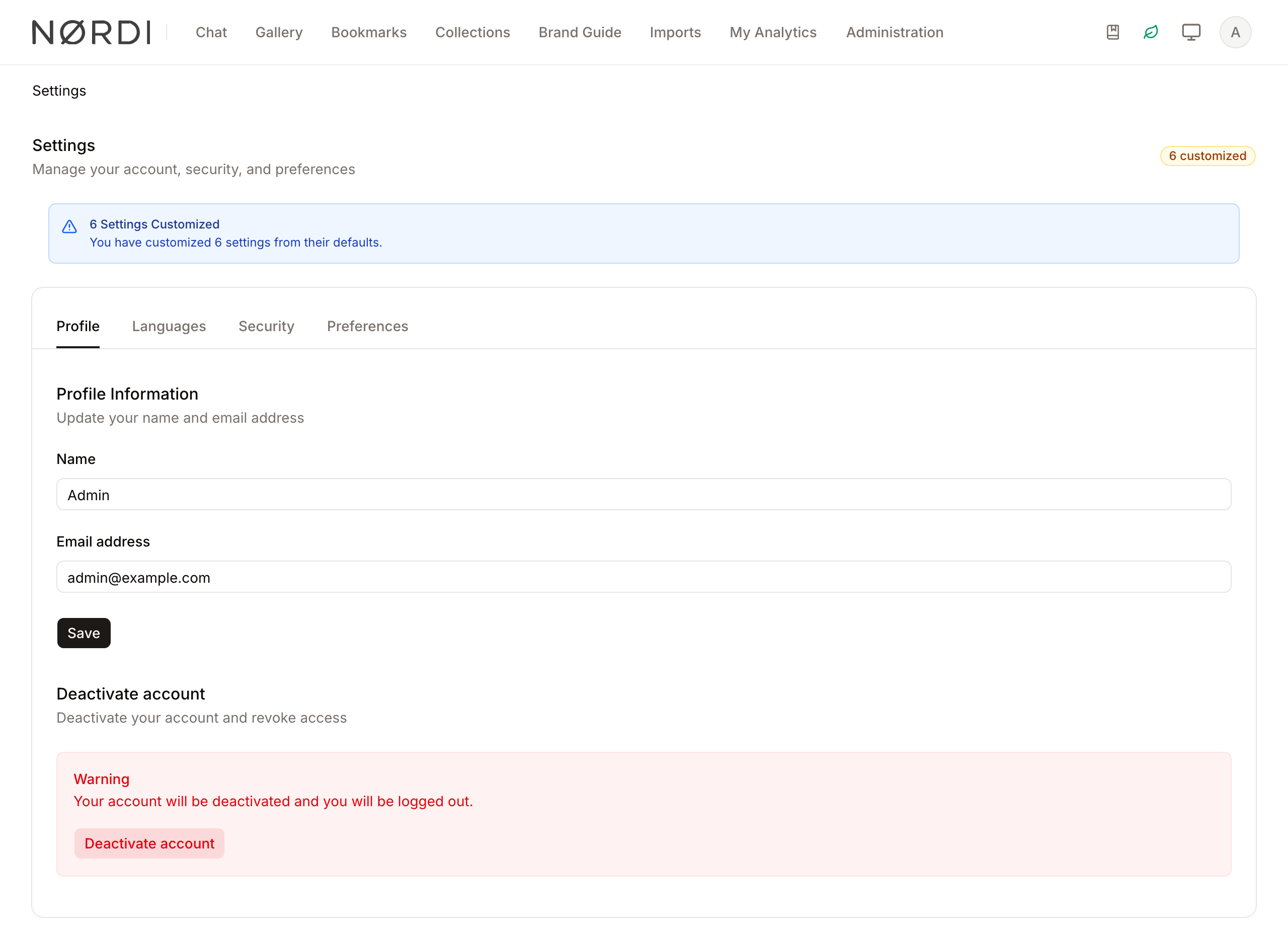
- Top bar: Displays the "Settings" title and a summary badge showing how many settings you have customized from their defaults.
- Main area: A tabbed interface organized into four primary sections: Profile, Languages, Security, and Preferences.
- Warning Banner: Appears at the top of the page if you have modified settings, providing a quick summary of your customizations.
Main Features
Profile Management
- What it's for: Keeping your identity and contact information up to date.
- Typical use: Changing your name after a legal change or updating your email address for notifications.
- Result: Your new name appears throughout the app, and system emails are sent to the updated address. If you change your email, Freedam asks you to verify the new address before it's considered confirmed.
Language Preferences
- What it's for: Controlling the language of the interface and enabling multilingual metadata support.
- Typical use: Setting English as your primary language while enabling Spanish to view and edit asset descriptions in both languages.
- Result: The interface reloads in your chosen language, and new language options appear in asset editors.
Security & SSO
- What it's for: Protecting your account and managing external login methods.
- Typical use: Rotating your password or linking a Google or Microsoft account for faster logins.
- Result: Your login credentials are updated immediately. Recent sign-ins from other browsers or devices are listed so you can spot anything unfamiliar.
Advanced Preferences
- What it's for: Fine-tuning specific application behaviors across various categories like Search or AI.
- Typical use: Searching for a specific behavior (e.g., "Search") and overriding the system default.
- Result: A "Modified" badge appears next to the setting, and the app behavior changes specifically for your account.
Detailed Feature Documentation
Profile Information
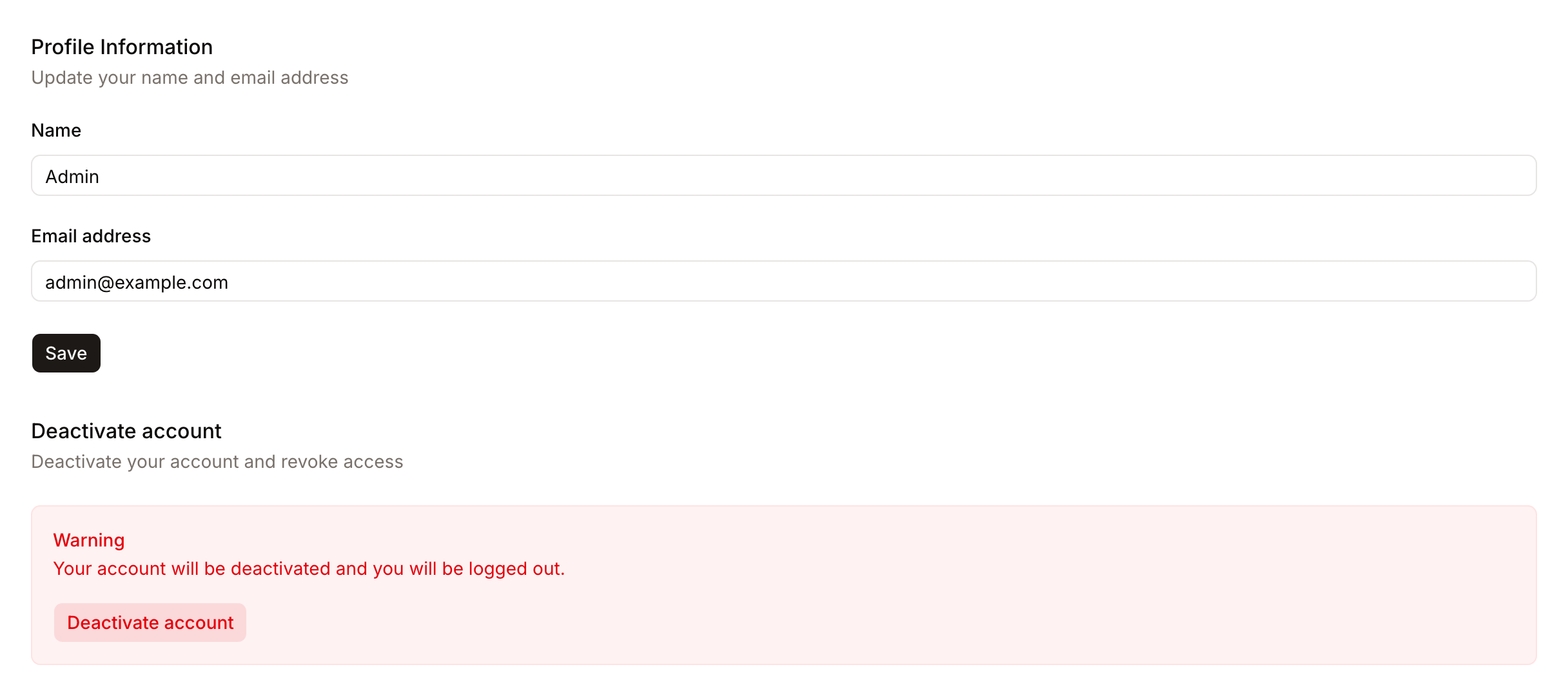
- Purpose: Manage your basic account identity.
- Where to find it: In the Profile tab.
- What you'll see: Fields for your name and email, along with a "Save" button. If your email is unverified, a verification notice will appear.
How to use it:
- Enter your name in the Full name field.
- Enter your email in the Email address field.
- Click Save.

Language Selection
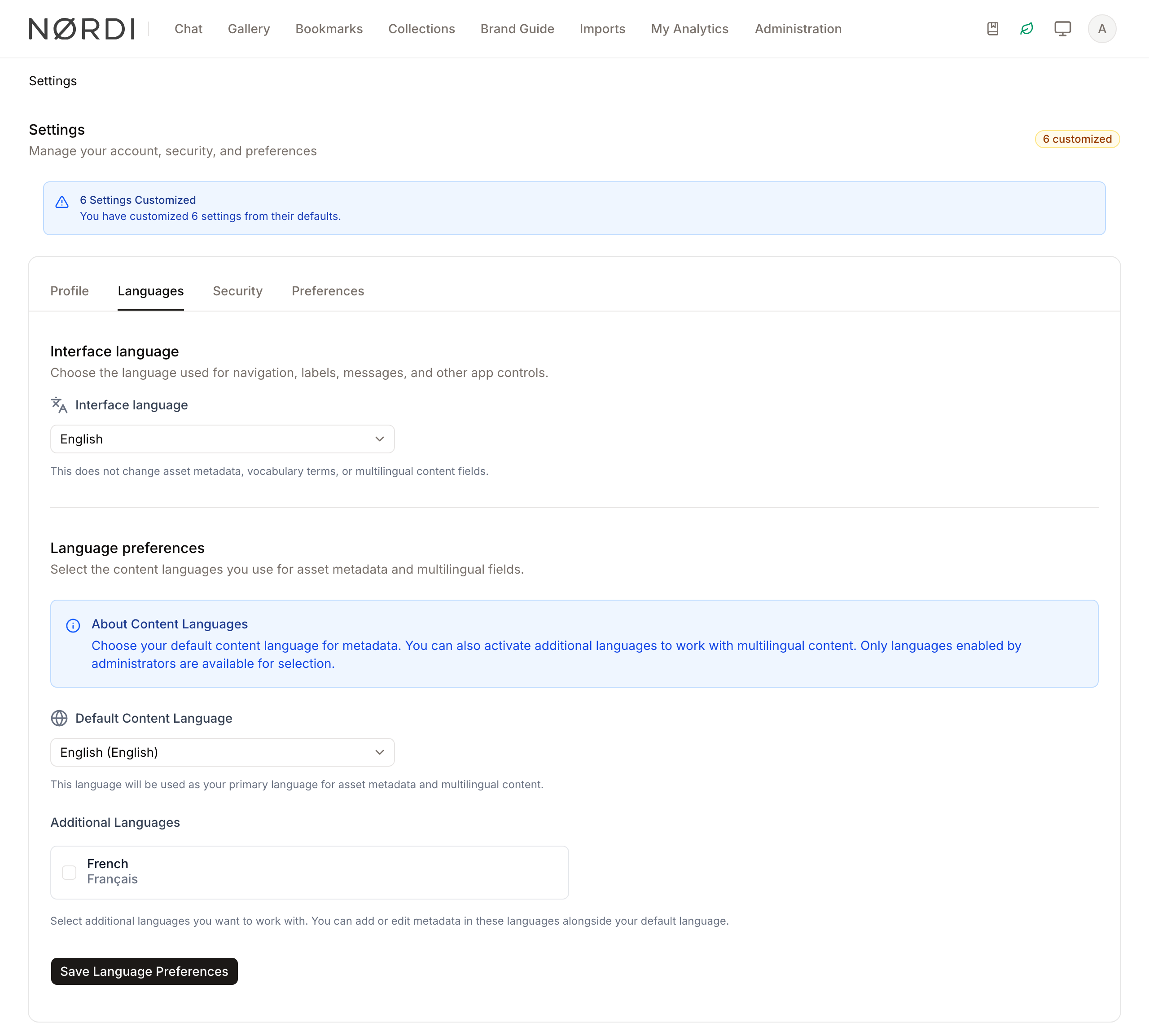
- Purpose: Set your primary and secondary working languages.
- Where to find it: In the Languages tab.
- What you'll see: A dropdown for your Default Language and a grid of checkboxes for Additional Languages.
How to use it:
- Select your primary language from the Default Language dropdown.
- Check any boxes in the Additional Languages grid for other languages you use.
- Click Save Language Preferences.

Password Update
- Purpose: Change your account password for better security.
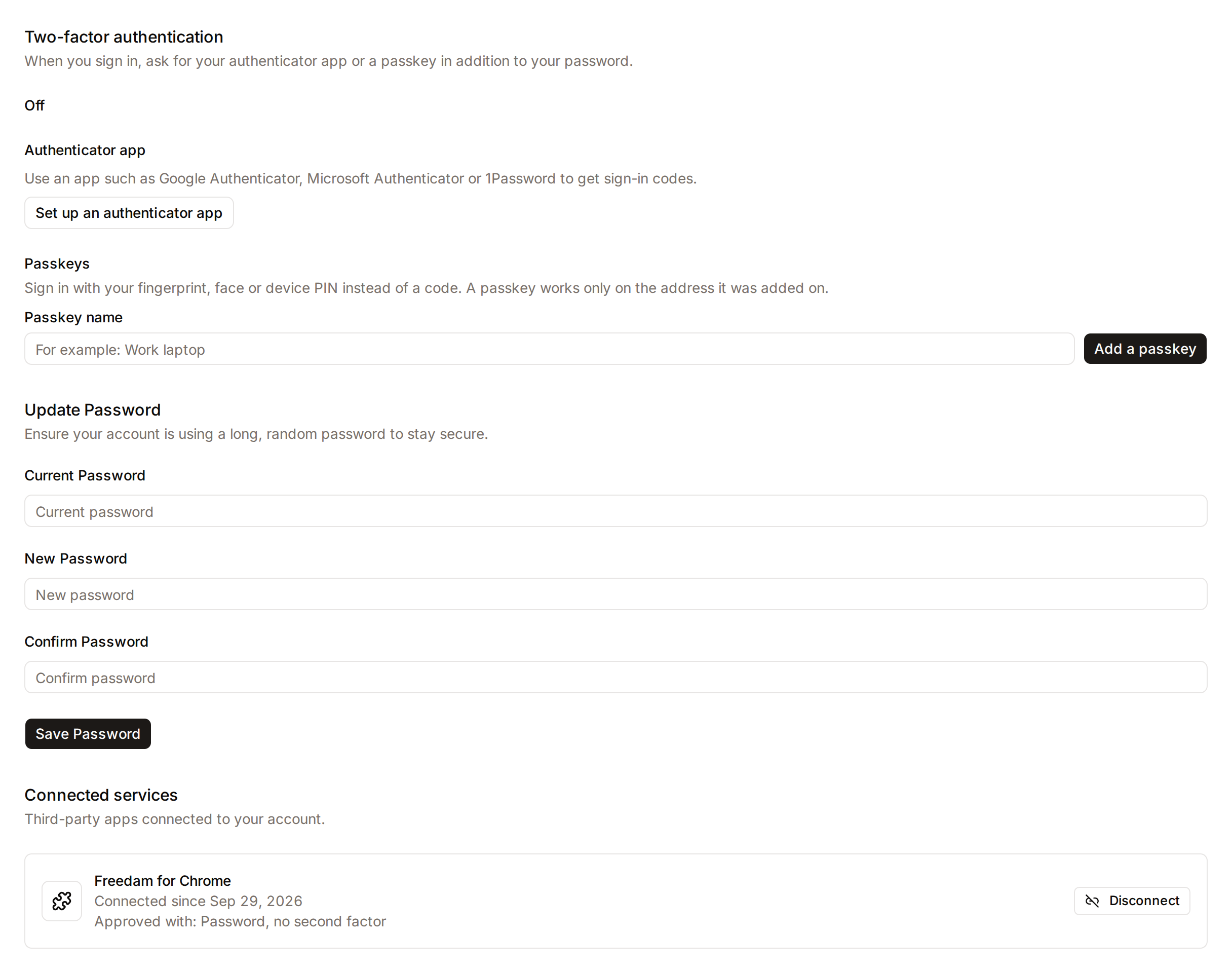
- Where to find it: In the Security tab under "Update password".
- What you'll see: Three password fields: Current, New, and Confirm.
How to use it:
- Type your current password in the Current password field.
- Type a new, secure password in the New password field.
- Re-type the new password in the Confirm password field.
- Click Save password.
Preferences Search
- Purpose: Quickly find specific settings across all categories.
- Where to find it: In the Preferences tab.
- What you'll see: A search bar and a Category filter dropdown.
How to use it:
- Type a keyword (e.g., "AI") into the Search settings... field.
- (Optional) Select a specific category from the Category dropdown to narrow results.
- Click on any result to jump directly to that setting.
Complete Workflows
Workflow: Linking a Google or Microsoft Account
- Goal: Enable Single Sign-On (SSO) using credentials you already have.
- Prerequisites: A valid Google account, or a Microsoft account (Entra ID work/school, or personal).
Steps:
- Click the Security tab.
- Locate the Connected accounts section. It lists one row per provider your workspace has enabled — Google, Microsoft, or both.
- Click Connect next to the provider you want.
- Follow that provider's prompt to authorize your account.
- Expected result: The status changes to "Connected as [your email]" and a Disconnect button appears on that row.
- If it doesn't work: Ensure you aren't already signed into a different account with that provider in your browser.
You can link both providers to the same Freedam account. Each is independent: connecting Microsoft does not touch an existing Google link, and either one can then be used to sign in.
Workflow: Customizing an Application Preference
- Goal: Change a specific app behavior and save the change.
- Prerequisites: None.
Steps:
- Click the Preferences tab.
- Select a category card (e.g., Search & AI).
- Locate the specific setting and change its Value (e.g., toggle a switch to Enabled).
- Click the Save Changes button that appears at the top of the list.
- Expected result: A "Modified" badge appears on the setting, and a success message is displayed.
What syncs across devices
Your User Settings are tied to your account, not to the browser you're using. When you sign in from a new laptop, phone, or browser, Freedam automatically applies:
- Your name and email on your profile.
- Your default interface language and the additional languages you've turned on.
- Every personal preference you've customised in the Preferences tab (a "Modified" badge tells you at a glance which values you've overridden from the workspace default).
- Your connected account links — once you've connected Google or Microsoft, you can sign in with them from any device.
The Browser sessions area of the Security tab shows up to your ten most recent sessions (device, browser, IP, and last activity) so you can verify that only your own devices are signed in.
Limits and guardrails
- Password changes are rate limited: to protect your account, you can only submit the password-change form 6 times per minute. Going over shows a throttle error; just wait a minute and try again.
- Current password required: you must type your current password correctly to set a new one. The new password must also meet the workspace's strength rules and match the confirmation field.
- Email must be unique: you cannot change your email to an address already used by another Freedam account. Updates must be lowercase and at most 255 characters.
- Name: up to 255 characters.
- Re-verification on email change: the moment you save a new email, your previous "verified" status is cleared and a verification email is sent to the new address.
- Preferences are filtered for safety: not every workspace setting can be overridden personally. If an admin has locked a setting or marked it hidden from users, you'll see a clear message explaining that it isn't available for personal override.
- Unlinking can be blocked: if your workspace admin has turned on SSO enforcement, the Disconnect button on a linked account is disabled — removing it would lock you out. Workspace administrators are exempt and can still disconnect.
What happens behind the scenes
- Changing your password takes effect immediately for future sign-ins. It does not automatically sign you out of other browsers — use the session list in the Security tab if you want to review them.
- Connecting an account uses that provider's standard consent flow: you're redirected to Google or Microsoft, approve the scope, and are sent back to Freedam, which stores only the identifier it needs to recognise you next time.
- When you change a preference, Freedam logs the category, the old value, the new value, your IP address, the device you used, and an optional reason note. You can view your own change history from the Preferences tab; this makes it easy to retrace why an app behavior changed.
- The Reset actions (single setting, whole category, or all overrides at once) remove your personal overrides and hand control back to the workspace default. Nothing is deleted from the system — just your personal "on top of" layer.
- Deactivating your account signs you out everywhere, invalidates your current session, and marks the account as deleted. Your content remains with the workspace for admin review; it is not purged by this action.
Tips and Best Practices
- Check for Unsaved Changes: If you modify settings in the Preferences tab, a blue banner will appear. You must click Save Changes before leaving the page, or your edits will be lost.
- Use Search: Instead of clicking through categories, use the search bar in the Preferences tab to find settings by name or description.
- Default Language: Your Default Language controls the interface (menus, buttons). Additional languages only affect metadata fields for assets.
Troubleshooting
Issue: Cannot disconnect a linked account
- Symptoms: The Disconnect button is disabled or shows a tooltip.
- Cause: Your organization requires SSO, or that provider is currently your only login method.
- Fix: Contact your administrator to see if SSO enforcement can be lifted for your account.
Issue: Microsoft sign-in asks for administrator approval
- Symptoms: After choosing Microsoft, a Microsoft screen says an administrator must approve the application, and you never return to Freedam.
- Cause: A Microsoft policy blocks users from consenting to an application whose publisher has not been verified. It is not a Freedam setting, and it does not mean anything is wrong with your account.
- Fix: Ask an administrator of your own Microsoft organization to approve Freedam, or use another sign-in method in the meantime.
Issue: Setting won't save
- Symptoms: An error message appears in red below a field after clicking Save.
- Cause: The value entered violates a constraint (e.g., a number is too high, or a required field is empty).
- Fix: Check the red error text for specific instructions (e.g., "Maximum allowed: 100") and adjust your input.
Issue: Language didn't change
- Symptoms: You saved language preferences but the menu is still in the old language.
- Cause: The page may need a manual refresh to reload all interface elements.
- Fix: Refresh your browser window.