
Page Spaces
A page space is a group of custom pages that belong together, such as a brand portal, a campaign microsite, or an internal handbook. Each space has its own web address, default language and theme, and its pages form a tree that decides the order and nesting of the navigation.
Open Administration → Page Spaces, under Pages. You need the Manage page spaces permission, and your plan must include Custom Pages.
To build the content of a page, see Custom Pages. To change how a space looks, see Themes.
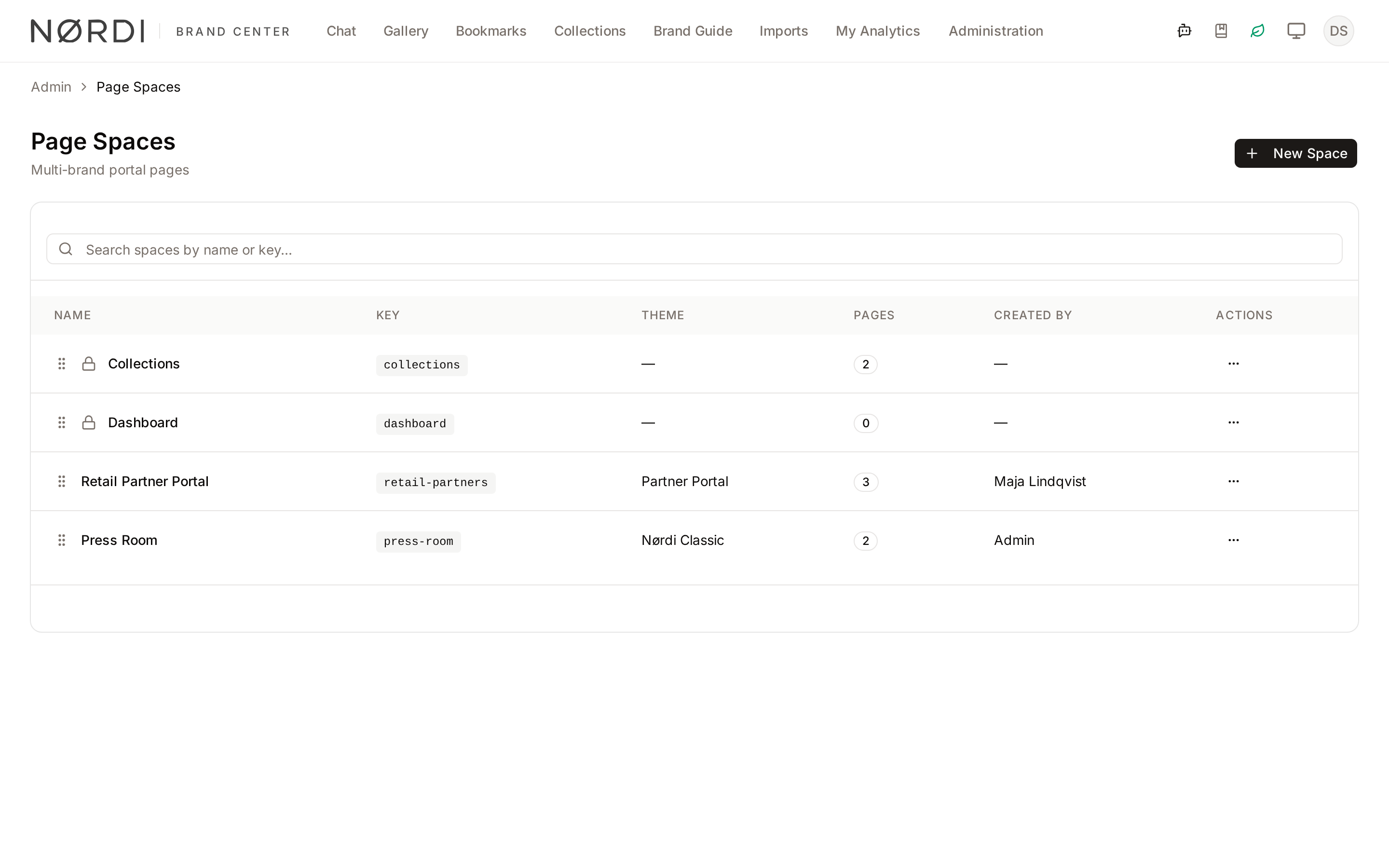
The spaces list
Each row shows the space's Name, Key, Theme, number of Pages, and who created it. Use Search spaces by name or key... to filter the list.
Two spaces are built in and protected, marked with a lock:
| Space | What it holds |
|---|---|
| Collections | Pages created from collections. Every collection page lands here, even when it is reused elsewhere. |
| Dashboard | The workspace home page. |
Protected spaces cannot be deleted, and their key cannot be changed. You can still edit their name, default language and theme.
Reorder spaces by dragging the grip at the start of a row. The new order is saved as soon as you drop. When the list spans several pages, the spaces you move stay on their page, and the spaces on other pages keep their place. If the order cannot be saved, an error message appears and the previous order comes back.
Reordering only works on the full list. While a search is active, the grips are hidden and the list shows "Clear the search to reorder spaces by dragging."
Create a space
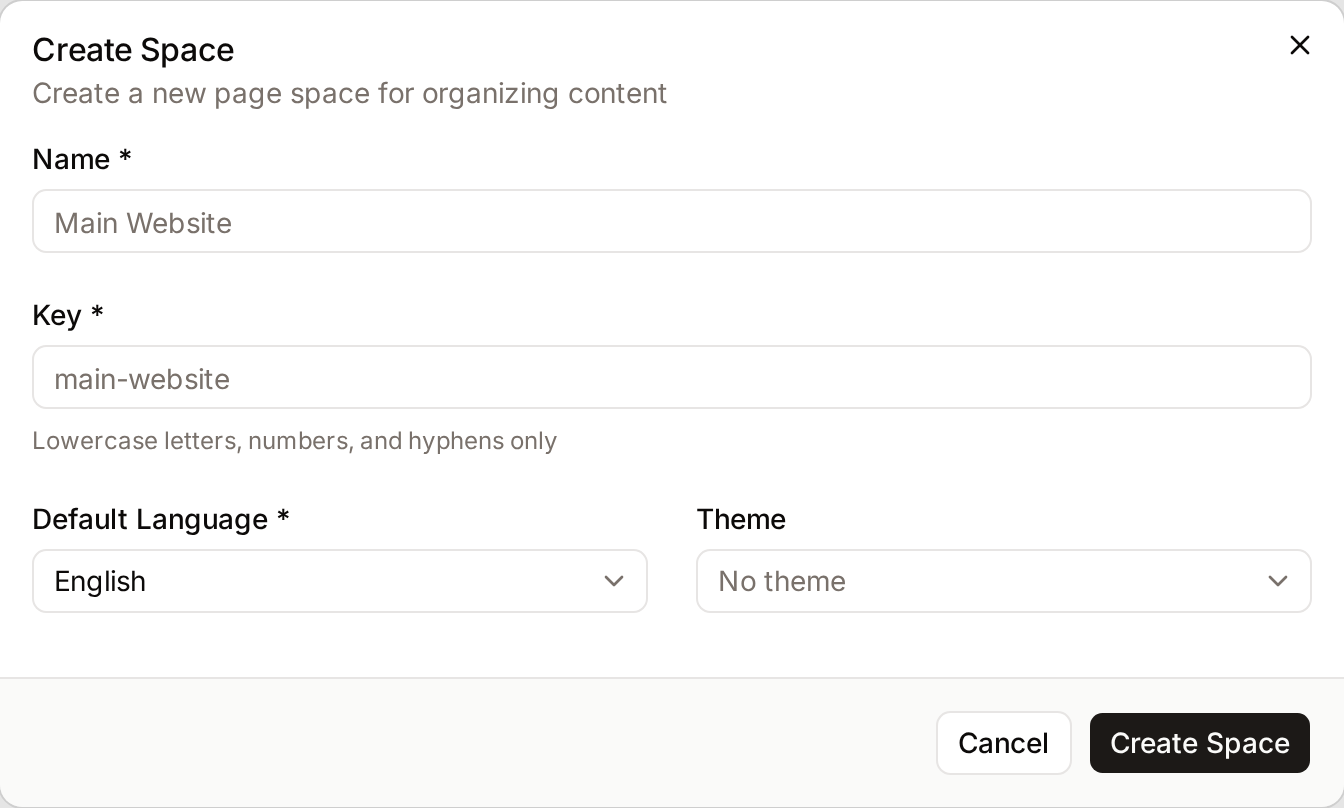
- Click New Space.
- Enter a Name, for example
Nordic Retail Portal. - Check the Key. It is filled in from the name as you type, and becomes part of the space's address. Only lowercase letters, numbers and hyphens are allowed, and each key must be unique.
- Choose the Default Language for the space's pages.
- Choose a Theme. The workspace's default theme is selected already (see Themes); choose No theme to use the default styling.
- Click Create Space.
The space is empty until you add pages. The key is hard to change later without breaking links people have saved, so choose it carefully.
To change a space, choose Edit in its row menu, or Edit Space on its page, then Save Changes.
Arrange pages in a space
Choose View in a space's row menu to open it. The page shows the space's key, default language, theme and creator, and the Pages tree.
- Add a page: click New Page, enter a Title, Slug and optional Description, then click Create. New pages start as drafts.
- Edit a page: click Edit page on its row to open the page editor.
- Preview a page: click Preview page.
- Move a page: drag it by its grip.
- Drop on the top edge of another page to place it before that page.
- Drop on the bottom edge to place it after.
- Drop on the middle to nest it inside, as a child page.
- Drop on Drop here to move to root level to take it out of its parent.
The tree is saved when you drop. If saving fails, an error message appears and the tree returns to its saved order. There is no limit to how deeply pages can be nested, but a page cannot be moved inside one of its own children.
The first page at the top level is the space's home page, marked with a star. In the protected spaces, no page is marked as home.
Where spaces appear
Every space has a public address made of its key and the page slugs:
/spaces/[key]opens the space's home page./spaces/[key]/[page]/[child-page]opens a page further down the tree.
Visitors who are not signed in only see published pages. Signed-in users also see draft and approved pages, so share a page's address with people outside your organisation only once it is published.
The theme chosen for a space applies to all its pages, including collection pages in the Collections space.
Delete a space
Choose Delete in the space's row menu and confirm. A space can only be deleted when it has no pages: delete its pages first. The delete dialog tells you when a space still has pages and disables its Delete button. The Delete option does not appear on protected spaces.
Troubleshooting
"This space contains N page(s) and cannot be deleted." or "Cannot delete a space that still contains pages."
Open the space, move or delete its pages, then try again.
"Key must only contain lowercase letters, numbers, and hyphens."
Remove spaces, capitals and symbols from the key. nordic-retail works; Nordic Retail! doesn't.
A page opens the wrong content at its address
Two pages under the same parent may share a slug. Freedam does not prevent this, and only one of them can be reached. Give one of them a different slug in the page editor.
Related pages
- Custom Pages: building a page with blocks, versions and publishing.
- Themes: colours, fonts and cover images for spaces.
- Collections: collection pages.