
Finding Photos of a Person
When your library contains people - employees, models, ambassadors, speakers - finding every photo of Sarah by hand is painful. Person search solves that by letting you pick a person and instantly filter the Gallery to all images that include them.
What It Is
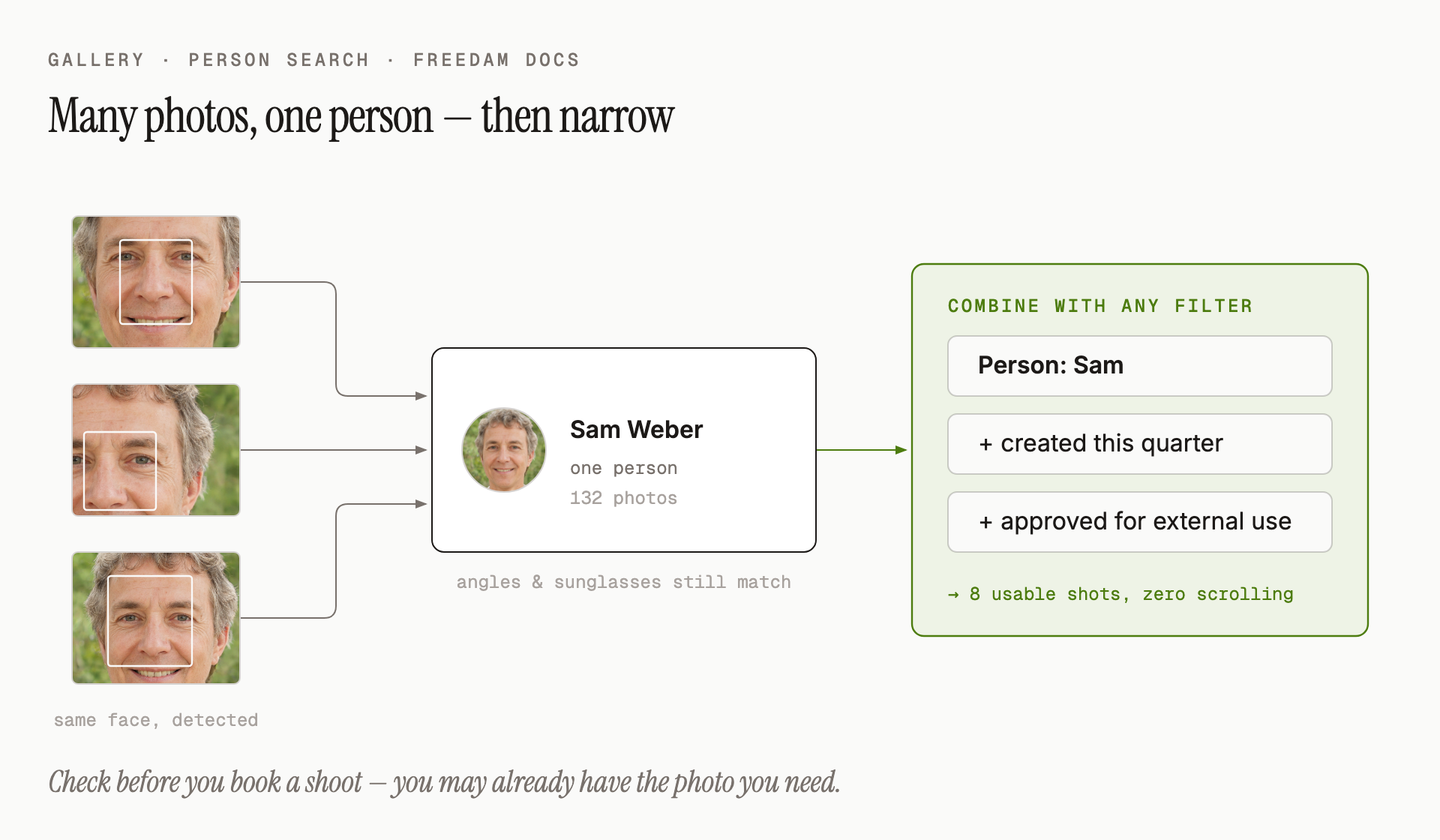
Freedam automatically detects faces in your images and groups the same face across different photos into a person. Once a person has been recognised and named, you can:
- Find every photo containing that person.
- Combine a person filter with other filters (date, collection, tag).
- Check which assets already include this person before commissioning new shoots.
How to Use It
- In the Gallery, click the person icon (👤) in the search bar.
- The Select Person dialog opens, listing the people in your library. People who have been detected but not named yet appear as Unnamed person.
- To find someone quickly, start typing their name in the search field at the top of the dialog. The list narrows as you type.
- Click the person you're looking for.
- The dialog closes and the Gallery filters to only the photos that include them.
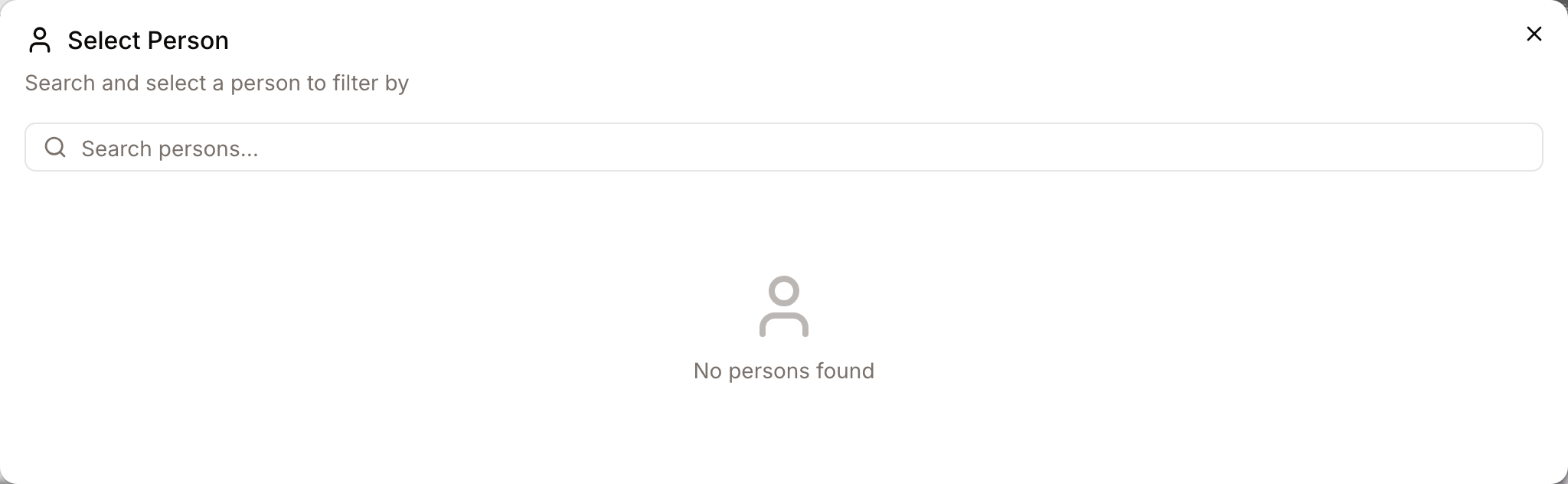
The Gallery adds a Person rule to its advanced filters. Remove the rule to clear the filter.
Combining with Other Filters
Once you've filtered to a person, you can narrow further. Useful combinations:
- Person + date range - every photo of Sarah taken this quarter.
- Person + collection - every photo of Sarah in the Leadership collection.
- Person + approved status - every photo of Sarah approved for external use.
- Person A AND Person B - photos that include both people (use the Advanced Filters panel and add two person rules).
Tips
- Names aren't case-sensitive - typing
sarfinds Sarah, Sarai, and any Sarge. - If a photo is assigned to the wrong person, open it and use the People tab under the preview: click the face, then Change or Remove Identity. This fixes that one face; there is no screen yet to rename a person across all their photos. See Faces and People.
- Use person search before a photoshoot - a quick check often reveals you already have a usable photo of that person from a previous session.
- Person search is about people, not faces. Even if Sarah is at an angle, partially obscured or wearing sunglasses, she can still be recognised as long as enough of her face is visible.
What You Might Not See
- You only see photos you have access to. A person can be listed even when none of their photos are visible to you.
- Very recently uploaded photos may take a few minutes to appear under a person - face detection runs shortly after upload.
- Unnamed people are listed too, as Unnamed person. To give them a name, open one of their photos and name the face, shown as ? in the People panel. See Faces and People.
Privacy and Ethics
Person search is a powerful feature and is usually limited by your administrator to appropriate use cases - for example, talent management, internal photo libraries, or brand ambassador tracking. Your organisation may require consent from identified individuals before their faces are indexed. Check your internal policy before using person search for any new purpose.
Related Features
- Filtering Results - combine a person with other criteria like date, collection, or tag.
- Find Visually Similar Images - when you want look-alikes rather than a specific recognised individual.
- Advanced Filters - build queries that involve multiple people, or exclude specific people.
Troubleshooting
The person I want isn't in the list
- Check that they have been named. Newly detected faces show ? until someone names them: open a photo of the person, click their face in the People tab under the preview, type a name, then click Create & Assign. When the same face appears in other photos, Freedam offers Yes, identify all to name them in one step. See Faces and People.
- They may not yet appear in any photo in your library that your account has permission to view.
- Try typing a partial name - the list is paginated and the typing filter is often faster than scrolling.
The results include photos that don't contain the person
Face recognition is highly accurate but not perfect. If a wrong photo is assigned to a person, you can correct it on the asset's detail page. See Faces and People. Naming faces correctly also improves automatic matching of new photos.
A photo I know features the person is missing from the results
- The photo may have uploaded very recently and still be processing.
- The person's face may be turned too far away, too small, or too heavily obscured for detection.
- Check the asset's detail page - if the face was detected but assigned to the wrong person, you can reassign it.