
Video Transcripts
Every video and audio asset uploaded to Freedam is automatically transcribed. The resulting transcript becomes a subtitle track on the player, gets indexed for full-text search so the asset is findable by spoken content, and can be edited cue-by-cue or translated into another language.
This feature is designed for content editors, librarians, and accessibility teams who need their video corpus to be searchable, captioned, and re-usable across languages without reaching for an external transcription tool.
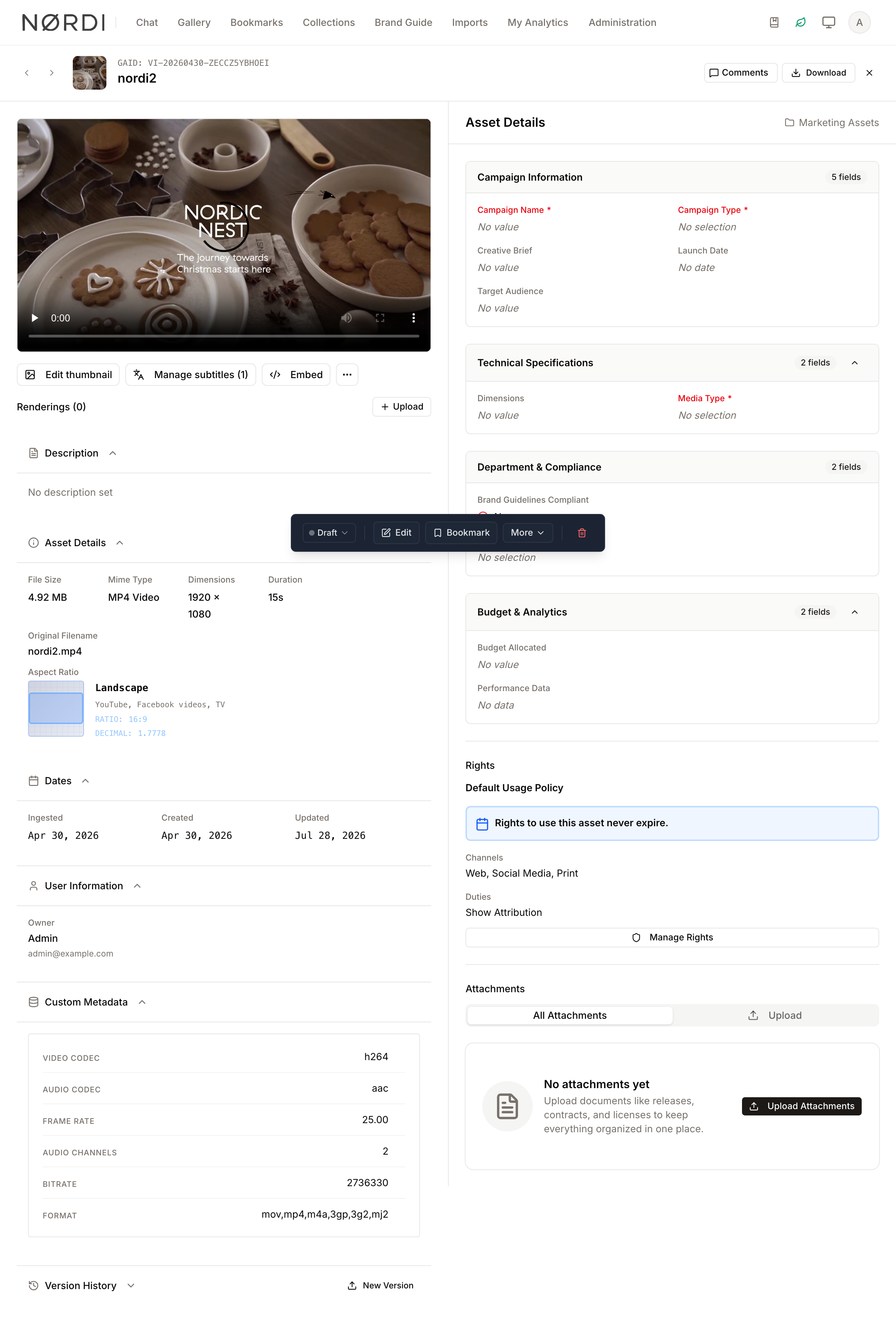
Page Overview
- Purpose: To make spoken content searchable, accessible, and translatable without leaving the asset detail page.
- When to use it: After uploading a video or audio file, when reviewing or correcting an auto-generated transcript, or when distributing the same content to audiences in multiple languages.
- What you can do here:
- Watch a video with auto-generated captions in the player.
- Edit the transcript cue-by-cue, with timestamp-synced playback.
- Download the transcript as
.vtt,.srt, or.txt. - Queue a translation of the transcript into another language.
- Find the asset by typing a phrase that's spoken in it.
How automatic transcription works
Every uploaded video or audio asset is queued for transcription as part of the standard ingestion pipeline. The job extracts a 16-kHz mono audio track and sends it to the local transcriber sidecar (faster-whisper running whisper-large-v3-turbo), which returns acoustic-aligned segment timestamps. The result is stored as a subtitle track attached to the asset. Because transcription runs on your own infrastructure, the audio never leaves the cluster.
| Mime type | Behaviour |
|---|---|
video/* (≤ 2 hours) |
Audio extracted with ffmpeg, transcribed |
audio/* (≤ 2 hours) |
Sent directly to the sidecar |
video/* or audio/* (> 2 hours) |
Skipped. Single-call queue-safety cap. Upload an SRT or VTT track manually instead. |
image/*, application/pdf, others |
Not transcribable - no track is generated |
A video without an audio track, or whose audio is silent or music only, gets no transcript. The subtitle dialog then shows the No speech detected banner.
Detected language is stored on the track. When the model can't identify a language, the track is saved as und (undetermined) - you can fix this from the editor.
The asset doesn't need to be open in your browser while transcription runs. You'll see the new track on your next visit, or sooner if you stay on the page (see Status banners below).
Page Layout
The transcript surface is reached from the asset detail page of a video asset. Audio assets are transcribed too, and their transcript is indexed for search, but the subtitle dialog and the transcript editor are only available on videos.
- Player - Renders the video with subtitle tracks attached as native
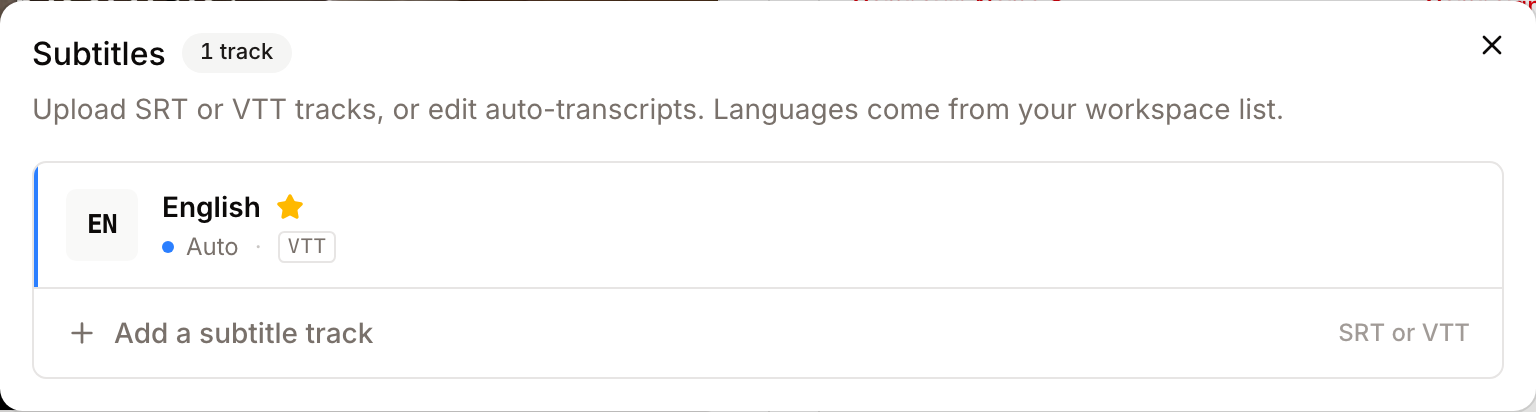
<track>elements. The default track auto-enables; viewers can switch via the player's CC menu. - Manage subtitles - A button in the toolbar under the player. It opens the Subtitles dialog, where every track (auto, uploaded, translated) is listed with its source and format. The edit and remove buttons of a row appear when you hover it.
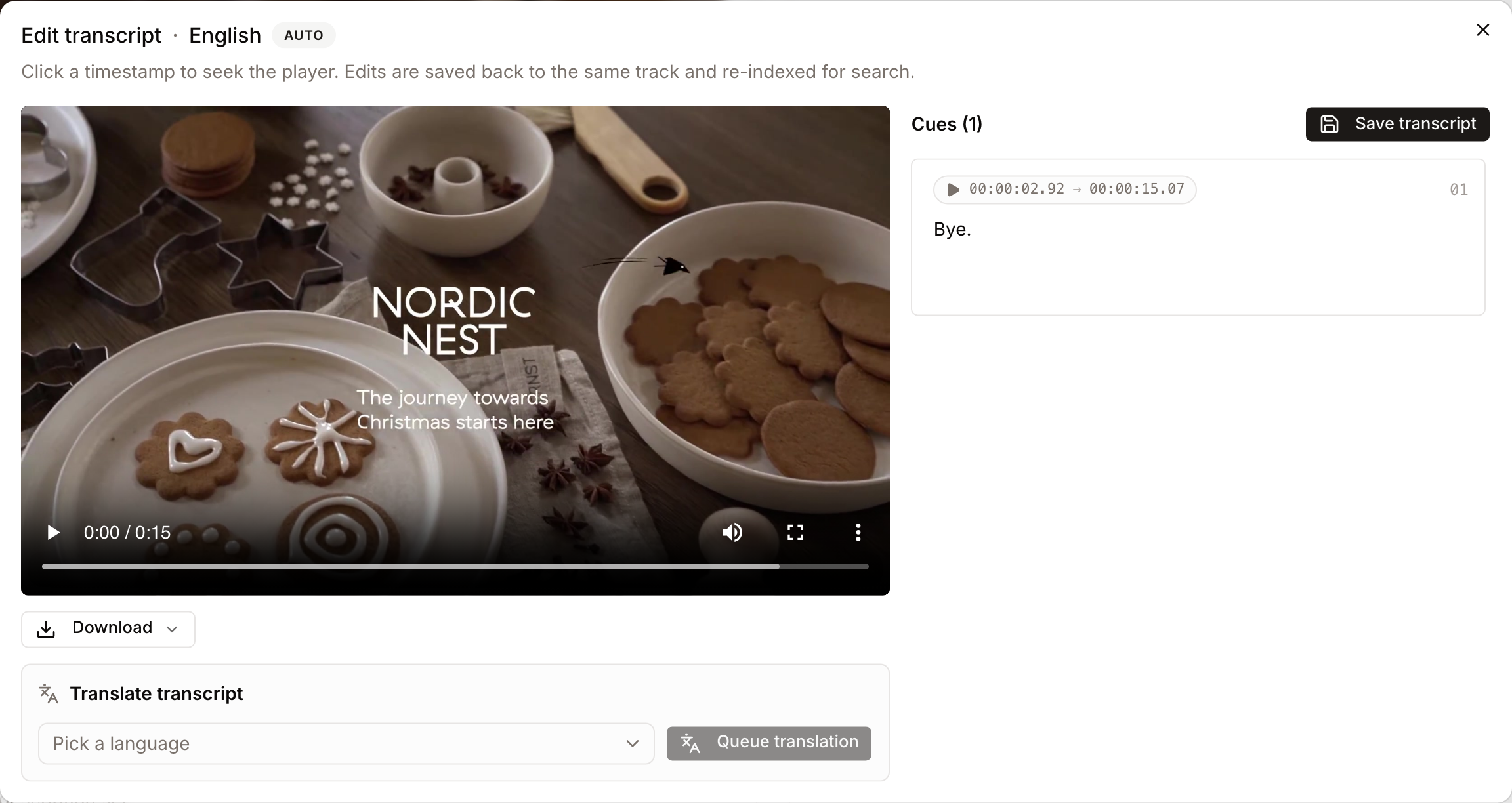
- Edit transcript dialog - Opens from the pencil icon on a track row. Two-pane layout: video player on the left, scrollable cue list on the right. The title shows the track language and its source.
Main Features
Status banners
When you open the subtitle dialog right after uploading a video, one of the following banners may be shown above the track list. Each one is dismissed automatically when the underlying state changes - you don't have to refresh the page.
- Auto-transcription in progress (blue) - The job is queued or running. The page partial-reloads every few seconds; the auto track will appear here as soon as it's ready.
- Too long (amber) - The asset exceeds the 2-hour cap. Upload an SRT/VTT track manually if you need captions.
- No speech detected (blue) - The video has no audio track, or its audio is silent or music only. Upload an SRT/VTT track if a transcript is needed.
- Auto-transcription failed (red) - Transcription retried several times and gave up. An admin can re-run it via the command line; see Re-running a failed transcription.
If no banner is shown, the asset either wasn't transcribable to begin with (e.g., an image) or the transcript is already done - look for the Auto row in the track list.
Transcript editor
- What it's for: Cleaning up automatic transcripts cue-by-cue and saving the result back to the same track.
- Typical use: Hover a track row in the subtitle dialog and click its pencil icon.
- Result: A wide dialog opens with the player on the left and an editable cue list on the right. The current cue is highlighted as the player progresses; clicking a timestamp seeks the player to that cue.
How to use it:
- On the asset detail page, click Manage subtitles under the player.
- Hover the track you want to edit and click its pencil icon.
- (Optional) Hit Play in the embedded player. The cue list scrolls and highlights the active cue automatically.
- Click any cue's timestamp button to seek the player to that moment.
- Edit the text area for the cue. Repeat for as many cues as you need.
- Click Save transcript. The track file is rewritten in place, and the asset's search document is re-indexed automatically.
If you try to close the dialog with unsaved changes - Esc, X, or click-outside - Freedam asks you to confirm before discarding. Closing the browser tab while editing also fires the browser's "Leave site?" prompt.
Multi-format download
The Download menu under the player in the editor offers three formats.
| Menu item | What you get | When to use it |
|---|---|---|
| .vtt WebVTT | The exact file the player consumes | Re-uploading to another tool that expects WebVTT |
| .srt SubRip | SubRip-format conversion (timestamps with comma decimals) | Older video editors and most stock-footage marketplaces |
| .txt Plain text | Plain-text transcript with no timestamps or markup | Pasting into a content-management system, archive search, or compliance review. This is the same text that gets indexed for search. |
Downloads always reflect the latest saved state - including any cuts you just made in the editor.
Translation to other languages
Once you have a transcript, you can ask Freedam to translate it into another language. The translated version becomes a new subtitle track tagged Translated - your original track is untouched.

How to use it:
- Open the transcript editor on the source track.
- In the Translate transcript card under the player, pick a target language from the Pick a language dropdown. The list contains every language except the one of the current track, whether or not it is active in your workspace.
- Click Queue translation. A toast confirms the request is queued; a "Waiting on:
" pill appears. - The editor polls in the background. When the translation finishes, the new translated track lands automatically and a second toast announces it. The waiting pill disappears.
- Close the editor and re-open the subtitle dialog to see the new
Translatedrow.
Translation uses the translation provider configured for your workspace (DeepL). If no provider is configured, Queue translation fails with the message "No translation provider is configured for this workspace." A language the provider does not support is rejected in the same way. Translation cost depends on character volume and is billed by DeepL - see your DeepL account dashboard for usage.
Search by spoken content
Auto and uploaded transcripts are folded into the per-language search document used by gallery search. There's nothing to configure - the moment a transcript is saved, the asset becomes findable by typing a phrase that appears in it.
- Type "quarterly earnings" in the gallery search bar - any video that says "quarterly earnings" surfaces in the results.
- Translated tracks are indexed in their own language. A French translation makes the asset findable in French search even if the original was in English.
Detailed Feature Documentation
Subtitle source badges
Every track in the subtitle list carries one of three badges so you know where it came from:
- Auto - Generated by the speech-to-text pipeline. Editable from the pencil icon.
- Uploaded - A user uploaded an
.srtor.vttfile. Editable from the pencil icon, or replaced by uploading a new file for the same language. - Translated - Produced by translating another track. Editable from the pencil icon if you want to fix translation hiccups.
Default track
The first track stored on a video is marked default and is the one the player auto-enables. Uploading a new SRT/VTT track with the Set as the default track checkbox demotes whatever was previously default. Auto-generated tracks become default only when no other track exists.
Re-running a failed transcription
If the Auto-transcription failed banner appears, an admin can re-run the transcription from the command line:
bin/dc artisan transcripts:rerun {gaid}
This deletes the existing auto track (if any), resets the asset's status to pending, and dispatches a fresh transcription job. The same banner flow applies - refresh the asset detail page to watch progress.
Custom vocabulary (admin)
Brand names, product names, and internal jargon often get mis-spelled in automatic transcripts. Administrators can teach the model those spellings on the Glossary page (Administration → Glossary, under Configuration). Terms with Transcription ticked are passed to the model as preferred spellings on every future transcription, and terms with Translation ticked guide subtitle translation. See Glossary.
The glossary applies only to future transcriptions. To refresh existing transcripts after adding terms, run transcripts:rerun {gaid} for the affected assets.
Limitations
- 2 hours at most. Video and audio longer than 2 hours is not transcribed: the subtitle dialog shows an amber Too long banner. Upload an SRT or VTT track instead if you need captions or search on spoken content.
- Single mechanism for vocabulary. Custom vocabulary is passed to the model as a prompt prefix only - there's no post-processing word-substitution pass, which avoids partial-word collisions but means very rare terms may still slip through.
- One translation pass. Re-translating an already-translated track will translate from the translation, not from the original. Always start translations from the source
AutoorUploadedtrack for best quality. - No timestamp editing in the editor. You can edit cue text and save back; cue timing is fixed unless you edit the
.vttexternally and re-upload. - Editing needs edit permission. Without Edit asset metadata, the dialog is read-only: tracks are listed, but the pencil and remove buttons are hidden.
Related pages
- Asset Detail - the page where the subtitle manager and editor live.
- AI Settings - provider configuration and usage analytics, including transcription costs.