
Terms of Use
The Terms of Use feature allows administrators to create, manage, and enforce legal agreements within Freedam. This tool ensures that users acknowledge specific guidelines, such as privacy policies or upload agreements, before accessing the platform or performing specific actions.
This feature is designed for compliance officers and system administrators to maintain a clear audit trail of user acceptances. You can draft new versions of terms, publish them to trigger fresh user acknowledgments, and export detailed consent logs for legal reporting.
Page Overview
- Purpose: To centralize the management of legal documents and track user compliance.
- When to use it: Use this page when you need to update your platform's legal terms, check if a specific user has accepted the latest version, or export a CSV of all consents for an audit.
- What you can do here:
- Create and edit multi-language legal documents using Markdown.
- Version-control terms to track changes over time.
- Activate or deactivate specific legal flows.
- View individual user consent history, including IP addresses and timestamps.
- Export a full record of all user acceptances to CSV.
Page Layout
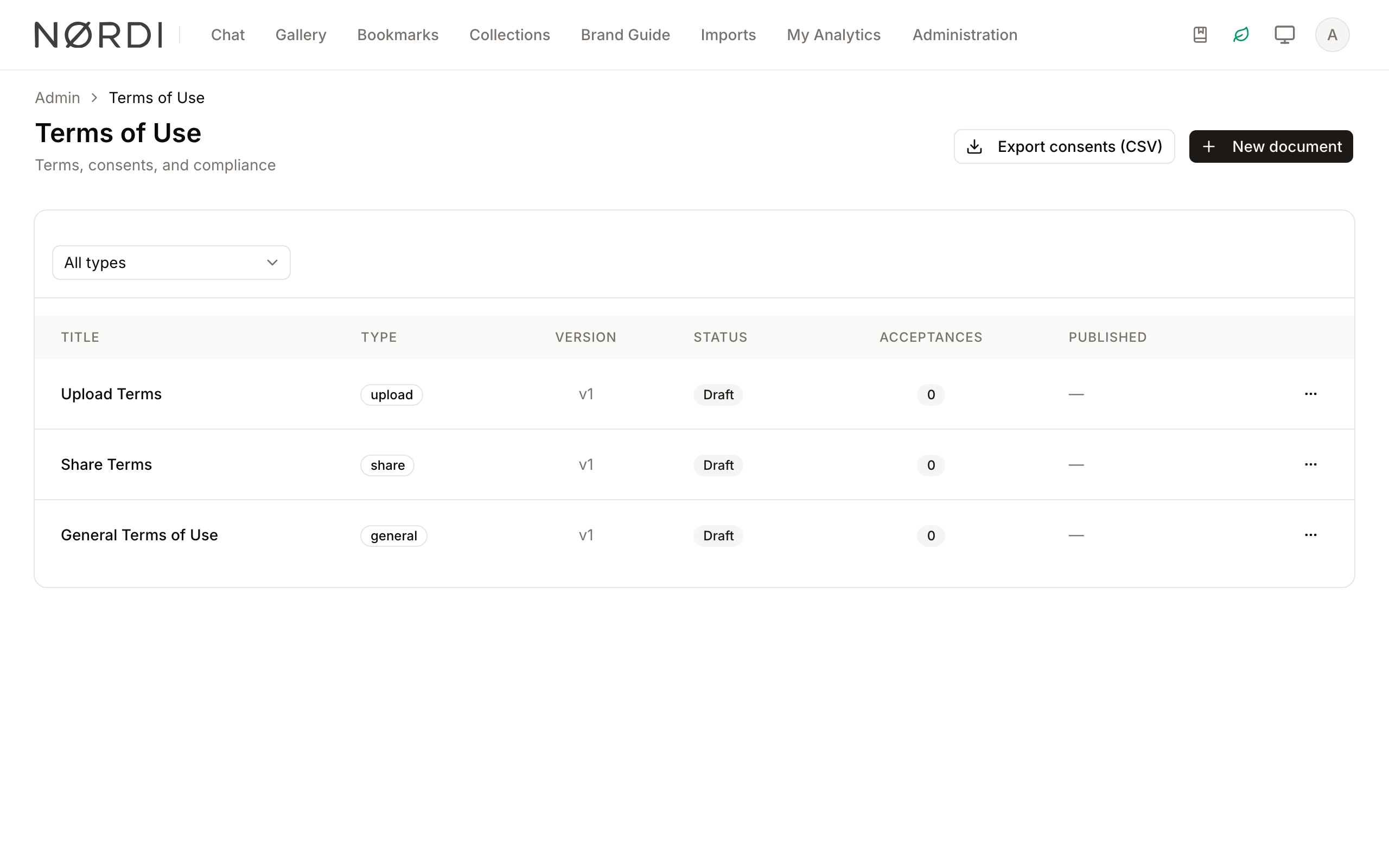
- Top bar: Contains the page title, a description of the feature, the Export consents (CSV) button, and the New document button.
- Main area: Displays a table of all terms-of-use documents, including their title, type, version number, status (Active/Draft), the total number of acceptances, and the publication date.
- Filter bar: Located just above the table, this contains a dropdown to filter the list by document type (All types, General Terms, Upload Terms, Share Terms).
- Dialogs: Pop-up windows used for creating/editing content, confirming publication, or viewing the detailed version history of a specific document.
Main Features
Version Control
- What it's for: Maintaining a history of legal changes without overwriting previous records.
- Typical use: When a legal policy changes, you create a "Draft new version" based on the existing one.
- Result: The system creates a new version number (e.g., v2) while keeping the old version (v1) active until you choose to publish the update.
Multilingual Support
- What it's for: Providing legal terms in the native languages of your users.
- Typical use: Adding French and Spanish translations to a primary English document.
- How it works: Title and Content (Markdown) have one tab per interface language (English, French, German, Spanish, Portuguese and Chinese), not per asset language. English is the master language. The tabs work as described in Editing text in several languages, without automatic translation.
- Result: Users see the version that matches their interface language, and the English version when there is none.
Consent Tracking
- What it's for: Recording exactly when and how a user agreed to terms.
- Typical use: Verifying that a specific user accepted the "Upload Agreement" before they were allowed to add files.
- Result: A permanent log entry containing the timestamp, version number, and IP address.
Detailed Feature Documentation
Creating a New Document
- Purpose: To establish a new legal requirement for users.
- Where to find it: In the Top bar, click the New document button.
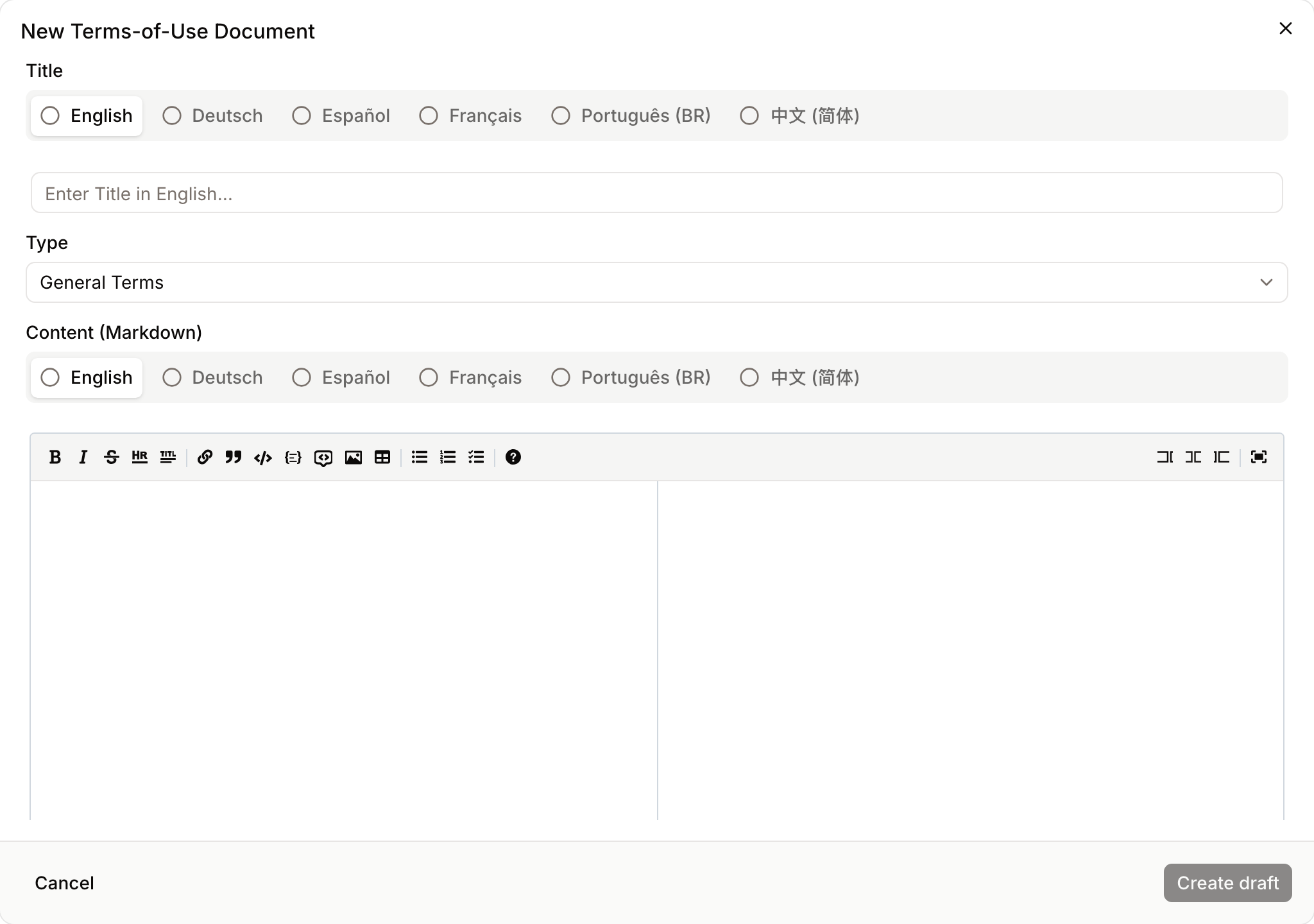
- What you'll see: The New Terms-of-Use Document dialog opens with fields for Title, Type, Content, and a checkbox for user acceptance. Title and Content (Markdown) have one tab per interface language.
How to use it:
- Click New document.
- Enter a Title for the document.
- Select a Type from the dropdown (e.g., General Terms).
- Enter the legal text in the Content (Markdown) field. You can use standard Markdown formatting for headers, links, and lists.
- Ensure Require user acceptance is checked if users must click "I Agree" to proceed.
- Click Create draft.
Publishing a Version
- Purpose: To make a draft version live and visible to users.
- Where to find it: In the document table, click the More options (three dots) icon next to a Draft and select Publish.
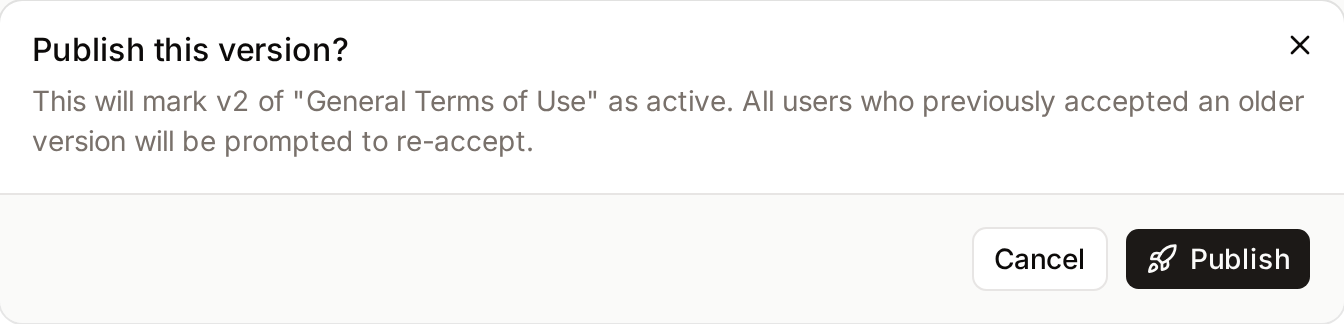
- What you'll see: The Publish this version? confirmation dialog, which names the version and warns that users who accepted an older version will be prompted to re-accept.
How to use it:
- Locate a document with the Draft badge.
- Click the More options menu and select Publish.
- Review the version number in the confirmation dialog.
- Click Publish.
Viewing a Document and its Version History
- Purpose: To read a version as users see it and to move between the versions of the same type.
- Where to find it: In the document table, click the More options (three dots) icon and select View.
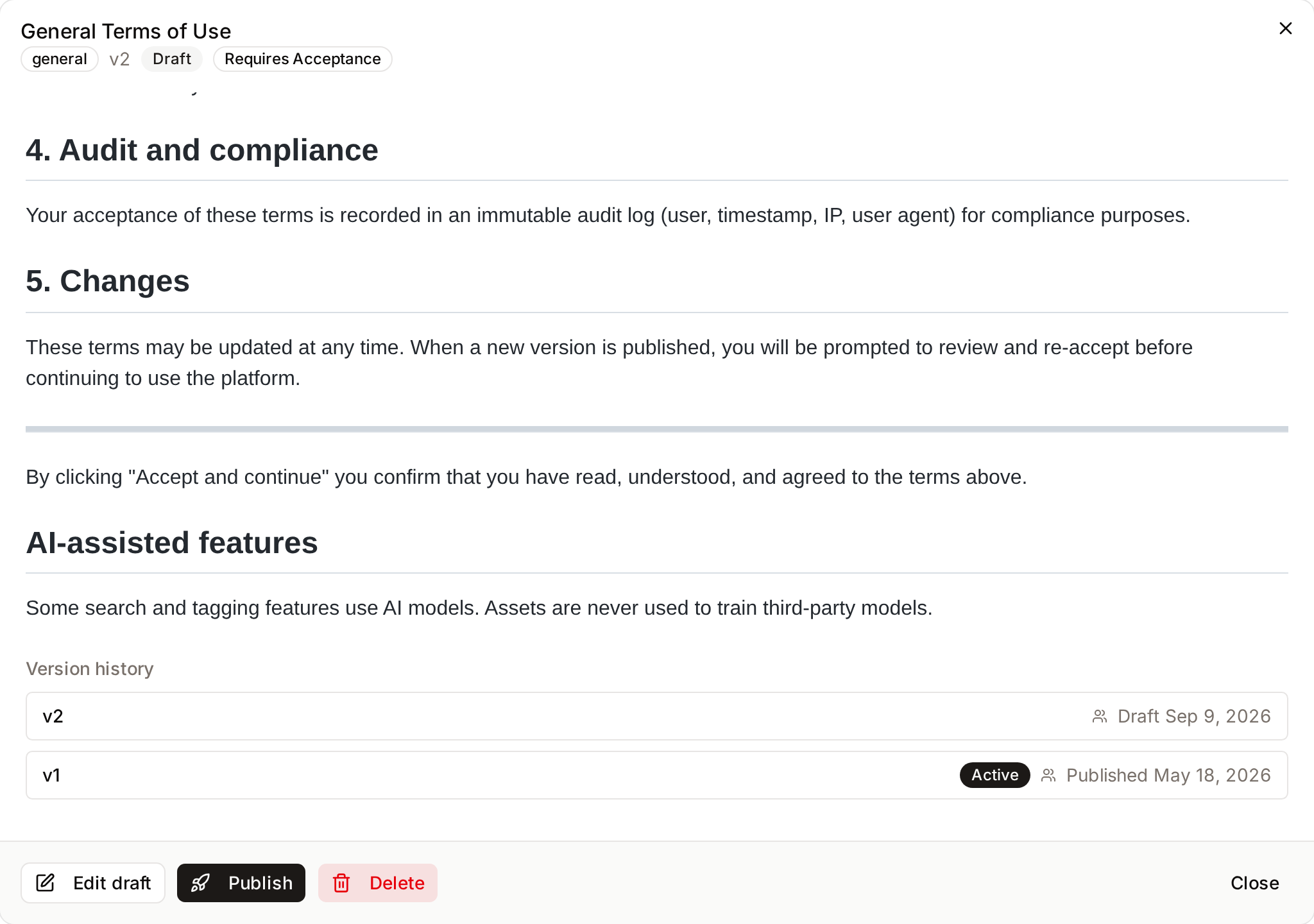
- What you'll see: A dialog with the document's badges (Active or Draft, and Requires Acceptance), the rendered text, and a Version history list of every version of that type with its publication or draft date.
How to use it:
- Click the More options menu next to a document and select View.
- Read the text. An active version carries the notice "This version is currently active and visible to users."
- Under Version history, click another version to open it.
- Use the buttons at the bottom of the dialog to act on the version: Draft new version or Deactivate for an active version, Edit draft, Publish or Delete for a draft.
Viewing User History
- Purpose: To audit the consent records for a specific individual.
- Where to find it: The page has no menu entry. Open it by its address,
/admin/terms-of-use/users/{user id}. - What you'll see: A dedicated page, Consent history - {name}, listing every time that user has accepted a legal document, with a Back to terms button.
How to use it:
- Navigate to the Consent history page for the specific user.
- Review the Accepted at timestamp, the Document and the Version they agreed to.
- Check the Trigger column to see what action prompted the acceptance (e.g., Login), and the IP column for the address it came from.
Complete Workflows
Workflow: Updating Existing Terms
- Goal: Update the legal text and force all users to re-accept the new version.
- Prerequisites: An existing active document.
Steps:
- Click the More options icon next to an Active document in the table.
- Select Draft new version. The new draft opens in the edit dialog.
- Update the text in the Content (Markdown) field.
- Click Save changes.
- Click the More options icon for the new draft and select Publish, then confirm.
- Expected result: The old version becomes inactive, the new version becomes Active, and users will see the new terms upon their next relevant action.
Workflow: Exporting Compliance Data
- Goal: Obtain a spreadsheet of all user consents for legal record-keeping.
- Prerequisites: Administrator permissions.
Steps:
- Navigate to the Terms of Use main page.
- Click Export consents (CSV) in the top right corner.
- Save the generated file to your computer.
- Expected result: A CSV file downloads containing user names, document titles, version numbers, timestamps, and IP addresses.
The three document types
Every terms-of-use document belongs to one of three flows, each of which controls a different moment in the user journey:
- General Terms - the top-level agreement. When a General document is active, every user must accept it before they can access the platform. A blocking modal is shown on their next visit until they agree. Administrators managing this page are deliberately exempt from that block, so publishing a new version can never lock them out of the feature.
- Upload Terms - shown before a user uploads files for the first time, or any time the published version number increases. Useful for contribution and rights-warranty language.
- Share Terms - shown when a user creates an external share link or a video embed code, in Freedam or through the API, so redistribution rights are acknowledged before assets leave the workspace.
Only one version per type can be active at any time; publishing a new version automatically deactivates the prior one.
How versioning really works
Saving a draft never prompts anyone - drafts are invisible to end users. Publication is a deliberate one-click step with three possible outcomes, clearly indicated in the confirmation message:
- Publishing the very first version for a type starts prompting users for the first time.
- Publishing a higher version number forces every user who accepted an older version to re-accept the new one on their next visit.
- Republishing an already-accepted version (for example after a minor typo fix) leaves existing acceptances intact - users who previously agreed are not re-prompted.
Published versions are immutable. To change the wording, use Draft new version to clone the current document (and all its translations) into a fresh draft with the next version number. The system recognises an in-progress draft and returns you to it if you click the action twice, preventing accidental duplicates.
What gets recorded on consent
Every acceptance writes a permanent audit row containing the user, the exact version number they saw, the flow that triggered the prompt (Login, Upload, Download, Share, or Manual), the timestamp, the IP address, and the browser's user agent string. Consents are never deleted - even if a document is later deactivated - because they are the legal evidence of acceptance.
CSV export columns and filters
The Export consents (CSV) button streams the full consent log as a CSV file named with today's date and time. The filter parameters available to the export are document type, a specific document version, a specific user, and a date range (from / to). Each row contains the following columns:
consent_id- the unique acceptance record IDuser_id,user_email,user_name- who gave consenttarget_kind- eitherterms_of_useorrights_policy(the log also captures per-asset rights acknowledgements)target_id,target_uuid,target_type,target_title- which document was acceptedtarget_version_active- the document's current active versionversion_snapshot- the exact version the user saw at the moment they clicked Accepttrigger- the flow that prompted the acceptance (login, upload, download, share, manual)accepted_at- ISO 8601 timestampip_address,user_agent- where and how the acceptance was made
Rows are streamed in batches of 500 ordered by most recent first, so even very large consent logs export without timing out.
Deletion and deactivation rules
- You can delete a draft at any time.
- You cannot delete an active version - deactivate it first.
- You cannot delete any version that has even one recorded consent against it, because that record is part of the compliance audit trail. The Delete action is still listed for such a version once it is deactivated, but it is refused with an error message.
- Deactivating a version stops the prompt but keeps the original text and all accepted consents intact.
Who can use it
Only users whose role includes the Manage terms of use permission can see this page, create documents, publish or retire versions, and export the consent log. This is typically restricted to workspace administrators and compliance officers.
Tips and Best Practices
- Use Markdown: Take advantage of Markdown to make legal text readable. Use headers (
#) for sections and bold text (**) for emphasis. - Draft First: Always review your content in "Draft" mode before publishing. Once published, a version cannot be edited; you must create a new version to make changes.
- Deactivation: If you no longer need a specific set of terms (e.g., a temporary promotion agreement), use the Deactivate action. This stops the prompt for users but preserves the historical consent records.
- Add translations before publishing: Translations are stored alongside the base document. Users see the translation that matches their chosen language and fall back to the base version if there is no match for their locale.
Troubleshooting
Issue: Users are not being prompted to accept terms
- Symptoms: You published a document, but users can still access the platform without seeing the agreement.
- Cause: The "Require user acceptance" checkbox may have been unchecked during creation, or the document type does not match the user's current action.
- Fix: View the document details to ensure Requires Acceptance is listed in the badges. If not, create a new version with the checkbox enabled.
- Prevention: Always verify the "Requires Acceptance" badge is present on the Active version.
Issue: Cannot delete a document
- Symptoms: The "Delete" option is missing or disabled.
- Cause: You cannot delete an Active document. You can only delete Drafts.
- Fix: First, Deactivate the document. Once it is no longer active, the Delete option becomes available in the menu. A version that has recorded consents still cannot be deleted: the action is refused, and the version stays in the list as a draft.