
Find Visually Similar Images
Sometimes words aren't enough. If you have an image - a photo from a previous campaign, a reference a designer sent you, a screenshot from a website - you can drop it into Freedam and find every asset in your library that looks like it.
Why It's Useful
- Avoid duplicates. Before uploading a new photo, check whether you already have it or a close variant.
- Find all versions of a shot. Many libraries contain slightly different crops, colour grades or resolutions of the same image. Visual search groups them.
- Discover alternatives. When a designer asks for "something like this", drop their reference in and see what's already on hand.
- Trace a mystery image. If someone sends you a brand image and you're not sure where it came from, visual search finds it in your library along with any associated metadata.
How to Use It
- In the Gallery, click the camera icon in the search bar.
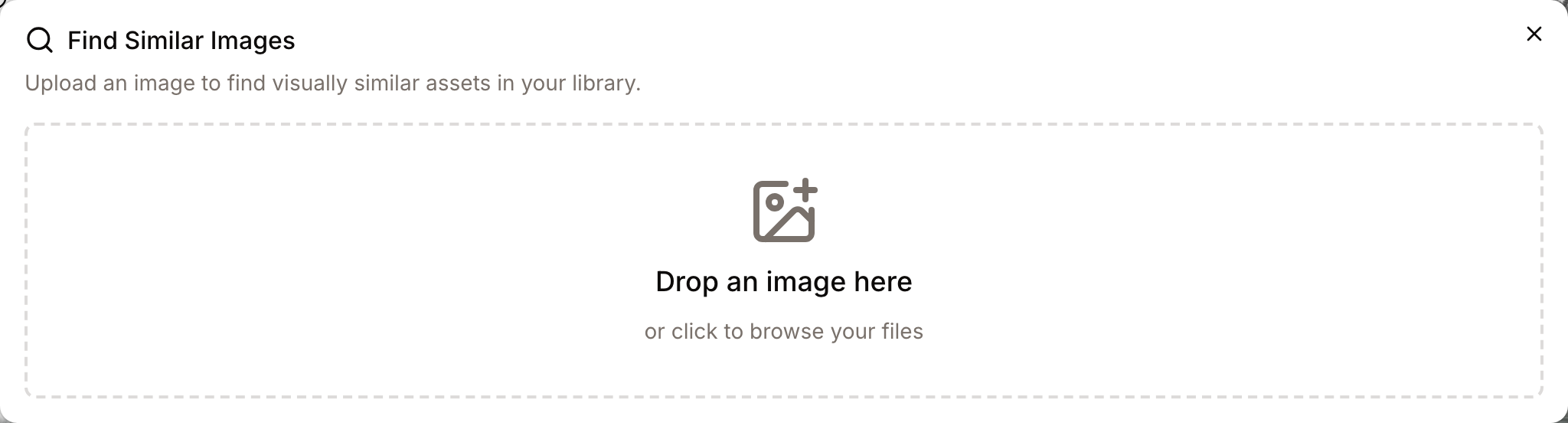
- A dialog opens asking for a reference image.
- Either drag and drop an image file into the box, or click it to browse your computer. Files up to 20 MB are accepted.
- Click Find Similar Images.
- After a few seconds, the dialog displays a grid of matches - most similar first.
Each result carries a similarity score as a percentage in its top-right corner. The higher the score, the closer the match:
- A score close to 100% means a nearly identical image, likely a duplicate or the exact same picture.
- A high score means a strong resemblance: a different crop, a colour variant, or a very close composition.
- A lower score means a looser relation: the same subject from another angle, or a similar palette or theme.
Click any match to open the asset's detail page. Click New Search to try another reference image.
What Counts as "Similar"
The visual search considers several aspects of the image together:
- Overall appearance - composition, shapes and layout.
- Dominant colours - palette and tonal balance.
- Subject matter - what the image is of, recognised by the system's visual understanding.
Because more than one signal is used, the results are robust:
- A heavily cropped version still matches.
- A colour-adjusted version still matches.
- A completely different photo of the same subject often still matches.
Tips
- Use the best reference you have. A higher-quality reference gives better results, but even a small thumbnail usually works.
- Crop out noise. If your reference has a lot of text overlay or a thick border, crop before uploading - the match will tune to the actual image content.
- Combine with filters. After getting your results, close the dialog and narrow further - for example, to images from a specific collection or tagged "approved".
- Check the top result first. If its score is close to 100%, you probably already have that exact image in the library - useful before requesting a new photoshoot.
Speed and Limits
- Searches typically return in under a second.
- Results only include assets you are allowed to see.
- The maximum reference image size is 20 MB.
- Supported formats include common image types (JPEG, PNG, WebP, HEIC).
- Very dark or very low-resolution references may produce weaker matches - try a cleaner copy if results look off.
Privacy
The reference image you upload for a visual search is not added to the library. It is used only to find matches, and is discarded when the dialog closes. You can safely use external references without worrying about them polluting the catalogue.
Related Features
- Searching by Meaning - find assets using a descriptive phrase instead of a reference image.
- Finding Photos of a Person - the "visual search" version specifically for people's faces.
- Duplicate management (administrators) - a dedicated tool for locating and cleaning up exact and near-duplicate assets across the whole library.
Troubleshooting
The reference image is refused, or the search fails
- "File size must be less than 20MB.": choose a smaller file.
- "Please select an image file.": the file is not an image.
- "Search failed. Please try again.": run the search again. If it keeps failing, contact your administrator.
"No similar images found."
- Your library may not yet contain anything similar - try a different reference.
- Freshly uploaded assets need a short moment to be indexed for visual search. If an asset was uploaded in the last few minutes, wait and try again.
Results look unrelated
- Try cropping the reference to focus on the subject.
- A very complex image with many objects can lead to broad matches - isolate the main subject before searching.
- Use the Advanced Filters panel to narrow the returned matches by collection, tag, or date.