
Subscription
The Subscription feature allows you to manage which collections you are currently following. By subscribing to a collection, you receive notifications whenever new assets are added, ensuring you stay up to date with the latest content relevant to your work.
This page lists your active subscriptions, shows which collections have new notifications, and lets you remove the collections you no longer need to follow. Open it from your user menu, top right, with Subscriptions.
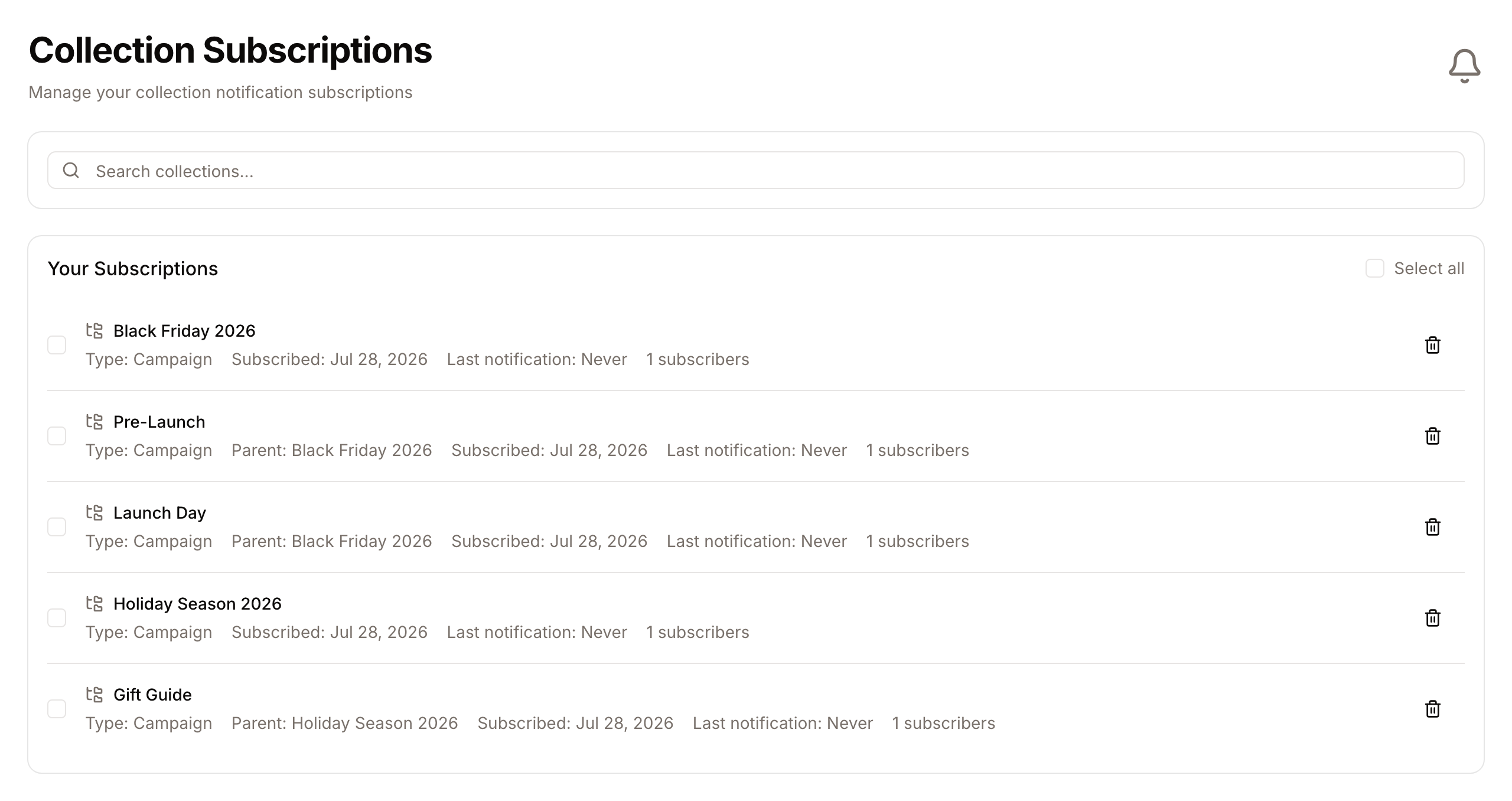
Page Overview
- Purpose: To manage and monitor your automated alerts for specific asset collections.
- When to use it: Use this page when you want to stop receiving notifications for a project, search for specific collections you follow, or see which collections have the most recent activity.
- What you can do here:
- View a list of all subscribed collections.
- Search for subscriptions by name or type.
- Track unread notification counts per collection.
- Unsubscribe from individual collections.
- Perform bulk unsubscriptions for multiple collections at once.
Page Layout
- Top bar: Displays the page title "Collection Subscriptions" and the description "Manage your collection notification subscriptions".
- Main area: Contains two sections:
- Actions Bar: Contains the "Search collections..." input field and the bulk unsubscribe button, which appears when items are selected.
- Your Subscriptions: A list with one row per collection. Each row shows the collection name, a "new" badge when it has unread notifications, and the lines Type, Parent (for a sub-collection), Subscribed, Last notification and the number of subscribers.
Main Features
Collection Search
- What it's for: Quickly finding a specific subscription in a long list.
- Typical use: Type the name of a folder or a collection type (e.g., "Marketing" or "Folder") to filter the view.
- Result: The list updates as you type to show only matching subscriptions.
Notification Tracking
- What it's for: Identifying which collections have new assets you haven't seen yet.
- Typical use: Look for the blue "new" badge next to a collection name.
- Result: You can see exactly how many unread notifications are pending for each specific collection.
Bulk Management
- What it's for: Removing multiple subscriptions simultaneously to save time.
- Typical use: Selecting several collections using checkboxes and using the "Unsubscribe from [number] selected" button.
- Result: Multiple subscriptions are removed in a single action after confirmation.
What you get when you're subscribed
Once you subscribe to a collection, Freedam will alert you whenever new assets land in it - whether someone uploaded them manually, added them from the gallery, or they were pulled in automatically by a smart collection rule.
Each alert arrives in two places at once:
- In the app: the notification is counted on this page. The count per collection is what you see in the blue "new" badge next to the collection name.
- In your inbox: an email summarising the new assets. The email names up to five new items and shows how many more there are; it includes a "View Collection" button and two one-click unsubscribe links - one for just that collection, one to unsubscribe from all collection notifications at once.
Freedam batches updates: assets added to the same collection within about two minutes are listed together in a single email rather than one email per asset.
Detailed Feature Documentation
Subscription Search
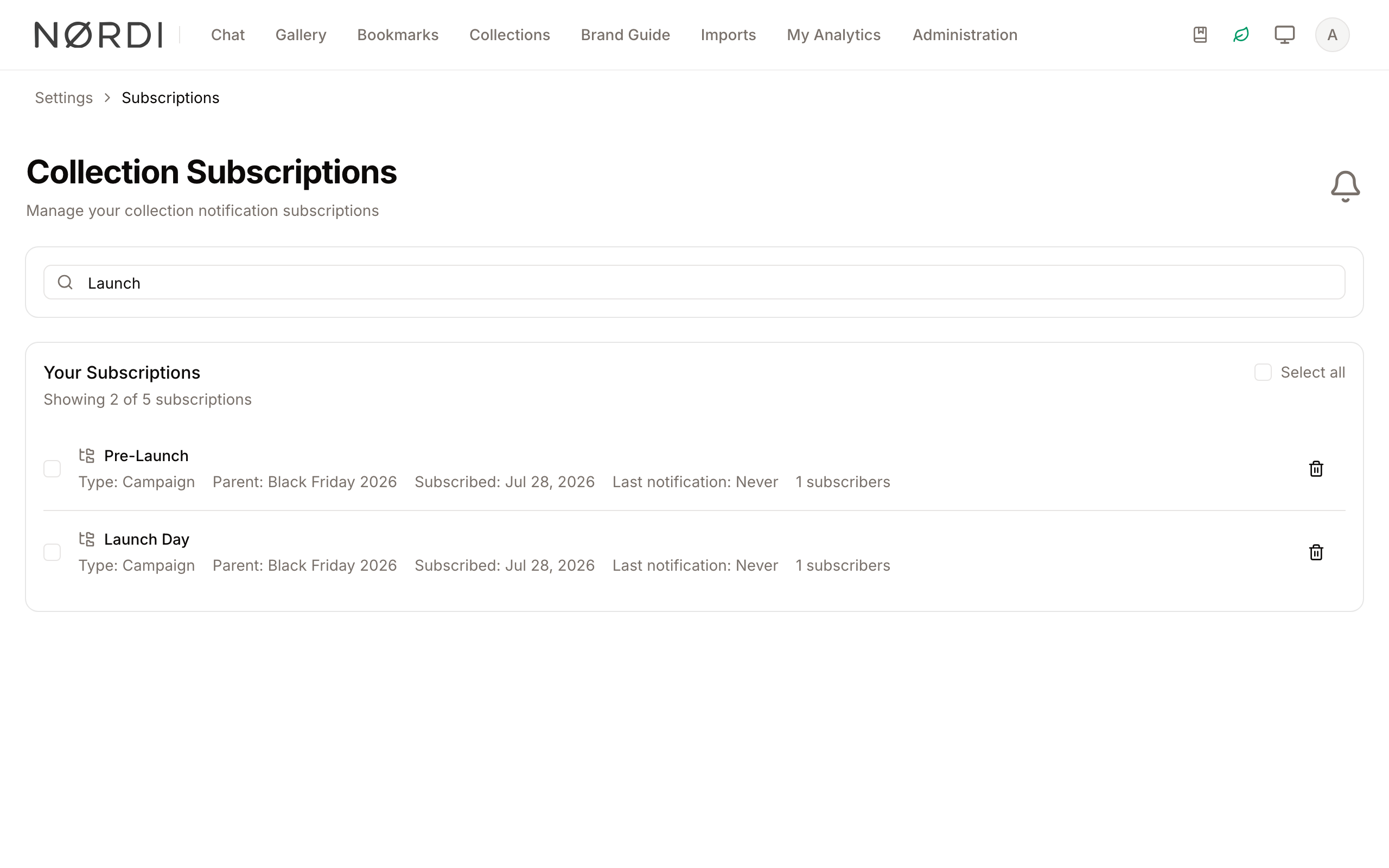
- Purpose: To filter the subscription list by name, type, or parent collection.
- Where to find it: In the Actions Bar, look for the "Search collections..." field with the magnifying glass icon.
- What you'll see: The list below shows only the collections whose name, type or parent collection matches your text. A line under the list title shows how many results were found (e.g., "Showing 5 of 20 subscriptions"). When nothing matches, the list shows "No subscriptions found".
How to use it:
- Click into the Search collections... field.
- Type the name of the collection or the parent folder.
- Review the filtered list.
Individual Unsubscribe
- Purpose: To stop following a single collection and end its notifications.
- Where to find it: On the right-hand side of any subscription row, look for the Trash icon button.
- What you'll see: A confirmation dialog appears asking if you are sure you want to unsubscribe.
How to use it:
- Locate the collection in the list.
- Click the Trash icon button.
- In the Unsubscribe from Collection dialog that appears, click Unsubscribe.
Freedam shows "Successfully unsubscribed from collection." and removes the row.
Bulk Unsubscribe
- Purpose: To remove several subscriptions at once.
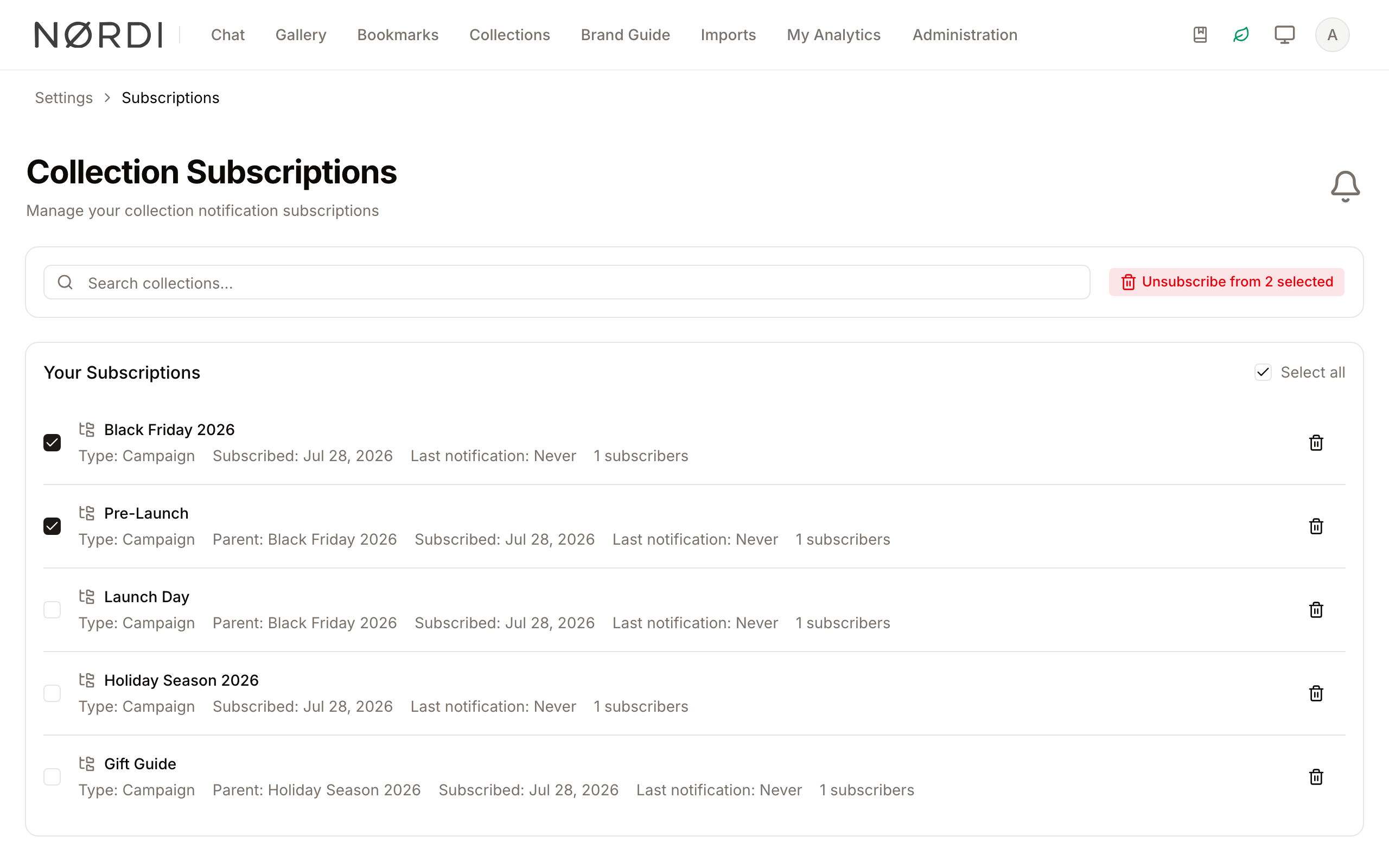
- Where to find it: Use the checkboxes on the left of each row, then look for the red "Unsubscribe from X selected" button in the Actions Bar.
- What you'll see: A confirmation dialog showing the total number of collections you are about to remove.
How to use it:
- Click the Checkbox next to each collection you wish to remove.
- Alternatively, click the Select all checkbox at the top of the list to select everything currently visible.
- Click the red Unsubscribe from [number] selected button.
- In the Unsubscribe from Multiple Collections dialog, click the confirm button, for example Unsubscribe from 2 collections.
Complete Workflows
Workflow: Cleaning up old subscriptions
- Goal: Remove multiple outdated subscriptions to reduce notification noise.
- Prerequisites: You must have active subscriptions.
Steps:
- Open your user menu and click Subscriptions.
- Scroll through the list and click the Checkbox for every collection that is no longer relevant.
- Check the number on the red Unsubscribe from [number] selected button to make sure you have the correct count.
- Click that button in the top actions area.
- Click the confirm button in the confirmation window.
- Expected result: A success message such as "Successfully unsubscribed from 3 collections." appears, and the items are removed from the list.
- If it doesn't work: Check your internet connection; if the action fails, a red error message "Failed to unsubscribe from selected collections" will appear.
Workflow: Checking for new assets in specific projects
- Goal: Identify which followed collections have recent activity.
- Prerequisites: None.
Steps:
- Open your user menu and click Subscriptions.
- Scan the list for the blue [number] new badges.
- Note the Last notification date on the collection row to see when the most recent notification was sent. It reads "never" when the collection has not notified you yet.
- Expected result: You can identify exactly which projects have new content to review.
Good to know
- Bulk unsubscribe is all-or-nothing per click: when you confirm a bulk action, every selected collection is removed in a single step. There's no partial undo - you'd need to re-subscribe to each collection one by one.
- The email unsubscribe links work without logging in: they're signed, single-purpose links, and they do not expire. Anyone with your notification email can unsubscribe you from a single collection or from all collection alerts, so think twice before forwarding one.
- "Subscribers" count is a live number: it reflects everyone currently subscribed, across the whole workspace - useful as a soft signal of which projects are actively being followed.
- Subscriptions are personal: unsubscribing only affects your own notifications. It does not remove anyone else's subscription, nor does it change access to the collection itself.
Tips and Best Practices
- Use Search for Bulk Actions: If you want to unsubscribe from all "Project Alpha" folders, type "Alpha" in the search bar first, then use the Select all checkbox to select only those filtered results.
- Monitor Subscriber Counts: Each row shows how many users, including you, are following that collection, which can help you identify high-interest or trending collections in your organization.
- Check Parent Folders: The list displays the "Parent" collection. If you see multiple collections with the same name, check the Parent name to distinguish between them.
Troubleshooting
Issue: Cannot find a specific subscription
- Symptoms: A collection you know you follow isn't appearing in the list.
- Cause: You may have an active search filter applied.
- Fix: Clear the text in the Search collections... field.
- Prevention: Check whether the "Showing X of Y subscriptions" text is visible, which indicates a filter is active.
Issue: Unsubscribe action failed
- Symptoms: A red error toast appears saying "Failed to unsubscribe" or "Failed to unsubscribe from selected collections".
- Cause: This is usually due to a temporary network interruption or a session timeout.
- Fix: Refresh the page and try the action again.
- Prevention: Ensure you have a stable connection before performing bulk actions.
Issue: No subscriptions visible
- Symptoms: The page displays "No subscriptions yet" with a bell icon.
- Cause: You haven't followed any collections yet.
- Fix: Open the collections you wish to follow and use the Subscribe button on each. See Collections.