
Plan & Usage
Plan & Usage shows which plan your workspace is on, how much of its storage and administrator seats you use, and which features are included. Tenant administrators also manage the subscription here: choosing a plan, switching billing cycle, cancelling, updating the card, and downloading invoices.
Payments are handled by Paddle, Freedam's payment provider and merchant of record.
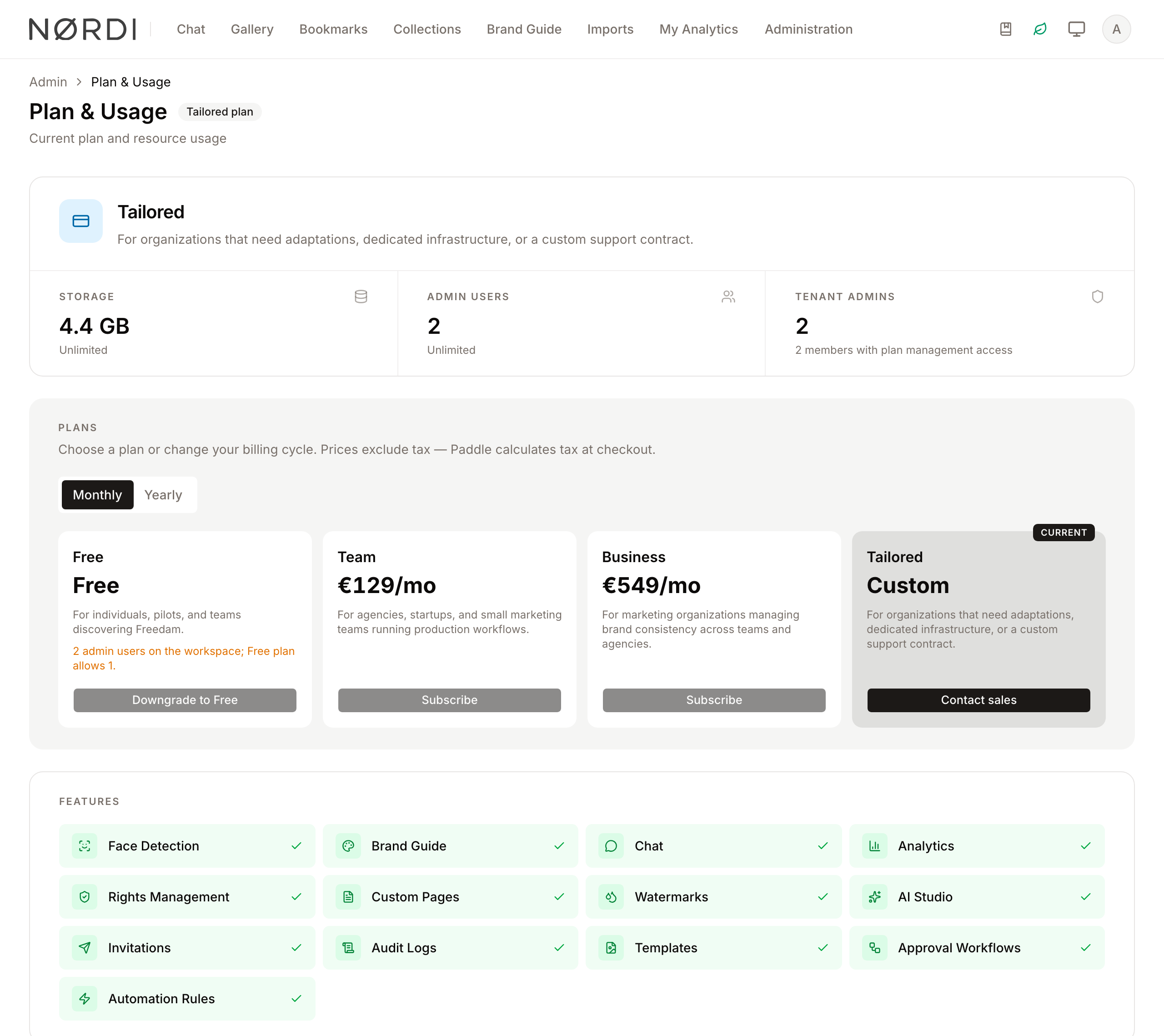
Who can use it
- Only tenant administrators, the members of the Tenant Owners group, can open this page and manage billing. Other administrators see "Only tenant administrators can access this page."
- The page is part of Freedam Cloud. Self-hosted installations have no plans or billing, so the page does not exist there.
Open it from Administration → Plan & Usage, under Platform.
Your plan
The top card shows your plan's name and description.
- During a trial, an amber label shows how many days are left, for example "12 days left in trial". Once the trial has ended without a paid plan, a red Trial expired label replaces it.
- When you have a paid subscription, Next payment on the right shows the amount and date of the next charge.
- On the Free plan, an Unlock the full workspace banner lists the Free limits. Its Upgrade button scrolls down to the plans.
Usage

| Card | What it counts |
|---|---|
| Storage | The size of your assets, excluding the trash, plus their previews, conversions, watermarked copies and attachments. |
| Admin users | Every user who holds at least one administration permission, whatever their role is called. |
| Tenant admins | Members allowed to manage the plan and billing on this page. |
The storage figure refreshes every 5 minutes, so recent uploads or deletions can take that long to show.
The storage bar changes colour as you approach your limit, and uploads react the same way:
| Storage used | What happens |
|---|---|
| Under 80% | Nothing special. |
| 80% to 89% | Uploaders see "Storage is filling up". |
| 90% to 99% | Uploaders are warned that storage is almost full. |
| 100% to 105% | Uploads still work, with a warning to upgrade soon. This margin exists so nobody is blocked in the middle of a large upload. |
| Over 105% | New uploads are refused with "Your storage is full. Please upgrade your plan or free up space to continue uploading." Browsing, downloading and editing keep working. |
The Admin users bar turns amber from 80% of your seats and red when you reach the limit. Creating another administrator is refused once the limit is reached.
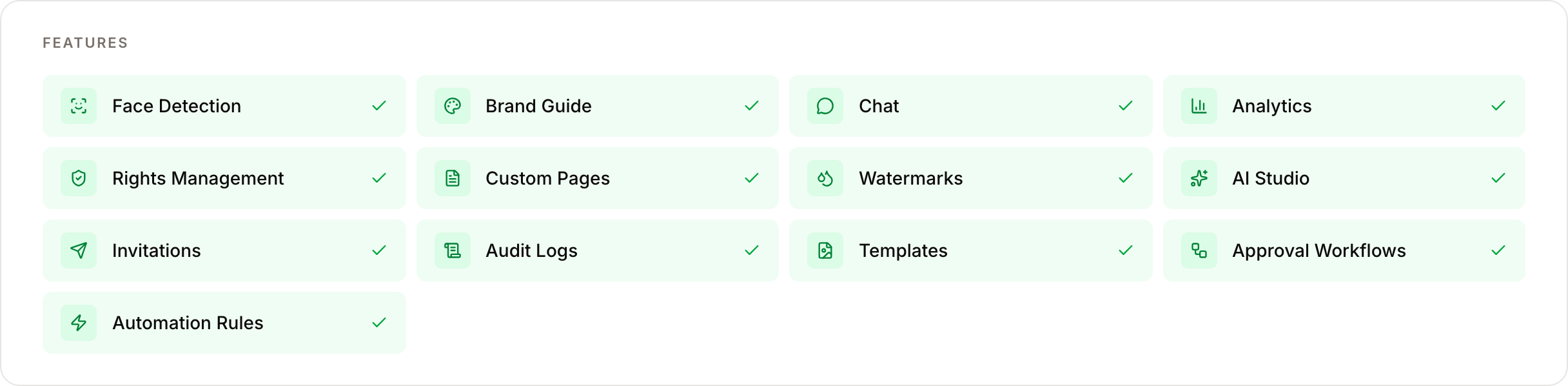
Features
The Features grid at the bottom lists every module that depends on your plan, such as Face Detection, Brand Guide, Chat, Analytics, Custom Pages, Watermarks, AI Studio, Templates, Approval Workflows, Automation Rules, Scheduled Imports, Single Sign-On, the Admin Assistant and Microsoft 365 Copilot. Included features show a green check; the others are greyed out with a lock.
Microsoft 365 Copilot is not part of any plan: Freedam's account team enables it per workspace.
During a trial, every feature is included. Only the storage and seat limits apply.
Choose a plan
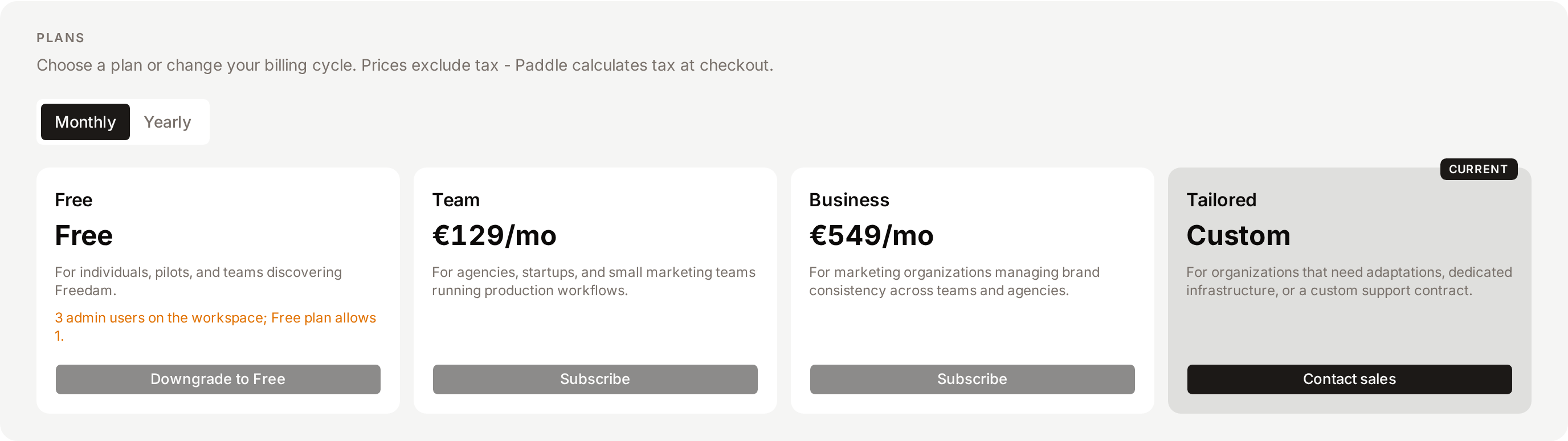
The Plans section shows a card for each plan you can subscribe to, with its price in the billing currency, formatted for your interface language. Prices exclude tax: Paddle adds the right tax at checkout.
Use the Monthly and Yearly toggle to compare billing cycles. The Yearly option shows how much you save.
Subscribe to a paid plan
- Choose Monthly or Yearly.
- Click Subscribe on the plan you want.
- Complete the Paddle checkout that opens over the page: billing details, tax number if you have one, and payment.
When the payment goes through, the page refreshes with your new plan, and all its features are available immediately. Paddle emails the receipt.
The Tailored plan is arranged with Freedam's sales team: click Contact sales on its card. Once a deal is in place, the card shows Custom deal.
Switch to another paid plan
On a paid subscription, other plans show Switch. Click it to move to that plan or billing cycle. The change applies straight away, and the price difference for the current period, credit or charge, is settled on your next invoice.
Downgrade to Free
The Free plan card shows Downgrade to Free when your workspace fits the Free limits. If it does not, the card explains why under the button, for example "120 GB stored; Free plan allows 5 GB." Delete assets, empty the trash, or remove administrator permissions until it fits.
- Click Downgrade to Free.
- Confirm with Downgrade.
The downgrade takes effect straight away, as the confirmation dialog says: you do not stay on the paid plan until the end of the period, and features that are not part of Free stop working. When you had a paid subscription, Paddle credits the unused part of the period on your next invoice.
Manage your subscription
While you have a subscription, a Subscription section appears below the plans. That includes a subscription whose payment failed and one that is cancelled but not yet ended. Once a cancelled subscription has ended, the section disappears and the plan cards show Subscribe again instead of Switch.
- Next payment and Last payment show the amount and date of each.
- Update payment method takes you to Paddle's secure page to change the card or payment details.
- Cancel subscription ends the subscription at the end of the current billing period. Confirm with Yes, cancel. Until then, the section shows "Cancelling - access ends [date]" and everything keeps working. When the period ends, the workspace is suspended: choose Free or another plan before that date if you want to keep using it.
- Resume subscription appears while a cancellation is pending. It reverses the cancellation, and the subscription keeps renewing.
If a payment fails, the section shows "Last payment failed. Paddle is retrying - update your card to avoid interruption." and the status badge next to Plans shows Past due. Click Update payment method to fix it.
Invoices
The Invoices section lists your last 12 payments with their number, date and amount. Click the download icon on a row to open the PDF in a new tab. A payment that is still being processed shows "PDF not yet available" until Paddle issues the invoice.
When the trial ends
New workspaces start with a 30-day trial of the Team plan. Every morning at 6:00, Freedam checks workspaces whose trial has ended without a paid plan:
- If usage fits the Free plan, the workspace moves to Free. Tenant administrators receive "Your [workspace] trial has ended", listing the features and limits that changed.
- If usage does not fit, the workspace stays on its plan but becomes read-only, and the status badge shows Read only. Tenant administrators receive "Action required: [workspace] trial has ended", listing the limits that are exceeded. The workspace is held to the Free plan's limits: uploads, new administrators and AI features are paused, and everything else keeps working. To lift read-only, choose a paid plan here, or free up space until the workspace fits Free and use Downgrade to Free. See Workspace Setup.
To avoid either change, subscribe before the trial ends. See also Workspace Setup.
Unlocking a feature from elsewhere
Locked features also show an Unlock [feature] dialog wherever people meet them in the app, for example a greyed-out module on the Admin Overview.
- Tenant administrators click Manage subscription, which opens this page.
- Everyone else clicks Request upgrade. Every tenant administrator receives an email naming the requester, the feature and the current plan, and the requester sees "Your workspace administrators have been notified."
Good to know
- Free workspaces that nobody uses are suspended. A Free workspace with no sign-in for 14 days is suspended at 6:30 the next morning. Sign in at least every two weeks to keep a parked Free workspace available.
- Account overrides take precedence. Freedam's account team can grant a workspace a specific exception, for example extra administrator seats or a feature outside its plan. An override applies silently on top of the plan shown here.
- Freedam's account team is informed of trial ends, subscription changes and upgrade requests, so they can follow up.
Troubleshooting
A feature is locked but should be included
- Refresh the page: a plan change made in Paddle can take a moment to arrive.
- Check the plan name in the top card against your latest invoice.
- If they differ, or the feature should be part of your plan, contact Freedam support.
Uploads are refused because storage is full
Your workspace is over 105% of its storage. Either choose a larger plan under Plans, or free up space: delete unused assets and old versions, then empty the trash. The storage card updates within 5 minutes.
"Checkout is temporarily unavailable. Please try again later or contact support."
Paddle could not be reached. Wait a few minutes and try again. If the message stays, contact Freedam support.
"You already have an active subscription."
You clicked Subscribe while a subscription exists. Use Switch on the plan you want instead.
The Downgrade to Free button is disabled
Your usage does not fit the Free plan. The reason is shown under the button: reduce storage or administrator seats until it fits.