
Searching by Keyword
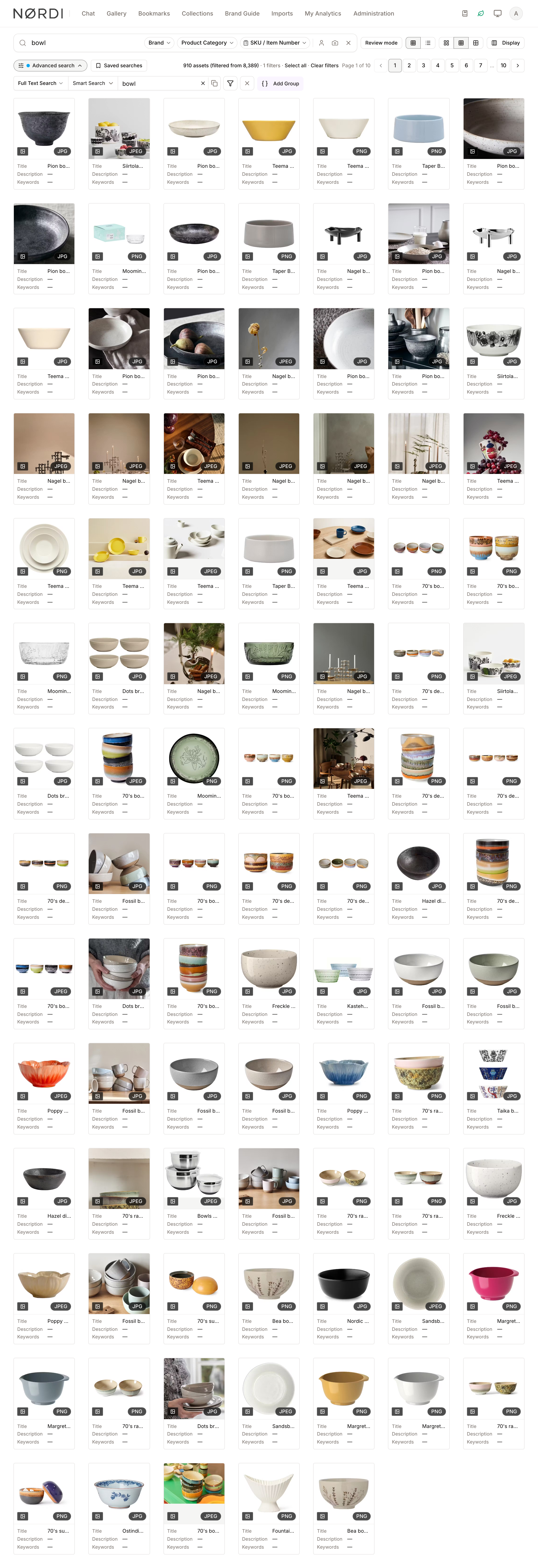
Keyword search is the quickest way to find assets. Type a word or two into the search bar at the top of the Gallery, press Enter, and the page updates to show every asset that matches.
Freedam looks across a wide range of text attached to each asset - not just the filename - so you rarely need to remember exactly how a file was named.
What Gets Searched
When you type a keyword, the Gallery looks inside every text field attached to each asset at once.
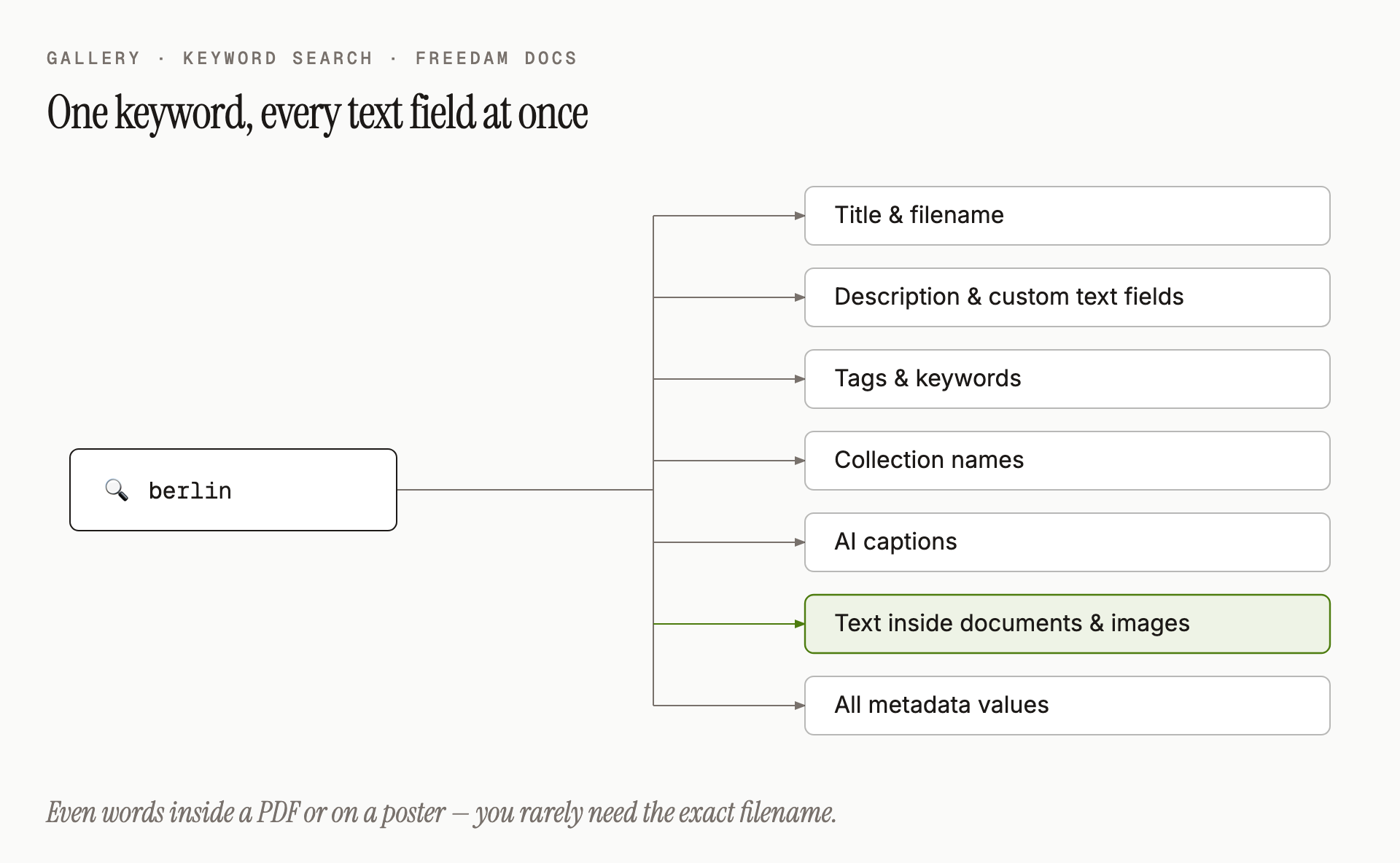
In detail, your keyword is matched against all of the following on every asset:
- Title and filename
- Description and any custom text fields
- Tags and keywords
- Collection names the asset belongs to
- Captions written by the AI (a short sentence describing what's in the image)
- Text found inside images and documents - for example, a slogan on a poster, a product name on packaging, or the body of a PDF brochure
- Metadata values such as campaign names, brand names, or locations
You don't need to tell the system which field to look in - it searches them all at once and shows the most relevant assets first.
How to Use It
- Click into the Search assets… field at the top of the Gallery.
- Type one or more words. You do not need to capitalise them or match the exact spelling used on the file.
- Press Enter, or click a suggestion from the dropdown.
- The Gallery filters to only assets matching your words.
- To go back to the full library, click the × on the right side of the search bar.
Searching for an Exact Phrase
If you want results that contain your words in the exact order you typed them, wrap the phrase in quotes. Double quotes and single quotes both work.
sunset beachfinds assets that mention both words anywhere."golden hour"finds only assets that contain that precise phrase.
The phrase is compared after the same language processing as any other search: other forms of a word, such as a plural, also match, and very common words such as "the" are ignored. When results are ranked by relevance, the assets that contain the phrase exactly as you typed it are listed first.
Use quotes for product names, slogans, or any expression where word order matters. Use one pair of quotes around the whole phrase - a query with an unclosed quote, empty quotes, or several quoted fragments is not run; instead you'll see a short message asking you to check your quotation marks.
Combining Keywords
Type multiple words to narrow results - every word you add makes the search stricter (see When No Asset Matches Every Word for what happens when nothing matches them all):
dog- every photo that mentions a dog.dog beach- photos that mention both a dog and a beach.dog beach sunset- photos that mention all three.
When No Asset Matches Every Word
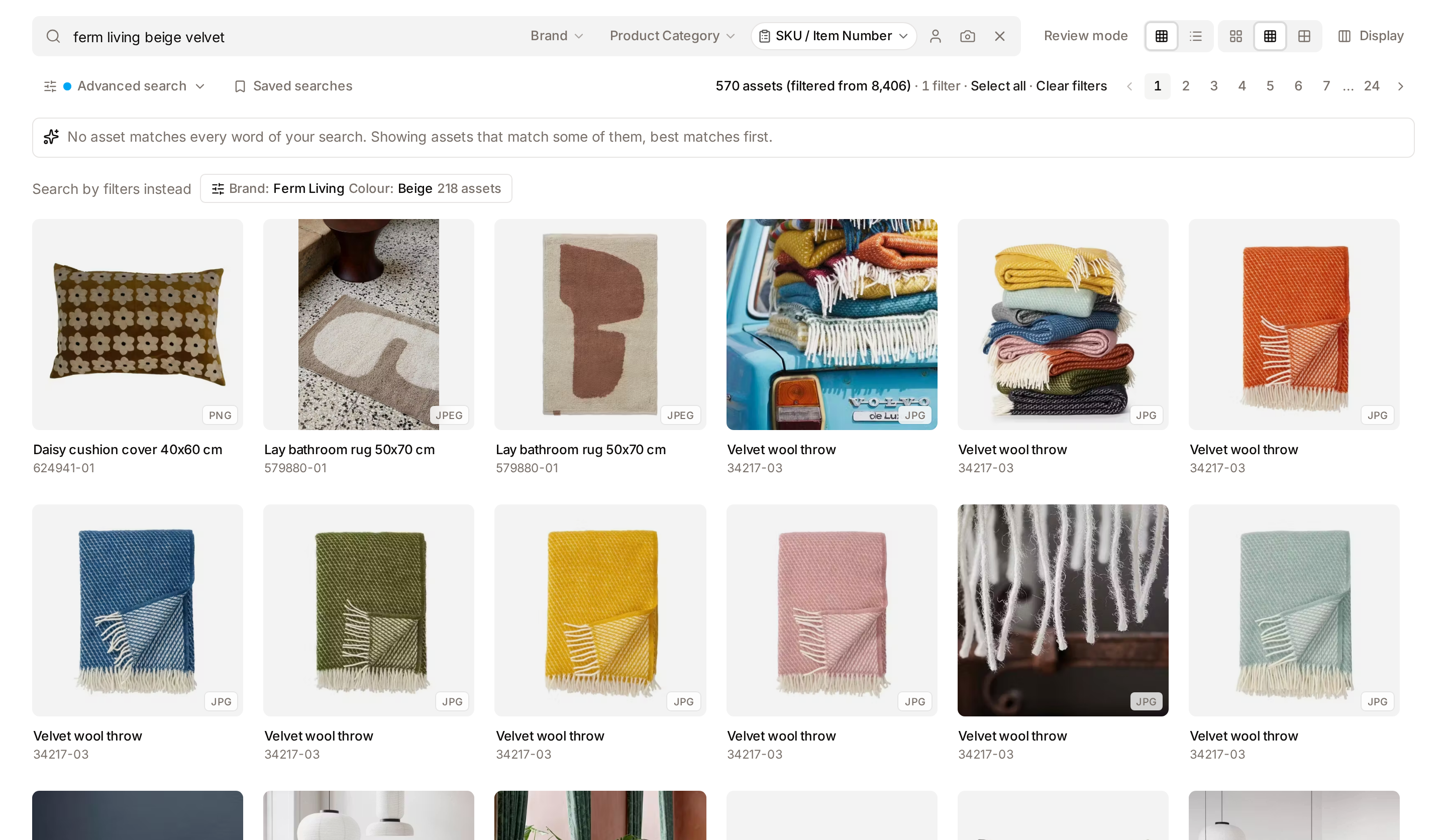
If no asset contains every word you typed, the Gallery shows the assets that match some of the words, best matches first, and says so in a notice above the results:
No asset matches every word of your search. Showing assets that match some of them, best matches first.
Under the notice, or on an empty result, the Gallery may also offer filters built from your words. When some words are values of your library's lists, for example a brand and a colour, a chip such as Brand: Ferm Living, Colour: Beige applies those values as filters and shows how many assets it finds. Words that are not list values stay as a text search and appear on the chip in quotes. Click a chip to replace your search with its filters.
A chip appears only when it finds at least one asset you are allowed to see. Its count follows your Collapse identical files display setting, so it matches the number of results you get after clicking it.
Finding Either of Two Words (OR)
To widen a search instead of narrowing it, put OR between the alternatives:
sunset OR beach- assets that mention a sunset, a beach, or both.spring OR summer OR autumn- assets matching any of the three.
A few rules keep OR searches predictable:
ORneeds a word on both sides - a query starting or ending withORis rejected with a hint.- Each side must be plain words. You can't mix an OR with a date, an asset ID, or a field search (described below) in the same query.
- You can chain up to 16 alternatives.
Excluding Words
Typing NOT, -word or similar exclusion syntax into the search bar is not supported - the search won't run, and a message explains why. To hide results containing a word, use the Advanced Filters panel and choose the does not contain option.
Searching by Date
Type a date - or just a year or a month - to find assets from that time:
2024- assets dated anywhere in 2024.2024-06- assets dated in June 2024.2024-06-15- assets dated on that exact day. The formats06/15/2024,15.06.2024and15-06-2024work too.
The date is matched against the asset's date fields (such as when it was created), and results come back newest first rather than ranked by relevance.
Searching a Single Field
You can point your search at one specific field by typing the field name, an operator, and a value:
title: spring campaign- only assets whose title contains "spring campaign".size > 10MB- files larger than 10 megabytes (KB, MB, GB and TB all work).width >= 1920- images at least 1920 pixels wide.
The supported operators are : (contains), =, !=, >, <, >= and <=. Everything after the operator counts as the value, so title: spring campaign searches for the whole phrase in the title. Type the field name yourself: the suggestions dropdown completes words and values, not field searches (see Suggestions as You Type). A field name Freedam doesn't recognise is rejected with a message rather than searched as text. Field searches return results newest first.
Finding an Asset by ID
Paste an asset ID (the reference shown on the asset detail page, such as IM-20260815-…) into the search bar to find that asset. The Gallery shows it as the only result; click it to open it. You can paste several IDs at once, separated by spaces, commas or new lines. Don't mix IDs with ordinary words in the same query - Freedam asks you to search for one or the other.
When a Search Can't Run
If Freedam can't make sense of a query, it doesn't guess. Your current results stay exactly as they are, the text stays in the search bar, and a short message explains what to fix - for example:
- "Excluding terms (NOT, -term) is not supported in search yet."
- "Check your quotation marks: use one matched pair around an exact phrase."
- "Check your OR search: every OR needs a word on both sides."
- "This search is too long. Shorten it and try again."
This is deliberate: a search bar that silently ignores part of what you typed - or falls back to showing the whole library - is worse than one that asks you to rephrase. Practical limits: a query can be up to 500 characters and 64 words; anything longer is rejected with the "too long" message.
How Results Are Ranked
The most relevant assets appear first. The Gallery considers things like:
- Whether the word appears in a title (stronger match) versus deep in a description (weaker match).
- How complete the match is - a file titled exactly "Sunset" ranks above one that mentions "sunset" in passing.
- Whether the word appears in tags or collections you typically use, which often means stronger relevance.
Relevance ranking applies to word and phrase searches. Date, field and asset-ID searches have no meaningful "relevance", so their results come back newest first - Sort by in the Display panel reflects whichever ordering is in effect.
You can re-sort results at any time with Sort by in the Display panel - for example, to show the newest matches first instead of the most relevant.
Tips
- Don't worry about capitalisation - "SUNSET", "Sunset" and "sunset" all return the same results.
- A single word often beats three - start broad, then narrow down with filters.
- Try synonyms if nothing comes up. If keyword search isn't finding what you need, the meaning-based search described in Searching by Meaning often picks up on concepts instead of exact words.
- Use the suggestions dropdown - as you type, Freedam proposes words and list values that complete your text. Clicking one is faster than finishing your query.
Troubleshooting
I know the asset exists but my keyword returns nothing
- Check that no filters are active - the result count in the controls row says how many filters apply, and a quick filter in use shows a number on its button. When a filter is what hides your results, the Gallery offers a Without … chip above the empty result that runs the same search without it (see Filters). Or click Clear filters to start fresh.
- Try a shorter or more general word. "Campaign-Q3-hero-final.jpg" might not match
hero finalbut it will matchcampaign. - The word you're searching may only exist inside a document or image that was uploaded recently and hasn't finished processing yet. Give it a few minutes and try again.
My search shows the wrong asset at the top
Relevance ranking is automatic, but you can sort by Newest first, Oldest first, Name (A–Z) or other criteria with Sort by in the Display panel. This overrides relevance ordering.