
Export
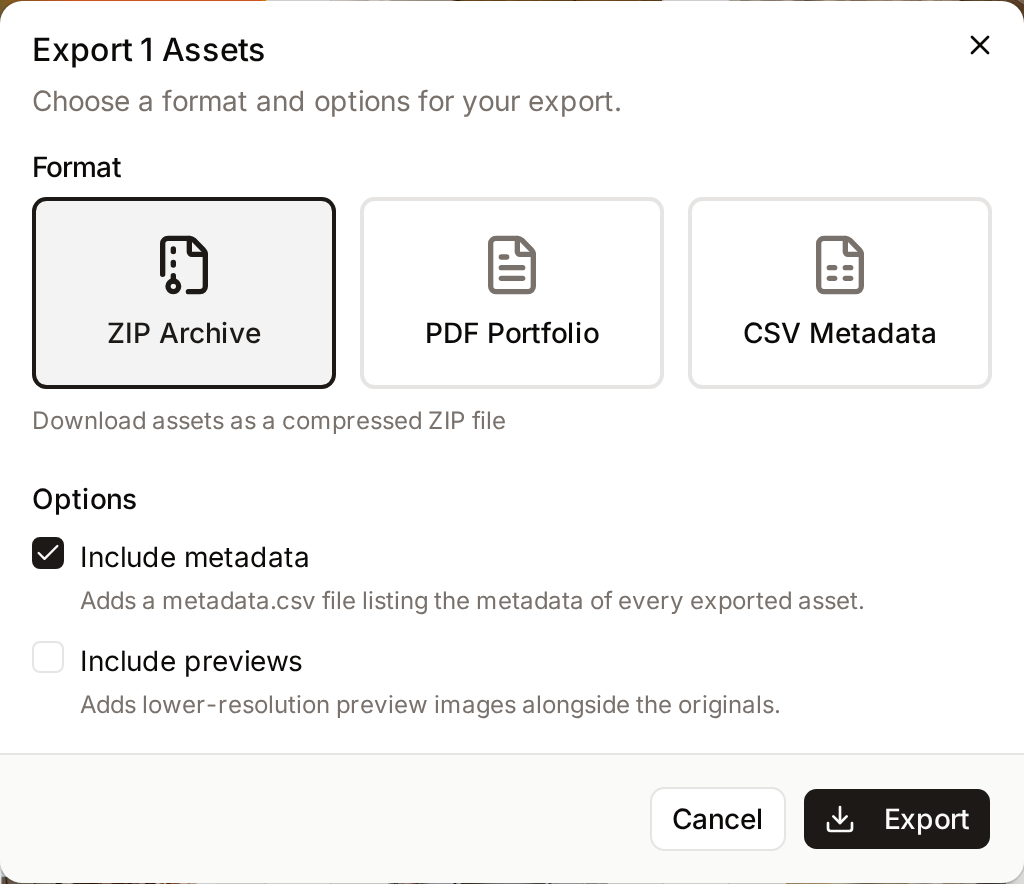
Export packages a selection of assets for use outside Freedam: a ZIP of the files, a PDF to present them, or a CSV spreadsheet of their metadata. Exports are prepared in the background and downloaded from the Task Center.
To download files at a specific size, use Download instead. See Download Dialog.
Start an export
- In the Gallery, select the assets. Use Select all matching for every result of the current search.
- In the selection bar, open More and click Export.
- Choose a Format and its options, described below.
- Click Export.
Freedam shows "Preparing export for N assets..." and opens Background tasks. When the export is ready, click Download export on its row. See Task Center.
Download export files within 24 hours. After that, the file is deleted and you need to export again.
Formats
ZIP Archive
The original files, in a compressed archive.
| Option | What it adds |
|---|---|
| Include metadata (on by default) | A metadata.csv spreadsheet at the root of the ZIP, with one row per asset and the name of its file in the archive. |
| Include previews (off by default) | A previews folder with a 512-pixel preview of each asset. |
The files are in an assets folder. Their names follow your workspace's export naming rule for bulk downloads, or the original file name if there is none. An export_info.txt file describes the export.
PDF Portfolio
A PDF with a preview and the main metadata of each asset, ready to send to a client or print.
- Template Style: Contact Sheet, a detailed layout with metadata and your branding, or Standard Portfolio, a lighter presentation.
- Paper Format: A4 (210mm × 297mm) or Letter (8.5in × 11in). Freedam remembers your last choice.
CSV Metadata
A spreadsheet of the selected assets' metadata, without any files. It opens directly in Excel, Numbers or Google Sheets, with accented characters intact.
Columns include the asset ID, title, description, file name and type, size, dimensions and duration, creator, copyright, keywords, capture date and location, created and updated dates, AI caption and tags, dominant colours, asset class, workflow status, upload batch, every custom field, and a preview link.
Which assets are included
- An export only contains assets you are allowed to download.
- Assets left out for access reasons are counted on the Task Center row as N skipped (access policy).
Limits
| Limit | Value |
|---|---|
| Assets per export | 10,000 |
| Bulk operations running at the same time, per person, exports included | 3 |
| How long an export file is kept | 24 hours |
Troubleshooting
"Export exceeds maximum asset limit (10,000). Please reduce your selection."
Narrow your search with filters, or export in several parts.
The Download export button does not appear
The export is still running, or it failed. Open Background tasks and check its status. A failed export shows its error message under the status.
The export has fewer assets than I selected
Some assets are not downloadable with your access. Ask an administrator, or check the asset's download options on its page.
Related pages
- Gallery: selecting assets and the Task Center.
- Download Dialog: downloading files at a chosen size.
- Export Naming Rules: for administrators, how exported files are named.