
MCP Server
The MCP Server feature allows you to connect your Freedam assets and data to AI assistants using the Model Context Protocol (MCP). By exposing specific "tools" to an AI, you enable it to see, search, and modify your digital assets directly from within its own interface.
This feature is designed for administrators who want to leverage Large Language Models (LLMs) to automate metadata tagging, asset discovery, and collection management. Instead of uploading files to an AI by hand, the AI calls Freedam tools to perform tasks on your behalf.
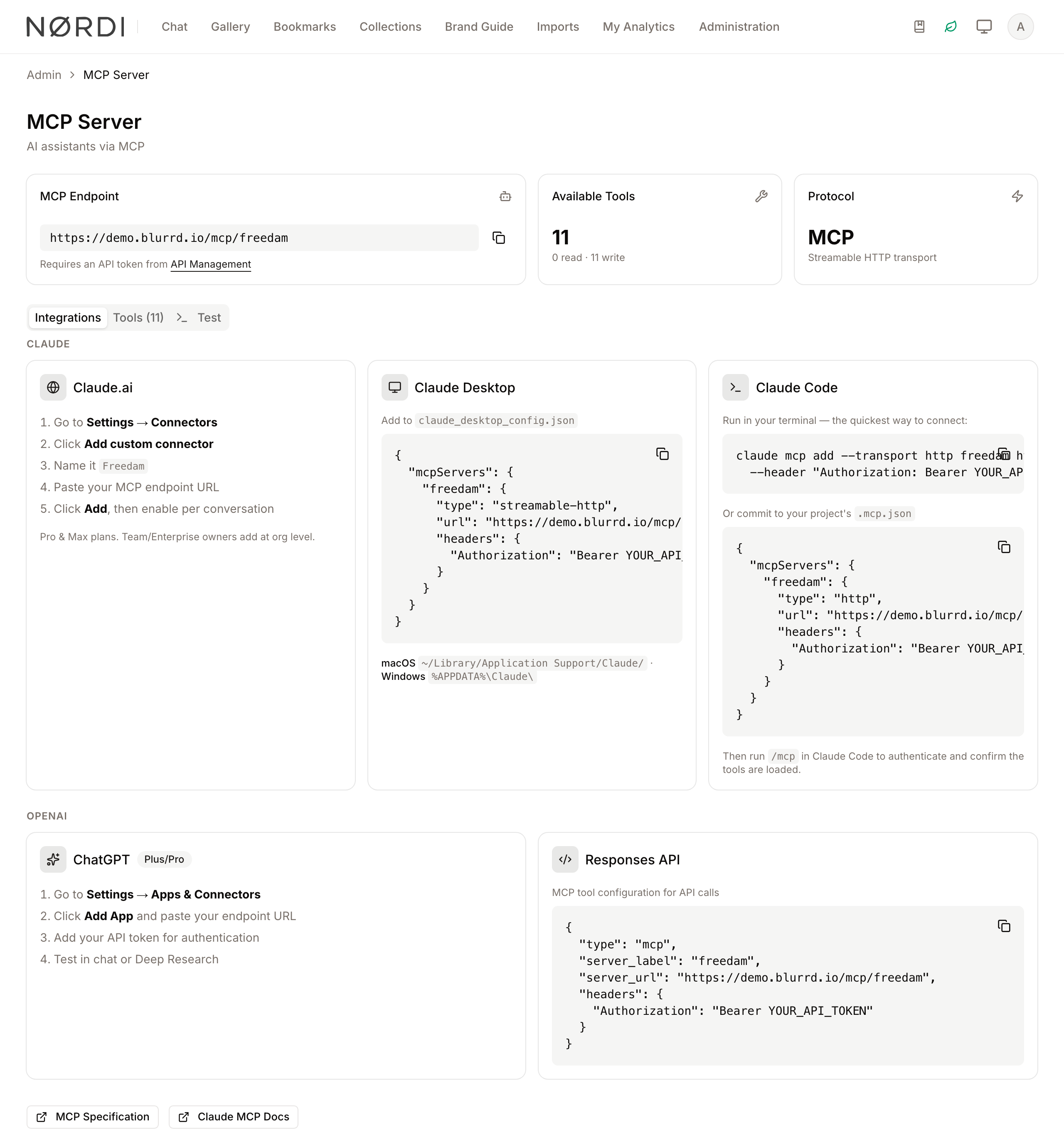
Page Overview
- Purpose: To provide the connection details and configuration snippets required to link Freedam with AI platforms.
- Where to find it: Administration → Platform → MCP Server. The page requires the Manage API access permission.
- When to use it: Use this page when setting up a new AI assistant (like Claude Desktop or ChatGPT) or when you need to audit which tools are currently exposed to AI agents.
- What you can do here:
- Copy your unique MCP Endpoint URL.
- View the number of available read-only and write-enabled tools.
- Access configuration code for Claude Desktop, Claude Code, and OpenAI.
- Browse the full list of tools and their descriptions.
- Test the connection using a sample command-line request.
Page Layout
- Top bar: Displays the page title "MCP Server" and a brief description.
- Stats Cards: Three cards: MCP Endpoint with the URL, Available Tools with the count of read and write tools, and Protocol (Streamable HTTP transport).
- Main area: Three tabs: Integrations, Tools (with the tool count), and Test.
- Navigation Links: Links to the API Management page, where you create the required tokens.
Main Features
MCP Endpoint
- What it's for: This is the unique web address that AI assistants use to communicate with your Freedam instance.
- Typical use: You copy this URL and paste it into the "Connector" or "App" settings of your AI platform.
- Result: The AI platform connects to your DAM over HTTPS and authenticates with your API token.
Integration Snippets
- What it's for: Provides pre-formatted JSON configuration blocks for specific AI clients.
- Typical use: Copying the configuration for Claude Desktop to enable Freedam tools in your local AI application.
- Result: Eliminates manual coding by providing ready-to-use configuration files.
Tool Directory
- What it's for: Lists every capability currently exposed to the AI.
- Typical use: Checking if an AI has the "write" permission to edit metadata or if it is restricted to "read-only" searching.
- Result: Provides transparency into what actions an AI can perform on your data.
- Read-only tools (blue Eye icon) - the AI can look but not change:
- Search assets (full-text and semantic search)
- Get a single asset (all its details and metadata)
- List collections
- Get vocabularies (the controlled tag and category lists your team uses)
- Get operation status (progress of a long-running upload or bulk job)
- Write tools (amber Pencil icon) - the AI can change or create data:
- Upload assets
- Update asset metadata
- Bulk update (apply the same metadata change across many assets)
- Create a collection
- Add assets to a collection
- Create a share link
Which of these the AI can actually use depends on the permission groups on the token it was given, and on the role of the person who owns the token. A token never does more than its owner may do: uploading needs the Upload assets permission, and creating a share link needs Share publicly (for a collection, also Share own collections), whatever the token's groups. For example, an AI with a token that only has "Read Assets" and "Read Collections" will see all tools listed but will be denied when it tries to run an upload or a bulk update.
Tool Reference
Each tool checks a token ability before it runs. A token without it gets an error, not a partial result. Abilities are described in Authentication. Tools act as the user who owns the token. Parameters marked * are required.
| Tool | What it does | Parameters | Ability |
|---|---|---|---|
search_assets |
Searches assets with text and optional filter rules. | q, filters (JSON rule tree), mime_type, sort_by, sort_direction, per_page (1-100, default 24), page |
assets:read |
get_asset |
Returns one asset with its details and metadata. | gaid* |
assets:read |
update_asset_metadata |
Changes fields on one asset. Only the fields passed are changed. | gaid*, title, description, keywords (comma-separated), ai_caption, ai_tags (list), ocr_text, metadata (JSON object of field keys to values; vocabulary fields take the term id; a multilingual field takes an object of language codes to texts and changes only the languages it names), metadata_language (the language of plain texts sent to multilingual fields), workflow_status |
assets:write |
bulk_update |
Applies the same updates to many assets as a background operation. | gaids* (JSON array), updates* (JSON object) |
assets:write |
list_collections |
Lists and searches collections. | search, parent_id, root_only, per_page (1-100, default 25) |
collections:read |
create_collection |
Creates an empty collection. Uses the first active collection type when none is given. A parent_id must be a collection the user created. |
name*, collection_type_id, description, parent_id |
collections:write |
add_to_collection |
Adds assets to a collection the user is allowed to add assets to. Every GAID must match an asset the user can see, otherwise nothing is added. | collection_id, gaids (JSON array) |
collections:write |
upload_assets |
Creates an upload batch. Files are then sent with the REST API, see Endpoints. | batch_name, asset_class_id, collection_id |
uploads:manage |
get_operation_status |
Returns the progress of a background operation, such as a bulk update. | operation_id* |
assets:read |
create_share |
Creates a share link for an asset, a selection of assets or a collection, and returns its URL. | shareable_type* (asset, selection or collection), gaid (for asset), gaids (JSON array, for selection), collection_id (for collection), access_type (default public), download_resolution (default w_1024), watermark_id, expires_at, allowed_emails (JSON array), acknowledge_rights_warnings |
shares:manage |
get_vocabularies |
Lists vocabularies, optionally with their terms. Each term and child has label, its name in your organization's main language, and labels, its name in every language. |
search, include_terms |
metadata:read |
- Parameters described as JSON arrays or objects are passed as JSON strings, for example
["IM-20260101-ABC123DEF456"]. create_sharetakes the GAIDs returned bysearch_assetsandget_asset, and the collection ids returned bylist_collections. It creates the share the same way Freedam does:- The token's user needs Share publicly for an asset or a selection. For a collection they need Share publicly and Share own collections, on a collection they created or, with Manage other people's collections, on a collection created by someone else. They must also be able to view every asset the share exposes and download its original. An unknown GAID or collection id gets the same "not allowed to share this resource" error.
- If your workspace requires accepting the share terms of use, the tool returns an error until the token's user has accepted them in Freedam.
- Rights policies are checked: a
publicshare needs thepublishaction on every asset, other access typesdistribute. When assets are blocked, the error lists their GAIDs. Call the tool again withacknowledge_rights_warningsset totrueto create the share anyway; blocked assets stay hidden from recipients. email_restrictedrequiresallowed_emails, and each address receives an invitation email. Theshare.createdwebhook is sent for every new share.expires_atis an ISO 8601 date in the future.watermark_idworks only when your plan includes watermarks.- It has no password parameter, so don't use
password_protectedwith it.
- AI apps show each tool by its title, for example "Search assets", and call it by the name in this table.
A token for an AI assistant should only carry the abilities its tasks need: assets:read and collections:read are enough for a search assistant.
Detailed Feature Documentation
MCP Endpoint and Stats
- Purpose: To provide the primary connection string and a snapshot of server capabilities.
- Where to find it: At the top of the page, inside the first grid of cards.
- What you'll see: The full URL for your MCP server and a count of "Read" vs "Write" tools.
How to use it:
- Locate the MCP Endpoint card.
- Click the Copy icon (clipboard) next to the URL.
- If you do not have an API token yet, click the API Management link in the card footer to create one.

Integrations Tab
- Purpose: Step-by-step instructions and configuration files for popular AI platforms.
- Where to find it: The first tab in the main content area.
- What you'll see: A Claude section (Claude.ai, Claude Desktop and Claude Code) and an OpenAI section (ChatGPT and Responses API), followed by links to the MCP Specification and the Claude MCP Docs.
- Claude.ai and ChatGPT are set up in the assistant's own settings: the card lists the steps, and you paste the MCP endpoint URL there.
- Claude Code offers a terminal command (
claude mcp add ...) and a.mcp.jsonblock to commit to a project. Run/mcpin Claude Code afterwards to confirm the tools are loaded.
How to use it:
- Select the Integrations tab.
- Find the card corresponding to your AI tool (e.g., Claude Desktop).
- Use the Copy icon on the code block to copy the JSON configuration.
- Follow the listed file path (e.g.,
~/Library/Application Support/Claude/) to locate where to paste the code on your computer.
Tools Directory
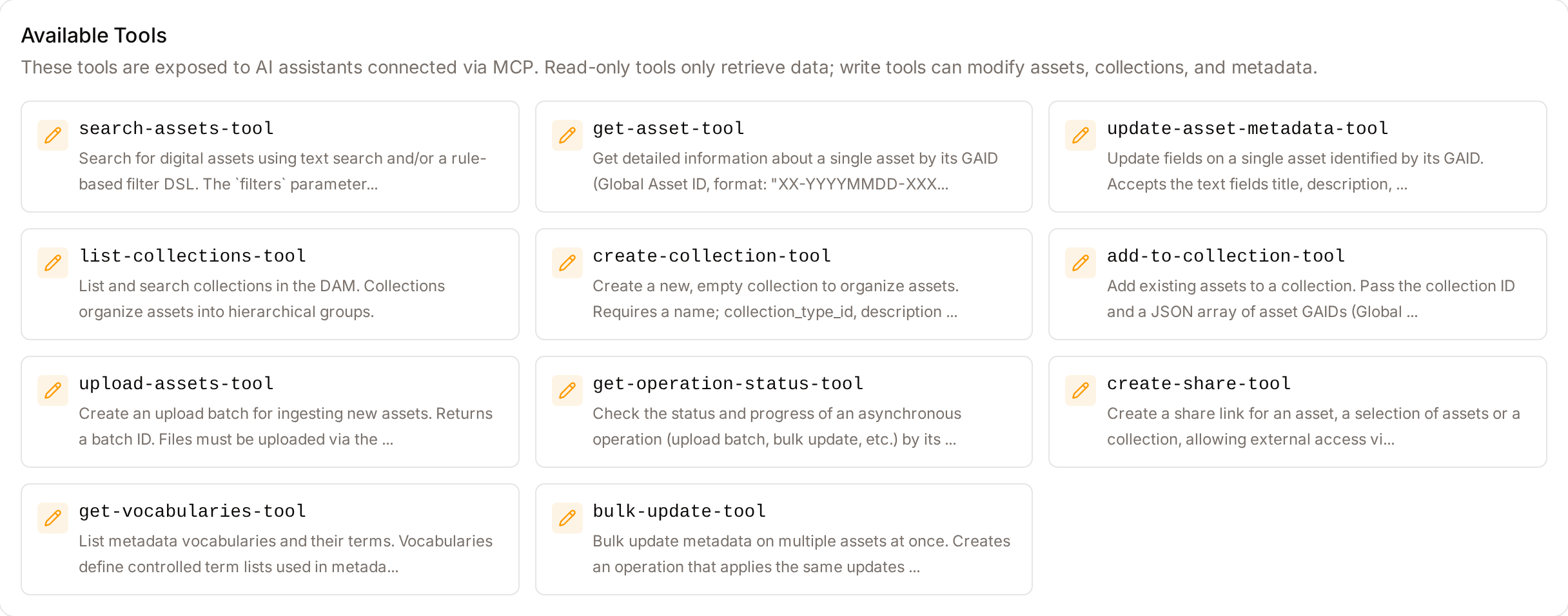
- Purpose: To browse the specific functions available to the AI.
- Where to find it: The Tools tab.
- What you'll see: A grid of cards, each representing a tool. Blue "Eye" icons indicate read-only tools; Amber "Pencil" icons indicate tools that can modify data.
How to use it:
- Click the Tools tab.
- Scroll through the list to see tool names (e.g.,
search_assets) and their descriptions. - Use this list to understand exactly what information the AI can access.
Connection Testing
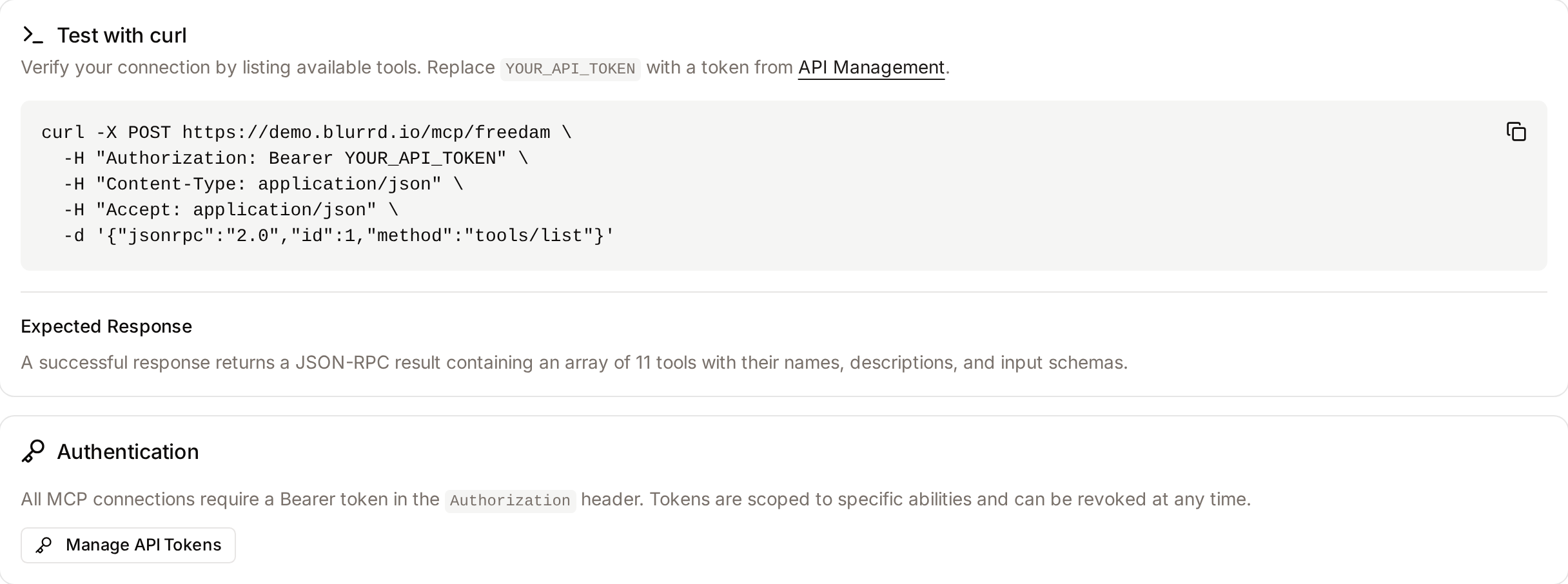
- Purpose: To verify that the MCP server is responding correctly before configuring an AI.
- Where to find it: The Test tab.
- What you'll see: A Test with curl card with the command and the Expected Response, and an Authentication card with a Manage API Tokens button.
How to use it:
- Click the Test tab.
- Copy the command from the Test with curl card.
- Replace
YOUR_API_TOKENwith a valid token from your API Management settings. - Run the command in your computer's terminal. A successful response is a JSON-RPC result that lists the tools with their names, descriptions and input schemas.
Complete Workflows
Workflow: Connect Freedam to Claude Desktop
- Goal: Enable an AI assistant on your computer to search your DAM.
- Prerequisites: Claude Desktop installed; an active API token from Freedam.
Steps:
- Navigate to the MCP Server page in Administration.
- Select the Integrations tab.
- Locate the Claude Desktop card.
- Click the Copy icon in the code block.
- Open your file explorer and navigate to the path shown in the card (e.g.,
%APPDATA%\Claude\on Windows). - Open
claude_desktop_config.jsonin a text editor. - Paste the copied configuration into the file and save.
- Restart Claude Desktop.
- Expected result: A "Freedam" tool icon appears in Claude Desktop, and you can ask it to "List my recent assets."
- If it doesn't work: Ensure you replaced
YOUR_API_TOKENin the config file with your actual token.
Workflow: Verify Tool Permissions
- Goal: Confirm which tools let the AI change data. No MCP tool deletes assets or collections.
- Prerequisites: Access to the MCP Server admin page.
Steps:
- Click the Tools tab.
- Look for the Amber Pencil icon on tool cards.
- Read the description of each tool with a pencil icon to see what it creates or updates.
- If only Blue Eye icons are visible, the AI is restricted to viewing data only.
- Expected result: You have a clear understanding of the AI's "write" capabilities.
Tips and Best Practices
- Token Security: Always use a dedicated API token for MCP. If you suspect the token has been compromised, revoke it in API Management to instantly disconnect all AI assistants.
- Read-Only First: When first testing AI integrations, use a token with limited "read" scopes to ensure the AI doesn't accidentally modify assets while you are learning the interface.
- Check the Logs: If an AI says it "can't find any tools," use the Test tab to run a manual
curlcommand. This confirms if the issue is with Freedam or the AI platform's configuration.
Troubleshooting
Issue: AI Assistant cannot connect to the server
- Symptoms: The AI returns an error like "Failed to connect to MCP server" or "401 Unauthorized."
- Cause: The API token is missing, expired, or does not have the correct permissions.
- Fix:
- Go to API Management.
- Generate a new token.
- Update your configuration file (e.g.,
claude_desktop_config.json) with the new token.
- Prevention: Leave the Expiry Date empty only if you have strict control over the environment where the AI is running.
Issue: Tools are missing from the AI interface
- Symptoms: The AI connects successfully but says "No tools available."
- Cause: The MCP server is reachable, but the specific tools are not being exposed.
- Fix: Check the Tools tab on the MCP Server page. If the list is empty, contact Freedam support.
- Prevention: Periodically check the Available Tools count on the overview cards to ensure the number hasn't dropped to zero.
Good to Know
- One endpoint, many AI clients: All AI assistants (Claude Desktop, Claude Code, ChatGPT, etc.) connect to the same Freedam MCP endpoint. Each one simply needs its own API token pasted into the integration snippet.
- AI requests obey the same 60-requests-per-minute limit as any other API token. An AI that sends more requests is throttled like any other integration.
- Everything an AI does is audited: every tool call the AI makes shows up in the same audit trail as regular API activity, tagged with the token name, action, IP address, and response. The API Management Overview tab shows the request volume, error rate and most called actions.
- Read-only first is a safe default: issuing the AI a token with only "Read Assets", "Read Collections" and "Read Metadata" is the safest way to let it help with search and discovery without risk of accidental edits or deletions.
- Bulk changes are asynchronous: when the AI triggers a bulk metadata update or an upload, Freedam queues the work and returns an operation ID. The AI can then use the "Get operation status" read-only tool to track progress rather than holding the connection open.