
Third-Party Licenses
The Third-Party Licenses page provides a centralized inventory of all open-source software libraries and dependencies used within the Freedam application. This tool is essential for legal compliance, allowing administrators to verify license types and ensure the platform adheres to open-source requirements.
This feature is primarily for system administrators and legal compliance officers who need to audit the software supply chain or provide attribution for the technologies powering the application.

Page Overview
- Purpose: To maintain transparency regarding the third-party code used in the application.
- When to use it: Use this page during legal audits, when checking for specific license compatibility (e.g., MIT vs. GPL), or when investigating the version of a specific system dependency.
- What you can do here:
- View high-level statistics on total packages and ecosystem distribution.
- Filter dependencies by programming ecosystem (PHP or JS).
- Search for specific packages by name or license type.
- Access official license documentation and package source repositories.
- Review a breakdown of the most common licenses used across the system.
Page Layout
- Top bar: Displays the page title, a brief description, and breadcrumb navigation for the Admin section.
- Stats Cards: A row of four cards: Total Packages, PHP Packages, JS Packages, and Most Common License.
- License Breakdown: A horizontal list of badges showing the six most used license types and the number of packages associated with each.
- Main area: A searchable and filterable list containing the full inventory of third-party packages.
Main Features
Ecosystem Statistics
- What it's for: Provides an immediate snapshot of the application's technical footprint.
- Typical use: Quickly identifying how many dependencies are managed via PHP (Composer) versus JavaScript (NPM).
- Result: Displays real-time counts in the header cards.
License Breakdown
- What it's for: Summarizes the legal landscape of the application.
- Typical use: Clicking a license badge (e.g., "MIT") to open the official legal definition of that license in a new tab.
- Result: Shows the six most used license types with their respective package counts.
Package Search and Filtering
- What it's for: Narrowing down the list of hundreds of packages to find a specific library.
- Typical use: Typing a package name to check its current version or filtering by "PHP" to see backend-only dependencies.
- Result: The package list updates instantly to show only matching results.
Detailed Feature Documentation
Package Search
- Purpose: To find specific libraries or groups of licenses.
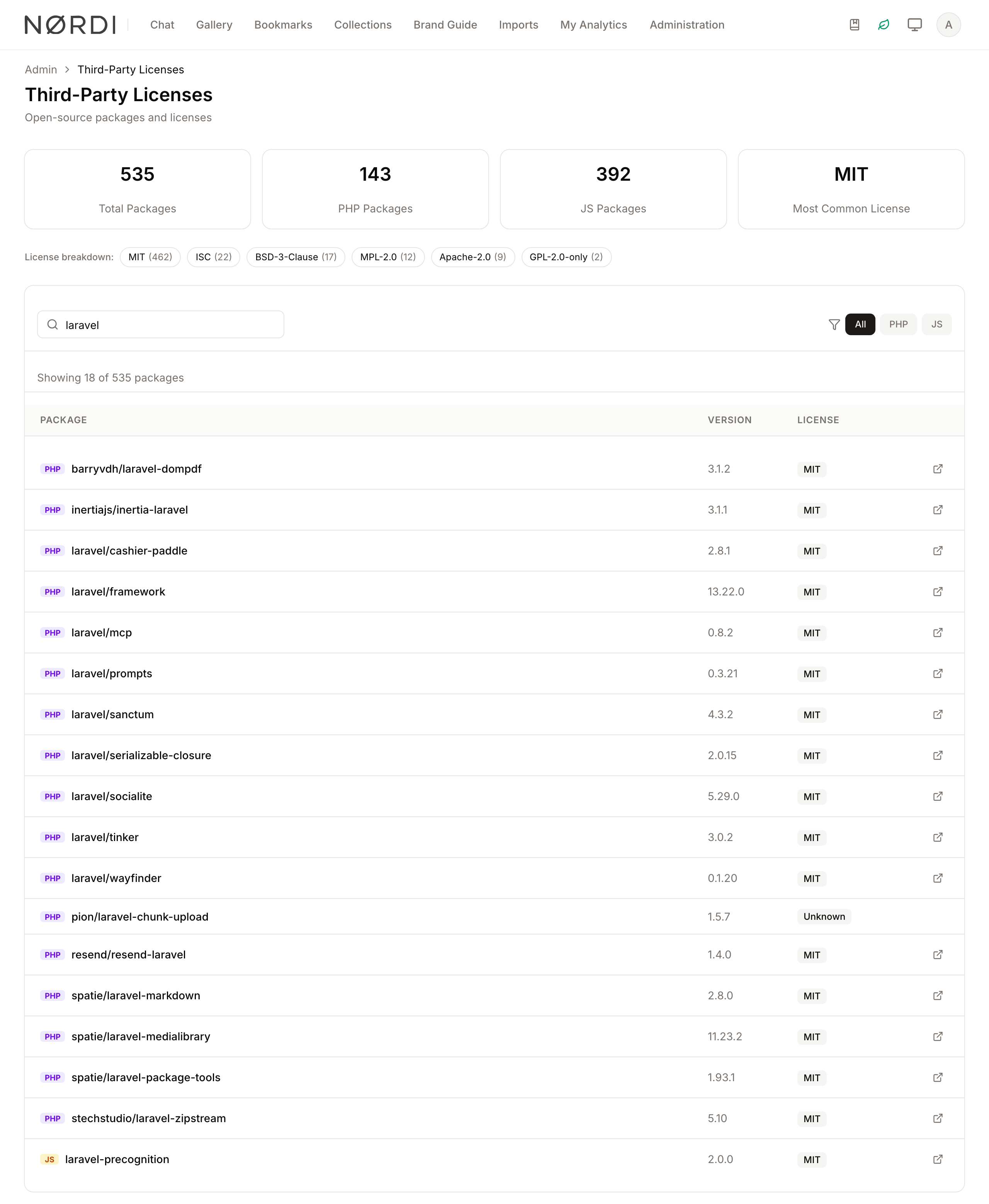
- Where to find it: In the main area, look for the "Search packages or licenses…" field with the magnifying glass icon.
- What you'll see: The list below the search bar will filter in real-time. If no matches are found, the message "No packages match your search." appears with a package icon.
How to use it:
- Click inside the Search packages or licenses… field.
- Type the name of a package (e.g., "lucide") or a license type (e.g., "Apache").
- Review the filtered results in the list below.
Ecosystem Filtering
- Purpose: To isolate packages based on their technical environment.
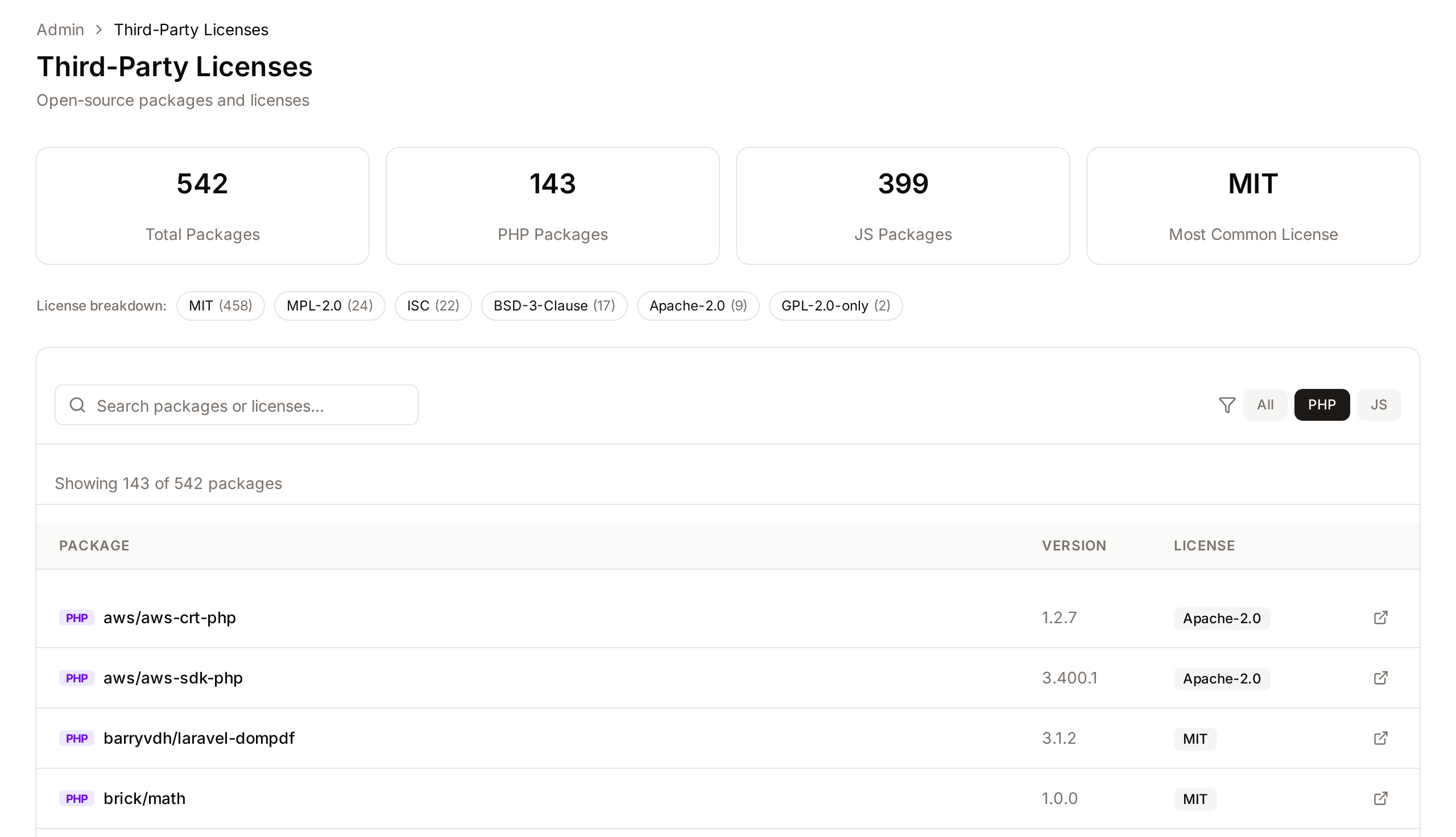
- Where to find it: In the main area, next to the filter icon, look for the buttons labeled All, PHP, and JS.
- What you'll see: The active filter button will be highlighted in a solid color, and the list will update to show only packages from that ecosystem.
How to use it:
- Locate the filter toggle buttons in the top right of the package list.
- Click PHP to see backend dependencies.
- Click JS to see frontend dependencies.
- Click All to reset the view.
External Links
- Purpose: To view the source code or legal text for a specific package.
- Where to find it: In the package list, look for the license badge or the external link icon (square with an arrow) at the end of each row.
- What you'll see: A new browser tab opens directing you to either the official license definition or the package's repository (e.g., GitHub).
How to use it:
- To view a license definition, click the License badge (e.g., "MIT") in a package row.
- To visit the package homepage, click the External Link icon at the far right of the row.
Complete Workflows
Workflow: Audit a Specific License Type
- Goal: Identify every package using a specific license to ensure compliance.
- Prerequisites: Access to the Admin panel.
Steps:
- Navigate to Third-Party Licenses under the Admin menu.
- Locate the License breakdown section at the top.
- Find the license you wish to audit (e.g., "Apache-2.0"). A license outside the six most used is not listed there, but you can still search for it.
- Type that license name into the Search packages or licenses… field.
- Review the list to see every package currently using that license.
- Expected result: The list displays only packages matching that specific license string.
Workflow: Verify Package Versions
- Goal: Check which version of a library is currently installed in the production environment.
- Prerequisites: Knowledge of the package name.
Steps:
- Click the Search packages or licenses… field.
- Type the name of the library.
- Look at the Version column (the second column in the list).
- For mobile users, the version is indicated by a small "v" prefix.
- Expected result: The specific version number (e.g., "1.2.4") is displayed next to the package name.
Where the data comes from
The inventory is assembled automatically from your installation's own package manifests - the PHP dependency lock file and the JavaScript dependency lock file that are shipped with every release. There is nothing to configure: whenever Freedam is updated, the next visit to this page reflects the new set of libraries and their versions. The list is then kept in a one-hour cache so the page loads instantly, which means a very recent update may take up to an hour to appear.
For each package, the system captures:
- The package name exactly as it is installed
- The installed version number (with any leading "v" stripped so versions sort cleanly)
- The declared license type (or "Unknown" when the package does not declare one)
- The best available link to the project - the official homepage if declared, otherwise the repository URL, or a fallback link to the public package registry
JavaScript development-only dependencies (build tools, linters, test runners that never ship to end users) are automatically excluded, so the list reflects the libraries that actually run in production.
What you see and how it filters
The four stat cards at the top of the page show the total count of packages, the count per ecosystem (PHP and JavaScript), and which license is most common across the full stack. The License Breakdown strip below lists the six most used licenses, each with the number of packages using it. Clicking any badge opens the canonical legal text for that license in a new tab where an authoritative URL is known. Some uncommon or custom licenses do not have a predefined URL and those badges are simply informational.
The search box matches against both package names and license names at the same time, and the All / PHP / JS buttons narrow the list to one ecosystem at a time. The small "PHP" and "JS" tags next to each package name make it easy to tell where a given library lives.
Who can use it
Opening this page needs the Manage system settings permission. It is intended for system administrators, legal teams, and compliance officers who need to audit the software supply chain or produce an attribution report. Other users do not see it in the admin navigation.
Tips and Best Practices
- Quick Links: Use the License Breakdown badges at the top of the page as a shortcut to understand the legal requirements of the most common licenses in your stack.
- Ecosystem Indicators: Look for the small "PHP" (purple) or "JS" (amber) tags next to package names to quickly identify where a library is used.
- Search Flexibility: The search bar checks both the package name and the license name simultaneously.
- Fresh data after an upgrade: If you have just upgraded the platform and the package list looks stale, wait up to an hour for the cache to refresh - the page always reflects the real installed manifests.
Troubleshooting
Issue: A package I know we use is not appearing
- Symptoms: The search returns "No packages match your search." or the package is missing from the list.
- Cause: The package might be a sub-dependency not explicitly listed, or the search filter is set to the wrong ecosystem (e.g., searching for a PHP package while the "JS" filter is active).
- Fix: Ensure the ecosystem filter is set to All and clear the search field to see the full list.
- Prevention: Always check the "Showing X of Y packages" text to ensure you are viewing the full inventory.
Issue: License link does not open
- Symptoms: Clicking a license badge does nothing.
- Cause: Some custom or rare licenses may not have a predefined URL in the system.
- Fix: If the badge does not change color on hover or show a pointer cursor, it is not a link. You will need to search for that specific license manually on the web.