
Linked and Related Assets
A product has packshots and lifestyle shots, and a campaign has a hero image and its crops. This page covers how the asset page shows the assets related to an asset, how to link assets, and how to find the images that look alike.
Where related assets appear
On the asset page, the right-hand column shows what is related to the asset, on every asset. From top to bottom:
- The status card: workflow status, rights and owner. See Asset Detail.
- Collections: the collections the asset belongs to.
- Linked assets: the assets connected to this one, by hand or by shared metadata.
- Renderings: crops, exports and other variants of this asset. See Renderings.
- Visually similar: images that look alike.
- Near-duplicates, on images only: near-identical copies of the image.
Assets you are not allowed to see never appear in these sections.
The thumbnails of Linked assets, Visually similar and Near-duplicates are Gallery cards without their caption. Click one to open that asset, tick its checkbox to select it, or hover it to use the quick actions of a Gallery card, such as bookmark and share.
Linked assets
Linked assets shows its links as stacked bands: first the links by metadata, then the manual links.
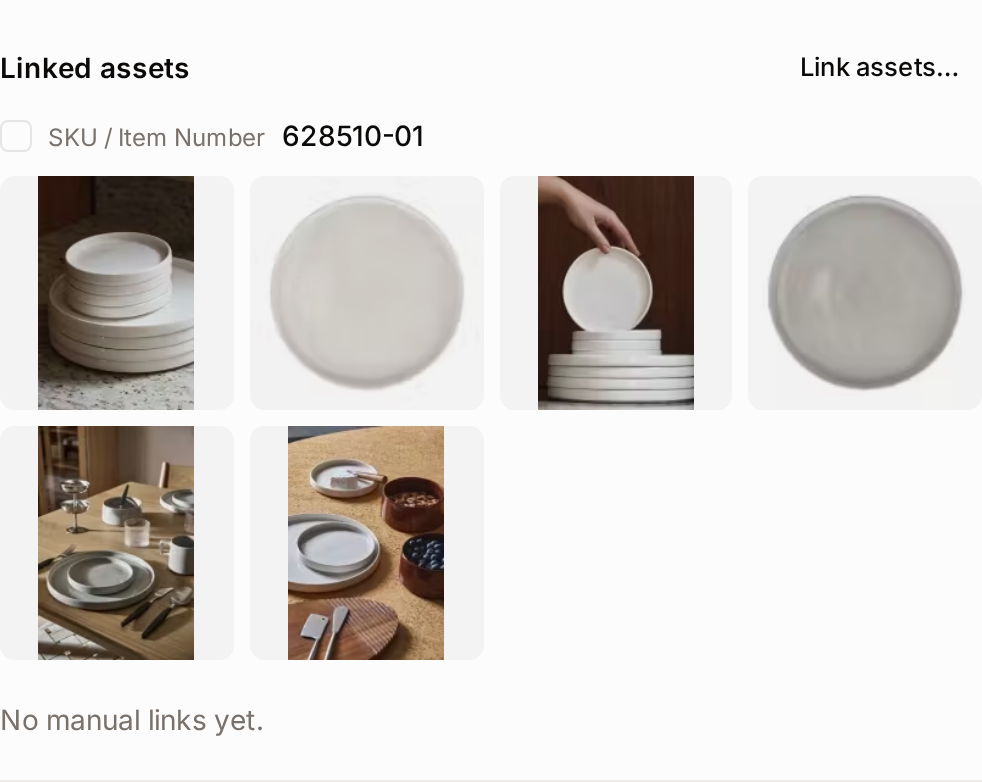
Each band shows:
- a checkbox that selects every asset of the band,
- the kind of link and its value, for example SKU and the product number, or Manual link and the link name,
- the number of assets in the band,
- the number of assets you selected in the band, once you tick some,
- the first 8 thumbnails. Click Show all N to see the rest, Load more to load the next 32, and Show fewer to go back to the first 8.
Click a thumbnail to open that asset. Previous and Next in the top bar then move through the assets of that band, and Back returns to the asset you came from.
Links by metadata
When your workspace links assets by metadata, an administrator marks some metadata fields as used for linking, for example a SKU or a product range. The asset then has one band per linking field of its asset class. Each band shows the assets of the same asset class that share the asset's value in that field. These links are automatic: nobody has to create them.
Bands are ordered from the smallest group to the largest, so the closest matches come first. For example, SKU with 15 assets comes before Collection/Series with 92.
When no other asset shares any of the asset's linking values, the section says No automatic links and names the values it looked for. When the asset's class has no linking fields, it says the class is not linked by metadata. Administrators set up linking fields in Asset Classes.
Manual links
The manual links band is always shown, below the links by metadata. There is one band per link name, and one titled Linked by hand for links without a name.
When the asset has no manual links, the band says "No manual links yet." Users with the Edit asset metadata permission see a Link assets… button at the top right of Linked assets, whether the asset has manual links or not:
- Click Link assets…. The asset is added to your selection, a notification explains the next step, and the Gallery opens.
- Select the assets to link to it.
- In the selection bar, open More, click Link Assets and confirm, as described in Link assets from the Gallery.
Link assets from the Gallery
A link connects assets that belong together, for example the variants of a product or the pieces of a campaign. Links work both ways: each linked asset shows the others.
- In the Gallery, select two or more assets.
- In the selection bar, open More and click Link Assets.
- Optionally, give the group a Link Name (Optional), such as
Campaign Black Friday, and a Link Type (Optional), such asvariantorpart-of. The type is free text. - Click Link Assets.
Every selected asset is linked to every other one. You need the Edit asset metadata permission.
Unlink assets
- From the asset page: hover a manually linked asset in Linked assets and click the × (Unlink this asset). The link is removed at once, without confirmation. You need the Edit asset metadata permission. Links by metadata can't be removed this way: change the shared field value instead.
- From the Gallery: select the assets, open More in the selection bar and click Unlink Assets. The dialog lists the links between them. Click Unlink all, or tick specific pairs under Or select individual links and click Unlink N selected.
Select related assets
Every thumbnail in the right-hand column has a checkbox. What you tick joins the same selection as the Gallery, and the Gallery's selection bar appears at the bottom of the asset page, with Download, Share, Add to Collection, Edit Metadata and, under More, the other bulk actions.
- The checkbox of a band selects all of its assets, including the ones not shown yet, up to 500 assets.
- The first time you select something on an asset page, the asset you opened is added to the selection too, and a notification says "Added to your selection". If you don't want it, click the count in the selection bar and remove it from the list.
The selection is kept when you open other assets or go back to the Gallery. See How the selection is kept.
Visually similar images and near-duplicates
Two sections at the bottom of the right-hand column search the library for you. Near-duplicates is shown for images only.
| Section | What it finds |
|---|---|
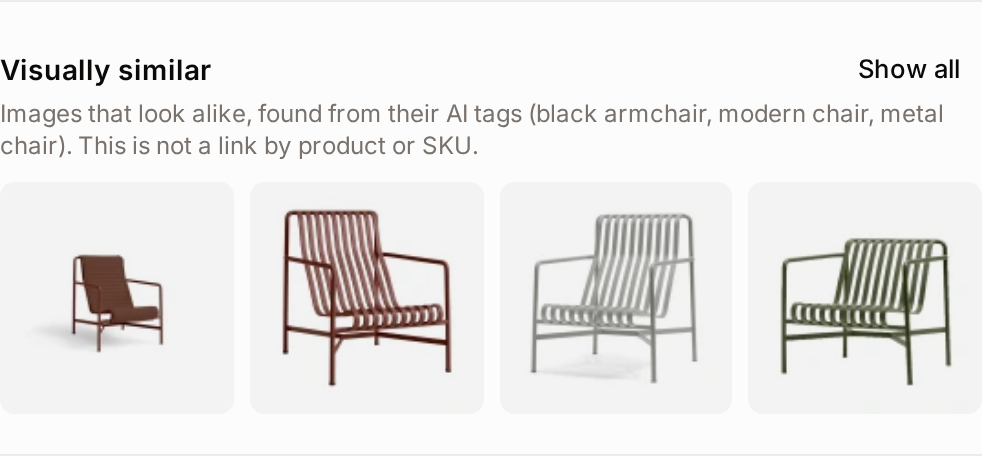
| Visually similar | Images that look alike, found from the asset's AI tags. This is not a link by product or SKU. |
| Near-duplicates | Near-identical copies of the image, such as crops, resizes and re-exports. |
Each section shows the first 4 matches. Click Show all to open the Gallery with the same search and see all of them.
Visually similar needs the image to have AI tags. Freedam adds them when it analyses the image; until then the section says "This image has no AI tags yet, so similar images cannot be looked up." Near-duplicates needs the image's visual fingerprint, which Freedam computes when it processes the image.
To find look-alike images from any picture, including one you upload, see Find Visually Similar Images. Administrators can scan the whole library for duplicates with Duplicate Scan.
Duplicate an asset
On the asset page, click More in the top bar and choose Duplicate under Manage. You need the Upload assets permission.
Freedam creates a new asset titled "[original title] (Copy)", owned by you, and opens it.
| Copied | Not copied |
|---|---|
| The original file | Collections |
| The asset class | Version history |
| All metadata values | Attachments, links and comments |
| Faces, rights and workflow status |
Previews for the copy are created in the background, so it may show a placeholder for a moment.
Change an asset's class
The asset class decides which metadata fields an asset has. To move an asset to another class:
- On the asset page, click Edit. The Details tab opens.
- Choose the new class in Asset class.
- Read the Change Asset Class dialog. It lists Fields that will be deleted, and Fields that will be kept because the new class has a field with the same key.
- Click Change Asset Class.
Deleted field values cannot be recovered. If you are unsure, note the values listed as deleted before confirming.
To change the class of many assets, use the Asset class column of the spreadsheet view. It doesn't show which values will be lost, so check the classes' fields first.
Related pages
- Asset Detail: the rest of the asset page.
- Find Visually Similar Images: searching by image.
- Asset Classes: for administrators, fields and metadata linking.