
Themes
A theme sets how custom pages look: colours, fonts, rounded corners and shadows, plus an optional branded header and a fallback cover image. You assign a theme to a page space, and every page in that space uses it.
Open Administration → Themes, under Pages. You need the Manage page themes permission, and your plan must include Custom Pages.
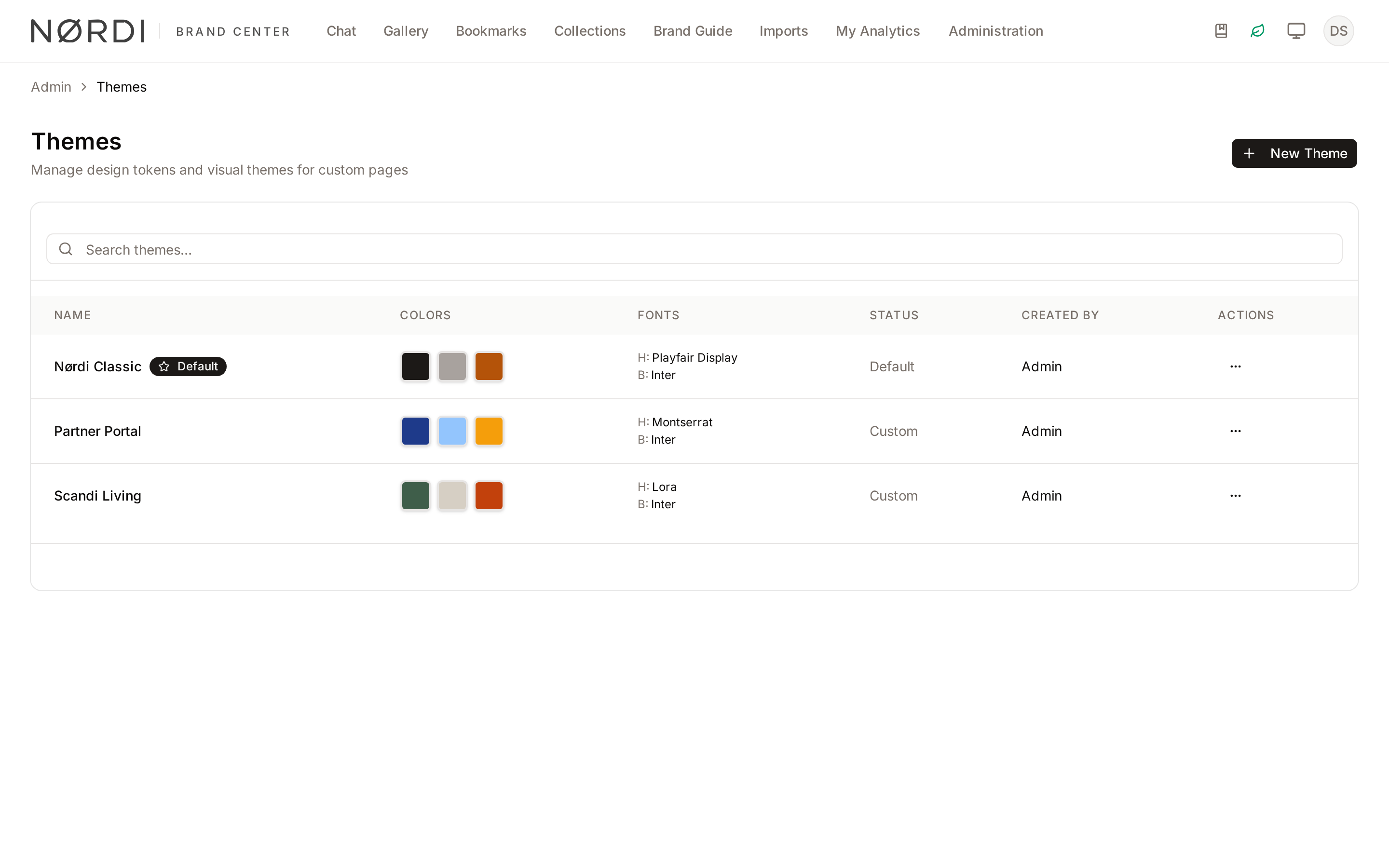
The themes list
Each row shows the theme's Name, its primary, secondary and accent Colors, its Fonts ("H:" for headings, "B:" for body text, or System Default), whether it is the Default theme, and who created it. Use Search themes… to filter the list.
Each row's menu offers Edit, Set as Default and Delete.
Create or edit a theme
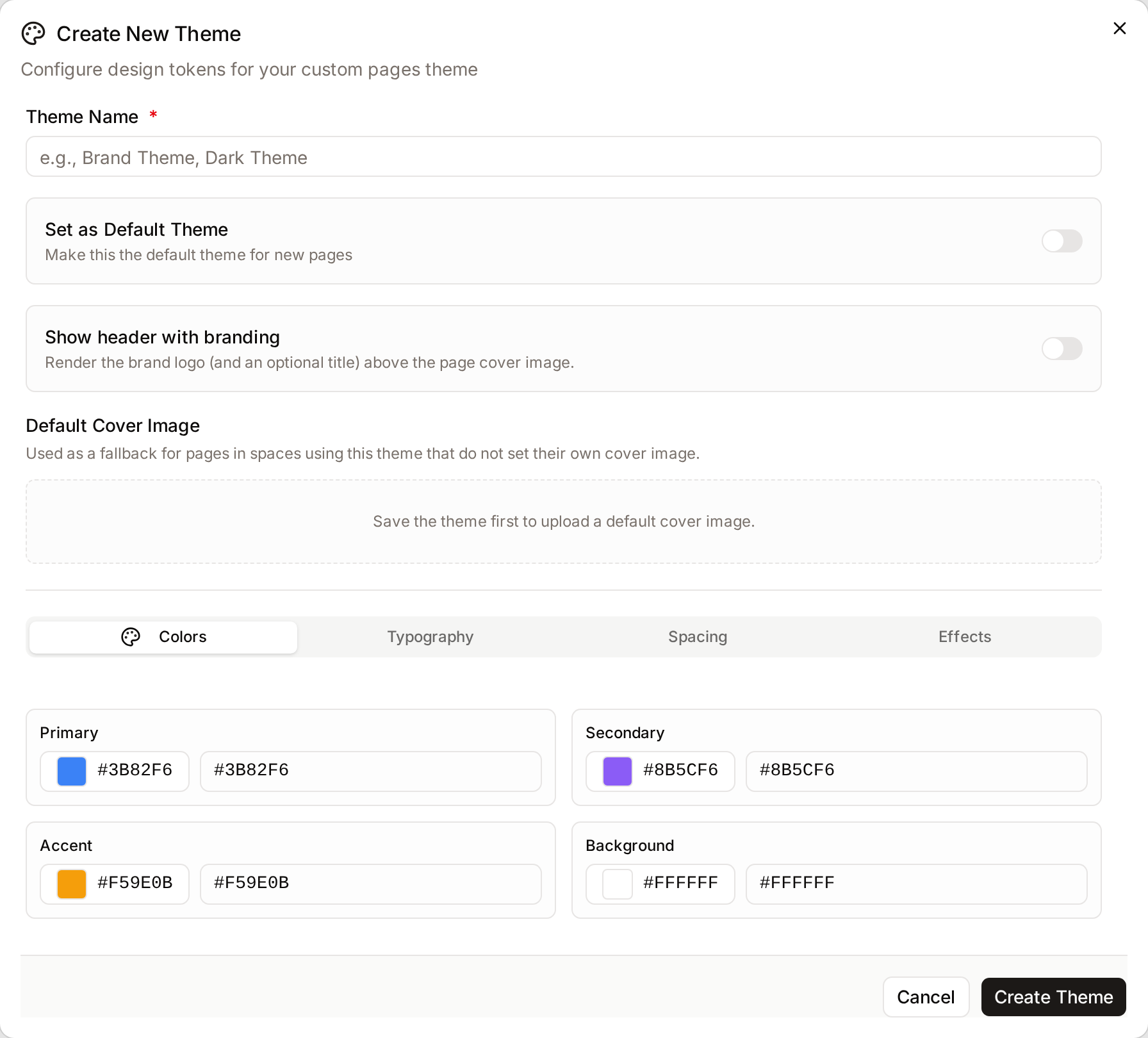
- Click New Theme, or choose Edit on an existing theme.
- Enter a Theme Name, for example
Nordic Light. - Adjust the settings on each tab, described below.
- Click Create Theme, or Save Changes.
On wide screens, Live preview next to the settings shows a sample space page with your changes before you save. It shows only what pages apply: the colours, fonts, corners, shadows, branded header and cover image.
Changes apply to every page in the spaces that use the theme the next time the page is opened.
Colors
Six colours, each entered as a hex code such as #1A73E8 or #FFF. A colour that is not a valid hex code is marked, and the theme cannot be saved until it is fixed.
| Colour | Used for |
|---|---|
| Primary | Buttons, links and highlighted elements. Button text switches between dark and white to stay readable. |
| Secondary | Secondary buttons and badges. |
| Accent | A light tint of it marks hovered and selected items, such as the active tab. |
| Background | The page background. |
| Surface | Cards and panels on top of the background. |
| Text | Body text and headings. Lighter text and borders are derived from it. |
Check that Text stays readable on both Background and Surface.
Typography
Heading Font and Body Font: pick any Google Font, or System Default. Font Preview shows a sample. Heading sizes come from each block's own design, so a theme sets the heading font but not its size.
Effects
- Border Radius: how rounded corners are, in four sizes from small to extra large. Values use
px,remorem, for example0.5rem, or0for square corners. - Box Shadows: small, medium and large shadows used on raised elements.
Branded header
Turn on Show header with branding to show your brand logo above each page's cover image. Add an optional Header title next to it.
The option is only available once a logo is uploaded under Branding.
Default cover image
A Default Cover Image is used on pages that don't set their own cover, in every space that uses the theme.
- Save the theme first. The option only appears when editing an existing theme.
- Click Upload, and choose a JPEG, PNG, GIF or WebP image of up to 10 MB.
- To change it later, click Replace Cover Image.
Apply a theme
Themes are applied through page spaces:
- Open Administration → Page Spaces.
- Choose Edit on a space, or create a new space.
- Choose the theme under Theme, then save.
Every page in the space, including collection pages in the Collections space, now uses the theme. See Page Spaces.
The default theme
Set as Default marks one theme as the workspace default, shown with a star. Only one theme can be default at a time, and there is always one: in the editor, the default theme's Set as Default Theme switch cannot be turned off. To change the default, set another theme as the default.
When you create a space, the default theme is already selected under Theme. You can pick another theme, or No theme, before saving. Changing the default later does not change the theme of existing spaces.
Delete a theme
Choose Delete in the theme's row menu and confirm. Two kinds of theme cannot be deleted:
- The default theme. Its Delete option is disabled. Set another theme as default first.
- A theme used by a space. The delete dialog says how many spaces use the theme, and its Delete button is disabled. Choose another theme for those spaces in Page Spaces first.
Troubleshooting
"Cannot delete the default theme." or "Cannot delete theme that is in use by page spaces."
The theme is still the default, or a space still uses it, for example because a colleague assigned it while your list was open. Set another theme as default, or change the theme of the spaces that use it, then delete again.
"Color must be a valid hex color code (e.g., #000000 or #000)."
Enter the colour as a hex code starting with #, with 3 or 6 characters. Colour names such as blue are not accepted.
The branded header option is greyed out
Upload a brand logo in Branding, then reopen the theme.
A page doesn't use my theme
Check which theme its space uses in Page Spaces. A theme only applies to pages through their space.
Related pages
- Page Spaces: assigning themes to spaces.
- Custom Pages: building pages and choosing their cover images.
- Branding: your logo and brand colours.