
Download Dialog
When you click Download on an asset, Freedam opens a dialog instead of saving a file straight away. Everything happens on one screen: you pick a size, read the usage rights in one line, and, when your administrator or the asset's licence asks for it, answer a short "Before you download" list. When downloads are restricted, a separate dialog lets you request access.
This page covers what each part of the dialog does, when it shows up, and how downloading several assets differs from downloading one.
When the dialog opens
The dialog opens whenever you:
- Click Download on a single asset (from the asset detail page, an asset card, or a search result).
- Click Download in the selection bar after selecting multiple assets in the Gallery.
- Click Request Access on a restricted asset (see Requesting access).
What the dialog shows depends on three things:
- Your access tier: which sizes your workspace administrator allows your role to download (see Downloads by Asset Type).
- The asset's rights policy: whether you need to accept its usage rights before downloading.
- The access rule's download intent: whether your administrator asks what the asset is for, or shows a message you need to acknowledge.
If none of these apply, the dialog still opens so you can pick a size. Freedam never silently downloads an arbitrary version.
One asset
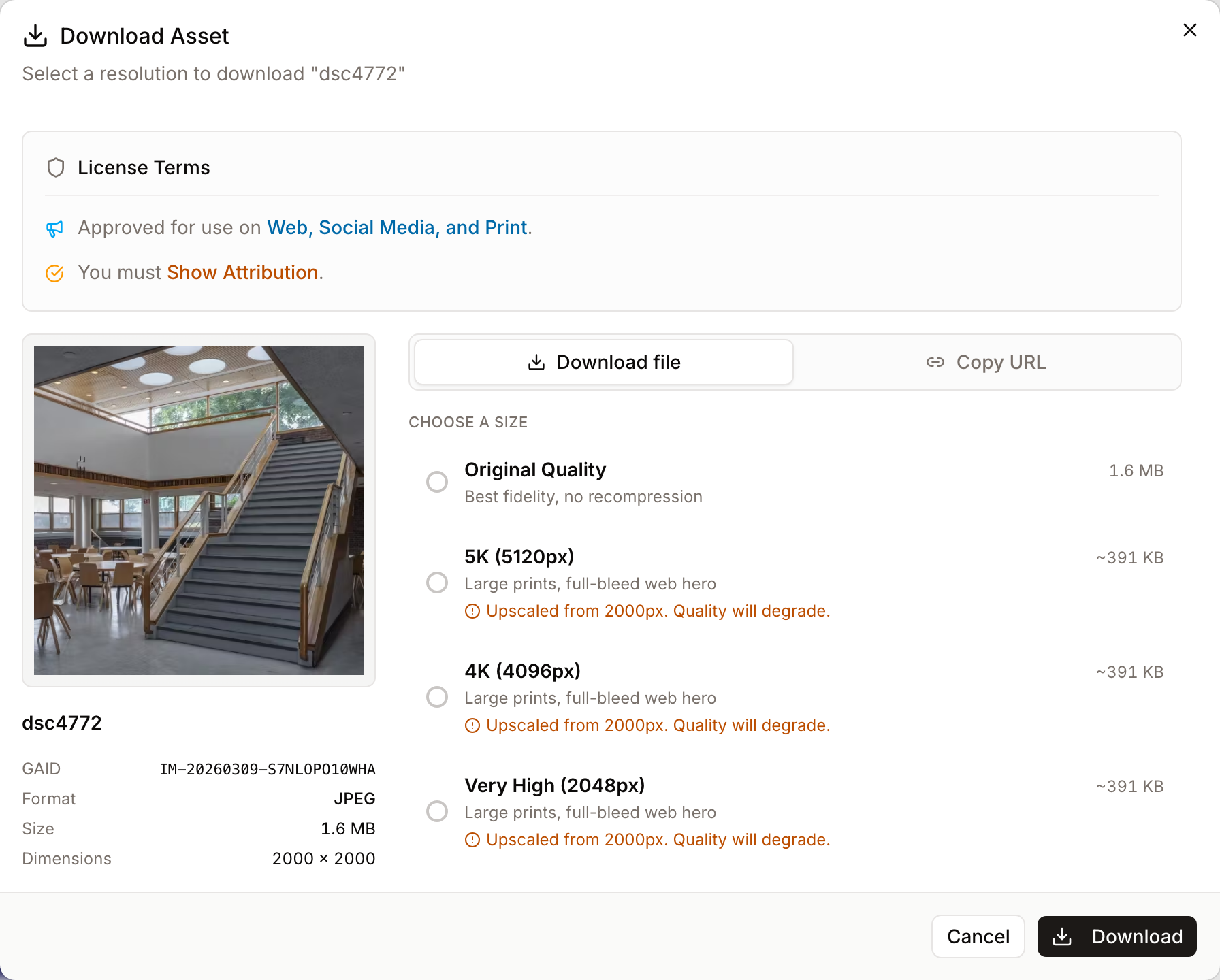
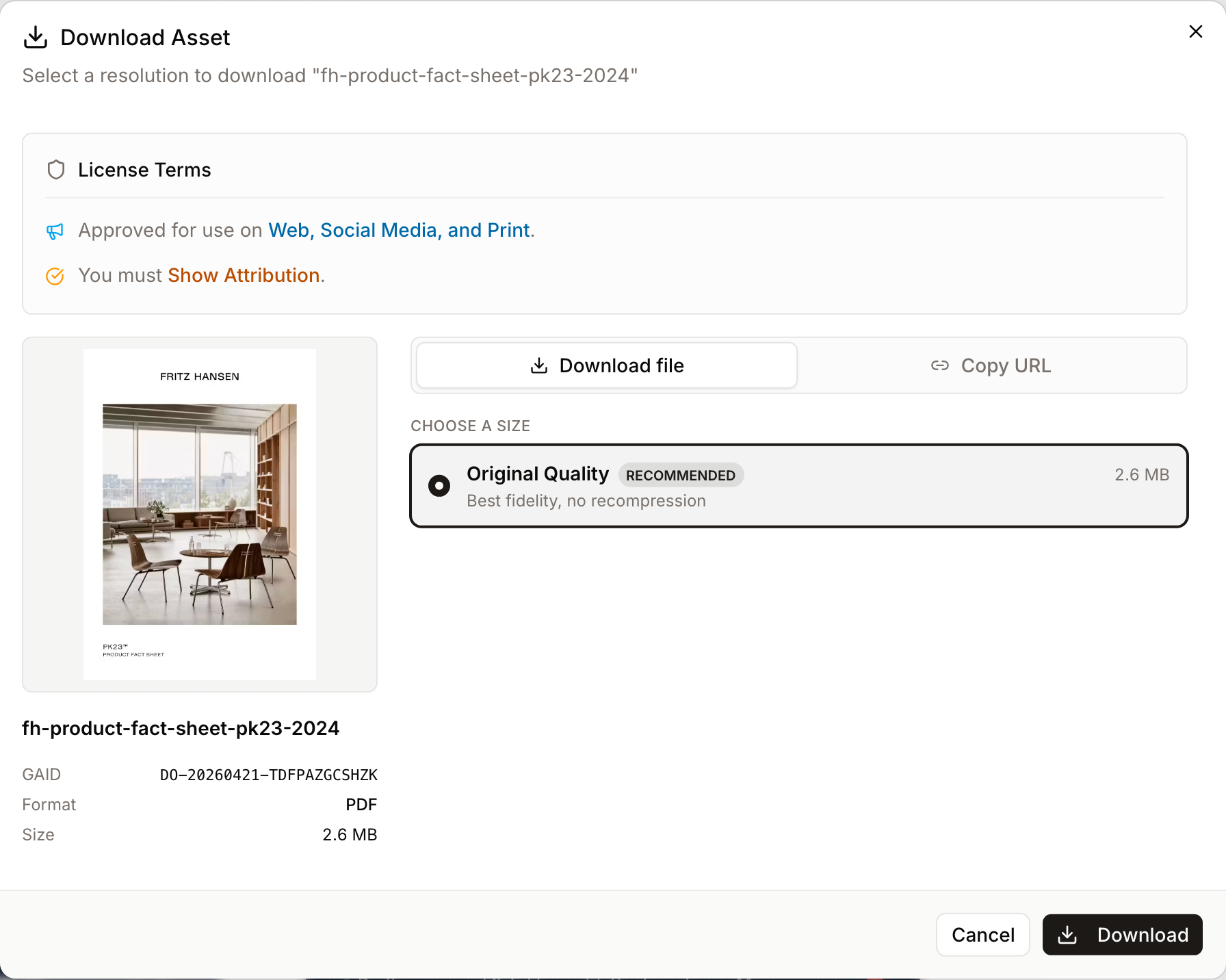
The header shows a thumbnail of the asset, its title, and its format, dimensions and file size. Below it:
- Size: every size you may download, as a list. Pick one row.
- Other versions: the asset's approved renderings, when it has any.
- Usage rights: one line summarising the asset's licence.
- Before you download: only when something is asked of you (see below).
The footer holds Cancel and Download. The Download button shows the predicted size of the file you are about to get.
Choosing a size
A size is a maximum width. Freedam never enlarges an image: when the image is narrower than a size, that size delivers the image at its own width.
Each row in the size list shows:
- Label: Original Quality, Very High (2048px), High (1024px), and so on. The list only holds the sizes your access tier allows. When a size is wider than the image, the row is labelled Full size (… px) with the image's width instead.
- Dimensions and use: the width and height of the file you get, for example "1024 × 683 px", followed by a short hint such as "Web pages, retina screens" or "Email, small social posts". A Full size row reads "…, the original's size" instead.
- Predicted file size: an estimate, shown with "~". It starts from the original's file size and scales it down by the share of the original's pixels the size keeps, with a ceiling of 0.3 bytes per pixel. When the original's file size or dimensions are unknown, and for vector files, it uses a fixed amount per pixel. The Original Quality row shows the stored file size exactly. The real file may be smaller or larger than the estimate.
- Recommended: for a JPEG, PNG, WebP or SVG image, Original Quality is selected when you may download it. For other files, Freedam selects the largest size at or below 2048 pixels that is not wider than the image (a vector file can use any size up to 2048 pixels). If the image is narrower than every size, Original Quality is selected.
The list leaves out sizes that would give you the same file as a smaller size. For an image 2,500 pixels wide, 4K and 5K would both deliver 2,500 pixels, so only 4K is listed. A size that would deliver the original's own width in the original's format is also left out, since Original Quality gives you the same pixels without recompression.
For vector files (SVG, AI, EPS), a note under the list says every size is sharp, because each one is drawn from the vector source. An SVG is drawn at the full width of the size you pick.
For print-only originals (PSD, TIFF, EPS, AI, RAW, HEIC), the Original row reads "Source file for editing apps such as Photoshop or Illustrator. Browsers cannot display it." For office documents (PowerPoint, Word, Excel), it reads "Editable file, as uploaded". Pick a smaller size if you need something a browser, email client or CMS can show.
Large sizes are prepared first
Sizes below 2048 pixels are made when the asset is uploaded, so they download straight away. Sizes of 2048 pixels and up (Very High, 4K, 5K) are made from the original the first time someone asks for them, in a background job. For a large PSD or RAW file this can take a few minutes.
While the job runs, a notice says "Preparing your download. It starts as soon as the file is ready." Keep the page open: the download starts on its own. Later downloads of the same size start straight away.
What a resized file contains
Every size other than Original Quality is a new file made by Freedam:
- Colour: images with an Adobe RGB, ProPhoto or CMYK profile are converted to sRGB through their embedded profile, so colours stay close to the original. Display P3 images keep their Display P3 profile.
- Layered files: a PSD or PSB file is shown and resized as Photoshop saved it (its composite image), not by stacking its layers again.
- Metadata: the original's copyright, creator, credit line, usage terms and web statement are kept in the file. Other metadata, such as GPS position and camera details, is left out.
Copy link
Copy link is only offered on a public share page whose share requires a watermark. It appears on the left of the footer and copies the address of the watermarked version of the asset, served through the share. After copying, the footer confirms with "Link copied" and the selected size.
Inside Freedam, the download dialog has no Copy link button. To give someone a link to an asset, use Share. See Share Links.
Other versions (renderings)
When an asset has approved renderings (translations of a PDF, alternative crops, social media formats), they appear under Other versions, below the sizes. Each row shows the rendering's title, type, language and file size. Select one, then click Download. See Renderings.
Usage rights
If the asset is governed by a rights policy, a line under the sizes summarises it: where you may use the asset (channels and territories), what you must do (for example credit the photographer), what is not allowed, and when the licence ends. When the summary is longer than two lines, Show all opens the rest. A licence that has already ended is shown in red.
When you download several assets covered by different policies, the line starts with the number of licences that apply and combines their terms.
Before you download
Some downloads ask something of you first. Everything that applies is gathered in one Before you download list, and the size shrinks to a single line with a Change link so the dialog stays short. The Download button stays disabled until the list is complete, and the footer says how many steps are left.
The list can hold:
- What will you use it for?: a usage choice from your workspace's vocabulary, when the access rule asks for it. Add details (optional) opens free text, territory, channel and timing fields.
- Message from your administrators: a note set on the access rule, for example an embargo date. When the rule requires it, tick I have read this message.
- Usage rights: when the asset's rights policy requires consent, its title and version with a Read link. Read shows the full text inside the dialog; Accept usage rights there ticks the box and brings you back. You can also tick I accept these usage rights directly.
- Signature: when anything above needs your acknowledgement, the list ends with a signing line showing your name and today's date. Your signature writes itself onto the line once every acknowledgement is ticked.
Usage-rights consent is recorded per user and per policy version. Once you have accepted a version, downloads of any asset under that same version do not ask again; a new version asks again.
Usage answers are recorded against the download and feed the Downloads analytics dashboard, so administrators can see what the library is used for.
Requesting access for restricted assets
If downloading an asset needs approval, the Download button is replaced by Request Access (with a lock icon). It opens the request dialog:
- The header names the asset and, when your administrator gave one, the reason downloads need approval.
- Why do you need it?: a required field of 10 to 1,000 characters. Say which project, which channel, and when you plan to publish.
- A sentence under the field explains what happens next: an administrator reviews the request, and if it is approved you get an email with download links valid for 24 hours.
- Click Send request, or press Cmd / Ctrl + Enter.
If any asset in a multi-asset selection needs approval, the selection opens the request dialog instead. One request covers every restricted asset, and the reviewer sees the full list.
Downloading several assets
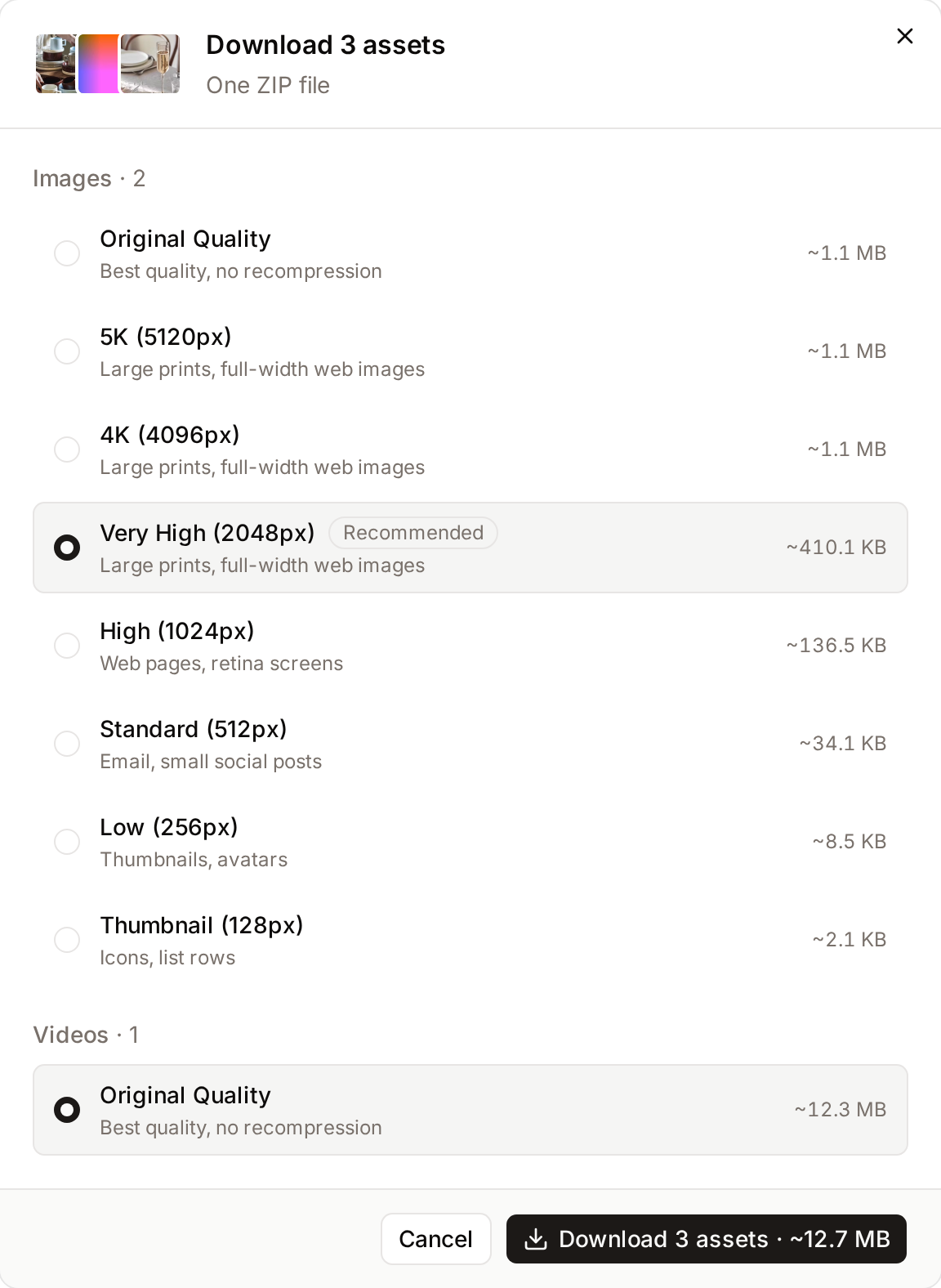
Select assets in the Gallery and click Download in the selection bar. The header shows the number of assets and that they arrive as one ZIP file. A selection can mix file types, so the dialog shows one size list per type, with the same rows as for a single asset: label, what the size is for, and the predicted size of all the assets of that type. The Download button shows the predicted size of the whole ZIP.
- Images: the sizes your access allows for every selected image. Each size row reads "Up to … px wide": images narrower than the size keep their own width. A size that would give every selected image the same width as a smaller size is left out. When every selected image is a JPEG, PNG, WebP or SVG, Original Quality is selected; otherwise the largest size at or below 2048 pixels is selected.
- Animated images: always the original, to keep the animation.
- Videos: the original.
- Other files (documents, audio, fonts, archives): the original.
When some selected assets cannot be downloaded with your access, one line says how many are left out. Show lists them with the reason for each. The ZIP is built while it downloads, so it usually starts straight away. When you pick a size of 2048 pixels or more and some images do not have it yet, Freedam first makes those files from the originals: a notice counts the files that are ready ("Files ready: 3 of 12"), and the ZIP starts once all of them are. To prepare a package in the background, with a metadata spreadsheet or previews, use Export.
Watermarked share downloads
When you reach an asset through a public share link that requires a watermark, every download from the dialog is routed through the watermarked endpoint. The watermark is composited at download time using the share's configured layout, so:
- You don't pick whether the file is watermarked - the share enforces it.
- Copy link copies a link to the watermarked version, so anyone you send it to also gets the watermark.
- Videos, audio files, and documents are not downloadable from a watermarked share (the watermark pipeline only handles images).
Tips and Best Practices
- Use Share when you need a link. The download dialog saves files. To send a link to an asset, create a share link with Share.
- Consent sticks. Once you have accepted a rights policy version, downloads of every asset under that version skip the question. A new policy version asks you again.
- Vector assets are size-free. If you're working with an SVG or AI logo, pick any size - every rendition is generated from the vector source, so there's no quality trade-off.
- Bulk downloads stream straight to your browser. The ZIP is built while it downloads. The only wait is for sizes of 2048 pixels and up that some files do not have yet. For very large selections, Export prepares the ZIP in the background instead, and you download it when it is ready.
Troubleshooting
"Download not available" - no sizes shown
- Symptoms: The dialog opens but the size list is empty and the action button is disabled.
- Cause: Your access rule allows visibility but does not permit any download tier for this asset's type. For example, a "Watermarked preview" rule blocks video and document downloads outright.
- Fix: Click Request Access if it's visible, or contact your administrator. See Downloads by Asset Type for the full matrix of which tiers translate to which downloadable files.
Download arrives at a smaller size than the original
- Symptoms: You picked a size such as "Very High (2048px)" but the file you got is narrower.
- Cause: A size is a maximum. Freedam never enlarges an image, so an image narrower than the size you picked comes at its own width. For one asset, the dialog shows the real dimensions on each row before you download, and a size wider than the image is labelled Full size. In a bulk download, rows read "Up to … px wide" because each image keeps its own width. One more case: an original too large to open at the large sizes (around 500 megapixels or more, JPEGs excepted) gets its 1,536-pixel preview at those sizes.
- Fix: Pick Original Quality if you need the source file at its true resolution.
"Preparing your download" stays on screen
- Symptoms: After clicking Download at 2048 pixels or more, the notice "Preparing your download" (or, for a ZIP, "Preparing the large sizes. Files ready: … of …") stays for several minutes.
- Cause: The size does not exist yet and is being made from the original in a background job. Large PSD, TIFF or RAW originals take longest, and the job waits behind other preview work.
- Fix: Keep the page open; the download starts as soon as the files are ready. After 12 minutes Freedam stops waiting and says "The file is taking too long to prepare. Try again later or choose a smaller size." Sizes below 2048 pixels never need this step. If it happens often, ask an administrator to check the previews queue.
Copy link pastes nothing or an error
- Symptoms: On a watermarked share page, the footer does not say "Link copied", or you see "Unable to copy the link. This browser does not allow clipboard access."
- Cause: Some browsers (or browser configurations) block clipboard access for non-HTTPS pages or for content rendered inside an iframe.
- Fix: Click Download instead, or open the dialog in a top-level HTTPS browser tab.
Required acknowledgement won't enable the Download button
- Symptoms: You ticked the checkbox but the button stays disabled.
- Cause: There may be more than one acknowledgement required (a rule-level one and a separate rights-policy one), or the access rule has a required usage field you haven't filled in yet.
- Fix: The footer says how many steps are left. Scroll through Before you download: choose a use, and tick every box. Download turns on as soon as the list is complete.
See also
- Asset Detail - where the Download button lives on a single asset.
- Gallery & Search - selecting multiple assets and bulk-downloading them.
- Downloads by Asset Type - how administrators map quality tiers across images, videos, audio, and documents.
- Asset Requests - what happens on the administrator's side after you submit a Request Access form.
- Asset Access Rules - how visibility, download tiers, watermarks, and intent rules are configured.