
Bulk Metadata Edit
Bulk Metadata Edit applies the same changes to many assets in one go, for example "set Campaign to Spring 2026", "replace 'Nordik' with 'Nordic' in titles", or "add the keyword outdoor". You build a queue of operations, check it, and Freedam applies it in the background.
To type different values for each asset, use the spreadsheet view instead. See Spreadsheet View.
Open it
- In the Gallery, select the assets to change. Use Select all matching to include every result of the current search, up to 10,000 assets.
- In the selection bar, click Edit Metadata, then Bulk Operations. On phones, the same items are under More.
You need the Edit asset metadata permission. If you cannot edit one of the selected assets, Freedam returns to the Gallery with "You do not have permission to edit metadata for some of the selected assets." Remove those assets from the selection and try again.
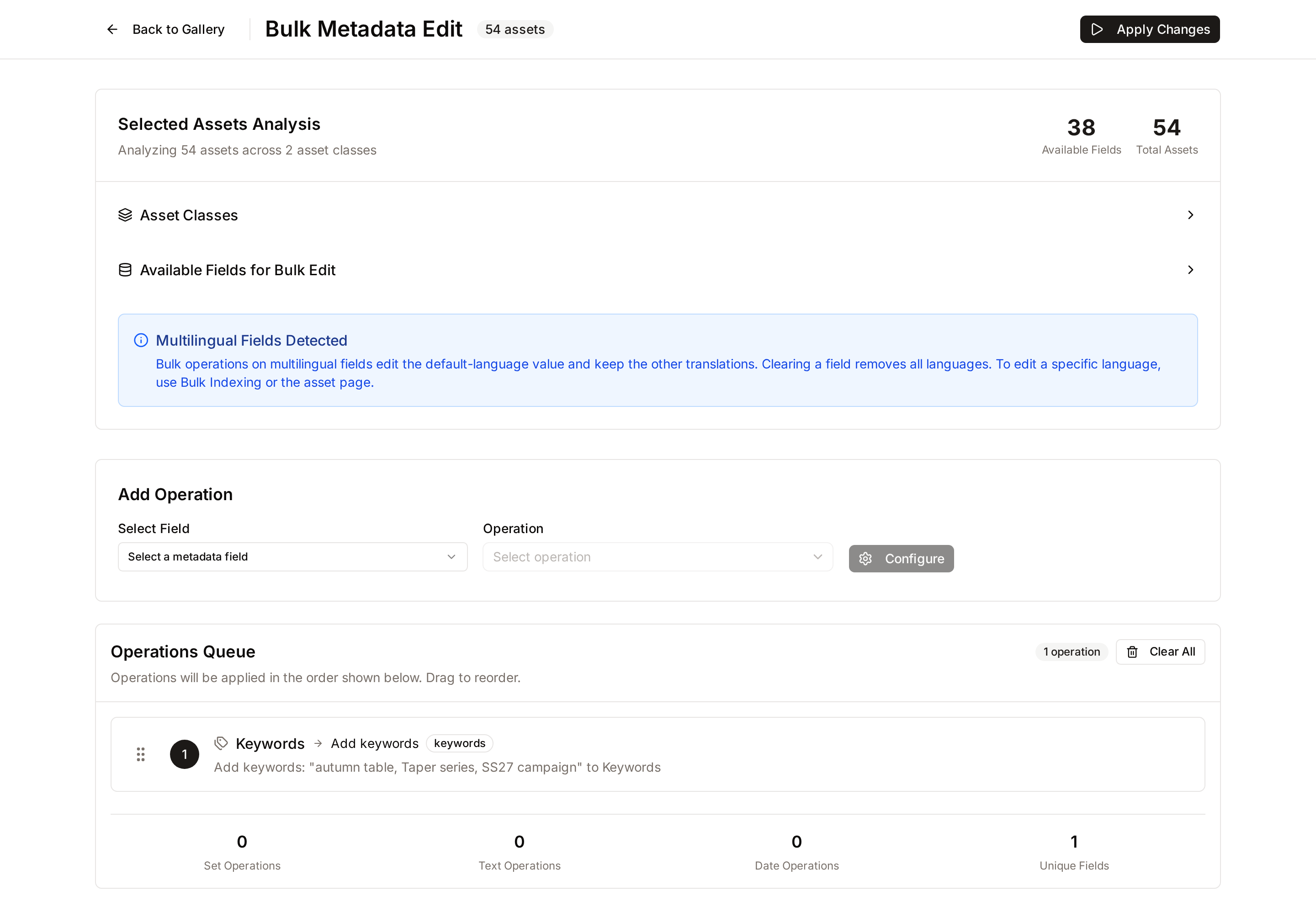
Check what you selected
The header states the selection next to the page title: the number of assets with the name of their asset class, for example "54 assets · Product Image", or with the number of classes, for example "36 assets · 2 asset classes". For a selection of several classes, a line under the header lists each class with its number of assets.
The fields you can edit are listed in Select Field, in groups:
- One asset class selected: the core fields first, then the sections of that class's form.
- Several asset classes selected: In every selected asset first, then one group per set of classes that share a field. The group label names the classes and how much of the selection they cover, for example "Product Image, Lifestyle · 24 of 36 assets".
- The core fields Title, Description, Keywords, Creator, Copyright and OCR Text are always available.
- System fields such as dimensions and file details, and fields your administrator marked read-only, are not listed.
Add operations
- Under Add Operation, choose a field in Select Field.
- Choose what to do in Operation. The list depends on the field's type.
- Enter the value in the input that appears next to the operation, then click Add Operation. Find and replace and Replace option need two inputs: click Configure, fill in the dialog, check the Operation Preview, then click Add Operation.
- The operation joins the Operations Queue.
Repeat for every change you want. You can queue up to 50 operations. Change value to... cannot be added with an empty value: use Clear field to empty a field.
| Operation | Field types | What you enter |
|---|---|---|
| Change value to... | Text, numbers, yes/no, dates, vocabularies, lists | The new value. |
| Clear field | All of the above, and keywords | Nothing. The field is emptied. |
| Find and replace | Text | Search for and Replace with. Tick Case sensitive to match capitals exactly. |
| Append text | Text | Text added at the end. |
| Prepend text | Text | Text added at the start. |
| Add days / Add months | Dates | A number. Use a negative number to go back in time. |
| Replace option | Vocabularies and lists | Find this option and Replace with. |
| Add keywords / Remove keywords | Keywords | Keywords, separated by Enter or a comma. Removal ignores capitals. |
Review the queue
Operations run in the order shown, top to bottom. Drag a row by its handle to reorder it. Hover a row to move it up or down, edit it, or remove it. Editing opens the Configure Operation dialog. Clear All empties the queue.
When the field of an operation exists in only some of the selected asset classes, the row says so, for example "24 of 36 assets. The others do not have this field and are left unchanged." The confirmation dialog shows the same count.
The order matters when several operations touch the same field. For example, Find and replace followed by Append text gives a different result from the reverse.
Apply the changes
- Click Apply Changes.
- Read Confirm Bulk Operation: the number of assets and operations, and the list of operations.
- Click Yes, Apply Changes.
Freedam takes you back to the Gallery and runs the changes in the background. Follow progress under Background tasks in the header, where the task is called Metadata Edit. See Task Center.
- Each asset is updated on its own. If an operation fails on one asset, none of the operations are applied to that asset, and it is counted as failed. Other assets are not affected.
- An operation on a field that an asset's class does not have is skipped for that asset. It is not a failure: the other operations still apply to it.
- Cancel operation in the Task Center stops the remaining assets. Assets already updated keep their changes.
- Changes cannot be undone as a batch. To revert, run the opposite operations, or restore values by hand.
Search results, automation rules and automatic workflow transitions update as they would after a manual edit.
Good to know
- Empty fields are filled. Setting a field that an asset has no value for yet creates the value, for core fields such as Creator, Copyright and OCR Text as well as custom fields.
- Multilingual fields: operations edit the text in your content language (else your interface language, else the workspace default language) and keep the other languages. The dialog names that language. Clear field removes that language only, unless you tick Clear every language. To edit another language, use the spreadsheet view or the asset page.
- Replace option swaps one list option or vocabulary term for another wherever it is selected, including in fields that hold several terms.
- Failed assets: when a change can't be applied to an asset, for example because the value doesn't fit the field (text in a number field), the asset is counted as failed with the reason, and none of the operations are applied to it.
- Fields missing from a class: in a selection of several asset classes, an operation on a field that only some classes define leaves the assets of the other classes unchanged.
- Required fields, field rules and workflow locks are not checked during a bulk edit, so a bulk edit can leave a required field empty.
Limits
| Limit | Value |
|---|---|
| Assets per bulk edit | 10,000 |
| Operations per bulk edit | 50 |
| Bulk operations running at the same time, per person | 3 |
Troubleshooting
"The selected assets have no common metadata fields that can be edited in bulk."
None of the selected assets has an editable field, usually because their asset classes have no form layout. Ask an administrator to check the asset classes.
"You have too many active bulk operations. Please wait for them to complete."
You already have 3 bulk operations running. Wait for one to finish in Background tasks, or cancel one.
"Leave with unsaved operations?"
You have queued operations that were not applied. Click Stay on Page and then Apply Changes, or Leave Anyway to discard them.
Related pages
- Gallery: selecting assets and the spreadsheet view.
- Task Center: following background operations.
- Metadata Definitions: for administrators, which fields exist and how they behave.