
Public DAM
A Public DAM (also called the Public Portal) opens your workspace's browse experience to anyone on the internet - no account required. Visitors can explore the homepage, browse the gallery and collections, read the brand guide, search, and download the renditions you allow. Your team keeps signing in as usual through the Log in button in the header, with all roles and permissions unchanged.
This is ideal for brand hubs, press kits, and partner-facing asset libraries: publish your approved logos, product imagery and guidelines once, and share a single URL instead of managing accounts for every external consumer.
What visitors can - and cannot - do
When the Public Portal is enabled, unauthenticated visitors get a strictly read-only experience:
| Visitors can | Visitors cannot |
|---|---|
| Browse the homepage, gallery and asset pages | Log in-only areas: uploads, admin, settings |
| Open public, active collections | See personal ("My Collections") or internally shared collections |
| Read the brand guide and download its files | Edit anything: metadata, comments, bookmarks, saved searches |
| Search and use gallery filters | Share, delete, or add assets to collections |
| Select assets and bulk-download allowed renditions | See version history, renderings, analytics, or review mode |
| Download the renditions your access rules allow | Download original image files, unless a rule grants it |
Personal features - bookmarks, saved searches, display preferences, comments - belong to signed-in accounts, so their buttons simply do not appear for visitors. Asset cards and list rows keep a single Download action.
Everything a visitor sees is enforced server-side: hiding a button is cosmetic, but every request is re-checked against the guest access policy, and originals stay gated by default.
Enabling the Public Portal
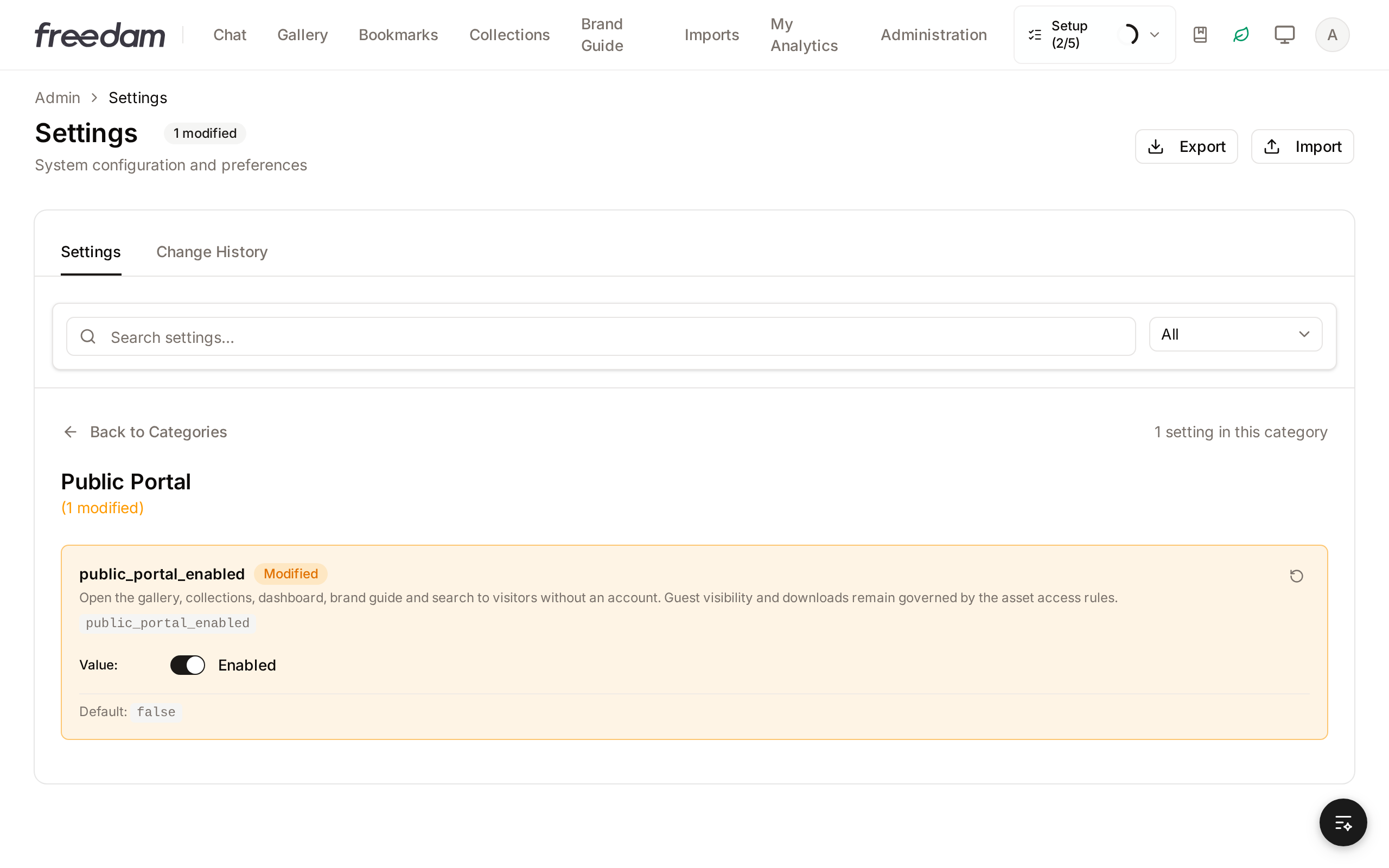
The portal ships disabled. To open it, go to Administration → Settings → Public Portal and switch Public portal enabled on. The change applies immediately - no deployment or restart needed - and you can switch it off at any time (for example during a content overhaul), which instantly returns every public surface to the login screen.
What visitors see
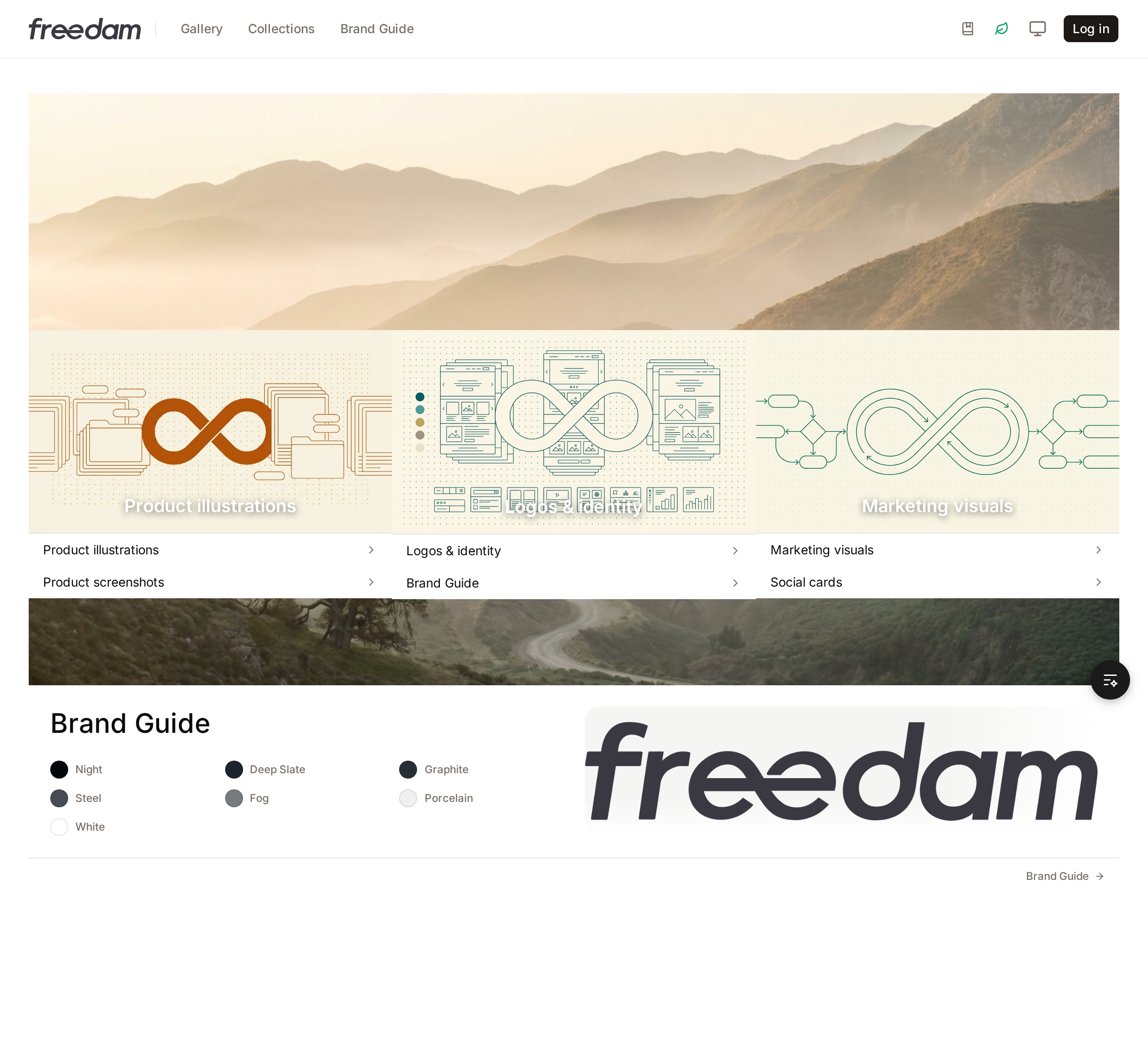
With the portal on, your workspace URL becomes a public website. Anonymous visitors land on the dashboard - your curated homepage - with a simplified navigation (Gallery, Collections, Brand Guide) and a Log in button on the right for your team.
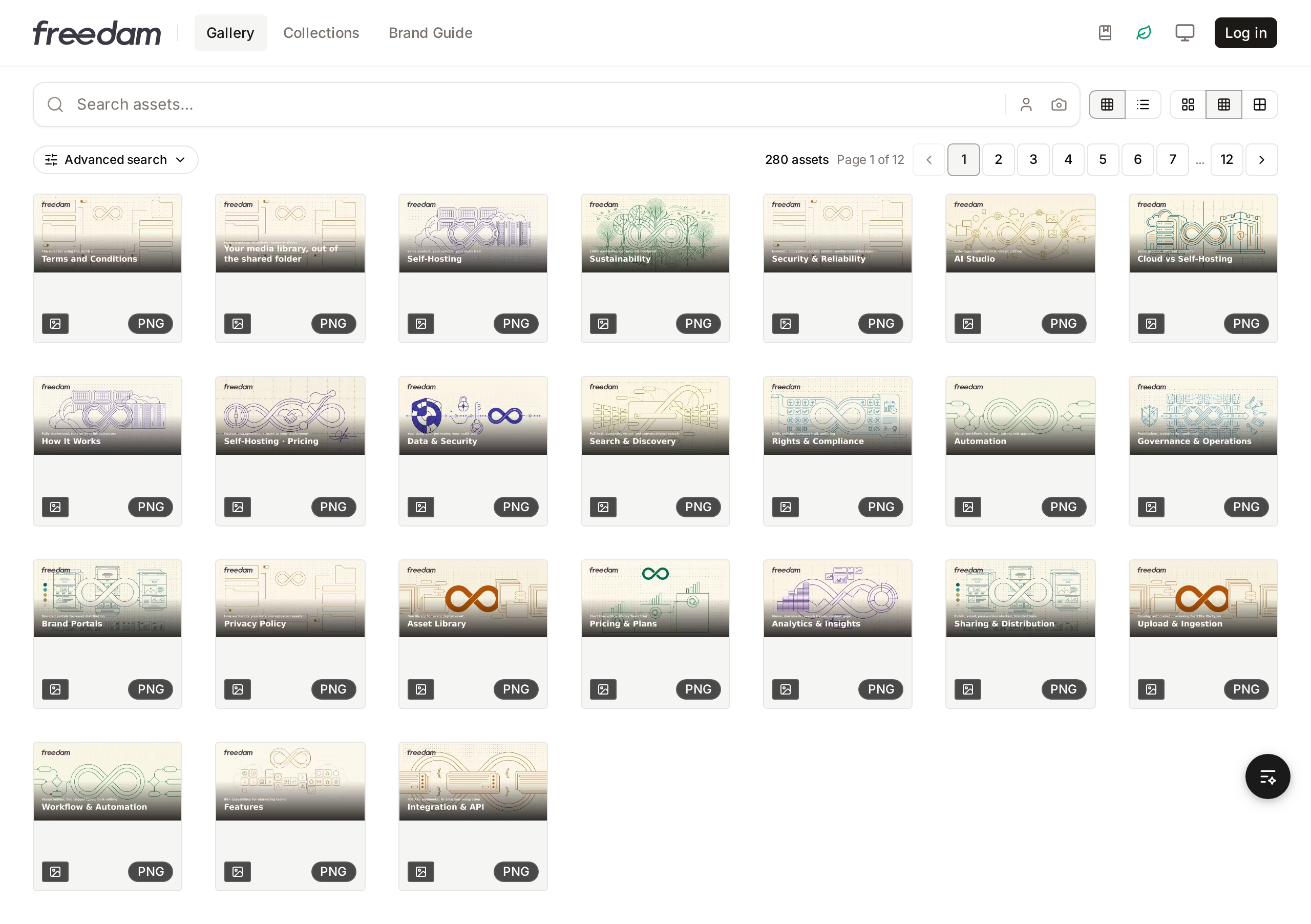
The gallery works exactly as your team knows it - search, filters, sorting, list and grid views, asset pages - minus every editing and personal affordance. Visitors never see upload buttons, bookmarks, saved searches, review mode, comments or workflow tools.
The brand guide - logos, colors, typography, usage rules and the downloadable brand kit - is fully readable by visitors, making the portal a self-service destination for anyone who needs your brand assets.

Controlling what visitors can access
Guest access is governed by the same Asset Access Rules engine you already use for your team, so there is exactly one place to reason about who sees what.
Out of the box - with no guest rule configured - visitors get a conservative built-in policy:
- Assets are visible with full-quality previews (no watermark)
- Images download as web-sized renditions only: the original image file is never downloadable
- Videos, documents, audio and other files have no web-sized rendition, so they download as the original file
- Visitors can export a selection as a ZIP archive, a PDF portfolio or a CSV of the metadata, under the same limits
- AI editing and approval workflows are unavailable
To customize, create an access rule whose user condition is "Is a guest (not signed in)". From there the full policy vocabulary applies, exactly as for signed-in audiences:
- Hide specific assets from the public (asset filters + visibility hidden)
- Watermark public previews or downloads
- Restrict or extend the allowed download resolutions - including granting originals for, say, a press-kit collection
- Require a download request for sensitive material
- Show a download intent message, with or without a required acknowledgment. Visitors are never asked to select a usage: that question is asked of signed-in users only
Because rules are evaluated in priority order, a guest rule behaves like any other: the first matching rule wins, and anything it does not cover falls through to the built-in guest policy.
Testing the visitor experience
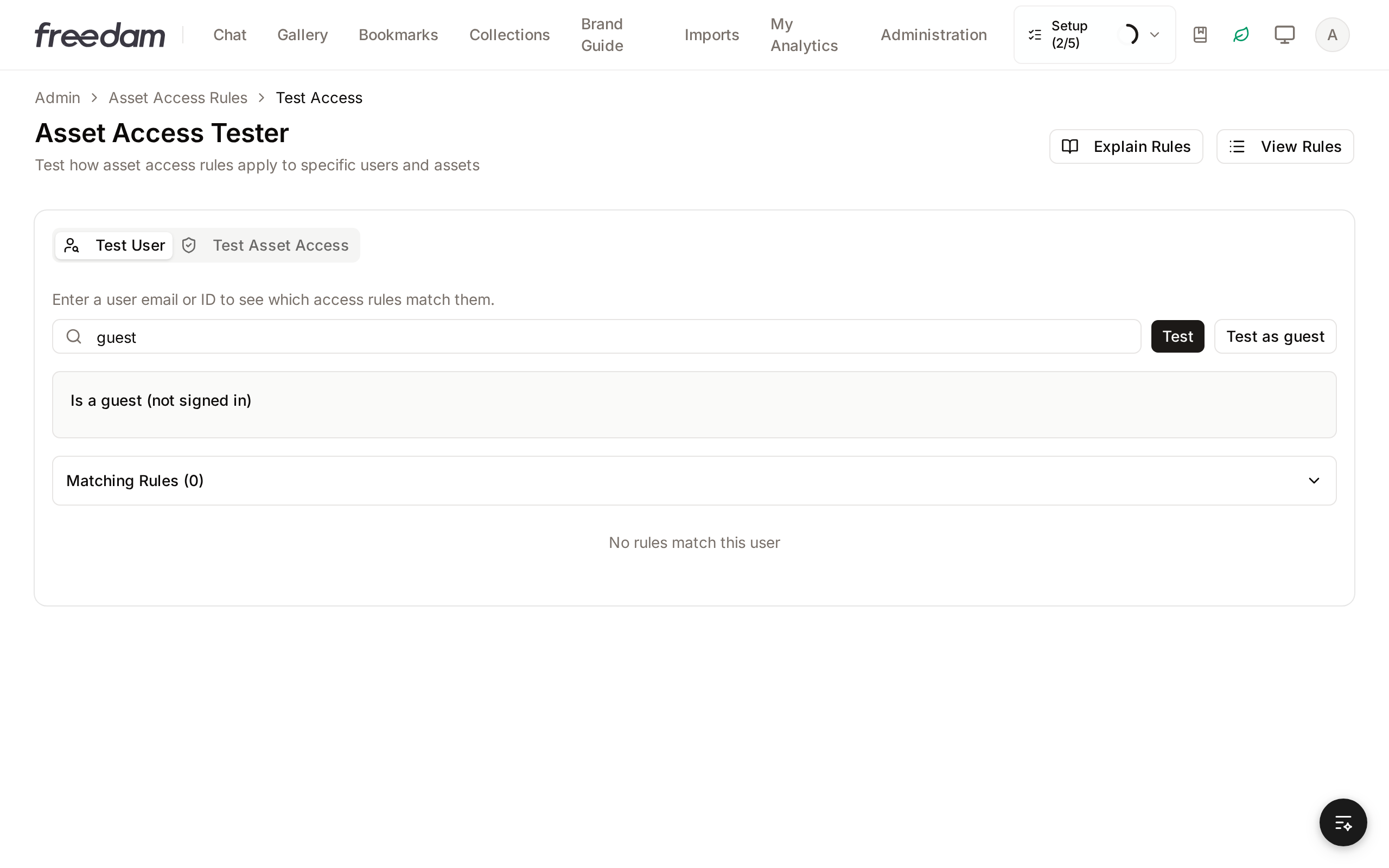
You do not need a private browser window to check what the public sees. The Asset Access Tester (Administration → Asset Access Rules → Test Access) has a Test as guest button that evaluates the rule set for an anonymous visitor - showing which rules match and the effective policy, including the built-in guest rule when nothing else applies.
Collections on a public portal
Visitors only ever see collections that are both active and public. Personal folders (My Collections), paused collections and internal shares never appear. When curating a public DAM, group your published content into a small set of public collections - they become the visitor's primary navigation.
Workflow: Set up an online press room
- Goal: Give journalists and partners one public address with your press kit (logos, approved photos, executive portraits, fact sheets), where they can download high-resolution files without asking for an account.
- Prerequisites: Permission to manage settings and asset access rules, and permission to create collections.
Steps:
- Create a collection named, for example, Press kit, add the approved files, and set the collection to public and active.
- Optionally, create one public collection per topic (Logos, Product photos, Leadership) so visitors can browse by subject.
- Go to Administration → Asset Access Rules and create a rule whose user condition is Is a guest (not signed in), with an asset filter on the press kit collection.
- In the rule's Access Policy, allow the download resolutions journalists need, including the original file for print use.
- Optionally, add a download intent message with the credit line or embargo terms, and require visitors to acknowledge it.
- Add a Featured Collections block with the press kit collections to the homepage, so visitors see them first.
- Open Test Access, click Test as guest, and check the effective policy for an asset in the press kit.
- Switch Public portal enabled on in Administration → Settings → Public Portal and send the workspace URL to your press contacts.
- Expected result: Anyone with the URL can browse the press kit and download its files at the allowed resolutions, while the rest of the library keeps the built-in guest policy: web-sized images only, or hidden if another guest rule hides it.
When you replace a photo or logo in the press kit, upload the new file as a new version of the existing asset. The public link stays the same and visitors get the current file.
Good practices
- Curate before you open. Flip the toggle only once the gallery shows what you want the world to see; use guest rules to hide anything still in progress.
- Watermark where it matters. A guest rule with watermarked previews protects imagery you want discoverable but not reusable.
- Keep originals gated unless a specific collection (e.g. a press kit) genuinely needs them - the default already does this for you.
- Remember it is really public. Search engines can index the portal, and anyone with the URL can browse it. Treat every visible asset as published.
- Use the tester after every rule change. One click shows the exact policy an anonymous visitor gets.