
Advanced Filters
Quick filters handle most day-to-day needs, but some tasks require more nuance - for example:
- Images wider than 1920 pixels, tagged "approved", added in the last 30 days.
- Videos from the spring campaign or the summer campaign, but not yet shared externally.
- PDFs with "sustainability" in the description, uploaded by the design team.
The Advanced Filters panel is a visual rule builder that lets you express any of these without writing a query.
Opening the Panel
- Click Advanced search in the controls row of the Gallery, under the search bar. A blue dot on the button means filters are active.
- The panel opens under the controls row, showing any filters already applied (these are shared with the quick filters in the search bar - both views are windows into the same set of rules).
- Click Add Filter to start. Click Add Group to create another group of filters.
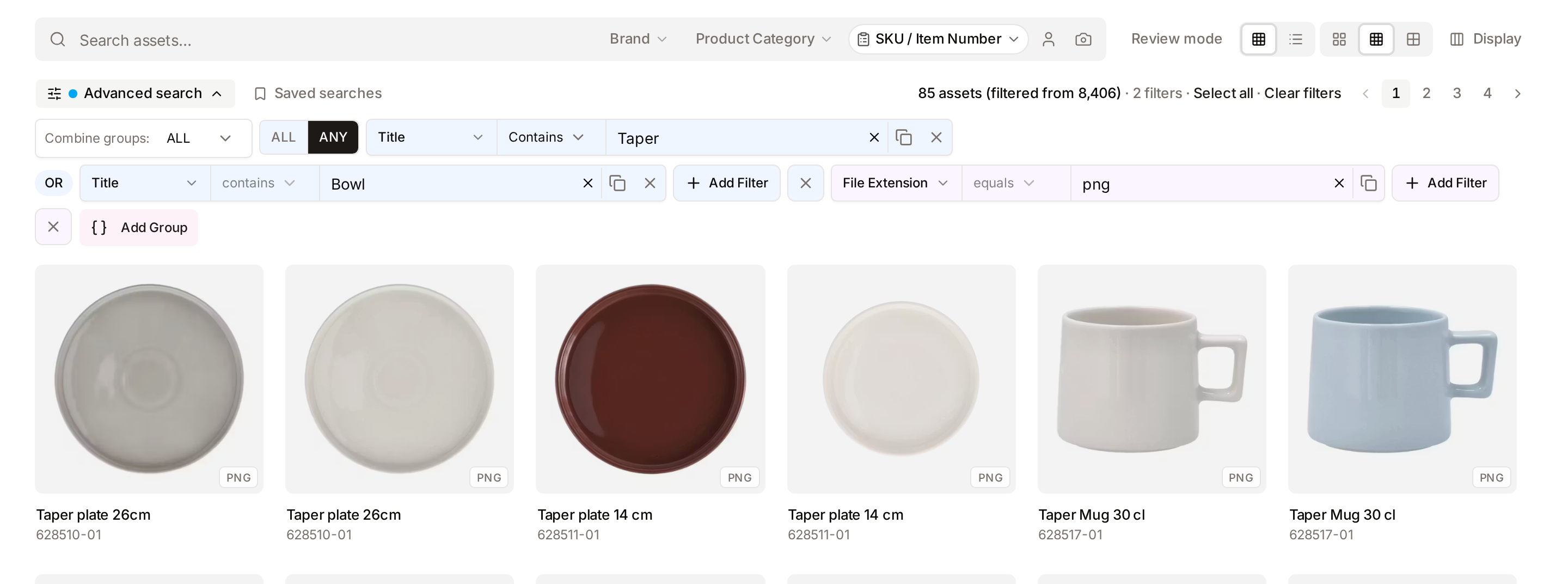
The Building Blocks
Every advanced filter is made of rules and groups.
A rule
A rule is a single condition about an asset. It has three parts:
- Field - what part of the asset to look at (for example Title, Colour, Created date, Tags, Width, Person in photo).
- Operator - how to compare (for example equals, contains, is one of, greater than, is not).
- Value - what to compare against (for example
Paris,1920,2026-01-01, or a list of tags).
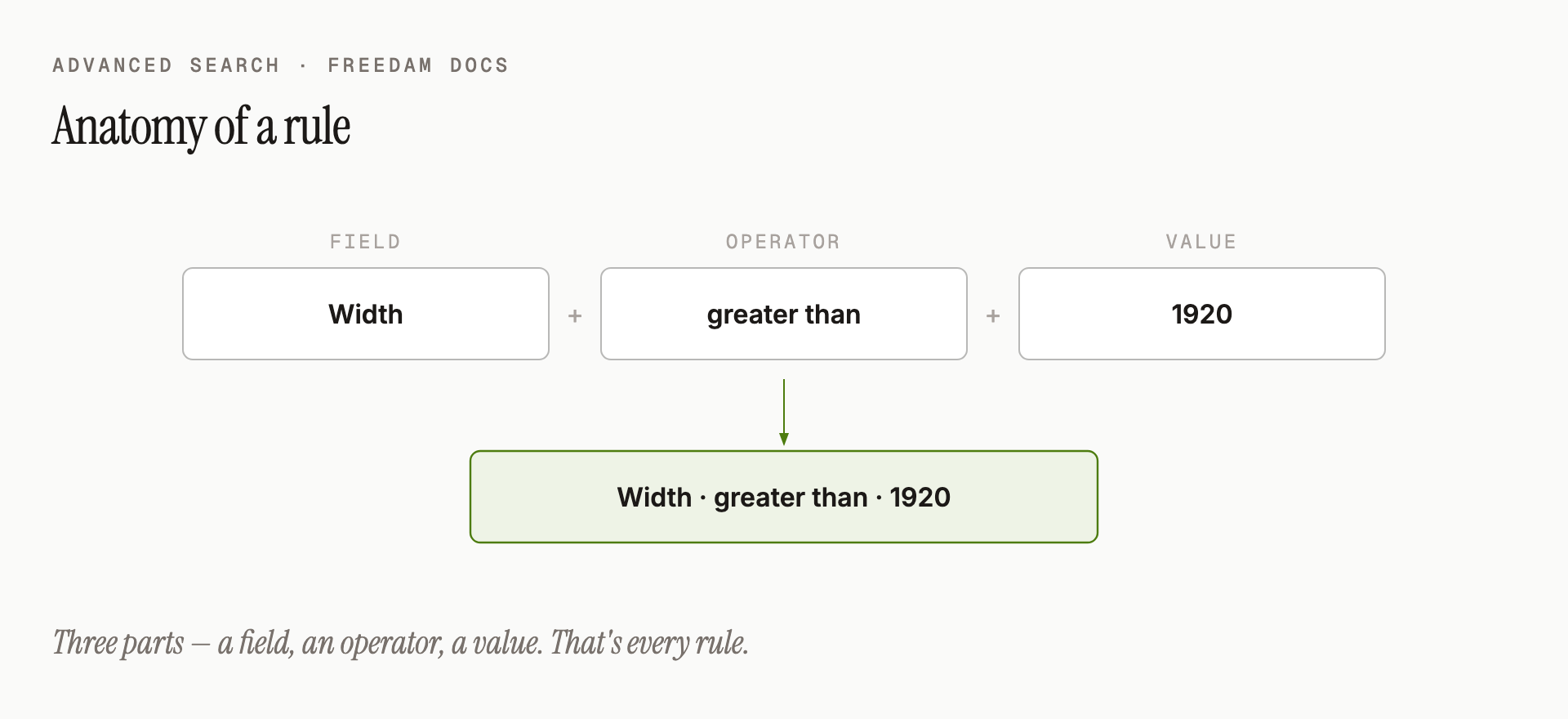
Example rule: Width · greater than · 1920.
Keywords and AI Tags hold a list, and a rule on them looks at one keyword at a time, ignoring upper and lower case: equals means the asset has that keyword, is one of means it has any of them, and contains means part of one keyword matches, so contains art finds "party" but equals art does not. An asset with no keywords matches is not, is not one of and does not contain.
A group
A group bundles several rules together and decides how they combine:
- ALL (AND) - every rule in the group must be true. "Must be wider than 1920 and tagged approved."
- ANY (OR) - any one rule in the group can be true. "Tagged spring or tagged summer."
The ALL / ANY switch appears at the start of a group once it holds two rules, and an AND or OR label sits between its rules.
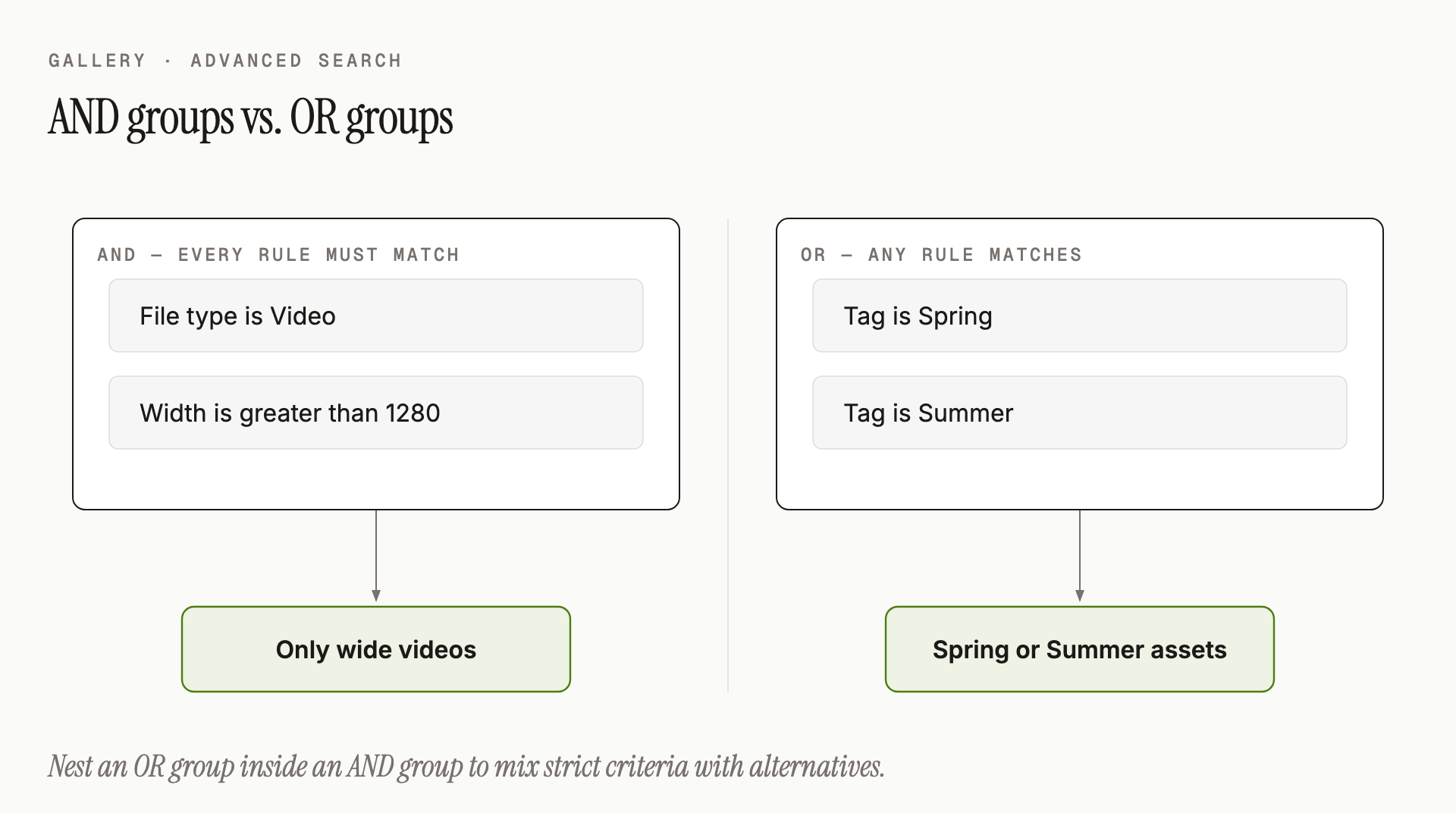
You can add several groups side by side. Once there are two, Combine groups: appears at the start of the panel, where you choose whether ALL groups or ANY group must match. This lets you build expressions like "either A-and-B, or C".
Field Categories
The field picker groups available fields into sensible categories. The exact list depends on your organisation's setup, but typically includes:
- Search - text searches including exact phrase and broad concept matching.
- People - who's in the photo (requires face detection).
- Colours - dominant foreground and background colours.
- Collections - membership in one or more collections.
- Asset properties - title, file type, dimensions, duration, resolution, and upload dates.
- Ownership - who created, last edited, or is responsible for the asset.
- Rights and usage - the licence or policy attached.
- AI analysis - tags and descriptions the system generated automatically.
- Custom metadata - any fields your organisation has defined, from campaign name to cost centre.
Step-by-Step: Build a Filter
Say you want: videos from the Product Launch collection, wider than 1280 pixels, created this year.
- Click Advanced search to open the panel.
- Click Add Filter.
- Pick Asset properties → File type, operator equals, value Video.
- Click Add Filter again.
- Pick Collections → Collection, operator is one of, value Product Launch.
- Click Add Filter again.
- Pick Asset properties → Width, operator greater than, value 1280.
- Click Add Filter again.
- Pick Asset properties → Created date, operator on or after, value 2026-01-01.
All rules of a group are combined with ALL (AND) by default, so the Gallery now shows only videos from Product Launch that are wider than 1280 and created in 2026.
Using OR Logic
To express "A or B":
- Click Add Group in the panel.
- Add two or more rules to the new group with its Add Filter button.
- Switch the group from ALL to ANY. Every rule inside is now an alternative.
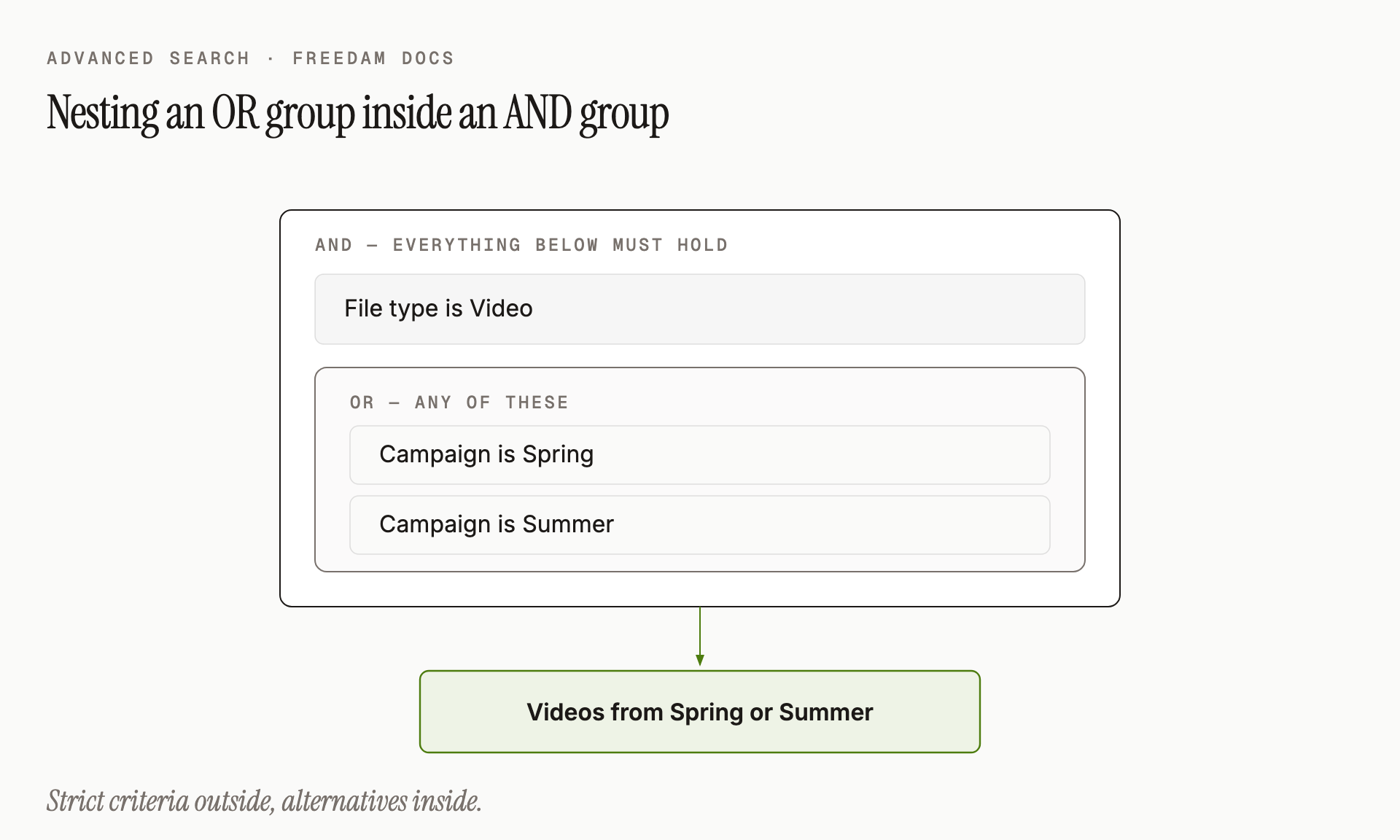
Keep Combine groups: on ALL to combine this group with strict criteria in another group - for example:
- Must be a video (AND),
- Must be from the spring or summer campaign (OR group).
The diagram Combining AND with OR above shows exactly this shape.
Common Operators
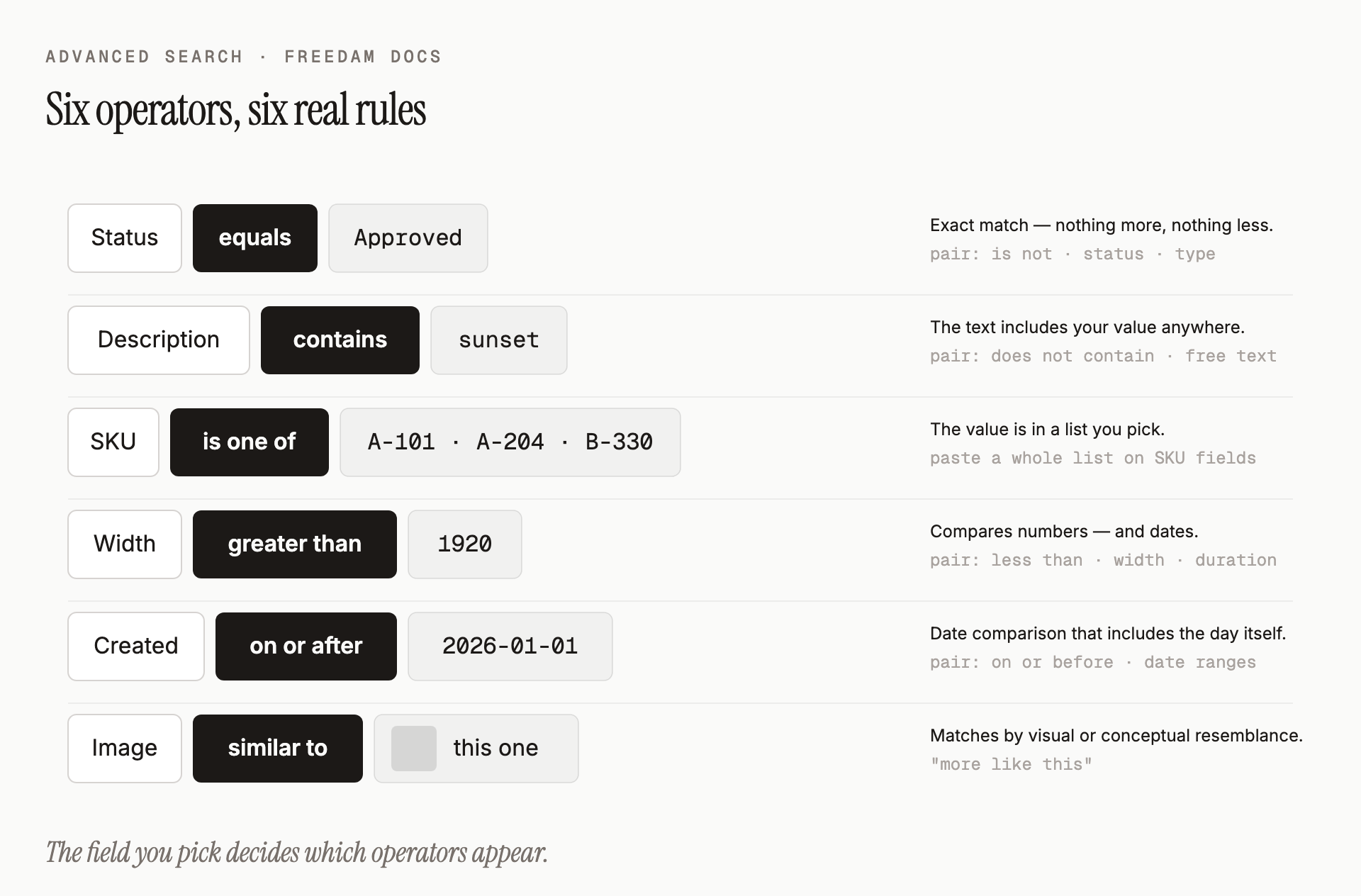
At a glance:
- equals / is not - exact match. Best for status, asset type, or any single-category field.
- contains / does not contain - the text includes your value anywhere. Best for free-text fields like descriptions. Every character is matched literally, including
%and_- a rule like Description contains 50% finds exactly the text "50%". - is one of / is not one of - the value is in a list you pick. Best for collections, tags, and people. On administrator-flagged identifier fields (SKU, product reference, supplier code), this operator switches to a paste-list mode - see Bulk Paste Search.
- greater than, less than - numerical or date comparison. Best for width, duration, upload date.
- on or after, on or before - inclusive date comparison. Best for date ranges.
- similar to - matches by visual or conceptual resemblance. Best for "more like this".
Not every operator applies to every field - the field you pick determines the operators available.
How Big Can a Filter Get?
Plenty big for real work, but not unbounded: a filter can hold up to 128 conditions and groups can be nested up to 8 levels deep. If you find yourself approaching either limit, the filter is usually trying to encode a list - the Bulk Paste Search "is one of" operator handles lists of up to 1000 values in a single rule.
Duplicate, Delete and Clear
Each rule has a button to duplicate it (Ctrl+D, or Cmd+D on a Mac, while the rule has the focus) and, when its group holds more than one rule, a button to delete it (Ctrl+Delete or Cmd+Delete). The X at the end of a group deletes the whole group. To remove every rule and start fresh, click Clear filters next to the result count in the controls row.
Saving Your Work
If you've built something you want to reuse - or share with your team - keep it with Saved Searches. Once saved, a single click restores the entire rule set.
Tips
- Think out loud before clicking. Draft your question in plain language first ("images, approved, taller than wide, from this quarter") then translate it rule-by-rule. The structure usually writes itself.
- Add one rule at a time. The Gallery updates after each change, so you see how much each rule narrows the results.
- Start with the most restrictive rule (the one that eliminates the most assets) - it's easier to loosen later than to track down why nothing is matching.
- Use ANY groups sparingly. Too many alternatives can return more than you expect. Prefer one ANY group combined with ALL the others.
Troubleshooting
The filter returns no assets even though I know some should match
- Check each rule individually: remove them one at a time to find the one that's too restrictive.
- Dates are a common source of empty results - make sure the date range covers when the asset was actually created, not when you expect.
- If you're using an ANY group, check Combine groups: - with ALL, the other groups must still match.
I see "Failed to load fields" in the panel
This usually means a temporary network hiccup. Click Retry. If the error persists, contact your administrator - a server-side configuration error may be preventing the list of available fields from loading.
My advanced filter and quick filters don't agree
They can't disagree - they are the same filter displayed in two places. If you remove something in the advanced panel, the quick filters in the search bar update, and vice versa. If they look out of sync, refresh the page to reload the shared state.