
First Steps
This page walks you through your first minutes in Freedam, from the terms screen you may see on first sign-in to finding, downloading and organising assets. Each section links to the full page on the topic.
If you have not signed in yet, start with Signing In.
Accept the terms of use
Your organisation may ask everyone to accept its terms of use before using the library. If so, the first page you see after signing in is a full-screen document headed "A few words, [your first name]".
- Read the document. The version number and an estimated reading time are shown above the text.
- Tick I have read and agree to the terms above. Your name appears as a signature, dated today.
- Click Continue. The button stays disabled until the box is ticked.
Freedam records your name, the date, and the version you accepted, then takes you to the page you were heading to.
When your organisation publishes a new version, you see the screen again the next time you use Freedam. Until you accept, you cannot open other pages. There is no decline button: if you do not want to accept, close the browser tab and contact your administrator.
Find your way around
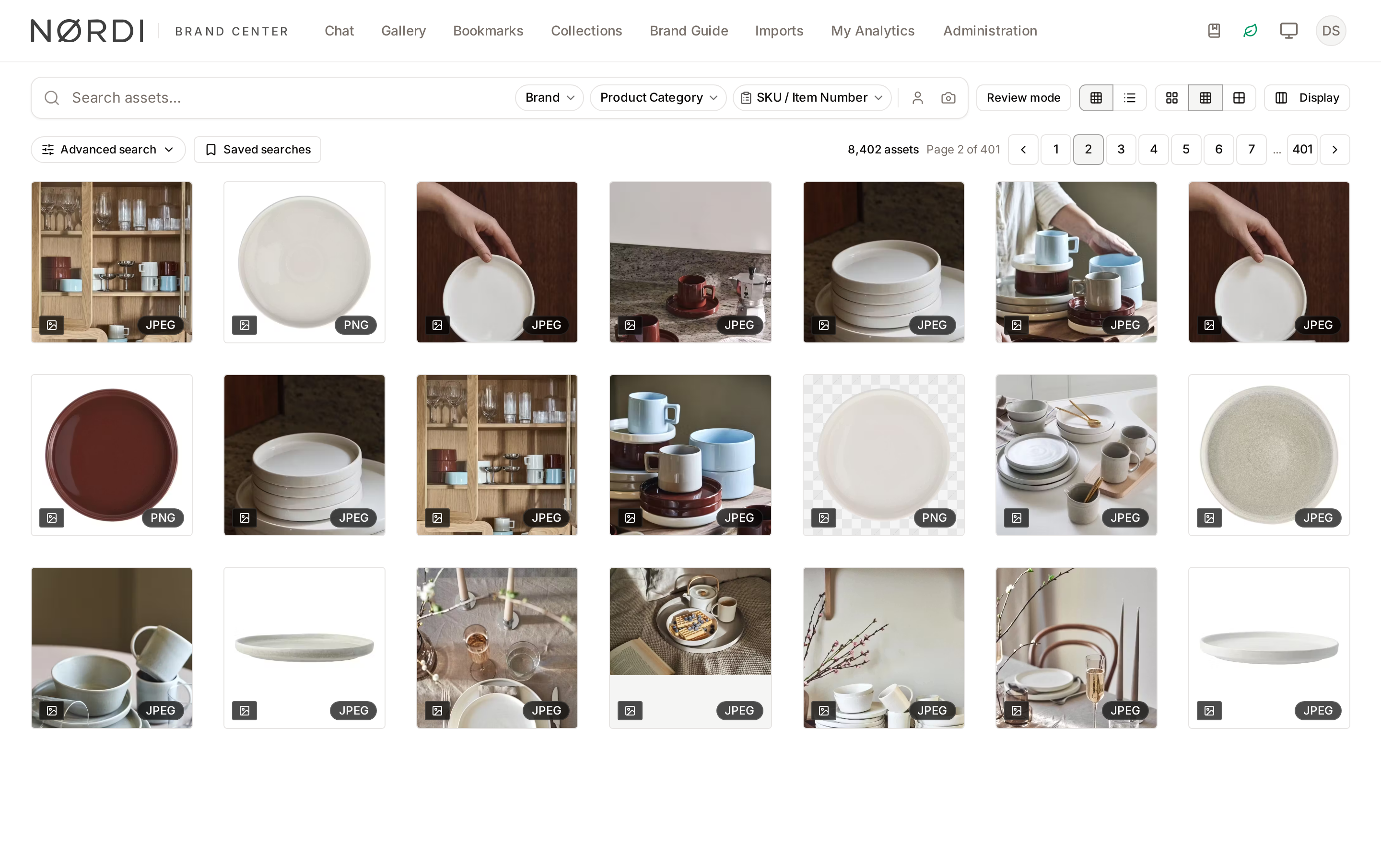
The navigation bar at the top lists the areas you have access to. Your administrator decides which ones you see, so your list may be shorter than this one.
| Area | What it is for |
|---|---|
| Chat | Ask questions about the library in plain language and get matching assets back. See AI Chat. |
| Gallery | Browse, search and filter every asset you can access. See Gallery. |
| Bookmarks | The assets you have bookmarked, for quick return visits. |
| Collections | Folders of assets curated by your team. See Collections. |
| Brand Guide | Your organisation's logos, colours and typefaces. See Brand Guide. |
| Imports | Upload files to the library and follow their processing. See Uploads. |
| My Analytics | Your own views, downloads and searches. See Analytics. |
| Administration | Only for administrators: users, metadata, rules and settings. See Admin Overview. |
The header holds shortcuts that are available on every page:
- The Docs icon opens this documentation.
- The Sustainability icon, a green leaf, opens the storage footprint of the library. See Sustainability.
- Background tasks shows exports, bulk edits and other long operations. See Task Center.
- The theme button switches between Light, Dark and System.
- Your user menu, on the right, holds Profile & Settings, Subscriptions, the Interface language and Content language pickers, and Log out. It also holds Invite Users when you are allowed to send invitations.
On a phone, the navigation bar is replaced by a menu button, and Chat and Gallery icons sit in the header.
The dashboard, your home page, is arranged by your administrators. It usually highlights featured collections, recent assets and shortcuts to common searches. See Dashboard.
Find an asset
- Open Gallery.
- Type what you are looking for in the search bar, for example
summer campaignorred chair on white background. Freedam matches both keywords and meaning, so you do not need the exact file name. - Narrow the results with the filters above the grid, such as asset type, collection or date.
- Click an asset to open its detail page, with the preview, metadata, versions and usage rights.
To come back to the same search later, save it. See Saved Searches. For more ways to search, see Searching by Meaning and Visually Similar Images.
Download an asset
- On the asset page, click Download.
- Choose a size or format. Some sizes may be unavailable depending on your access.
- If the asset has usage rights that require acknowledgement, read and accept them.
- Click the download button in the dialog.
To download several assets, select them in the Gallery and click Download in the selection bar. Several assets arrive as one ZIP file, which starts downloading straight away. See Download Dialog.
Keep track of assets
- Bookmark an asset from its detail page to find it again under Bookmarks.
- Add assets to a collection to group them for a project. Select them in the Gallery, then use Add to Collection in the selection bar. See Collections.
- Subscribe to a collection with the Subscribe button on the collection to be notified when new assets are added. See Subscription.
Upload your first files
If your role includes the Upload assets permission, open Imports and click Upload Files. Drag files or a whole folder onto the upload zone, or click it to browse, then click Start Upload. When the upload ends, Freedam opens the batch page, where you follow the processing of each file. Freedam checks each file for viruses, extracts its metadata, and creates previews. Your new assets appear in the Gallery within a few minutes. See Uploads.
Set your preferences
Open your user menu, then Profile & Settings, to:
- update your name and password,
- link a Google or Microsoft account for single sign-on,
- choose the interface language and the content language used for metadata.
See User Settings.
Get help
- Click the Docs icon in the header to open this documentation, and use its search to find a topic.
- Ask your administrator about access, missing assets, or anything specific to your organisation's setup.