
Automation Rules
Automation Rules allow administrators to streamline asset management by defining "If-This-Then-That" logic. These rules automatically process assets based on specific conditions, such as file properties or metadata values, reducing the need for manual intervention during the upload and update processes.
This feature is designed for system administrators to enforce organizational standards, such as automatically tagging assets from specific departments, notifying users when high-priority assets are uploaded, or moving assets through workflow states based on their metadata.
Page Overview
- Purpose: To centralize and manage all automated logic applied to assets within the system.
- When to use it: Use this page when you need to standardize asset metadata, automate notifications, or control asset lifecycle transitions without manual editing.
- What you can do here:
- Create new automation rules with complex conditional logic.
- Monitor rule execution status and priority.
- Activate or deactivate rules globally.
- Filter and search existing rules by trigger type or status.
- Define multi-step actions for a single trigger.
Page Layout
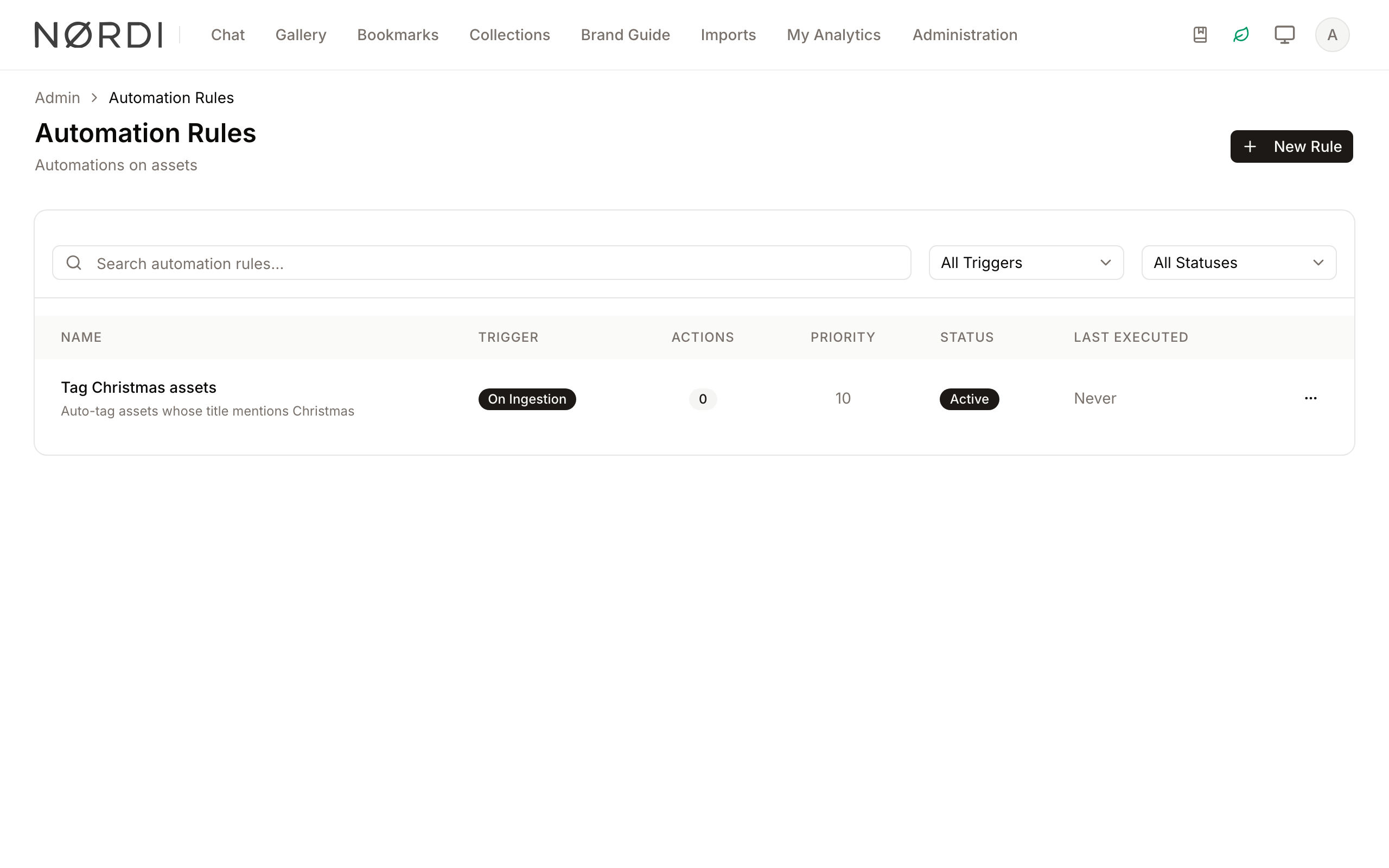
- Top bar: Displays the page title, a brief description of automation, and the New Rule button.
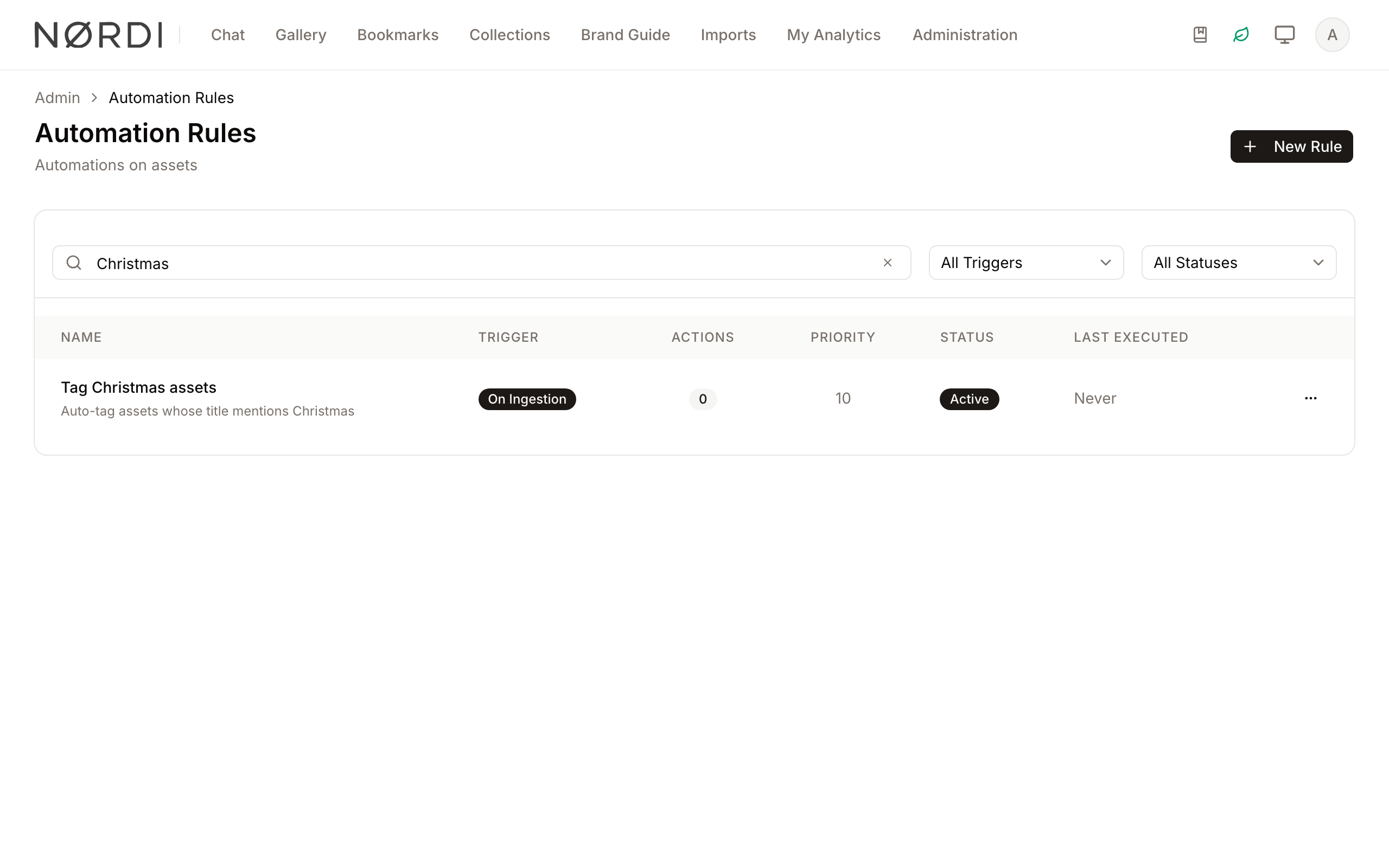
- Main area: Contains a searchable card with a data table listing all rules. Each row shows the rule name, trigger type, number of actions, priority, current status, and the date the rule last ran.
- Search and Filter bar: Located at the top of the main card, providing a search field and dropdown filters for trigger (All Triggers) and status (All Statuses).
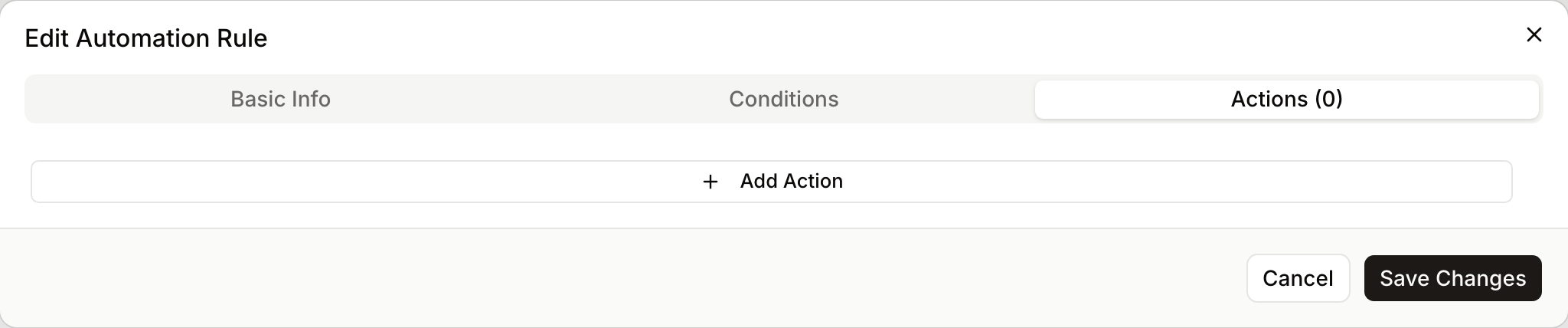
- Rule Dialog: A multi-tab popup (Basic Info, Conditions, Actions, with the number of actions shown in the tab label) used for creating and editing rule details.
Main Features
Rule Triggers
- What it's for: Defines exactly when the system evaluates the rule.
- Typical use: Set a rule to run only "On Ingestion" for new uploads, "On Update" when an existing asset is modified, or "On Both" to cover every change event.
- Result: The rule will only fire during the specified event, preventing unnecessary processing.
Conditional Logic Builder
- What it's for: Specifies the criteria an asset must meet for the actions to run.
- Typical use: Create a condition where "File Type" equals "Image" AND "Collection" is "Marketing". You can combine any number of conditions into nested "AND" / "OR" groups.
- Result: Only assets matching these specific filters will be affected by the rule. Available comparison operators include equals / does not equal, contains / does not contain, starts with, ends with, is in list / is not in list, greater than, less than (and their "or equal" variants), is empty, is not empty, and a dedicated colour-near check for visual matching.
Multi-Action Sequences
- What it's for: Allows one trigger to perform several tasks simultaneously.
- Typical use: A single rule can add a "Confidential" tag, notify the Legal group, and set a workflow status to "Review Required".
- Result: Complex workflows are completed in one automated step. Freedam currently supports five action types out of the box: Assign to Collection, Set Workflow State, Add Tags, Notify Users, and Set Metadata. Each rule must include at least one action to be valid.
Priority and Execution Control
- What it's for: Manages the order in which rules run and whether subsequent rules should be ignored.
- Typical use: Set a high-priority rule to "Stop on match" to ensure no other conflicting rules process the asset.
- Result: Predictable and controlled automation sequences. Rules with a lower priority number are evaluated first, and "Stop on match" halts evaluation of any further rules for that asset.
Detailed Feature Documentation
Rule Management Table
- Purpose: To view, organize, and access the settings for all defined automations.
- Where to find it: In the Main area of the Automation Rules page.
- What you'll see: A list of rules showing their Name, Trigger (e.g., On Both), Actions count, Priority, Status (Active/Inactive), and Last Executed (a date, or "Never").
How to use it:
- Use the Search automation rules… field to find rules by name.
- Click the All Triggers dropdown to filter by "On Ingestion", "On Update" or "On Both".
- Click the All Statuses dropdown to view only "Active" or "Inactive" rules.
- Click any row to open the edit dialog for that rule. The three-dot menu at the end of the row offers Edit, Activate or Deactivate, and Delete.
Action Configuration
- Purpose: To define what happens when a rule's conditions are met.
- Where to find it: Inside the Create/Edit Rule dialog, under the Actions tab.
- What you'll see: A list of action cards that can be toggled or deleted.
How to use it:
- Click Add Action to create a new step.
- Select an Action Type (e.g., "Add Tags", "Notify Users", "Set Metadata").
- Fill in the specific fields for that action (e.g., type tags separated by commas, or search for users to notify).
- Use the Switch on the action card to temporarily disable a specific action without deleting it.
What each action does:
- Add Tags merges the tags you list into the asset's existing keyword list (duplicates are removed automatically, and the final list is sorted alphabetically).
- Assign to Collection adds the asset to the chosen collection. If the asset is already in that collection, Freedam skips the step gracefully - no duplicates.
- Set Workflow State moves the asset to a target status in a workflow. You can map different target statuses for different workflows in one rule. If the asset has no workflow, or if the transition would be blocked by your workflow configuration, the step is skipped rather than failing the whole rule.
- Notify Users sends an in-app notification to any combination of individual users and user groups, with a custom message you provide. Group members are de-duplicated so nobody receives the same notification twice.
- Set Metadata writes to a metadata field using one of five operations: set (overwrite), clear (empty the field), append (add text to the end), prepend (add text to the start), or replace (find-and-replace, with optional case sensitivity).
Complete Workflows
Workflow: Automatically Tag and Notify for New Uploads
- Goal: Ensure all new assets in a specific collection are tagged and the relevant team is notified.
- Prerequisites: Administrative permissions and existing User Groups.
Steps:
- Click New Rule in the Top bar.
- In the Basic Info tab, enter a Name (e.g., "New Marketing Assets") and select "On Ingestion" from the Trigger dropdown.
- Switch to the Conditions tab and define the criteria (e.g., "Collection" equals "Marketing").
- Switch to the Actions tab and click Add Action.
- Select "Add Tags" and type the desired tags in the Tags field.
- Click Add Action again and select "Notify Users".
- Search for the "Marketing Team" in the User Groups field and type a custom Message.
- Click Create Rule.
- Expected result: Any new asset uploaded to the Marketing collection will automatically receive the tags and trigger a notification to the team.
Workflow: Update Metadata Based on Workflow Changes
- Goal: Automatically append text to a metadata field when an asset is updated.
- Prerequisites: Existing metadata fields configured in the system.
Steps:
- Click the More options (three dots) icon next to an existing rule and select Edit.
- Navigate to the Actions tab.
- Select "Set Metadata" as the Action Type.
- Choose the target Field (e.g., "Internal Notes").
- Select "Append text" from the Action dropdown.
- Type the text to add in the Append field.
- Click Save Changes.
- Expected result: When the rule triggers, the specified text will be added to the end of the existing metadata in that field.
Who Can Use It
Automation Rules are only available to people with the Manage automation and naming rules permission, on plans that include automation rules. The same permission controls creating, editing, activating, deactivating, and deleting rules.
How Rules Run Behind the Scenes
- On new uploads, automation rules are evaluated as the final step of the ingestion pipeline, right after collection assignment. Matching actions are applied immediately so the uploader sees the final state of the asset as soon as processing completes.
- On updates to existing assets, evaluation runs in the background a few seconds after the change is saved. This short delay batches rapid edits together (for example, when someone changes several fields in quick succession) so the rules only run once against the final state. Queued evaluations are also de-duplicated per asset, so an asset is never processed by two competing evaluations at the same time.
- Self-loops are prevented: when the automation engine itself modifies an asset (for example, by setting metadata or adding tags), those changes do not re-trigger the same rule in an endless loop.
- Every execution is logged, including which rule ran, which asset it ran against, whether the conditions matched, how long it took in milliseconds, and the result of each individual action. The Last Executed column of the main list shows the date a rule last ran.
Tips and Best Practices
- Use Priority Wisely: Lower priority numbers run first. Use this to ensure "Set Metadata" rules run before "Notify Users" rules if the notification needs to include that metadata.
- Stop on Match: Enable "Stop on match" for catch-all rules to prevent assets from being processed by multiple, potentially conflicting automations.
- Test with Inactive Rules: Create your rule in an "Inactive" state first. Review the logic before toggling the Active switch to "On".
- Descriptive Names: Use clear names like "Auto-Archive: Expired Assets" rather than "Rule 1" to make the overview table easier to manage.
Troubleshooting
Issue: Rule is not firing on new uploads
- Symptoms: Assets are uploaded but no tags are added or notifications sent.
- Cause: The trigger may be set to "On Update" only, or the rule is currently "Inactive".
- Fix:
- Open the rule and check the Basic Info tab.
- Ensure the Trigger is set to "On Ingestion" or "On Both".
- Ensure the Active switch is toggled on.
- Prevention: Always verify the Trigger type during the creation process.
Issue: Metadata "Find and Replace" is not working as expected
- Symptoms: The rule runs, but the metadata value remains unchanged.
- Cause: The "Find" string must be an exact match (case-sensitive depending on system settings) for the replacement to occur.
- Fix:
- Check the Actions tab of the rule.
- Verify the text in the Find field matches the asset's metadata exactly.
- Prevention: Use "Change value to..." instead of "Find and replace" if you want to overwrite the field regardless of its current content.